# Amazon
URL: /docs/amazon.html
To use Amazon as a social login provider, you will need an Client ID and Client Secret from your Amazon app, then copy these keys into your Purse Identity Console settings.
This docs detail steps by steps how to create a Amazon App and connect it to your Purse Identity Console account.
## Amazon data
This is the collectable data for Amazon.
### Public data
- **User ID** - A unique identifier for the user.
- **Name** - The user’s display name.
- **Email Address** - The user’s email address.
### User consent needed
- **Address information** - The user’s address.
## Login with Amazon
1. Go to [https://login.amazon.com](https://login.amazon.com), login with your account.

2. Create your developer account.

3. Select your market.

## Create your application
1. Click on Register new application.

2. Provide a Name, a Description and a Privacy Notice URL.

## Configure your app
Click on Save.
1. In **Web Settings** **Allowed Return URLs**, enter `https://YOUR_PURSE_IDENTITY_DOMAIN/login/callback` where `YOUR_PURSE_IDENTITY_DOMAIN` is your [Purse Identity domain](console.html#get-domain).
You may add staging AND production URL.

2. Save your Amazon Client ID and Secret for later.
3. Click Save.
## Configure Amazon as Provider on Purse Identity
1. On the Purse Identity Console, go to **Settings** **Providers**.
2. Click on Add provider and Choose Amazon.

3. Paste your Client ID and Secret.
4. Click on permissions and add all available.

## Guidelines
If you want to implement your own button, and not use our widget, you have to follow the [Amazon Guidelines](https://developer.amazon.com/apps-and-games/login-with-amazon).
## Scopes & Amazon Pay
You can ask mandatory scopes to use Amazon Pay on your website.
Those scopes are:
- `payments:widget`
- `payments:billing_address`
- `payments:shipping_address`
Then, you will need to retrieve the Amazon Token to display Amazon Pay iframe. To do so get the user on Purse Identity by asking the identities field.
---
# Analytics
URL: /docs/analytics.html
**Purse Identity** provides you with out-of-the-box analytics that give you deep customer insight, allowing you to see patterns and trends surrounding your customer base more easily. Our analytics compile your customer data and present them in clear, readable graphs.
[Analytics](https://console.reach5.co/login)
Page highlights
This page provides you with:
- an [overview](#analytics-overview)
- a detailed look at each [analytics page](#analytics-pages)
- tips on how to [use the analytics tools](#use-analytics-tools)
* * *
## Analytics overview
When you log in to your Purse Identity Console, your home page displays **My Dashboard** which gives you an overview for your users and the subpages for analytics which include data like login totals, user age, authentication types, and more.
> If you are still seeing the old analytics or no analytics at all, please contact your [Purse Identity contact](mailto:support@reach5.co) to enable the analytics module.

### What is displayed?

**My Dashboard** has a top row that captures high level user information such as:
##### Total Users
This displays the total number of users for your deployment across all sites.
##### Active Users (30 days)
This displays the number of unique users that were active in the last 30 days. This includes any event associated with a unique user ID across 1st party, 3rd party, and legacy clients.
Only calls to our [Identity API](https://docs.identity.purse.eu/openapi/identity.html) are counted in the **Active Users** category. Calls made from the [Management API](https://docs.identity.purse.eu/openapi/management.html) such as LITE profiles are not counted in the **Active Users** category.
> This still displays `30` days no matter the selected [timeframe](#change-the-timeframe).
>
> It also provides you with the `%` change compared to the previous 30 days.
This still displays `30` days no matter the selected [timeframe](#change-the-timeframe).
It also provides you with the `%` change compared to the previous 30 days.
##### New Users
This display the number of new users based on the selected [timeframe](#change-the-timeframe). A new user is a user that has a `signup` event associated with the unique user ID.
##### Logins
This displays the number of user logins based on the selected [timeframe](#change-the-timeframe).
> We only count explicit logins that require user actions. Because of this, users authenticating with refresh tokens are not tallied in the login count.
We only count explicit logins that require user actions. Because of this, users authenticating with refresh tokens are not tallied in the login count.
##### New users + Logins
This displays the number of new users and logins based on the selected [timeframe](#change-the-timeframe).
> We only count explicit logins that require user actions. Because of this, users authenticating with refresh tokens are not tallied in the login count.
We only count explicit logins that require user actions. Because of this, users authenticating with refresh tokens are not tallied in the login count.
### Change the timeframe
To change the range of dates (timeframe) for your data, go to the calendar picker and select your desired dates.

## Analytics pages
Currently, we have 5 analytics subpages on the Purse Identity Console:
##### Who are your users?
Displays demographic information about your users such as age, gender, etc.
##### How do they authenticate?
Displays the different methods your users are using to authenticate over time.
##### What browser do they use?
Displays your user’s browser usage when they authenticate, manage their passwords, and/or verify or update their email or phone number.
##### What Operating System do they use?
Displays your user’s device usage when they authenticate, manage their passwords, and/or verify or update their email or phone number.
##### What do your users consent to?
Displays a global view to exactly _what_ your users are consenting to.
### Who are your users?
To access this page, go to **Analytics** **Who are your users?** on your Purse Identity Console.

This page displays
Demographic information about your users such as:
1. age
2. gender
You can click on the graph directly to display the desired age range and/or gender.
### How do they authenticate?
To access this page, go to **Analytics** **How do they authenticate?** on your Purse Identity Console.

This page displays
How your users are authenticating. It includes all events except those that have an `auth_type` of `null` or `refresh`. This means that all events that require explicit authentication actions from the user including (un)successful signups, logins, as well as passwordless and MFA-related events. Users authenticating via a refresh token are not counted.
You can filter by date and method using the tools on the analytics page.

### What browser do they use?
To access this page, go to **Analytics** **What browser do they use?** on your Purse Identity Console.

This page displays
The different browsers used to connect to your application. For example, [Safari](https://www.apple.com/safari/), [Chrome](https://www.google.com/chrome/), and [Firefox](https://www.mozilla.org/firefox/). This is based off of certain events occurring within the browser:
- `login`
- `signup`
- `phone_number_verified`
- `email_verified`
- `password_reset_requested`
- `unlink`
- `email_updated`
- `phone_number_updated`
- `password_changed`
You can filter by date and timeframe using the tools on the analytics page.

### What Operating System do they use?
To access this page, go to **Analytics** **What Operating System do they use?** on your Purse Identity Console.

This page displays
The Operating Systems (OS) that your users are accessing your application with. For example, via or . This is based off of certain events occurring within the OS.
- `login`
- `signup`
- `phone_number_verified`
- `email_verified`
- `password_reset_requested`
- `unlink`
- `email_updated`
- `phone_number_updated`
- `password_changed`
You can filter by date and timeframe using the tools on the analytics page.

### What do your users consent to?
To access this page, go to **Analytics** **What do your users consent to?** on your Purse Identity Console.
This page displays
What your users are consenting to, including what consents are granted and refused over a period of time.
This is based on the [Consents](consents.html) that you have configured as part of your Purse Identity integration.

## Use analytics tools
Our analytics provide some handy tools when interacting with your customer data.
- [Share data](#sharing-data)
- [View charts or datasets](#toggle-view)

### Sharing data
One of the handy tools is the ability to annotate and share or simply export your data via `csv` or excel.
To do this:
1. Go to the analytics page that you want to share.
2. Click the slider to open the tools.
3. Click **Share**.

**Next**: [annotate and share](#annotate-share) or [export your data](#export-data).
#### Annotate & Share
1. Click **Annotate & Share**.
2. Annotate (draw directly) on the screenshot. This highlights important information.
3. Add an email in the **Send to** field.
4. Add a comment in the **Comment** field. (_optional_)
5. Don’t forget to click **Send Capture**.
_Voila! Your email recipient will have an annotated screenshot of your analytics page._

#### Export Data
1. Click **Export Data**.
2. Choose to export via **CSV files** or an **Excel file**.

### Toggle view
You can toggle between the **Chart** and **Dataset** view easily with the analytics tools.
To do this:
1. Go to the analytics page that you want to view.
2. Click the slider to open the tools.
3. Under **Display**, select _Chart_ or _Dataset_.

---
# Anonymized emails
URL: /docs/apple-anon-email.html
Apple users can choose to anonymise their email address. In order to contact those email addresses, you will need to configure your SMTP server to be able to use Apple’s private email relay service.
To be able to use Apple’s private email relay service, you’ll need to follow the instructions here:
1. First, log in to your [Apple Developer account](https://developer.apple.com/account).
2. Under Certificates, Identifiers & Profiles, click **Services**.

3. Under Services, you’ll see _Sign in with Apple for Email Communication_, click **Configure**.

4. Under Email Sources, click the add icon (circle w/plus).

5. In the dialog that pops up, **Register your email sources** by doing the following:

1. Add any **Domains and Subdomains**. _This should not include the `https://www.*` but the source domain itself only._
2. Add any applicable **Email Addresses**.
3. Click **Next**.
4. Make sure your Confirm your email sources by clicking **Register**.

## Check the status
You can check your sources are verified and ready:

- If the status is verified and ready (green) , you’re good to go.
- If the status is not ready (red) , you need to update your DNS entry linked to the domain you added and add the following SPF TXT record:
```none
IN TXT "v=spf1 ~all"
```
Read more
For more information, you can check out the following Apple links:
- [Configure private email relay service](https://developer.apple.com/help/account/configure-app-capabilities/configure-private-email-relay-service)
- [Apple’s private email relay service](https://developer.apple.com/documentation/sign_in_with_apple/sign_in_with_apple_js/communicating_using_the_private_email_relay_service)
---
# Edit your Apple app name
URL: /docs/apple-edit-service-id.html
Your Apple Service ID _name_ is what your users see when authenticating via **Sign in with Apple** like the example below.

## Prerequisites
- You must have an [Apple Developer Program membership](https://developer.apple.com/programs/) to use the **Sign In with Apple** feature.
- You must have the [App Manager](https://developer.apple.com/support/roles/#adp) role.
## Instructions
1. Log in to your [Apple Developer account](https://developer.apple.com).
2. Navigate to your [Account overview](https://developer.apple.com/account/#!/welcome) page.
3. Go to **Certificates, Identifiers & Profiles**.
> This is typically on the center of the page or in the sidebar.
4. Click **Identifiers**.
5. Select **Service IDs** from the dropdown.
> This is typically on the right above the list and the default is often **App IDs**.
6. Click your desired Identifier.
7. Edit the Description.
> This is the name that your users will see when authenticating with **Sign in with Apple**.
8. Be sure to click **Continue**.
9. Don’t forget to **Save** your input.

---
# Sign in with Apple
URL: /docs/apple.html
iOS mobile apps must display the **Sign in with Apple** option if they also use other social providers such as [Meta Connect (Facebook Login)](facebook.html), [Google Connect](google.html) or some other social login provider. For more, see the [Apple guidelines](https://developer.apple.com/app-store/review/guidelines/#4.8).
To use **Sign in with Apple** with Purse Identity, you need your Apple `App ID`, `Service ID`, and `Key`. These are found in your Apple Developer account.
> You must have an [Apple Developer Program membership](https://developer.apple.com/programs/) with the [App Manager role](https://developer.apple.com/support/roles/#adp) to use the **Sign in with Apple** feature and follow these instructions.
Best Practice
Even if it’s only mandatory to use Sign in with Apple in your iOS app, we still highly recommend pushing the **Sign in with Apple** option on your websites to offer a consistent authentication experience to your customers.
## Apple data
This is the collectable data for Sign in with Apple.
### Public data
- **User ID (`userId`)** - A unique identifier for the user.
### User consent needed
- **Email Address (`email`)** - The user’s email address, which may be a private relay email.
- **Email Verified (`emailVerified`)** - Indicates whether the user’s email is verified.
- **Private Email Indicator (`isPrivateEmail`)** - Indicates if the email is a private relay email.
Users have the option to share their real email or use Apple’s private email relay service, which provides an anonymous email address that forwards to their real email.
- **First Name (`givenName`)** - The user’s first name.
- **Last Name (`familyName`)** - The user’s last name.
## Create Apple Developer IDs
If you want to use **Sign In with Apple** using Purse Identity, you, of course, need to have an Apple app ID. The instructions here guide you on setting up the necessary IDs and keys to seamlessly integrate **Sign In with Apple** with Purse Identity.
The flow is as follows:
1. [Access Apple Developer](#access-apple-developer)
2. [Create your App ID](#create-your-app-id)
3. [Create your App Services ID](#create-your-app-services-id)
4. [Create your Private Key](#create-your-private-key)
> Though every effort is made to keep up-to-date instructions for the Apple side of things, some screenshots and steps may not reflect the latest Apple on-screen instructions. For the latest, see [Apple’s developer documentation](https://developer.apple.com/documentation/).
### Prerequisites
- You must have an [Apple Developer Program membership](https://developer.apple.com/programs/) to use the **Sign In with Apple** feature.
- You must have the [App Manager](https://developer.apple.com/support/roles/#adp) role.
### Access Apple Developer
1. Log in to your [Apple Developer account](https://developer.apple.com).
2. Navigate to your [Account overview](https://developer.apple.com/account/#!/welcome) page.
3. Go to **Certificates, Identifiers & Profiles**.
> This is typically on the center of the page or in the sidebar.

Next Step
[Create your App ID](#create-your-app-id)
### Create your App ID
1. Go to the **Identifiers** section.
2. Click the plus sign.

3. Select **App IDs** from the list and click **Continue**.

4. Under **Register a new identifier**, select the type, **App** and click **Continue**.

5. Under **Register an Apple ID**, add a _Description_ and _Bundle ID_.

1. Be sure to add the **Sign in with Apple** capability to your app by scrolling down and selecting **Sign in with Apple**.

6. To **Confirm your App ID**, click **Register**.

Next Step
[Create your App Services ID](#create-your-app-services-id)
### Create your App Services ID
You can associate as many service IDs with your app as your want. In this case, we’re going to set up **Sign In with Apple**.
1. Go to the **Identifiers** section.
2. Click the plus sign.

3. Select **Services IDs** from the list and click **Continue**.

4. Under **Register a Services ID**, add a _Description_ and the _Identifier_ you want associated with the Service ID.
> The _Description_ is what your users will see when signing in via **Sign in with Apple**. To edit this field after creation, see [Edit your Apple app name](apple-edit-service-id.html).
>
> The _Identifier_ is typically similar to the [Bundle ID](#bundle-id) you entered when creating the App ID. However, it must be different than the Bundle ID.
>
> Example
>
> ```none
> net.reach5.integ-appName (1)
> net.reach5.integ-appName.service (2)
> ```
>
> - (1) Example of Bundle ID.
> - (2) Example of Service ID.

5. Go back to the **Identifiers** section and select your newly-created Service ID.

6. Under **Edit your Services ID Configuration**, enable **Sign In with Apple** and click Configure.
- Sign In with Apple

7. In the **Web Authentication Configuration** pop-up:
1. Select your **Primary App ID** from the drop-down list.
2. Enter the **Domains and Subdomains** that will support Sign In with Apple.
```none
console.reach5.co
```
```none
console-staging.reach5.co
```
3. Enter the **Return URLs**.
Return URLs
```none
https://YOUR_PURSE_IDENTITY_DOMAIN/login/callback
```

Next Step
[Create your Private Key](#create-your-private-key)
### Create your Private Key
1. Go to **Keys**.
2. Click the plus sign.

3. Under **Register a New Key**:
1. Select **Sign In with Apple** and click **Configure**.

2. Under **Configure Key**, select your **Primary App ID** from the drop-down list and click **Save**.

4. Click **Continue** under **Register a New Key** now that you have configured **Sign in with Apple**.
5. On the next screen, click **Register** to register the key.
6. You now have a chance to download the key.
> **From Apple :** After downloading your key, it cannot be re-downloaded as the server copy is removed. If you are not prepared to download your key at this time, click Done and download it at a later time. Be sure to save a backup of your key in a secure place.
7. If you are ready, click **Download** to download your key.
> Make sure you do not lose this key as you’ll need it when you are <<[connecting Purse Identity to your Apple IDs](#connect-purse-identity-to-apple).
Next Step
[Connect Purse Identity to Apple](#connect-purse-identity-to-apple)
## Connect Purse Identity to Apple
Now that you have [set up](#create-apple-developer-ids) what you need in your Apple Developer account, you can use those values to sync Purse Identity with your Apple account, allowing you to finally leverage **Sign in with Apple**.
> The data that you collect requires user [consent](consents.html). Users can choose to mask their email address, so you will need to configure your SMTP server to be able to use Apple’s private email relay service.
>
> For more on how to do this, see [Anonymized emails](apple-anon-email.html).
### Variants
Only available for those using `7.1.0`\+ of our [iOS SDK](../sdk-ios/index.html).
You can add variants of your Sign in with Apple provider, in case you have both web and native app use cases.
You should follow the [instructions](#instructions) below on how to add a variant as there are some differences.
When do I need to add a variant?
Are you using [webviewLogin](../sdk-ios/webviewLogin.html) for all iOS authentication?
- **Yes** → You do not need to add a variant.
Using `webviewLogin` for all authentication flows, including Sign in with Apple (SiWA), requires no variant.
- **No** → You **must** create an iOS Variant
The iOS variant **must be** linked to the **Bundle ID** (different from the Service ID, which is used for `webviewLogin`).
### Instructions
You should repeat these instructions for each variant you create in the Purse Identity Console.
1. Go to **Providers**.
2. Click **Apple**.
3. Edit the default tab or add a [variant](#variants).
To create a variant, click the plus sign next to current tab in the dialog.
Create variant tab console view
When creating a variant for your native iOS app, the text `ios` must be in the name of the variant.

4. Fill in the dialog.
1. Enter your **Client ID**.
Value mapping
The Purse Identity **Client ID** maps to different IDs from Apple depending on the context.
- **Web**: Purse Identity Console `Client ID` → Services ID (reverse domain)
- **Native iOS app**: Purse Identity Console `Client ID` → Bundle ID
Note this is the **Bundle ID** of your Apple application.
2. Enter your **Team ID**.
Value mapping
Purse Identity Console `Team ID` → Prefix before domain
3. Enter your **Key ID**.
Value mapping
Purse Identity Console `Key ID` → Key ID
4. Select `name` and `email` for your **Permissions**. _These are the default public profile values for Apple._
5. Paste the private key (`.p8` extension) that you [downloaded earlier](#create-your-private-key).
6. Don’t forget to **Save** your input.

## Go further
Want to make sure your users see your App Name while authenticating or need to make an edit on the Apple side of things? Check out [Edit your Apple app name](apple-edit-service-id.html).
### Implementing your own buttons
If you want to implement your own button and not use our widget, be sure to closely follow the [Apple Guidelines](https://developer.apple.com/design/human-interface-guidelines/sign-in-with-apple/overview/).
That’s all folks!
That’s all you need to implement **Sign in with Apple** on your mobile app with Purse Identity.
---
# Archived consents and UI widgets
URL: /docs/archived-consents.html
When you archive a consent in the Purse Identity Console or using the [updateConsent](https://docs.identity.purse.eu/openapi/management.html#operation/updateConsent) API operation in the Management API, it essentially deactivates the consent, meaning that users cannot accept a consent that is archived.
> When you archive consents, be aware that this may cause issues with certain UI widgets:
>
> - [showAuth](../sdk-ui/showAuth.html)
>
> - [showProfileEditor](../sdk-ui/showProfileEditor.html)
>
## showAuth
Be sure that any consent you may define in the `signupFields` property is not archived. If the consent is archived, this causes the widget to not display as well as throwing an error like so:
```none
archived consent cannot be displayed
```
## showProfileEditor
Any consent used in the `fields` property that is archived won’t be checkable on the `showProfileEditor` widget. This means the user cannot interact with the archived consent (_unless they had previously accepted the consent_), potentially lessening the overall user experience. If the now archived consent was in fact previously accepted, the user is able to **uncheck** (_refuse_) the consent.
Archived consent with no user history/previously rejected
- Consent to receiving monthly newsletter.
Previously accepted consent
- Consent to receiving monthly newsletter.
> If a user accepted the consent while it was active, they are able to refuse the archived consent. Users can never accept archived consents.
---
# Audit logs
URL: /docs/audit-logs.html
Audit logs document changes in a system. In the case of Purse Identity, audit logs capture when certain events occur in your Purse Identity account.
Currently, you can produce audit logs for the following Action(s) below.
> All security-related (`settings-update`) updates are detected automatically.
##### clients:create
Creating a [client](clients.html).
##### clients:update
Updating a [client](clients.html).
##### clients:delete
Deleting a [client](clients.html).
##### console:login
Login on the [console](console.html).
##### ip:unban
Unbanning a specific IP address with the [`/ips/{IpAddress}/unban` endpoint](https://docs.identity.purse.eu/openapi/management.html#operation/unbanIp).
##### jobs:create
Creating an [export job](export-user-profiles.html).
##### jobs:copy
Copying an [export job](export-user-profiles.html).
##### jobs:update
Updating an [export job](export-user-profiles.html).
##### jobs:delete
Deleting an [export job](export-user-profiles.html).
##### jobs:execution
Executing an [export job](export-user-profiles.html).
##### on-demand-scaling:create
Creating an [on-demand scaling event](on-demand-scaling.html).
##### on-demand-scaling:update
Updating an [on-demand scaling event](on-demand-scaling.html).
##### on-demand-scaling:delete
Deleting an [on-demand scaling event](on-demand-scaling.html).
##### users:delete
Deleting a [user](models-user-profile.html).
##### users:get
Viewing a [user](models-user-profile.html).
##### users:search
A search is performed and a [user](models-user-profile.html) appears in search results in the Purse Identity Console.
##### users:update
Updating a [user](models-user-profile.html).
##### users:suspension
Suspending a user from the [console](console.html).
##### users:unsuspension
Unsuspending a user from the [console](console.html).
##### settings:update
Updating security settings such as [rate limits](rate-limiting.html), [SSO](sso.html), [password policy](password-management.html), [user lockouts](user-account-lockout.html), [Data Breach Detection](security/data-breach-detection.html), and/or activating (_or deactivating_) account features.
> These security-related updates are detected automatically.
These security-related updates are detected automatically.
##### settings:ignore data on passwordless signup
Turning the **Accept profile data at signup** passwordless setting on or off.
Why is this useful?
Having audit logs available allows you to track changes in your system more easily. This acts as an important security mechanism, informing you of changes in the system each time they occur automatically. If, for example, someone unexpectedly exports user profiles, you will automatically be informed via the audit logs and could potentially prevent a data breach.
## View audit logs from the console as a manager
You can view audit logs directly from the Purse Identity Console if you have a Manager or Administrator [role](roles.html).
To view audit logs:
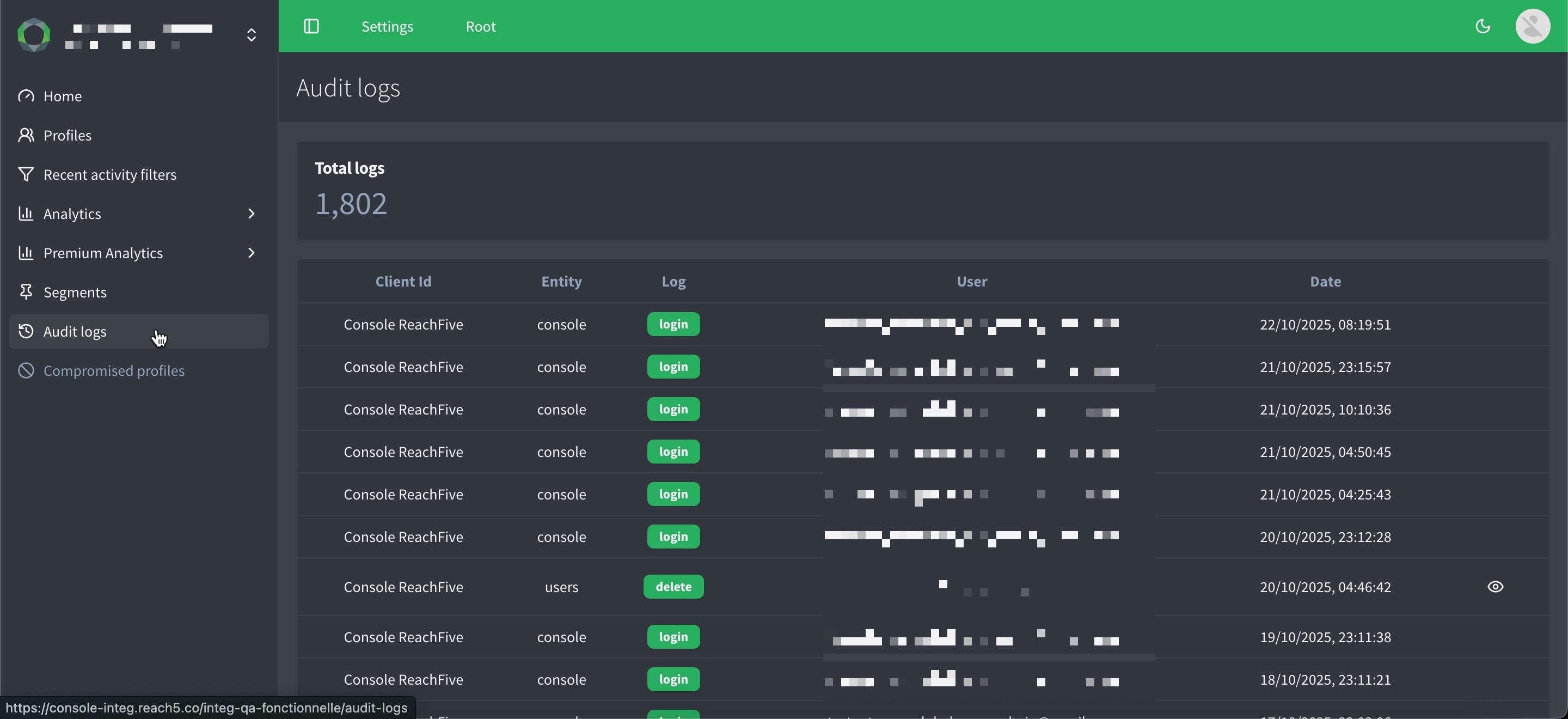
1. In your Purse Identity Console, go to **Analytics**.
2. Click **Audit logs**. Content includes the Client Id, Entity (such as Console or Login), Log, User, and Date.
## Create Pub/Sub hook from console
The Pub/Sub hook that you create in the Purse Identity Console is triggered **after** an event is generated similar to that of a typical [Post-event webhook](webhooks.html#post-event-webhooks).
> In order for an audit log to be produced for a specified event, you must first create a Pub/Sub hook in the Purse Identity Console.
### Prerequisites
- You must have access to the Purse Identity Console.
- You must have a Developer, Manager, or Administrator [role](roles.html).
- You must have the **Pub/Sub Hooks** feature enabled.
### Instructions
1. Log in to your Purse Identity Console.
2. Go to **Settings** **Pub/Sub Hooks** **Audit Logs**.
3. Select **New Pub/Sub hook** or edit  an existing Pub/Sub Hook.
4. Enable your Pub/Sub hook.
5. From the drop-down menu, choose the **Action(s)** that will trigger the Pub/Sub hook.
Action(s)
##### clients:create
Creating a [client](clients.html).
##### clients:update
Updating a [client](clients.html).
##### clients:delete
Deleting a [client](clients.html).
##### console:login
Login on the [console](console.html).
##### ip:unban
Unbanning a specific IP address with the [`/ips/{IpAddress}/unban` endpoint](https://docs.identity.purse.eu/openapi/management.html#operation/unbanIp).
##### jobs:create
Creating an [export job](export-user-profiles.html).
##### jobs:copy
Copying an [export job](export-user-profiles.html).
##### jobs:update
Updating an [export job](export-user-profiles.html).
##### jobs:delete
Deleting an [export job](export-user-profiles.html).
##### jobs:execution
Executing an [export job](export-user-profiles.html).
##### on-demand-scaling:create
Creating an [on-demand scaling event](on-demand-scaling.html).
##### on-demand-scaling:update
Updating an [on-demand scaling event](on-demand-scaling.html).
##### on-demand-scaling:delete
Deleting an [on-demand scaling event](on-demand-scaling.html).
##### users:delete
Deleting a [user](models-user-profile.html).
##### users:get
Viewing a [user](models-user-profile.html).
##### users:search
A search is performed and a [user](models-user-profile.html) appears in search results in the Purse Identity Console.
##### users:update
Updating a [user](models-user-profile.html).
##### users:suspension
Suspending a user from the [console](console.html).
##### users:unsuspension
Unsuspending a user from the [console](console.html).
##### settings:update
Updating security settings such as [rate limits](rate-limiting.html), [SSO](sso.html), [password policy](password-management.html), [user lockouts](user-account-lockout.html), [Data Breach Detection](security/data-breach-detection.html), and/or activating (_or deactivating_) account features.
> These security-related updates are detected automatically.
These security-related updates are detected automatically.
##### settings:ignore data on passwordless signup
Turning the **Accept profile data at signup** passwordless setting on or off.
6. Enter your **Project ID** for your Google Cloud account.
7. Enter the **Topic** where you want requests sent.
8. Enter the **Credentials** (in `JSON` format) needed to connect to Google Cloud.
Where do I get the credentials? 🤔
### External instructions
These instructions are current as of July 5th, 2024. Refer to [Google Cloud’s official documentation](https://cloud.google.com/docs) for the most up-to-date information.
To get your credentials in JSON format from Google Cloud:
1. Go to your [Google Cloud console](https://console.cloud.google.com/) (GCP).
2. Select your desired GCP project.
3. Go to the **API & Services** section.
1. Inside of API & Services, go to **Credentials**.
2. Inside of API & Services, go to your **Service accounts**.
3. Choose your desired Service Account (or create a new one if necessary).
4. Go to **Keys** inside your chosen Service account. This is typically a tab at the top of the page.
5. Add a new key.
1. Select the key type, choose JSON.
2. Click **Create**.
This downloads the \`.json \`file which contains your service account credentials. You can only get your JSON file when first creating the key. If you forget it or have misplaced it, you’ll need to create a new key.
4. Save this JSON file securely. You will need it for authentication in your application.
9. Don’t forget to **Save** your input.

## View Pub/Sub results
To view the Audit Logs, you should go to your [Pub/Sub](https://cloud.google.com/pubsub/docs/overview) page in your Google Cloud Platform (GCP) account.
1. Go to Topics.
2. Choose the desired **Topic ID**.
3. Click **View Messages**.
4. Select the desired **Cloud Pub/Sub subscription**.
5. Follow the on-screen instructions.
Audit log example
```none
{
"user_email": "user@gmail.com", (1)
"entity_name": "jobs", (2)
"user_name": "My user name", (3)
"action_name": "create", (4)
"account_name": "my-account", (5)
"created_at" : "2021-09-09T09:21:22.107809Z", (6)
"id": "a040230b-60...998", (7)
"ip_address": "x.x.x.x", (8)
"action_data": { (9)
"jobId": "AXvK4s..UnUYyz",
"jobType": "export"
},
"client_id": "Console Purse Identity", (10)
"user_agent": "Mozilla/5.0 (Macintosh; Intel Mac OS X 10_15_7) AppleWebKit/537.36 (KHTML, like Gecko) Chrome/93.0.4577.63 Safari/537.36" (11)
}
```
- (1) The email of the Purse Identity Console user that produced the audit log.
- (2) The name of the entity that produced the audit log.
- (3) The user name of the Purse Identity Console user that produced the audit log.
- (4) The Action name that triggered the Pub/Sub hook that produced the audit log.
- (5) `account_name` specifies the name of the Purse Identity account.
- (6) The creation date timestamp for the audit log.
- (7) The ID of the audit log.
- (8) The IP address of the Purse Identity Console user that produced the audit log.
- (9) The Action data (more information about the trigger). In this case, an export event with the Id `AXvK4s..UnUYyz`.
- (10) The client that produced the audit log.
- (11) The `user_agent` that produced the audit log.
---
# Authentication (Android)
URL: /docs/auth-android.html
## Usage
You have to use Purse Identity SDK through the `co.reachfive.android.reachFive` class.
## Initialization
```kotlin
ReachFive reachFive = ReachFive.newClient()
.withContext(context)
.withDomain(domain)
.withCallback(initCallback) // not mandatory
.init();
```
with:
- `context`: Screen context
- `domain`: [Purse Identity Domain](console.html#get-domain)
- `initCallback`: Callback method. As init is an async method, it may be a good practice to use a callback method to catch errors or continue process at the end of init. Callback method has to be a R5InitCallback instance.
The Purse Identity SDK must be initialized within the `onCreate` method on your current activity.
## ReachFive class
Logging in through a provider requires an initialized instance of the ReachFive class.
##### mReachFive
ReachFive
##### provider
String
##### activity
Activity
##### origin
String
##### loginCallback
R5LoginCallback
### Facebook Call Example
```kotlin
mReachFive.newLoginRequest()
.withOrigin(origin)
.withCallback(loginCallback)
.withProvider(R5NativeProviderEnum.FACEBOOK)
.withActivity(activity)
.execute();
```
### Google Call Example
```kotlin
mReachFive.newLoginRequest()
.withOrigin(origin)
.withCallback(loginCallback)
.withProvider(R5NativeProviderEnum.GOOGLE)
.withActivity(activity)
.execute();
```
### Login/Password authentication Example
```kotlin
mReachFive.newPasswordLoginRequest(mUserName,mPassword)
.withCallback(new R5LoginCallback() {
@Override
public void success(@NonNull R5LoginResponse response) {}
@Override
public void failure(@NonNull R5Exception error) {}
})
.execute();
```
### Login/Password Signup Example
```kotlin
mReachFive.newSignupRequest(mUserName, mPassword)
.withCallback(new R5SignUpCallback() {
@Override
public void success(@NonNull R5SignUpResponse signUpResponse, R5LoginResponse loginResponse) {}
@Override
public void failure(@NonNull R5Exception error) {}
})
.execute();
```
### Response
#### R5LoginResponse
##### accessToken
String
##### userInfo
userInfo
#### R5Exception
##### code
String
##### message
String
### Life cycle
To notify Purse Identity SDK at some steps of your activity, you must override the following methods:
- `onActivityResult`
- `onRequestPermissionsResult`
- `onStop`
```kotlin
protected void onActivityResult(int requestCode, int resultCode, Intent data) {
super.onActivityResult(requestCode, resultCode, data);
mReachFive.onActivityResult(requestCode, resultCode, data);
}
```
```kotlin
@Override
public void onRequestPermissionsResult(int requestCode, @NonNull String permissions[], @NonNull int[] grantResults) {
mReachFive.onRequestPermissionsResult(requestCode, permissions, grantResults);
}
```
```kotlin
protected void onStop() {
super.onStop();
mReachFive.onStop();
}
```
Exception codes:
- `PROVIDER_UNAVAILABLE`: The provider is not supported by the platform.
- `LOGIN_ERROR`: Error during the login process returned by the provider.
- `LOGIN_CANCELLED`: This is not an error, but rather information returned when the user decides not to continue the login process.
- `PROVIDER_TOKEN_MISSING`: The provider did not return the access token, this may be due to an error on the provider side.
- `SDK_CONFIGURATION_ERROR`: Wrong configuration on the application side or Purse Identity backend.
- `API_ERROR`: Error when calling the API. See message for more information.
- `API_TECHNICAL_ERROR`: Fail to call Purse Identity API.
---
# Authentication (iOS)
URL: /docs/auth-ios.html
## Initialization
Calls to the SDK mainly go through the ReachFive class, to start using it add the following import:
import R5SDK
Initialize the SDK by calling the ReachFive.initWith method with the following parameters:
- `domain` (required): the domain dedicated to the client, this parameter will be used by the SDK to establish calls to the APIs
- `provider` (optional): Array - allows to pass the different providers configuration (Facebook, Google, Twitter…) directly to the SDK. If this parameter is omitted then this configuration is retrieved by a call to the Purse Identity backend.
- `onInitFinishCallback`: R5InitFinishedCallback callback when initialization is complete
```swift
func application(_ application: UIApplication, didFinishLaunchingWithOptions launchOptions: [UIApplicationLaunchOptionsKey: Any]?) -> Bool {
let callback :R5InitFinishedCallback = { providers, error in
if let err = error {
NSLog(">> onLoginWithProvider callback, SIM Native SDK Init Error \n \(String(describing: err.message))");
} else {
NSLog(">> onLoginWithProvider: SDK Initialized, providers = \(String(describing: providers))");
}
}
ReachFive.initWith(domain: "YOUR_DOMAIN", clientId: "YOUR_CLIENT_ID", provider: nil, onInitFinishCallback: callback)
return true
}
func applicationDidBecomeActive(_ application: UIApplication) {
ReachFive.didBecomeActive()
}
func application(_ app: UIApplication, open url: URL, options: [UIApplicationOpenURLOptionsKey : Any] = [:]) -> Bool {
return ReachFive.application(app, open: url, sourceApplication: options[UIApplicationOpenURLOptionsKey.sourceApplication] as! String, annotation: options[UIApplicationOpenURLOptionsKey.annotation])
}
func application(_ application: UIApplication, open url: URL, sourceApplication: String?, annotation: Any) -> Bool {
return ReachFive.application(application, open: url, sourceApplication: sourceApplication, annotation: annotation)
}
```
## Login process
Before calling the login you have to define a callback to process the response:
```swift
let callback :R5LoginViewControlleCallback = { response, error in
if let userInfo = rsp.userInfo {
// handle successfull response
} else {
// handle error
}
}
```
The login process can be triggered:
- By invoking the login for a specific provider
ReachFive.shared.loginWith(provider: .r5Google, origin: "homepage", onView: self, onLoginResponse: callback)
An optional origin parameter can be specified and allows to distinguish the screen at the origin of the connection (e.g. home or basket).
- By invoking the login with a password request
ReachFive.shared.newPasswordLoginRequest(userName: email, password: password, r5loginCallback: passwordCallback)
## Signup process
Before calling the signup method, you must define a callback to process the response:
```swift
let signupCallback :R5SignupViewControlleCallback = { response, error in
if let rsp = response {
// Do something
} else {
if let err = error {
if let message = err.message {
// Display error message
}
}
}
}
```
- The signup process can be triggered:
ReachFive.shared.newSignupRequest(email: email, password: password, isAutoLogin: false, r5SignupCallback: signupCallback)
## Responses
### R5LoginResponse
##### accessToken
NSString
##### userinfo
R5UserInfo
### R5Error
##### code
NSString
##### message
R5UserInfo
## Exceptions
Here are the different error categories in the application:
### Configuration issues
These errors occur following a problem of configuration of the application or the platform.
- `FETCH_PROVIDERS_EMPTY_LIST_CODE`, `FETCH_PROVIDERS_WITHOUT_ITEMS_CODE`, `FETCH_PROVIDERS_NULL_OR_BADFORMAT_CODE`: Platform configuration error
- `FACEBOOK_NATIVE_CONNECTION_UNAVAILABLE_CODE`: Facebook SDK not available
- `GOOGLE_NATIVE_CONNECTION_UNAVAILABLE_CODE`: Google SDK not available
### Purse Identity API call issues
These errors may occur when a call to Purse Identity APIs fails. The user must be given the opportunity to try again later to reconnect.
- `FETCH_PROVIDERS_REQUEST_ERROR_CODE`: Error when calling the Webservice to recover the configuration
- `WEBSERVICE_LOGIN_REQUEST_ERROR_CODE`, `WEBSERVICE_LOGIN_REPONSE_NULL_CODE`: Error when calling the Webservice login
### Provider issues
These errors are reported by the SDK. It can come as well from the failure of network calls as from unknown errors returned by the providers, Usually, it is necessary to give the user the possibility to try again later to reconnect.
- `FACEBOOK_NATIVE_CONNECTION_ERROR_CODE`: An error occurred when connecting to Facebook
- `FACEBOOK_NATIVE_CONNECTION_EMPTY_ACCESS_TOKEN_CODE`: Access token not returned by Facebook
- `GOOGLE_NATIVE_CONNECTION_ERROR_CODE`: An error occurred when connecting to Google
- `GOOGLE_NATIVE_CONNECTION_EMPTY_ACCESS_TOKEN_CODE`: Access token not returned by Google
- `WEBVIEW_ERROR_CODE`: An error occurred when connecting to other providers
### Connection request cancelled
Information sent when the user decides not to continue his connection process.
- `FACEBOOK_NATIVE_CONNECTION_CANCELLED_CODE`: User has cancelled Facebook connection
---
# Authentication (Messenger chatbot)
URL: /docs/auth-messenger-chatbot.html
This article explains how to integrate an authentication on a messenger chatbot (account linking). You should be familiar with messenger platform.
This article focuses on authentication page integration, authorization response handling, access tokens, ID tokens and user profile data retrieval.
## Step 1: Integrate an authentication page for handling messenger account linking process.
This page will be fired when clicking on a login button event from messenger.
The user authenticates via email/password or social login. This process must be implemented using the suitable Purse Identity SDK.
Purse Identity SDKs allow different authentication flows. For the messenger account linking, you must use a messenger\_code response type.
> For security reasons, you must set the [https://facebook.com/messenger\_platform/account\_linking/](https://facebook.com/messenger_platform/account_linking/) in the Allowed Callback URLs field, within your Purse Identity Console.
Example - Purse Identity SDK for Web
```javascript
reach5('showAuth', {
container: 'auth-container',
auth: {
responseType: 'messenger_code',
// It will be provided by messenger in the URL query params when clicking on the message login button
// To set it, parse redirect_uri in the query params.
redirectUri: 'https://facebook.com/messenger_platform/account_linking/?account_linking_token=ARRBYkDqtMVAjnXxmW1q9Yb7WA5rnOsePJ-Zz2LypkM70ju9k-e0N3FaqnEt2mZMON0Azcvdd2uvdv7N3Crx4kePyh3WuHZoKMngX9AsKvbMDw'
}
});
```
Messenger requires all login redirects to use HTTPS. For example, this page should be accessible on [https://www.example.com/messenger-login](https://www.example.com/messenger-login).
## Step 2: Handle the Authorization Response
After the authentication process, Purse Identity responds to your application by redirecting the user to the messenger callback URL or the authentication page with an error in the query string.
If the authentication succeeded, then the authentication page closes and an messaging\_account\_linking event response containing an authorization code is sent. If not (e.g. when the user does not approve access to social data), the response contains an error message. The error message that is returned to your web server appears in the query string, as shown below.
An error response:
https://www.example.com/messenger-login?error=access\_denied
## Step 3: Exchange authorization code for ID token
The messenger platform sends the authorization code on a message\_account\_linking event. You should recover this event with a configured webhook endpoint. The authorization code can be exchanged for an ID token using an HTTP request to the Purse Identity token endpoint.
The string YOUR\_PURSE\_IDENTITY\_DOMAIN should be replaced with the domain of your Purse Identity account and the string YOUR\_PURSE\_IDENTITY\_CLIENT\_ID should be replaced with your client ID of your Purse Identity account.
For more information, read How-To get your Purse Identity Domain and Credentials.
POST /oauth/token HTTP/1.1
Host: https://YOUR\_PURSE\_IDENTITY\_DOMAIN
Content-Type: application/x-www-form-urlencoded
code=A8sLD49d-lPcKyUwBaSm4oThfjp4
&client\_id=YOUR\_PURSE\_IDENTITY\_CLIENT\_ID
&redirect\_uri=https://facebook.com/messenger\_platform/account\_linking/
&grant\_type=authorization\_code
```json
{
"id_token": "eyJ0eXAiOiJKV1QiLCJhbGciOiJIUzI1N...",
"access_token": "eyJ0eXAiOiJKV1QiLCJhbGciOiJIU...",
"token_type": "Bearer",
"expires_in": 3600
}
```
### Step 4: Retrieve user’s profile data from ID Token
After your application obtains an `id_token`, you can use the token to retrieve the user’s profile data by parsing it. An `id_token` is a JWT (JSON Web Token), that is, a cryptographically signed Base64-encoded JSON object. As you are communicating directly with Purse Identity over HTTPS channel, it is normally not critical that you validate your id\_token before parsing it. However most API libraries combine the validation with the work of decoding the base64 and parsing the JSON.
```javascript
var decodedToken = jwt.verify(idToken, clientSecret);
```
```json
{
"sub": "AVPw-jHcQG5c_BvJk9e_",
"given_name": "John",
"family_name": "Doe",
"email": "john.doe@example.com"
}
```
### Complete example
The following example is developed with NodeJS/Express stack, but it supposed to be simple enough to be easily transposed in another language.
```javascript
var express = require('express');
var request = require('request');
var jwt = require('jsonwebtoken');
var router = express.Router();
router.get(
'/messenger-login',
function(req, res) {
res.render('index');
}
);
router.post(
'/messenger-webhook',
function(req, res) {
/*
You must send back a status of 200(success) within 20 seconds
to let messenger know you've successfully received the callback.
Otherwise, the request will time out.
When a request times out from Facebook messenger the service attempts
to resend the message.
This is why it is good to send a response immediately so you
don't get duplicate messages in the event that a request takes
a while to process.
*/
res.sendStatus(200);
const data = req.body;
// Make sure this is a page subscription
if (data.object === 'page') {
// Iterate over each entry
// There may be multiple if batched
data.entry.forEach((pageEntry) => {
if (!pageEntry.messaging) {
return;
}
// Iterate over each messaging event
pageEntry.messaging.forEach((messagingEvent) => {
console.log({messagingEvent});
if (messagingEvent.account_linking && messagingEvent.account_linking.status === 'linked') {
// This information is available in your Purse Identity account's settings
var domain = 'YOUR_PURSE_IDENTITY_DOMAIN';
var clientId = 'YOUR_PURSE_IDENTITY_CLIENT_ID';
var clientSecret = 'YOUR_PURSE_IDENTITY_CLIENT_SECRET';
// This is the authorization code to exchange
var code = messagingEvent.account_linking.authorization_code
// This is the redirect uri corresponding to the current callback
var redirectUri = 'https://facebook.com/messenger_platform/account_linking/';
// Send an POST HTTP request using the "application/x-www-form-urlencoded"
// format to Purse Identity's token endpoint
request.post(
'https://' + domain + '/oauth/token',
{
form: {
'code': code,
'client_id': clientId,
'redirect_uri': redirectUri,
'grant_type': 'authorization_code'
}
},
function(err, response, body) {
if (!err) {
// Unexpected error
return;
}
if (response.statusCode != 200) {
// Expected error
// Those types of error can occurred when the authorization code is expired for example.
return;
}
// Success response
// Parse JSON response
var authResult = JSON.parse(body);
// Retrieve id token from response
var idToken = authResult['id_token'];
// Parse and validate ID Token
var decodedToken = jwt.verify(idToken, clientSecret);
var id = decodedToken.sub;
var givenName = decodedToken.given_name;
var familyName = decodedToken.family_name;
var email = decodedToken.email;
// Send a welcome message via messenger send API
// ...
}
);
} else {
// handle other message events
}
});
});
}
}
);
```
---
# Authentication (Single-page application)
URL: /docs/auth-spa.html
Purse Identity supports and recommends to use Authorization Code Flow with Proof Key for Code Exchange (PKCE) for all apps: native, mobile apps, and Single Page Apps.
The Purse Identity SDK facilitates the PKCE implementation by handling the generation of the code verifier and code challenge. The SDK hashes the Code Verifier using S256 as the code challenge method.
## Configure a PKCE client in the Purse Identity Console
Create an Identity client with your settings, and pay attention to the steps below which are specific to PKCE:
1. Select None under Token Endpoint Authentication Method.
2. Under Allowed Callback URLs, add your redirect URI (for example [https://www.example.com/login/callback](https://www.example.com/login/callback))
3. Select the Enforce PKCE security for authentication with the authorization code flow checkbox.
4. Make sure to whitelist all domains where the Purse Identity SDK will be used under Allowed Origins (CORS), and click Save (in this example, [https://www.example.com/](https://www.example.com/)).
## User authorization
Use the Identity SDK loginWithPassword command where redirect\_uri is the URL that Purse Identity uses to intercept the authorization code once authorization has been granted by the user:
```javascript
client.loginWithPassword({
email: 'john.doe@example.com',
password: 'N5uiKvve',
auth: {
redirectUri: 'https://www.example.com/login/callback'
}
})
```
The code is appended to the query string in the response:
https://www.example.com/login/callback?
code=2\_7XpDCeGr61qGKioLUXiXREPd-sUXpegmL4KrFe6pQn9AMqabRogSHOOkeJb27P3pmOudD6adEJAWJ6ZoX-DTrVir-DTCmY\_jmiI2S3JO2bAJ87z1ZgAkxY588jbOAkCyKxRrnOG9s9GjUbZr5KcmESmbwnzeI837Jm1oUEh8KB198bnsTmo2io5KuUOk\_cAiB-tgSeyX3T2ZSH2MeSLKAqoWmBW9O4t3iBsDl\_zVhHJJxjxa-uU\_DGsQ5G1v5FShA87mJh9LXJrnOYnk1dohjA\_\_smcc8v6NKysNIbl7f2DAuHWKUdILOfepVutxkq25fqFSnmbFC2wXtraxLbxmxZjLUAOUVzbEFXU99IGTvRvJ8kzgBx232jS17LPnrQcMjzXuzvdWjv6Q23gV2197sLsYPZSxV1hvVsobgmRT4
## Get an access token
Use the Identity SDK exchangeAuthorizationCodeWithPkce command:
```javascript
client.exchangeAuthorizationCodeWithPkce({
code: '2_7XpD...bgmRT4',
redirectUri: 'https://www.example.com/login/callback'
})
```
> The `redirectUri` must be the same as in the previous step.
The command returns an access token:
```json
{
"access_token": "tb37Sz...h3eh6q",
"id_token": "eEoQAi...yJ04ae",
"refresh_token": "djnxBN...eXbEbL",
"token_type": "Bearer",
"expires_in": 86400
}
```
You can inspect the access\_token using the [Introspection endpoint](https://docs.identity.purse.eu/openapi/management.html#operation/introspectToken).
## After user authentication
### Send ID Token to server
```js
var xhr = new XMLHttpRequest();
xhr.open('POST', 'https://YOUR_BACKEND_URL');
xhr.setRequestHeader('Content-Type', 'application/x-www-form-urlencoded');
xhr.onload = function() {console.log('Signed in as: ' + xhr.responseText);};
xhr.send('idtoken=' + idToken);
```
### Verify Token on the backend side
ID Tokens are signed using the JSON Web Token (JWT) open standard which defines a compact and self-contained way for securely transmitting information between parties.
Use a JWT library to verify your ID Token and get the payload.
Here is an example of a decoded ID Token:
```json
{
"aud": ["AtnY5xDg4fbanentihip"],
"authType": "facebook",
"birthdate": "1983-11-13",
"email": "john.doe@example.com",
"emailVerified": true,
"exp": 1512225317,
"familyName": "Doe",
"gender": "male",
"givenName": "John",
"iat": 1512138917,
"iss": "https://example.com",
"locale": "en_US",
"name": "John Doe",
"newUser": false,
"picture": "https://graph.facebook.com/10154500298019865/picture",
"profile": "https://www.facebook.com/app_scoped_user_id/10154500298019865/",
"sub": "AVqvOB58Fg6nZfQ0ZqXt",
"updatedAt": "2017-12-01T14:35:17.218Z"
}
```
See ID Token Payload. NEED MODELS
For security reasons, you must check the following elements for each decoded ID Token:
- aud: Audience. It should contain your Purse Identity Client ID.
- iss: Issuer. It should be equal to your Purse Identity Domain URL.
- exp: Expiration time. It should not be exceeded.
> Do not accept user IDs without checking them. You must use a verified ID Token to securely get the user ID.
> For a server to server integration, refer to [Authentication for Web App](auth-web.html).
---
# Authentication (Web Application)
URL: /docs/auth-web.html
This article explains how web server applications can implement the authentication process. This flow is based on [OpenID](https://openid.net/specs/openid-authentication-2_0.html) and [OAuth 2.0](https://tools.ietf.org/html/rfc6749) standards.
> Here, we focus primarily on authorization response handling, access tokens and ID tokens, as well as retrieving user profile data.
## Step 1: User authentication process
The user authenticates via traditional crdentials (_email and password_) or social login. This process must be at least partially implemented using the suitable Purse Identity SDK depending on the client platform.
Purse Identity Identity SDKs allow different authentication flows. For server-side authentication, you must use a code response type, and set your login callback URL in the `redirectUri` attribute.
> You must list all callback URLs in the `Allowed Callback URLs` field of your Purse Identity Console.
```js
reach5('showAuth', {
container: 'auth-container',
auth: {
responseType: 'code', // This is the default value when "redirectUri" attribute is set.
redirectUri: 'https://www.example.com/login/callback'
}
});
```
## Step 2: Handle the Authorization Response
After the authentication process, Purse Identity responds to your application by redirecting the user to the defined callback URL (`redirectUri`).
If authentication is successful, the response contains an authorization code. If the authorization is not successful (_e.g. when the user does not approve access to his social data_), the response contains an error message. This information appears in the query string.
An authorization code response:
```sh
https://www.example.com/login/callback?code=A8sLD49d-lPcKyUwBaSm4oThfjp4
```
An error response:
```sh
https://www.example.com/login/callback?error=access_denied
```
## Step 3: Exchange authorization code for tokens
After the web server receives the authorization code, it can exchange the authorization code for an `id_token` and `access_token` with a request to the [token exchange endpoint](https://docs.identity.purse.eu/openapi/identity.html#operation/retrieveAccessToken).
The string `YOUR_PURSE_IDENTITY_DOMAIN` should be replaced with the domain of your Purse Identity account and the string `YOUR_PURSE_IDENTITY_CLIENT_ID` should be replaced with your client ID of your Purse Identity account.
```none
POST /oauth/token HTTP/1.1
Host: https://YOUR_PURSE_IDENTITY_DOMAIN
Content-Type: application/x-www-form-urlencoded
code=A8sLD49d-lPcKyUwBaSm4oThfjp4
&client_id=YOUR_PURSE_IDENTITY_CLIENT_ID
&redirect_uri=https://www.example.com/login/callback
&grant_type=authorization_code
```
```json
{
"id_token": "eyJ0eXAiOiJKV1QiLCJhbGciOiJIUzI1N...",
"access_token": "eyJ0eXAiOiJKV1QiLCJhbGciOiJIU...",
"token_type": "Bearer",
"expires_in": 3600
}
```
> You can inspect the `access_token` using the [Introspection endpoint](https://docs.identity.purse.eu/openapi/management.html#operation/introspectToken).
## Step 4: Retrieve user profile data from ID Token
After your application obtains an `id_token`, you can use the token to retrieve the user’s profile data by parsing it. An `id_token` is a JWT (JSON Web Token), that is, a cryptographically signed Base64-encoded JSON object. As you are communicating directly with Purse Identity over HTTPS channel, it is normally not critical that you validate your `id_token` before parsing it. However, most API libraries combine the validation with the work of decoding the base64 and parsing the JSON.
```js
var decodedToken = jwt.verify(idToken, clientSecret);
```
Decoded JWT token example:
```json
{
"sub": "AVPw-jHcQG5c_BvJk9e_",
"given_name": "John",
"family_name": "Doe",
"email": "john.doe@example.com"
}
```
## Full example (NodeJS/Express)
```js
var express = require('express');
var request = require('request');
var jwt = require('jsonwebtoken');
var router = express.Router();
router.get(
'/login/callback',
function(req, res) {
if (req.query.error) {
// Authentication failed
// Redirect to login page
return;
}
var code = req.query.code; // 'code' query parameter
// Those informations are available in your Purse Identity account's settings
var domain = 'YOUR_PURSE_IDENTITY_DOMAIN';
var clientId = 'YOUR_PURSE_IDENTITY_CLIENT_ID';
var clientSecret = 'YOUR_PURSE_IDENTITY_CLIENT_SECRET';
// This is the redirect uri corresponding to the current callback
var redirectUri = 'YOUR_LOGIN_CALLBACK_URL';
// Send an POST HTTP request using the "application/x-www-form-urlencoded"
// format to Purse Identity's token endpoint
request.post(
'https://' + domain + '/oauth/token',
{
form: {
'code': code,
'client_id': clientId,
'redirect_uri': redirectUri,
'grant_type': 'authorization_code'
}
},
function(err, response, body) {
if (!err) {
// Unexpected error
return;
}
if (response.statusCode != 200) {
// Expected error
// Those types of error can occurred when the authorization code is expired for example.
return;
}
// Success response
// Parse JSON response
var authResult = JSON.parse(body);
// Retrieve id token from response
var idToken = authResult['id_token'];
// Parse and validate ID Token
var decodedToken = jwt.verify(idToken, clientSecret);
var id = decodedToken.sub;
var givenName = decodedToken.given_name;
var familyName = decodedToken.family_name;
var email = decodedToken.email;
}
);
}
);
```
---
# Connect with Azure AD
URL: /docs/azure.html
[Azure Active Directory](https://azure.microsoft.com/services/active-directory/) is a commonly used identity platform. It is easy to integrate with Azure AD using Purse Identity. To connect with Azure, you need to provide details from Azure to a Purse Identity administrator. The instructions below details this process.

## Connect to Purse Identity with Azure AD via console
To connect with Azure AD via the Purse Identity Console, follow the instructions here.
- [Prerequisites](#prerequisites)
- [Instructions](#instructions)
- [Resources](#resources)
### Prerequisites
- You must have access to the Purse Identity Console.
- You must have an [Azure account](https://portal.azure.com/).
- You must use and understand Azure Active Directory.
> In most instances, the [Purse Identity Console steps](#azure-cc-instructions) must be completed by a Purse Identity team member. In this case, reach out to [Purse Identity Support](mailto:support@reach5.co).
### Instructions
From your [Azure Portal](https://portal.azure.com/)
1. Register Purse Identity as an application[1](#resources).
2. In the **Authentication > Platform Configurations** section, create a **Web platform**.
3. In the **Web platform** settings, add the required Redirect URLs[2](#resources).
Format
```sh
https://.reach5.co//azuread-callback
```
4. Copy your Tenant ID, Client ID and Client Secret from Azure AD.
> Be sure to give this information to your Purse Identity admin contact so they can complete the following steps.
5. In the **Authentication > Implicit grant and hybrid flows** section, check the box for _ID tokens (used for implicit and hybrid flows)_.
- Access tokens (used for implicit flows)
- ID tokens (used for implicit and hybrid flows)
6. In the **API permissions** section, grant the `User.Read` permission to all stakeholders who need the permission.
Purse Identity admin from Purse Identity Console
4. Create or edit a current organization.
> Go to `[https://console.reach5.co/root/organizations](https://console.reach5.co/root/organizations)` from your Purse Identity Console and select **New Organization** or select  to edit an existing organization.
>
> If you are using the staging URL, be sure to add `-staging` after `console` in the URL as shown in the [steps](#instructions) above.
5. Add the Purse Identity accounts that are associated with your organization.
6. Choose the **Default role** for the associated accounts from the dropdown menu. _This can be a user with no rights_.
> If you choose the **User with no rights**, this prevents them from seeing any other data related to your Purse Identity account.
7. Under **Azure Active Directory**, add your Azure AD Tenant ID.
8. Enter your Azure AD Client ID.
9. Enter your Azure AD Client Secret.

Test the connection
Once the Purse Identity administrator has completed the tasks above, they will inform you that this is ready. You can then go to `[https://console.reach5.co//azuread-login](https://console.reach5.co//azuread-login)` where you are redirected to your Microsoft login. If you are using the staging URL, be sure to add `-staging` after `console` in the URL as shown in the [steps](#instructions) above.
### Resources
1. [Register App in Azure AD](https://docs.microsoft.com/fr-fr/azure/active-directory/develop/quickstart-register-app)
2. [Configure App Access in Azure AD](https://docs.microsoft.com/fr-fr/azure/active-directory/develop/quickstart-configure-app-access-web-apis)
---
# B.connect
URL: /docs/bconnect.html
To use B.connect as a social login provider, you need a `Client ID` and `Client Secret` from your B.connect app. You’ll then need to copy those keys into your Purse Identity settings. Please contact the Purse Identity team if you want to implement this social provider.
Most important
The most important thing to connect Purse Identity with your B.connect application is the callback URL needed when setting up the app on the B.connect side.
```curl
https://YOUR_PURSE_IDENTITY_DOMAIN/login/callback (1)
```
- (1) Where `YOUR_PURSE_IDENTITY_DOMAIN` is the [domain](console.html#get-domain) found in your Purse Identity Console settings.
## B.connect data
This is the collectable data for B.connect.
### Public data
- **User ID (`userId`)** - A unique identifier for the user.
### User consent needed
- **Phone Number (`phoneNumber`)** - The user’s phone number.
- **Email Address (`email`)** - The user’s email address.
- **Email Verified (`emailVerified`)** - Indicates whether the user’s email is verified.
- **Name (`name`)** - The user’s full name.
- **First Name (`givenName`)** - The user’s first name.
- **Last Name (`familyName`)** - The user’s last name.
### Provider metadata
- **CICO (`provider_metadata.bconnect.cico`)** - A UUID for tracking customer-initiated transactions, used to optimize payment processing. The `cico` scope is required to collect this data.
## Prerequisites
- You must have access to the Purse Identity Console.
- You must have a Developer, Manager, or Administrator [role](roles.html).
## Instructions
Purse Identity
1. Log in to your Purse Identity Console.
2. Go to **Settings** **Providers** and select B.connect.

3. In the pop-up window:
1. Paste your B.connect **Client ID**.
2. Paste your B.connect **Client secret**.
3. Choose the desired Permissions from the drop-down menu.
> `openid` is mandatory. The rest are optional. To retrieve the [`cico` information](models-auth-result.html#cico) in the ID token payload, you must add the `cico` scope.
4. Don’t forget to **Save** your input.

---
# Block unverified login attempts
URL: /docs/block-unverified-logins.html
> This is a legacy feature. We recommend migrating to the [Access Control](security/attribute-based-access-control.html#migrate-to-access-control) feature.
Using the enhanced security protection of our Attack Protection Policy, you can block login attempts from unverified users. Any user that attempts to log in with an email or mobile number identifier that hasn’t been confirmed is blocked.
Why is this helpful?
This feature helps to ensure that only users that have intended to sign up or register and have properly verified their correct details are allowed to log into your site. When an attempt is made and this feature is enabled, a `login_unverified_identifier` [event type](models-user-events.html) is emitted to inform you of the attempt.

Users that attempt to log in with an unverified identifier, receive a message similar to the following:
> Unverified identifier account. To login, please verify your identifier with the email or the SMS that you received.
— Error key: error.unverifiedLogin
Users that attempt to log in with an unapproved identifier, receive a message similar to the following:
> You cannot authenticate using {0}
— Error key: error.invalidLoginType
## Protect against unwanted logins
You can block login attempts from unverified users with a simple operation from your Purse Identity Console. You can also specify which identifiers are even allowed to attempt a login in the first place.
### Prerequisites
- You must have access to the Purse Identity Console.
- You must have a Developer, Manager, or Administrator [role](roles.html).
### Specify allowed identifiers
1. Go to **Settings** **Attack protection policy** **Allowed identifiers**.
2. Toggle which identifiers you want to be able to attempt to log in to your site. Those that are not enabled will no longer be able to attempt logins.
- Email
- Phone Number
- Custom identifier
3. Don’t forget to **Save** your input..

### Block unverified logins
You can block unverified logins with this feature. There are two options:
- **Forbid unverified identifiers login**: When enabled, it blocks unverified login attempts after the initial signup and login.
- **Forbid unverified identifiers login after signup**: When enabled, it blocks unverified login attempts even at signup.
> When **Forbid unverified identifiers login after signup** is enabled:
>
> - Signup endpoints do not issue tokens when identifiers are unverified:
>
> - [`/identity/v1/signup` endpoint](https://docs.identity.purse.eu/openapi/identity.html#operation/signup)
>
> - [`/identity/v1/signup-token` endpoint](https://docs.identity.purse.eu/openapi/identity.html#operation/signup)
>
> - [`/identity/v1/webauthn/signup` endpoint](https://docs.identity.purse.eu/openapi/identity.html#operation/signupWithCredentials)
>
>
> - The Core SDK [`signup` method](../sdk-core/signup.html) returns an `AuthResult` without an access token or redirect in this case.
>
> - The UI SDK [`showAuth` method](../sdk-ui/showAuth.html) displays an overridable message (`signup.awaiting.identifier.verification`) telling users to verify their identifier.
>
> - A new `isIdentifierVerificationRequired` field is included in the `signupEvent` callback to simplify flow handling.
>
>
1. Go to **Settings** **Security** **Attack protection policy**.
2. Enable the **Forbid unverified identifiers login** option by toggling the slider to green.
3. If desired, you can also enable the **Forbid unverified identifiers login after signup** option by toggling the slider to green.
4. Don’t forget to **Save** your input.

---
# Clients
URL: /docs/clients.html
Purse Identity is based on [OAuth 2.0](https://tools.ietf.org/html/rfc6749) and [OpenID](https://openid.net/specs/openid-authentication-2_0.html) protocols. These protocols rely on clients and their credentials to operate. Clients must have both a client ID and a client secret.
> See the [Glossary](#glossary) below for help with understanding the terms a bit more.
Purse Identity provides both an [Identity API](https://docs.identity.purse.eu/openapi/identity.html) and [Management API](https://docs.identity.purse.eu/openapi/management.html) for authenticating and managing users.
We recommend that you create new clients for every use case such as for a desktop application or mobile application.
* * *
## Client types
There are three client types that you should understand when using your Purse Identity solution:
- [First-party identity clients](#first-party-identity-clients)
- [Third-party identity clients](#third-party-identity-clients)
- [Management clients](#management-clients)
### First-party identity clients
First-party identity clients are owned and controlled by the same organisation who owns the Purse Identity domain. This is typically your own application for your company.
> You can disable the ROPC flow directly from the Purse Identity Console so that the `grant_type` of `password` is unable to be used on First-party Identity clients. We offer this ability to disable the flow, because we do not recommend this flow especially for public clients.
### Third-party identity clients
Third-party identity clients are owned and controlled by an organisation other than your own and that should _not_ have admin access to your Purse Identity domain. Third-party applications allow external parties to access protected resources from their API.
Third-party integration
You integrate with the fictional social media platform, ChatAway. In this case, your application is the third party application using the ChatAway API to retrieve user information.
> Third-party applications must get user consent when consuming third party APIs. The consent that you are requesting is defined in the **scopes** section of your Third-party identity client. See [Set up a client](#set-up-a-client) for help with that.
### Management clients
Management clients manage users. With the management client, you are not directly authenticating users, but instead managing users by doing things such as:
- Searching users
- Updating users
- Suspending user accounts
- Sending verification emails
> For a complete picture on how you can manager users, see the [Management API](https://docs.identity.purse.eu/openapi/management.html).
## Set up a client
Setting up a client follows generally the same process whether it’s for a first-party, third-party, or management client. This is done via your Purse Identity Console. The instructions here cover each type of client setup.
### Prerequisites
- You must have access to your Purse Identity Console.
- You must have a Developer, Manager, or Administrator [role](roles.html).
### Instructions
Get to clients
1. Go to **Settings** **Clients**.
2. Select **New client**.
3. Give the client a name and select the Client type from the dropdown menu. Don’t forget to **Save** your input.
Jump to your client
- [First-party identity](#configure-client-first)
- [Third-party identity](#configure-client-third)
- [Management client](#configure-client-management)
Configure the First-party Identity client
4. Set your desired [scopes](scope.html) by selecting them from the dropdown menu.
Scope list
##### address
Accesses geographical information (_postal address, region, geolocation, etc._).
##### email
Accesses email information (_email addresses and their verification statuses_).
##### events
Allows access to user events.
> See [User events](models-user-events.html) for a list of user events.
See [User events](models-user-events.html) for a list of user events.
##### full\_write
Allows the privilege to update _anything_ on the user’s profile.
##### mfa
Allows access to [Multi-factor Authentication (MFA) endpoints](https://docs.identity.purse.eu/openapi/identity.html#tag/MFA).
> See [here](mfa.html) for more details on Multi-factor Authentication.
See [here](mfa.html) for more details on Multi-factor Authentication.
##### offline\_access
Allows right to request refresh tokens.
##### openid
Used to ask for an ID token. If no ID token exists, this is not returned.
##### phone
Access to phone information (_phone numbers and their verification statuses)_.
##### profile
Accesses user’s personal information (_gender, age, profile picture, etc._).
> See [User profiles](models-user-profile.html) for a list of user profile information.
See [User profiles](models-user-profile.html) for a list of user profile information.
##### session
Allows listing and revoking the authenticated user’s session devices.
> See [Session device management](session-management/session-devices.html) for more details.
See [Session device management](session-management/session-devices.html) for more details.
> Both default and custom scopes are available from the menu.
5. Choose the Token Endpoint Authentication Method.
> The options are Post, Basic, or None. Post is the default and recommended choice.
6. Specify the Allowed Origins (CORS). These are the origin URLs allowed to access and use the Purse Identity SDK.
7. Specify the Allowed Callback URLs. These are the URLs where the user is taken after authentication.
8. Specify the Token lifetime (in seconds).
9. If desired, set the configuration for the implicit flow, PKCE, ROPC flow, and refresh tokens.
- You can disable the ROPC flow directly from the Purse Identity Console so that the `grant_type` of `password` is unable to be used on First-party Identity clients.
- Simply click the checkbox next to **Disable ROPC Flow**.

_We offer this ability to disable the flow, because we do not recommend this flow especially for public clients._
- For more on refresh tokens, see [here](refresh-tokens.html#enable-refresh-tokens-via-the-console).
10. Choose the JWT Algorithm. HS256 is the default option.
11. Specify the Login URL. Users whose authentication failed are sent to this URL.
Orchestration token option
1. Enable the **Attach orchestration token** option. _This token is detected by the web SDKs and is automatically included in authentication flows._

> For more, see the dedicated [orchestration token page](orchestration-token.html).
12. If you’re using our [Trusted providers](trusted-providers.html) feature, enable **Allow token exchange from trusted external provider**.
13. If needed, check the box for **Include SSO cookie in token endpoint response**.
When is this needed? 🤔
This is useful for flows where custom tabs are required or where using Webviews to manage session cookies isn’t possible.
It also ensures the SSO session cookie is included as part of the [Retrieve access token](https://docs.identity.purse.eu/openapi/identity.html#operation/retrieveAccessToken) endpoint.
You can also use it if you want the `__Host-trusted-device-id` cookie in the response for the [`/oauth/token` endpoint](https://docs.identity.purse.eu/openapi/identity.html#operation/retrieveAccessToken). However, this is only applicable if [Risk-based Authentication](rba.html) is enabled for the account.
14. For new clients, ensure that you check the **Enforce scope** box.
Configure the Third-party Identity client
4. Select the logo that will be displayed in the consent page.
5. Set the Website URL. This is where users will go if they click the logo.
6. Set your desired [scopes](scope.html) by selecting them from the dropdown menu.
Scope list
##### address
Accesses geographical information (_postal address, region, geolocation, etc._).
##### email
Accesses email information (_email addresses and their verification statuses_).
##### events
Allows access to user events.
> See [User events](models-user-events.html) for a list of user events.
See [User events](models-user-events.html) for a list of user events.
##### full\_write
Allows the privilege to update _anything_ on the user’s profile.
##### mfa
Allows access to [Multi-factor Authentication (MFA) endpoints](https://docs.identity.purse.eu/openapi/identity.html#tag/MFA).
> See [here](mfa.html) for more details on Multi-factor Authentication.
See [here](mfa.html) for more details on Multi-factor Authentication.
##### offline\_access
Allows right to request refresh tokens.
##### openid
Used to ask for an ID token. If no ID token exists, this is not returned.
##### phone
Access to phone information (_phone numbers and their verification statuses)_.
##### profile
Accesses user’s personal information (_gender, age, profile picture, etc._).
> See [User profiles](models-user-profile.html) for a list of user profile information.
See [User profiles](models-user-profile.html) for a list of user profile information.
##### session
Allows listing and revoking the authenticated user’s session devices.
> See [Session device management](session-management/session-devices.html) for more details.
See [Session device management](session-management/session-devices.html) for more details.
> Both default and custom scopes are available from the menu.
7. Choose the Token Endpoint Authentication Method.
> The options are Post, Basic, or None. Post is the default and recommended choice.
8. Specify the Allowed Origins (CORS). These are the origin URLs allowed to access and use the Purse Identity SDK.
9. Specify the Allowed Callback URLs. These are the URLs where the user is taken after authentication.
10. Specify the Token lifetime (in seconds).
11. If desired, set the configuration for PKCE and refresh tokens.
> More information can be found at [Refresh tokens](refresh-tokens.html#enable-refresh-tokens-via-the-console).
12. Choose the JWT Algorithm. HS256 is the default option.
13. Optionally, enter a **Custom login page** if you do not want to use the [Hosted Pages](hosted-pages.html) login page.
Configure the management client
4. Set your desired management permissions by selecting them from the dropdown menu.
> Both default and custom scopes are available here.
5. Specify the IP addresses that are allowed to call the Management API.
6. Choose the Token Endpoint Authentication Method.
> The options are Post, Basic, or None. Post is the default and recommended choice.
7. Specify the Allowed Origins (CORS). These are the origin URLs allowed to access and use the Purse Identity SDK.
8. Specify the Token lifetime (in seconds).
9. If desired, set the configuration for PKCE.
10. Choose the JWT Algorithm. HS256 is the default option.
## Retrieve client credentials
To retrieve the Client ID or Client Secret from one of your existing clients:
1. Navigate to **Settings** **Clients**.
2. Choose your desired client.
3. Copy your Client ID.
4. Select the eye to reveal your Client Secret. _Once revealed, highlight and copy._

## Revoke all user tokens
You can revoke all user tokens from the Purse Identity Console. This is applicable to both First-party and Third-party Identity clients, but not Management clients.
This is useful if you want to force all users to re-authenticate for security reasons or potential scope changes.
To revoke all user tokens for a given client:
1. Go to **Settings** **Clients**.
2. Select your desired First-party or Third-party Identity client.
3. Scroll to the bottom of the client page and click **Revoke tokens**.
4. In the dialog:
1. Select the date and time from when you want to remove user tokens. This removes token issued before the date you select.
2. Select the type of tokens you want to revoke. If you select Refresh tokens, Access tokens are also automatically selected.
3. Confirm this is what you want to do and click **Send** to finish the action.

## Glossary
Client
The application attempting to access user accounts. It must have a Client ID and a Client Secret.
Client ID
A public identifier for apps. This is public-facing information.
Client Secret
The secret that corresponds to the Client ID. This is known by the application only. It must be kept confidential.
> It is critical that developers never include their Client Secret in public apps.
---
# Consent groups
URL: /docs/consent-groups.html
If you want to group multiple [standalone consents](consents.html) into a more user-friendly way, you may wish to use consent groups. It presents the same consents as multiple standalone consents but in a collection presented as a single touchpoint that can be reviewed and accepted by your users. This page provides you with information on how consent groups work as well as how to [create one from the Purse Identity Console](#manage-consent-groups-from-console).
> Groups can only contain one level, meaning there are no nested groups.
## Consent groups rules
**Consent Groups** are a user-friendly way to validate multiple standalone consents at once and function in one direction (_from group to consents_). This feature has been developed to allow brands to display a group of consents to end users in a signup process for instance, instead of showing a full list of standalone consents that might take away from their user experience or even completely deter them from signing up.
> The [example scenarios](#example-scenarios) below give you a visual of how consent group acceptance works.
- Groups can have one or more standalone consents in them.
- A standalone consent can be part of multiple groups, and in that case, the latest group acceptance or rejection defines the grant of the standalone consent being either `accepted` or `rejected`.
- The acceptance or rejection is only one way (_from group to consents_).
- Groups themselves are not a state of consents, but rather act as a facilitator to validate multiple standalone consents at once, meaning that we do not maintain a logical acceptance or rejection status of the group if the elements of the group have been granted or rejected at a later point in time.
- Groups acceptances or rejections can be found in the [User consent log](https://docs.identity.purse.eu/api/management.html#operation/getUserConsentLogs).
- Groups acceptance or rejections are not found directly in the [user profile](models-user-profile.html); we only store standalone consents here.
- Groups are one level deep only; nested groups are not supported.
### Example scenarios
The scenarios in the tabs below provide three example scenarios.
> This is not an exhaustive list of scenarios, but acts as a guide for you to understand the basic logical flow for how Consent Groups work with Purse Identity.
History
The term `history` below essentially means the user had accepted or rejected a standalone consent that is part of the consent group.
In this **first** example scenario, a user opts into a consent group with no prior interaction with any of the standalone consents that are part of the group.

In this **second** example scenario, a user opts into a consent group when they had previously rejected Consent A and Consent C.

In this **third** example scenario, a user opts into Group 1 and rejects Group 2 when they had previously rejected Consent A and accepted Consent C.

## Manage Consent groups from console
You can create, update, and archive user Consent groups easily from the Purse Identity Console.
> If you do not see the **Consent group** option available on your Purse Identity Console, get in touch with [Purse Identity Support](mailto:support@reach5.com) as the feature may need to be enabled.
### Prerequisites
- You must have access to the Purse Identity Console.
- You must have a Developer, Manager, or Administrator [role](roles.html).
- You must have the **Consents** feature enabled.
### Instructions
1. Log in to your Purse Identity Console.
2. Navigate to **Settings** **Consents** **Consent Group**.
3. Create, edit, or archive a Consent group.
4. Click **New Consent group**.
5. Enter a [**Key**](#key) for your Consent group.
6. Choose the Consent group [**Type**](#opt-type).
- `opt-in`: requires an explicit action by the user on signup.
- `double-opt-in`: requires an explicit action by the user on signup as a typical "single" opt-in. However, there is an additional step required here where the user (via SMS or email) must confirm the choice to opt-in, adding further peace of mind and security for your users.
- `opt-out`: is automatically accepted on user signup. If a user does not want to accept the given processing purpose, the user must explicitly opt out of it.
> _Opt-outs_ are considered lawful only if justified by [legitimate interest](https://www.gdpreu.org/the-regulation/key-concepts/legitimate-interest/).
1. If you choose a **double-opt-in** type, you’ll need to choose the **Preferred channel**.
Explain more please.
This is either **default**, **email**, or **SMS**.
If you choose **default**:
- If the SMS feature is enabled, the default will be via SMS to your user’s `phone_number`.
- If the SMS feature is not enabled, the default will be via email to your user’s `email`.
7. Add a [**Tag**](#tags). Hit **Enter** to ensure the tag is received.
> Tags are normalized before being saved. This means that trailing spaces are removed and all letters are converted to lowercase. Duplicate tags are also removed.
8. Under the [**Version 1 tab**](#versions), add a [**Translation**](#translations) for your Consent.
> Make sure you first add a translation for the account’s default language. After that, you can add as many translations as you like.
9. Choose the language for your translation from the dropdown menu.
10. Give the consent translation a [**Title**](#title).
> This is the primary text that the user sees when consenting.
11. Write a [**Description**](#description) for the consent translation.
> This describes the consent to the user. For example, "Sign up to our newsletter".
12. Associate the standalone consents you want to include as part of the consent group.
13. Don’t forget to **Save** your input.
4. Click the  under **Actions**.
5. Update your [**Consent group**](#consent-group-helpers) as needed.
> It is okay to edit an existing Consent group version. However, if there are substantial changes that impact what the user is agreeing (or not agreeing) to. We highly recommend that you create a [new version](#new-version).
6. To add a new Consent group [**version**](#versions), click **Add new version**.
7. Choose the language for your translation from the dropdown menu.
8. Give the consent translation a [**Title**](#title).
> This is the primary text that the user sees when consenting.
9. Write a [**Description**](#description) for the consent translation.
> This describes the consent to the user. For example, "Sign up to our newsletter".
10. Don’t forget to **Save** your input.
4. Find the Consent group that you would like to [**archive**](#archive-consents).
5. Click the  under **Actions**.
6. Click **Yes** when the pop-up asks if you want to archive the consent.
> You can see the consent is archived when it is greyed out as shown in the image below.

> You can reactivate a consent at any time.
## Consent group helpers
This section provides important definitions and interface help for using and managing Consent group from the Purse Identity Console.
Here you find [definitions](#definitions) or common items and terms on the Consents UI as well as a description of [icons](#ui-help).
### Definitions
##### Key
✓
##### Title
✓
This is what the user reads to decide to opt-in or opt-out.
##### Description
##### 1
Bold
##### 2
Italics
##### 3
Underline
##### 4
Link with the label (`[link-label]`) followed by the link (`(link)`)
##### 5
Line break with `\n\n`
##### 6
Bullet point
##### Type
✓
##### Tags
End users (those accepting consents) cannot see any `tag` associated with the Consent group.
##### Versions
To learn more, check out the dedicated [versions](#consent-group-versions) section.
##### Translations
You must first set the translation for the default language of your account.
### UI help
Edits a Consent group.
Filters Consent groups. You can search by `title`, `key`, or `tag`.
Your browser does not support the video tag.
Archives a Consent group. You can reactivate an archived Consent group at any time.
> Users can refuse a previously accepted Consent group if the Consent group is archived. However, if they refused a Consent group in the first instance, they cannot accept an archived Consent group.
Users can refuse a previously accepted Consent group if the Consent group is archived. However, if they refused a Consent group in the first instance, they cannot accept an archived Consent group.
Reactivates a previously archived Consent group.
## Consent group versions
When creating a Consent group, **Version 1** is automatically available to you where you (at a minimum) add the translation for your default account language.
There are a few general rules related to consent versions that are important to understand:
- If you are managing consents via the [Consents API](https://docs.identity.purse.eu/openapi/management.html#tag/Consents) or [importing consents](import-user-consents.html), there is no requirement to provide version details as this happens automatically.
- If you **do not** provide version details, however, Purse Identity assumes that the latest version and default language are what should be used.
> If you want more control over consent versions, you should provide details as this will allow you to more easily differentiate between versions.
## Consent groups API
The endpoint for Consent Groups is the same as for standalone Consents. The primary difference is the `associated_consents` field in the `JSON` payload.
Consent Group endpoint
```sh
/api/v1/consents
```
##### GET /api/v1/consents
List all known consent groups.
##### GET /api/v1/consents/:key
Retrieve a specific consent group where `key` is the unique group.
##### POST /api/v1/consents + JSON payload
Create a consent group.
##### PUT /api/v1/consents/:key + JSON payload
Update a consent group where `key` is the unique group.
##### DELETE /api/v1/consents/:key
Delete a consent group where `key` is the unique group.
### Consent Group payload
```json
{
"key": "cgu",
"consent_type": "opt-in",
"tags": [
"web",
"weekly"
],
"versions": [
{
"version_id": 1,
"author_name": "auser@mailbox.com",
"translations": {
"en": {
"description": "I agree to the End User License Agreement.",
"title": "EULA"
}
}
}
],
"status": "active",
"associated_consents" : ["key1", "key2"] (1)
}
```
- (1) The `associated_consents` array contains the keys of all standalone consents that are part of this specific Consent Group.
---
# DOI consent templates
URL: /docs/consent-templates.html
You can configure Double opt-in (DOI) templates for email and SMS related to consents. This page gives instructions on all available DOI consent templates.
Template variables
##### {{user.email}}
The user’s email address.
##### {{user.lang}}
The default language for the user.
##### {{user.given\_name}}
The user’s given name (_first name_).
example
**_Nicole_** Dubois
##### {{user.family\_name}}
The user’s family name (_last name_, _surname_).
example
Nicole **_Dubois_**
##### {{rejectUrl}}
The URL to reject opting into the consent.
##### {{acceptUrl}}
The URL to accept opting into the consent.
##### {{consentTitle}}
The title of the consent.
##### {{consentDescription}}
The description of the consent.
## Configure double opt-in email template
The Double opt-in email template allows you to send a tailored message via email to users who are wanting to confirm their opting into a consent by clicking a confirmation link.
To configure this template via the Purse Identity Console:
Expand to see the steps in the Purse Identity Console

1. Go to **Settings** **Consents** **Double opt-in email template**.
2. Click **Enabled** to enable the template.
3. Under **From**, enter the _sender_ email address.
4. Under **Subject**, write an appropriate subject for the confirmation template.
Example subject
```none
Confirmation for {{consentTitle}} {{consentDescription}} (1)
```
- (1) The variables shown here are explained [above](#templating-vars).
5. Under **Redirect to**, enter the URL where you want the user to go after confirming the opt-in.
6. Enter the **Link Lifetime**. _This is in seconds for how long the link is valid._
7. Finally, enter the message you want the user to see in the confirmation email.
Example message
```none
Hi {{user.given_name}}! Thanks for signing up to our groovy newsletter. (1)
We want to make sure it was you and you're still sure about it.
To confirm that you definitely signed up for {{consentTitle}}, click {{acceptUrl}}. (1)
If it wasn't you or if you've changed your mind (sad face), click {{rejectUrl}}. (1)
Thanks a mill,
The Offical Consent Checker Dude
```
- (1) The variables shown here are explained [above](#templating-vars).
8. Don’t forget to **Save** your input.
## Configure double opt-in SMS template
The Double opt-in SMS template allows you to send a tailored message via SMS to users who are wanting to confirm their opting into a consent by clicking a confirmation link.
To configure this template via the Purse Identity Console:
Expand to see the steps in the Purse Identity Console

1. Go to **Settings** **Consents** **Double opt-in sms template**.
2. Click **Enabled** to enable the template.
3. Under **Redirect to**, enter the URL where you want the user to go after confirming the opt-in.
4. Enter the **Link Lifetime**. _This is in seconds for how long the link is valid._
5. Finally, enter the message you want the user to see in the confirmation SMS.
Example message
```none
Hi {{user.given_name}}! Thanks for signing up to our groovy newsletter. To confirm that you definitely signed up for {{consentTitle}}, click {{acceptUrl}}.
If it wasn't you or if you've changed your mind (sad face), click {{rejectUrl}}. (1)
```
- (1) The variables shown here are explained [above](#templating-vars).
6. Don’t forget to **Save** your input.
---
# Collect and analyze consents
URL: /docs/consents-use.html
This page shows you how to collect Consents with the auth widget as well as how to search and analyze consents.
> For information on creating and managing consents, see the [Consents overview](consents.html) page.
## Collect consents
### Configure the sign-up widget
The easiest way to collect user consents will be through user signup using the [auth widget](../sdk-ui/showAuth.html).

The consents will not be shown by default. You can specify which consents you want to display through the widget configuration.
```json
{
"signupFields": [
"given_name",
"family_name",
"email",
"password",
"consents.newsletter",
{
"key": "consents.offers",
"defaultValue": true
}
]
}
```
> For a full example on how to configure the sign up, see the [`showAuth` widget configuration](../sdk-ui/showAuth.html).
Consents fields can be configured like any other field. If you choose to pre-check a consent field (setting its defaultValue to `true`), it will be considered an opt-out instead of an opt-in, legally and by the Purse Identity platform.
> It is not necessary to specify opt-out consents since they will be automatically accepted. Nevertheless, it is still possible to display them simply by adding their key to the `signupFields` list like shown above.
### Configure profile editor widget
You are legally required to give full control to your users over their consents. You must thus allow them to change their answers, after they have signed up.
This is done with the [`showProfileEditor` widget](../sdk-ui/showProfileEditor.html).

```json
{
"accessToken": "eyJ0eXAiOiJKV1QiLCJhbGciOiJIUzI1NiJ9.eyJpc3MiOiJodHRwczovL3JlYWNoNS1sb2NhbC5vZzQubWUiLCJzdWIiOiJBV0c0bW5obndhV2NGekhBRDZaVCIsImF1ZCI6WyJodHRwczovL3JlYWNoNS1sb2NhbC5vZzQubWUvaWRlbnRpdHkiXSwiZXhwIjoxNTE5MzA2OTg3LCJpYXQiOjE1MTkyMjA1ODcsImF6cCI6InV4cGNIYnM0VzI2RjZJbVlxUzRiIiwic2NvcGUiOiJvcGVuaWQgcHJvZmlsZSBlbWFpbCIsImF1dGhfdGltZSI6MTUxOTIyMDU4N30.RxvM4JZc4Uq80Pjd_YdzEibVMBpVr_91BbylWWNfNj8",
"fields": [
"given_name",
"family_name",
"email",
"consents.newsletter",
"consents.offers"
]
}
```
> Everything is now set up. You can now start to use and leverage the collected data.
## Use consent data
### Consents logs
Consent logs detail user responses to consents and these can be found on the user’s profile page. Here, you can see current consent history for the user.
To view consent logs
1. Go to **Analytics** **Profiles**.
2. Click on the user profile that you want to view.
3. Click the **Consents** tab.

#### Consent log contents
Currently, the consent logs contain the following:
##### Accepted
Specifies if the user accepted or rejected the consent.
options
- `true` - represented as a green checkbox in the Purse Identity Console 
- `false` - represented as a red x in the Purse Identity Console 
##### Key
Represents the specific consent by `key`.
##### Type
Specifies the consent type (typically opt-in or opt-out).
##### Version
Specifies the consent version.
##### Language
Specifies the consent language.
> This is the language of the consent and not necessarily of the default user settings.
This is the language of the consent and not necessarily of the default user settings.
##### Group
Specifies if it is a group consent or not.
options
- `true` - yes, this is a group consent (containing standalone consents).
- `false` - no, this is not a group consent but a single standalone consent.
##### Title
Specifies the consent title.
##### Source
Specifies the Purse Identity source where the consent was modified.
> This is typically the Identity API.
This is typically the Identity API.
##### Reporter
Specifies the reporter who made the modification. For example, this could be an administrator for your site or even an import being executed.
> This is an **optional** field and isn’t always applicable.
This is an **optional** field and isn’t always applicable.
### Search for consents in the console
Filters are present for every consent you define. They are available on all pages of the Purse Identity Console and will let you segment your user based on the answers given.

### Search for consents by API
To automate processes that rely on user consents, like sending promotional offers to all consenting users, you can use our API to [retrieve user consents](https://docs.identity.purse.eu/openapi/management.html#operation/getConsents).
### Analyze consent grant
In **Analytics** **What do your users consent to?**, you can visualize current grants and related trends, for a determined period of time.
1. See the total number of users.
2. Select a specific consent in the chart to view statistics on it.
3. See the key for understanding the consent chart data.
4. Visualize the consent trends in the timeline.

---
# Consents
URL: /docs/consents.html
Purse Identity ships with a full-fledged consent management module which allows you to collect Consents from your users, in compliance with the GDPR. This page shows you how to manage Consents from the Purse Identity Console. This page focuses primarily on standalone consents. For more on grouping consents, see [Consent groups](consent-groups.html).
[GDPR on Consents](https://gdpr.eu/gdpr-consent-requirements/)
> Consent of the data subject means any freely given, specific, informed and unambiguous indication of the data subject’s wishes by which he or she, by a statement or by a clear affirmative action, signifies agreement to the processing of personal data relating to him or her.
> For information on collecting and using Consents, see [Collect and analyze consents](consents-use.html).
## Manage Consents from console
You can create, update, and archive user Consents easily from the Purse Identity Console.
> If you do not see the **Consent** option available on your Purse Identity Console, get in touch with [Purse Identity Support](mailto:support@reach5.com) as the feature may need to be enabled.
### Prerequisites
- You must have access to the Purse Identity Console.
- You must have a Developer, Manager, or Administrator [role](roles.html).
- You must have the **Consents** feature enabled.
### Instructions
1. Log in to your Purse Identity Console.
2. Navigate to **Settings** **Consents**.
3. Create, edit, or archive a Consent.
4. Click **New Consent**.
5. Enter a [**Key**](#key) for your Consent.
6. Choose the Consent [**Type**](#opt-type).
- `opt-in`: requires an explicit action by the user on signup.
- `double-opt-in`: requires an explicit action by the user on signup as a typical "single" opt-in. However, there is an additional step required here where the user (via SMS or email) must confirm the choice to opt-in, adding further peace of mind and security for your users.
- `opt-out`: is automatically accepted on user signup. If a user does not want to accept the given processing purpose, the user must explicitly opt out of it.
> _Opt-outs_ are considered lawful only if justified by [legitimate interest](https://www.gdpreu.org/the-regulation/key-concepts/legitimate-interest/).
1. If you choose a **double-opt-in** type, you’ll need to choose the **Preferred channel**.
Explain more please.
This is either **default**, **email**, or **SMS**.
If you choose **default**:
- If the SMS feature is enabled, the default will be via SMS to your user’s `phone_number`.
- If the SMS feature is not enabled, the default will be via email to your user’s `email`.
7. Add a [**Tag**](#tags). Hit **Enter** to ensure the tag is received.
> Tags are normalized before being saved. This means that trailing spaces are removed and all letters are converted to lowercase. Duplicate tags are also removed.
8. Under the [**Version 1 tab**](#versions), add a [**Translation**](#translations) for your Consent.
> Make sure you first add a translation for the account’s default language. After that, you can add as many translations as you like.
9. Choose the language for your translation from the dropdown menu.
10. Give the consent translation a [**Title**](#title).
> This is the primary text that the user sees when consenting.
11. Write a [**Description**](#description) for the consent translation.
> This describes the consent to the user. For example, "Sign up to our newsletter".
12. Don’t forget to **Save** your input.
4. Click the  under **Actions**.
5. Update your [**Consent**](#consent-helpers) as needed.
> It is okay to edit an existing Consent version. However, if there are substantial changes that impact what the user is agreeing (or not agreeing) to. We highly recommend that you create a [new version](#new-version).
6. To add a new Consent [**version**](#versions), click **Add new version**.
7. Choose the language for your translation from the dropdown menu.
8. Give the consent translation a [**Title**](#title).
> This is the primary text that the user sees when consenting.
9. Write a [**Description**](#description) for the consent translation.
> This describes the consent to the user. For example, "Sign up to our newsletter".
10. Don’t forget to **Save** your input.
4. Find the Consent that you would like to [**archive**](#archive-consents).
5. Click the  under **Actions**.
6. Click **Yes** when the pop-up asks if you want to archive the consent.
> You can see the consent is archived when it is greyed out as shown in the image below.

> You can reactivate a consent at any time.
## Set the default language for Consents
You must set the account’s default language for Consents in the Purse Identity Console. Ensure that all `Titles` and `Descriptions` for your Consents are in the same language as your default language. For additional languages, add a translation.
> If the `Title` and `Description` are in a language that do not match the default language selection in the Purse Identity Console, your Consent `Title` and `Description` will default to the selected default language, potentially causing translation issues.
### Prerequisites
- You must have access to the Purse Identity Console.
- You must have a Developer, Manager, or Administrator [role](roles.html).
- You must have the **Consents** feature enabled.
### Instructions
1. Log in to your Purse Identity Console.
2. Navigate to **Settings > Consents**.
3. Under Widgets configuration, select your **Default language** from the dropdown menu.
Currently supported languages
- `ar` - العربية _Arabic_
- `de` - Deutsch _German_
- `en` - English
- `es` - Español _Spanish_
- `fr` - Français _French_
- `hu` - Magyar _Hungarian_
- `it` - Italiano _Italian_
- `jp` - 日本 _Japanese_
- `ko` - 한국인 _Korean_
- `nl` - Nederlands _Dutch_
- `pt` - Portuguese
- `ru` - Ру́сский _Russian_
- `sk` - Slovenský _Slovak_
- `zh-CN` - _People’s Republic of China Simplified Chinese_
- `zh-Hans` - _Simplified Chinese_
- `zh-Hant` - _Traditional Chinese_
- `zh-HK` - _Hong Kong Traditional Chinese_
- `zh-MO` - _Macao Traditional Chinese_
- `zh-SG` - _Singapore Simplified Chinese_
- `zh-TW` - _Taiwan Traditional Chinese_
4. Don’t forget to **Save** your input.

## Consent helpers
This section provides important definitions and interface help for using and managing Consent from the Purse Identity Console.
Here you find [definitions](#definitions) or common items and terms on the Consents UI as well as a description of [icons](#ui-help).
### Definitions
##### Key
✓
##### Title
✓
This is what the user reads to decide to opt-in or opt-out.
##### Description
##### 1
Bold
##### 2
Italics
##### 3
Underline
##### 4
Link with the label (`[link-label]`) followed by the link (`(link)`)
##### 5
Line break with `\n\n`
##### 6
Bullet point
##### Type
✓
##### Tags
End users (those accepting consents) cannot see any `tag` associated with the Consent.
##### Versions
To learn more, check out the dedicated [versions](#consent-versions) section.
##### Translations
You must first set the translation for the default language of your account.
### UI help
Edits a Consent.
Filters Consents. You can search by `title`, `key`, or `tag`.
Your browser does not support the video tag.
Archives a Consent. You can reactivate an archived Consent at any time.
> Users can refuse a previously accepted Consent if the Consent is archived. However, if they refused a Consent in the first instance, they cannot accept an archived Consent.
Users can refuse a previously accepted Consent if the Consent is archived. However, if they refused a Consent in the first instance, they cannot accept an archived Consent.
Reactivates a previously archived Consent.
## Consent versions
When creating a Consent, **Version 1** is automatically available to you where you (at a minimum) add the translation for your default account language.
There are a few general rules related to consent versions that are important to understand:
- If you are managing consents via the [Consents API](https://docs.identity.purse.eu/openapi/management.html#tag/Consents) or [importing consents](import-user-consents.html), there is no requirement to provide version details as this happens automatically.
- If you **do not** provide version details, however, Purse Identity assumes that the latest version and default language are what should be used.
> If you want more control over consent versions, you should provide details as this will allow you to more easily differentiate between versions.
## Explicit opt-out option
By default, an `opt-out` consent type is automatically accepted when a user signs up regardless of how the user authenticates. This means that any consent with the type, `opt-out`, the consent is selected by the user upon sign up meaning they will have chosen **not** to opt-out but rather accept the consent.
If you would like it so that `opt-out` consents are **not** automatically granted and users must select the box in order to accept the consent, you’ll need the **Explicit Opt-Out Grant** feature enabled.
To have the **Explicit Opt-Out Grant** feature enabled, please let your [Purse Identity contact](mailto:support@reach.co) know you want the feature and we’ll enable it for you.
### Examples
To help you better understand the options, see the tabs below.
- Subscribe to the weekly newsletter
- I agree with the Terms and Conditions.
- Subscribe to the weekly newsletter
- I agree with the Terms and Conditions.
---
# Purse Identity Console
URL: /docs/console.html
The Purse Identity Console is your administrative UI where you can:
- Set up your [Clients](clients.html)
- Manage users by [Roles](roles.html)
- Configure feature settings such as [Hosted Pages](hosted-pages.html), [Consents](consents.html), [Custom fields](custom-fields.html), and more
- [Import](imports.html) and [Export user profiles](export-user-profiles.html) as well [user events](export-user-events.html)
- Analyze things like demographics, user activity, consents, and user location
## Access your Purse Identity Console
Your Purse Identity domain is available from the Purse Identity Console from the **Settings** menu.
You have access to the Purse Identity Console with several available environments including:
- an instance for [Purse Identity Staging Console](https://console-staging.reach5.co)
- an instance for [Purse Identity Console](https://console.reach5.co)
Get your domain from the Purse Identity Console

## Account settings
You can access your Purse Identity Console account settings at anytime.
View from the console

1. In the Purse Identity Console, go to **Settings**.
2. Here, you can:
1. Add or edit your account name.
2. Choose your country code.
3. Copy your domain.
4. Copy your [custom domain](console/custom-domains-and-certificate-management.html#configure-a-custom-domain) (if applicable).
5. Copy your cluster name.
6. Copy your [RSA Public Key](jwks.html#global-vs-client-jwks).
## Browser compatibility
The **Purse Identity Console** is compatible with the latest versions of:
- [Edge](https://www.microsoft.com/en-us/edge)
- [Chrome](https://www.google.com/intl/en/chrome/)
- [Firefox](https://www.mozilla.org/en-US/firefox/)
- [Safari](https://www.apple.com/safari/)
> Internet Explorer is no longer supported as of the **17 August, 2021**. It has been [deprecated by Microsoft](https://blogs.windows.com/windowsexperience/2021/05/19/the-future-of-internet-explorer-on-windows-10-is-in-microsoft-edge/).
## Outgoing Cluster IPs
When configuring jobs to connect to external systems, such as an SFTP server, you may need to authorize our cluster’s outgoing IP addresses on your firewall.
Our system uses specific outgoing IPs for network communication. If these IPs are not added to your allowlist, connections to your external systems may fail.
### Get Cluster IPs
1. Go to **Settings** **Cluster IPs** in the Purse Identity Console.

2. Add the IPs to your firewall’s allowlist to enable communication.
### Example Use Case
If you configure a job to send files to your SFTP server:
- Ensure the cluster’s outgoing IPs are authorized on your firewall.
- This allows the job to successfully connect to your SFTP server.
## Console user information
This section contains useful information related to console users and accessing the console.
- [Force social login](#force-social-login)
- [Console session duration](#console-session-duration)
* * *
### Force social login
If you would like that users can only authenticate via Social Login, we can do that for you. You’ll need to reach out directly to your [Purse Identity representative](mailto:support@reach5.co) and we’ll ensure to enforce that rule for you.
Otherwise, users are able to register with a `username/password` combination.
### Console session duration
By default, console session duration is `4` hours.
> This is not currently configurable.

---
# Cross-domain authentication
URL: /docs/cross-domain-auth.html
**Cross-domain authentication** is a common approach in identity management that authenticates users for sites that run on different domains. Purse Identity handles this even for browsers that block third-party cookies.
Cross-domain authentication is much more streamlined when using SSO. We use cookies to maintain user sessions on the browser. This is okay for most browsers as the cookie from a valid user session is used on the other domain.
However, if the browser blocks third-party cookies, as is the case with Safari, Firefox, or Chrome (_incognito/private mode_), the SSO session doesn’t share the cookie on the authentication domain that is different than the website domain.
We offer straight-forward solutions to handle this scenario.
- [Hosted Pages](#hosted-pages)
- [Custom internal implementation](#custom-internal-implementation)
- [Refresh tokens](#refresh-tokens)
## Hosted Pages
Recommended
Using our Hosted Pages option, we handle the authentication meaning that user authentication is handled from the same domain independent of your different site domains. In this case, the user has a flawless journey within your network of sites, because SSO cookies remain on the same authentication domain no matter the site within your site ecosystem.
The Hosted Page handles, authenticates, and redirects users as necessary all while maintaining their SSO session.

> See our [Hosted Pages guide](hosted-pages.html) for more details.
## Custom internal implementation
There are a couple of approaches that we can use to solve the issue of browser blocking third-party cookies to maintain your user’s session. The approach depends on whether your site uses [backend-for-frontend](auth-web.html) or is a [single-page application (SPA)](auth-spa.html).
Custom implementations using
- [Single-page application](#single-page-application)
- [Backend-for-frontend](#backend-for-frontend)
### Single-page application
By mimicking the Hosted Pages process, you can implement a custom approach to handle browsers that block third-party cookies. You must handle the authentication on a custom domain, have SSO enabled, and use the [`checkSession`](../sdk-core/checkSession.html) method to silently obtain the needed access token using the SSO cookie.
You must have a **dedicated authentication page** similar to the `/auth` [Hosted page](hosted-pages.html) to achieve this. This ensures authentication is always done on the same domain which then redirects your users to the original website upon successful authentication.
> Set [AuthOptions.useWebMessage: true](../sdk-core/checkSession.html#authCheckSession) so signup and password flows are achieved without redirection.

What if I don’t have a custom domain?
If it’s not possible to have a custom domain and Purse Identity and your SPA application live on separate domains, you can still maintain session management using the [`loginFromSession`](../sdk-core/loginFromSession.html) method coupled with redirection.
### Backend-for-frontend
In a Backend-for-frontend deployment, the backend communicates with the Purse Identity Identity API via on behalf of your application or website. There is no interaction between a user’s browser and the Purse Identity backend. Multiple backends can share a single user session by redirecting the user’s browser through the `authorization` endpoint. The backend obtains the access token using the authorization code flow and stores the token in a cookie on your web application’s domain. If the token is due to expire, the token is refreshed by simply redirecting through the `authorization` endpoint as needed.
> Identity Clients are _always_ confidential.
> Redirection is used to maintain the SSO cookie.

## Refresh tokens
We recommend avoiding the use of refresh tokens as a means to manage user sessions. However, it is possible to manage sessions using this approach.
Using [refresh tokens](refresh-tokens.html) enables Cross-domain authentication, but the session is maintained in the backend (with the refresh token) as opposed to in the browser.
> In this case, redirection is avoided. However, there is a slight increase in the risk for [XSS](https://owasp.org/www-community/attacks/xss/) attacks. We mitigate this further via rotating refresh tokens.
A refresh token is a credential that obtains an access token (and new refresh token). The refresh token itself does not communicate with the resource server, but instead is granted to the application along with the access token from the authentication server.
---
# Custom fields
URL: /docs/custom-fields.html
Custom fields are fields other than the default [User profile](models-user-profile.html) fields. Typically, these fields contain user information specific to your business needs such as a loyalty card number. You can [create standalone custom fields or structured custom fields](#create-custom-fields) to suit your needs as well as [search for custom fields](#search-for-custom-fields) directly in the Purse Identity Console. You can add these custom fields to Purse Identity widgets in order to gather even more information regarding users.
Here, we show you how to create a custom field via the Purse Identity Console, explain the different custom field data types, and show you how to implement the custom fields using the [UI SDK](../sdk-ui/index.html) and through [Hosted pages](hosted-pages.html).
> You can create custom fields for the User Profile object as well as the Addresses object (which is part of the User Profile model).
## Create custom fields
You can create custom fields from the Purse Identity Console.
### Prerequisites
- You must have access to the Purse Identity Console.
- You must have a Developer, Manager, or Administrator [role](roles.html).
### Instructions
1. Go to **Settings** **Custom fields** **Profile fields**.
2. Select **\+ New field**.
3. Provide a name for the field.
4. Give the field a key for the _key:value pair_.
5. Specify the type for the key. The dropdown menu contains all possible types. See [Custom field data types](#custom-field-data-types) for examples.
6. Add your desired scopes to the field.
> - **Read access**: By default, no scope is required to read a custom field. If you add a Read-only scope, that specific scope becomes required to read the custom field value.
>
> - **Write access**: The `full_write` scope is always required to update a custom field. If you add a Read-Write scope, both the `full_write` scope and the dedicated Read-Write scope(s) are required to update the custom field value.
>
1. Go to **Settings** **Custom fields** **Profile fields**.
2. Select **\+ New field**.
3. Provide a name for the field.
4. Give the field a key for the _key:value pair_. This must contain a full stop (e.g., `parent.child`). Fields with the same prefix path are grouped into an object. You cannot create a `parent.*` for an existing field.
5. Specify the type for the key. The dropdown menu contains all possible types. See [Custom field data types](#custom-field-data-types) for examples.
6. Add your desired scopes to the field.
> - **Read access**: By default, no scope is required to read a custom field. If you add a Read-only scope, that specific scope becomes required to read the custom field value.
>
> - **Write access**: The `full_write` scope is always required to update a custom field. If you add a Read-Write scope, both the `full_write` scope and the dedicated Read-Write scope(s) are required to update the custom field value.
>

### Search for custom fields
Search for custom fields on the Custom Fields Purse Identity Console page.
1. Go to **Settings** **Custom fields**.
2. Use the search bar to search for the custom field.

### Add a translation
Use **Add translation** to localize custom fields.
Your browser does not support the video tag.
## Create custom address fields
You can create custom fields for addresses from the Purse Identity Console.
### Prerequisites
- You must have access to the Purse Identity Console.
- You must have a Developer, Manager, or Administrator [role](roles.html).
### Instructions
1. Go to **Settings** **Custom fields** **Address fields**.
2. Select **\+ New field**.
3. Provide a name for the field.
4. Give the field a key for the _key:value pair_.
5. Specify the type for the key. The dropdown menu contains all possible types. See [Custom field data types](#custom-field-data-types) for examples.
6. Add your desired scopes to the field.
> - **Read access**: By default, no scope is required to read a custom field. If you add a Read-only scope, that specific scope becomes required to read the custom field value.
>
> - **Write access**: The `full_write` scope is always required to update a custom field. If you add a Read-Write scope, both the `full_write` scope and the dedicated Read-Write scope(s) are required to update the custom field value.
>
### Add a translation
Use **Add translation** to localize custom fields.
Your browser does not support the video tag.
## Manage custom field schemas with API
You can manage profile custom field schemas via the [Management API](https://docs.identity.purse.eu/openapi/management.html#tag/Profile-custom-field-schemas) with the following operations:
##### POST
[Create custom field schema](https://docs.identity.purse.eu/openapi/management.html#operation/createCustomFieldSchemaProfile)
##### GET
[Get custom field schema](https://docs.identity.purse.eu/openapi/management.html#operation/getCustomFieldSchemaProfile)
##### PUT
[Update custom field schema](https://docs.identity.purse.eu/openapi/management.html#operation/updateCustomFieldSchemaProfile)
##### DELETE
[Delete custom field schema](https://docs.identity.purse.eu/openapi/management.html#operation/deleteCustomFieldSchemaProfile)
## Custom field data types
The table below shows examples of the data types used when creating custom fields.
##### String

##### Integer

> Custom field integers with a decimal are truncated without rounding.
>
> **Example**:
>
> - `60.0` becomes `60`
>
> - `60.1` becomes `60`
>
> - `60.9` becomes `60`
>
Custom field integers with a decimal are truncated without rounding.
**Example**:
- `60.0` becomes `60`
- `60.1` becomes `60`
- `60.9` becomes `60`
##### Decimal

##### Date

> Currently, only the `YYYY-MM-DD` format is accepted.
Currently, only the `YYYY-MM-DD` format is accepted.
##### Select

##### Checkbox

##### Tags
An array of strings (tags).
> Tags are not currently supported in the [SDK UI](../sdk-ui/index.html) and hence not available in forms.
```json
[
"web",
"weekly"
]
```
Tags are not currently supported in the [SDK UI](../sdk-ui/index.html) and hence not available in forms.
##### Phone

At Purse Identity, we use a dedicated [library](https://github.com/google/libphonenumber) to validate a user’s [phone number](models-user-profile.html#phone_number).
> Since January 2022, all newly-created accounts where no country code is provided at creation have their default country code set to `FR`  (France).
> For more details, check out [Validating phone numbers](validating-phone-numbers.html).
Since January 2022, all newly-created accounts where no country code is provided at creation have their default country code set to `FR`  (France).
For more details, check out [Validating phone numbers](validating-phone-numbers.html).
##### Email

## Use custom fields
To implement the custom fields that you create from the Purse Identity Console, you can use the UI SDK and add the custom fields as part of the `showAuth` method or you can configure [Hosted pages](hosted-pages.html) to use custom fields.
- [UI SDK](#ui-sdk)
- [Hosted Pages](#hosted-pages)
### UI SDK
The example below shows the implementation of the custom field `loyalty_card_number`.
> See the [showAuth page](../sdk-ui/showAuth.html) for more information.
```javascript
client.showAuth({
container: 'auth-widget',
auth: {
redirectUri: 'https://example.com/auth-callback'
},
allowForgotPassword: false,
initialScreen: 'login',
signupFields: [
'email',
'password',
'passwordConfirmation',
'custom_fields.loyalty_card_number' // Ask customer to supply number
],
socialProviders: ['facebook', 'google'],
showLabels: true,
theme: {
primaryColor: "#00bf48",
borderRadius: "5",
socialButton: {
inline: true,
}
}
})
```
### Hosted Pages
The example below implements `custom_fields` as a value under the `signupFields` parameter, calling the `loyalty_card_number` custom field. This is the JSON format you would use in the _JSON config for widget_ at **Settings** **Hosted Pages** page on the Purse Identity Console.
> To call a specific custom field, use the format `custom_fields.customField`.
>
> For more information, see how to [configure the display of hosted pages](hosted-pages.html).
```json
{
"showSocialLogins": true,
"socialProviders": ["facebook", "google"],
"theme" : {
"primaryColor" : "#229955",
"borderRadius" : "3",
"socialButton" : {
"inline" : true
}
},
"initialScreen": "signup",
"allowLogin": true,
"allowForgotPassword": true,
"allowSignup": true,
"signupFields" : ["birthdate", "email", "password", "custom_fields.loyalty_card_number"]
}
```
### Search custom string fields
When working with custom fields of type `string`, you can search them in two different ways. In both cases, replace `` with the name of your custom field key.
- **Exact match search**: Use the base field key: `custom_fields.`. This requires an exact match of the stored value and is case and accent sensitive.
Example
```bash
GET /api/v2/users?filter=custom_fields.loyalty_id == "ABC123" (1)
```
- (1) Returns only profiles that exactly match the full string `"ABC123"`.
- **Full-text search**: Use the `.ANALYZED` suffix with your field key: `custom_fields..ANALYZED`. This performs a full-text search that is case and accent insensitive.
Example
```bash
GET /api/v2/users?filter=custom_fields.birthplace.ANALYZED == "Île de Ré" (1)
```
- (1) Returns profiles with matching values even if the search string ignores accents or casing. For example, searching for `"Ile de Re"` or `"ile"` also returns results.
> The `.ANALYZED` option is only available for custom fields of type `string`. It behaves the same way as analyzed standard fields such as `family_name` and `given_name`.
---
# Custom identity providers
URL: /docs/custom-identity-providers.html
Custom identity providers let you connect an external OAuth 2.0 or OpenID Connect identity provider that Purse Identity does not already support as a built-in social login. You configure the provider in the Purse Identity Console, then users authenticate through the same identity provider flows as Facebook, Google, and other first-party connectors.
Typical use cases include:
- An IdP that Purse Identity does not list under social providers
- A one-off or customer-specific IdP that does not justify a dedicated product integration
> Custom identity providers are distinct from [custom email providers](emails.html#custom-providers), [custom SMS providers](setup-sms-provider.html), and [trusted providers](trusted-providers.html) (token exchange). This page covers social login only.
## Prerequisites
- You must have access to the Purse Identity Console.
- You must have a Developer, Manager, or Administrator [role](roles.html).
- The custom identity providers feature must be enabled on your account.
> If you do not see **Add a custom provider** under **Settings** **Providers**, contact [Purse Identity support](mailto:support@reach5.co).
- Your identity provider must support the OAuth 2.0 authorization code flow with HTTPS endpoints for authorization, token exchange, and user info.
- The user info response must include a stable user identifier in the `sub` or `id` claim.
- On your identity provider application, set the OAuth redirect URI to:
```text
https:///login/callback (1)
```
- (1) Where `` is your [domain](console.html#get-domain).
## Configure a custom identity provider
In your Purse Identity Console, go to **Settings** **Providers** and select **Add a custom provider**. This opens the **Add a custom provider** wizard.
1. [Information](#1-information): Define how the provider appears in the UI and how it is identified in APIs and SDKs.
2. [Configuration](#2-configuration): Connect Purse Identity to your identity provider’s OAuth 2.0 endpoints.
3. [Mappings](#3-mappings): Map provider attributes to user profile fields.
### 1\. Information
View from the console

In **Step 1: Informations**, define how the provider appears in the UI and how it is identified in APIs and SDKs.
1. Enter the **Provider name** (required): Display name shown to end users and in the Purse Identity Console.
2. Enter the **Provider key** (required): API and SDK identifier.
Use lowercase letters, digits, and underscores only (`^[a-z][a-z0-9_]{1,39}$`). The key cannot match a built-in provider key such as `facebook` or `google`. The key is fixed after you create the provider.
3. Upload the **Logo** (required): `PNG` or `JPEG`, maximum `100 KB`.
4. Select the **Color**: Accent color used when displaying the provider.
5. Select whether the provider is **Visible**: When enabled, the provider is advertised to the Identity JS SDK and social login widgets.
When disabled, the provider remains configured but is omitted from SDK provider discovery.
### 2\. Configuration
View from the console

Connect Purse Identity to your identity provider’s OAuth 2.0 endpoints.
1. Enter the **Client ID** and **Client secret** (required): Credentials issued by your identity provider.
When editing an existing provider, enter a new client secret only if you want to rotate it.
2. Enter the **Authorization URL**.
Example: `[https://example.com/oauth/authorize](https://example.com/oauth/authorize)`.
3. Enter the **Token URL**.
Example: `[https://example.com/oauth/token](https://example.com/oauth/token)`.
4. Enter the **User Info URL**.
Example: `[https://example.com/oauth/userinfo](https://example.com/oauth/userinfo)`.
5. Enter your desired **Scopes**: Scopes requested from the provider.
If the identity provider exposes OpenID Connect discovery (`/.well-known/openid-configuration`), the Purse Identity Console may suggest available scopes from that document. Otherwise, enter the scopes from your identity provider’s documentation. You can always type a scope that is not in the suggested list.
6. Decide whether to **Enforce PKCE security** or not: When enabled, Purse Identity uses PKCE (code challenge and verifier) when exchanging the authorization code with the provider.
### 3\. Mappings
View from the console

By default, Purse Identity maps standard OpenID Connect claims from the user info response to the user profile (for example `email`, `given_name`, and `family_name`).
Optionally, choose to **Enable Custom Attribute Mapping** to override or extend those defaults. Map a provider attribute key (including nested paths such as `address.street_address`) to a user profile field.
If the identity provider exposes OpenID Connect discovery, the Purse Identity Console may also suggest claim names from `claims_supported` when you enter a provider attribute key. Otherwise, enter claim names from your identity provider’s documentation.
## Use a custom identity provider
After you save the provider, use its **provider key** anywhere you would pass a built-in social provider name. The examples below use `one_access` as the provider key.
The provider key also appears in the user profile’s `auth_types` and identities, like other social providers.
> For hosted pages and UI SDK widgets to discover the provider automatically, keep **Visible** enabled in the wizard. You can still call the Core SDK or `/oauth/authorize` with the provider key when the provider is hidden.
Pass the custom provider key to [`loginWithSocialProvider`](../sdk-core/loginWithSocialProvider.html):
```js
import { createClient } from '@reachfive/identity-core'
const client = createClient({
domain: 'YOUR_PURSE_IDENTITY_DOMAIN',
clientId: 'YOUR_PURSE_IDENTITY_CLIENT_ID'
})
client.loginWithSocialProvider('one_access', { (1)
redirectUri: 'https://www.example.com/login/callback'
})
```
- (1) Where `one_access` is the provider key.
Include the custom provider key in the `socialProviders` list for [`showSocialLogin`](../sdk-ui/showSocialLogin.html):
```js
client.showSocialLogin({
container: 'social-login-container',
socialProviders: ['facebook', 'google', 'one_access'], (1)
auth: {
redirectUri: 'https://www.example.com/auth-callback'
}
})
```
- (1) Where `one_access` is the provider key.
Start social login with the [`/oauth/authorize`](https://docs.identity.purse.eu/openapi/identity.html#operation/authorizeUser) endpoint and set `provider` to your custom provider key:
```sh
GET https://YOUR_PURSE_IDENTITY_DOMAIN/oauth/authorize?
client_id=YOUR_PURSE_IDENTITY_CLIENT_ID&
response_type=code&
redirect_uri=https://www.example.com/login/callback&
scope=openid%20profile%20email&
provider=one_access (1)
```
- (1) Where `one_access` is the provider key.
## Related topics
- [Social login overview](social-login-overview.html)
- [Trusted providers](trusted-providers.html)
- [`loginWithSocialProvider`](../sdk-core/loginWithSocialProvider.html)
- [`showSocialLogin`](../sdk-ui/showSocialLogin.html)
- [`/oauth/authorize`](https://docs.identity.purse.eu/openapi/identity.html#operation/authorizeUser)
---
# Decode tokens
URL: /docs/decode-tokens.html
Purse Identity encrypts tokens with either RS256 (asymmetric) or HS256 (symmetric).
The encryption method is set in your client settings (`JWT Algorithm`).
Refer to the corresponding code samples based on your implementation and preferred language.
Libraries used:
- [JavaScript](https://github.com/hokaccha/node-jwt-simple/)
- [Java](https://github.com/jwtk/jjwt)
- [Python](https://github.com/jpadilla/pyjwt)
- [Ruby](https://github.com/jwt/ruby-jwt)
> To obtain information about access tokens and refresh tokens, use the [Introspection endpoint](https://docs.identity.purse.eu/openapi/management.html#operation/introspectToken).
## Decode an ID token signed with the client secret (HS256)
The secret is available in your client settings.
```javascript
const jwt = require('jwt-simple');
const token = "eyJ0eXAiOiJKV1QiLCJhbGciOiJIUzI1NiJ9.eyJzdWIiOiJBV19DTUZjaUYtQUMyeGlTdHUtNiIsImF1ZCI6WyJzZzQ4Q2RBWW9oUlBlUldaOWoxSCJdLCJhdXRoX3R5cGUiOiJwYXNzd29yZCIsIm5ld191c2VyIjp0cnVlLCJlbWFpbF92ZXJpZmllZCI6ZmFsc2UsInVwZGF0ZWRfYXQiOiIyMDIwLTAxLTIwVDA5OjAyOjI1Ljk1NVoiLCJjdXN0b21fZmllbGRzIjp7fSwiYXV0aF90aW1lIjoxNTc5NTEwOTQ1LCJpc3MiOiJodHRwczovL2xvY2FsLXNhbmRib3gub2c0Lm1lIiwiZXhwIjoxNTc5NTk3MzQ1LCJpYXQiOjE1Nzk1MTA5NDUsImVtYWlsIjoiZ2l2ZXJhbmRvbXRva2VuNEByZWFjaDUuY28ifQ.kR0RRpNi4gFPUEOwuR1Tilx4imYjM1Owrbrtw6liZv0"
const secret = "KiHTYd2yCaoqRW2V8IxMP81XfyUbLadEZNO0IS02"
var decoded = jwt.decode(token, secret, false, 'HS256');
console.log(decoded);
/* { sub: 'AW-j-f1tNfVshs74ScEz',
aud: [ 'sg48CdAYohRPeRWZ9j1H' ],
auth_type: 'password',
new_user: true,
email_verified: false,
updated_at: '2020-01-14T12:14:27.634Z',
custom_fields: {},
auth_time: 1579004067,
iss: 'https://local-sandbox.og4.me',
exp: 1579090467,
iat: 1579004067,
email: 'test-signup@reach5.co' } */
```
```java
import io.jsonwebtoken.Jwts;
import io.jsonwebtoken.Claims;
import io.jsonwebtoken.Jws;
import io.jsonwebtoken.security.Keys;
import javax.crypto.SecretKey;
public class App {
public static void main(String[] args) throws Exception {
String token = "eyJ0eXAiOiJKV1QiLCJhbGciOiJIUzI1NiJ9.eyJzdWIiOiJBV19DT0RzREYtQUMyeGlTdHVfRiIsImF1ZCI6WyJzZzQ4Q2RBWW9oUlBlUldaOWoxSCJdLCJhdXRoX3R5cGUiOiJwYXNzd29yZCIsIm5ld191c2VyIjp0cnVlLCJlbWFpbF92ZXJpZmllZCI6ZmFsc2UsInVwZGF0ZWRfYXQiOiIyMDIwLTAxLTIwVDA5OjExOjAzLjA1MVoiLCJjdXN0b21fZmllbGRzIjp7fSwiYXV0aF90aW1lIjoxNTc5NTExNDYzLCJpc3MiOiJodHRwczovL2xvY2FsLXNhbmRib3gub2c0Lm1lIiwiZXhwIjoxNTc5NTk3ODYzLCJpYXQiOjE1Nzk1MTE0NjMsImVtYWlsIjoiZ2l2ZXJhbmRvbXRva2VuNTFAcmVhY2g1LmNvIn0.7XFYdcpRoDjffEHdLVjq1TjmJsojQu91WCWa_xrsI5o";
String clientSecret = "KiHTYd2yCaoqRW2V8IxMP81XfyUbLadEZNO0IS02";
byte[] keyBytes = clientSecret.getBytes();
SecretKey key = Keys.hmacShaKeyFor(keyBytes);
Jws jws = Jwts.parser().setSigningKey(key).parseClaimsJws(token);
System.out.println(jws);
// header={typ=JWT, alg=HS256},body={sub=AW-qLySZlAKdyioRNMjH,
// aud=[k6ShTTsHfVE5aXu5uW0i], auth_type=password, new_user=true,
// email_verified=false, updated_at=2020-01-15T17:10:14.016Z, custom_fields={},
// auth_time=1579108214, iss=https://test-jc.reach5.net, exp=1579194614,
// iat=1579108214,
// email=giverandomtoken@reach5.co},signature=Pv7M7pmT8oAYBDSnd56bmrLlmmgrdjkm9TrGlHh5klE
}
}
```
```python
import jwt
def main():
decoded = jwt.decode(token, secret, algorithm='HS256', audience='sg48CdAYohRPeRWZ9j1H')
print(decoded)
# {'sub': 'AW-j-f1tNfVshs74ScEz', 'aud': ['sg48CdAYohRPeRWZ9j1H'], 'auth_type': 'password', 'new_user': True, 'email_verified': False, 'updated_at': '2020-01-14T12:14:27.634Z', 'custom_fields': {}, 'auth_time': 1579004067, 'iss': 'https://local-sandbox.og4.me', 'exp': 1579090467, 'iat': 1579004067, 'email': 'test-signup@reach5.co'}
if __name__ == "__main__":
secret = "KiHTYd2yCaoqRW2V8IxMP81XfyUbLadEZNO0IS02"
token = "eyJ0eXAiOiJKV1QiLCJhbGciOiJIUzI1NiJ9.eyJzdWIiOiJBVy1qLWYxdE5mVnNoczc0U2NFeiIsImF1ZCI6WyJzZzQ4Q2RBWW9oUlBlUldaOWoxSCJdLCJhdXRoX3R5cGUiOiJwYXNzd29yZCIsIm5ld191c2VyIjp0cnVlLCJlbWFpbF92ZXJpZmllZCI6ZmFsc2UsInVwZGF0ZWRfYXQiOiIyMDIwLTAxLTE0VDEyOjE0OjI3LjYzNFoiLCJjdXN0b21fZmllbGRzIjp7fSwiYXV0aF90aW1lIjoxNTc5MDA0MDY3LCJpc3MiOiJodHRwczovL2xvY2FsLXNhbmRib3gub2c0Lm1lIiwiZXhwIjoxNTc5MDkwNDY3LCJpYXQiOjE1NzkwMDQwNjcsImVtYWlsIjoidGVzdC1zaWdudXBAcmVhY2g1LmNvIn0.XqW3B-YMTgrlw8eY4I7tIb0U5g1sAEdO3OBCZHC_-dc"
main()
```
```ruby
require 'jwt'
token = "eyJ0eXAiOiJKV1QiLCJhbGciOiJIUzI1NiJ9.eyJzdWIiOiJBVy1xTHlTWmxBS2R5aW9STk1qSCIsImF1ZCI6WyJrNlNoVFRzSGZWRTVhWHU1dVcwaSJdLCJhdXRoX3R5cGUiOiJwYXNzd29yZCIsIm5ld191c2VyIjp0cnVlLCJlbWFpbF92ZXJpZmllZCI6ZmFsc2UsInVwZGF0ZWRfYXQiOiIyMDIwLTAxLTE1VDE3OjEwOjE0LjAxNloiLCJjdXN0b21fZmllbGRzIjp7fSwiYXV0aF90aW1lIjoxNTc5MTA4MjE0LCJpc3MiOiJodHRwczovL3Rlc3QtamMucmVhY2g1Lm5ldCIsImV4cCI6MTU3OTE5NDYxNCwiaWF0IjoxNTc5MTA4MjE0LCJlbWFpbCI6ImdpdmVyYW5kb210b2tlbkByZWFjaDUuY28ifQ.Pv7M7pmT8oAYBDSnd56bmrLlmmgrdjkm9TrGlHh5klE"
secret = "qP3ubOwFE6Y3pKKGBq330U5XmeZIFvGLbjUP6Wtq"
payload = JWT.decode(token, secret, true, { algorithm: "HS256"})
puts payload
```
## Decode an ID token signed with the public key (RS256)
The account public key in **Settings** **RSA public key**.
```javascript
const jwt = require('jwt-simple');
const token = "eyJ0eXAiOiJKV1QiLCJhbGciOiJSUzI1NiJ9.eyJzdWIiOiJBV19DTXZwckYtQUMyeGlTdHUtOSIsImF1ZCI6WyJWalBKREhZZnFpYnNxYjBKTkN5QSJdLCJhdXRoX3R5cGUiOiJwYXNzd29yZCIsIm5ld191c2VyIjp0cnVlLCJlbWFpbF92ZXJpZmllZCI6ZmFsc2UsInVwZGF0ZWRfYXQiOiIyMDIwLTAxLTIwVDA5OjA1OjE4LjkxN1oiLCJjdXN0b21fZmllbGRzIjp7fSwiYXV0aF90aW1lIjoxNTc5NTExMTE4LCJpc3MiOiJodHRwczovL2xvY2FsLXNhbmRib3gub2c0Lm1lIiwiZXhwIjoxNTc5NTk3NTE4LCJpYXQiOjE1Nzk1MTExMTgsImVtYWlsIjoiZ2l2ZXJhbmRvbXRva2VuNUByZWFjaDUuY28ifQ.PPRVnZj0lBRPyPjd8xEvSdVUWq84rKkmPGx7O-rz1IgfG6VDz18qWtmoLxoQfPHdtdnnqxLKJFAmkOUlliJT9_LZAUL6sSZsf_dKJQtjdH6k-wAwgqtvGC3M-v3Lq-HjjWxdjCvDSny4CgTjPzSusxhh0npSbI_YZkGIpqH0sy2ilQgg0KfoYBe4H64xpYLpiLJUr7hKgUJ3r-JpnYWW_i3iY1thvrbduXaIFsBSO0ufjJtHL5RrJuQ9YmOtQ09zBsX64Tw1ed3FsVbI2Se32bUPjUY64YEohKBXF37NtKMUeuF2O0qI0EZj2VHaY7H7yt4oGfWgTMa3Cddad7M9Ub9-KnuaxgaYOp4rfS5uMI03t6dmz4KSxAQP8h1ch6wsGcn7NjkzGtkpIN1X3hK01WUwYpOrR5bx_kqQMzvS8GUTTn4HBkwSjabLbOE7jqW4kROXK5twvy6gem44OrqM5s_QGlye2hBTKrkEaQaso9JmQ1BTDM3HV53Qk0eXQlyU"
const secret = "-----BEGIN PUBLIC KEY-----\nMIIBojANBgkqhkiG9w0BAQEFAAOCAY8AMIIBigKCAYEAghVP2Kdv66ZPvRS503aZlUkzPVuNBV8fvjKadyR7xb4/lN7P7tXiCIatpeRcjB+zK3AcfEKGBzPjf6gOzt24+GPuDi4lPWVqgOspYWC1lIzew11zS3VSNHDgk/f2cn2FpbWV+aPU8EXT3rDG39cqGxl6naKFJwcnF5vcpeBORZ0D7GZ97LpXY3F2tFBaLI83O11sqe/YuINShBijuIVnMvvNNdjMHmDsGiWdTHdtNG3nnBTpEp2juRpfdldw/eiwoh3Po9AHHxusy9lCuRYJkNQeiw5XvToyulmxcUM7nDjVA5BHZhX2vneJx+fXLvwYXfl4FmV3yCGo22cXB1PYI4K3aMcC9xBwncFg+QrhKeDOTbvzo9CCe84l0OfsBsxObGHgYVoPSwOmer0AcVje2yscejfta1MVX8vmdfq+0/Jgy0wiY9yFXOYL62bCvcWwtpx/6PKYkK4l67Ics8q4r5d/Qt0s8feZtNaO64GPNzruhTYNmYsKzK6P11t+DYhtAgMBAAE=\n-----END PUBLIC KEY-----"
var decoded = jwt.decode(token, secret, 'RS256');
console.log(decoded);
/* { sub: 'AW-j-f1tNfVshs74ScEz',
aud: [ 'sg48CdAYohRPeRWZ9j1H' ],
auth_type: 'password',
new_user: true,
email_verified: false,
updated_at: '2020-01-14T12:14:27.634Z',
custom_fields: {},
auth_time: 1579004067,
iss: 'https://local-sandbox.og4.me',
exp: 1579090467,
iat: 1579004067,
email: 'test-signup@reach5.co' } */
```
```java
Coming soon
// include::example$decode-token-rs256.java[]
```
```python
import jwt
def main():
decoded = jwt.decode(token, public_key, algorithm='RS256', audience='sg48CdAYohRPeRWZ9j1H')
print(decoded)
# {'sub': 'AW-j-f1tNfVshs74ScEz', 'aud': ['sg48CdAYohRPeRWZ9j1H'], 'auth_type': 'password', 'new_user': True, 'email_verified': False, 'updated_at': '2020-01-14T12:14:27.634Z', 'custom_fields': {}, 'auth_time': 1579004067, 'iss': 'https://local-sandbox.og4.me', 'exp': 1579090467, 'iat': 1579004067, 'email': 'test-signup@reach5.co'}
if __name__ == "__main__":
public_key = b'-----BEGIN PUBLIC KEY-----\nMIIBojANBgkqhkiG9w0BAQEFAAOCAY8AMIIBigKCAYEAghVP2Kdv66ZPvRS503aZlUkzPVuNBV8fvjKadyR7xb4/lN7P7tXiCIatpeRcjB+zK3AcfEKGBzPjf6gOzt24+GPuDi4lPWVqgOspYWC1lIzew11zS3VSNHDgk/f2cn2FpbWV+aPU8EXT3rDG39cqGxl6naKFJwcnF5vcpeBORZ0D7GZ97LpXY3F2tFBaLI83O11sqe/YuINShBijuIVnMvvNNdjMHmDsGiWdTHdtNG3nnBTpEp2juRpfdldw/eiwoh3Po9AHHxusy9lCuRYJkNQeiw5XvToyulmxcUM7nDjVA5BHZhX2vneJx+fXLvwYXfl4FmV3yCGo22cXB1PYI4K3aMcC9xBwncFg+QrhKeDOTbvzo9CCe84l0OfsBsxObGHgYVoPSwOmer0AcVje2yscejfta1MVX8vmdfq+0/Jgy0wiY9yFXOYL62bCvcWwtpx/6PKYkK4l67Ics8q4r5d/Qt0s8feZtNaO64GPNzruhTYNmYsKzK6P11t+DYhtAgMBAAE=\n-----END PUBLIC KEY-----'
token = "eyJ0eXAiOiJKV1QiLCJhbGciOiJSUzI1NiJ9.eyJzdWIiOiJBV19DSGNZdEYtQUMyeGlTdHUtdyIsImF1ZCI6WyJzZzQ4Q2RBWW9oUlBlUldaOWoxSCJdLCJhdXRoX3R5cGUiOiJwYXNzd29yZCIsIm5ld191c2VyIjp0cnVlLCJlbWFpbF92ZXJpZmllZCI6ZmFsc2UsInVwZGF0ZWRfYXQiOiIyMDIwLTAxLTIwVDA4OjQyOjA5LjMzNFoiLCJjdXN0b21fZmllbGRzIjp7fSwiYXV0aF90aW1lIjoxNTc5NTA5NzI5LCJpc3MiOiJodHRwczovL2xvY2FsLXNhbmRib3gub2c0Lm1lIiwiZXhwIjoxNTc5NTk2MTI5LCJpYXQiOjE1Nzk1MDk3MjksImVtYWlsIjoiZ2l2ZXJhbmRvbXRva2VuM0ByZWFjaDUuY28ifQ.gd3jV_GhWV9cLrsuLpQ4xf0UbLi0VS9MRANgMhSUFAandFF1PYPk3b4CiPmse_BuYNZV2jnCWqlRHycE1pS3L7G6_e6YJzzwh22X-2HLKvd57JqnKY49aYkO4Raa__r3VYT1adeOmfGh479MEYheE-8CQIWDwQrYoCTlUGEWkHqLsSu_QFvUiZSWjcGbRHZeK2-uOgZXCyW-HZNY2ktk1XdL0qlxWJvidAaWz_5AtcWBVQ8MEe2x28Kc1mtrj7GLtLl3b78TELAG25fFknZvYd0Dfb_2PItsb1v-GwOrs0_U9b0Xacc1wxBys9qqAhKNjDK2zNc2MQYZsJI8fSVceG2R8ko7EfvMi6trFuZuDi1yTel-2U4pvXe8kWsDeCCqLODJDFB3DxmzCxzq5G9rLf_d5NrLaCGvtwMbFr-Cuj6tt6UtscDWzw1lCd24ky8qS2fxZxhN7IZwwcoDCympJsqxp7lc1hwrnAiiY8DFTTfFsiZZl1FhV05HEJ5flOEf"
main()
```
```ruby
Coming soon
# include::example$decode-token-rs256.rb[]
```
---
# Delete user profiles in bulk
URL: /docs/delete-users-bulk.html
You can delete user profiles in bulk by using the [Import job definition](imports.html). Although the import job feature is used, the logic is actually _deleting_ the user profiles. The import job definition handles importing, updating, and in this case, removing unwanted or inactive user profiles. The [section](#delete-user-profiles-from-console) below instructs you on how to delete profiles in bulk via the Purse Identity Console.
How does it work? 🤔
The import job definition matches the user profiles on your Purse Identity account by their unique ID.
This can be:
- `email`
- `phone_number`
- `Purse Identity_ID`
- `external ID`
The `delete` import type ensure the profiles matched in the import are deleted.
File limitations
We support files up to 1 million profiles. That’s a lot. If you have more than that, we recommend running a second job and waiting for the first one to finish.
## Delete user profiles from console
You may wish to remove unwanted to inactive user profiles from your system. Do this by removing the profiles via the Purse Identity Console.
### Prerequisites
- You must have access to the Purse Identity Console.
- You must have a Developer, Manager, or Administrator [role](roles.html).
- You must have the **Import Jobs** feature enabled.
#### Multi-threaded imports
Our import jobs are multi-threaded. This means that many profiles are imported simultaneously. Therefore, it’s important that you ensure all profiles are unique; otherwise, you may get duplicate profiles.
We strongly encourage you to check the following fields to ensure each profile is unique:
- `email`
- `phone_number` (if the SMS feature is enabled)
- `external_id`
- `custom_identifier`
See the [User Profile](models-user-profile.html) for more on these fields.
### Instructions
The instructions below apply to both creating and editing an import job definition.
> If editing an existing import job, be sure to select the  instead of creating a new definition.
1. Go to **Settings** **Import definitions**.
2. Select **New definition**.
3. Under **General**, give the import job a _name_ and _description_. Don’t forget to **Enable** the job.
4. Under **Source**, choose the protocol you wish to use to import the file.
1. Specify the **Server host** for the secure FTP site.
2. Specify the **Server port**.
3. Under **Authentication method**, choose the authentication method type:
**Username and password:**
1. Enter the **Username** for the server.
2. Enter the **Password** for the server.
**OpenSSH:**
1. Enter the **Username** for the server.
2. Enter the **OpenSSH private key**.
example
```none
-----BEGIN ENCRYPTED PRIVATE KEY-----
MIIBpjBABgkqhkiG9w0BBQ0wMzAbBgkqhkiG9w0BBQwwDgQI5yNCu9T5SnsCAggA
MBQGCCqGSIb3DQMHBAhJISTgOAxtYwSCAWDXK/a1lxHIbRZHud1tfRMR4ROqkmr4
kVGAnfqTyGptZUt3ZtBgrYlFAaZ1z0wxnhmhn3KIbqebI4w0cIL/3tmQ6eBD1Ad1
nSEjUxZCuzTkimXQ88wZLzIS9KHc8GhINiUu5rKWbyvWA13Ykc0w65Ot5MSw3cQc
w1LEDJjTculyDcRQgiRfKH5376qTzukileeTrNebNq+wbhY1kEPAHojercB7d10E
+QcbjJX1Tb1Zangom1qH9t/pepmV0Hn4EMzDs6DS2SWTffTddTY4dQzvksmLkP+J
i8hkFIZwUkWpT9/k7MeklgtTiy0lR/Jj9CxAIQVxP8alLWbIqwCNRApleSmqtitt
Z+NdsuNeTm3iUaPGYSw237tjLyVE6pr0EJqLv7VUClvJvBnH2qhQEtWYB9gvE1dS
BioGu40pXVfjiLqhEKVVVEoHpI32oMkojhCGJs8Oow4bAxkzQFCtuWB1
-----END ENCRYPTED PRIVATE KEY-----
```
4. Specify the **Path** where the import file is located.
For example
`/path-to-file/file.csv`.
You may have to authorize Purse Identity’s outgoing IPs to access your SFTP server. For more on this, see [Console: Outgoing cluster IPs](console.html#outgoing-cluster-ips).
1. Specify the **URL** for the S3 bucket.
2. Specify the name **Bucket**.
3. Enter the **Region** for the server.
4. Enter the **Access key** for AWS.
5. Enter the **Secret key** for AWS.
6. Specify the **Path** where the import file is located.
For example
`/path-to-file/file.csv`.
1. Specify the **Project ID** for the Google Cloud Storage.
2. Specify the **App name**.
3. Enter the **User** name for the server.
4. Specify the name **Bucket**.
5. Enter the **Credentials** in JSON format.
6. Specify the **Path** where the import file is located.
For example
`/path-to-file/file.csv`.
5. If you are importing files with additional encryption:
1. Select **Encrypt**.
2. Enter your password that is used as part of the encryption.
3. Specify the number of [PBKDF2](https://tools.ietf.org/html/rfc6070) iterations you used.
PBKDF2 encryption command
```sh
openssl aes-256-cbc -salt -pbkdf2 -iter 10000 -in file_to_import -out file_to_import.enc
```
See [encrypting an import file](imports.html#encrypt-import-file) for more details.
6. Under **Schedule**, if desired, use a [Quartz scheduler](https://www.freeformatter.com/cron-expression-generator-quartz.html) for scheduling the job.
7. Under **File format**, select the file format type you wish to import. This will be either JSONL or CSV.
Choose the **Encoding** standard for your JSONL file.
```json
{
"external_id": "1",
"email": "foo@gmail.com"
} \n (1)
{
"email": "bar@gmail.com",
"name": "Joe",
"gender": "M",
"enroll_email_as_mfa_credential": true, (2)
"enroll_phone_as_mfa_credential": true, (2)
"custom_fields": { (3)
"has_loyalty_card": true
},
"consents": { (4)
"exampleConsent": {
"date": "2021-11-23T11:42:40.858Z",
"consent_version": {
"language": "fr",
"version_id": 1
},
"granted": true,
"consent_type": "opt-in",
"reporter": "managed"
}
},
"addresses": [ (5)
{
"id": 0,
"default": true,
"address_type": "billing",
"street_address": "10 rue Chaptal",
"address_complement": "4 étage",
"locality": "Paris",
"postal_code": "75009",
"region": "Île-de-France",
"country": "France",
"recipient": "Matthieu Winoc",
"phone_number": "0723538943",
"custom_fields": {
"custom_field_example": "custom_field_example_value",
"custom_field_example_2": 42,
}
}
]
}
```
- (1) Each profile must separated by a line feed character (`\n`).
- (2) Enrolling email for MFA (only registers if identifier is verified).
- (3) Import `custom_fields` as an object containing a series of fields.
- (4) Import [`consents`](models-user-profile.html#consents-object) as an object or as a flattened field with the format `consents..` shown below.
```json
...
"consents.cgu.date": "2021-09-03T19:08:01Z",
"consents.cgu.granted": true,
"consents.cgu.consent_version.version_id": 2,
"consents.cgu.consent_version.language": "fr",
"consents.cgu.consent_type": "opt-in",
"consents.cgu.reporter": "managed"
...
```
- (5) You can import addresses including custom address fields.
1. Choose the **Encoding** standard for your CSV file.
2. Enter your **Delimiter**. The default is `;`.
3. Enter your **Quote char**. The default is `"`.
4. Enter your **Escape character**. The default is `\`.
```csv
email,name,gender,custom_fields.has_loyalty_card,consents.newsletter.consent_type,consents.newsletter.granted,consents.newsletter.date,consents.newsletter.reporter,addresses.0.custom_fields.custom_field_example
bar@gmail.com,Joe,M,true,opt-in,true,2018-05-25T15:41:09.671Z,managed,custom_field_example_value
```
7. If desired, enable the **End Job Notification Webhook**.
> For more information on the webhook, see [the End Job Notification Webhook page](import-webhook.html).
8. Under **Advanced**:
1. Select **Delete** for the **Type**.

2. If desired, select testing mode.
3. If you would like to retain the Lite profiles associated with the deleted user(s), select _Keep lite profile_.
## Job reports
Job reports provide a snapshot of the different export and import jobs that you have run. Information such as the `id`, a definition, the job type, the progress of the job, the job’s status, and when the job was last run is provided for you so you can get a quick look at the latest jobs. To find more information about the job, you can view the [job logs](#job-logs).
Only job reports run in the last **6 months** are displayed on the Job reports page in the Purse Identity Console. Older jobs are automatically deleted.
To access job reports:
1. Open your Purse Identity Console.
2. Go to **Settings** **Job reports**.

The following statuses are possible for job reports:
- FAILURE which indicates the job has failed. Check out the logs for more information.
- WAITING which indicates the job has yet to finish.
- SUCCESS which indicates the job was successfully run.
For **Bulk deletion** jobs:
- If the job runs completely through the file, the **Succeeded: ** and **Failed: ** displayed on the Job Report accurately reflect the number of profiles successfully deleted and those that weren’t successfully deleted.
- If the job is stopped during execution, the **Succeeded: ** and **Failed: ** displayed on the Job Report are only an estimate of the number of profiles successfully deleted and those that weren’t successfully deleted.
### Filter job reports
You can filter job reports from the Purse Identity Console. Filtering the reports helps you more easily find the job report you’re looking for. The job report filters offers several ways to filter as shown in the table below. This includes setting a timeframe and how the results are displayed.
To filter job reports:
1. Open your Purse Identity Console.
2. Go to **Settings** **Job reports**.
3. Click **Filters** in the top right corner.
4. Enter your desired filters in the dialog.
View from the console

##### Job ID
Filter by a specific job ID that has been run.
This filter is particularly useful when you need to look into a specific job. Perhaps, you obtained the ID through logs or need to investigate further.
##### Job definition ID
Filter by a job definition ID.
This filter is useful when you want to look at a particular job definition. Maybe, you want to see how often it’s been run, or why a specific job definition is succeeding or failing.
##### Job type
Filter by the type of job such as export or import.
The job type filter is good to filter out only the type of jobs you want to see.
##### Job status
Filter by the status of the job.
Statuses
- `SUCCESS`
- `RUNNING`
- `WAITING`
- `WAITING_CANCELLATION`
- `CANCELED`
- `FAILURE`
5. If desired, select a timeframe by clicking **From** for the starting date and **To** for the end date.
6. Choose the **Order** of how you want your results displayed.
7. Click **Apply**.
### Job logs
To view more information on the job itself or [download the logs](#download-logs), click **Show logs** found on the far right hand side of the table.
In the job logs, you can see the information **Level**, the **Content** of the information, and the **Date** on which it occurred.
##### Level
Denotes the level of the log information.
possible values
- `ERROR` indicates an error has occurred while running the job, typically related to incorrect credentials or corrupted files (CSV/JSON).
- `WARNING` indicates there is something incorrect about the log, typically related to syntax or duplication.
- `LOG` indicates standard log content, typically denoting profiles, or the operation itself (export/import).
##### Content
Gives a description of the log information.
##### Date
The timestamp for the log information.
#### Download logs
You can download full logs or just the errors by clicking the desired dropdown and choosing the format for the download.

Example JSONL download
```json
{"Level":"LOG","Content":"Export profiles from beginning","Date":"2023-04-02T00:00:00.899Z"}
{"Level":"LOG","Content":"Total profiles to export: 47","Date":"2023-04-02T00:00:01.296Z"}
{"Level":"LOG","Content":"Uploading to path: /uploads/weekly-export.csv","Date":"2023-04-02T00:00:01.298Z"}
{"Level":"ERROR","Content":"Error occurred: Invalid SFTP credentials.","Date":"2023-04-02T00:00:06.991Z"} (1)
```
- (1) Shows where the `ERROR` occurred and gives details on what the error was.
#### Export logs
You can export logs for a specific job using the Management API’s [Export job logs](https://docs.identity.purse.eu/openapi/management.html#operation/exportJobLogs) endpoint.
---
# Double opt-in consents
URL: /docs/doi.html
The Double opt-in (DOI) feature provides additional security and peace of mind for compliance for yourself and your users. It’s simple like single opt-in, but requires an additional step for the user to confirm his or her email or mobile (via SMS). With Purse Identity, you can even define the preferred communication channel for these DOI consent types directly in the Purse Identity Console. For more that, see [Consents](consents.html).
What are the benefits? 🤔
Though not legally required by GDPR, many countries do require it (such as Germany). However, the double opt-in consent ensures that opting in only occurs when the user has confirmed via the email or SMS they are sent in the [DOI flow](#doi-flow). This ensures that their email and/or mobile number is validated and is added insurance they certainly wanted to opt in to the consent, whether that’s a newsletter subscription or something else.
## Integration notes
In some integration cases, it’s likely some users have already gone through the DOI process and therefore, after integrating with Purse Identity, you’ll need to be able to update the consent status yourself.
You can update the `granted` status to `true` or `false` for a user with one of the following approaches:
- The Management API’s [update user profile](https://docs.identity.purse.eu/openapi/management.html#operation/updateUser) endpoint.
- The Identity API’s [update user profile](https://docs.identity.purse.eu/openapi/identity.html#operation/updateUserProfile) endpoint.
- The Import Module by importing [user profiles](import-profiles-from-the-console.html).
To do so, pass the updated `granted` status in the payload (for API) or as part of the JSON or CSV file (for Imports):
```json
{
"consent_key": "all-the-things",
"consent_title": "all the things",
"consent_type": "double-opt-in",
...
"granted": true, (1)
"waiting_double_accept": true, (2)
...
"user_id": "550e8400-e29b-41d4-a716-446655440000"
}
```
- (1) Here, we have updated the `granted` field to `true`.
- (2) The `waiting_double_accept` creates some conditions which are outlined [here](#field-value-matrix-for-consent-status).
### Field value matrix for consent status
The table below seeks to help outline the possible scenarios for when you bring in users with some already existing DOI consent statuses.
- The **Consent Status** column shows whether the scenario was accepted, rejected, or is awaiting user acceptance or rejection for the DOI consent.
- **Granted** status (consent accepted)
- **Waiting** status (awaiting user action)
- **Denied** status (consent rejected)
- **Bad request**
- The **Payload** column represents the fields that you (the Purse Identity customer) send as either part of the Management API, Import module, or Identity API.
- The **Notes** column details important information about the scenario represented in the row.
`granted: true`
- `granted: false`
- `waiting_double_accept: true`
It’s important to note here that the Import module does not trigger any notification to the user, but instead, this is something you must do yourself.
- `granted: false`
- `waiting_double_accept: false`
- `granted: null` (or absent)
- `waiting_double_accept: `
`granted: true`
- `granted: false`
- `waiting_double_accept: true`
- `granted: false`
- `waiting_double_accept: false`
- `granted: null` (or absent)
- `waiting_double_accept: `
## DOI flow
The additional step to the double opt-in is the _explicit confirmation_ from the user, thereby verifying his or her email or phone number and further ensuring opting was the correct action.

## DOI consent templates
You can configure DOI consent templates directly from your Purse Identity Console for both email and SMS.
- [DOI consent templates](consent-templates.html)
## DOI API operations
Currently, we provide 4 different API operations via the Management API for the Double opt-in feature. They are all POST operations.
- [Send DOI confirmation](https://docs.identity.purse.eu/openapi/management.html#operation/sendDoiConfirmation)
- [Send specific DOI confirmation](https://docs.identity.purse.eu/openapi/management.html#operation/sendSpecificDoiConfirmation)
- [Send specific DOI confirmation via SMS](https://docs.identity.purse.eu/openapi/management.html#operation/sendSpecificDoiConfirmationSms)
- [Send specific DOI confirmation via email](https://docs.identity.purse.eu/openapi/management.html#operation/sendSpecificDoiConfirmationEmail)
---
# Email address management
URL: /docs/email-address-management.html
Once signed up, users are able to modify their email address. During the email sign up workflow, the user must supply a valid and unique email address. Outside of LITE users, or accounts which use SMS as a primary identifier, emails are the primary unique identifier.
## Multiple emails
Users can authenticate with their primary email address or any email associated with a social provider, providing the email addresses are different.
If an email is linked to a user profile by a social provider, another profile cannot be created with the same social provider email.
**Logging in with different emails**
Alice signs up with her primary email address:
```none
alice@example.com
```
Later, she logs in using Google, which provides a different email:
```none
alice.work@gmail.com
```
Since these email addresses are different, both are linked to Alice’s profile. She can authenticate with either email without issue.
**Two users trying to use the same social email**
Jack creates an account with his primary email:
```none
jack@example.com
```
Later, he logs in using Facebook, which provides a different email:
```none
jack.fb@gmail.com
```
At this point, `jack.fb@gmail.com` is tied to Jack’s profile.
If another user, Patrice, tries to create an account using Facebook and is assigned the same email (`jack.fb@gmail.com`), the system prevents her from doing so because that email is already linked to Jack’s profile.
## Changing email address (when logged in)
Users can modify the email address used as their primary user identifier through the [update email](../sdk-core/updateEmail.html) flow as well as through the [Update email address endpoint](https://docs.identity.purse.eu/openapi/identity.html#operation/updateEmailAddress). If the email they input is [valid](#validation), users are sent an email to go through the _update email flow_. The email contains a link and a code that guides the user back to a page where the Purse Identity SDK is installed. The code contained in the link is automatically verified by the SDK.
Unverified emails
If the email being updated is unverified, the user’s email is updated immediately.
Verified emails
If the email being updated is verified, the user must click on the verification link sent in the email to finish the _update email flow_. Users won’t be able to use the new email for authentication until it is verified.
> If the code is erroneous, the page will contain an error that is explained by the following message: `"invalid verification code"`.
>
> As a security precaution, we recommend that your users log in again _before_ accessing the update email flow.
## Validation
When the user inputs their new email address, we check that:
- The input matches a valid email format. **Example:** `name@email.com`.
> If the format is invalid, the user receives an `HTTP 400 "Valid email required"` error response.
- The email address does not already exist in the Purse Identity account.
> If the email already exists, the user receives an `HTTP 400 "Email already in use"` error response.
---
# Email templates
URL: /docs/email-templates.html
The email templates provided via the Purse Identity Console allow you to send templated emails that are triggered when certain actions occur.
## Configure email templates
You configure the email templates from the Purse Identity Console by navigating to **Settings** **Emails** **Templates**. The tabs below show you how to configure each template. Currently, the following variables are available using [liquid](https://shopify.github.io/liquid/).
- [Signup](#signup)
- [Verify email](#verify-email)
- [Email update](#email-update)
- [Password reset](#password-reset)
- [Account recovery](#account-recovery)
- [Password updated](#password-updated)
- [Signup invitation](#signup-invitation)
- [Account suspension](#account-suspension)
- [User lockout](#user-lockout)
- [Risky Login Notification](#risky-login-notification)
- [Leaked Credentials Notification](#leaked-credentials-notification)
Template variables
##### {{link}}
This is the generated magic link (hosted by Purse Identity that redirects to the specified URL).
##### {{verification\_code}}
This is the generated verification code sent by email.
##### {{user.email}}
The user’s email address.
##### {{user.lang}}
The default language for the user.
##### {{locale}}
The user’s locale (country).
##### {{user.given\_name}}
The user’s given name (_first name_).
example
**_Nicole_** Dubois
##### {{user.family\_name}}
The user’s family name (_last name_, _surname_).
example
Nicole **_Dubois_**
##### {{user.custom\_fields.key}}
Custom user fields. Only the `string`, `select`, and `tag` [custom field data types](custom-fields.html#custom-field-data-types) can be used in email templates.
example
`{{user.custom_fields.favorite_movie}}`
> The `tags` custom field type is concatenated by default. If you want to separate the tags, use the join function:
>
> Example
>
> `favorite_movie:["The Secret Life of Pets","Forrest Gump","Amélie"]`
>
> format
>
> ```none
> {{ user.custom_fields.favorite_movie | join: " , " }}
> ```
>
> output
>
> ```none
> The Secret Life of Pets, Forrest Gump, Amélie
> ```
The `tags` custom field type is concatenated by default. If you want to separate the tags, use the join function:
Example
`favorite_movie:["The Secret Life of Pets","Forrest Gump","Amélie"]`
format
```none
{{ user.custom_fields.favorite_movie | join: " , " }}
```
output
```none
The Secret Life of Pets, Forrest Gump, Amélie
```
##### {{user.suspension\_reason}}
The reason why the user was suspended.
##### {{user.client\_id}}
The [client ID](clients.html) used to perform the API call. This can be either an Identity or Management client.
##### {{user.lockout\_end\_date}}
The date and time when the lockout for the user ends.
##### {{ip}}
The IP address of the user attempting to log in.
##### {{userAgent}}
The user agent content.
Typically, this includes browser and platform information.
##### {{operatingSystem}}
The user’s operating system such as `Android`.
##### {{deviceClass}}
The class of the user’s device such as `Phone`.
##### {{deviceName}}
The name of the user’s device such as `Google Nexus 6`.
##### {{user.lite\_only}}
Boolean denoting whether the user is a lite-only profile.
##### {{user.has\_password}}
Boolean denoting whether the user has a password. Available only in the **Password reset** template.
##### {{city}}
The city the request that triggers the message came from, based on its IP address. Empty if the location can’t be determined. Available only in the **Risky login notification**, MFA **Activation**, and MFA **Step-up** templates.
##### {{country}}
The country the request that triggers the message came from, based on its IP address. Empty if the location can’t be determined. Available only in the **Risky login notification**, MFA **Activation**, and MFA **Step-up** templates.
### Signup
Sent after a user signs up via email
A link with a code and a specific redirect URL is sent. This verifies the user and redirects the user to the page of your choice.
1. Enable the template.
2. Enter the sender’s email in the **From** field.
3. Write your **Subject**.
```html
Hi {{user.given_name}}! Please confirm your email.
```
4. Enter the URL to redirect users in the **Redirect to** field.
5. Specify the **URL lifetime** (_in seconds_).
6. Write your **Message** for the template.
```html
```
7. Don’t forget to **Save** your input.
Custom provider templates
If you have configured a [custom provider](emails.html#custom-providers), your templates will be different and only contain the following fields:
##### Enabled
Checkbox to enable the template.

##### Template ID
The ID that you assign to the template.

##### Client ID
The [client ID](clients.html) used to perform the API call. This can be either an Identity or Management client.
##### Redirect to
The URL to which you want to redirect the user.

##### URL Lifetime (seconds)
The URL lifetime in seconds.

* * *
### Verify email
Sent to users who still need to verify their account.
Sometimes, users have created an account without verifying it. In these cases, the accounts may have been around for quite some time or perhaps, they’re new. Either way, this template is sent in order to verify the user account.
1. Enable the template.
2. Enter the sender’s email in the **From** field.
3. Write your **Subject**.
```html
Please verify your account, {{user.give_name}}.
```
4. Enter the URL to redirect users in the **Redirect to** field.
5. Specify the **URL lifetime** (_in seconds_).
6. Write your **Message** for the template.
```html
Hi there! Please verify your email address so we can ensure it’s you.
```
7. Don’t forget to **Save** your input.
Custom provider templates
If you have configured a [custom provider](emails.html#custom-providers), your templates will be different and only contain the following fields:
##### Enabled
Checkbox to enable the template.

##### Template ID
The ID that you assign to the template.

##### Client ID
The [client ID](clients.html) used to perform the API call. This can be either an Identity or Management client.
##### Redirect to
The URL to which you want to redirect the user.

##### URL Lifetime (seconds)
The URL lifetime in seconds.

* * *
### Email update
Sent when a user email is updated
When the user updates their email address in the system, an email is sent to them containing a verification link.
1. Enable the template.
2. Enter the sender’s email in the **From** field.
3. Write your **Subject**.
```html
Email update - Please confirm your email.
```
4. Enter the URL to redirect users in the **Redirect to** field.
5. Specify the **URL lifetime** (_in seconds_).
6. Write your **Message** for the template.
```html
```
7. Don’t forget to **Save** your input.
If you want to notify the old email address that the email was updated, you’ll also need to do the following:
8. Click the **Notify email update** option.
_This sends a notification email to the old email address about the email being updated._
9. Write your **Notification subject**.
```html
Email address updated
```
10. Write your **Notification message**.
```html
We have just received a request to update your email address.
If you didn't change it, please contact the site administrator to cancel this update.
```
11. If desired, enable **HTML?** to send HTML in the message.
Custom provider templates
If you have configured a [custom provider](emails.html#custom-providers), your templates will be different and only contain the following fields:
##### Enabled
Checkbox to enable the template.

##### Template ID
The ID that you assign to the template.

##### Client ID
The [client ID](clients.html) used to perform the API call. This can be either an Identity or Management client.
##### Redirect to
The URL to which you want to redirect the user.

##### URL Lifetime (seconds)
The URL lifetime in seconds.

##### Notify email update
Checkbox if you want to send an email to the old address to notify of an email change.

* * *
### Password reset
Sent when a user password is reset
The email contains a link that can used only _once_. This link enables the user to change their password on the page of your choice.
> This **Password reset** template is sent when users have started the "Forgot password" flow. Users receive an email with the magic link as part of the flow and no follow up email is sent after the password is updated.
> Use `{{user.has_password}}` in this template to show different content to users who haven’t set a password yet. The value is `false` for a profile without a password, and `true` once the user has one. It’s available only in this template.
For example, to change the wording depending on whether the user is creating or resetting a password:
```html
{% if user.has_password %}
{% endif %}
```
> When the password reset template is used for custom providers, the [request payload](emails.html#customer-email-payload) contains the `has_password` boolean.
The `has_password` boolean gives custom providers the option to let users create a password.
- `true`: The user already has a password; the user should be asked to reset the existing password.
- `false`: The user does not have a password associated with their account; the user should be asked to create a password.
1. Enable the template.
2. Enter the sender’s email in the **From** field.
3. Write your **Subject**.
```html
Hi {{user.given_name}}! Please reset your password.
```
4. Enter the URL to redirect users in the **Redirect to** field.
5. Specify the **URL lifetime** (_in seconds_).
6. Write your **Message** for the template.
```html
A request was made to reset your password.
If you initiated this request you can follow this link
. Alternatively, you can use this {{verification_code}} to reset your password.
```
7. Don’t forget to **Save** your input.
Custom provider templates
If you have configured a [custom provider](emails.html#custom-providers), your templates will be different and only contain the following fields:
##### Enabled
Checkbox to enable the template.

##### Template ID
The ID that you assign to the template.

##### Redirect to
The URL to which you want to redirect the user.

##### URL Lifetime (seconds)
The URL lifetime in seconds.

* * *
### Account recovery
Sent when a user is recovering their account
Only displayed if the WebAuthn feature is enabled.
The email contains a link that can used only _once_. This link enables the user to start the account recovery process.
> This **Account recovery** template is sent when users have started the account recovery flow. Users receive an email with the magic link as part of the flow and no follow up email is sent after the account recovery process is completed.
1. Enable the template.
2. Enter the sender’s email in the **From** field.
3. Write your **Subject**.
```html
Hi {{user.given_name}}! Start your account recovery.
```
4. Enter the URL to redirect users in the **Redirect to** field.
5. Specify the **URL lifetime** (_in seconds_).
6. Write your **Message** for the template.
```html
A request was made to recover your account.
If you initiated this request you can follow this link
.
```
7. Don’t forget to **Save** your input.
Custom provider templates
If you have configured a [custom provider](emails.html#custom-providers), your templates will be different and only contain the following fields:
##### Enabled
Checkbox to enable the template.

##### Template ID
The ID that you assign to the template.

##### Redirect to
The URL to which you want to redirect the user.

##### URL Lifetime (seconds)
The URL lifetime in seconds.

* * *
### Password updated
Sent when a user password is updated
When a user’s password is changed, an email is sent to them to inform them of this change.
> This **Password updated** template is sent when users log in and update their password themselves. For forgotten passwords, users receive an email with the magic link as part of their forgot password (_Password reset_) flow and no follow up email is sent after the password is updated.
1. Enable the template.
2. Enter the sender’s email in the **From** field.
3. Write your **Subject**.
```html
Hi {{user.given_name}}! Your password was changed.
```
4. Write your **Message** for the template.
```html
Hi {{user.given_name}},
We wanted to let you know that your password was changed.
```
5. Don’t forget to **Save** your input.
Custom provider templates
If you have configured a [custom provider](emails.html#custom-providers), your templates will be different and only contain the following fields:
##### Enabled
Checkbox to enable the template.

##### Template ID
The ID that you assign to the template.

##### Client ID
The [client ID](clients.html) used to perform the API call. This can be either an Identity or Management client.
* * *
### Signup invitation
Sent when a user registers interest
When a user wants to sign up, this email is sent to so they can follow the sign up flow.
If the email fails to send, we register it as the `"failed_message_template": "email_presignup"` [user event](models-user-events.html#failed_message_template).
1. Enable the template.
2. Enter the sender’s email in the **From** field.
3. Write your **Subject**.
```html
Hi {{user.given_name}}! Sign up with us!
```
4. Enter the URL to redirect users in the **Redirect to** field.
5. Specify the **URL lifetime** (_in days_).
6. Write your **Message** for the template.
```html
Hello {{user.given_name}},
Please click on the following link to signup to your account.
```
7. Don’t forget to **Save** your input.
Custom provider templates
If you have configured a [custom provider](emails.html#custom-providers), your templates will be different and only contain the following fields:
##### Enabled
Checkbox to enable the template.

##### Template ID
The ID that you assign to the template.

##### Client ID
The [client ID](clients.html) used to perform the API call. This can be either an Identity or Management client.
##### Redirect to
The URL to which you want to redirect the user.

##### URL Lifetime (days)
The URL lifetime in days.

* * *
### Account suspension
Sent when a user account is suspended
When a user’s account is suspended, an email is sent to them informing them of the steps they need to take to reactivate their account.
> If a user is indefinitely suspended, they will not receive a reset link. For more information, see the [user suspension page](suspend-user.html).
1. Enable the template.
2. Enter the sender’s email in the **From** field.
3. Write your **Subject**.
```html
Uh oh! Your account has been suspended.
```
4. Enter the URL to redirect users in the **Redirect to** field.
5. Specify the **URL lifetime** (_in seconds_).
6. Write your **Message** for the template.
```html
Hello {{user.given_name}},
Your account has been disabled for security reasons. Please reset your password to reactivate it.
```
7. Don’t forget to **Save** your input.
Custom provider templates
If you have configured a [custom provider](emails.html#custom-providers), your templates will be different and only contain the following fields:
##### Enabled
Checkbox to enable the template.

##### Template ID
The ID that you assign to the template.

##### Client ID
The [client ID](clients.html) used to perform the API call. This can be either an Identity or Management client.
##### Redirect to
The URL to which you want to redirect the user.

##### URL Lifetime (seconds)
The URL lifetime in seconds.

### User lockout
Sent when a user is locked out from their account
When a user gets locked out from their account from something like too many unsuccessful login attempts, an email is automatically sent to them informing them of the steps they need to take to unlock their account.
> The `{{user.lockout_end_date}}` templating variable can be used in the email to inform users when their lockout will end. Because the format of the variable is in ISO 8601 format, you can use the `date` filter to format it in a more user-friendly way.
>
> For example: `{{ user.lockout_end_date | date: "%B %-d, %Y at %H:%M" }}`.
1. Enable the template.
2. Enter the sender’s email in the **From** field.
3. Write your **Subject**.
```html
Your account has been locked.
```
4. Enter the URL to redirect users in the **Redirect to** field.
5. Specify the **URL lifetime** (_in seconds_).
6. Write your **Message** for the template.
```html
Hello {{user.given_name}},
You have exceeded the allowed number of login attempts with incorrect credentials. Your account is locked until: {{ user.lockout_end_date | date: "%B %-d, %Y at %H:%M" }} UTC.
```
7. Don’t forget to **Save** your input.
Custom provider templates
If you have configured a [custom provider](emails.html#custom-providers), your templates will be different and only contain the following fields:
##### Enabled
Checkbox to enable the template.

##### Template ID
The ID that you assign to the template.

##### Redirect to
The URL to which you want to redirect the user.

##### URL Lifetime (seconds)
The URL lifetime in seconds.

### Risky Login Notification
Sent to user when login attempt is deemed risky
This template should be used to notify users that a login attempt from their account is considered unusual or risky. For users that haven’t enrolled any identifiers for MFA, the email is sent every time a user attempts to log in.
You can use the `{{link}}` templating variable in the email template to redirect users to a password reset page. This is useful when the login attempt is not from the user and the user wants to quickly reset their password.
To learn more, see [Risk-based Authentication](rba.html).
1. Enable the template.
2. Enter the sender’s email in the **From** field.
3. Write your **Subject**.
```html
Unusual login attempt
```
4. Enter the URL to redirect users in the **Redirect to** field.
5. Specify the **URL lifetime** (_in seconds_).
6. Write your **Message** for the template.
```html
Hello {{user.given_name}},
We have detected a new connection from this user agent {{user_agent}} and this operating system {{operating_system}}.
If this is you, no action is required; otherwise we recommend you change your password by following this link.
```
7. Don’t forget to **Save** your input.
Custom provider templates
If you have configured a [custom provider](emails.html#custom-providers), your templates will be different and only contain the following fields:
##### Enabled
Checkbox to enable the template.

##### Template ID
The ID that you assign to the template.

##### Redirect to
The URL to which you want to redirect the user.

##### URL Lifetime (seconds)
The URL lifetime in seconds.

### Leaked Credentials Notification
Sent to user when they attempt to sign in with leaked credentials
This template should be used to notify users that they attempted to sign in with leaked credentials.
To learn more, see [Data Breach Detection](security/data-breach-detection.html).
1. Enable the template.
2. Enter the sender’s email in the **From** field.
3. Write your **Subject**.
```html
Credentials leaked
```
4. Write your **Message** for the template.
```html
Hello {{user.given_name}},
Your credentials have been identified in a potential data breach. Please consider resetting your password and enabling MFA. Be sure to monitor your account activity.
```
5. Don’t forget to **Save** your input.
Custom provider templates
If you have configured a [custom provider](emails.html#custom-providers), your templates will be different and only contain the following fields:
##### Enabled
Checkbox to enable the template.

##### Template ID
The ID that you assign to the template.

## Translate email template
When sending emails, you can use [liquid templating language](https://shopify.github.io/liquid/) to check the user’s language and send the email in the appropriate language for that user.
> By default Purse Identity detects a user’s language from the browser. You can override this at [initialization](../sdk-core/index.html) if desired.
To translate emails based on the user’s specific language, use the `user.lang` parameter. See the example below for help if needed:
Translate email
```none
{% case user.lang%} {% when 'fr'%} Bienvenue! {% when 'it'%} Ciao! {% when 'es'%} ¡Bienvenido! {% else%} Welcome! {% endcase%}
```
##### {% case user.lang%}
Uses the `case` [control flow](https://shopify.github.io/liquid/tags/control-flow/#casewhen) to put a condition on `user.lang`.
##### {% when ''%}
Specifies what translation to use based on the specified language.
Currently supported languages
- `ar` - العربية _Arabic_
- `de` - Deutsch _German_
- `en` - English
- `es` - Español _Spanish_
- `fr` - Français _French_
- `hu` - Magyar _Hungarian_
- `it` - Italiano _Italian_
- `jp` - 日本 _Japanese_
- `ko` - 한국인 _Korean_
- `nl` - Nederlands _Dutch_
- `pt` - Portuguese
- `ru` - Ру́сский _Russian_
- `sk` - Slovenský _Slovak_
- `zh-CN` - _People’s Republic of China Simplified Chinese_
- `zh-Hans` - _Simplified Chinese_
- `zh-Hant` - _Traditional Chinese_
- `zh-HK` - _Hong Kong Traditional Chinese_
- `zh-MO` - _Macao Traditional Chinese_
- `zh-SG` - _Singapore Simplified Chinese_
- `zh-TW` - _Taiwan Traditional Chinese_
##### {% else%}
Specifies the default content if languages other than the aforementioned translations are used.
##### {% endcase%}
Ends the `case` [control flow](https://shopify.github.io/liquid/tags/control-flow/#casewhen) for the `user.lang` parameter.
---
# Set up email provider
URL: /docs/emails.html
Many authentication use cases require sending emails to your users. Whether they are looking to verify their email address, reset their password, or be alerted of password changes, your users will need to receive these emails. This page shows the options for configuring email providers via the Purse Identity Console.
> See the [Email templates page](email-templates.html) if you are looking for templates.
Purse Identity integrates with the following email SaaS services:
- [Adobe Campaign Standard](https://www.adobe.com/fr/marketing/campaign.html)
- [Dialog Insight](https://www.dialoginsight.com/en/)
- [Oracle Responsys Campaign Management](https://www.oracle.com/ie/cx/marketing/campaign-management/)
- [Splio](https://www.splio.com/)
> We also provide:
>
> - generic integrations with SMTP servers.
>
> - an _Email API_ to send the required information to a desired endpoint.
>
## SMTP providers
You should use the SMTP provider to send emails if you have a reliable SMTP server available that will be able to handle all automated email distribution.
### SMTP provider setup
1. In the Purse Identity Console, go to **Emails** **Providers**.
2. Enter the SMTP configuration details.
1. Specify the `From` email address. This is what the recipients see as who sent the email.
2. Enter any `Reply to` email addresses that you wish to have. (_Optional_)
> When users reply, it will be sent to these emails.
3. Enter the host for your SMTP server.
4. Enter the port for that host SMTP server.
5. Enter your username for the SMTP server.
6. Enter the password associated with the above username for the SMTP server.
7. Check `SSL` or `TLS` depending on your requirements.

3. Select **Send test email** to validate the configuration.
> The email is sent to the address of the user currently logged in.
4. Don’t forget to **Save** your input.
## Custom providers
You should use the generic Email API to send emails when:
- Purse Identity Console does not provide a native integration with your SaaS solution. You need to implement the generic email API, and then send your emails from your system as you would.
- You use a custom or in-house piece of software to manage emails. You will need to implement the generic API and then map the data sent to your template and email service.
### Custom message payload forward compatibility
We sometimes enhance our services by adding new variables and fields to custom Email and SMS payloads.
To ensure your integration remains stable:
- Do not use strict schema validation on the JSON payloads received from Purse Identity.
- Ignore unknown fields: Your integration must be designed to gracefully ignore any variables or keys it does not recognize.
> Failure to follow this practice may cause your service to break when new features are released. This approach ensures that your integration continues to function correctly even as we introduce new features and enhancements.
### Provider setup
1. In the Purse Identity Console, go to **Emails** **Providers**.
2. Select **Custom provider**
3. Specify the endpoint where you would like Purse Identity Console to send email requests.
> Purse Identity treats any response other than `4xx` or `5xx` as a success.
4. If needed, enter the `HTTP Authorization value`. **For example**: `Basic dm9yZGVsOnZvcmRlbA==`. (_Optional_)
5. Under **Fields**, choose which keys are sent in `personalizations`. The same list is used for every template.
> **Fields** groups keys into **Standard fields**, **Message fields**, and **Custom fields**. In the dropdown those groups are headed **Profile Fields**, **Message Fields**, and **Custom Fields**. **Standard fields** and **Message fields** start selected. **Custom fields** stay unselected until you add them. `email` and `template_id` are always sent, and they are not in this list. An empty **Fields** list sends only those two keys. A provider saved before this change keeps the fields it already sent, plus any custom fields you had already selected. A selected `custom_fields` entry is sent only when that field is present on the profile.
6. Select **Send test email** to validate the configuration.
> The email is sent to the address of the user currently logged in.
7. Don’t forget to **Save** your input.
Select the endpoint where you would like Purse Identity to send requests
An example request and payload are as follows. This sample is one possible **Fields** selection. `personalizations` includes only the keys you selected. A selected key is omitted when that template has no value for it. `email` and `template_id` are always sent.
`POST https://YOUR_DOMAIN`
```json
{
"email": "clarence@example.com",
"template_id": "password_reset", (1)
"personalizations": {
"id": "id",
"client_id": "jQy...TGlj",
"external_id": "externalId",
"given_name": "Max",
"last_name": "Robertson",
"gender": "M",
"has_password": true, (2)
"lang": "fr",
"locale": "fr-FR",
"verification_code": "verificationCode",
"redirect_url": "https://www.example.com/redirect",
"lite_only": true, (3)
"custom_fields": { (4)
"loyalty_id": "123456"
}
}
}
```
- (1) The `template_id` is the email template. This is the ID for the template found at **Settings** **Emails** **Templates** or alternatively for MFA at **Settings** **MFA** **email templates**.
- (2) The `has_password` value is included only for the `password_reset` template, and only when you selected that field.
- (3) The `lite_only` value is included when the profile is a lite profile and you selected that field.
- (4) The `custom_fields` object contains the custom fields you selected, when those fields are present on the profile.
> The `has_password` boolean gives custom providers the option to let users create a password.
>
> - `true`: The user already has a password; the user should be asked to reset the existing password.
>
> - `false`: The user does not have a password associated with their account; the user should be asked to create a password.
>
#### Custom personalization fields
These are the `personalizations` keys you can select under **Fields**. The Purse Identity Console groups them into **Standard fields** (profile data), **Message fields** (values from the message), **Location fields**, and **Custom fields**. Purse Identity sends a selected key only when that template has a value for it.
**Location fields** (`city` and `country`) come from the IP address of the request that triggers the message. They are not selected by default, so select them under **Fields** to receive them. They are available for the Risky login notification and MFA templates.
Email
**Standard fields**
- `id`
- `external_id`
- `given_name`
- `last_name`
- `gender`
- `has_password`
- `lite_only`
- `lockout_end_date`
**Message fields**
- `verification_code`
- `redirect_url`
- `lang`
- `locale`
- `client_id`
- `action`
- `accept_url`
- `reject_url`
- `consent_title`
- `consent_description`
- `ip`
- `user_agent`
- `operating_system`
- `device_class`
- `device_name`
**Location fields**
- `city`
- `country`
**Custom fields**
- `custom_fields`[\*](#custom-fields-note)
_\* `custom_fields` are the custom fields you select. They are sent as an object, and only when they are present on the profile._
## Adobe Campaign
You can integrate your Adobe Campaign Classic or Standard account with Purse Identity directly in the Purse Identity Console allowing you to leverage the digital marketing campaigns and personalized messages already established with Adobe Campaign.
> This article only covers the steps in the Purse Identity Console. You’ll need the following information from your Adobe account in order to proceed:
>
> OAuth Server-to-Server
>
> Required from January 27, 2025.
>
> - Client ID
>
> - Client secret
>
> - Desired (or required) Scope(s).
>
> You can find these in your [Adobe Developer Console](https://developer.adobe.com/console).
>
>
> JWT credentials
>
> Deprecated from January 27, 2025.
>
> - **Tenant ID** for Adobe Campaign Classic or Standard
>
> - Your Adobe Campaign **API Key**
>
> - Your Adobe Campaign **Client secret**
>
> - The **Organization ID** you want to access.
>
> - The **Technical Account ID** you want to access.
>
> - The **Private Key** that corresponds to the public key provided with your Adobe Campaign settings.
>
>
> For more information on how to find these items, see the [Adobe Campaign Standard documentation](https://experienceleague.adobe.com/docs/campaign-standard.html).
### Instructions
1. In the Purse Identity Console, go to **Emails** **Providers**.
2. From the Client Type dropdown, choose **Adobe Campaign Standard/Classic**.
3. Enter your **Tenant ID**.
4. If desired, enable **Use OAuth Credential**. Doing so will grey out the standard JWT credential option.
5. Go to **Settings** **Emails** **Providers** on your Purse Identity Console.
6. Select **Adobe Campaign Standard** from the list of options.
7. Enable **Use OAuth Credential**.
8. Enter your **Client ID**, **Client secret**, and desired **Scope(s)**.
Scopes
**Standard**:
- `AdobeID`
- `additional_info.projectedProductContext`
- `campaign_config_server_general`
- `campaign_sdk`
- `deliverability_service_general`
- `openid`
**Classic**:
- `adobeio_api`
- `campaign_sdk`
- `openid`
- `deliverability_service_general`
- `campaign_config_server_general`
- `read_client_secret`
- `AdobeID`
- `additional_info.roles`
- `manage_client_secrets`
- `read_organizations`
- `additional_info.projectedProductContext`
5. Enter your **API Key**.
6. Enter your Adobe Campaign Standard **Client Secret**.
7. Enter your Adobe Campaign Standard **Organization ID**.
8. Enter the **Technical Account ID** of the account you want to access.
9. Paste the **Private Key** that corresponds to the public key provided with your Adobe Campaign Standard settings.
5. Don’t forget to **Save** your input.
## Dialog Insight
You can integrate your Dialog Insight account with Purse Identity directly in the Purse Identity Console allowing you to leverage the digital marketing campaigns and personalized messages already established with Dialog Insight.
> This article only covers the steps in the Purse Identity Console. You’ll need the following information from your Dialog Insight account in order to proceed:
>
> - Your **Key ID**.
>
> - Your **Key**.
>
> - Your Dialog Insight **Project ID**.
>
>
> For more information on how to find these items, see [Dialog Insight support](https://support.dialoginsight.com/en/support/home).
### Instructions
View from the console

1. In the Purse Identity Console, go to **Emails** **Providers**.
2. From the Client Type dropdown, choose **Dialog Insight**.
3. Enter your **Key ID**.
4. Enter your **Key** information.
5. Enter your Dialog Insight **Project ID**.
6. If desired, choose the [custom fields](custom-fields.html) to send with each Dialog Insight message.
> **Custom Fields** lists the profile custom fields that Purse Identity may forward to Dialog Insight. Leave a field unselected if it should stay in Purse Identity only.
>
> Until you save this list, every custom field continues to be sent. After you save, only the selected fields are sent, and only when they are present on the profile. New custom fields you create later are not sent until you add them here. If you select none, no custom fields are sent.
>
> If you delete a custom field from the profile schema, it is also removed from this list.
7. Don’t forget to **Save** your input.
### Message parameters
Selected custom fields are sent as a `customFields` object on the Dialog Insight message.
Each send also includes `clientId`, the [client ID](clients.html) used to perform the API call. This can be an Identity or Management client. Declare it on the Dialog Insight message if several Purse Identity clients share this project and the template should know which app triggered the email.
Parameters that are not defined on the Dialog Insight message are ignored, so the email is still sent.
## Oracle Responsys
You can integrate your Oracle Responsys account with Purse Identity directly in the Purse Identity Console allowing you to leverage the digital marketing campaigns and personalized messages already established with Oracle Responsys Campaign Management.
> This article only covers the steps in the Purse Identity Console. You’ll need the following information from your Oracle account in order to proceed:
>
> - **Endpoint ID** for Oracle Responsys
>
> - Your Oracle Responsys **Username**
>
> - Your Oracle Responsys **Password**
>
>
> For more information on how to find these items, see the [Oracle Responsys Help Center](https://docs.oracle.com/en/cloud/saas/marketing/responsys-user/index.htm).
### Instructions
1. In the Purse Identity Console, go to **Emails** **Providers**.
2. From the Client Type dropdown, choose **Oracle Responsys**.
3. Enter your Endpoint ID.
4. Enter your Oracle Responsys **Username**.
5. Enter your Oracle Responsys **Password**.
6. Don’t forget to **Save** your input.
## Splio
You can integrate your Splio account with Purse Identity directly in the Purse Identity Console allowing you to leverage the digital marketing campaigns and personalized messages already established with Splio.
> This article only covers the steps in the Purse Identity Console. You’ll need the following information from your Splio account in order to proceed:
>
> - Your **API Key**.
>
> - Your **Universe**.
>
> - Your Splio **Redirect URL Field ID**.
>
>
> For more information on how to find these items, see [Splio resources](https://splio.com/en/resources/).
### Instructions
1. In the Purse Identity Console, go to **Emails** **Providers**.
2. From the Client Type dropdown, choose **Splio**.
3. Enter your **API Key**.
4. Enter your **Universe** information.
5. Enter your Splio **Redirect URL Field ID**.
6. Don’t forget to **Save** your input.
## Retry policy
When Purse Identity cannot deliver a message through your provider, it retries automatically before giving up.
This policy applies to the following templates:
- [Password reset](email-templates.html#password-reset)
- [Risky login notification](email-templates.html#risky-login-notification)
- [User lockout](email-templates.html#user-lockout)
- [Account recovery](email-templates.html#account-recovery)
Purse Identity makes up to **4** delivery attempts: one initial attempt, then **3** retries. After each failed attempt, Purse Identity waits **10 seconds** before trying again. Each failed attempt creates an `email_failure` [user event](models-user-events.html#user-event-types).
> See [User events](models-user-events.html) for event fields and a sample payload.
> Other transactional messages (_such as signup verification or MFA codes_) are sent once. If delivery fails, a single failure event is still emitted.
---
# SDK and API errors
URL: /docs/errors.html
When using Purse Identity’s API or SDK, there are certain errors that you may encounter. Typically, you’ll find the error response associated with a particular method or API operation with the operation in the [Identity](https://docs.identity.purse.eu/openapi/identity.html) or [Management](https://docs.identity.purse.eu/openapi/management.html) API or of course, with the method, if using the SDK.
> If you want to dig deeper, this page provides you with the error types in one location. See the [table below](#reachfive-errors) for that information.
## Purse Identity Error formatting
Error format for API
```json
{
"error_id": "2hNBbvYecw", (1)
"error_description": "Invalid email or password", (2)
"error_message_key": "error.invalidEmailOrPassword", (3)
"error": "invalid_grant", (4)
"error_user_msg": "Invalid email or password" (5)
}
```
- (1) The `error_id` is auto-generated for each error.
- (2) The `error_description` contains the message associated with the `error_message_key`.
- (3) The `error_message_key` contains the error key which is typically `error.`.
- (4) The `error` is the general error category.
- (5) The `error_user_msg` is the user-friendly message based on the `error_description`.
Error format for SDK
```json
{
"message": "", (1)
"code": "", (2)
"exception": "", (3)
"data": {
"error_id": "2hNBbvYecw", (4)
"error_description": "Invalid email or password", (5)
"error_message_key": "error.invalidEmailOrPassword", (6)
"error": "invalid_grant", (7)
"error_user_msg": "Invalid email or password" (8)
}
}
```
- (1) The error message.
- (2) The HTTP status code. For WebAuthn, instead of an HTTP status code, the `code` comes from the underlying WebAuthn library.
- (3) A string showing any exceptions.
- (4) The `error_id` is auto-generated for each error.
- (5) The `error_description` contains the message associated with the `error_message_key`.
- (6) The `error_message_key` contains the error key which is typically `error.`.
- (7) The `error` is the general error category.
- (8) The `error_user_msg` is the user-friendly message based on the `error_description`.
## Purse Identity errors
The table below contains the error key (_first column_) and the error message (_second column_) for Purse Identity errors.
##### error.invalidEmailOrPassword
`Invalid email or password`
##### error.invalidPhoneNumberOrPassword
`Invalid phone number or password`
##### error.invalidOldPassword
`Invalid old password`
##### error.updateSamePassword
`Password should be different from old password`
##### error.notHaveOldPassword
`Not have old password`
##### error.email.notFound
`Email not found {0}`
##### error.email.required
`Email is required`
##### error.email.alreadyInUse
`Email already in use`
##### error.phoneNumber
`The phone number is invalid`
##### error.phoneNotFound
`No account found with phone number {0}`
##### error.phoneNumberAlreadyInUse
`Another account with the same phone number already exists`
##### error.invalidVerificationCode
`Invalid verification code`
##### error.expiredVerificationCode
`Expired verification code`
##### error.accountBlockedAfterMultipleLoginAttempts
`Your account is locked for {lock_duration} minutes due to multiple consecutive failed login attempts. You can unlock it now by resetting your password by clicking on 'Forgot Password'.`
##### error.socialAccountAlreadyInUse
`Another user is already linked to this {0} account`
##### error.socialAccountEmailAlreadyInUse
`The email address associated with this {0} account is already used by an other account`
##### error.socialAccountPhoneNumberAlreadyInUse
`The phone number associated with this {0} account is already used by an other account`
##### error.socialAccountPhoneNumberUnverified
`` The phone number associated with this `{0}` account is unverified for the profile ID: `{1}` ``
##### error.socialAccountEmailUnverified
`The email address associated with this {0} account is unverified for the profile ID: {1}`
##### error.invalidForm
`Invalid form`
##### error.unexpected
`An unexpected error occurred. Please try again later.`
##### error.path.missing
`This field is required`
##### error.emptyPayload
`Empty payload`
##### error.requestDeserialization
`Cannot deserialize the request body`
##### error.accessDenied
`Access denied`
##### error.password.policy
`Password requirements not met`
##### error.password.weak
`Password too weak`
##### error.password.length
`Minimum length is {0}`
##### error.password.max.length
`Maximum length is {0}`
##### error.password.special.characters
`Minimum special characters required is {0}`
##### error.password.lowercase.characters
`Minimum lowercase characters required is {0}`
##### error.password.uppercase.characters
`Minimum uppercase characters required is {0}`
##### error.password.digit.characters
`Minimum digit characters required is {0}`
##### error.custom\_identifier.notFound
`Custom identifier not found valeur du custom_identifier`
##### error.hostedpages.auth
`Authentication`
##### error.hostedpages.authFailure
`Authentication failed:`
##### error.hostedpages.emailConfirmation
`Email confirmation`
##### error.hostedpages.emailConfirmationFailure
`Email confirmation failed:`
##### error.hostedpages.emailVerified
`Your email is now verified.`
##### error.hostedpages.goHome
`Go home`
##### error.hostedpages.passwordEdit
`Edit password`
##### error.hostedpages.passwordEditFailure
`Password edition failed:`
##### error.hostedpages.passwordReset
`Reset password`
##### error.hostedpages.passwordResetFailure
`Password reset failed:`
##### error.hostedpages.passwordSuccessfullyChanged
`Your password has been successfully changed! You will be redirected in a few seconds …`
##### error.hostedpages.passwordless
`Passwordless`
##### error.hostedpages.passwordlessFailure
`Passwordless failed:`
##### error.hostedpages.webauthnDevices
`Registered Devices`
##### error.hostedpages.webauthnDevicesFailure
`Backing up your devices failed`
##### error.hostedpages.thankYou
`Thank you!`
##### error.hostedpages.redirectUrl.invalid
`Invalid redirect URL`
##### error.hostedpages.redirectUrl.notWhitelisted
`URL not whitelisted`
##### error.hostedpages.returnTo.notWhitelisted
`Return to URL not whitelisted`
##### error.hostedpages.invalidConfiguration
`Invalid configuration`
##### error.hostedpages.clientNotFound
`Couldn''t find hosted pages client`
##### error.hostedpages.oidc.relyingPartyNeedsPermission
`{0} needs your permission to access your {0} account.`
##### error.hostedpages.oidc.thisWillAllowRelyingParty
`This will allow {0} to:`
##### error.hostedpages.oidc.accessYourScope
`View your {0}`
##### error.account.contextPath.notFound
`No account found with contextPath [{0}]`
##### error.account.notFound
`Account not found`
##### error.account.notExistAnymore
`This account does not exist anymore.`
##### error.account.settingsId.missing
`Missing account settings id`
##### error.account.id.notFound
`No account found with id [{0}]`
##### error.account.externalId.notFound
`No account found with external_id [{0}]`
##### error.account.email.notFound
`No account found with email [{0}]`
##### error.account.id.required
`Missing account id`
##### error.account.id.alreadyExists
`An account already exists with the same id`
##### error.account.ids.invalid
`Invalid account ids`
##### error.account.alreadyExists
`Account already exists`
##### error.account.accessDenied
`You have no access to any account`
##### error.account.noAccessSpecified
`No global role nor account access specified`
##### error.account.sourceNotFound
`Source Account [{0}] not found`
##### error.account.destinationNotFound
`Destination Account [{0}] not found`
##### error.account.esHostNotFound
`Cannot find ES host for cluster [{0}]`
##### error.account.alreadyActivated
`This account have already been activated`
##### error.account.unknown
`Unknown account`
##### error.account.anonymization.notAuthorized
`Anonymization not authorized on this account`
##### error.account.name.alreadyExists
`Account {0} ({0}) already exists`
##### error.account.inMaintenance
`Account {0} is in maintenance`
##### error.account.temporarilySuspended
`Your account has been disabled for security reasons. Please reset your password by clicking the link sent by email or SMS or contact the site administrator to reactivate it. You can receive a new password reset link by clicking on "Forgot Password".`
##### error.account.permanentlySuspended
`Your account has been disabled for security reasons. Please contact the site administrator to reactivate it.`
##### error.cluster.unknown
`Unknown cluster`
##### error.missingBody
`Missing body`
##### error.userAccessRequired
`User access required`
##### error.unknownTask
`Unknown task`
##### error.notFound
`Not found`
##### error.featureNotEnabled
`This feature is not enabled`
##### error.credentialsInvalid
`Invalid client credentials`
##### error.phoneNumberOrEmailRequired
`A valid phone number or email is mandatory`
##### error.criteriaPhoneOrEmailOnly
`Only one criteria is allowed: phone or email`
##### error.tooManyAttempts
`Too many attempts`
##### error.invalidDataType
`Invalid data type`
##### error.sortField.invalid
`Invalid sort field`
##### error.parsingFieldSelection
`Field selection parsing error: Unexpected char at {0}`
##### error.resultWindowTooLarge
`Result window is too large. See export API for a more efficient way to extract a large dataset.`
##### error.userEmail.notFound
`Unable to find the user {0} email`
##### error.invalidEventName
`Invalid event name`
##### error.decodeTokenIncorrectSecret
`Failed to decode token due to incorrect secret`
##### error.resource.notFound
`No resource found at ''{0}'' for method {0}`
##### error.identifier.mustBeValidEmail
`The identifier must be a valid email.`
##### error.identifier.mustBeValidEmailOrPhoneNumber
`The identifier must be a valid email or a valid phone number.`
##### error.interest.usedCantBeDeleted
`Interest can''t be deleted while it is used in a segment`
##### error.openGraphTags.fetchFailed
`Could not fetch open graph tags`
##### error.emailVerification.notConfigured
`Verification email settings not configured`
##### error.requestBody.parameters.required
`Parameters must be passed in the request body`
##### error.requestToken.notDelivered
`No request token delivered by {0}`
##### error.webhook.key.alreadyExists
`Webhook key already exists.`
##### error.pub-sub-hook.key.alreadyExists
`Pub/Sub hook key already exists.`
##### error.email.signup.notConfigured
`Signup email not configured`
##### error.filter.invalid
`Invalid filter: {0}`
##### error.filter.argumentOnField.invalid
`Invalid filter: invalid argument on field ''{0}''`
##### error.filter.operator.invalid
`Invalid filter: invalid operator associated with field ''{0}''`
##### error.filter.boolean.invalid
`Invalid filter: boolean value expected with field ''{0}''`
##### error.objectStorageTransfer.clientNotFound
`Could not get ObjectStorageTransfer client from protocol: {0} with settings: {0}`
##### error.objectStorageTransfer.upload
`Could not upload data: {0}`
##### error.objectStorageTransfer.couldNotDelete
`Could not delete data: {0}`
##### error.customField.invalid
`Invalid custom field type`
##### error.customField.notFound
`Custom field not found`
##### error.index.accountType.notFound
`Account index type not found`
##### error.index.type.notFound
`Index type not found`
##### error.index.template.notFound
`Index template not found`
##### error.index.notFound
`Index not found`
##### error.database.update
`Unable to update database for account {0}`
##### error.accessToken.missing
`Access token missing`
##### error.accessToken.expired
`Access token expired`
##### error.accessToken.invalid
`Invalid access token`
##### error.accessToken.freshness
`Access token is not fresh enough.`
##### error.accessToken.unexpected
`Unexpected token response: ({0}) {0}`
##### error.accessToken.scope.required
`The token does not contain the required scope: {0}`
##### error.accessToken.scope.insufficient
`Scope insufficient. Expected: [{0}]`
##### error.state.missing
`Missing state`
##### error.state.invalid
`Invalid state`
##### error.email.invalid
`Invalid email`
##### error.idToken.expired
`ID token expired`
##### error.idToken.invalid
`Invalid id token`
##### error.idToken.invalidIssuer
`Invalid id token issuer`
##### error.idToken.invalidAudience
`Invalid id token audience`
##### error.idToken.invalidNonce
`Invalid id token nonce`
##### error.authn.mfa.tkn.invalidFactor
`Invalid authentication token type`
##### error.authn.mfa.stepup.unavailable
`This action is unavailable`
##### error.authn.mfa.sms.unavailable
`This action is not available`
##### error.authn.mfa.stepup.unavailable
`This action is unavailable`
##### error.authn.mfa.stepup.invalidToken
`Invalid token`
##### error.authn.mfa.stepup.expiredToken
`Expired token`
##### error.mfa.noLiteOnly
`A lite profile cannot register a mfa credential`
##### error.oidc.authorize.access\_denied.authServer
`The request has been denied by the server.`
##### error.oidc.authorize.access\_denied.user
`The request has been denied by the user.`
##### error.oidc.authorize.consent\_required
`Consent is required by the user.`
##### error.oidc.authorize.complete.missingRequest
`Missing request form parameter.`
##### error.oidc.authCode.missing
`Missing authorization code`
##### error.pkce.unsupportedAlgo
`Unsupported PKCE algo {0}`
##### error.pkce.codeVerifier.required
`code_verifier is required`
##### error.pkce.challenges.required
`code_challenge and code_challenge_method are mandatory for this client.`
##### error.pkce.implicitFlow.forbidden
`Implicit flow is forbidden when PKCE is enforced.`
##### error.pkce.request.notFound
`Request pkce id not found`
##### error.pkce.request.emptyCodeChallenge
`Empty code_challenge.`
##### error.pkce.request.invalidCodeChallenge
`code_challenge must be between 43 and 128 characters long.`
##### error.pkce.request.invalidOrExpired
`PKCE code invalid or expired`
##### error.client.implicitFlow.forbidden
`Implicit flow forbidden for this client.`
##### error.client.notFound
`The client could not be found.`
##### error.client.notIdentity
`Not a first-party identity client`
##### error.client.notFirstParty
`Not a first-party identity client`
##### error.client.notThirdParty
`Not a third-party identity client`
##### error.client.nameEmpty
`Empty client name.`
##### error.client.clientIdEmpty
`Empty client ID.`
##### error.client.redirectUrlNotAllowed
`The redirect url is not allowed.`
##### error.client.allowed\_callback\_urls.forbidden
`allowed_callback_urls field not allowed on management client.`
##### error.client.unauthorizedAPI
`This client is not authorized to use Management API.`
##### error.client.unauthorizedScope
`This client is not allowed to use the requested scope(s): {0}`
##### error.client.refreshToken.notEnabled
`Refresh tokens cannot be enabled if no authentication method is required and PKCE is not enabled.`
##### error.client.refreshToken.identityClientOnly
`Refresh tokens are available only for identity clients.`
##### error.client.consentPageSettings.empty
`Empty consent page settings.`
##### error.client.rsaKeyPair.jwtAlgorithmNotAllowed
`RSA key pair management action unauthorized for non RS256 JWT algorithm: {0}.`
##### error.client.thirdparty.mustEnforceScope
`Third-party clients must enforce scope.`
##### error.client.thirdparty.noFullWrite
`Third-party clients cannot request the full_write scope.`
##### error.client.thirdparty.noLoginUrl
`Third-party clients cannot have login URLs.`
##### error.clientSecret.missing
`Missing client secret`
##### error.clientSecret.invalid
`Invalid client secret`
##### error.clientId.missing
`Missing client id`
##### error.provider.unknown
`Unknown provider`
##### error.provider.unknownWithName
`Unknown provider: {0}`
##### error.provider.notSupported
`Provider {0} is not supported.`
##### error.provider.notSupportedForFakeLogins
`Provider {0} not supported for fake logins`
##### error.provider.authcode.missing
`''provider_authcode'' param missing`
##### error.provider.twitterError
`Twitter error: {0}`
##### error.provider.token.missing
`''provider_token'' parameter missing`
##### error.provider.secret.missing
`''provider_secret'' parameter missing`
##### error.provider.requestToken.notFound
`No request token delivered by {0}`
##### error.provider.profileLoading
`Error during {0} profile loading: status={0} and body={0}`
##### error.provider.tokenOrCode.required
`One of ''provider_token'' or ''provider_code'' parameter is required.`
##### error.provider.callback.unexpected
`[{0}] Unexpected oauth callback: {0}`
##### error.provider.identity.notFound
`Identity provider {0} not found`
##### error.provider.mailRu.noProfile
`Mailru profile retrieving failed.`
##### error.provider.unexpectedResponse
`Unexpected {0} response`
##### error.facebook.accessToken.invalid
`Invalid OAuth access token.`
##### error.facebook.accessToken.expired
`Access token expired`
##### error.facebook.authCode.alreadyUsed
`Authorization code already used`
##### error.facebook.authCode.expired
`Authorization code expired`
##### error.facebook.authCode.invalid.expired
`Authorization code invalid or expired`
##### error.facebook.authCode.invalid
`Authorization code invalid`
##### error.facebook.mustBeAdmin
`You must be admin or developer of your Facebook application to use this feature.`
##### error.facebook.audienceExportFail
`Audience export failed`
##### error.facebook.termsOfService.notAccepted
`Terms of service of your ads account have not been accepted.`
##### error.azureAd.noAccessToken
`No access token delivered by Azure AD: [{0}] {0}`
##### error.invalidFilter.boolean
`Invalid filter: boolean value expected with field ''{0}''`
##### error.invalidFilter.invalidOperator
`Invalid filter: invalid operator associated with field ''{0}''`
##### error.role.notAllowedAsGlobal
`Role {0} is not allowed as a global role`
##### error.role.notAllowedAsAccount
`Role {0} is not allowed as an account role`
##### error.roles.notAllowedAsAccount
`Roles [{0}] are not allowed as account roles`
##### error.user.notFound
`User not found`
##### error.user.alreadyHasGlobalAccess
`User already has global access.`
##### error.user.alreadyLinked
`User is already linked to your account.`
##### error.user.resource.accessNotGranted
`You are not granted to access this resource`
##### error.audience.notFound
`Audience not found`
##### error.webhook.key.notFound
`Webhook key does not exist.`
##### error.pub-sub-hook.key.notFound
`Pub/Sub hook key does not exist.`
##### error.interest.notFound
`Interest not found`
##### error.interest.ids.notFound
`Interests {0} not found`
##### error.twilio.notConfigured
`Twilio not configured`
##### error.smtp.notConfigured
`SMTP provider not configured`
##### error.smtpProvider.notConfigured
`Email [{0}] not configured`
##### error.sms.passwordReset
`Password reset SMS not configured`
##### error.sms.accountSuspension
`Account suspension SMS not configured`
##### error.sms.verificationNotConfigured
`Verification SMS not configured`
##### error.sms.passwordlessTemplate.notConfigured
`Passwordless template not configured for SMS`
##### error.passwordless.email.notConfigured
`Passwordless email not configured`
##### error.passwordless.sms.notConfigured
`Passwordless SMS not configured`
##### error.emailService.sendNotConfigured
`Found no valid ''{0}'' configuration to send email`
##### error.emailService.templateNotConfigured
`Email [{0} - {0}] not configured`
##### error.emailService.template.invalid
`Invalid template [{0} - {0}]: {0}`
##### error.emailService.redirectUrlMissing
`Missing redirect url in ''{0}'' configuration`
##### error.emailService.templateDisabled
`Template ''{0}'' is disabled`
##### error.responseType.unsupported
`Unsupported response type`
##### error.job.notFound
`Job not found`
##### error.job.definitionTypeChange
`Job definition''s type can''t be changed, create a new job`
##### error.job.couldNotCancelNonRunning
`Could not cancel a non running job. Current status: {0}`
##### error.job.notConfigured
`Job type {0} not configured`
##### error.job.settings.invalid
`Settings are invalid for job {0}`
##### error.auth.header.missing
`Missing authorization header`
##### error.auth.header.invalid
`Invalid authentication header`
##### error.auth.header.notExpected
`Authorization header not expected`
##### error.auth.method.unexpected
`Unexpected authentication method: {0}`
##### error.session.expired
`Session expired`
##### error.token.expired
`Token expired`
##### error.token.alreadyUsed
`Token already used`
##### error.token.clientId.invalid
`Token client id is invalid`
##### error.token.notAssociatedWithClient
`The access token is not associated with this client`
##### error.freshLogin.required
`Fresh login required`
##### error.user.notExistAnymore
`This user does not exist anymore.`
##### error.refreshToken.expired
`Refresh token expired`
##### error.refreshToken.revoked
`Revoked refresh token`
##### error.authCode.expired
`Authorization code expired`
##### error.authCode.alreadyUsed
`Authorization code already used`
##### error.redirectUri.missingParam
`Missing ''redirect_uri'' param`
##### error.redirectUri.invalid
`Invalid redirect uri`
##### error.token.invalid
`Invalid token`
##### error.redirectUri.missing
`Missing ''redirect_uri'' param`
##### error.email.updateNotConfigured
`Email update verification not configured`
##### error.emailOrPhoneNumber.required
`Email or phone number is required`
##### error.acs.sendEvent
`ACS: Failed to send event using email: {0} and url: {0}, got {0}`
##### error.acs.exchangeJwt
`ACS: Failed to exchange jwt for an accessToken. ClientId: {0}`
##### error.acs.failed
`ACS failed: {0}`
##### error.dialogInsight.userId.missing
`Missing user Id in the My Dialog Insight merge response`
##### error.dialogInsight.sendEmailStatus
`Can''t read My Dialog Insight sendEmail status response`
##### error.consent.notFound
`Consent not found`
##### error.consent.date.invalid
`Consent date of ''{0}'' is not valid`
##### error.consent.key.inexistent
`Consent ''{0}'' is not valid doesn''t exist`
##### error.consent.version.id.invalid
`Consent version ID of ''{0}'' is not valid`
##### error.consent.version.language.invalid
`Consent version language of ''{0}'' is not valid`
##### error.consent.archived.cannotBeUpdated
`Archived consent ''{0}'' cannot be updated`
##### error.consent.archived.cannotBeGranted
`Archived consent ''{0}'' cannot be granted`
##### error.consent.type.required
`Consent type is mandatory for granted consents`
##### error.consent.key.alreadyUse
`Consent key ''{0}'' is already in use`
##### error.consent.default.language.required
`The translation of the version ''{0}'' in the account''s default language ({0}) is required`
##### error.consent.group.nature.immutability
`Consent’s nature (group | standalone) is set at creation time and can''t be modified afterward`
##### error.consent.group.invalid.associated.keys
`Consent group defined with invalid associated consents keys: {0}`
##### error.feature.notAvailable
`This feature is not available`
##### error.feature.notEnabled
`This feature is not enabled`
##### error.recommendation.notFound
`Recommendation not found`
##### error.scope.insufficient
`Scope insufficient. Requested values not validated by the user: [{0}]`
##### error.scope.unknown
`Unknown scope value(s): {0}`
##### error.scope.missing
`Missing scope: {0}`
##### error.phoneNumber.invalid
`The phone number is invalid`
##### error.loginAs.noSettings
`No settings for login-as feature`
##### error.validation.url
`Must be a valid URL.`
##### error.validation.uri
`Must be a valid URI.`
##### error.oidc.grants.clientNotFound
`No grant exists for this client ID`
##### error.profile.defaultAddress.onlyOne
`Only a single address can be a default address`
##### error.profile.defaultAddress.required
`A default address is required`
##### error.profile.consents.invalid
`Invalid consents`
##### error.profile.phoneNumber.invalid
`Invalid phone number`
##### error.profile.emailOrPhoneNumber.shouldBePresent
`valid email or phoneNumber should be present`
##### error.profile.multipleMatching
`Multiple matching profiles found: {0}`
##### error.profile.externalIdMismatch
`External ID mismatch.`
##### error.profile.unifiedIdMismatch
`Unified ID mismatch.`
##### error.profile.tooManyMatching
`Too many matching profile: {0}`
##### error.profile.ids.identical
`The two user ids are identical`
##### error.profile.identity.notFound
`Identity {0} not found`
##### error.profile.identity.illegalState
`Profile does not have the proper identification configured (email or phone)`
##### error.profile.identity.missingEmail
`Profile does not have an email address configured`
##### error.profile.identity.missingPhoneNumber
`Profile does not have a phone number configured`
##### error.profile.identifier.atLeastOne.required
`At least one identifier (external_id, email, phone number or provider ID) is required`
##### error.profile.identity.unlink.notAuthorized
`Local identity unlink is not authorized.`
##### error.profile.provider.unlink.notAuthorized
`Local provider unlink is not authorized.`
##### error.profile.identifier.invalid
`No valid identifier. An unique identifier (email{0}, unified ReachFive ID or external ID) should be provided.`
##### error.lite.accounts.alreadyExist
`2 Lite accounts already exist`
##### error.profile.lite.unifiedId.invalid
`Invalid unified ID provided: no matching existing profile with ID {0}`
##### error.profile.lite.tooManyMatching
`Too many matching lite profile: {0}`
##### error.profile.lite.multipleMatching
`Multiple matching lite profiles found: {0}`
##### error.profile.lite.identifier.invalid
`Invalid lite profile identifier(s). A lite profile can''t add identifiers if the profile has already one identifier.`
##### error.profile.lite.id.notFound
`Unable to find the Lite Profile with id: {0}`
##### error.profile.lite.unableUpdateWithoutUnifiedId
`Unable to update a LiteProfile without unifiedId`
##### error.profile.lite.unableFindWithUnifiedId
`Unable to find a LiteProfile with the unifiedId: {0}`
##### error.profile.lite.identifiers.invalid
`liteProfileInvalidIdentifiers`
##### error.profile.ageFilter.forbiddenOperation
`Invalid filter: ''{0}'' operator not authorized with field ''age''`
##### error.profile.ageFilter.withInt
`Invalid filter: integer value expected with field ''age''`
##### error.profile.unknownProfileFilter
`You are not allowed to filter with this fields: {0}`
##### error.profile.emailModificationImpossible
`An existing email cannot be modified with this endpoint`
##### error.profile.phoneNumberModificationImpossible
`An existing phone number cannot be modified with this endpoint`
##### error.profile.cannotDecipher
`Cannot decipher the hash`
##### error.profile.identifiersNotVerified
``Can’t synchronize because the identifier of the `target` profile isn’t verified``
##### error.profile.timestampOutdated
`Can’t synchronize because the target profile has already updated since synchronization attempt`
##### error.consoleUser.thirdPartyAlreadyUsed
`A ReachFive account linked to the same third-party account already exists`
##### error.consoleUser.deleted
`Your account have been deleted. Please ask to your team to be granted access again.`
##### error.consoleUser.alreadyActivated
`Your account have already been activated.`
##### error.consoleUser.accessRevoked
`Your access have been revoked. Please ask to your team to be granted access again.`
##### error.consoleUser.noSocialLogin
`Unknown account. To enable social login access to an existing account, configure it in your account settings.`
##### error.emailMessagingService.required
`Email is required`
##### error.emailMessagingService.sendFailed
`Email sending failed`
##### error.emailMessagingService.serviceUnavailable
`The email provider is currently unavailable`
##### error.smsMessagingService.noPhoneNumber
`Can''t send SMS. Empty phone number for the profile {0}`
##### error.smsMessagingService.noTemplate.updatePhone
`Update phone number template not configured`
##### error.smsMessagingService.noTemplate.updatePassword
`Update password template not configured`
##### error.es.resharding.incorrectNumberOfIndex
`Incorrect number of index for alias {0} ({0} instead of 1)`
##### error.webauthn.friendlyNameAlreadyAssociated
`Friendly name ''{0}'' already associated with another device.`
##### error.webauthn.credentialsNotFound
`Your account is not associated with the provided credentials.`
##### error.crypto.magento.invalidHashFormat
`Invalid Magento hash format`
##### error.crypto.magento.invalidAlgorithm
`Invalid Magento hashing algorithm version: {0}`
##### error.crypto.magento.emptyVersionsList
`Empty Magento algorithm versions list`
##### error.unverifiedLogin
`Unverified identifier account`
`User message is typically:`
`Unverified identifier account. To login, please verify your identifier with the email or the SMS that you received.`
##### error.invalidLoginType
`Invalid login type. Occurs when an unapproved identifier attempts to log in.`
`You cannot authenticate using {0}`
##### error.requestUri.invalidOrExpired
``The provided `request_uri` is expired or does not exist.``
``An `invalid_request` error typically with an `error_user_msg` such as:``
`"The authorization session has expired. Please try again."`
## Useful tips
- [The `-1` error for SDKs](#the-1-error-for-sdks)
- [Automated testing](#automated-testing)
### The `-1` error for SDKs
If you get an error code of `-1` in the `code` field for SDK response errors, this is due to an unexpected error that has occurred.
> We will need to work with you specifically on your deployment here as perhaps something was not set up properly. Contact [support@reach5.co](mailto:support@reach5.co) for more help.
### Automated testing
> If you are creating automated tests to test for errors, **do not** use the error message. You should only use the `error_message_key` for testing purposes.
---
# Export user consent logs
URL: /docs/export-consent-logs.html
You can export user consent logs using the Purse Identity Console. This export allows you to retrieve all user consent logs or just the latest user consent logs. Exports are handled by jobs and can be executed on demand or scheduled as needed. You can export data in `CSV` or `JSON` format.
Why export user consent logs?
Exporting user consent logs allows you to see more granularity related to consents including whether the consent is part of a consent group and which of your users have or have not accepted a consent. This offers opportunities to create campaigns to better reach those users.
When you export user consent logs, you are also able to then ingest these events into analytics tools such as [Microsoft Customer Insights](integration/microsoft-ci.html).
## Exporting user consent logs
The instructions below guide you step-by-step in exporting your user consent logs from the Purse Identity Console. The visual below shows you a high-level flow of the process.

### Prerequisites
- You must have access to the Purse Identity Console.
- You must have a Developer, Manager, or Administrator [role](roles.html).
- You must have the **Export Jobs** feature enabled.
- You must have the **Consents** feature enabled.
### Instructions
The instructions below apply to both creating and editing an export job definition.
> If editing an existing export job, be sure to select the  instead of creating a new definition.
1. Go to **Settings** **Export definitions** **User Consents**.
2. Select **New definition**.
3. Under **General**, give the export job a _name_ and _description_. Don’t forget to **Enable** the job.
4. Under **Destination**, choose the protocol you wish to use to export the file.
> Azure Blob Storage has no dedicated connector. Use the SFTP destination and see [Azure Blob Storage](#azure-blob-storage).
1. Specify the **Server host** for the secure FTP site.
2. Specify the **Server port**.
3. Under **Authentication method**, choose the authentication method type:
**Username and password:**
1. Enter the **Username** for the server.
2. Enter the **Password** for the server.
**OpenSSH:**
1. Enter the **Username** for the server.
2. Enter the **OpenSSH private key**.
example
```none
-----BEGIN ENCRYPTED PRIVATE KEY-----
MIIBpjBABgkqhkiG9w0BBQ0wMzAbBgkqhkiG9w0BBQwwDgQI5yNCu9T5SnsCAggA
MBQGCCqGSIb3DQMHBAhJISTgOAxtYwSCAWDXK/a1lxHIbRZHud1tfRMR4ROqkmr4
kVGAnfqTyGptZUt3ZtBgrYlFAaZ1z0wxnhmhn3KIbqebI4w0cIL/3tmQ6eBD1Ad1
nSEjUxZCuzTkimXQ88wZLzIS9KHc8GhINiUu5rKWbyvWA13Ykc0w65Ot5MSw3cQc
w1LEDJjTculyDcRQgiRfKH5376qTzukileeTrNebNq+wbhY1kEPAHojercB7d10E
+QcbjJX1Tb1Zangom1qH9t/pepmV0Hn4EMzDs6DS2SWTffTddTY4dQzvksmLkP+J
i8hkFIZwUkWpT9/k7MeklgtTiy0lR/Jj9CxAIQVxP8alLWbIqwCNRApleSmqtitt
Z+NdsuNeTm3iUaPGYSw237tjLyVE6pr0EJqLv7VUClvJvBnH2qhQEtWYB9gvE1dS
BioGu40pXVfjiLqhEKVVVEoHpI32oMkojhCGJs8Oow4bAxkzQFCtuWB1
-----END ENCRYPTED PRIVATE KEY-----
```
4. Specify the **Path** where the export file is to be sent.
For example
`/path-to-file/file.csv`.
Example w/variables
`/path-to-file/file-{{datetime}}.csv`
See [Export path variables](#export-path-variables) for more details.
1. Specify the **URL** for the S3 bucket.
2. Specify the name **Bucket**.
3. Enter the **Region** for the server.
4. Enter the **Access key** for AWS.
5. Enter the **Secret key** for AWS.
6. Specify the **Path** where the export file is to be sent.
For example
`/path-to-file/file.csv`.
Example w/variables
`/path-to-file/file-{{datetime}}.csv`
See [Export path variables](#export-path-variables) for more details.
1. Specify the **Project ID** for the Google Cloud Storage.
2. Specify the **App name**.
3. Specify the name **Bucket**.
4. Enter the **Credentials** in JSON format.
5. Specify the **Path** where the export file is to be sent.
For example
`/path-to-file/file.csv`.
Example w/variables
`/path-to-file/file-{{datetime}}.csv`
See [Export path variables](#export-path-variables) for more details.
5. Still under **Destination**, if desired, click **Overwrite existing file**.
What happens if I do that?

- When you check the box, the existing file is replaced by the new file. Data in the existing file is completely replaced.
- If left unchecked, the new data is _added_ to the existing file.
6. Under **Schedule**, if desired, use a [Quartz scheduler](https://www.freeformatter.com/cron-expression-generator-quartz.html) for scheduling the job.
7. Under **File format**, select the file format type you wish to export. This will be either JSONL or CSV.
1. Define the fields to include in the export. You can include all fields from the [Consent logs](models-consent-logs.html).
2. Choose the **Encoding** standard for your JSONL file. This is either `UTF-8` or `ISO-8859-1`.
1. Define the columns to include in the export. You can include all fields from the [Consent logs](models-consent-logs.html).
You can drag and drop the fields to sort the order in which you want the columns displayed as part of the export job.
2. Choose the **Encoding** standard for your CSV file. This is either `UTF-8` or `ISO-8859-1`.
3. Enter your **Delimiter**. The default is `;`.
4. Enter your **Quote char**. The default is `"`.
5. Enter your **Escape character**. The default is `\`.
## Filter export jobs
If you want to minimise database impact, you can filter what to export to limit the size of files that are generated. Filters allow you to define a range of values to export only user consent logs that meet certain requirements.
> The more filters you add, the more refined the data becomes.
>
> You can filter consent logs by **Consent Key** with the `=`, `is any of`, and `is none of` [filter operators](#filter-operators). This helps filter out the user profile information and focus more on the consent logs themselves.
>
> 
Operator limitations
As you might expect, not all of the operators listed below are available to all value types.
The operators listed below are marked with the value types they support:
- Enumeration
- Dates & Integers
- String
- Boolean
Consent logs have two dates you can filter on. **Date** is when the consent was given, as sent by your application. **Created At** is when Purse Identity wrote the consent log, which can be later than **Date** for imported consents.
##### \=
Equal to/equivalent.
**Example**: `User ID = AXy3qR..IjInsk9`.
##### \>
Greater than.
**Example**: `Date > ` (only consent logs that were executed after this date are exported).
##### ≥
Greater than or equal to.
**Example**: `Date ≥ ` (only consent logs that were executed after this date are exported).
##### <
Less than.
**Example**: `Date < ` (only consent logs that were executed before this date are exported).
##### ≤
Less than or equal to.
**Example**: `Date ≤ ` (only consent logs that were executed before this date are exported).
##### between
Between (inclusive) two specified values.
**Example**: `Date between and ` (only consent logs that happened between and (_inclusive_) are exported).
##### is not empty
The value for the specified filter is not empty.
**Example**: `Consent Key is not empty` (only consent logs with the a value for the `Consent Key` field are exported).
##### is empty
The value for the specified filter is empty.
**Example**: `Device is not empty` (only consent logs without a value for the `Device` field are exported).
##### is any of
The filter includes any of the specified values.
**Example**: `Consent Key is any of this_key; that_key` (any Consent Key that includes either this\_key or that\_key as values are exported).
> You can paste up to `10k` items separated by a semi-colon (`;`). Each item separated by a semi-colon (`;`) is treated as a unique value.
You can paste up to `10k` items separated by a semi-colon (`;`). Each item separated by a semi-colon (`;`) is treated as a unique value.
##### is none of
The filter excludes any of the specified values.
**Example**: `User Id is none of AXy3qR..IjInsk9; ATy3qR..BjLnsj4` (`AXy3qR..IjInsk9` and `ATy3qR..BjLnsj4` User Ids are excluded in the export).
> You can paste up to `10k` items separated by a semi-colon (`;`). Each item separated by a semi-colon (`;`) is treated as a unique value.
You can paste up to `10k` items separated by a semi-colon (`;`). Each item separated by a semi-colon (`;`) is treated as a unique value.
##### starts with
Filter values that start with the specified value.
**Example**: `User ID starts with AX` (only User IDs beginning with `AX` are exported).
##### ends with
Filter values that end with the specified value.
**Example**: `User ID ends with x` (only User IDs ending in `x` are exported).
##### contains
Filters values that contain the specified value.
**Example**: `IP Address contains 127` (only IP addresses containing `127` are exported).
##### before
Filters values that have occured before the specified time.
**Example**: `Date before 30 days` (Only consents before the last 30 days are exported). In other words, it _excludes_ the last 30 days from the results.
## Run export job
Click  next to the export definition.
When you start a run, logs are created and available in **Show job reports**.
> All job logs are accessible in the **Settings** **Job reports**.
## Export path variables
In some cases, you might want to add meta information to the path of an export file for identification and analysis purposes. With export path variables, you can do just that. Wherever you would like a variable in the path, simply add it to the name of the file as shown here:
```none
/path-to-file/{{datetime}}-file-{{job_execution_id}}.csv (1)
```
- (1) In this example, `{datetime}` and `{job_execution_id}` are inserted as part of the file name as part of the export.
> The export path variable feature is available for all export types including exporting profiles, user events, and consents.
### Available export path variables
The following variables are available for you to use as part of your export.
- `{{datetime}}` is the job execution date in the format of `yyyy-MM-dd HH-mm-ss`.
- `{{date}}` is the job execution date in the format of `yyyy-MM-dd`.
- `{{time}}` is the job execution time in the format of `HH-mm-ss`.
- `{{*datePattern}}` lets you set the date pattern as shown [here](https://docs.oracle.com/javase/8/docs/api/java/time/format/DateTimeFormatter.html).
- `{{account}}` is the name of the account where the export occurred.
- `{{job_execution_id}}` is the specific id of the export being executed.
## Azure Blob Storage
Azure Blob Storage does not have its own connector in Purse Identity. Export jobs reach it through the **SFTP** destination, because Azure Blob Storage exposes an SFTP endpoint on supported storage accounts.
### Before you configure the job
Complete the Azure-side setup in the Azure portal before filling in the Purse Identity Console fields. Purse Identity SFTP jobs authenticate with a username and password or an OpenSSH key. That maps to an Azure SFTP **local user**. SAS tokens are not an SFTP authentication method for these jobs.
Ensure that:
- Hierarchical namespace (Data Lake Storage Gen2) is enabled on the storage account.
- SFTP support is turned on for that storage account.
- A local user exists for the SFTP connection.
> Follow Microsoft’s documentation to [enable SFTP on Azure Blob Storage](https://learn.microsoft.com/en-us/azure/storage/blobs/secure-file-transfer-protocol-support-how-to) and [authorize access with local users](https://learn.microsoft.com/en-us/azure/storage/blobs/secure-file-transfer-protocol-support-authorize-access).
If the storage account firewall restricts public access, authorize Purse Identity’s outgoing IPs. See [Console: Outgoing cluster IPs](console.html#outgoing-cluster-ips).
### Fill in the SFTP fields
The examples below use a fictional storage account named `acmeexports`, a local user named `reachfive-jobs`, and a container named `exports`.
**Server host**
`acmeexports.blob.core.windows.net`
Use the Blob endpoint. The Data Lake endpoint (`.dfs.core.windows.net`) is not supported for SFTP.
**Server port**
`22`
**Username**
`acmeexports.reachfive-jobs`
The username must include the storage account name as a prefix, in the form `.`.
**Authentication method**
Choose **Username and password** or **OpenSSH**, matching how the Azure local user was created.
For **Username and password**, use the password Azure generated for that local user. Azure shows this password only once. For **OpenSSH**, use the private key generated for, or uploaded to, that local user.
#### Path
Whether the container name must appear in **Path** depends on the home directory set on the local user in Azure.
If a home directory is set (for example the container name, optionally with a subfolder), it is already the root of the SFTP session. Do not repeat the container name in **Path**.
Example
```none
/output/file-{{datetime}}.csv
```
See [Export path variables](#export-path-variables) for more on path variables.
If no home directory is set, the container name must be part of **Path**.
Example
```none
/exports/output/file-{{datetime}}.csv
```
See [Export path variables](#export-path-variables) for more on path variables.
---
# Export user events
URL: /docs/export-user-events.html
You can export user events using the Purse Identity Console. This export allows you to retrieve all events or just the latest events. Exports are handled by jobs and can be executed on demand or scheduled as needed. You can export data in `CSV` or [`JSONL` format](exports.html).
Why export user events?
When you export user events (as opposed to [user profiles](export-user-profiles.html)), you are able to then ingest these events into analytics tools such as [Microsoft Customer Insights](integration/microsoft-ci.html).
Understanding user events enables more in-depth analysis of what your customers are doing within your system such as updating emails, changing passwords, logging in, and so forth, thereby allowing you to leverage the capabilities of Purse Identity and gather even more customer insight.
## Exporting user events
The instructions below guide you step-by-step in exporting user events from the Purse Identity Console. The visual below shows you a high-level flow of the process.

### Prerequisites
- You must have access to the Purse Identity Console.
- You must have a Developer, Manager, or Administrator [role](roles.html).
- You must have the **Export Jobs** feature enabled.
### Instructions
The instructions below apply to both creating and editing an export job definition.
> If editing an existing export job, be sure to select the  instead of creating a new definition.
1. Go to **Settings** **Export definitions** **User Events**.
2. Select **New definition**.
3. Under **General**, give the export job a _name_ and _description_. Don’t forget to **Enable** the job.
4. Under **Destination**, choose the protocol you wish to use to export the file.
> Azure Blob Storage has no dedicated connector. Use the SFTP destination and see [Azure Blob Storage](#azure-blob-storage).
1. Specify the **Server host** for the secure FTP site.
2. Specify the **Server port**.
3. Under **Authentication method**, choose the authentication method type:
**Username and password:**
1. Enter the **Username** for the server.
2. Enter the **Password** for the server.
**OpenSSH:**
1. Enter the **Username** for the server.
2. Enter the **OpenSSH private key**.
example
```none
-----BEGIN ENCRYPTED PRIVATE KEY-----
MIIBpjBABgkqhkiG9w0BBQ0wMzAbBgkqhkiG9w0BBQwwDgQI5yNCu9T5SnsCAggA
MBQGCCqGSIb3DQMHBAhJISTgOAxtYwSCAWDXK/a1lxHIbRZHud1tfRMR4ROqkmr4
kVGAnfqTyGptZUt3ZtBgrYlFAaZ1z0wxnhmhn3KIbqebI4w0cIL/3tmQ6eBD1Ad1
nSEjUxZCuzTkimXQ88wZLzIS9KHc8GhINiUu5rKWbyvWA13Ykc0w65Ot5MSw3cQc
w1LEDJjTculyDcRQgiRfKH5376qTzukileeTrNebNq+wbhY1kEPAHojercB7d10E
+QcbjJX1Tb1Zangom1qH9t/pepmV0Hn4EMzDs6DS2SWTffTddTY4dQzvksmLkP+J
i8hkFIZwUkWpT9/k7MeklgtTiy0lR/Jj9CxAIQVxP8alLWbIqwCNRApleSmqtitt
Z+NdsuNeTm3iUaPGYSw237tjLyVE6pr0EJqLv7VUClvJvBnH2qhQEtWYB9gvE1dS
BioGu40pXVfjiLqhEKVVVEoHpI32oMkojhCGJs8Oow4bAxkzQFCtuWB1
-----END ENCRYPTED PRIVATE KEY-----
```
4. Specify the **Path** where the export file is to be sent.
For example
`/path-to-file/file.csv`.
Example w/variables
`/path-to-file/file-{{datetime}}.csv`
See [Export path variables](#export-path-variables) for more details.
1. Specify the **URL** for the S3 bucket.
2. Specify the name **Bucket**.
3. Enter the **Region** for the server.
4. Enter the **Access key** for AWS.
5. Enter the **Secret key** for AWS.
6. Specify the **Path** where the export file is to be sent.
For example
`/path-to-file/file.csv`.
Example w/variables
`/path-to-file/file-{{datetime}}.csv`
See [Export path variables](#export-path-variables) for more details.
1. Specify the **Project ID** for the Google Cloud Storage.
2. Specify the **App name**.
3. Enter the **User** name for the server.
4. Specify the name **Bucket**.
5. Enter the **Credentials** in JSON format.
6. Specify the **Path** where the export file is to be sent.
For example
`/path-to-file/file.csv`.
Example w/variables
`/path-to-file/file-{{datetime}}.csv`
See [Export path variables](#export-path-variables) for more details.
5. Still under **Destination**, if desired, click **Overwrite existing file**.
What happens if I do that?

- When you check the box, the existing file is replaced by the new file. Data in the existing file is completely replaced.
- If left unchecked, the new data is _added_ to the existing file.
6. Under **Schedule**, if desired, use a [Quartz scheduler](https://www.freeformatter.com/cron-expression-generator-quartz.html) for scheduling the job.
7. Under **File format**, select the file format type you wish to export. This will be either JSONL or CSV.
1. Choose the **Encoding** standard for your JSONL file. This is either `UTF-8` or `ISO-8859-1`.
2. Define the fields to include in the export. You can include all attributes of the [user event types model](models-user-events.html#user-event-types).
3. Select the [user profile fields](models-user-profile.html) to be exported.
> Choosing to include user profile fields as part of a user event export can significantly reduce the job performance.
1. Choose the **Encoding** standard for your CSV file. This is either `UTF-8` or `ISO-8859-1`.
2. Define the columns to include in the export. You can include all attributes of the [user event types model](models-user-events.html#user-event-types).
You can drag and drop the fields to sort the order in which you want the columns displayed as part of the export job.
3. Select the [user profile fields](models-user-profile.html) to be exported.
> Choosing to include user profile fields as part of a user event export can significantly reduce the job performance.
4. Enter your **Delimiter**. The default is `;`.
5. Enter your **Quote char**. The default is `"`.
6. Enter your **Escape character**. The default is `\`.
> The data for custom fields that contain the `multiple` type (such as `tags`) are separated by the same `Delimiter` that is configured in the job definition.
8. Optional If you want, you can [filter user events](#filter-export-jobs).
> If you filter the events by the event type `user_deleted` or `user_deleted_by_merge`, only the [user event types model](models-user-events.html#user-event-types) is exported as no user profile fields would be available from a deleted user.
>
> 
## Filter export jobs
If you want to minimise database impact, you can filter what to export to limit the size of files that are generated. Filters allow you to define a range of values to export only user events that meet certain requirements.
> The more filters you add, the more refined the data becomes.
Operator limitations
As you might expect, not all of the operators listed below are available to all value types.
The operators listed below are marked with the value types they support:
- Enumeration
- Dates & Integers
- String
- Boolean
##### \=
Equal to/equivalent.
**Example**: `Event Type = login_not_matching_password`.
##### \>
Greater than.
**Example**: `Event Date > ` (only events that happened after this date are exported).
##### ≥
Greater than or equal to.
**Example**: `Event Date ≥ ` (only events that happened on or after this date are exported).
##### <
Less than.
**Example**: `Event Date < ` (only events that happened before this date are exported).
##### ≤
Less than or equal to.
**Example**: `Event Date ≤ ` (only events that happened on or before this date are exported).
##### between
Between (inclusive) two specified values.
**Example**: `Event Date between and ` (only events that happened between and (_inclusive_) are exported).
##### is not empty
The value for the specified filter is not empty.
**Example**: `Event Auth Type is not empty` (only events with the a value for the `Event Auth Type` field are exported).
##### is empty
The value for the specified filter is empty.
**Example**: `Event Auth Type is empty` (only events with no value for the `Event Auth Type` field are exported).
##### is any of
The filter includes any of the specified values.
**Example**: `Event Type is any of login; signup` (any event type that includes either login or sign up is exported).
> You can paste up to `10k` items separated by a semi-colon (`;`). Each item separated by a semi-colon (`;`) is treated as a unique value.
You can paste up to `10k` items separated by a semi-colon (`;`). Each item separated by a semi-colon (`;`) is treated as a unique value.
##### is none of
The filter excludes any of the specified values.
**Example**: `Event Type is none of password_changed; password_reset` (`password_changed` and `password_reset` events are excluded in the export).
> You can paste up to `10k` items separated by a semi-colon (`;`). Each item separated by a semi-colon (`;`) is treated as a unique value.
You can paste up to `10k` items separated by a semi-colon (`;`). Each item separated by a semi-colon (`;`) is treated as a unique value.
##### starts with
Filter values that start with the specified value.
**Example**: `Event User Agent starts with a` (only Event User Agents beginning with `a` are exported).
##### ends with
Filter values that end with the specified value.
**Example**: `Event User Agent ends with x` (only Event User Agents ending in `x` are exported).
##### contains
Filters values that contain the specified value.
**Example**: `Event User Agent contains b` (only Event User Agents containing `b` are exported).
##### before
Filters values that have occured before the specified time.
**Example**: `Event Date before 30 days` (Only events occurring before the last 30 days are exported). In other words, it _excludes_ the last 30 days from the results.
##### since
Filters values that have occurred since the specified timeframe.
> You **must** specify a unit (_such as `days` or `hours`_) for the export job to run successfully.
**Format**: ``
**Example**: `Event Date since 4 days` (Only events occurring in the last 4 days are exported).
**Accepts**:
Days
- `d`
- `day`
- `days`
Hours
- `h`
- `hour`
- `hours`
Minutes
- `min`
- `minute`
- `minutes`
Seconds
- `s`
- `sec`
- `second`
- `seconds`
Milliseconds
- `ms`
- `milli`
- `millisecond`
- `milliseconds`
Microseconds
- `µs`
- `micro`
- `microsecond`
- `microseconds`
Nanoseconds
- `ns`
- `nano`
- `nanosecond`
- `nanoseconds`
You **must** specify a unit (_such as `days` or `hours`_) for the export job to run successfully.
## Run export job
Click  next to the export definition.
When you start a run, logs are created and available in **Show job reports**.
> All job logs are accessible in the **Settings** **Job reports**.
User event jobs are labelled with the `user-events-export-external` tag under the **Type** column on the Purse Identity Console.

## Export path variables
In some cases, you might want to add meta information to the path of an export file for identification and analysis purposes. With export path variables, you can do just that. Wherever you would like a variable in the path, simply add it to the name of the file as shown here:
```none
/path-to-file/{{datetime}}-file-{{job_execution_id}}.csv (1)
```
- (1) In this example, `{datetime}` and `{job_execution_id}` are inserted as part of the file name as part of the export.
> The export path variable feature is available for all export types including exporting profiles, user events, and consents.
### Available export path variables
The following variables are available for you to use as part of your export.
- `{{datetime}}` is the job execution date in the format of `yyyy-MM-dd HH-mm-ss`.
- `{{date}}` is the job execution date in the format of `yyyy-MM-dd`.
- `{{time}}` is the job execution time in the format of `HH-mm-ss`.
- `{{*datePattern}}` lets you set the date pattern as shown [here](https://docs.oracle.com/javase/8/docs/api/java/time/format/DateTimeFormatter.html).
- `{{account}}` is the name of the account where the export occurred.
- `{{job_execution_id}}` is the specific id of the export being executed.
## Azure Blob Storage
Azure Blob Storage does not have its own connector in Purse Identity. Export jobs reach it through the **SFTP** destination, because Azure Blob Storage exposes an SFTP endpoint on supported storage accounts.
### Before you configure the job
Complete the Azure-side setup in the Azure portal before filling in the Purse Identity Console fields. Purse Identity SFTP jobs authenticate with a username and password or an OpenSSH key. That maps to an Azure SFTP **local user**. SAS tokens are not an SFTP authentication method for these jobs.
Ensure that:
- Hierarchical namespace (Data Lake Storage Gen2) is enabled on the storage account.
- SFTP support is turned on for that storage account.
- A local user exists for the SFTP connection.
> Follow Microsoft’s documentation to [enable SFTP on Azure Blob Storage](https://learn.microsoft.com/en-us/azure/storage/blobs/secure-file-transfer-protocol-support-how-to) and [authorize access with local users](https://learn.microsoft.com/en-us/azure/storage/blobs/secure-file-transfer-protocol-support-authorize-access).
If the storage account firewall restricts public access, authorize Purse Identity’s outgoing IPs. See [Console: Outgoing cluster IPs](console.html#outgoing-cluster-ips).
### Fill in the SFTP fields
The examples below use a fictional storage account named `acmeexports`, a local user named `reachfive-jobs`, and a container named `exports`.
**Server host**
`acmeexports.blob.core.windows.net`
Use the Blob endpoint. The Data Lake endpoint (`.dfs.core.windows.net`) is not supported for SFTP.
**Server port**
`22`
**Username**
`acmeexports.reachfive-jobs`
The username must include the storage account name as a prefix, in the form `.`.
**Authentication method**
Choose **Username and password** or **OpenSSH**, matching how the Azure local user was created.
For **Username and password**, use the password Azure generated for that local user. Azure shows this password only once. For **OpenSSH**, use the private key generated for, or uploaded to, that local user.
#### Path
Whether the container name must appear in **Path** depends on the home directory set on the local user in Azure.
If a home directory is set (for example the container name, optionally with a subfolder), it is already the root of the SFTP session. Do not repeat the container name in **Path**.
Example
```none
/output/file-{{datetime}}.csv
```
See [Export path variables](#export-path-variables) for more on path variables.
If no home directory is set, the container name must be part of **Path**.
Example
```none
/exports/output/file-{{datetime}}.csv
```
See [Export path variables](#export-path-variables) for more on path variables.
---
# Export user profiles
URL: /docs/export-user-profiles.html
You can export user profiles using the Purse Identity Console. This export allows you to retrieve all data or just the latest data for your users. Exports are handled by jobs and can be executed on demand or scheduled as needed. You can export data in `CSV` or [`JSONL` format](exports.html).
## Exporting user profiles
The instructions below guide you step-by-step in exporting your users from the Purse Identity Console. The visual below shows you a high-level flow of the process.

### Prerequisites
- You must have access to the Purse Identity Console.
- You must have a Developer, Manager, or Administrator [role](roles.html).
- You must have the **Export Jobs** feature enabled.
### Instructions
The instructions below apply to both creating and editing an export job definition.
> If editing an existing export job, be sure to select the  instead of creating a new definition.
1. Go to **Settings** **Export definitions** **User Profiles**.
2. Select **New definition**.
3. Under **General**, give the export job a _name_ and _description_. Don’t forget to **Enable** the job.
4. Under **Destination**, choose the protocol you wish to use to export the file.
> Azure Blob Storage has no dedicated connector. Use the SFTP destination and see [Azure Blob Storage](#azure-blob-storage).
1. Specify the **Server host** for the secure FTP site.
2. Specify the **Server port**.
3. Under **Authentication method**, choose the authentication method type:
**Username and password:**
1. Enter the **Username** for the server.
2. Enter the **Password** for the server.
**OpenSSH:**
1. Enter the **Username** for the server.
2. Enter the **OpenSSH private key**.
example
```none
-----BEGIN ENCRYPTED PRIVATE KEY-----
MIIBpjBABgkqhkiG9w0BBQ0wMzAbBgkqhkiG9w0BBQwwDgQI5yNCu9T5SnsCAggA
MBQGCCqGSIb3DQMHBAhJISTgOAxtYwSCAWDXK/a1lxHIbRZHud1tfRMR4ROqkmr4
kVGAnfqTyGptZUt3ZtBgrYlFAaZ1z0wxnhmhn3KIbqebI4w0cIL/3tmQ6eBD1Ad1
nSEjUxZCuzTkimXQ88wZLzIS9KHc8GhINiUu5rKWbyvWA13Ykc0w65Ot5MSw3cQc
w1LEDJjTculyDcRQgiRfKH5376qTzukileeTrNebNq+wbhY1kEPAHojercB7d10E
+QcbjJX1Tb1Zangom1qH9t/pepmV0Hn4EMzDs6DS2SWTffTddTY4dQzvksmLkP+J
i8hkFIZwUkWpT9/k7MeklgtTiy0lR/Jj9CxAIQVxP8alLWbIqwCNRApleSmqtitt
Z+NdsuNeTm3iUaPGYSw237tjLyVE6pr0EJqLv7VUClvJvBnH2qhQEtWYB9gvE1dS
BioGu40pXVfjiLqhEKVVVEoHpI32oMkojhCGJs8Oow4bAxkzQFCtuWB1
-----END ENCRYPTED PRIVATE KEY-----
```
4. Specify the **Path** where the import file is located.
For example
`/path-to-file/file.csv`.
Example w/variables
`/path-to-file/file-{{datetime}}.csv`
See [Export path variables](#export-path-variables) for more details.
1. Specify the **URL** for the S3 bucket.
2. Specify the name **Bucket**.
3. Enter the **Region** for the server.
4. Enter the **Access key** for AWS.
5. Enter the **Secret key** for AWS.
6. Specify the **Path** where the export file is to be sent.
For example
`/path-to-file/file.csv`.
Example w/variables
`/path-to-file/file-{{datetime}}.csv`
See [Export path variables](#export-path-variables) for more details.
1. Specify the **Project ID** for the Google Cloud Storage.
2. Specify the **App name**.
3. Enter the **User** name for the server.
4. Specify the name **Bucket**.
5. Enter the **Credentials** in JSON format.
6. Specify the **Path** where the export file is to be sent.
For example
`/path-to-file/file.csv`.
Example w/variables
`/path-to-file/file-{{datetime}}.csv`
See [Export path variables](#export-path-variables) for more details.
5. Still under **Destination**, if desired, click **Overwrite existing file**.
What happens if I do that?

- When you check the box, the existing file is replaced by the new file. Data in the existing file is completely replaced.
- If left unchecked, the new data is _added_ to the existing file.
CSV example
```csv
email;given_name;family_name (1)
bruce@superheroes.com;Bruce;Wayne
peter@superheroes.com;Peter;Parker
email;given_name;family_name (1)
clark@superheroes.com;Clark;Kent
```
- (1) Note now the header is added again for CSV files.
JSONL example
```json
{"given_name":"Bruce","family_name":"Wayne","email":"bruce@superheroes.com"}
{"given_name":"Peter","family_name":"Parker","email":"peter@superheroes.com"}
{"given_name":"Clark","family_name":"Kent","email":"clark@superheroes.com"}
```
6. Under **Schedule**, if desired, use a [Quartz scheduler](https://www.freeformatter.com/cron-expression-generator-quartz.html) for scheduling the job.
7. Under **File format**, select the file format type you wish to export. This will be either JSONL or CSV.
1. Define the fields to include in the export. You can include all attributes of the [user profile data model](models-user-profile.html) including custom fields and consents.
2. Choose the **Encoding** standard for your JSONL file. This is either `UTF-8` or `ISO-8859-1`.
If using `ISO-8859-1`, note that there are limitations around characters that it encodes. It is primarily for Western European languages. It is not intended for non-Western European languages and also has limitations for certain digital characters and symbols. When a character is unrecognized, it is replaced with a question mark, `?` in the export. If in doubt, choose `UTF-8`.
> All fields of the user profile data model will be exported, including consents and `custom_fields`.
1. Define the columns to include in the export. You can include all attributes of the [user profile data model](models-user-profile.html) including custom fields and consents.
You can drag and drop the fields to sort the order in which you want the columns displayed as part of the export job.
2. Choose the **Encoding** standard for your CSV file. This is either `UTF-8` or `ISO-8859-1`.
If using `ISO-8859-1`, note that there are limitations around characters that it encodes. It is primarily for Western European languages. It is not intended for non-Western European languages and also has limitations for certain digital characters and symbols. When a character is unrecognized, it is replaced with a question mark, `?` in the export. If in doubt, choose `UTF-8`.
3. Enter your **Delimiter**. The default is `;`.
4. Enter your **Quote char**. The default is `"`.
5. Enter your **Escape character**. The default is `\`.
> The data for custom fields that contain the `multiple` type (such as `tags`) are separated by the same `Delimiter` that is configured in the job definition.
## Filter export jobs
If you want to minimise database impact, you can filter what to export to limit the size of files that are generated. Filters allow you to define a range of values to export only user profiles that meet certain requirements.
> The more filters you add, the more refined the data becomes.
>
> Check out all the [user profile fields](#filterable-user-profile-fields) you can filter. _You can also filter custom fields and consents._
Operator limitations
As you might expect, not all of the operators listed below are available to all value types.
The operators listed below are marked with the value types they support:
- Enumeration
- Dates & Integers
- String
- Boolean
##### \=
Equal to/equivalent.
**Example**: `User Age = 25` (only user profiles with the age of `25` are exported).
##### \>
Greater than.
**Example**: `User Age > 25` (only user profiles with the age over `25` are exported).
##### ≥
Greater than or equal to.
**Example**: `User Age ≥ 25` (only user profiles with the age `25` and over (_inclusive_) are exported).
##### <
Less than.
**Example**: `User Age < 25` (only user profiles with the age under `25` are exported).
##### ≤
Less than or equal to.
**Example**: `User Age ≤ 25` (only user profiles with the age `25` and under (_inclusive_) are exported).
##### between
Between (inclusive) two specified values.
**Example**: `User Age between 25 and 30` (only user profiles with ages falling between `25` and `30` (_inclusive_) are exported).
##### is not empty
The value for the specified filter is not empty.
**Example**: `User Age is not empty` (only user profiles with the a value for the `Age` field are exported).
##### is empty
The value for the specified filter is empty.
**Example**: `User Age is empty` (only user profiles with an empty `Age` field are exported).
##### is any of
The filter includes any of the specified values.
**Example**: `User Email is any of [john@email.com](mailto:john@email.com); [pierre@email.com](mailto:pierre@email.com)` (any profile that includes either [john@email.com](mailto:john@email.com) or [pierre@email.com](mailto:pierre@email.com) is exported).
> You can paste up to `10k` items separated by a semi-colon (`;`). Each item separated by a semi-colon (`;`) is treated as a unique value.
You can paste up to `10k` items separated by a semi-colon (`;`). Each item separated by a semi-colon (`;`) is treated as a unique value.
##### is none of
The filter excludes any of the specified values.
**Example**: `User Email is none of [john@email.com](mailto:john@email.com); [pierre@email.com](mailto:pierre@email.com)` (`john@email.com` and `pierre@email.com` emails are excluded in the export).
> You can paste up to `10k` items separated by a semi-colon (`;`). Each item separated by a semi-colon (`;`) is treated as a unique value.
You can paste up to `10k` items separated by a semi-colon (`;`). Each item separated by a semi-colon (`;`) is treated as a unique value.
##### starts with
Filter values that start with the specified value.
**Example**: `User Email starts with a` (only User Emails beginning with `a` are exported).
##### ends with
Filter values that end with the specified value.
**Example**: `User Email ends with x` (only User Emails ending in `x` are exported).
##### contains
Filters values that contain the specified value.
**Example**: `User Email contains b` (only User Emails containing `b` are exported).
##### before
Filters values that have occurred before the specified time.
You **must** specify a unit (_such as `days` or `hours`_) for the export job to run successfully.
This operator can be used on all date fields such as:
- User Created at
- User Updated at
- User First login
- User Last login
**Format**: ``
**Example**: `User Last login before 30 days` (only user that have logged in before the last 30 days are exported). In other words, it _excludes_ the last 30 days from the results.
Time denominations
Days
- `d`
- `day`
- `days`
Hours
- `h`
- `hour`
- `hours`
Minutes
- `min`
- `minute`
- `minutes`
Seconds
- `s`
- `sec`
- `second`
- `seconds`
Milliseconds
- `ms`
- `milli`
- `millisecond`
- `milliseconds`
Microseconds
- `µs`
- `micro`
- `microsecond`
- `microseconds`
Nanoseconds
- `ns`
- `nano`
- `nanosecond`
- `nanoseconds`
##### since
Filters values that have occurred since the specified timeframe.
You **must** specify a unit (_such as `days` or `hours`_) for the export job to run successfully.
**Format**: ``
**Example**: `User Created at since 4 days` (Only users created in the last 4 days are exported).
Time denominations
Days
- `d`
- `day`
- `days`
Hours
- `h`
- `hour`
- `hours`
Minutes
- `min`
- `minute`
- `minutes`
Seconds
- `s`
- `sec`
- `second`
- `seconds`
Milliseconds
- `ms`
- `milli`
- `millisecond`
- `milliseconds`
Microseconds
- `µs`
- `micro`
- `microsecond`
- `microseconds`
Nanoseconds
- `ns`
- `nano`
- `nanosecond`
- `nanoseconds`
### Filterable user profile fields
You can filter the following [User Profile](models-user-profile.html) fields for [export jobs](exports.html), [User-event webhooks](webhooks.html), and [Pub/Sub hooks](pub-sub-hook.html).
- `user email`
- `user email verified`
- `user verified emails`
- `user unverified emails`
- `user phone number`
- `user phone number verified`
- `user username`
- `user first name`
- `user last name`
- `user name`
- `user nickname`
- `user gender`
- `user age`
- `user external id`
- `user authentication types`
- `user providers`
- `user devices`
- `user city`
- `user country`
- `user nb of logins`
- `user nb of friends`
- `user nb of local friends`
- `user first login`
- `user last login`
- `user last login type`
- `user created at`
- `user updated at`
- `user lite only`
- `user suspension status`
- `user title`
- `user locality`
- `user region`
- `user country`
- `user recipient`
- `user company`
- `user address_complement`
- `user custom fields`
- `user consents`
- `user Kakao Age range`
- `user Kakao Connecting Information`
- `user third party grants client id`
- `user third party grants date`
- `user session devices`
- `user session devices client id`
- `user session devices created at`
- `user session devices device class`
- `user session devices device name`
- `user session devices ip`
- `user session devices city`
- `user session devices country`
- `user session devices last connection`
- `user session devices operating system`
- `user session devices token type`
- `user session devices user agent name`
- `identities`
- `identities id`
## Run export job
Click  next to the export definition.
When you start a run, logs are created and available in **Show job reports**.
> All job logs are accessible in the **Settings** **Job reports**.
## Export path variables
In some cases, you might want to add meta information to the path of an export file for identification and analysis purposes. With export path variables, you can do just that. Wherever you would like a variable in the path, simply add it to the name of the file as shown here:
```none
/path-to-file/{{datetime}}-file-{{job_execution_id}}.csv (1)
```
- (1) In this example, `{datetime}` and `{job_execution_id}` are inserted as part of the file name as part of the export.
> The export path variable feature is available for all export types including exporting profiles, user events, and consents.
### Available export path variables
The following variables are available for you to use as part of your export.
- `{{datetime}}` is the job execution date in the format of `yyyy-MM-dd HH-mm-ss`.
- `{{date}}` is the job execution date in the format of `yyyy-MM-dd`.
- `{{time}}` is the job execution time in the format of `HH-mm-ss`.
- `{{*datePattern}}` lets you set the date pattern as shown [here](https://docs.oracle.com/javase/8/docs/api/java/time/format/DateTimeFormatter.html).
- `{{account}}` is the name of the account where the export occurred.
- `{{job_execution_id}}` is the specific id of the export being executed.
## Azure Blob Storage
Azure Blob Storage does not have its own connector in Purse Identity. Export jobs reach it through the **SFTP** destination, because Azure Blob Storage exposes an SFTP endpoint on supported storage accounts.
### Before you configure the job
Complete the Azure-side setup in the Azure portal before filling in the Purse Identity Console fields. Purse Identity SFTP jobs authenticate with a username and password or an OpenSSH key. That maps to an Azure SFTP **local user**. SAS tokens are not an SFTP authentication method for these jobs.
Ensure that:
- Hierarchical namespace (Data Lake Storage Gen2) is enabled on the storage account.
- SFTP support is turned on for that storage account.
- A local user exists for the SFTP connection.
> Follow Microsoft’s documentation to [enable SFTP on Azure Blob Storage](https://learn.microsoft.com/en-us/azure/storage/blobs/secure-file-transfer-protocol-support-how-to) and [authorize access with local users](https://learn.microsoft.com/en-us/azure/storage/blobs/secure-file-transfer-protocol-support-authorize-access).
If the storage account firewall restricts public access, authorize Purse Identity’s outgoing IPs. See [Console: Outgoing cluster IPs](console.html#outgoing-cluster-ips).
### Fill in the SFTP fields
The examples below use a fictional storage account named `acmeexports`, a local user named `reachfive-jobs`, and a container named `exports`.
**Server host**
`acmeexports.blob.core.windows.net`
Use the Blob endpoint. The Data Lake endpoint (`.dfs.core.windows.net`) is not supported for SFTP.
**Server port**
`22`
**Username**
`acmeexports.reachfive-jobs`
The username must include the storage account name as a prefix, in the form `.`.
**Authentication method**
Choose **Username and password** or **OpenSSH**, matching how the Azure local user was created.
For **Username and password**, use the password Azure generated for that local user. Azure shows this password only once. For **OpenSSH**, use the private key generated for, or uploaded to, that local user.
#### Path
Whether the container name must appear in **Path** depends on the home directory set on the local user in Azure.
If a home directory is set (for example the container name, optionally with a subfolder), it is already the root of the SFTP session. Do not repeat the container name in **Path**.
Example
```none
/output/file-{{datetime}}.csv
```
See [Export path variables](#export-path-variables) for more on path variables.
If no home directory is set, the container name must be part of **Path**.
Example
```none
/exports/output/file-{{datetime}}.csv
```
See [Export path variables](#export-path-variables) for more on path variables.
---
# Export job webhook
URL: /docs/export-webhook.html
The export job webhook functions via a feature known as the **End Job Notification webhook** which serves your application real-time export job information. You need to ensure that your application understands the spec (in this case, the [job report model](models-job-report.html)). The sections below provide more details.
## End job notification webhook
Webhooks provide third-party applications with real-time information. They send data as it happens instead of requiring an application to poll the data as you might do in a typical API.
The **End Job Notification webhook** at Purse Identity delivers the job model to your application or site via a URL that you specify in the Purse Identity Console.
> The webhook delivers information in a **fire-and-forget** fashion. This means that there are no retries. The webhook delivers the [job report](models-job-report.html) (minus the `definition` object) whether the job was successful or not.
>
> To see a sample payload request for this webhook, check out the [sample payload](#end-job-notification-webhook-request-example) below.

## Enable the End Job Notification webhook
If you want to use the End Job Notification webhook, you will need to enable it on your Purse Identity Console.
### Prerequisites
- You must have access to the Purse Identity Console.
- You must have a Developer, Manager, or Administrator [role](roles.html).
- You must have the **Export Jobs** feature enabled.
### Instructions
1. Go to **Settings** **Export definitions**.
1. Choose the export definition type (User Profiles, User Events, User Consents).
2. Choose to edit an existing export job or select **\+ New Definition**.
3. Scroll to the **End Job Notification Webhook** section of the page.
4. Enable the webhook.
5. Specify the URL to which you want to send the `POST` request containing the job model.
6. Specify how long the Purse Identity API should wait for a response from the URL (_in seconds_) in the **Timeout** field.
> If the we do not receive a response from the URL in the time specified in the **Timeout** field, the job report is not sent.
7. Optionally, add Authorization information.
Currently, only a static **header-based authentication** is implemented at this time. If configured, the Authorization header will be set on the request with the specified value. The value pattern depends on your authentication method:
##### Basic authentication
[RFC7617](https://tools.ietf.org/html/rfc7617)
##### OAuth 2 bearer token
[RFC6750](https://tools.ietf.org/html/rfc7617)
> You may set the authentication mode with any pattern you wish; however, we strongly recommend following the [W3C standard](https://tools.ietf.org/html/rfc7235) of ``.
8. Don’t forget to **Save** your input.

## End job notification webhook request example
This section contains an example request payload of the **End Job notification webhook**.
```json
{
"total_succeeded":2, (1)
"total_operations":3, (2)
"total_failed":1, (3)
"id":"AXVLj...y8Qkpxt", (4)
"status":"SUCCESS", (5)
"created_at":"2020-11-21T14:26:10.345Z", (6)
"type":"export", (7)
"updated_at":"2020-11-21T14:26:11.630Z", (8)
"definition_id": "AWstKc...qw5seX89", (9)
"definition_name": "User export" (10)
}
```
- (1) The total number of successful exports.
- (2) The total number of operations in this job execution.
- (3) The total number of failed exports.
- (4) The `id` of the job.
- (5) Specifies whether the job was executed succesfully or not.
- (6) The time at which the job was created.
- (7) Specifies the job type.
- (8) The time at which the job was updated.
- (9) The job definition `id`.
- (10) The job definition name.
---
# Export job definitions
URL: /docs/exports.html
Export jobs let you export Purse Identity data in a handy tool right from your Purse Identity Console. You can execute the jobs on demand or schedule jobs to be run based on your needs. The export format is in `CSV` or `JSONL`.
What is JSONL? 🤔
[JSON Lines (JSONL)](https://jsonlines.org/), represents each JSON object on a new line where each line is a valid JSON object.
We use JSONL to optimise performance since it’s better for processing large datasets and easier to append additional JSON objects.
Example JSONL
```json
{"id": 1, "name": "Alejandro", "email": "alejandro@example.com"}
{"id": 2, "name": "Lucille", "email": "lucille@example.com"}
{"id": 3, "name": "Bertrand", "email": "bertrand@example.com"}
```
Currently, there are three different export job definitions you can leverage from the Purse Identity Console:
- [Export user profiles](export-user-profiles.html)
- [Export user events](export-user-events.html)
- [Export user consent logs](export-consent-logs.html)
## Export path variables
In some cases, you might want to add meta information to the path of an export file for identification and analysis purposes. With export path variables, you can do just that. Wherever you would like a variable in the path, simply add it to the name of the file as shown here:
```none
/path-to-file/{{datetime}}-file-{{job_execution_id}}.csv (1)
```
- (1) In this example, `{datetime}` and `{job_execution_id}` are inserted as part of the file name as part of the export.
> The export path variable feature is available for all export types including exporting profiles, user events, and consents.
### Available export path variables
The following variables are available for you to use as part of your export.
- `{{datetime}}` is the job execution date in the format of `yyyy-MM-dd HH-mm-ss`.
- `{{date}}` is the job execution date in the format of `yyyy-MM-dd`.
- `{{time}}` is the job execution time in the format of `HH-mm-ss`.
- `{{*datePattern}}` lets you set the date pattern as shown [here](https://docs.oracle.com/javase/8/docs/api/java/time/format/DateTimeFormatter.html).
- `{{account}}` is the name of the account where the export occurred.
- `{{job_execution_id}}` is the specific id of the export being executed.
## Job reports
Job reports provide a snapshot of the different export and import jobs that you have run. Information such as the `id`, a definition, the job type, the progress of the job, the job’s status, and when the job was last run is provided for you so you can get a quick look at the latest jobs. To find more information about the job, you can view the [job logs](#job-logs).
Only job reports run in the last **6 months** are displayed on the Job reports page in the Purse Identity Console. Older jobs are automatically deleted.
To access job reports:
1. Open your Purse Identity Console.
2. Go to **Settings** **Job reports**.

### Filter job reports
You can filter job reports from the Purse Identity Console. Filtering the reports helps you more easily find the job report you’re looking for. The job report filters offers several ways to filter as shown in the table below. This includes setting a timeframe and how the results are displayed.
To filter job reports:
1. Open your Purse Identity Console.
2. Go to **Settings** **Job reports**.
3. Click **Filters** in the top right corner.
4. Enter your desired filters in the dialog.
View from the console

##### Job ID
Filter by a specific job ID that has been run.
This filter is particularly useful when you need to look into a specific job. Perhaps, you obtained the ID through logs or need to investigate further.
##### Job definition ID
Filter by a job definition ID.
This filter is useful when you want to look at a particular job definition. Maybe, you want to see how often it’s been run, or why a specific job definition is succeeding or failing.
##### Job type
Filter by the type of job such as export or import.
The job type filter is good to filter out only the type of jobs you want to see.
##### Job status
Filter by the status of the job.
Statuses
- `SUCCESS`
- `RUNNING`
- `WAITING`
- `WAITING_CANCELLATION`
- `CANCELED`
- `FAILURE`
5. If desired, select a timeframe by clicking **From** for the starting date and **To** for the end date.
6. Choose the **Order** of how you want your results displayed.
7. Click **Apply**.
### Job logs
To view more information on the job itself or [download the logs](#download-logs), click **Show logs** found on the far right hand side of the table.
In the job logs, you can see the information **Level**, the **Content** of the information, and the **Date** on which it occurred.
##### Level
Denotes the level of the log information.
possible values
- `ERROR` indicates an error has occurred while running the job, typically related to incorrect credentials or corrupted files (CSV/JSON).
- `WARNING` indicates there is something incorrect about the log, typically related to syntax or duplication.
- `LOG` indicates standard log content, typically denoting profiles, or the operation itself (export/import).
##### Content
Gives a description of the log information.
##### Date
The timestamp for the log information.
#### Download logs
You can download full logs or just the errors by clicking the desired dropdown and choosing the format for the download.

Example JSONL download
```json
{"Level":"LOG","Content":"Export profiles from beginning","Date":"2023-04-02T00:00:00.899Z"}
{"Level":"LOG","Content":"Total profiles to export: 47","Date":"2023-04-02T00:00:01.296Z"}
{"Level":"LOG","Content":"Uploading to path: /uploads/weekly-export.csv","Date":"2023-04-02T00:00:01.298Z"}
{"Level":"ERROR","Content":"Error occurred: Invalid SFTP credentials.","Date":"2023-04-02T00:00:06.991Z"} (1)
```
- (1) Shows where the `ERROR` occurred and gives details on what the error was.
#### Export logs
You can export logs for a specific job using the Management API’s [Export job logs](https://docs.identity.purse.eu/openapi/management.html#operation/exportJobLogs) endpoint.
---
# Meta Connect (Facebook Login)
URL: /docs/facebook.html
This page explains how to create a Meta Developer (Facebook Login) application and connect it to your Purse Identity account. To use Meta (Facebook Login) as a social login provider, you need your **App ID** and **App Secret** from your Meta app. You’ll then copy these keys into your Purse Identity settings.
Will this page guide me through Meta (Facebook) steps? 🤔
This page is meant to guide you through connecting your Meta Developer (Facebook Login) application with Purse Identity. It is not a complete guide on using the Meta side. We try our best to ensure the page is up-to-date. However, for comprehensive instructions for Meta (Facebook Login), you’ll need to refer to their documentation which is quite comprehensive.
[Meta Developer Facebook Login docs](https://developers.facebook.com/docs/facebook-login/)
**Key takeaways:**
- This page explains where to go to get the necessary information to connect Meta Facebook Login to Purse Identity.
- This page explains what information you need to pass to Meta Facebook Login that Purse Identity needs to connect to it.
- This page gives explicit instructions for the Purse Identity Console on what is needed to connect Facebook Login to Purse Identity.
- This page **does not** give detailed instructions for within the Meta Facebook Login application, but rather gives generally what you need.
When configuring the app in Meta/Facebook, you will be prompted for a **valid OAuth redirect URI**. You must set it to:
```text
https:///login/callback (1)
```
- (1) Where `` is your [domain](console.html#get-domain).
Please note that because Facebook Login is a product within a Meta application, you may see Meta and Facebook used interchangeably through this guide.
## Facebook data
This is the collectable data for Meta Connect (Facebook Login).
### Public data
- **User ID (`id`)** - A unique identifier for the user.
- **Name (`name`)** - The user’s full name.
- **First Name (`first_name`)** - The user’s first name.
- **Last Name (`last_name`)** - The user’s last name.
- **Profile Picture (`picture`)** - The user’s profile image.
### User consent needed
- **Email Address (`email`)** - The user’s primary email address.
- **Birthday (`birthday`)** - The user’s date of birth.
- **Friends List (`friends`)** - The list of friends who also use the app.
- **Hometown (`hometown`)** - The user’s hometown.
- **Current Location (`location`)** - The user’s current location. dd
- **Gender (`gender`)** - The user’s gender.
## Create a Meta application
### Prerequisites
- You must have a [Meta Developer](https://developers.facebook.com) account.
- You must have the all **Facebook (Meta)** features enabled on the Purse Identity Console.
> Check with your Purse Identity administrator if you are unsure if the features are enabled.
### Instructions
1. Go to [Meta for Developers](https://developers.facebook.com).
2. Log in with your account and create a new app by following the instructions provided [here](https://developers.facebook.com/docs/development/create-an-app).
## Meta app validation
[Meta](https://developers.facebook.com) has a streamlined process that selects the **permissions** and **features** needed based on [App Type](https://developers.facebook.com/docs/development/create-an-app/app-dashboard/app-types).
> You select the type of application when you [Create a Meta application](#create-a-meta-application). If you need different features and permissions, consider trying a new application type.
Sub-sections
- [Consumer app type](#consumer-app-type)
- [Make your app public](#make-your-app-public)
### Consumer app type
Typically, you will need a **Consumer** app type when integrating your application/site, Meta, and Purse Identity. See the list below for up-to-date information regarding Consumer apps and their associated permissions and features.
[Meta App Types](https://developers.facebook.com/docs/development/create-an-app/app-dashboard/app-types#consumer)
> The **Consumer app type** (_may be displayed as Build Connected Experiences in the selection modal_) is for apps that integrate consumer-related products like Facebook Login to provide app users with a more personalized experience.
>
> Available Products
>
> - Analytics
>
> - App Events
>
> - App Links
>
> - Audience Network
>
> - Facebook Login
>
> - Facebook Pixel
>
> - Instagram Basic Display
>
> - oEmbed for Facebook
>
> - oEmbed for Instagram
>
> - Sharing
>
> - Social Plugins
>
> - Webhooks
>
>
> Available Permissions
>
> - `email`
>
> - `instagram_graph_user_media`
>
> - `instagram_graph_user_profile`
>
> - `public_profile`
>
> - `user_age_range`
>
> - `user_birthday`
>
> - `user_friends`
>
> - `user_gender`
>
> - `user_hometown`
>
> - `user_likes`
>
> - `user_link`
>
> - `user_location`
>
> - `user_photos`
>
> - `user_posts`
>
> - `user_videos`
>
>
> Available Features
>
> - None
>
### Make your app public
There is a section within your Meta (Facebook Login) application where you’ll need to make the application "go live". Please follow the instructions provided [here](https://developers.facebook.com/docs/development/release) for details on publishing a Meta (Facebook Login) application.
## Configure Facebook (Meta) as Provider on Purse Identity
### Prerequisites
- You must have a [Meta Developer](https://developers.facebook.com) account.
- You must have the all **Facebook (Meta)** features enabled on the Purse Identity Console.
> Check with your Purse Identity administrator if you are unsure if the features are enabled.
### Instructions
On [Meta for Developers](https://developers.facebook.com)
1. Go to **App Settings** **Basic**.
2. Copy your **App ID** and **App Secret**.

On your Purse Identity Console
1. Go to **Settings** **Providers**.
2. Choose Facebook.
3. Paste your Facebook **App ID** and **App Secret**.
> This is labelled as **Client ID** and **Client Secret** in the Purse Identity Console.
4. Add _at least_ the following **Permissions**. See [available `permissions`](#consumer-app-type) for more.
1. `public_profile`
2. `email`
> The data that you collect requires user consent. Users can choose to mask their email address. In this case, you would not get the user’s email address. However, the profile will still be created on Purse Identity but with no email address associated with the user.
5. Activate Facebook as a Purse Identity social provider by toggling the Visible slider to Green.
Have multiple brands using Facebook?
If you have multiple brands or subsidiaries using Facebook or even if you have different use cases, you can add them as _variants_ within the Purse Identity Console.

6. Don’t forget to **Save** your input.

## Wrap-up
That’s all you need to integrate your Purse Identity account with your Facebook application.
> You only need to have your Facebook Application validated to go live.
> If you want to implement your own button instead of the widget, follow the [Facebook Guidelines](https://en.facebookbrand.com/guidelines/brand).
>
> For best practices about Login permissions read the [Facebook recommendations](https://developers.facebook.com/docs/apps/review/login-permissions).
---
# FIDO2 web guide
URL: /docs/fido2-web-guide.html
This guide explains how to implement the FIDO2 registration and authentication workflow on your Web applications. You’ll find a detailed introduction about FIDO2 in our [FIDO2 guide](fido2.html).
> For passkeys, Relying Party ID, and Allowed origins (including dual-origin setups), see [Passkeys](biometrics/passkeys.html).
## Prerequisites
- The **WebAuthn** feature must be enabled on your Purse Identity account.
> You may need to contact [support](mailto:support@reach5.co) to have this enabled if you do not see it on your Purse Identity Console.
You also need
A device with a fingerprint sensor or a configured screen lock.
> Make sure to register a fingerprint (or screen lock).
## Instructions
1. Log in to your Purse Identity Console.
2. Go to **Settings > WebAuthn**.
3. Configure the following:
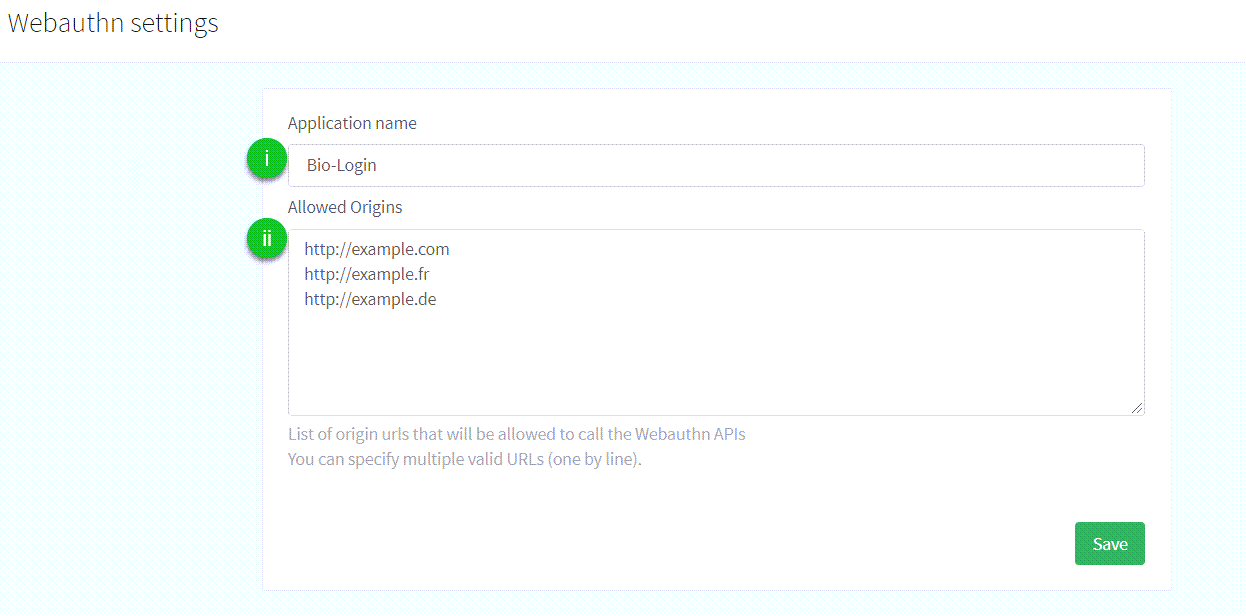
1. `Application name`: the name of the application that is displayed to the user during the FIDO2 Registration or Authentication process. _There are no particular restrictions on what you can use here._
2. `Allowed origins`: the list of **full origin URLs** of the pages allowed to complete a WebAuthn flow (for example `https://example.com` or `https://www.example.com`). The Purse Identity Console labels this field as allowed URLs only, but those URLs also act as allowed [Relying Party IDs](biometrics/passkeys.html#relying-party-id). Enter the RP ID here as an origin URL; the hostname of the `origin` you send becomes the RP ID.
> See [WebAuthn and passkey allowed origins](biometrics/passkeys.html#webauthn-and-passkey-allowed-origins) for single-origin and dual-origin configuration.
> The samples below pass an explicit `origin` URL (for example `https://example.com`). That value must match an Allowed origin whose hostname is the Relying Party ID you want. If your UI runs on a subdomain such as `https://auth.example.com` but passkeys must be bound to `https://example.com`, pass `https://example.com` as `origin` and allow **both** URLs in the Purse Identity Console.
> You should first check the browser supports public-key credentials:
>
> ```js
> if (window.PublicKeyCredential) {
> // Code here
> }
> else {
> return new Error('Unsupported WebAuthn API')
> }
> ```
## Sign up
The user requests to register a new account for the first time. Users don’t need to provide a password, but instead provide an identifier like an email or mobile number as well as some personal data.
1. We initiate the FIDO2 signup process by retrieving a randomly generated challenge, the Relying Party information, and the user information from the Purse Identity server with the [`POST /identity/v1/webauthn/signup-options`](https://docs.identity.purse.eu/openapi/identity.html#operation/createSignupOptions) endpoint.
```javascript
// Return a promise fulfilled with the signup options
function createSignupOptions(userParams) {
const params = {
origin: 'https://example.com', (1)
friendlyName: userParams.friendlyName || window.navigator.platform,
profile: userParams.profile,
clientId: yourClientId,
scope: yourScope,
redirectUrl: yourRedirectUrl,
returnToAfterEmailConfirmation: yourReturnToAfterEmailConfirmation
}
return fetch('https://${YOUR_DOMAIN}/identity/v1/webauthn/signup-options', { (2)
method: 'POST',
headers: { 'Content-Type': 'application/json' },
body: JSON.stringify(params)
})
}
```
- (1) Pass the Allowed origin URL whose hostname should be the Relying Party ID (for example `https://example.com`).
- (2) Replace `${YOUR_DOMAIN}` with your Purse Identity domain.
2. We pass the signup options to the Credential Management API ([`navigator.credentials.create()`](https://www.w3.org/TR/webauthn-2/#sctn-createCredential)) which will open a fingerprint dialog and generate a new credential.
credentials.create()
```js
// Return a promise fulfilled with a new credential
function createCredentials(signupOptions) {
const serializedOptions = signupOptions.options.publicKey
const publicKey = {
...serializedOptions,
challenge: Buffer.from(serializedOptions.challenge, 'base64'),
user: {
...serializedOptions.user,
id: Buffer.from(serializedOptions.user.id, 'base64')
},
excludeCredentials: serializedOptions.excludeCredentials && serializedOptions.excludeCredentials!.map(excludeCredential => ({
...excludeCredential,
id: Buffer.from(excludeCredential.id, 'base64')
}))
}
return navigator.credentials.create({ publicKey })
}
```
3. With the [`POST /identity/v1/webauthn/signup`](https://docs.identity.purse.eu/openapi/identity.html#operation/signupWithCredentials) endpoint, we send the new credential back to the Purse Identity server and it finalizes the FIDO2 signup process by returning a _one-time authentication token_.
```js
import { Buffer } from 'buffer/'
// Encode an array into Base64 url safe
function encodeToBase64(array) {
return Buffer.from(array)
.toString('base64')
.replace(/\+/g, '-')
.replace(/\//g, '_')
.replace(/=+$/, '')
}
// Return a promise fulfilled with a one-time authentication token
function signupWithWebauthn(signupOptions, credentials) {
if (!credentials || credentials.type !== 'public-key') {
return new Error('Unable to register invalid public key credentials.')
}
const serializedCredentials = {
id: credentials.id,
rawId: encodeToBase64(credentials.rawId),
type: credentials.type,
response: {
clientDataJSON: encodeToBase64(credentials.response.clientDataJSON),
attestationObject: encodeToBase64(credentials.response.attestationObject)
}
}
return fetch('https://${YOUR_DOMAIN}/identity/v1/webauthn/signup', { (3)
method: 'POST',
headers: { 'Content-Type': 'application/json' },
body: JSON.stringify({
publicKeyCredential: serializedCredentials,
webauthnId: signupOptions.options.publicKey.user.id
})
})
}
```
4. Finally, we call the [`GET /oauth/authorize`](https://docs.identity.purse.eu/openapi/identity.html#operation/authorizeUser) endpoint to parse the result of the signup request and retrieve the user’s authentication token.
```javascript
// Login the user and redirects to the URL specified as `redirect_uri`
function authorizeUser(tkn) {
const location = `https://${YOUR_DOMAIN}/oauth/authorize?` + (4)
`client_id=${YOUR_CLIENT_ID}` +
`&scope=${YOUR_SCOPE}` +
`&response_type=code` +
`&redirect_uri=${YOUR_REDIRECT_URI}` +
`&code_challenge=${YOUR_CODE_CHALLENGE}` +
`&code_challenge_method=S256` +
`&tkn=${oneTimeAuthenticationToken}`
window.location.assign(location)
}
```
## Authenticate
Once the user has registered their credentials on the server and the device, they can use it to easily login with their identifier.
1. We initiate the FIDO2 authentication process to retrieve the list of previously registered credentials and a challenge string from the server with the [`POST /identity/v1/webauthn/authentication-options`](https://docs.identity.purse.eu/openapi/identity.html#operation/createAuthenticationOptions) endpoint.
```javascript
// Return a promise fulfilled with the authentication options
function createAuthenticationOptions(userParams) {
const params = {
email: userParams.email,
phoneNumber: userParams.phoneNumber,
origin: 'https://example.com',
clientId: yourClientId,
scope: yourScope
}
return fetch('https://${YOUR_DOMAIN}/identity/v1/webauthn/authentication-options', { (1)
method: 'POST',
headers: { 'Content-Type': 'application/json' },
body: JSON.stringify(params)
})
}
```
2. This information is passed to the Credential Management API ([`navigator.credentials.get()`](https://www.w3.org/TR/webauthn-2/#sctn-createCredential)) which searches for a credential that matches the **Relying Party ID**. A fingerprint dialog is opened for the user to consent for authentication and it retrieves the existing credential.
credentials.get()
```javascript
// Return a promise fulfilled with an existing credential
function getCredentials(authenticationOptions) {
const serializedOptions = authenticationOptions.publicKey
const publicKey = {
...serializedOptions,
challenge: Buffer.from(serializedOptions.challenge, 'base64'),
allowCredentials: serializedOptions.allowCredentials.map(allowCrendential => ({
...allowCrendential,
id: Buffer.from(allowCrendential.id, 'base64')
}))
}
return navigator.credentials.get({ publicKey })
}
```
3. With the [`POST /identity/v1/webauthn/authentication`](https://docs.identity.purse.eu/openapi/identity.html#operation/authenticateWithCredentials) endpoint, we send the operation result to the Purse Identity server and finalizes the FIDO2 authentication process by returning a _one-time authentication token_.
```javascript
import { Buffer } from 'buffer/'
// Encode an array into Base64 url safe
function encodeToBase64(array) {
return Buffer.from(array)
.toString('base64')
.replace(/\+/g, '-')
.replace(/\//g, '_')
.replace(/=+$/, '')
}
// Return a promise fulfilled with a one-time authentication token
function loginWithWebauthn(credentials) {
if (!credentials || credentials.type !== 'public-key') {
return new Error('Unable to authenticate with invalid public key credentials.')
}
const serializedCredentials = {
id: credentials.id,
rawId: encodeToBase64(credentials.rawId),
type: credentials.type,
response: {
authenticatorData: encodeToBase64(credentials.response.authenticatorData),
clientDataJSON: encodeToBase64(credentials.response.clientDataJSON),
signature: encodeToBase64(credentials.response.signature),
userHandle: credentials.response.userHandle && encodeToBase64(credentials.response.userHandle)
}
}
return fetch('https://${YOUR_DOMAIN}/identity/v1/webauthn/authentication', { (3)
method: 'POST',
headers: { 'Content-Type': 'application/json' },
body: JSON.stringify({ ...serializedCredentials })
})
}
```
4. Finally, we call the [`GET /oauth/authorize`](https://docs.identity.purse.eu/openapi/identity.html#operation/authorizeUser) endpoint to parse the result of the authentication request and retrieve the user’s authentication token.
```javascript
// Login the user and redirects to the URL specified as `redirect_uri`
function authorizeUser(tkn) {
const location = `https://${YOUR_DOMAIN}/oauth/authorize?` + (4)
`client_id=${YOUR_CLIENT_ID}` +
`&scope=${YOUR_SCOPE}` +
`&response_type=code` +
`&redirect_uri=${YOUR_REDIRECT_URI}` +
`&code_challenge=${YOUR_CODE_CHALLENGE}` +
`&code_challenge_method=S256` +
`&tkn=${oneTimeAuthenticationToken}`
window.location.assign(location)
}
```
## Register
Once the user is authenticated, they can register their new device. Hooray!
> A user cannot register several credentials on the same device.
1. We initiate the FIDO2 registration process by retrieving a randomly generated challenge, the Relying Party information, and the user information from the Purse Identity server with the [`POST /identity/v1/webauthn/registration-options`](https://docs.identity.purse.eu/openapi/identity.html#operation/createRegistrationOptions) endpoint.
```javascript
// Return a promise fulfilled with the registration options
function createRegistrationOptions(accessToken, friendlyName) {
const params = {
friendlyName: friendlyName || window.navigator.platform,
origin: 'https://example.com',
}
return fetch('https://${YOUR_DOMAIN}/identity/v1/webauthn/registration-options', { (1)
method: 'POST',
headers: {
'Content-Type': 'application/json',
'Authorization': `Bearer ${accessToken}`
},
body: JSON.stringify(params)
})
}
```
2. We pass the registration options to the Credential Management API ([`navigator.credentials.create()`](https://www.w3.org/TR/webauthn-2/#sctn-createCredential)) which will open a fingerprint dialog and generate a new credential.
credentials.create()
```javascript
// Return a promise fulfilled with a new credential
function createCredentials(regisationOptions) {
const serializedOptions = registrationOptions.options.publicKey
const publicKey = {
...serializedOptions,
challenge: Buffer.from(serializedOptions.challenge, 'base64'),
user: {
...serializedOptions.user,
id: Buffer.from(serializedOptions.user.id, 'base64')
},
excludeCredentials: serializedOptions.excludeCredentials && serializedOptions.excludeCredentials!.map(excludeCredential => ({
...excludeCredential,
id: Buffer.from(excludeCredential.id, 'base64')
}))
}
return navigator.credentials.create({ publicKey })
}
```
3. With the [`POST /identity/v1/webauthn/registration`](https://docs.identity.purse.eu/openapi/identity.html#operation/registerWithCredentials) endpoint, we send the operation result to the Purse Identity server and completes the FIDO2 registration process.
```javascript
import { Buffer } from 'buffer/'
// Encode an array into Base64 url safe
function encodeToBase64(array) {
return Buffer.from(array)
.toString('base64')
.replace(/\+/g, '-')
.replace(/\//g, '_')
.replace(/=+$/, '')
}
// Return an empty promise
function addNewWebAuthnDevice(credentials) {
if (!credentials || credentials.type !== 'public-key') {
return new Error('Unable to register invalid public key credentials.')
}
const serializedCredentials = {
id: credentials.id,
rawId: encodeToBase64(credentials.rawId),
type: credentials.type,
response: {
clientDataJSON: encodeToBase64(credentials.response.clientDataJSON),
attestationObject: encodeToBase64(credentials.response.attestationObject)
}
}
return fetch('https://${YOUR_DOMAIN}/identity/v1/webauthn/registration', { (3)
method: 'POST',
headers: {
'Content-Type': 'application/json',
'Authorization': `Bearer ${accessToken}`
},
body: JSON.stringify({ ...serializedCredentials })
})
}
```
---
# FIDO2
URL: /docs/fido2.html
[FIDO2](https://fidoalliance.org/fido2/) is the standard that enables users to leverage common devices to perform authentication functions for online services rather than relying on traditional methods of what a person knows such as usernames or passwords.
> For passkeys, Relying Party ID, and Allowed origins configuration, start with [Passkeys](biometrics/passkeys.html).
Usernames and password credentials have been used since the beginning of the information technology era. Many attacks are built around the inherent weaknesses of passwords (_length, strength_) or passwords management (_re-use, etc._). Some pain points are specifically linked to passwords usage in online purchases.
The new authentication mechanisms reduce the ability and likelihood of being compromised. Biometrics or other secrets like passwords never leave the user’s device and can’t be compromised by a third-party.
## FIDO2 Prerequisites
To successfully enable FIDO2:
1. Enable the **WebAuthn** feature on your Purse Identity account.
> You may need to contact [support](mailto:support@reach5.co) to have this enabled if you do not see it on your Purse Identity Console.
2. From your Purse Identity Console:
1. Navigate to **Settings > WebAuthn**.
2. Configure the following:

1. `Application name`: the name of the application that is displayed to the user during the FIDO2 Registration or Authentication process. _There are no particular restrictions on what you can use here._
2. `Allowed origins`: the list of **full origin URLs** of the pages allowed to complete a WebAuthn flow (for example `https://example.com` or `https://www.example.com`). The Purse Identity Console labels this field as allowed URLs only, but those URLs also act as allowed [Relying Party IDs](biometrics/passkeys.html#relying-party-id). Enter the RP ID here as an origin URL; the hostname of the `origin` you send becomes the RP ID.
> See [WebAuthn and passkey allowed origins](biometrics/passkeys.html#webauthn-and-passkey-allowed-origins) for how Allowed origins map to the RP ID, including single-origin and dual-origin setups.
> Supported WebAuthn features on the web include:
>
> - Add a new device to an existing Purse Identity user account
>
> - Login with a registered device using compatible **web browsers** on a desktop computer or an Android mobile device (see [FIDO Platform/Browser support](https://fidoalliance.org/fido2/fido2-web-authentication-webauthn/) for more details)
>
> - Passkey flows described in [Passkeys](biometrics/passkeys.html)
>
## Next Steps
### SDK Core integration
To let your user add a new device to his account, you can use the `addNewWebAuthnDevice` method. Check the following page for complete documentation: [SDK Core addNewWebAuthnDevice method](../sdk-core/addNewWebAuthnDevice.html). The user needs to be logged-in to perform this action.
To let your user log into Purse Identity using the FIDO2 login process, you can use the `loginWithWebAuthn` method. Check the following page for complete documentation: [SDK Core loginWithWebAuthn method](../sdk-core/loginWithWebAuthn.html).
### SDK UI integration
If you plan on using the widgets provided by Purse Identity, you’ll have to enable the authentication via WebAuthn in the widget settings. Check the following page for more details: [SDK UI showAuth method](../sdk-ui/showAuth.html).
### SDK Android integration
Refer to the [FIDO2](../sdk-android/guides/fido2.html) guide to implement the FIDO2 authentication workflow on Android applications.
### SDK iOS integration
Coming soon.
## What your users see
Once configuration is complete, your users are presented with the following screen.

SDK UI showAuth widget
> They have the choice of signing in using the [FIDO2 biometrics flow](https://fidoalliance.org/how-fido-works/) or the usual password flow.
## Glossary
Relying party
The entity whose web application utilizes the Web Authentication API to register and authenticate users. In our context, this is Purse Identity touch points.
Authorization gesture
An authorization gesture is a physical interaction performed by a user with an authenticator as part of a ceremony, such as registration or authentication. By making such an authorization gesture, a user provides consent for (i.e., authorizes) a ceremony to proceed. This _may_ involve user verification if the employed authenticator is capable, or it _may_ involve a simple test of user presence.
Roaming authenticator
A roaming authenticator is attached using cross-platform transports, called cross-platform attachment. Authenticators of this class are removable from, and can "roam" among, client devices. A public key credential bound to a roaming authenticator is called a roaming credential.
Platform authenticator
A platform authenticator is attached using a client device-specific transport, called platform attachment, and is usually not removable from the client device. A public key credential bound to a platform authenticator is called a platform credential.
WebAuthn
Short for the Web Authentication API, a specification written by the W3C and FIDO Alliance, with the participation of Google, Mozilla, Microsoft, Yubico, and others. The API allows servers to register and authenticate users using public key cryptography instead of a password.
---
# Authentication flows
URL: /docs/flows.html
The [OAuth 2.0 Framework](https://tools.ietf.org/html/rfc6749) enables third-party applications to gain access to an HTTP service.
OAuth 2.0
> The OAuth 2.0 authorization framework enables a third-party application to obtain limited access to an HTTP service, either on behalf of a resource owner by orchestrating an approval interaction between the resource owner and the HTTP service, or by allowing the third-party application to obtain access on its own behalf.
There are several ways you can authenticate users with this protocol and the flows on the subsequent pages show the flow on how to do this.
## Flows
- [Authorization code grant with PKCE](flows/authorization-code-pkce.html) Recommended
- [Authorization code grant](flows/authorization-code.html)
- [ROPC authentication flow](flows/ropc.html)
- [Implicit authentication flow](flows/implicit.html)
---
# France Connect
URL: /docs/france-connect.html
To use France Connect as a social login provider, you need a Client ID and Client Secret from your France Connect app. You’ll then need to copy those keys into your Purse Identity settings.
Most important
The most important thing to connect Purse Identity with your France Connect application is the callback URL needed when setting up the app on the France Connect side.
```curl
https://YOUR_PURSE_IDENTITY_DOMAIN/login/callback (1)
```
- (1) Where `YOUR_PURSE_IDENTITY_DOMAIN` is the [domain](console.html#get-domain) found in your Purse Identity Console settings.
## Prerequisites
- You must have access to the Purse Identity Console.
- You must have a Developer, Manager, or Administrator [role](roles.html).
- You must have a France Connect developer account.
## Instructions
France Connect
1. Go to the [France Connect](https://franceconnect.gouv.fr/partenaires) site.
2. Log in to your developer or account or [create a new application](https://datapass.api.gouv.fr/franceconnect?source=partnerpage_privateorganisation).
3. Copy your Client ID and Client secret.
Purse Identity
1. Log in to your Purse Identity Console.
2. Go to **Settings** **Providers** and select France Connect.
3. In the pop-up window:
1. Paste your France Connect Client ID.
2. Paste your France Connect Client secret.
3. Choose the desired Permissions from the drop-down menu.

4. Don’t forget to **Save** your input.
---
# Google One Tap
URL: /docs/google-onetap.html
To use [Google One Tap](https://developers.google.com/identity/one-tap) as a social login provider, you will need the `Client ID` and `Client Secret` from your Google app as set up with [Google Connect](google.html). It’s important to note that you can use both the standard [Google Connect](google.html) option where users can authenticate with their Google accounts _as well_ as Google One Tap.
Why use Google One Tap?
Google One Tap allows users to authenticate anywhere on your site or application without needing to go via a dedicated authentication page. This ensures a smooth experience and you can offer users the chance to authenticate anywhere on their user journey.
To see which browsers are supported with One Tap, check out this [page](https://developers.google.com/identity/gsi/web/guides/supported-browsers) in Google’s developer documentation.
## Prerequisites
- You must have configured your site or application to use [Google Connect](google.html) as a social login provider.
- You must whitelist the origin URL you’re using with One Tap in the configuration in your Google Cloud Platform (GCP) account.

## Default values for Google
The default values available to Purse Identity from Google are:
- `id`
- `name`
- `givenName`
- `middleName`
- `familyName`
- `nickname`
- `imageUrl` (_profile image_)
- `email`
- `gender`
- `birthday`
- `phoneNumber`
> With Google One Tap, you can access those default fields that are part of the `id_token`. However, you can’t access the additional fields typically available through the [Google People API](https://developers.google.com/people) as you can with [Google Connect](google.html).
## Instructions
After configuring [Google Connect](google.html) to work with your Purse Identity account, you only need to use the [`instantiateOneTap`](../sdk-core/instantiateOneTap.html) method to use Google One Tap. The [`instantiateOneTap`](../sdk-core/instantiateOneTap.html) method loads the Google scripts necessary for using One Tap in your site or application and enables the widget. The widget is loaded without checking on authentication from Purse Identity, so to avoid displaying the widget to authenticated users, it’s best to doing a `checkSession` first as part of the implementation.
It’s up to you to decide _where_ and _when_ on your site where you want Google One Tap to be available. To do this, simply call the [`instantiateOneTap`](../sdk-core/instantiateOneTap.html) method.
Your users will see something like the following:

---
# Google Connect
URL: /docs/google.html
To use Google as a social login provider, you will need a `Client ID` and `Client Secret` from your Google app, then copy these keys into your Purse Identity Console settings.
This page explains how to create a Google App and connect it to your Purse Identity account.
Want to create the best Google auth experience?
To optimize your user authentication experience, leverage the power of both the typical Google Auth provider flow with [Google One Tap](google-onetap.html) which allows user to authenticate from any page within your site.
## Google data
This is the collectable data for Google Connect.
### Public data
- **User ID (`id`)** - A unique identifier for the user.
- **Name (`name`)** - The user’s full name.
- **Email Address (`email`)** - The user’s primary email address.
- **Profile Picture (`picture`)** - The user’s profile image.
- **Locale (`locale`)** - The user’s language and regional settings.
### User consent needed
- **First Name (`givenName`)** - The user’s given/first name.
- **Last Name (`familyName`)** - The user’s family/last name.
- **Middle Name (`middleName`)** - The user’s middle name.
- **Gender (`gender`)** - The user’s gender.
- **Birthday (`birthday`)** - The user’s date of birth.
- **About (`about`)** - Information about the user (biography).
- **Profile (`profile`)** - The user’s profile URL.
- **Phone Number (`phoneNumber`)** - The user’s phone number.
- **Phone Number Verified (`phoneNumberVerified`)** - Whether the phone number is verified.
- **Email Verified (`emailVerified`)** - Whether the email address is verified.
## Create a Google application
You must have a [Google Developer account](https://developers.google.com/) to complete these instructions.
Here, we’ll first create the application project and then we’ll [create some credentials](#credentials-start) for the Google People API.
* * *
1. Go to your [Google Cloud Platform](https://console.cloud.google.com/) and log in.
2. Create a new project.

3. Enable the [Google People API](https://developers.google.com/people) by going to the **APIs Overview** section.

> If you only want to implement [Google One Tap](google-onetap.html), you do not need to enable the Google People API.
### Create consent screen
First, you’ll need to create a consent screen and then [create your credentials](#create-credentials).
1. Go to **APIs and services** **OAuth consent screen**.
2. Fill out the consent screen which includes:
1. App name
> If you would like to have your own app name displayed here instead of the redirect URI, you’ll need to have a custom domain for your Purse Identity account. See [Custom domains and certificate management](console/custom-domains-and-certificate-management.html) for more details.
2. User support email.
3. App logo.
4. App domain.
5. Authorised domains.
6. Developer contact information.
7. Don’t forget to **Save** your input.

### Create credentials
Next, you’ll create the credentials.
1. Click **Create Credentials** under **APIs and services** **Credentials**.
2. Choose **OAuth client ID** in the dropdown menu.
3. Choose **Web application** as the application Type.
4. In Authorized JavaScript origins, enter any URLs you want whitelisted.
> This is particularly important if you are planning on implementing [Google One Tap](google-onetap.html).
5. In Authorised redirect URIs, enter ``https://YOUR_PURSE_IDENTITY_DOMAIN/login/callback`where `YOUR_PURSE_IDENTITY_DOMAIN`` is your [Purse Identity domain](console.html#get-domain).
6. Click Create.

7. Copy your new credentials.

## Configure Google as provider on Purse Identity
1. On the Purse Identity Console, go to **Settings** **Providers**, and select Google.

2. Paste your credentials and add all available permissions.
3. If using iOS, you should also paste in your Google Client ID.
**Example**: `1234567890-abcdefg.apps.googleusercontent.com` For more, see [iOS SDK: Google native provider](../sdk-ios/index.html).
Have multiple brands using Google?
If you have multiple brands or subsidiaries using Google or even if you have different use cases, you can add them as _variants_ within the Purse Identity Console.

4. Don’t forget to **Save** your input..

### Google buttons
To implement your own button, follow the [Google guidelines](https://developers.google.com/identity/branding-guidelines).
> Do not use the red button, use the Google button as below.
>
> 
---
# Hide profile existence
URL: /docs/hide-profile-existence.html
You can hide the existence of profiles as part of your _Attack protection policy_. By selecting this option, it ensures that a successful response is sent after every password reset request, whether the profile exists or not.
Why is this helpful?
This feature helps to mitigate the impact of attacks by hiding profiles. The successful response is sent no matter what which essentially hides the status of a profile from the attacker(s).
## Hiding profile existence from the console
You can hide the profile existence with a simple operation from your Purse Identity Console.
### Prerequisites
- You must have access to the Purse Identity Console.
- You must have a Developer, Manager, or Administrator [role](roles.html).
### Instructions
1. Go to **Settings** **Security** **Attack protection policy**.
2. Enable the **Hide profile existence** option by toggling the slider to green.
3. Don’t forget to **Save** your input.

---
# Hosted Pages
URL: /docs/hosted-pages.html
Purse Identity offers hosted pages to simplify the integration process for authenticating users and even for resetting and changing passwords. These pages are enabled via the Purse Identity Console and help you get up and running in no time as they invoke the Purse Identity SDK widgets natively. Just configure the Hosted Pages from your Purse Identity Console. You can add a logo, favicon, and even configure a custom background colour to match your brand’s palette.
You can add multiple Hosted Pages sets to support different use cases, such as separate pages for different applications or environments (e.g., development, staging, production).

1. Edit the desired Hosted Pages set by clicking the pencil icon.
2. Delete a Hosted Pages set by clicking the trash icon.
3. Duplicate a Hosted Pages set by clicking the copy icon.
4. Set a Hosted Pages set as the default by clicking the star icon.
5. Create a new Hosted Pages set by clicking the **New configuration** button.
* * *
## Prerequisites
- You must have access to the Purse Identity Console.
- You must have at least a CRM User [role](roles.html).
- You must _whitelist_ your Purse Identity account URL in the **Allowed Origins (CORS)** section of your First-party identity client.
- You must _whitelist_ your site’s authentication callback route URLs in the **Allowed Callback URLs** section of your First-party identity client.
> Check out the [Clients page](clients.html#configure-client-first) if you need help whitelisting the URLs.
## General settings
You must first configure the **General settings** for your Hosted Pages. These settings apply to all the hosted pages you enable.

1. Define your configuration key. The configuration key is used to retrieve your Hosted Pages set from the frontend. The configuration key must be in `snake_case`. This key is added to the Hosted Page URL as a query parameter, for example: `[https://yourDomain/auth?conf_key=your_configuration_key](https://yourDomain/auth?conf_key=your_configuration_key)`.
2. Select your [First-party Identity client](clients.html) from the dropdown menu.
3. (Optional) Upload a logo to be displayed on your Hosted Pages.
4. (Optional) Upload a favicon to be displayed in the browser tab.
5. Add the **Website URL**. This is the target URL when users click on your logo.
6. Add your **Allowed Redirect URLs**. These URLs are used to redirect users after successful authentication or password operations. You can specify multiple valid URLs (one by line), starting with `http://` or `https://`.
7. (Optional) Choose a background color.
8. (Optional) Choose the UI SDK version for these Hosted Pages. See [Choose the UI SDK version](#sdk-version).
9. Don’t forget to **Save** your input.
### Choose the UI SDK version
By default, your Hosted Pages use the [UI SDK](../sdk-ui/index.html) version that Purse Identity sets for your environment. That version receives fixes and improvements as soon as Purse Identity releases them.
If you customized your pages with [custom styles](#custom-styles-for-hosted-pages) or custom scripts, you can hold a fixed version while you test a newer one:

1. In the **SDK version** section, open the **Identity UI SDK version** list.
2. Select a version. The list starts with **Environment default**, followed by recent stable versions.
3. Don’t forget to **Save** your input.
The version applies to every Hosted Page of this configuration. Other configurations aren’t affected, so you can test a newer version on a separate configuration before you move your main one.
To receive updates again, select **Environment default**.
> Changing the SDK version can break your Hosted Pages. Stay on the environment default unless you need to keep your custom styles and scripts working while you test a new version.
## Authentication HP
Endpoint
`/auth?conf_key=`
The **Authentication Hosted Page** makes use of the [showAuth](../sdk-ui/showAuth.html) widget. This allows users to log in, sign up, and request a password reset email.
1. Ensure the Authentication page is enabled.
2. Specify the **Redirect URI**.
This is where the user is redirected after retrieving a successful access token and subsequent login/signup.
3. In the **JSON config for widget**, drop in the JSON content **([descriptions](#json-field-descriptions))** for configuring the authentication page like the example below.
```json
{
"socialProviders" : [ "facebook", "google" ],
"theme" : {
"primaryColor" : "#229955",
"borderRadius" : "3",
"socialButton" : {
"inline" : true
}
},
"initialScreen" : "signup",
"allowLogin" : true,
"allowForgotPassword" : true,
"allowSignup" : true,
"signupFields" : [ "birthdate", "email", "password", "custom_fields.sport_key", "consents.purple_paint",
{
"key": "consents.accept_confidential", (1)
"defaultValue" : false, (2)
"required" : true (3)
}
],
"recaptcha_enabled": true, (4)
"recaptcha_site_key": , (5)
"captchaFoxEnabled": true, (6)
"captchaFoxSiteKey": , (7)
"captchaFoxMode": "inline" (8)
}
```
- (1) If you want to use custom fields or consents as fields, you must declare the specific item by using a fullstop/period (`.`) followed by the desired consent or custom field like so: `custom_field.`.
- (2) You can require a `defaultValue` for the field. Accepts `true` or `false`.
- (3) You can require the signup field. Accepts `true` or `false`.
- (4) Set to `true` to have reCAPTCHA enabled.
- (5) Place the site key here. This site key comes from your [Google reCAPTCHA setup](https://www.google.com/recaptcha/admin/create).
The site key **must match** the secret key from your reCAPTCHA setup that you used on your Purse Identity account reCAPTCHA configuration.
- (1) Specifies if CaptchaFox is enabled or not.
- (2) Place the site key here. This comes from your CaptchaFox setup.
- (3) Specifies how the CaptchaFox is displayed. (hidden (default), inline, or popup)
4. Add any desired custom styles in standard CSS format to the **Custom styles** area.
5. Add any desired [custom scripts](#custom-scripts-for-hosted-pages) in standard JavaScript format to the **Custom scripts** area.
6. Don’t forget to **Save** your input.
7. Check it works at `/auth?conf_key=`.
## Email confirmation HP
Endpoint
`/email-confirmation?conf_key=`
The **Email confirmation Hosted Page** is where users are taken after clicking on the verification link sent in the confirmation email. You cannot currently configure it beyond enabling the page. However, there are some [important notes](#hp-email-confirmation-notes) to consider to successfully use this Hosted Page.
1. Enable the Email confirmation page.
2. Click **Display a link to redirect to homepage** if you want to display a link to redirect users back to the site’s home page after confirming.
3. Add any desired custom styles in standard CSS format to the **Custom styles** area.
4. Add any desired [custom scripts](#custom-scripts-for-hosted-pages) in standard JavaScript format to the **Custom scripts** area.
5. Don’t forget to **Save** your input.
6. Check it works at `/email-confirmation?conf_key=`.
Inherited Global Settings
The Email confirmation Hosted Page inherits all of the [General settings](#general-settings) configured while setting up the Hosted Pages.
Email Signup Template
To ensure that your users receive a confirmation email, make sure you have configured and saved the [Email Signup Template](emails.html) which is configured at **Settings** **Emails** **Template** **Signup** on your Purse Identity Console.
Whitelist the post-email confirmation URL
If you use `return_to_after_email_confirmation` as a query parameter in your [/auth](#hp-authentication) signup flow to redirect users after email confirmation, you must ensure this is whitelisted under **Allowed Redirect URLs** found at **Hosted Pages** **General Settings**.
## Password editor HP
Endpoint
`/password-change?conf_key=`
The **Password editor Hosted Page** makes use of the [showPasswordEditor](../sdk-ui/showPasswordEditor.html) widget. This allows users to edit their password.
To make sure users receive a password change/update email, make sure you have configured and saved the [Password updated Template](email-templates.html) found at **Settings** **Emails** **Template** **Password Updated** on the console.
> This page is only accessible to authenticated users. We use the user’s Access Token for Hosted Page authentication. The Access Token is passed through a `POST` request via the `access_token` parameter. If no Access Token is granted, we use the [Single Sign-on (SSO)](sso.html) session if it is enabled. If there is no Access Token or active SSO session, the authentication fails and the user cannot see the Hosted Page.
1. Go to the **Password editor** tab.
2. Ensure the **Password editor** page is enabled.
3. In the **JSON config for widget**, drop in the JSON content **([descriptions](#json-field-descriptions))** for configuring the Password editor page like the example below.
```json
{
"promptOldPassword" : true,
"theme" : {
"primaryColor" : "#00bf48",
"borderRadius" : "3",
"socialButton" : {
"inline" : true
}
}
}
```
4. Add any desired custom styles in standard CSS format to the **Custom styles** area.
5. Add any desired [custom scripts](#custom-scripts-for-hosted-pages) in standard JavaScript format to the **Custom scripts** area.
6. Don’t forget to **Save** your input.
7. Check it works at `/password-change?conf_key=`.
## Password reset HP
Endpoint
`/password-reset?conf_key=`
The **Password reset Hosted Page** makes use of the [showPasswordReset](../sdk-ui/showPasswordReset.html) widget. This allows users to reset their password after receiving a password reset email.
To make sure users receive a password reset email, make sure you have configured and saved the [Password reset Template](emails.html) found at **Settings** **Emails** **Template** **Password reset** on the console.
1. Go to the **Password reset** tab.
2. Ensure the **Password reset** page is enabled.
3. In the **JSON config for widget**, drop in the JSON content **([descriptions](#json-field-descriptions))** for configuring the Password reset page like the example below.
```json
{
"theme" : {
"primaryColor" : "#00bf48",
"borderRadius" : "3",
"socialButton" : {
"inline" : true
}
},
"loginLink" : "https://www.example.com/welcome-back"
}
```
4. Add any desired custom styles in standard CSS format to the **Custom styles** area.
5. Add any desired [custom scripts](#custom-scripts-for-hosted-pages) in standard JavaScript format to the **Custom scripts** area.
6. Don’t forget to **Save** your input.
7. Check it works at `/password-reset?conf_key=`.
## Passwordless HP
Endpoint
`/passwordless?conf_key=`
The **Passwordless Hosted Page** makes use of the [showPasswordless](../sdk-ui/showPasswordless.html) widget. This allows users to login without their password.
To make sure users receive an email or SMS for passwordless login, make sure you have configured and saved the [OTP - passwordless](otp.html#otp-email-magic-link-otp-main-page) desired template (email or SMS) found at **Settings** **Passwordless** on the console.
1. Go to the **Passwordless** tab.
2. Ensure the **Passwordless** page is enabled.
3. In the **JSON config for widget**, drop in the JSON content **([descriptions](#json-field-descriptions))** for configuring the Passwordless page like the example below. This example shows passwordless using the [email magic link template](otp.html#otp-email-magic-link-otp-main-page).
```json
{
"socialProviders" : [ "facebook", "google" ], (1)
"theme" : {
"primaryColor" : "#274890",
"borderRadius" : "25",
"socialButton" : {
"inline" : true
}
},
"recaptcha_enabled": true, (2)
"recaptcha_site_key": , (3)
"captchaFoxEnabled": true, (4)
"captchaFoxSiteKey": , (5)
"captchaFoxMode": "inline" (6)
}
```
- (1) If empty, no providers are displayed. If omitted, no providers are displayed.
- (2) Set to `true` to have reCAPTCHA enabled.
- (3) Place the site key here. This site key comes from your [Google reCAPTCHA setup](https://www.google.com/recaptcha/admin/create).
The site key **must match** the secret key from your reCAPTCHA setup that you used on your Purse Identity account reCAPTCHA configuration.
- (1) Specifies if CaptchaFox is enabled or not.
- (2) Place the site key here. This comes from your CaptchaFox setup.
- (3) Specifies how the CaptchaFox is displayed. (hidden (default), inline, or popup)
4. Add any desired custom styles in standard CSS format to the **Custom styles** area.
5. Add any desired [custom scripts](#custom-scripts-for-hosted-pages) in standard JavaScript format to the **Custom scripts** area.
6. Don’t forget to **Save** your input.
7. Check it works at `/passwordless?conf_key=`.
## Webauthn HP
Endpoint
`/webauthn-devices?conf_key=`
The **Webauthn devices Hosted Page** makes use of the [showWebAuthnDevices](../sdk-ui/showWebAuthnDevices.html) widget. This allows users to manage their registered FIDO2 devices.
> This page is only accessible to authenticated users. We use the user’s Access Token for Hosted Page authentication. The Access Token is passed through a `POST` request via the `access_token` parameter. If no Access Token is granted, we use the [Single Sign-on (SSO)](sso.html) session if it is enabled. If there is no Access Token or active SSO session, the authentication fails and the user cannot see the Hosted Page.
1. Check the [FIDO2 Prerequisites](fido2.html#fido2-prerequisites) to enable FIDO2.
2. Go to the **WebAuthn Devices** tab.
3. Ensure the **WebAuthn Devices** page is enabled.
4. In the **JSON config for widget**, drop in the JSON content **([descriptions](#json-field-descriptions))** for configuring the WebAuthn Devices page like the example below.
```json
{
"theme" : {
"primaryColor" : "#274890"
}
}
```
5. Add any desired custom styles in standard CSS format to the **Custom styles** area.
6. Add any desired [custom scripts](#custom-scripts-for-hosted-pages) in standard JavaScript format to the **Custom scripts** area.
7. Don’t forget to **Save** your input.
8. Check it works at `/webauthn-devices?conf_key=`.
## Double opt-in HP
Endpoint
`/doi-consent-confirmation?conf_key=`
The **Double opt-in (DOI) consent confirmation Hosted Page** is where users are taken after clicking on the [Double opt-in consent](doi.html) link sent with the DOI consent template. You cannot currently configure it beyond enabling the page.
1. Enable the Double opt-in consent confirmation page.
2. Add any desired custom styles in standard CSS format to the **Custom styles** area.
3. Add any desired [custom scripts](#custom-scripts-for-hosted-pages) in standard JavaScript format to the **Custom scripts** area.
4. Check it works at `/doi-consent-confirmation?conf_key=`.
For more details, see [Double opt-in consents](doi.html) and [DOI consent templates](consent-templates.html).
## Consents HP
Endpoint
`/consent?conf_key=`
The **Third party consents Hosted Page** is where users decide on the consents they wish to give to third parties. You can customise the text displayed on this Hosted Page.
1. In the Purse Identity Console, go to **Hosted Pages** **Third party consents**.
2. Add the desired text in the **Content of the consent page** text area.
3. Specify the **Accept button text**.
4. Specify the **Decline button text**.
5. Add any desired custom styles in standard CSS format to the **Custom styles** area.
Click **See default styles** to view the default styling for the Hosted Page and its widgets. This can serve as a base for your custom styles.
6. Add any desired [custom scripts](#custom-scripts-for-hosted-pages) in standard JavaScript format to the **Custom scripts** area.
Multilingual support
For the Accept and Decline button texts, all [supported languages](global-consumers/languages.html) are available for localisation. When added, the language code (e.g., En for English, Fr for French) turns green to the signal a customisation has been added.
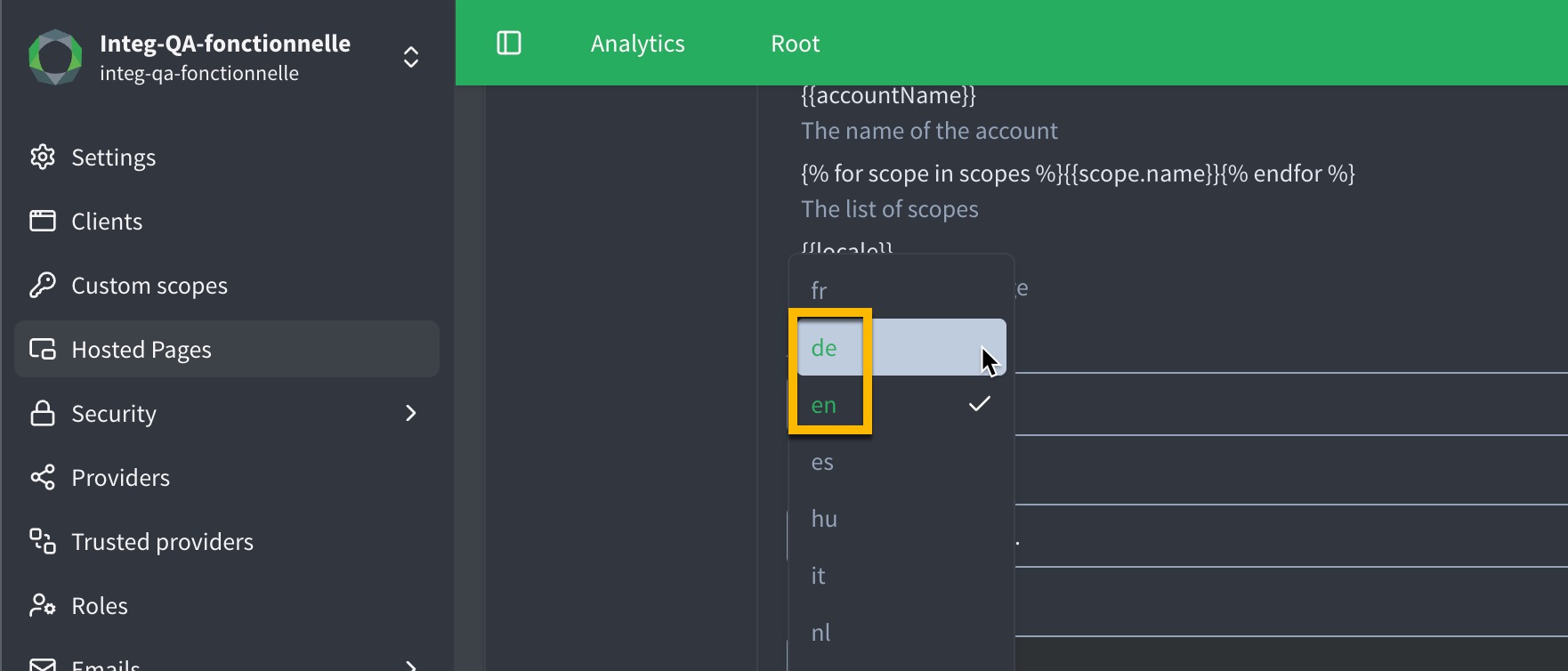
## Profile management HP
Endpoint
`/profile-management?conf_key=`
The **Profile management Hosted Page** is a control center that allows you to configure multiple UI SDK widgets on a single page.
1. Go to **Settings** **Hosted Pages** in your Purse Identity Console.
2. Go to the **Profile management** tab.
3. Enable the **Profile management** page.
4. Toggle on your desired widgets.
Available widgets
- [Email Editor](../sdk-ui/showEmailEditor.html)
- [Phone Number Editor](../sdk-ui/showPhoneNumberEditor.html)
- [Social Accounts](../sdk-ui/showSocialAccounts.html)
- [Profile Editor](../sdk-ui/showProfileEditor.html)
- [Password Editor](../sdk-ui/showPasswordEditor.html)
- [MFA Credentials](../sdk-ui/showMfaCredentials.html)
- [WebAuthn Devices](../sdk-ui/showWebAuthnDevices.html)
- [Trusted Devices](../sdk-ui/showTrustedDevices.html)
5. Define the **Title** for the widget.
Multilingual support
All [supported languages](global-consumers/languages.html) are available for localisation. When added, the language code (e.g., En for English, Fr for French) turns green to the signal a customisation has been added.
6. In the **JSON config for widget**, input the configuration object required by the widget.
This configuration must match the schema expected by the corresponding SDK method (see [UI SDK documentation](../sdk-ui/index.html)).
Example: Configuring a Profile Editor widget
```json
{
"fields": [
"given_name",
"family_name",
"phone_number",
"custom_fields.marketing_opt_in"
],
"theme": {
"primaryColor": "#462299",
"borderRadius": "5"
}
}
```
7. (Optional) Define custom styles in standard CSS format in the **Custom styles** area.
Click **See default styles** to view the default styling for the Hosted Page and its widgets. This can serve as a base for your custom styles.
8. (Optional) Define [custom scripts](#custom-scripts-for-hosted-pages) in standard JavaScript format in the **Custom scripts** area.
9. Repeat the steps above to add and configure additional widgets as needed.
10. Don’t forget to **Save** your input.
11. Verify your configuration by visiting `/profile-management?conf_key=`.
## JSON field descriptions
##### allowForgotPassword boolean
Boolean that specifies if the forgot password option is enabled.
> Defaults to `true`.
>
> If the `allowLogin` and `allowSignup` properties are set to `false`, the forgot password feature is enabled even if `allowForgotPassword` is set to `false`.
Defaults to `true`.
If the `allowLogin` and `allowSignup` properties are set to `false`, the forgot password feature is enabled even if `allowForgotPassword` is set to `false`.
##### allowLogin boolean
Boolean that specifies whether login is enabled.
Defaults to `true`.
##### allowSignup boolean
Boolean that specifies whether signup is enabled.
Defaults to `true`.
##### i18n object
Widget labels and error messages to override. If specified, these labels and error messages override the default message regardless of the language. If unspecified, Purse Identity falls back to the default wordings in every [supported language](global-consumers/languages.html).
> You might re-word the `socialAccounts.linkNewAccount` or change the way other wordings display to the user while leaving the remaining text on the widget intact.
You might re-word the `socialAccounts.linkNewAccount` or change the way other wordings display to the user while leaving the remaining text on the widget intact.
##### initialScreen string
The widget’s initial screen.
See [`initialScreen` logic](../sdk-ui/showAuth.html#initialscreen-logic) for more details on logic.
##### loginLink string
The URL to which the user is redirected after a password reset.
##### promptOldPassword boolean
Ask for the old password before entering a new one.
Defaults to `false`.
##### signupFields string
List of the signup fields to display in the form.
Defaults to `["given_name", "family_name", "email", "password", "password_confirmation"]`.
A field is either a `string` representing the field’s key (_predefined, custom field, or consent_) or an `object` with attributes overriding the default field configuration.
Predefined fields
- Given name: `given_name`
- Family name: `family_name`
- Email address: `email`
- Phone number: `phone_number` (both the international format and the national conventions of the account’s country are accepted if configured in your account settings)
- Custom Identifier: `custom_identifier` (this is used to authenticate with something other than a username or password). For more, see the [user profile model page](models-user-profile.html#custom_identifier).
- Password: `password`
- Password confirmation: `password_confirmation`
- Gender: `gender`
- Birthdate: `birthdate`
You can pass a `min` and `max` attribute to define how old or young a user can be to sign up. You can also pass a `yearRange` attribute to define the range of years available in the dropdown from the current year. `min` and `max` default to `6` and `129` respectively, while `yearRange` defaults to `10`. When using both, make sure the `yearRange` covers at least the same span as your `max` age so every eligible birth year can be selected.
Example
```js
client.showAuth({
...
signupFields: [
{
key: 'birthdate', (1)
min: 18, (1)
max: 115, (1)
yearRange: 116 (2)
},
...
],
...
})
```
- (1) Sets the minimum and maximum age for the user and the range of years available in the dropdown from the current year. If not set, defaults to `6` and `129` for the minimum and maximum age.
- (2) Sets the range of years available in the dropdown from the current year. Pick a value that covers your maximum age (for example, 116 years). If not set, defaults to `10`.
- Custom field: `custom_fields.`
- Consent: `consents.` or `consents..v` (the Consents feature must be enabled)
> All _predefined fields_ are required.
Address fields
To use [address fields](models-user-profile.html#addresses-object), you need to pass it like so: `address.field`:
- `address.addressType`
- `address.streetAddress`
- `address.locality`
- `address.postalCode`
- `address.country`
- `address.custom_fields.county`
You can pass a field as an object to override default values:
```none
...
{
"key": "family_name",
"defaultValue": "Moreau", (1)
"required": true
}
...
```
- (1) Assign a `defaultValue` if so desired.
```none
...
{
"key": "field",
"defaultValue": true,
"required": true (1)
}
...
```
- (1) Explicitly require the field.
```none
...
{
"key": "given_name",
"defaultValue": "Kylian",
"type": "hidden" (1)
}
...
```
- (1) The `"hidden"` type hides a field while still having a value. In this case, the value of `Kylian` remains for `given_name` despite not appearing on the form.
> Be sure that any consent you may define in the `signupFields` property is not archived. If the consent is archived, this causes the widget to not display as well as throwing an error like so:
>
> ```none
> archived consent cannot be displayed
> ```
>
> If no version ID is set in a consent field’s path, the latest version of the consent will be displayed.
##### 1
Sets the minimum and maximum age for the user and the range of years available in the dropdown from the current year. If not set, defaults to `6` and `129` for the minimum and maximum age.
##### 2
Sets the range of years available in the dropdown from the current year. Pick a value that covers your maximum age (for example, 116 years). If not set, defaults to `10`.
All _predefined fields_ are required.
##### 1
Assign a `defaultValue` if so desired.
##### 1
Explicitly require the field.
##### 1
The `"hidden"` type hides a field while still having a value. In this case, the value of `Kylian` remains for `given_name` despite not appearing on the form.
Be sure that any consent you may define in the `signupFields` property is not archived. If the consent is archived, this causes the widget to not display as well as throwing an error like so:
```none
archived consent cannot be displayed
```
If no version ID is set in a consent field’s path, the latest version of the consent will be displayed.
##### socialProviders string\[\]
Lists the available social providers. This is an array of strings. If you pass an empty array, social providers are **not** displayed.
If `socialProviders` isn’t provided at all, it defaults to the social providers active on the account. These are found at **Settings** **Providers** under **Active providers** in the Purse Identity Console.
You can also specify variants for a provider as a **key:value** pair:
```none
: (1)
```
- (1) Where `provider` is the provider like `line` and the variant is the specific version of that provider like `korea`. **Example** `line:korea`.
##### 1
Where `provider` is the provider like `line` and the variant is the specific version of that provider like `korea`. **Example** `line:korea`.
##### theme object
The options to set up to customize the appearance of the widget.
Below is an example of some of the theme attributes.
##### primaryColor string
The button and link default color.
Defaults to `#229955`.
##### borderRadius string
The radius of the social login button and other input (_in px_).
> This can be used to make inline and/or circle social login buttons.
Defaults to `3`.
This can be used to make inline and/or circle social login buttons.
##### socialButton object
Social button theming options.
Parameters
- `inline`\- Boolean that specifies if the buttons are inline (horizonally-aligned).
- `textVisible` - Boolean that specifies if the text is visible.
- `fontWeight` - Specifies the [font-weight](https://developer.mozilla.org/en-US/docs/Web/CSS/font-weight) (such as `normal`, `bold`, or `900`).
- `fontSize` - Specifies the [font-size](https://developer.mozilla.org/en-US/docs/Web/CSS/font-size).
- `lineHeight` - Specifies the [line-height](https://developer.mozilla.org/en-US/docs/Web/CSS/line-height).
- `paddingX` - Specifies the padding for the x axis. (left and right)
- `paddingY` - Specifies the padding for the y axis. (top and bottom)
- `borderRadius` - Specifies the [border-radius](https://developer.mozilla.org/en-US/docs/Web/CSS/border-radius).
- `borderWidth` - Specifies the [border-width](https://developer.mozilla.org/en-US/docs/Web/CSS/border-width).
- `focusBoxShadow` - Boolean that specifies if there is a box shadow on the button or not.
This can be used to make inline and/or circle social login buttons.
##### recaptcha\_enabled boolean
Boolean that specifies whether reCAPTCHA is enabled or not.
##### captchaFoxEnabled boolean
Boolean that specifies whether the CaptchaFox is enabled or not.
##### captchaFoxSiteKey string
The CaptchaFox site key that comes from your [CaptchaFox](https://www.captchafox.com) setup.
##### captchaFoxMode string
Specifies how CaptchaFox is displayed.
- hidden (default)
- inline
- popup
##### recaptcha\_site\_key string
The SITE key that comes from your [reCAPTCHA](https://www.google.com/recaptcha/admin/create) setup. This must be paired with the appropriate secret key that you received when setting up reCAPTCHA.
## reCAPTCHA v3
[reCAPTCHA](https://developers.google.com/recaptcha) is a free service offered by Google that helps to block automated attempts to log in with user accounts and most importantly, protects your site from abuse. reCAPTCHA v3 uses advanced risk analysis to determine if the attempt is human or bot. With this version, there is no need for user interaction like there was in v2.
> Check out the reCAPTCHA version differences [here](https://developers.google.com/recaptcha/docs/versions).
You can quickly integrate reCAPTCHA with Purse Identity’s **Hosted Pages** integration option by dropping in a couple of fields in the [Hosted Pages JSON widget](#add-recaptcha-to-json-widget).
> You must have `reCAPTCHA` enabled for the feature to work.
>
> You can enable [reCAPTCHA](https://developers.google.com/recaptcha) directly from the Purse Identity Console.
>
> Check out how to [Enable reCAPTCHA](captcha/recaptcha.html) directly from the Purse Identity Console.
>
> Currently, this is only available to the **Authentication** and **Passwordless** Hosted Pages.
### Add reCAPTCHA to JSON widget
```json
...
"recaptcha_enabled": true, (1)
"recaptcha_site_key": SITE_KEY (2)
...
```
- (1) Set to `true` to have reCAPTCHA enabled.
- (2) Place the site key here. This site key comes from your [Google reCAPTCHA setup](https://www.google.com/recaptcha/admin/create).
You **must** use the `recaptcha_site_key` that pairs with secret key from your reCAPTCHA setup that you used on your Purse Identity account reCAPTCHA configuration.

## Custom styles for Hosted Pages
Each Hosted Page offers two ways to control appearance:
##### JSON config for widget
Use the `theme` object to style the UI SDK widget: colors, fonts, borders, buttons, inputs, social buttons, and related options. Configured per widget. See [`theme` attributes](../sdk-ui/showAuth.html#theme-attributes) for the full list (each widget documents the same attribute set).
##### Custom styles field
CSS for the Hosted Page HTML around the widget, page-specific layouts, and widget overrides that `theme` cannot achieve.
Custom styles load after the default Hosted Pages stylesheet.
To add custom CSS:
1. Go to your desired Hosted Page in the Purse Identity Console at **Settings** **Hosted Pages**.
2. Enter CSS in the **Custom styles** area.
3. Don’t forget to **Save** your input.
### Configure the widget with `theme`
Put widget appearance in the **JSON config for widget**, not in custom CSS, whenever possible.
```json
{
"theme": { (1)
"primaryColor": "#229955",
"borderRadius": "3",
"input": {
"borderColor": "#ced4da"
},
"socialButton": {
"inline": true
}
}
}
```
- (1) The `theme` object supports `base`, `link`, `input`, `button`, `socialButton`, and `passwordStrengthValidator` attribute groups. It applies to the widget the SDK renders inside the page; for example, the login form on the Authentication Hosted Page.
Full attribute list: [`theme` attributes](../sdk-ui/showAuth.html#theme-attributes).
### Custom styles
Use custom CSS for the following only.
#### Hosted Page layout
Purse Identity provides the shell around the widget. Custom CSS adjusts that shell:
- `.content`, `.logo`, `.widget`: page margins, logo, and the outer white card on single-widget pages
- `.redirectionLink`: the back/home link below the widget
- `html`, `body`: full-page background (also configurable in Hosted Pages general settings)
#### Page-specific layouts
Some Hosted Pages have layout classes intended for custom CSS:
- **Profile management** — arrange widget sections in a grid. Click **See default styles** in the Purse Identity Console and start from classes such as `.profile-management .widgets` and `.profile-management .widget.profileEditor`.
- **Third party consents** — style the consent page content and buttons. Click **See default styles** for classes such as `.consentsButtons`.
#### Widget overrides `theme` cannot do
When the [`theme` attributes](../sdk-ui/showAuth.html#theme-attributes) do not cover your need, use custom CSS scoped to `.r5-widget`.
The SDK mounts into `#widget-container` (single-widget pages) or `#profileEditor-container` and similar IDs (Profile management). It then renders a child element with the class `r5-widget`; expand the mount point in DevTools to find it.
```css
.r5-widget .r5-social-buttons button {
outline: 1px solid red;
background-color: black;
}
```
Some stable SDK classes you can target under `.r5-widget`:
- `.r5-social-buttons`
- `.r5-btn-social`
- `.r5-webauthn-devices`
### What to avoid
- **Do not** use custom CSS for options already in `theme`
**Why** Use `primaryColor`, `input.borderColor`, `borderRadius`, `button`, `socialButton`, and other [`theme` attributes](../sdk-ui/showAuth.html#theme-attributes) instead.
- **Do not** target `sc-*` class names (for example, `.sc-aXZVg`)
**Why** Hashed classes generated by styled-components at build time. They change between SDK releases and are being replaced by Tailwind.
- **Do not** use broad selectors on the widget mount point
**Why** Rules such as `#widget-container div` or `#widget-container form` with `!important` hit every element inside the widget and cause unpredictable results.
- **Do not** assume `#widget-container` is the widget
**Why** It is an empty mount point in the HTML. The SDK renders the widget inside it.
Bad example
```css
#widget-container div { (1)
border-color: transparent !important;
}
```
- (1) This pattern hides borders on `password`, `password_confirmation`, and `phone_number` (with country picker) because those fields draw their border on a wrapper `
`, not on the ``. Use `theme.input.borderColor` instead.
> The UI SDK widget is updated regularly. The HTML structure inside `.r5-widget` may change between releases — for example, when we add fields, improve accessibility, or update UI components.
>
> When you use custom CSS on the widget, prefer the JSON `theme` object and the documented selectors listed on this page. Avoid rules that depend on a specific nesting of elements or on class names not documented here.
>
> Retest your Hosted Pages custom styles after each UI SDK upgrade.
## Custom scripts for Hosted Pages
Leverage available callback events to trigger your JavaScript code at specific points in the user journey. The available events are `OnError`, `OnReady`, and `OnSuccess`, which provide flexibility in how and when your scripts are executed.
To add custom JavaScript to your Hosted Page:
1. Go to your desired Hosted Page in the Purse Identity Console at **Settings** **Hosted Pages**.
2. Scroll to Custom scripts on the page configuration screen.
3. Enter your JavaScript code in the **Custom scripts** area.
Example
```js
const translations = {
fr: {
title: "Disclamer",
description: "Lorem ipsum dolor sit amet",
}
};
const locale = new Intl.Locale(navigator.language);
const disclamer = document.createElement('div');
disclamer.className = "disclamer";
disclamerTitle = document.createElement('h3');
disclamerTitle.innerHTML = translations[locale.language].title;
disclamer.appendChild(disclamerTitle);
disclamerDescription = document.createElement('p');
disclamerDescription.innerHTML = translations[locale.language].description;
disclamer.appendChild(disclamerDescription);
onReady(() => { (1)
document.querySelector('.widget').appendChild(disclamer);
})
```
- (1) This ensures the script runs once the page is fully loaded and ready. You can also leverage `onError` and `onSuccess` events to trigger your JavaScript code at specific points in the user journey, such as after a successful form submission or when an error occurs.
---
# Identity Fraud Protection
URL: /docs/ifp.html
Purse Identity’s **Identity Fraud Protection (IFP)** module analyzes events to determine if a particular IP is exhibiting suspicious behaviour. In particular, the Identity Fraud Protection module consumes login and signup attempts where it determines if the IP is suspicious or not. If the Identity Fraud Protection module determines that the IP is suspicious, the IP is flagged and siloed into a separate database where its access is immediately blocked.
Pair Identity Fraud Protection with clear error messaging in your UI (and, if desired, automated notifications) so legitimate users know why their access was blocked and how to regain it.
If automatic suspension is enabled on your Purse Identity Console and the IFP module detects that malicious IPs have successfully accessed an account, the account is automatically suspended with a **temporary** suspension. Temporary suspension blocks password, OTP, Passkey, and SSO authentication; social login remains usable. See [Authentication methods by suspension type](suspend-user.html#authentication-methods-by-suspension-type) for details.
> Administrators can view and manually suspend user accounts that have been compromised by these suspicious IPs directly from the Purse Identity Console.
>
> You can also [whitelist](#whitelist-ips) the IPs you may want to bypass the attack protection policy.

Why use Identity Fraud Protection?
Enabling the Identity Fraud Protection module on your Purse Identity account allows you to:
- Substantially reduce the impact of a [credential stuffing attack](https://owasp.org/www-community/attacks/Credential_stuffing).
- Provide reports for [GDPR purposes](https://gdpr-info.eu/art-33-gdpr/).
- Immediately block suspicious IPs.
- Prevent bots from bulk signup requests.
- Whitelist IPs that you want to bypass the attack protection policy.
- Easily view compromised user profiles. Premium feature
- Quickly suspend compromised user profiles from the Purse Identity Console. Premium feature
- Automatically suspend accounts associated with suspicious IPs. Premium feature
## Suspicious signup requests
In some cases, bots attempt bulk signup requests to purchase items rapidly or overwhelm your system.
Our Identity Fraud Protection detects those IPs and assigns a `signup_compromised` [user event type](models-user-events.html) for every signup attempt from a blocked source.
When that event fires, the profile is automatically suspended with a **temporary** suspension, all access and refresh tokens are invalidated, and subsequent requests from the flagged IP fail. See [docs:ROOT:suspend-user.adoc#authentication-methods-by-suspension-type](suspend-user.html#authentication-methods-by-suspension-type) for which authentication methods are blocked.
Signup requests from flagged IPs fail before the form submits, so users see the generic error you configure (for example, “Please try again later”) and no profile or tokens are ever created.
## Suspicious login requests
Blocked IPs never reach the credential evaluation step because Identity Fraud Protection rejects their login attempts immediately. Surface the Identity API error in your UI so users understand the request was blocked and prompt them to retry from a trusted network or contact support for further review.
## View compromised profiles
To use the Identity Fraud Protection module, you must have it enabled on your Purse Identity Console by a Purse Identity administrator.
> If the feature is not activated on your account and you’re interested in using it, please contact your Purse Identity Professional Service or CSM contact.
### Prerequisites
- You must have access to the Purse Identity Console.
- You must have a CRM, Manager, or Administrator [role](roles.html).
- You must have the **IP Blocking** feature enabled.
- You must have the **Compromised profiles** feature enabled.
### Instructions
1. Log in to your Purse Identity Console.
2. Go to **Analytics**.
3. Select **Compromised profiles**.

The **Compromised profiles** section
- lists all compromised profiles by Purse Identity ID, Identifier (_like email or mobile_), their Suspension status, the Attacking IP, and when the suspicious behaviour was detected.
- allows you to search by Purse Identity ID and/or Identifier.
- perform actions such as "uncompromise" or suspend the user profile.
## Suspend compromised profiles
To use the Identity Fraud Protection module, you must have it enabled on your Purse Identity Console by a Purse Identity administrator.
> If the feature is not activated on your account and you’re interested in using it, please contact your Purse Identity Professional Service or CSM contact.
### Prerequisites
- You must have access to the Purse Identity Console.
- You must have a CRM, Manager, or Administrator [role](roles.html).
- You must have the **IP Blocking** feature enabled.
- You must have the **Compromised profiles** feature enabled.
### Instructions
1. Log in to your Purse Identity Console.
2. Go to **Analytics**.
3. Select **Compromised profiles**.

4. Select the compromised profiles you wish to suspend.
5. Click **Suspend**.
6. Confirm the profiles to suspend in the pop-up.

## Uncompromise a profile
You can uncompromise\[[1](#_footnotedef_1 "View footnote.")\] a user profile directly from the Purse Identity Console.
> If the feature is not activated on your account and you’re interested in using it, please contact your Purse Identity Professional Service or CSM contact.
### Prerequisites
- You must have access to the Purse Identity Console.
- You must have a CRM, Manager, or Administrator [role](roles.html).
- You must have the **IP Blocking** feature enabled.
- You must have the **Compromised profiles** feature enabled.
### Instructions
1. Log in to your Purse Identity Console.
2. Go to **Analytics**.
3. Select **Compromised profiles**.
4. Select the compromised profiles you wish to uncompromise.
5. Click the **Uncompromise** button or the icon under the **Actions** column.
6. Confirm the profiles to uncompromise in the pop-up dialog.

## Enable Automatic suspension with IFP
You can enable the IFP module the right to automatically suspend accounts associated with a malicious IP.
When a compromised IP successfully authenticates before it is blocked, IFP can suspend the account in the same flow.
Automatic suspension uses the **temporary** suspension type. All existing access/refresh tokens become invalid, so active sessions are forced to log out the next time they call our APIs. Password, OTP, Passkey, and SSO authentication are blocked until the user resets their password or you [unsuspend the profile](#uncompromise-a-profile). Social login remains usable during temporary suspension. For the full matrix by suspension type, see [Authentication methods by suspension type](suspend-user.html#authentication-methods-by-suspension-type).
> If the feature is not activated on your account and you’re interested in using it, please contact your Purse Identity Professional Service or CSM contact.
### Prerequisites
- You must have access to the Purse Identity Console.
- You must have a CRM, Manager, or Administrator [role](roles.html).
- You must have the **IP Blocking** feature enabled.
- You must have the **Compromised profiles** feature enabled.
### Instructions
1. Log in to your Purse Identity Console.
2. Go to **Settings** **Security** **Attack protection policy**.
3. Enable the **Automatic suspension** option by toggling the slider to green.
4. Don’t forget to **Save** your input.

## Whitelist IPs
You can whitelist certain IP addresses with for Identity Fraud Protection directly from the Purse Identity Console.
> Whitelisted IP addresses will bypass the attack protection policy. Proceed with caution.
### Prerequisites
- You must have access to the Purse Identity Console.
- You must have a CRM, Manager, or Administrator [role](roles.html).
- You must have the **IP Blocking** feature enabled.
- You must have the **Compromised profiles** feature enabled.
### Instructions
1. Log in to your Purse Identity Console.
2. Go to **Settings** **Security** **Attack protection policy**.
3. Add the **IP addresses allowed to bypass attack protection**. This can be a single IP address or a range in CIDR notation. Enter one per line.
4. Don’t forget to **Save** your input.

## Attack protection bypass header
To whitelist IPs that are dynamically generated or managed in a pool, you can add an Attack protection bypass header directly in the Purse Identity Console. Those attempting to log in with the header will bypass the attack protection policy.
> The header should only be used from the backend for security purposes.
> Whitelisted IP addresses will bypass the attack protection policy. Proceed with caution.
### Prerequisites
- You must have access to the Purse Identity Console.
- You must have a CRM, Manager, or Administrator [role](roles.html).
### Instructions
1. Log in to your Purse Identity Console.
2. Go to **Settings** **Security** **Attack protection policy**.
3. Enable the **Attack protection bypass** feature.
4. Click **Generate** to generate the Attack protection bypass header secret.
_You can copy and paste the secret from here_.
5. Don’t forget to **Save** your input.

### Example
```none
POST \https://YOUR_DOMAIN/identity/v1/password/login
Attack-Protection-Bypass: (1)
...
```
- (1) Where `` is the generated key from the Purse Identity Console which bypasses the attack protection policy.
## Enable True Client IP key
If you want your backend requests to be protected thanks to our security modules, you must enable the option from your Purse Identity Console. The **True Client IP Key** is the key enabled and generated automatically in the Purse Identity Console.
Any request coming from a backend that has `True-Client-IP` in the header must contain a `True-Client-IP-Key` header along with it. This `True-Client-IP-Key` in the header **must match** the **True Client IP Key** you enabled and generated in the Purse Identity Console. The `True-Client-IP` header must contain the IP of the end user. This IP will be present in the user events generated by the request.
> Requests that do not contain the matching secret are not accepted.
To enable the option:
1. Go to **Settings** **Security** **Attack protection policy**.
2. Under **True client IP key**, click Generate.
1. In the dialog, confirm you want to _Generate a new secret header_.
3. Under **True client IP key**, you can now view and copy the key.

## API operations
Use the **Management API** to:
- GET [compromised users](https://docs.identity.purse.eu/openapi/management.html#operation/compromisedUser) : retrieves a list of compromised users.
- GET [blocked IPs](https://docs.identity.purse.eu/openapi/management.html#operation/getBlockedIps) : retrieves a list of blocked IPs.
- GET [IP status](https://docs.identity.purse.eu/openapi/management.html#operation/getIpStatus) : retrieves the status for a specific IP.
- POST [unban IP](https://docs.identity.purse.eu/openapi/management.html#operation/unbanIp) : unblocks an IP; in other words, it removes the banned status from the IP.
- POST [suspend users](https://docs.identity.purse.eu/openapi/management.html#operation/suspendUser) : suspends users.
* * *
[1](#_footnoteref_1). To uncompromise means to remove a user from the compromised profiles list.
---
# Import user passwords
URL: /docs/import-passwords-from-the-console.html
You can provide **password hashes** during an import under the `password_hash` field. We are able to develop new algorithms to ensure full compatibility with your database. When a plain text password is used, the password is hashed during the import using the Bcrypt algorithm. When hashed passwords are used, the password is hashed using Bcrypt only _after_ the user’s first login.
> This is only available for users who have _never_ logged in.
>
> If a user has logged in at least once, the [`password_hash`](models-user-profile.html#password_hash) field in an updated user import job will remain the same and not be updated. In other words, the **old** password will remain and is not updated.
>
> This limitation **does not** apply when using the Import job for [deleting profiles](delete-users-bulk.html). In the case of bulk deletion, it does not matter if the user has logged in before or not.
##### bcrypt
##### bcryptSha1
Cannot be used with optional parameters.
##### md5
Can be used with optional `salt` and `iterations` parameters where `salt` is used as a prefix.
##### sha1
Can be used with optional `salt` parameter used as a postfix.
##### sha256
Can be used with optional `salt` and `iterations` parameters where `salt` is used as a prefix.
##### sha512
Can be used with optional `salt` parameter used as a postfix.
##### sha512Prefixed
Can be used with optional `prefix` and `salt` parameters where `prefix` used as a prefix and `salt` is used as a postfix.
##### symfonySha512
Support for hashes from the Symfony hash using the Symfony 3.4 `MessageDigestPasswordEncoder`.
Uses the following parameters:
- `algorithm`: `sha512`
- `iterations`: `5000`
- `salt` concatenated as a postfix in braces (`password{salt}`)
- Hash output encoded as `Base64`
##### drupalSha512
Cannot be used with optional parameters.
##### sha256PostSalt
Can be used with optional `salt` and `iterations` parameters where `salt` is used as a postfix.
##### magentoSha256
Cannot be used with optional parameters.
##### magento
Support for hashes from magento in the form `hash:salt:v1:v2` with `v1` and `v2` being the hashes applied in succession (when the hashes have been migrated.)
> No other parameters are taken into account as the hash contains everything needed.
> Use this instead of `magentoSha256` if you require a more generic approach.
No other parameters are taken into account as the hash contains everything needed.
Use this instead of `magentoSha256` if you require a more generic approach.
##### FirebaseScrypt
Support for hashes from the Firebase variant of Scrypt in the form `hash:salt:salt_separator:signer_key:rounds:memory_cost`.
> No other parameters are taken into account as the hash contains everything needed.
No other parameters are taken into account as the hash contains everything needed.
##### scrypt
Support for hashes in the form `$s0$params$$`.
The `params` section is a hex encoding of `N`, `r`, and `p` (e.g., `b0401` corresponds to `N=2048`, `r=4`, `p=1`).
> No other parameters are taken into account as the hash contains everything needed.
No other parameters are taken into account as the hash contains everything needed.
##### plaintext
## Example
```json
{
"email" : "emmanuel.scholt@example.com",
"password_hash" : { (1)
"value" : "$S$5T/ViD4qlx6qHTQAci8eEbCuP/MVsoO8OSfU.xJsykqT5H6BXowl",
"algorithm" : "sha256PostSalt",
"salt" : "azdAAZeQw"
}
}
```
- (1) Where the `password_hash` object contains the pertinent information.
```csv
email,password_hash.value,password_hash.algorithm,password_hash.iterations,password_hash.salt
emmanuel.scholt@example.com,$S$5T/ViD4qlx6qHTQAci8eEbCuP/MVsoO8OSfU.xJsykqT5H6BXowl,sha256PostSalt,10,azdAAZeQw
```
---
# Import user profiles
URL: /docs/import-profiles-from-the-console.html
You can import user profiles from the Purse Identity Console. The [instructions](#import-users-from-the-console) below guide you step-by-step in importing your users. The visual below shows you a high-level flow of the process.

## Import users from the console
Follow the instructions below to import user profiles from the Purse Identity Console.
> Not all User Profile Object fields can be imported. See the [table](models-user-profile.html#user-profile-fields) on the User Profile data model page to see which profiles can be imported.
### Prerequisites
- You must have access to the Purse Identity Console.
- You must have a Developer, Manager, or Administrator [role](roles.html).
- You must have the **Import Jobs** feature enabled.
- Unless you choose the [Force data update from file](imports.html#force-data-update-from-file) option, the following applies to importing user profiles:
- **Updating existing user**: The `updated_at` value in the import file **must be** more recent than the existing profile.
- **Importing new user**: The `updated_at` value is not mandatory.
#### Multi-threaded imports
Our import jobs are multi-threaded. This means that many profiles are imported simultaneously. Therefore, it’s important that you ensure all profiles are unique; otherwise, you may get duplicate profiles.
We strongly encourage you to check the following fields to ensure each profile is unique:
- `email`
- `phone_number` (if the SMS feature is enabled)
- `external_id`
- `custom_identifier`
See the [User Profile](models-user-profile.html) for more on these fields.
#### Managed vs Lite profiles
> Separate import jobs
>
> Whether you are importing new profiles or updating existing ones, managed profiles and lite profiles should be imported **separately** as different jobs. If you try to import a mixed group of managed and lite profiles, it could cause production issues.
>
> Created and updated fields
>
> - If `created_at` is present in the import file, keep this value in the file with maximum tolerance of **+10** minutes compared to the actual execution date. If the date exceeds tolerance, bring it back to the execution date +10 minutes.
>
> - If `created_at` is not present in the import file, value it with the execution date of the import.
>
> - If `updated_at` is present in the import file, keep this value in the file with maximum tolerance of **+10** minutes compared to the actual execution date. If the date exceeds tolerance, bring it back to the execution date +10 minutes.
>
> - If `updated_at` is not present in the import file, value it with the execution date of the import.
>
### Instructions
The instructions below apply to both creating and editing an import job definition.
> If editing an existing import job, be sure to select the  instead of creating a new definition.
1. Go to **Settings** **Import definitions**.
2. Select **New definition**.
3. Under **General**, give the import job a _name_ and _description_. Don’t forget to **Enable** the job.
4. Under **Source**, choose the protocol you wish to use to import the file.
1. Specify the **Server host** for the secure FTP site.
2. Specify the **Server port**.
3. Under **Authentication method**, choose the authentication method type:
**Username and password:**
1. Enter the **Username** for the server.
2. Enter the **Password** for the server.
**OpenSSH:**
1. Enter the **Username** for the server.
2. Enter the **OpenSSH private key**.
example
```none
-----BEGIN ENCRYPTED PRIVATE KEY-----
MIIBpjBABgkqhkiG9w0BBQ0wMzAbBgkqhkiG9w0BBQwwDgQI5yNCu9T5SnsCAggA
MBQGCCqGSIb3DQMHBAhJISTgOAxtYwSCAWDXK/a1lxHIbRZHud1tfRMR4ROqkmr4
kVGAnfqTyGptZUt3ZtBgrYlFAaZ1z0wxnhmhn3KIbqebI4w0cIL/3tmQ6eBD1Ad1
nSEjUxZCuzTkimXQ88wZLzIS9KHc8GhINiUu5rKWbyvWA13Ykc0w65Ot5MSw3cQc
w1LEDJjTculyDcRQgiRfKH5376qTzukileeTrNebNq+wbhY1kEPAHojercB7d10E
+QcbjJX1Tb1Zangom1qH9t/pepmV0Hn4EMzDs6DS2SWTffTddTY4dQzvksmLkP+J
i8hkFIZwUkWpT9/k7MeklgtTiy0lR/Jj9CxAIQVxP8alLWbIqwCNRApleSmqtitt
Z+NdsuNeTm3iUaPGYSw237tjLyVE6pr0EJqLv7VUClvJvBnH2qhQEtWYB9gvE1dS
BioGu40pXVfjiLqhEKVVVEoHpI32oMkojhCGJs8Oow4bAxkzQFCtuWB1
-----END ENCRYPTED PRIVATE KEY-----
```
4. Specify the **Path** where the import file is located.
For example
`/path-to-file/file.csv`.
You may have to authorize Purse Identity’s outgoing IPs to access your SFTP server. For more on this, see [Console: Outgoing cluster IPs](console.html#outgoing-cluster-ips).
1. Specify the **URL** for the S3 bucket.
2. Specify the name **Bucket**.
3. Enter the **Region** for the server.
4. Enter the **Access key** for AWS.
5. Enter the **Secret key** for AWS.
6. Specify the **Path** where the import file is located.
For example
`/path-to-file/file.csv`.
1. Specify the **Project ID** for the Google Cloud Storage.
2. Specify the **App name**.
3. Enter the **User** name for the server.
4. Specify the name **Bucket**.
5. Enter the **Credentials** in JSON format.
6. Specify the **Path** where the import file is located.
For example
`/path-to-file/file.csv`.
5. If you are importing files with additional encryption:
1. Select **Encrypt**.
2. Enter your password that is used as part of the encryption.
3. Specify the number of [PBKDF2](https://tools.ietf.org/html/rfc6070) iterations you used.
PBKDF2 encryption command
```sh
openssl aes-256-cbc -salt -pbkdf2 -iter 10000 -in file_to_import -out file_to_import.enc
```
See [encrypting an import file](imports.html#encrypt-import-file) for more details.
6. Under **Schedule**, if desired, use a [Quartz scheduler](https://www.freeformatter.com/cron-expression-generator-quartz.html) for scheduling the job.
7. Under **File format**, select the file format type you wish to import. This will be either JSONL or CSV.
Choose the **Encoding** standard for your JSONL file.
```json
{
"external_id": "1",
"email": "foo@gmail.com"
} \n (1)
{
"email": "bar@gmail.com",
"name": "Joe",
"gender": "M",
"enroll_email_as_mfa_credential": true, (2)
"enroll_phone_as_mfa_credential": true, (2)
"custom_fields": { (3)
"has_loyalty_card": true
},
"consents": { (4)
"exampleConsent": {
"date": "2021-11-23T11:42:40.858Z",
"consent_version": {
"language": "fr",
"version_id": 1
},
"granted": true,
"consent_type": "opt-in",
"reporter": "managed"
}
},
"addresses": [ (5)
{
"id": 0,
"default": true,
"address_type": "billing",
"street_address": "10 rue Chaptal",
"address_complement": "4 étage",
"locality": "Paris",
"postal_code": "75009",
"region": "Île-de-France",
"country": "France",
"recipient": "Matthieu Winoc",
"phone_number": "0723538943",
"custom_fields": {
"custom_field_example": "custom_field_example_value",
"custom_field_example_2": 42,
}
}
]
}
```
- (1) Each profile must separated by a line feed character (`\n`).
- (2) Enrolling email for MFA (only registers if identifier is verified).
- (3) Import `custom_fields` as an object containing a series of fields.
- (4) Import [`consents`](models-user-profile.html#consents-object) as an object or as a flattened field with the format `consents..` shown below.
```json
...
"consents.cgu.date": "2021-09-03T19:08:01Z",
"consents.cgu.granted": true,
"consents.cgu.consent_version.version_id": 2,
"consents.cgu.consent_version.language": "fr",
"consents.cgu.consent_type": "opt-in",
"consents.cgu.reporter": "managed"
...
```
- (5) You can import addresses including custom address fields.
When deleting profiles, only four fields are accepted:
- `id`
- `email`
- `phone_number` (if the SMS feature is enabled)
- `external_id`
> Only one of the four fields should be present and have a value per line. This ensures the uniqueness of the targeted profile. However, if multiple fields have values on the same line, only one is used to target a profile to delete, the other values are then discarded.
The order of priority to choose the value is:
- `id`
- `email`
- `phone_number` (if the SMS feature is enabled)
- `external_id`
**For example**: If both `id` and `email` are present, only `id` is used.
> If any additional field is present on a line, the line is omitted with a warning, but the other valid lines are processed.
1. Choose the **Encoding** standard for your CSV file.
2. Enter your **Delimiter**. The default is `;`.
3. Enter your **Quote char**. The default is `"`.
4. Enter your **Escape character**. The default is `\`.
```csv
email,name,gender,custom_fields.has_loyalty_card,consents.newsletter.consent_type,consents.newsletter.granted,consents.newsletter.date,consents.newsletter.reporter,addresses.0.custom_fields.custom_field_example
bar@gmail.com,Joe,M,true,opt-in,true,2018-05-25T15:41:09.671Z,managed,custom_field_example_value
```
When deleting profiles, only four columns are accepted:
- `id`
- `email`
- `phone_number` (if the SMS feature is enabled)
- `external_id`
> Only one of the four columns should contain a value per line. This ensures the uniqueness of the targeted profile. However, if multiple columns contain values, only one is used to target a profile to delete, the other values are then discarded.
The order of priority to choose the value is:
- `id`
- `email`
- `phone_number` (if the SMS feature is enabled)
- `external_id`
**For example**: If both `id` and `email` are present, only `id` is used.
> If any other column is in the file, the whole file is rejected.
7. If desired, enable the **End Job Notification Webhook**.
> For more information on the webhook, see [the End Job Notification Webhook page](import-webhook.html).
8. Under **Advanced**:
1. Select **Import/Update** for the **Type**.
_For the **Delete** type, see [Delete user profiles in bulk](delete-users-bulk.html)._
2. If desired, select [Testing mode](imports.html#testing-mode).

When you import profiles in **Testing mode**, Purse Identity tests:
- access to the server
- access to the import file
- whether the the import file content is valid
> Testing mode does not handle database modifications.
3. If importing [Lite profiles](imports.html#lite-profiles) only, select _Lite profile only_.
When you import **Lite profiles only**, you are not importing the fully managed profiles, but rather those [lite profiles](lite-profiles.html) that registered with your site. You can import Lite profiles by `id`, `email`, `phone_number`, or `external_id`. You have to import Lite profiles separately from managed profiles.
> Separate import jobs
>
> Whether you are importing new profiles or updating existing ones, managed profiles and lite profiles should be imported **separately** as different jobs. If you try to import a mixed group of managed and lite profiles, it could cause production issues.
>
> Created and updated fields
>
> - If `created_at` is present in the import file, keep this value in the file with maximum tolerance of **+10** minutes compared to the actual execution date. If the date exceeds tolerance, bring it back to the execution date +10 minutes.
>
> - If `created_at` is not present in the import file, value it with the execution date of the import.
>
> - If `updated_at` is present in the import file, keep this value in the file with maximum tolerance of **+10** minutes compared to the actual execution date. If the date exceeds tolerance, bring it back to the execution date +10 minutes.
>
> - If `updated_at` is not present in the import file, value it with the execution date of the import.
>
4. If you want to force an update from file, select _Force data update from file_.
If there are fields with values in the current Purse Identity profile that are not in the import, these fields retain their current value. However, all fields with values replace the existing fields in Purse Identity.
5. If you want to import user IDs, check the box for _Use customer IDs from file_.
## Delete existing fields
If you want to delete an existing field, you need to pass a `null` value as part of the import file.
> - The `updated_at` value of the import file must be more recent than the existing profile.
>
```json
{
"updated_at": "2021-06-04T14:16:34.658Z",
"email": "bar@gmail.com",
"name": "Joe",
"family_name": null, (1)
"gender": "M"
}
```
- (1) Pass `null` to delete the existing `family_name` field.
```csv
external_id,updated_at,email,name,family_name,gender
1,2021-06-04T14:16:34.658Z,foo@gmail.com,,,,,,bar@gmail.com,Joe,__null__,M (1)
```
- (1) Pass `__null__` to delete the existing `family_name` field.
---
# Import consents
URL: /docs/import-user-consents.html
You can import user consents via the Purse Identity Console just as you would [import user profiles](import-profiles-from-the-console.html). This helps speed up importing user information and avoids manual work in ensuring consents are related to the specific user.
> You can import all user consents in one file.
## Import consents from the Purse Identity Console
Follow the instructions below to import user consents from the Purse Identity Console.
### Prerequisites
- You must have access to the Purse Identity Console.
- You must have a Developer, Manager, or Administrator [role](roles.html).
- You must have the **Import Jobs** feature enabled.
- Unless you choose the [Force data update from file](imports.html#force-data-update-from-file) option, the following applies to importing user consents:
- **Updating an existing consent**: The consent `date` value in the import file **must be** more recent than the consent in the existing user profile.
- **Adding a new consent**: The consent `date` **must be** provided. There are no other conditions.
### Instructions
The instructions below apply to both creating and editing an import job definition for user consents.
> If editing an existing import job, be sure to select the  instead of creating a new definition.
1. Go to **Settings** **Import definitions**.
2. Select **New definition**.
3. Under **General**, give the import job a _name_ and _description_. Don’t forget to **Enable** the job.
4. Under **Source**, choose the protocol you wish to use to import the file.
1. Specify the **Server host** for the secure FTP site.
2. Specify the **Server port**.
3. Enter the **User** name for the server.
4. Enter the **Password** for the server.
5. Specify the **Path** where the import file is located.
For example
`/path-to-file/consents.json`.
1. Specify the **URL** for the S3 bucket.
2. Specify the name **Bucket**.
3. Enter the **Region** for the server.
4. Enter the **Access key** for AWS.
5. Enter the **Secret key** for AWS.
6. Specify the **Path** where the import file is located.
For example
`/path-to-file/consents.json`.
1. Specify the **Project ID** for the Google Cloud Storage.
2. Specify the **App name**.
3. Enter the **User** name for the server.
4. Specify the name **Bucket**.
5. Enter the **Credentials** in JSON format.
6. Specify the **Path** where the import file is located.
For example
`/path-to-file/consents.json`.
5. Under **Schedule**, if desired, use a [Quartz scheduler](https://www.freeformatter.com/cron-expression-generator-quartz.html) for scheduling the job.
6. Under **File format**, select the file format type you wish to import. This will be either JSONL or CSV.
Choose the **Encoding** standard for your JSONL file.
```json
{
"external_id": "1",
"email": "foo@gmail.com"
} \n (1)
{
"email": "bar@gmail.com",
"name": "Joe",
"gender": "M",
"enroll_email_as_mfa_credential": true, (2)
"enroll_phone_as_mfa_credential": true, (2)
"custom_fields": { (3)
"has_loyalty_card": true
},
"consents": { (4)
"exampleConsent": {
"date": "2021-11-23T11:42:40.858Z",
"consent_version": {
"language": "fr",
"version_id": 1
},
"granted": true,
"consent_type": "opt-in",
"reporter": "managed"
}
},
"addresses": [ (5)
{
"id": 0,
"default": true,
"address_type": "billing",
"street_address": "10 rue Chaptal",
"address_complement": "4 étage",
"locality": "Paris",
"postal_code": "75009",
"region": "Île-de-France",
"country": "France",
"recipient": "Matthieu Winoc",
"phone_number": "0723538943",
"custom_fields": {
"custom_field_example": "custom_field_example_value",
"custom_field_example_2": 42,
}
}
]
}
```
- (1) Each profile must separated by a line feed character (`\n`).
- (2) Enrolling email for MFA (only registers if identifier is verified).
- (3) Import `custom_fields` as an object containing a series of fields.
- (4) Import [`consents`](models-user-profile.html#consents-object) as an object or as a flattened field with the format `consents..` shown below.
```json
...
"consents.cgu.date": "2021-09-03T19:08:01Z",
"consents.cgu.granted": true,
"consents.cgu.consent_version.version_id": 2,
"consents.cgu.consent_version.language": "fr",
"consents.cgu.consent_type": "opt-in",
"consents.cgu.reporter": "managed"
...
```
- (5) You can import addresses including custom address fields.
> Both the version language and version id must be part of the import file if you are updating a consent. If the imported consent is new, they are not required.
1. Choose the **Encoding** standard for your CSV file.
2. Enter your **Delimiter**. The default is `;`.
3. Enter your **Quote char**. The default is `"`.
4. Enter your **Escape character**. The default is `\`.
```csv
email,name,gender,custom_fields.has_loyalty_card,consents.newsletter.consent_type,consents.newsletter.granted,consents.newsletter.date,consents.newsletter.reporter,addresses.0.custom_fields.custom_field_example
bar@gmail.com,Joe,M,true,opt-in,true,2018-05-25T15:41:09.671Z,managed,custom_field_example_value
```
> Both the version language and version id must be part of the import file if you are updating a consent. If the imported consent is new, they are not required.
7. If desired, enable the **End Job Notification Webhook**.
> For more information on the webhook, see [the End Job Notification Webhook page](import-webhook.html).
8. Under **Advanced**:
1. If desired, select testing mode.
2. If importing LITE profiles only, select _LITE profile only_.
3. If you want to force an update from file, select _Force data update from file_.
If there are fields with values in the current Purse Identity profile that are not in the import, these fields retain their current value. However, all fields with values replace the existing fields in Purse Identity.
---
# Import job webhook
URL: /docs/import-webhook.html
The import job webhook functions via a feature known as the **End Job Notification webhook** which serves your application real-time import job information. You need to ensure that your application understands the spec (in this case, the [job report model](models-job-report.html)). The sections below provide more details.
## End job notification webhook
Webhooks provide third-party applications with real-time information. They send data as it happens instead of requiring an application to poll the data as you might do in a typical API.
The **End Job Notification webhook** at Purse Identity delivers the job model to your application or site via a URL that you specify in the Purse Identity Console.
> The webhook delivers information in a **fire-and-forget** fashion. This means that there are no retries. The webhook delivers the [job report](models-job-report.html) (minus the `definition` object) whether the job was successful or not.
>
> To see a sample payload request for this webhook, check out the [sample payload](#end-job-notification-webhook-request-example) below.

## Enable the End Job Notification webhook
If you want to use the End Job Notification webhook, you will need to enable it on your Purse Identity Console.
### Prerequisites
- You must have access to the Purse Identity Console.
- You must have a Developer, Manager, or Administrator [role](roles.html).
- You must have the **Import Jobs** feature enabled.
### Instructions
1. Go to **Settings** **Import definitions**.
2. Choose to edit an existing import job or select **\+ New Definition**.
3. Scroll to the **End Job Notification Webhook** section of the page.
4. Enable the webhook.
5. Specify the URL to which you want to send the `POST` request containing the job model.
6. Specify how long the Purse Identity API should wait for a response from the URL (_in seconds_) in the **Timeout** field.
> If the we do not receive a response from the URL in the time specified in the **Timeout** field, the job report is not sent.
7. Optionally, add Authorization information.
Currently, only a static **header-based authentication** is implemented at this time. If configured, the Authorization header will be set on the request with the specified value. The value pattern depends on your authentication method:
##### Basic authentication
[RFC7617](https://tools.ietf.org/html/rfc7617)
##### OAuth 2 bearer token
[RFC6750](https://tools.ietf.org/html/rfc7617)
> You may set the authentication mode with any pattern you wish; however, we strongly recommend following the [W3C standard](https://tools.ietf.org/html/rfc7235) of ``.
8. Don’t forget to **Save** your input.

## End job notification webhook request example
This section contains an example request payload of the **End Job notification webhook**.
```json
{
"total_succeeded":2, (1)
"total_operations":3, (2)
"total_failed":1, (3)
"id":"AXVLj...y8Qkpxt", (4)
"status":"SUCCESS", (5)
"created_at":"2020-11-21T14:26:10.345Z", (6)
"type":"import", (7)
"updated_at":"2020-11-21T14:26:11.630Z", (8)
"definition_id": "AWstKc...qw5seX89", (9)
"definition_name": "User import" (10)
}
```
- (1) The total number of successful imports.
- (2) The total number of operations in this job execution.
- (3) The total number of failed imports.
- (4) The `id` of the job.
- (5) Specifies whether the job was executed succesfully or not.
- (6) The time at which the job was created.
- (7) Specifies the job type.
- (8) The time at which the job was updated.
- (9) The job definition `id`.
- (10) The job definition name.
---
# Import job definition
URL: /docs/imports.html
You can import user profiles from the Purse Identity Console. This makes using existing user profiles that you may already have easier as well as enabling you to batch update users via a JSONL or CSV file.
What is JSONL? 🤔
[JSON Lines (JSONL)](https://jsonlines.org/), represents each JSON object on a new line where each line is a valid JSON object.
We use JSONL to optimise performance since it’s better for processing large datasets and easier to append additional JSON objects.
Example JSONL
```json
{"id": 1, "name": "Alejandro", "email": "alejandro@example.com"}
{"id": 2, "name": "Lucille", "email": "lucille@example.com"}
{"id": 3, "name": "Bertrand", "email": "bertrand@example.com"}
```
This page shows you all you need to know regarding formatting for importing profiles as well as the validation process, import and merge logic, and import limitations in the following sections:
- [Import format](#import-format)
- [Import and merge logic](#import-and-merge-logic)
- [Import limitations](#import-limitations)
- [Force data update from file](#force-data-update-from-file)
- [Import Lite profiles only](#lite-profiles)
- [Import IDs into Purse Identity](#import-ids-into-purse-identity)
- [Job reports](#job-reports)
> For instructions on how to create and run an import job from the Purse Identity Console, check out the [Import profiles](import-profiles-from-the-console.html) page.
Sequential imports
Imports are _sequential_. This means that an import file can create and update the same profile during an import.
**For example**: if user **A** with the name _Marie_ is created early in the import and later on in the same import file, user **A** has the name updated to _Maria_. When the import is done, user **A** keeps _Maria_ as her name.
## Import format
Here, we look at how you need to format import files.
- [JSONL](#jsonl)
- [CSV](#csv)
- [File validation](#file-validation)
### JSONL
The schema for the imported user is based off of the [user profile object](models-user-profile.html). In this format, all fields are optional.
```json
{
"external_id": "1",
"email": "foo@gmail.com"
} \n (1)
{
"email": "bar@gmail.com",
"name": "Joe",
"gender": "M",
"enroll_email_as_mfa_credential": true, (2)
"enroll_phone_as_mfa_credential": true, (2)
"custom_fields": { (3)
"has_loyalty_card": true
},
"consents": { (4)
"exampleConsent": {
"date": "2021-11-23T11:42:40.858Z",
"consent_version": {
"language": "fr",
"version_id": 1
},
"granted": true,
"consent_type": "opt-in",
"reporter": "managed"
}
},
"addresses": [ (5)
{
"id": 0,
"default": true,
"address_type": "billing",
"street_address": "10 rue Chaptal",
"address_complement": "4 étage",
"locality": "Paris",
"postal_code": "75009",
"region": "Île-de-France",
"country": "France",
"recipient": "Matthieu Winoc",
"phone_number": "0723538943",
"custom_fields": {
"custom_field_example": "custom_field_example_value",
"custom_field_example_2": 42,
}
}
]
}
```
- (1) Each profile must separated by a line feed character (`\n`).
- (2) Enrolling email for MFA (only registers if identifier is verified).
- (3) Import `custom_fields` as an object containing a series of fields.
- (4) Import [`consents`](models-user-profile.html#consents-object) as an object or as a flattened field with the format `consents..` shown below.
```json
...
"consents.cgu.date": "2021-09-03T19:08:01Z",
"consents.cgu.granted": true,
"consents.cgu.consent_version.version_id": 2,
"consents.cgu.consent_version.language": "fr",
"consents.cgu.consent_type": "opt-in",
"consents.cgu.reporter": "managed"
...
```
- (5) You can import addresses including custom address fields.
### CSV
The CSV format uses a free format where columns are flattened JSON paths.
For example a path `` { "foo" : { "bar" : "test" } }` `` becomes `foo.bar` in the CSV header.
> If a column has no value, then the corresponding field will not be used for the current line.
```csv
email,name,gender,custom_fields.has_loyalty_card,consents.newsletter.consent_type,consents.newsletter.granted,consents.newsletter.date,consents.newsletter.reporter,addresses.0.custom_fields.custom_field_example
bar@gmail.com,Joe,M,true,opt-in,true,2018-05-25T15:41:09.671Z,managed,custom_field_example_value
```
File validation
Once parsed, every imported profile is validated to ensure that only consistent data is imported.
Profile import files must comply with the following requirements:
- At least one unique field should be provided (several can be provided):
- `id`
The Purse Identity ID (`id`) alone meets this requirement for an existing profile, including a profile with no email, phone number, or social identity.
- `email` (verified or unverified),
- `phone_number` (if the SMS feature is available, verified or unverified),
- a valid `provider`
- a valid `external_id`
- At most a single matching profile should be returned for merging. The matching is made on:
- `uid` (corresponding to the profile id),
- `email` (verified or unverified),
- `phone_number` (if the SMS feature is available, verified or unverified),
- `provider`
- Only one other profile can match the imported profile. If more than one user is matched, we can’t automatically define how to merge them, so an error will be returned.
- Any provided consent should be defined for an existing key with a date anterior to the current date.
- Any provided custom field should be defined for an existing key.
- Any provided password hash should specify a valid hash method.
## Import and merge logic
This section details various import and merge logic details for import jobs.
**Subsections**:
- [Multi-threaded imports](#multi-threaded-imports)
- [Delete existing fields](#delete-existing-fields)
- [Delete an address](#delete-an-address)
- [Create a user via import file](#create-a-user-via-import-file)
- [Encrypt import file](#encrypt-import-file)
- [Social Login](#social-login)
- [Merge](#merge)
### Multi-threaded imports
Our import jobs are multi-threaded. This means that many profiles are imported simultaneously. Therefore, it’s important that you ensure all profiles are unique; otherwise, you may get duplicate profiles.
We strongly encourage you to check the following fields to ensure each profile is unique:
- `email`
- `phone_number` (if the SMS feature is enabled)
- `external_id`
- `custom_identifier`
See the [User Profile](models-user-profile.html) for more on these fields.
### Delete existing fields
If you want to delete an existing field, you need to pass a `null` value as part of the import file.
> - The `updated_at` value of the import file must be more recent than the existing profile.
>
```json
{
"updated_at": "2021-06-04T14:16:34.658Z",
"email": "bar@gmail.com",
"name": "Joe",
"family_name": null, (1)
"gender": "M"
}
```
- (1) Pass `null` to delete the existing `family_name` field.
```csv
external_id,updated_at,email,name,family_name,gender
1,2021-06-04T14:16:34.658Z,foo@gmail.com,,,,,,bar@gmail.com,Joe,__null__,M (1)
```
- (1) Pass `__null__` to delete the existing `family_name` field.
### Delete an address
If you want to delete an existing address, you need to pass the `to_delete` boolean as part of the address object in your import file.
```json
{
"email": "test@example.com",
"addresses": [
{
"id": 1,
"to_delete": true (1)
}
]
}
```
- (1) Pass `to_delete` as `true` along with the desired address `id` to delete the address.
```csv
email;addresses.0.id;addresses.0.to_delete (1)
test@example.com;1;true (1)
```
- (1) Pass `to_delete` as `true` along with the desired address `id` to delete the address.
### Create a user via import file
You can create a user via an import file. When you create a user this way, the `created_at` and `updated_at` fields are automatically set to the profile creation date.
> If the `created_at` and/or `updated_at` fields are already present in the file for the particular user being created, the dates in the file are used.
**Import A** = You create a user and the file has no `created_at` or `updated_at` fields. The profile creation date is used for the fields.
**Import B** = You create a user and the file **does** contain the `created_at` or `updated_at` fields. The dates currently in the file are used for the fields.
### Encrypt import file
When importing files with Purse Identity, it is inherently secure and encrypted. However, you may wish to provide additional encryption for the import process.
To encrypt your desired import file, run the following command from the root of the file location:
```sh
openssl aes-256-cbc -salt -pbkdf2 -iter 10000 -in file_to_import -out file_to_import.enc
```
##### \-salt
Salts the password.
##### \-pbkdf2
Declares use of [PBKDF2](https://tools.ietf.org/html/rfc6070) function.
##### \-iter
Specifies the number of iterations of PBKDF2.
**Example**: `-iter 10000`
##### \-in file\_to\_import
The name of the original file to import.
**Example**: `-in file_to_import`
##### \-out file\_to\_import.enc
The name of the output file (encrypted).
**Example**: `-out file_to_import.enc`
### Social Login
You can import multiple social login profiles using the [Identities object](models-user-profile.html#identities-object). The provider name must be a valid `provider` name, and the `user_id` field should be the ID of the user from the provider’s site.
CSV example
```csv
identities.0.provider,identities.0.user_id,identities.1.provider,identities.1.user_id
facebook,178004054721041,apple,111132.533549f15bb54f7cbe19b1dcc1b0fd8b.1347 (1)
```
- (1) This example shows how to import two social logins for the same user, one for Facebook and one for Apple. Note it is a partial example and not all CSV fields are shown.
JSONL example
```json
{
"identities": [ (1)
{
"provider": "facebook",
"user_id": "178004054721041"
},
{
"provider": "apple",
"user_id": "111132.533549f15bb54f7cbe19b1dcc1b0fd8b.1347"
}
]
}
```
- (1) This example shows how to import two social logins for the same user, one for Facebook and one for Apple. Note it is a partial example and not all JSONL fields are shown.
> The user’s profile is populated with provider information after the first login of the user using the corresponding social provider.
### Merge
If a corresponding profile is found during a merge, the profile will not be created but merged with the existing profile. The matching is based on the following fields:
- `id` (corresponding to the profile id),
- `email` (verified or unverified),
- `phone_number` (if the SMS feature is available, verified or unverified),
- `provider`
> A profile should never match more than one other profile, or an error will be returned, since there is no way to know the merge priority in a 3+ way merge.
The merge is a safe merge, meaning that (following the priority) no field is overwritten. Fields can either be completed when they are lists or free objects (`consents`, `custom_fields`), created if empty, or completely ignored if already defined.
Merge priority
The priority of the merge is defined by the attribute `updated_at`. If the attribute is not present on both profiles, then the existing profile has priority over the imported profile.
[Consents](consents.html) are the exception. If a consent is present in _both_ merged profiles, the unified profile takes the consent with the most recent value based on the consent’s `date` attribute.
## Import limitations
### Notification limitations
The Import Module does not trigger or send any notifications via an import. It only brings in the necessary information as defined in the `CSV` or `JSONL` file as it relates to user profiles and consents.
Any status that would trigger a notification typically within the Purse Identity architecture and flow would need a follow-up action after the import itself.
Examples
- Email confirmation of email address
- SMS confirmation of phone number
- Double opt-in consent confirmation (SMS or email)
- Webhook and Pub/Sub hook triggers
### Provider limitations
There is no way to define to which provider an `email` or `phone_number` belongs to. Keep in mind that after the first login using a social provider, the profile’s information will be updated using the provider’s own information, completing the missing fields of the profile.
## Force data update from file
The `Force data update from file` option is available on the Purse Identity Console when importing profiles. This option does not use the typical merge logic for user profiles but instead forces the data you import to update all existing user profile fields.
The `Force data update from file` option **does not** apply to the consent date. This data always reflects the date at which the consent decision occurred.
Some fields are protected such as `email` and `password_hash`. You must use the `Force data update from file` option to update these fields.
If the `updated_at` value in the import is more recent than the existing user profile’s `updated_at` value, any changed fields are imported regardless of whether **Force data update from file** is enabled or not.
> There may be unwanted behaviour if you use this option so be sure you understand your requirements before choosing this approach. See the [import and merge logic](#import-and-merge-logic) section for more details on standard merge logic.
How does it work?
If there are fields with values in the current Purse Identity profile that are not in the import, these fields retain their current value. However, all fields with values replace the existing fields in Purse Identity.
When **Force data update from file** is enabled, the import updates all fields in the user profile with the values from the import file.
When **Force data update from file** is disabled, the import only updates fields if the `updated_at` value in the import is more recent than the `updated_at` value in the user profile.

## Import profiles in Testing mode

When you import profiles in **Testing mode**, Purse Identity tests:
- access to the server
- access to the import file
- whether the the import file content is valid
> Testing mode does not handle database modifications.
## Import Lite profiles only

When you import **Lite profiles only**, you are not importing the fully managed profiles, but rather those [lite profiles](lite-profiles.html) that registered with your site. You can import Lite profiles by `id`, `email`, `phone_number`, or `external_id`. You have to import Lite profiles separately from managed profiles.
> Separate import jobs
>
> Whether you are importing new profiles or updating existing ones, managed profiles and lite profiles should be imported **separately** as different jobs. If you try to import a mixed group of managed and lite profiles, it could cause production issues.
>
> Created and updated fields
>
> - If `created_at` is present in the import file, keep this value in the file with maximum tolerance of **+10** minutes compared to the actual execution date. If the date exceeds tolerance, bring it back to the execution date +10 minutes.
>
> - If `created_at` is not present in the import file, value it with the execution date of the import.
>
> - If `updated_at` is present in the import file, keep this value in the file with maximum tolerance of **+10** minutes compared to the actual execution date. If the date exceeds tolerance, bring it back to the execution date +10 minutes.
>
> - If `updated_at` is not present in the import file, value it with the execution date of the import.
>
## Import IDs into Purse Identity
If you wish to keep user IDs from your system when importing user profiles into Purse Identity, you can do so by checking the **Use customer IDs from file** under the Advanced section when importing user profiles.
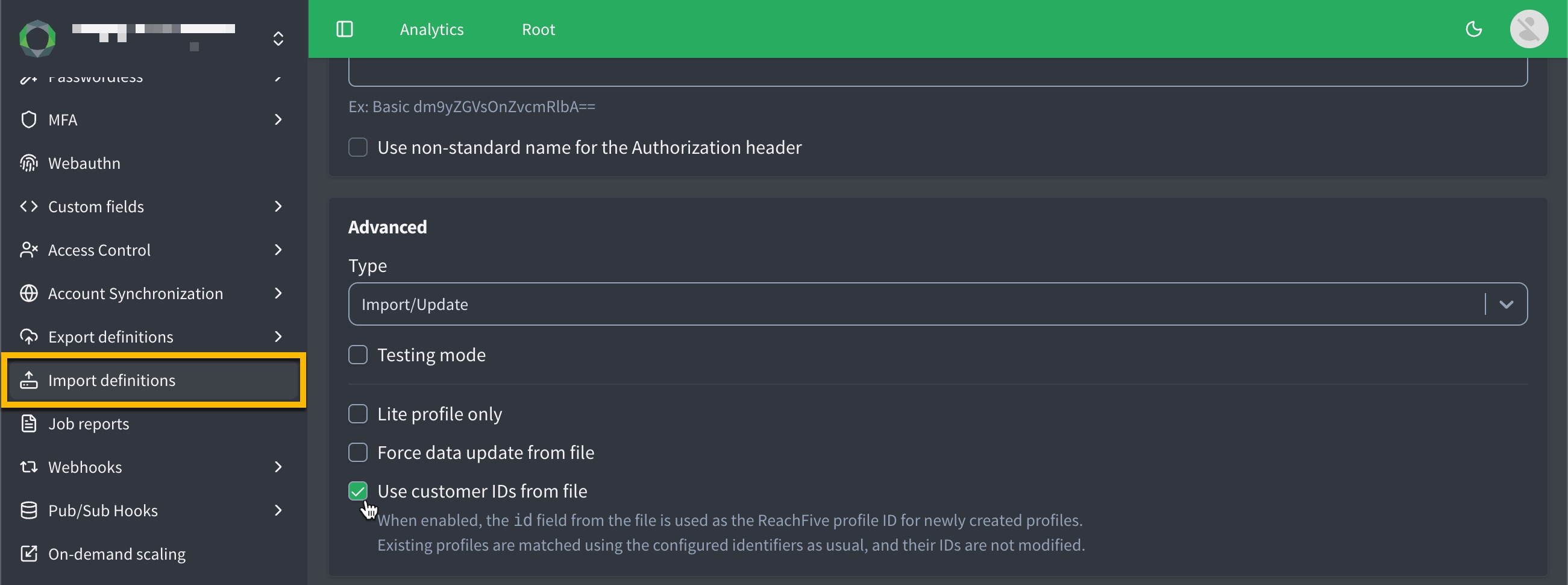
For more instructions, see [Import user profiles](import-profiles-from-the-console.html).
## Job reports
Job reports provide a snapshot of the different export and import jobs that you have run. Information such as the `id`, a definition, the job type, the progress of the job, the job’s status, and when the job was last run is provided for you so you can get a quick look at the latest jobs. To find more information about the job, you can view the [job logs](#job-logs).
Only job reports run in the last **6 months** are displayed on the Job reports page in the Purse Identity Console. Older jobs are automatically deleted.
To access job reports:
1. Open your Purse Identity Console.
2. Go to **Settings** **Job reports**.

Report statuses
The following statuses are possible for job reports:
- FAILURE which indicates the job has failed. Check out the logs for more information.
- WAITING which indicates the job has yet to finish.
- SUCCESS which indicates the job was successfully run.
### Filter job reports
You can filter job reports from the Purse Identity Console. Filtering the reports helps you more easily find the job report you’re looking for. The job report filters offers several ways to filter as shown in the table below. This includes setting a timeframe and how the results are displayed.
To filter job reports:
1. Open your Purse Identity Console.
2. Go to **Settings** **Job reports**.
3. Click **Filters** in the top right corner.
4. Enter your desired filters in the dialog.
View from the console

##### Job ID
Filter by a specific job ID that has been run.
This filter is particularly useful when you need to look into a specific job. Perhaps, you obtained the ID through logs or need to investigate further.
##### Job definition ID
Filter by a job definition ID.
This filter is useful when you want to look at a particular job definition. Maybe, you want to see how often it’s been run, or why a specific job definition is succeeding or failing.
##### Job type
Filter by the type of job such as export or import.
The job type filter is good to filter out only the type of jobs you want to see.
##### Job status
Filter by the status of the job.
Statuses
- `SUCCESS`
- `RUNNING`
- `WAITING`
- `WAITING_CANCELLATION`
- `CANCELED`
- `FAILURE`
5. If desired, select a timeframe by clicking **From** for the starting date and **To** for the end date.
6. Choose the **Order** of how you want your results displayed.
7. Click **Apply**.
### Job logs
To view more information on the job itself or [download the logs](#download-logs), click **Show logs** found on the far right hand side of the table.
In the job logs, you can see the information **Level**, the **Content** of the information, and the **Date** on which it occurred.
##### Level
Denotes the level of the log information.
possible values
- `ERROR` indicates an error has occurred while running the job, typically related to incorrect credentials or corrupted files (CSV/JSON).
- `WARNING` indicates there is something incorrect about the log, typically related to syntax or duplication.
- `LOG` indicates standard log content, typically denoting profiles, or the operation itself (export/import).
##### Content
Gives a description of the log information.
##### Date
The timestamp for the log information.
#### Download logs
You can download full logs or just the errors by clicking the desired dropdown and choosing the format for the download.

Example JSONL download
```json
{"Level":"LOG","Content":"Export profiles from beginning","Date":"2023-04-02T00:00:00.899Z"}
{"Level":"LOG","Content":"Total profiles to export: 47","Date":"2023-04-02T00:00:01.296Z"}
{"Level":"LOG","Content":"Uploading to path: /uploads/weekly-export.csv","Date":"2023-04-02T00:00:01.298Z"}
{"Level":"ERROR","Content":"Error occurred: Invalid SFTP credentials.","Date":"2023-04-02T00:00:06.991Z"} (1)
```
- (1) Shows where the `ERROR` occurred and gives details on what the error was.
#### Export logs
You can export logs for a specific job using the Management API’s [Export job logs](https://docs.identity.purse.eu/openapi/management.html#operation/exportJobLogs) endpoint.
---
# Getting started
URL: /docs/index.html
Welcome to Purse Identity! Purse Identity provides a seamless authentication and authorization experience for your site. We focus on the modern customer experience while giving you (our customer) the control and insight into your customer base with analytics, consent management, attack protection, and more. All of this is controlled and managed by you on your dedicated Purse Identity Console. We are cloud-agnostic, API-first, and give you the agility to adapt to the pace of digital transformation.
## Authentication
Authentication is a critical component of cybersecurity and information systems for your brand, serving gatekeeper for verifying the identity of users. Various authentication methods exist, from traditional username-password combinations to more advanced techniques like [biometrics](fido2.html) and [Multi-factor Authentication](mfa.html), both offered with Purse Identity.
[OpenID Connect (OIDC)](openid.html) and tokens play significant roles in modern authentication protocols, facilitating secure user identity verification, while [Proof Key for Code Exchange (PKCE)](flows/authorization-code-pkce.html) adds an extra layer of protection in authorization processes. Overall, robust and tested authentication mechanisms are fundamental in safeguarding digital assets and maintaining the integrity of online systems.
[Learn more 🤔](decode-tokens.html)
## Data models
Data models for user profiles define the structure of digital identities, incorporating personal details and preferences. As it relates to user events, data models capture timestamps and interactions, enabling your brand to analyze and extract valuable insights from chronological sequences of activities.
[Learn more 🤔](models-audit-log.html)
## Global consumers
Purse Identity’s roots are proudly French. 
However, our platform and CIAM solution reaches far beyond that to a global consumer base for your brands. This includes supporting a wider variety of languages, enabling integration through a variety of platforms, and ensuring your brand has a bird’s eye view into your user base through robust analytics and granular control through the Purse Identity Console.
[Learn more 🤔](global-consumers/languages.html)
## Integration
With the combined support of our brilliant Professional Services team and the documentation provided here, we aim to provide starting points for your Purse Identity journey as well as provide you with important integration content around [importing](imports.html) and [exporting](exports.html) data, setting up [webhooks](webhooks.html), and much more.
This includes starting with what you have, whether this is a [Single-page application(SPA)](auth-spa.html), [web app](auth-web.html), or you want to leverage one of our several SDKs (Core, UI, and Mobile).
[Learn more 🤔](auth-spa.html)
## Managing profiles
Managing user profiles is vital for identity verification, authentication processes, and analytics within digital systems. User profiles store essential information, enabling robust identity verification during authentication. Additionally, they serve as valuable repositories for analytics, providing insights into user behavior, preferences, and interactions, which are crucial for enhancing user experiences and optimizing system performance.
[Learn more 🤔](user-profiles.html)
## Purse Identity Console
The Purse Identity Console is the control centre of your Purse Identity CIAM experience. From here, you can use our robust analytic to get insights into your brand’s user behaviour, how they authenticate, issues they’re having, and most importantly, how to reach them and serve them better for optimal user retention. The Purse Identity Console is where you can create hooks, export definitions, import definitions, create custom fields, set up [Hosted Pages](hosted-pages.html) and more.
[Learn more 🤔](console.html)
## Security
When it comes to brand reputation, few things are more important than security. Your user’s depend on you to keep their data safe and secure, while simultaneously offering a seamless experience. No place is this more true than with authentication and authorization. Users want a frictionless experience for online purchases, particularly when it comes to authenticating at the point-of-sale.
From integrating [reCAPTCHA](captcha/recaptcha.html) and strong [password policies](password-management.html) to robust [Identity fraud protection](ifp.html), Purse Identity is here to ensure a secure experience for your brand and your users.
[Learn more 🤔](audit-logs.html)
---
# Instagram Connect
URL: /docs/instagram.html
> Instagram Connect has not been supported by Facebook since the **31 March, 2020**.
Facebook now rejects applications that use Instagram for authentication. You must use Facebook Login instead to authenticate users. Facebook does not approve applications that use the **Instagram Basic Display API** for authentication.
## What do I need to do?
For existing users to continue to access your application, you should notify or ask users that are using **Instagram** for authentication to authenticate using a different approach.
This could be [Meta Connect (Facebook Login)](facebook.html) or using a traditional `username` and `password`.

---
# Job reports
URL: /docs/job-reports.html
Job reports provide a snapshot of the different export and import jobs that you have run. Information such as the `id`, a definition, the job type, the progress of the job, the job’s status, and when the job was last run is provided for you so you can get a quick look at the latest jobs. To find more information about the job, you can view the [job logs](#job-logs).
Only job reports run in the last **6 months** are displayed on the Job reports page in the Purse Identity Console. Older jobs are automatically deleted.
To access job reports:
1. Open your Purse Identity Console.
2. Go to **Settings** **Job reports**.

## Filter job reports
You can filter job reports from the Purse Identity Console. Filtering the reports helps you more easily find the job report you’re looking for. The job report filters offers several ways to filter as shown in the table below. This includes setting a timeframe and how the results are displayed.
To filter job reports:
1. Open your Purse Identity Console.
2. Go to **Settings** **Job reports**.
3. Click **Filters** in the top right corner.
4. Enter your desired filters in the dialog.
View from the console

##### Job ID
Filter by a specific job ID that has been run.
This filter is particularly useful when you need to look into a specific job. Perhaps, you obtained the ID through logs or need to investigate further.
##### Job definition ID
Filter by a job definition ID.
This filter is useful when you want to look at a particular job definition. Maybe, you want to see how often it’s been run, or why a specific job definition is succeeding or failing.
##### Job type
Filter by the type of job such as export or import.
The job type filter is good to filter out only the type of jobs you want to see.
##### Job status
Filter by the status of the job.
Statuses
- `SUCCESS`
- `RUNNING`
- `WAITING`
- `WAITING_CANCELLATION`
- `CANCELED`
- `FAILURE`
5. If desired, select a timeframe by clicking **From** for the starting date and **To** for the end date.
6. Choose the **Order** of how you want your results displayed.
7. Click **Apply**.
## Job logs
To view more information on the job itself or [download the logs](#download-logs), click **Show logs** found on the far right hand side of the table.
In the job logs, you can see the information **Level**, the **Content** of the information, and the **Date** on which it occurred.
##### Level
Denotes the level of the log information.
possible values
- `ERROR` indicates an error has occurred while running the job, typically related to incorrect credentials or corrupted files (CSV/JSON).
- `WARNING` indicates there is something incorrect about the log, typically related to syntax or duplication.
- `LOG` indicates standard log content, typically denoting profiles, or the operation itself (export/import).
##### Content
Gives a description of the log information.
##### Date
The timestamp for the log information.
### Download logs
You can download full logs or just the errors by clicking the desired dropdown and choosing the format for the download.

Example JSONL download
```json
{"Level":"LOG","Content":"Export profiles from beginning","Date":"2023-04-02T00:00:00.899Z"}
{"Level":"LOG","Content":"Total profiles to export: 47","Date":"2023-04-02T00:00:01.296Z"}
{"Level":"LOG","Content":"Uploading to path: /uploads/weekly-export.csv","Date":"2023-04-02T00:00:01.298Z"}
{"Level":"ERROR","Content":"Error occurred: Invalid SFTP credentials.","Date":"2023-04-02T00:00:06.991Z"} (1)
```
- (1) Shows where the `ERROR` occurred and gives details on what the error was.
### Export logs
You can export logs for a specific job using the Management API’s [Export job logs](https://docs.identity.purse.eu/openapi/management.html#operation/exportJobLogs) endpoint.
---
# JSON Web Key Sets
URL: /docs/jwks.html
A **JSON Web Key Set (JWKS)** is a set of keys that contain amongst other things the keys needed to verify [**JSON Web Tokens (JWT)**](https://tools.ietf.org/html/rfc7519). These JWTs are issued by the authorization server and signed within Purse Identity using either the HS256 or RS256 signing algorithms.
> This page focuses on JWK Sets and how to manage them via the Purse Identity Console and API. For details on decoding tokens, see the [Decode tokens](decode-tokens.html) page.
We at Purse Identity support two different algorithms that sign JSON Web Tokens:
##### RS256
Generates asymmetric signatures, meaning a private key is used to sign the JSON Web Token and a public key is used to verify the signature.
##### HS256
Uses the client secret to cipher and decipher the JWT.
For the rest of this guide, we will focus only on the RS256 algorithm.
**JSON Web Key (JWK)**: A JSON object that represents a cryptographic key.
**JSON Web Key Set (JWKS)**: A JSON object that represents a set of JWKs. Note this must have a keys member - an array of JWKs.
RFC7517
> A JSON Web Key (JWK) is a JavaScript Object Notation (JSON) \[RFC7159\] data structure that represents a cryptographic key. This specification also defines a JWK Set JSON data structure that represents a set of JWKs.
>
> See [RFC7517](https://tools.ietf.org/html/rfc7517) for more details.
## Global vs Client JWKS
When signing JSON Web Tokens using the RS256 algorithm, you have two different approaches currently available to you for managing these JWK Sets:
- **Global RSA Public Key**: This means that the global RSA private key is used to cipher tokens while the public key is used to decipher tokens, for all clients in your account. This means that your clients will cipher tokens the same way.
- **[Client-specific RSA Public Keys](#client-specific-rsa-public-keys)**: This approach applies a unique key pair (public/private) to each of the clients in your account. This means your clients will cipher tokens differently.
Here, we will discuss the advantages of using a client-specific approach when handling JWK Sets.
* * *
### Client-specific RSA Public Keys
Unlike using an account-based RSA Public Key, a client-specific approach offers a more secure way of issuing tokens. It is more secure because a given client is independent of other clients within your account and can’t decipher the token issued by another client.
## Manage JWK Sets from console
You can manage your JSON Web Keys from the Purse Identity Console.
> These instructions are only applicable if you are using the **RS256** algorithm.
### Prerequisites
- You must have access to the Purse Identity Console.
- You must have a Developer, Manager, or Administrator [role](roles.html).
- You must have an existing client or you should create a new client.
### Instructions
1. Go to **Settings** **Clients**.
2. Select an existing client or create a **New client**.
3. Scroll down until you see **JWT Algorithm**.
4. Choose **RS256** from the dropdown menu.
5. Generate a client-specific key pair or sync the client to the global RSA key pair.
NaN. Click the **Rotate** button.
NaN. Confirm you want to rotate the RSA key pair.
Your browser does not support the video tag.
> The RSA key pair for this client is now independent of the account-based (global) RSA key pair.
NaN. Click the **Account sync.** button.
NaN. Confirm you want to synchronize the client RSA key pair with the account-based (global) pair.
Your browser does not support the video tag.
> The RSA key pair for this client is now synced with the account-based (global) RSA key pair.
You can see your JSON Web Key Sets using the `/jwks.json` endpoint from your console. Example: `.reach5.net/jwks.json`. See the [parameters](#jwks-param-table-jwks-console) below for more information on the sets.
## Manage JSON Web Keys with API
You can manage JSON Web Keys from the Purse Identity [Management API](https://docs.identity.purse.eu/openapi/management.html). Use the following operations to sync, revoke, rotate, and retrieve JWK from the set.
##### POST /api/v1/site/keys
Generates (rotates) a new account-based (global) RSA key pair.
##### GET /jwks.json
Retrieves all JWK sets for an account.
##### POST /api/v1/clients/:clientId/keys
Generates (rotates) a new RSA key pair for the specified client in the operation.
##### PUT /api/v1/clients/:clientId/keys
Synchronizes the client-specific RSA key pair back with the account-based (global) RSA key pair.
##### DELETE /api/v1/clients/:clientId/jwks/:kid
Revokes a JSON Web Key for the specific client and `key`.
## JWK Set parameters
JSON Web Tokens (JWT) use digital signatures to verify the authenticity of data they contain.
> Check out the [JWT](https://jwt.io/introduction) website for a thorough introduction to JSON Web Tokens.
The JSON Web Key and JSON Web Key Sets sign and encrypt these tokens. When using the Purse Identity Console endpoint (`/jwks.json`) or the Purse Identity [Identity API](https://docs.identity.purse.eu/openapi/identity.html), you can see the array of keys (JSON Web Key Set).
- [JWK Set example](#jwk-set-example)
- [JWK Set parameter definitions](#jwk-set-parameter-definitions)
### JWK Set example
```json
{
"keys": [
{
"kty": "RSA",
"e": "AQAB",
"x5t": "NjU3NDI5ZTZhODU0YjQzMGFiYzkwNGNkZDkwNmZkMzZmOWEzNWVmMQ",
"use": "sig",
"kid": "e600c72b-125a-4b30-86a5-9697af62f2a1",
"x5c": [
"MIICujCCAaKgAwIBAgIECI8fsTANBgkqhkiG9w0BAQsFADAfMR0wGwYDVQQDExR0ZXN0LWFsZXgucmVhY2g1Lm5ldDAeFw0yMDA3MjkwOTM0MjlaFw0yMjAyMTcxNDIwMzNaMB8xHTAbBgNVBAMTFHRlc3QtYWxleC5yZWFjaDUubmV0MIIBIjANBgkqhkiG9w0BAQEFAAOCAQ8AMIIBCgKCAQEAlzRszUeQ4WiSqvmYxMP10ngm8ALIoUwMH7Oa8vrZgD5pqalPjetPAxeVcAv2gTyDlOwtB0fGvlQo6n78pd9pTbgrzUjhmFuYN6OCfT6eN/2wu0LmwryFS2mbh7/1DTiKd2tZaRalskPECXTKkeks85HVqanB0860BYlGvQvfgrvhCWXXFJJeXvNwYNFYdDdrFQhoeOAEvRDKg9DdHZf6XzSR6Qk3w51FKn2b7imen/G52itD/kIen1hqqB2Jwt9SWyX5MSGySY2QwC18F6Dfs8L+t0mwCo6grGW9264Z5vlO0PWssEqGIX/ez6nk1ZdHXhoXwJ0W+6QzeQlUN8jNoQIDAQABMA0GCSqGSIb3DQEBCwUAA4IBAQAETbMWro4HI4ZuqtnjMZrgEOpx6WhAtxpMx5XFPVWbdp/DpPySotoWbbD6qCtYc34E+ec7mH7aHVap+Gl2IyeSHTht4FXfF9q/1Oj/fis/4DDi1iq00rJsU18D71mZ9FGWCWlO1nhW1KSTGbRJ3E0wSrNabcvaXcwEHokR3zm+xfRWjtbrq2hQ19R16xyOLVy4zrF95QxP4UN+Cvm8nmYur6bSqv+gCMvDsl+O/gtRHGgpUukHEJwnee1R3+1aIv+9zOF3HaaUC5neOLBFITGmeXgi8G2IhbG+JoXh/GUkb66TZUlUAM3qXYNL9Nf+2MQ7nAPTXcxlmImFUUrnv0c3"
],
"alg": "RS256",
"n": "lzRszUeQ4WiSqvmYxMP10ngm8ALIoUwMH7Oa8vrZgD5pqalPjetPAxeVcAv2gTyDlOwtB0fGvlQo6n78pd9pTbgrzUjhmFuYN6OCfT6eN_2wu0LmwryFS2mbh7_1DTiKd2tZaRalskPECXTKkeks85HVqanB0860BYlGvQvfgrvhCWXXFJJeXvNwYNFYdDdrFQhoeOAEvRDKg9DdHZf6XzSR6Qk3w51FKn2b7imen_G52itD_kIen1hqqB2Jwt9SWyX5MSGySY2QwC18F6Dfs8L-t0mwCo6grGW9264Z5vlO0PWssEqGIX_ez6nk1ZdHXhoXwJ0W-6QzeQlUN8jNoQ"
},
…
]
}
```
### JWK Set parameter definitions
##### kty
Identifies the cryptographic algorithm family used with the key.
possible values
- `RSA`
##### e
The public RSA key value used for RSA Key blinding operations.
##### x5t
a `base64url-encoded` SHA-1 thumbprint of the DER encoding of an [X.509 certificate RFC5280](https://tools.ietf.org/html/rfc5280)
##### use
Identifies the intended use of the public key
possible values
- `sig` = signature
- `enc` = encryption
##### kid
The key identifier.
> This is a case-sensitive string.
This is a case-sensitive string.
##### x5c
Specifies a chain of [PKIX certificates](https://tools.ietf.org/html/rfc5280).
##### alg
Identifies the algorithm intended for use with the key. For example: `RSA256`.
##### n
The modulus RSA key value used for RSA Key blinding operations.
---
# Kakao Connect
URL: /docs/kakao-connect.html
You can use either **Kakao Login** or **Kakao Sync** as a social login provider for Purse Identity. Both options allow your users to sign in with their Kakao account, but **Kakao Sync** offers additional user information, consent synchronization, and a simplified sign-up experience.
To integrate either option, you need an **App ID** and **App Secret** from your Kakao app, which you’ll configure in your Purse Identity settings.
This page details:
- The difference between Kakao Login and Kakao Sync
- The user information retrieved from Kakao
- How to connect Kakao with your Purse Identity account
## Kakao Login vs Kakao Sync
Kakao provides two types of integrations that use the same login API but differ in data access, consent flow, and business requirements.
> The availability of each field may depend on granted scopes, business review status, and user consent. For full up-to-date details, refer to link:[Kakao’s Developer documentation](https://developers.kakao.com/).
##### KakaoTalk ID
✅
##### KakaoTalk name, nickname, username
✅
##### Profile image
✅
##### Email
✅
##### Birthdate
⚙️ Optional (requires user consent)
##### Birthday
⚙️ Optional (requires user consent)
##### Birth month
⚙️ Optional (requires user consent)
##### Gender
⚙️ Optional (requires user consent)
##### Phone number
⚙️ Optional (requires user consent)
##### Verified phone number (phone\_number\_verified)
⚙️ Requires **OpenID Connect Activation**
##### Address
❌
##### Connecting Information (CI)
❌
##### Age range (kakaotalk\_age\_range)
⚙️ Optional
##### User consents
✅ (manual mapping required)
##### KakaoTalk Channel auto-follow
❌
##### One-click signup (Simple Signup)
❌
##### Requires Kakao Business registration and Sync review
❌
> - If you only need basic authentication and profile data, **Kakao Login** is sufficient.
>
> - If you want richer verified user information (such as CI or address), auto-synced consents, and one-click sign-up, you must use **Kakao Sync**.
>
## Implementation details
- [Phone number verification](#phone-number-verification)
- [Address fields (Kakao Sync only)](#address-fields-kakao-sync-only)
- [Birth information](#birth-information)
- [Provider metadata](#provider-metadata)
- [User consents](#user-consents)
### Phone number verification
To retrieve the `phone_number_verified` field with Kakao Login, you must enable [_OpenID Connect Activation_](https://developers.kakao.com/docs/latest/en/kakaologin/prerequisite#activate-oidc) in your Kakao application.
### Address fields (Kakao Sync only)
If you collect address information through Kakao Sync, ensure that the following [address custom fields](custom-fields.html#create-custom-address-fields) exist in your [Addresses object](models-user-profile.html#addresses-object):
- `kakaotalk_address_id`: [`string` data type](custom-fields.html#custom-field-data-types)
- `receiver_phone_number2`: [`phone` data type](custom-fields.html#custom-field-data-types)
- `zone_number`: [`string` data type](custom-fields.html#custom-field-data-types)
Otherwise, address information will not be imported.
Example
```json
{
"path": "kakaotalk_address_id",
"scope": ["string"],
"name": "kakaotalk_address_id",
"data_type": "string",
"id": "kakaotalk_address_id"
}
```
> See the [Kakao API reference](https://developers.kakao.com/docs/latest/en/kakaologin/rest-api#shipping-response-shipping-address) for details on the `shipping_address` object format.
### Birth information
In addition to retrieving the full birthdate, Purse Identity now allows you to retrieve the individual birth month and birthday (day of the month) fields from a user’s Kakao profile.
This granularity is particularly useful for compliance and data minimization purposes. If your regulatory requirements restrict you from storing a user’s exact birth year or full birthdate, you can configure your integration to only collect the specific month and day fields required for your use case (such as sending a birthday promotion without storing the user’s exact age).
> Accessing these granular birth fields requires appropriate user consent if you are using Kakao Login, but they are included by default when utilizing Kakao Sync.
### Provider metadata
Kakao Sync enriches the `provider_metadata` object with:
- Connecting Information (`CI`)
- Age range (`kakaotalk_age_range`)
- Verification timestamps
> See [provider\_metadata](models-user-profile.html#provider_metadata) for details.
### User consents
You can import user consents from Kakao into Purse Identity through the [Kakao REST API](https://developers.kakao.com/docs/latest/en/kakaologin/rest-api).
To ensure proper consent synchronization:
- Assign [`opt-in` type](consents.html#definitions) to corresponding Purse Identity consents.
- Match each consent’s [`key`](consents.html#definitions) with the Kakao consent `tag`.
When configured correctly, consents are imported when a user logs in via Kakao for the first time.
> At time of writing, consents in Kakao are found under **Product Settings** **Kakao Login** **Simple Signup** and include:
>
> - Terms of Service
>
> - Consent for age 14 and over
>
## Connect Kakao with Purse Identity
Follow these steps to connect your Kakao app with your Purse Identity account.
1. Go to [Kakao Developers](https://developers.kakao.com) and log in.
2. [Create](https://developers.kakao.com/docs/latest/en/getting-started/app#create) a new application or open your existing Kakao app.
3. [Register a Web platform](https://developers.kakao.com/docs/latest/en/getting-started/app#platform) and add your site domain.
```none
https:// (1)
```
- (1) Where `` is your [domain](console.html#get-domain).
4. [Activate Kakao Login](https://developers.kakao.com/docs/latest/en/kakaologin/prerequisite#kakao-login).
5. [Set your redirect URI](https://developers.kakao.com/docs/latest/en/kakaologin/prerequisite#redirect-uri):
```none
https:///login/callback (1)
```
- (1) Where `` is your [domain](console.html#get-domain).
6. Set consent states under **Product Settings** **Kakao Login** **Consent items**. Choose one of the following for each scope:
- **Required consent**: Users must consent to complete login.
- **Optional consent**: Login completes without user consent.
7. If using Kakao Sync, enable **Simple Signup** and complete the Kakao review process before production. See [Kakao Sync review](https://developers.kakao.com/docs/latest/en/kakaosync/prerequisite#review).
8. After configuration, connect the app to Purse Identity:
1. Retrieve your **REST API key** and **Admin key** from the Kakao **App Keys** section.
##### REST API key
Client ID
##### Admin key
Client secret

2. In the Purse Identity Console, go to **Settings** **Providers** **KakaoTalk**.
3. Paste the **REST API key** into the **Client ID** field.
4. Paste the **Admin key** into the **Client secret** field.
5. Don’t forget to **Save** your input.

## Resources
For more information, see Kakao’s official documentation:
- [Consents](consents.html)
- [Kakao Login](https://developers.kakao.com/docs/latest/en/kakaologin/common)
- [Kakao Sync](https://developers.kakao.com/docs/latest/en/kakaosync/common)
- [Kakao Sync user info](https://developers.kakao.com/docs/latest/en/kakaosync/prerequisite#user-info-review)
---
# Line Connect
URL: /docs/line.html
To use Line as a social login provider, you will need an App ID and App Secret from your Line app, then copy these keys into your Purse Identity settings.
This docs detail steps by steps how to create a Line App and connect it to your Purse Identity account.
## Line data
This is the collectable data for Line Connect.
### Public data
- **User ID** - A unique identifier for the user.
- **Display Name** - The user’s display name.
- **Profile Picture** - The user’s profile image.
### User consent needed
- **Email Address** - The user’s email address. Accessing this requires applying for permission in the LINE Developers Console.
> Because email requires user consent, you may not be able to retrieve the email for all users. In the case where a user does not consent to sharing his or her profile, the profile is still created in Purse Identity, just with no email address associated with the Line user.
### Line Profile
The `openid` scope is required for accessing any information for Line Profile . See [Line Profile addresses](#line-profile-addresses) for more details on the address object.
- **Given name pronunciation** - The phonetic pronunciation of the user’s given name. This is added to the user’s provider metadata. Requires the Purse Identity `real_name` scope.
- **Middle name** - The user’s middle name. Requires the Purse Identity `real_name` scope.
- **Family name** - The user’s family name. Requires the Purse Identity `real_name` scope.
- **Family name pronunciation** - The phonetic pronunciation of the user’s family name. This is added to the user’s provider metadata. Requires the Purse Identity `real_name` scope.
- **Gender** - The user’s gender. Requires the Purse Identity `gender` scope.
- **Date of Birth** - The user’s date of birth. Requires the Purse Identity `birthdate` scope.
- **Phone Number** - The user’s phone number. Requires the Purse Identity `phone` scope.
- **Address** - The user’s address. Requires the Purse Identity `address` scope.
#### Line Profile addresses
The address object received from Line includes the following which map directly onto our [Addresses object](models-user-profile.html#addresses-object).
- `postal_code`
- `region`
- `locality`
- `street_address`
- `country`
To prevent duplicate addresses and respect user updates, Purse Identity syncs the Line address only once. You must create a [custom `boolean` field](custom-fields.html) called `is_line_address` to enable this behavior.
Each time a user logs in via Line Profile :
- If the `is_line_address` custom field is set to `true` in one of the user’s profile addresses, the incoming Line address is ignored (preventing overwrite or duplication).
- Otherwise, the Line address is added to the user’s address table, and this custom field is automatically set to `true` for that address to mark it as synced.
> If the `is_line_address` custom field has not been configured, the system does not return an error.
>
> This ensures backwards compatibility for existing implementations.
## Developer access
Log in to the LINE Developers console with the email address and password of your LINE account : [https://developers.line.me/console](https://developers.line.me/console)

Note: If you do not have a LINE account with a registered email address, download LINE, then go to Settings > Account to register your email address.
On first login, you have to register as a developer : enter your name and email address to create a developer account on the LINE Developers console.

## Create a new provider
Click on "create a new provider"

Enter a name for the provider. The provider is the entity that offers your app, you can use the name of your company.

Click on "confirm"
## Create a channel
Click on "Create Channel" under LINE Login

Enter the required information for your channel. "LINE" or a similar string cannot be included in the channel name.

Enter App Name and check "Use WEB" case.
Enter your contact email address.

Click on "confirm"

## Configure your application
Click on your App

Go to "Channel settings"

Scroll down
You can request users who log in using LINE Login to grant your app the permission to get their email address. To do so, you first need to apply for the permission in the console.
Click "Submit" next to "Email" in the "OpenID Connect" section in the "Channel settings" page. Agree to the application terms and upload a screen shot of the screen that explains to the user why you need to obtain their email address and what you will use it for. Once your application is accepted, "Applied" is displayed under "Email".
Go to "App settings"

Add `https://YOUR_PURSE_IDENTITY_DOMAIN/login/callback` as Callback URL, where `YOUR_PURSE_IDENTITY_DOMAIN` is your [Purse Identity domain](console.html#get-domain).
## Configure LINE as provider on Purse Identity
The following must be done within the Purse Identity Console.
1. Return to the Purse Identity Console.
2. Go to **Settings** **Providers**.
3. Click the **Line** application option.
4. Add the **Client ID**, **Client Secret**, and associated [**Permissions**](#line-data).
This is the Channel ID and Channel secret from your Line application.
Have multiple brands using Line?
If you have multiple brands or subsidiaries using Line, you can add them as _variants_ within the Purse Identity Console.

5. Under **Bot prompt**, choose one of the following:
- Empty
- Normal
- Aggressive
What is this exactly? 🤔
The **Bot prompt** asks the user if they want to add a LINE friend when logged in.
- **Empty** means that the user is not prompted.
- **Normal** prompts the user on the consent screen.
- **Aggressive** prompts the user in a new window after the consent screen.
For more details, check out LINE’s [`bot_prompt` documentation](https://developers.line.biz/en/docs/line-login/link-a-bot/#redirect-users).
6. Don’t forget to **Save** your input.
---
# LinkedIn Connect
URL: /docs/linkedin.html
To use LinkedIn as a social login provider, you need a **Client ID** and **Client Secret** from your LinkedIn app, which you’ll then copy into your Purse Identity settings. This guide explains how to create a LinkedIn application, configure it with the new LinkedIn authentication API, and connect it to your Purse Identity account.
Visuals from LinkedIn in this guide are current as of writing in October 2025 and represent the LinkedIn Developer Portal at that time. Changes may occur that are outside of our control.
> LinkedIn deprecated its previous authentication API on **August 1, 2023**.
>
> Purse Identity now supports both the old and new LinkedIn APIs to avoid breaking existing configurations. However, we strongly recommend migrating to the new API (`openid`, `email`, `profile` scopes) as soon as possible to ensure continued compatibility.
## LinkedIn data
This is the collectable data for LinkedIn Connect.
### Public data
- **User ID** — A unique identifier for the user, returned in the OpenID Connect ID token.
- **First Name** — The user’s first name.
- **Last Name** — The user’s last name.
- **Profile Picture** — The user’s profile image.
### User consent needed
- **Email Address** — The user’s primary email address.
> When you add the `email` scope (new LinkedIn API) or the `r_emailaddress` scope (deprecated API) to the LinkedIn provider in the Purse Identity Console, LinkedIn displays a consent screen to the user.
>
> - If the user declines, the LinkedIn Connect sign-in attempt fails. LinkedIn does not allow partial approval of scopes.
>
> - If the user approves, the email address is returned in the `email` field of the user profile object.
>
>
> To comply with LinkedIn’s new authentication API, we recommend using the following scopes:
>
> - `openid`
>
> - `email`
>
> - `profile`
>
>
> The older scopes (`r_liteprofile`, `r_emailaddress`, `w_member_social`) are still temporarily supported but deprecated as of **August 1, 2023**.
## LinkedIn Developer Portal
1. Go to the [LinkedIn Developer Portal](https://developer.linkedin.com) and sign in with your LinkedIn account.
2. From the top navigation, go to **My Apps**.
3. Click on **Create App** and fill in the required details such as your app name, LinkedIn page, and company email.

## Configure your application
Once your app is created, go to the **Auth** tab to configure OAuth 2.0 settings.

1. Copy your **Client ID** and **Client Secret**.
2. In **Authorized Redirect URLs**, enter `https://YOUR_PURSE_IDENTITY_DOMAIN/login/callback`, where `YOUR_PURSE_IDENTITY_DOMAIN` is your [Purse Identity domain](console.html#get-domain).
You can include both staging and production URLs if needed.
3. Under **OAuth 2.0 Settings**, select:
- `openid`
- `email`
- `profile`
These scopes are required for the new LinkedIn API.
4. Save your changes.
## Set your application to live
Go to the **Settings** tab and set your application status to **Live** to make it available for production use.
## Configure LinkedIn as a provider
In the Purse Identity Console:
1. Go to **Settings** **Providers** **LinkedIn**.

2. Paste your **Client ID** and **Client Secret** values.
3. Add the appropriate permissions based on the LinkedIn API you’re using.
##### New API
- `openid`
- `email`
- `profile`
##### Old API (deprecated)
- `r_liteprofile`
- `r_emailaddress`
- `w_member_social`
4. Don’t forget to **Save** your input.
> The Purse Identity platform automatically determines whether to use the old or new LinkedIn API based on the scopes configured.
>
> While the old API remains temporarily supported, LinkedIn may remove it at any time. To ensure uninterrupted authentication, we recommend creating a new LinkedIn app and switching to the new scopes as soon as possible.
---
# Lite profiles
URL: /docs/lite-profiles.html
Lite profiles allow users to interact with your brand without having a dedicated account. They can be created and managed through our APIs to enable user engagement before full signup. Later, you can invite these users to complete their registration and convert them into full accounts.

## Overview
Lite profiles let users participate in activities or provide information without creating a full account. Here are a few common use cases:
- Subscribing to a mailing list
- Entering a prize competition
- Registering in-store at a traditional brick-and-mortar location
- Any other online interaction where the user provides personal information without signing up
This approach allows you to collect and leverage user data across multiple contact points (web, mobile, in-store) to accelerate future signups without compromising privacy.
## 1\. Create Lite profiles
We provide a dedicated endpoint for creating or updating Lite profiles:
- [Lite registration endpoint](https://docs.identity.purse.eu/openapi/management.html#operation/pushLiteProfile)
This endpoint pushes user data to Purse Identity, triggering either the creation of a new Lite profile or the update of an existing one.
A Lite profile is identified by one of the following identifiers:
- Email
- Mobile number
- External ID
When you submit a Lite profile, our system consolidates it with any existing account that matches one of those identifiers. Account unification can happen immediately if the account already exists, or later on when the user creates their full account or adds the same email or phone number (_if applicable_) to their profile.
> Data from Lite profiles has lower priority than data from any other source (such as social login or local profiles).
Protecting accounts
When unifying a Lite profile with a full account, data from the Lite profile is not displayed as long as the identifier (email or mobile number) remains unverified. Verification occurs through a confirmation email or SMS.
This ensures that attackers cannot gain access to personal information from a Lite profile simply by creating an account with the same identifier.
## 2\. Send signup invitations
After Lite profiles are created, you can invite those users to complete their signup. This converts their Lite profile into a full account.
To do this, use the following API endpoint:
- [/api/v2/signup-invitations](https://docs.identity.purse.eu/openapi/management.html#operation/signupInvitation)
This endpoint allows you to send signup invitation emails or SMS messages to your Lite users.
> The token included in this API operation cannot be used as an access token. It is exchanged only once to retrieve the user’s data.
The content of the invitation message is fully customizable in the Purse Identity Console using the [Signup Invitation template](email-templates.html#signup-invitation). Users receive an email or SMS containing a link or `verification_code` that points to your configured `redirect_url`, along with a secure token.
For more details on customizing templates, see:
- [Email templates](email-templates.html)
- [SMS templates](sms-templates.html)
## 3\. Retrieve user data and prefill the signup form
When a user clicks the link in the signup invitation, they are redirected to your signup form (`redirect_url`). At this stage, you can retrieve their data to prefill the signup form using one of the following endpoints:
- GET [/identity/v1/signup/data](https://docs.identity.purse.eu/openapi/identity.html#operation/getSignupData)
- POST [/identity/v1/signup/data](https://docs.identity.purse.eu/openapi/identity.html#operation/getSignupDataPost)
The data returned from these endpoints allows you to prefill fields in the signup form and simplify the signup process for your users. The created account includes all the information that was already stored in the Lite profile.
## Summary
The full flow for Lite profiles and signup invitations looks like this:
1. Create a Lite profile for a user through the Lite registration endpoint.
2. Store and consolidate their data using one of their unique identifiers (email, phone, or external ID).
3. Send a signup invitation via email or SMS using the signup invitation endpoint.
4. When the user clicks the link, retrieve their data to prefill the signup form.
5. Once they complete signup, the Lite profile becomes a full account.
## Related resources
- [Lite registration endpoint](https://docs.identity.purse.eu/openapi/management.html#operation/pushLiteProfile)
- [Signup invitation endpoint](https://docs.identity.purse.eu/openapi/management.html#operation/signupInvitation)
- [Get signup data (GET)](https://docs.identity.purse.eu/openapi/identity.html#operation/getSignupData)
- [Get signup data (POST)](https://docs.identity.purse.eu/openapi/identity.html#operation/getSignupDataPost)
- [Email templates](email-templates.html)
- [SMS templates](sms-templates.html)
---
# Login as
URL: /docs/login-as.html
To help troubleshoot issues on your website or support portal, administrators can log in as the user experiencing the problem using Purse Identity. You can log in as another user in the Purse Identity Console if you have access to the Profiles page, or use the dedicated Login as API endpoint.
## Configure the Login as feature
You can configure the **Login as** feature to be the same for all users or you can set a dynamic configuration which prompts you for the values per user, enabling you to set different requirements for specific use-cases where you may need different redirect URLs or even a different Purse Identity client.
To configure the **Login as** feature, follow the instructions below.
### Prerequisites
You must whitelist the following URLs in your selected [first-party identity API client](clients.html#first-party-identity-clients):
Allows Origins (CORS)
- The `origin` of your chosen redirect URL (e.g. `[https://brand.com](https://brand.com)`).
- The `origin` of your Purse Identity Console (e.g. `[https://console.reach5.co](https://console.reach5.co)`).
Allowed Callback URLS
- The redirect URL itself which acts as the authentication callback route URL (e.g. `[https://brand.com/logged-in](https://brand.com/logged-in)`, `[https://brand.com/signed-up](https://brand.com/signed-up)`).
### Configuration
1. Sign in to your Purse Identity Console.
2. Go to **Settings** **Login as**.
3. Depending on whether you want dynamic or standard usage:
1. Toggle the dynamic configuration to the **on** position .
_Each time you use the Login As feature, you have to select a client, a redirect URL, and a response type._

1. Select your first-party identity client from the dropdown menu.
2. Define the _Redirect url_. This must be whitelisted within your client.
3. Select the type of credential to return:
- `code` - Authorization Code flow
- `token` - Implicit flow
> Credentials are returned as a query string parameter when using the API.

## Log in as another user in the console
1. Navigate to the desired profile to log in as (**Account** **Profiles**).
2. Click **Actions** **Login as**.
3. Depending on whether you have dynamic or standard usage configured:
If you have the dynamic configuration enabled in your [Login as settings](#configure-the-login-as-feature), you’ll need to do the following:
1. Select your first-party identity client from the dropdown menu.
2. Define the _Redirect url_. This must be whitelisted within your client.
3. Select the type of credential to return:
- `code` - Authorization Code flow
- `token` - Implicit flow
> Credentials are returned as a query string parameter when using the API.

If you have the standard configuration where the values are global, you are now redirected to your website or app, as defined in the `Redirect url` field, as the selected user via Purse Identity.
> When you log in as another user, this generates a [user event](models-user-events.html) with an auth type of `login_as` which is traceable in the _Recent Activity_ panel of the impersonated user, just like a standard login.
## Log in as via API
Here is the call sequence to follow when implementing the Login as feature via the Management API:
1. POST [/oauth/token](https://docs.identity.purse.eu/openapi/management.html#operation/retrieveAccessToken)
2. GET [/api/v2/users/{uid}/login-as](https://docs.identity.purse.eu/openapi/management.html#operation/loginAs)
3. GET redirectUrl returned by the previous request.
> For the Authorization code flow only, use the POST [/oauth/token](https://docs.identity.purse.eu/openapi/identity.html#operation/retrieveAccessToken) Identity API endpoint.
## Login as auditing
When a user logs in as another user, Purse Identity clearly identifies the `login-as` user in the user event and in an access token claim. This makes it easier to track actions performed by `login-as` users for security and auditing purposes.
### How does it work? 🤔
You can pass an optional `name` query parameter in the [GET `/users/:id/login-as` endpoint](https://docs.identity.purse.eu/openapi/management.html#operation/loginAs). This `name` is then included in the `https://reach5.co/login-as-name` claim in the access token. It appears under `login_as_profile_id` in the `login` user event with `auth_type: login_as`, and in every other user event generated for the rest of the session, for as long as the access token carries that claim.
```sh
GET /users/:id/login-as?name=JohnDoe (1)
```
- (1) Here, `JohnDoe` is the name of the user performing the `login-as` action. This appears in the user event and in the access token claims as `https://reach5.co/login-as-name`.
If logging in as a user from the Purse Identity Console, the `https://reach5.co/login-as-name` access token claim is automatically taken from the email of the console user.
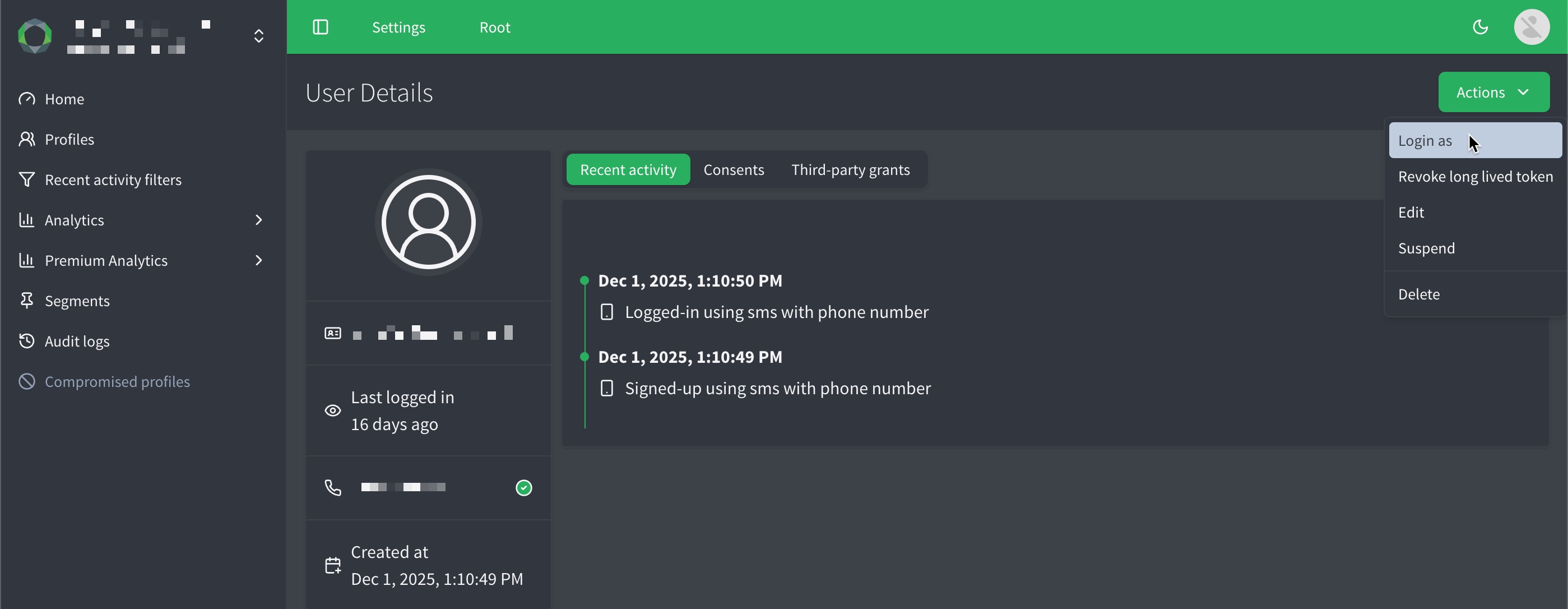
```json
{
"date": "2025-11-07T09:54:34.183123Z",
"type": "login", (1)
"id": "AWUTz0naD6KwGSiAAIMN",
"user_id": "550e8400-e29b-41d4-a716-446655440000",
"auth_type": "login_as", (2)
"login_as_profile_id" : "JohnDoe", (3)
...
}
```
- (1) The event type is `login`, indicating a login action.
- (2) `auth_type` will be equal to `login_as`.
- (3) The `login_as_profile_id` will display the `name` passed in the Management API call or the Purse Identity Console user email depending on the method used. This example shows the `login` event, but the field also appears on any other user event generated while the session is logged in as that user.
---
# Model Context Protocol (MCP)
URL: /docs/mcp.html
> The Purse Identity documentation MCP server is in limited internal use today. General availability for customers is coming soon.
The Purse Identity Model Context Protocol (MCP) server lets AI coding agents search official developer documentation from your IDE or CLI. Agents retrieve the same indexed content that powers the **Ask AI** assistant on this site, with citations back to canonical guides and API references.
This is a **documentation retrieval** service. It does not call your Purse Identity tenant APIs, change console settings, or perform actions on end-user accounts.
## How this compares to Ask AI on the docs site
##### Where it runs
In your browser (`docs.identity.purse.eu`)
##### What you get
Full conversational answers generated by the docs assistant
##### Best for
Quick questions while browsing documentation
## Prerequisites
Before you connect:
- An MCP-compatible agent client (see [Connect to the Purse Identity MCP server](#connect-to-the-mcp-server)).
- An MCP API key issued by Purse Identity.
- Network egress to the MCP host and to `docs.identity.purse.eu` (for the live documentation index).
> Do not commit API keys to `git`. Store them in your password manager, shell profile, or client secret store.
## Connect to the Purse Identity MCP server
The hosted endpoint uses **Streamable HTTP** MCP transport.
- **Server URL:** `[https://mcp.developer.reachfive.com/mcp](https://mcp.developer.reachfive.com/mcp)`
- **Health check (no auth):** `[https://mcp.developer.reachfive.com/health](https://mcp.developer.reachfive.com/health)`
Prefer environment variable expansion if your client supports it, rather than pasting secrets into tracked files.
### Cursor
Add the following to `.cursor/mcp.json` in your project, or to your global Cursor MCP settings. Restart Cursor after saving.
```json
{
"mcpServers": {
"reachfive-docs": {
"url": "https://mcp.developer.reachfive.com/mcp",
"headers": {
"Authorization": "Bearer YOUR_PURSE_IDENTITY_MCP_API_KEY" (1)
}
}
}
}
```
- (1) Replace `YOUR_PURSE_IDENTITY_MCP_API_KEY` with your actual API key.
See the [Cursor MCP documentation](https://cursor.com/docs/context/mcp) for troubleshooting.
### VS Code
Add a `.vscode/mcp.json` file in your workspace (or use your user-level MCP config, depending on your VS Code build).
```json
{
"servers": {
"reachfive-docs": {
"type": "http",
"url": "https://mcp.developer.reachfive.com/mcp",
"headers": {
"Authorization": "Bearer YOUR_PURSE_IDENTITY_MCP_API_KEY" (1)
}
}
}
}
```
- (1) Replace `YOUR_PURSE_IDENTITY_MCP_API_KEY` with your actual API key.
See the [VS Code MCP documentation](https://code.visualstudio.com/docs/copilot/customization/mcp).
### Claude Code
From your project directory:
```bash
claude mcp add --transport http reachfive-docs \
https://mcp.developer.reachfive.com/mcp \
--header "Authorization: Bearer $YOUR_PURSE_IDENTITY_MCP_API_KEY" (1)
```
- (1) Replace `YOUR_PURSE_IDENTITY_MCP_API_KEY` with your actual API key.
See the [Claude Code MCP documentation](https://code.claude.com/docs/en/mcp).
### Other MCP clients
Many editors and agent frameworks support remote HTTP MCP. Use:
- **URL:** `[https://mcp.developer.reachfive.com/mcp](https://mcp.developer.reachfive.com/mcp)`
- **Authorization:** `Bearer YOUR_PURSE_IDENTITY_MCP_API_KEY` (or `X-API-Key: YOUR_PURSE_IDENTITY_MCP_API_KEY`)
- **Accept header:** `application/json, text/event-stream` (required by the MCP HTTP specification; most clients add this automatically)
Consult your client’s documentation for the exact JSON shape. The `type` value `streamable-http` is an alias for `http` in several clients.
## Verify the connection
### Health check
```bash
curl https://mcp.developer.reachfive.com/health (1)
```
- (1) JSON response with `"status":"ok"` and `"service":"reachfive-docs-mcp"` means the server is reachable.
### MCP handshake
```sh
curl -X POST https://mcp.developer.reachfive.com/mcp \
-H "Authorization: Bearer YOUR_PURSE_IDENTITY_MCP_API_KEY" \ (1)
-H "Content-Type: application/json" \
-H "Accept: application/json, text/event-stream" \
-d '{"jsonrpc":"2.0","method":"initialize","params":{"protocolVersion":"2024-11-05","capabilities":{},"clientInfo":{"name":"smoke-test","version":"1.0.0"}},"id":1}'
```
- (1) Replace `YOUR_PURSE_IDENTITY_MCP_API_KEY` with your actual API key.
You should receive a response with the server information and the capabilities of the server.
### Agent smoke test
In your connected client, ask a normal integration question, for example:
- **How do I implement passkeys on web with Purse Identity?**
- **What is refresh token rotation in Purse Identity?**
- **Where is SSO logout documented?**
**Pass:** The agent searches documentation and answers with links to `docs.identity.purse.eu` pages. You do **not** need to name MCP tools in your prompt.
## How to use it day to day
Once connected, treat the MCP server as **always-on documentation context** for your agent.
Ask questions in plain language while you work in your repository. The agent chooses the right search tool based on your question and the tool descriptions exposed by the server.
Typical flows:
- **Implementing a feature:** "What does the docs recommend for PKCE in a SPA?"
- **Debugging:** "We’re seeing invalid refresh token errors; what does the official guide say?"
- **API discovery:** "What parameters does passwordless OTP expect?"
- **Release awareness:** "Any breaking changes in the latest release notes?"
Optional: add a project rule in your client telling the agent to prefer Purse Identity MCP results over training data for integration facts.
## Tools
The server exposes the following MCP tools (v0.5). Your agent calls them automatically; you rarely need to reference them by name.
##### get\_docs\_index
Fetches the live [`llms.txt`](https://docs.identity.purse.eu/llms.txt) documentation map. Useful for discovering canonical URLs and module layout.
##### search\_docs
Semantic vector search over developer documentation. Best for conceptual and integration questions. Supports optional `context_query` for follow-up questions.
##### search\_docs\_keyword
Full-text keyword search (natural language, stemmed terms). Good for multi-word queries such as **refresh token**.
##### search\_docs\_exact
Literal case-insensitive substring search. Best for exact API names, hyphenated terms, and precise strings such as `authorizeUser`.
## Authentication and security
### API key
`POST /mcp` requires an API key via one of:
- `Authorization: Bearer YOUR_PURSE_IDENTITY_MCP_API_KEY`
- `X-API-Key: YOUR_PURSE_IDENTITY_MCP_API_KEY`
`GET /health` does not require authentication.
## Troubleshooting
##### HTTP 401 on /mcp
Missing or invalid API key. Check the `Authorization` or `X-API-Key` header.
##### HTTP 406 on /mcp
Missing `Accept: application/json, text/event-stream` header. Add it for raw `curl` tests; IDE clients usually handle this.
##### HTTP 429
Rate limit exceeded. Wait one minute or contact support if you need a higher quota.
##### Agent does not search docs
MCP server not connected in client settings, or client did not reload after config change. Restart the client and confirm the server shows as connected with four tools.
## Get access
Currently, MCP access is limited to internal Purse Identity employees.
---
# Merging rules
URL: /docs/merging-rules.html
Authenticated profiles, also known as managed profiles, are user profiles that have been verified via the user’s chosen identifier. An identifier can be either one of the following:
- **email**
- **phone number**
- **external ID**
Lite profiles are user profiles that aren’t yet verified. These are typically a "light" touch approach for users interacting with your brand.
Lite and social profiles are automatically merged when an authenticated profile is created with the same identifier: `email`, `phone_number` or `external_id` in this order of priority.
> The attributes (such as `address` or `gender`) for authenticated profiles are always prioritized. If an attribute is already present before the merge, it won’t be modified by the new information coming from the Lite profile.
Consents are automatically added to the profile even if the identifier is unverified. Other attributes are added to the profile **after** the verification of the identifier (`email` or `phone_number`).

## Merge profiles with API
You can use our dedicated `mergeUsers` endpoint to unite a lite and managed profile. For more details on the endpoint, see [Merge users](https://docs.identity.purse.eu/openapi/management.html#operation/mergeUsers).
---
# MFA for console users
URL: /docs/mfa-on-console.html
[Account administrators](roles.html) can enable the **Require multi factor authentication on the console** option. If enabled, any users authenticating with a username/password combination must have a second factor to be able to access the console.
> The second factor currently is limited to `email` only where users verify with a `verification_code`.
>
> See how to:
>
> - [Enable 2FA feature on console](#enable-2fa-feature-on-console) so that users can then add a 2FA themselves.
>
> - [Enable second factor as console user](#enable-second-factor-as-console-user) below.
>
## Enable 2FA feature on console
To enable the MFA second factor requirement:
1. Go to **Settings** **Security** **Console login**.
2. Enable the **Require multi factor authentication on the console** option.
3. Don’t forget to **Save** your input.

## Enable second factor as console user
1. Go to your profile icon in the top right corner.
1. Click **My Account**.

2. Go to **Security & Password**.
1. Scroll to the **Multi-factor authentication** section.
2. Click **Enable email 2FA**.

> When successful, the screens displays a success message such as "Email registered as 2FA".
---
# MFA templates
URL: /docs/mfa-templates.html
You can configure email and SMS templates for MFA actions directly from the Purse Identity Console.
## Configure MFA SMS template
You can configure the SMS template that users receive when wanting to use MFA for both activation and the step-up process.
> The MFA feature must be enabled on your Purse Identity Console. Contact [support](mailto:support@reach5.co) if you would like the MFA feature.
### Instructions
1. Log in to your Purse Identity Console.
2. Go to **MFA** ** Where `` is `Activation` or `Step-up`.
3. Enter the **Verification Code Lifetime**.
> This specifies the validity period for the code in seconds.
4. Enter your **Message**.
> Currently, the following variables are available using [liquid](https://shopify.github.io/liquid/):
##### {{verification\_code}}
This is the generated verification code sent by the SMS. In other words, this is how long the user has to use the code.
> Users enter this code as part of the MFA or Stepup authentication flow.
Users enter this code as part of the MFA or Stepup authentication flow.
##### {{user.phone\_number}}
The user’s email address.
##### {{user.given\_name}}
The user’s given name (_first name_).
example
**_Nicole_** Dubois
##### {{user.family\_name}}
The user’s family name (_last name_, _surname_).
example
Nicole **_Dubois_**
##### {{action}}
The action which is passed in the [`/mfa/stepup` endpoint](https://docs.identity.purse.eu/openapi/identity.html#operation/stepup), [`/mfa/credentials/emails` endpoint](https://docs.identity.purse.eu/openapi/identity.html#operation/startEmailRegistration), or [`/mfa/credentials/phone-numbers` endpoint](https://docs.identity.purse.eu/openapi/identity.html#operation/startPhoneNumberRegistration) and made available to the template through the [`/passwordless/start` endpoint](https://docs.identity.purse.eu/openapi/identity.html#operation/startPasswordlessFlow).
##### {{city}}
The city the request came from, based on its IP address. Empty if the location can’t be determined, for example when the MFA credential is registered through the Management API.
##### {{country}}
The country the request came from, based on its IP address. Empty if the location can’t be determined, for example when the MFA credential is registered through the Management API.
##### {{ip}}
The IP address of the user attempting to log in.
##### {{userAgent}}
The user agent content.
Typically, this includes browser and platform information.
##### {{operatingSystem}}
The user’s operating system such as `Android`.
##### {{deviceClass}}
The class of the user’s device such as `Phone`.
##### {{deviceName}}
The name of the user’s device such as `Google Nexus 6`.
5. Don’t forget to **Save** your input.
## Configure MFA Email template
You can configure an Email template that users receive when wanting to use MFA for both activation and the stepup process.
> This will not be sent to verified emails.
> The MFA feature must be enabled on your Purse Identity Console. Contact [support](mailto:support@reach5.co) if you would like the MFA feature.
### Instructions
1. Log in to your Purse Identity Console.
2. Go to **MFA** ** Where `` is `Activation` or `Step-up`.
3. Enter the sender email in the **From** field.
4. Enter your **Subject**.
> You can use [Liquid variables](#liquid-variables) here.
5. Enter the **Redirect to** URL. _This is where users are sent after clicking the magic link._
6. Enter how long you want (_in seconds_) the link be valid in the **Link Lifetime** field.
7. Enter your **Message**.
> You can use [Liquid variables](#liquid-variables) here.
8. Optionally, toggle the **HTML?** slider if you want the email to be sent in `HTML`.
9. Don’t forget to **Save** your input.
### Liquid variables
The following variables are available using [liquid](https://shopify.github.io/liquid/).
##### {{verification\_code}}
This is the generated verification code sent by the SMS. In other words, this is how long the user has to use the code.
> Users enter this code as part of the MFA or Stepup authentication flow.
Users enter this code as part of the MFA or Stepup authentication flow.
##### {{link}}
This is the magic link sent in the email to verify their email address.
> After ther user clicks this link, they are directed to the address entered as part of this template.
After ther user clicks this link, they are directed to the address entered as part of this template.
##### {{user.lang}}
The user’s language.
##### {{user.email}}
The user’s email address.
##### {{user.given\_name}}
The user’s given name (_first name_).
example
**_Nicole_** Dubois
##### {{user.family\_name}}
The user’s family name (_last name_, _surname_).
example
Nicole **_Dubois_**
##### {{action}}
The action which is passed in the [`/mfa/stepup` endpoint](https://docs.identity.purse.eu/openapi/identity.html#operation/stepup), [`/mfa/credentials/emails` endpoint](https://docs.identity.purse.eu/openapi/identity.html#operation/startEmailRegistration), or [`/mfa/credentials/phone-numbers` endpoint](https://docs.identity.purse.eu/openapi/identity.html#operation/startPhoneNumberRegistration) and made available to the template through the [`/passwordless/start` endpoint](https://docs.identity.purse.eu/openapi/identity.html#operation/startPasswordlessFlow).
##### {{city}}
The city the request came from, based on its IP address. Empty if the location can’t be determined, for example when the MFA credential is registered through the Management API.
##### {{country}}
The country the request came from, based on its IP address. Empty if the location can’t be determined, for example when the MFA credential is registered through the Management API.
##### {{ip}}
The IP address of the user attempting to log in.
##### {{userAgent}}
The user agent content.
Typically, this includes browser and platform information.
##### {{operatingSystem}}
The user’s operating system such as `Android`.
##### {{deviceClass}}
The class of the user’s device such as `Phone`.
##### {{deviceName}}
The name of the user’s device such as `Google Nexus 6`.
---
# Multi-factor Authentication
URL: /docs/mfa.html
**Multi-factor Authentication (MFA)** is an authentication method that requires users to provide two or more verification factors to gain access to a resource. Enabling MFA on your site with Purse Identity ensures your users must verify their login with a second factor (_sms code, email link, etc._). Users can also use a passkey as a second factor. See [Passkey as a second factor](mfa/passkey-second-factor.html).
Why use MFA and Stepup authentication?
One of the best benefits of MFA with Purse Identity is that it improves your organization’s security by requiring users to identify themselves with more than just a `username` and `password` when logging into their account or accessing specific resources. Traditional credentials are great, but they can be vulnerable to [brute force attacks](https://en.wikipedia.org/wiki/Brute-force_attack).
When you enable MFA on your Purse Identity account, it ensures your users that their experience is secure while extensively reducing the chances of their private information being stolen.
See the MFA methods in the [Core SDK](../sdk-core/index.html) or the [MFA endpoints](https://docs.identity.purse.eu/openapi/identity.html#tag/MFA) in our Identity API for more information on using the MFA flow.
## Prerequisites
In order to use MFA, you must have the following features enabled and configured on your account:
- [Passwordless](otp.html)
## Using phone numbers for MFA
The SMS feature is not required for MFA. However, if the feature is not enabled, a few conditions apply.
When does this apply? 🤔
If you only use `email` as the second factor, there is no need for the SMS feature.
You can also use `phone_number` as the second factor _without_ SMS enabled. However, in this case, some conditions apply:
- **Phone number verification**: When the SMS feature is disabled, [`phone_number_verified`](models-user-profile.html#phone_number_verified) is always `false`, even if the same number is used as an MFA credential.
- **SMS provider configuration**: You can [configure an SMS provider](setup-sms-provider.html), but [templates](sms-templates.html) unrelated to Passwordless or MFA remain disabled.
- **Independent MFA credentials**:
- Updating a `phone_number` does not update the associated MFA credential.
- Adding a `phone_number` as a credential does not automatically mark it as verified.
## Registering verified identifiers in the MFA flow
When a user attempts to register an MFA credential using an identifier (such as an email address or mobile number) that is already verified on their account, no additional verification code is sent for that identifier.
This applies to both email (no new email code/link) and mobile numbers (no new SMS code). The system recognizes the identifier as trusted and completes the registration without requiring further verification.
> Users must register at least one MFA credential before the prompts apply to their account. Encourage administrators to guide users through re-registering MFA whenever they change identifiers because updating the profile `phone_number` does not update the credential automatically.
## MFA settings
You can manage your MFA settings directly in the Purse Identity Console.
- [Enable second factors for MFA](#enable-second-factors-for-mfa)
- [Set MFA session duration](#set-mfa-session-duration)
- [Require MFA for login](#require-mfa-for-login)
* * *
### Enable second factors for MFA
You can enable both email and SMS (_or just one_) as a second factor for your users to use in the MFA/stepup flow.
- **Email** = This means that you users can use their email as the second factor in the MFA flow (and will receive an email with the link or verification code as part of that flow).
- **SMS** = This means that you users can use their mobile as the second factor in the MFA flow (and will receive an SMS with the verification code as part of that flow).
- **Webauthn** = This means that your users can use a passkey as the second factor in the MFA flow (they unlock the passkey on their device, and no code is sent).
The **Webauthn** switch appears only when passkeys as a second factor are available on your account, which requires the WebAuthn and MFA features. Users can use a passkey as a second factor only if they have registered at least one. When the switch is off, passkeys are not offered as a second factor. If you don’t see the switch, contact your Purse Identity representative. See [Passkey as a second factor](mfa/passkey-second-factor.html).

To enable the second factors:
1. From your Purse Identity Console, go to **MFA** **Settings**.
2. Toggle the second factor that you would like to enable.
3. Don’t forget to **Save** your input.
### Set MFA session duration
You can now configure how long the MFA AMR scope remains valid in the MFA settings section of the Purse Identity Console.
1. From your Purse Identity Console, go to **MFA** **Settings**.
2. Set the session lifetime anywhere between 1-720 hours (default: 72 hours).

3. Don’t forget to **Save** your input.
Example
A user who completes MFA on Monday at 09:32 can access MFA-protected features until Thursday at 09:32 (72 hours), even if their SSO session remains active for other tasks. If they perform MFA again within that period (e.g., during a step-up), the MFA validity resets — for example, to Saturday at 17:12 if triggered on Wednesday at 17:12.
This feature helps reduce hijacking risk, supports compliance requirements, and gives you flexibility to balance security with convenience.
### Require MFA for login
It’s possible to enforce MFA all the time for the login flow if desired for users with a registered second factor MFA credential.
> This is only enforced when users have a registered second factor credential for MFA. If they do not have a credential registered, then the stepup is not required for that user to log in.
##### Always
Users are always required to validate a second factor to log in.
##### Never
Users are never required to validate a second factor to log in.
To set the requirements for logging in:
1. From your Purse Identity Console, go to **MFA** **Settings**.
2. Choose _Always_ or _Never_.
3. Don’t forget to **Save** your input.

> Users encounter MFA on every login when the policy is set to `Always`, while the `Never` option combined with Stepup authentication triggers MFA only during step-up moments tied to sensitive actions.
>
> The MFA `amr` scope persists for the configured session duration, so users repeat MFA once the window expires, with the default set to 72 hours.
>
> If a user does not receive a verification code, they can [retry](#retry-mfa-step-up) with the same `step_up` token instead of restarting the entire login, which keeps the experience smoother. Keep MFA email and SMS templates on-brand and explain why the additional verification is required so users clearly understand the extra step.
## Stepup authentication
Stepup authentication is a little different than traditional MFA, but it offers a balance between unnecessary friction in the user experience and enhanced security when accessing sensitive information.
> You must have MFA enabled on your Purse Identity Console to use Stepup authentication.
Subsections:
- [MFA flow with Stepup authentication](#mfa-flow-with-stepup-authentication)
- [Using the `stepup` endpoint](#using-the-stepup-endpoint)
- [Retry MFA step-up](#retry-mfa-step-up)
Stepup authentication is best used for specific actions such as:
- Paying with a credit card
- Changing personal account details
- Adding authentication information
- Logging in from a new device or location
These are just examples and don’t represent all possible times you might use Stepup authentication.
> Users with a registered passkey can complete Stepup authentication with it instead of a code. See [Passkey as a second factor](mfa/passkey-second-factor.html).
### MFA flow with Stepup authentication
When a user is already logged in, but they want to access something secure or perform a sensitive action (_like purchasing a product_), you can configure the Stepup authentication flow. See the [accompanying MFA flow table](#flow-table) to follow along with the flowchart.
> The flow below assumes the user has already [signed up](../sdk-core/signup.html) to your site.

##### 1
[loginWithPassword](../sdk-core/loginWithPassword.html)
The user can log in other ways than just using a password of course. See the other options in the [Core SDK method list](../sdk-core/index.html).
##### 2
##### 3
[listMfaCredentials](../sdk-core/listMfaCredentials.html)
This can be via mobile phone or email.
##### 4
[startMfaPhoneNumberRegistration](../sdk-core/startMfaPhoneNumberRegistration.html)
This step shows registering with a phone number, but you can also register with an [email](https://docs.identity.purse.eu/openapi/identity.html#operation/startEmailRegistration).
##### 5
[verifyMfaPhoneNumberRegistration](../sdk-core/verifyMfaPhoneNumberRegistration.html)
This step shows verifying a phone number, but you can also verify an [email](https://docs.identity.purse.eu/openapi/identity.html#operation/verifyEmailRegistration).
##### 6
[getMfaStepUpToken](../sdk-core/getMfaStepUpToken.html)
##### 7
[startPasswordless](../sdk-core/startPasswordless.html)
If the user doesn’t receive the verification code, the same `step_up` token can be [reused to trigger another passwordless request](#retry-mfa-step-up) without restarting the entire authentication process.
##### 8
[verifyMfaPasswordless](../sdk-core/verifyMfaPasswordless.html)
##### 9
[exchangeAuthorizationCodeWithPkce](../sdk-core/exchangeAuthorizationCodeWithPkce.html)
##### 10
##### 11
### Using the `stepup` endpoint
When you use the [`stepup`](https://docs.identity.purse.eu/openapi/identity.html#operation/stepup) endpoint to initiate the stepup flow, you can start the flow in one of three ways.
> See the [table](#stepup-approaches) below for accompanying details to the flowchart.

##### SSO session cookie Recommended
Using a current, active [SSO cookie](sso.html) initiates the `stepup` flow.
With the SSO session cookie, the cookie is deposited by the SDK into the browser. This way, it can’t be leaked or used on another domain.
> It only works in conjunction with the [Core SDK](../sdk-core/index.html).
Example
POST `https://YOUR_DOMAIN/identity/v1/mfa/stepup`
`SESSION_COOKIE`
{
"client\_id": "nvR2y0ks...EgCW2dqy",
"response\_type": "code",
"scope": "openid phone address profile mfa",
"redirect\_uri": "https://redirect\_uri.com/"
}
It only works in conjunction with the [Core SDK](../sdk-core/index.html).
##### tkn in request body Recommended
Passing a valid `tkn` in the request body initiates the `stepup` flow. The `tkn` comes from the user login. Essentially, users must log in to have a fresh authorization.
Example
POST `https://YOUR_DOMAIN/identity/v1/mfa/stepup`
{
"client\_id": "nvR2y0ks...EgCW2dqy",
"response\_type": "code",
"scope": "openid phone address profile mfa",
"redirect\_uri": "https://redirect\_uri.com/",
"tkn": "xhNGxw...70zx32" **(1)**
}
- (1) The one-time use authentication token.
##### 1
The one-time use authentication token.
##### access\_token in AUTH header
Passing the `access_token` in your Authorization header initiates the `stepup` flow.
> We recommend that you only use this approach if you are unable to use the SSO session cookie or `tkn` approach.
> We can’t ensure how fresh the token will be in this case or if it has been leaked. Therefore, we strongly recommend **against** using this approach. It should be implemented as a last resort only.
Example
POST `https://YOUR_DOMAIN/identity/v1/mfa/stepup`
`AUTHORIZATION`: Bearer `{access_token}`
{
"client\_id": "nvR2y0ks...EgCW2dqy",
"response\_type": "code",
"scope": "openid phone address profile mfa",
"redirect\_uri": "https://redirect\_uri.com/"
}
We recommend that you only use this approach if you are unable to use the SSO session cookie or `tkn` approach.
We can’t ensure how fresh the token will be in this case or if it has been leaked. Therefore, we strongly recommend **against** using this approach. It should be implemented as a last resort only.
#### Retry MFA step-up
In some cases, a user may not receive the MFA verification code (for example, due to SMS or email delivery issues). To improve the user experience, the `step_up` token issued during the step-up flow can now be reused to request a new code. This allows integrators to implement a **retry process** without forcing users to repeat the full login or step-up flow.
The verification code requests in the MFA flow are subject to a limit. As soon as a new verification code is generated, the previous code becomes invalid. This limit helps protect against abuse and can be configured by Purse Identity administrators. If you’d like details on the limit or to adjust this setting, contact your [Purse Identity representative](mailto:project@reach5.co).

##### 1
Trigger step-up
##### 2
Start passwordless MFA
##### 3
Code not received?
As soon as a new verification code is generated, the previous code becomes invalid.
##### 4
Verify MFA
## MFA user experience
By enabling MFA with Purse Identity on your site, you can provide a secure, frictionless user experience.
A typical user journey is when [Stepup authentication](#stepup-authentication) is configured so that MFA is only required during sensitive actions like making a purchase or changing personal details, similar to the video below.
> You can configure a [template](mfa-templates.html) that is sent to users like in this experience on the Purse Identity Console.
Your browser does not support the video tag.
---
# Audit Log model
URL: /docs/models-audit-log.html
An audit log is produced when certain actions happen within the Purse Identity Console including changes to clients and other console settings, as well as when jobs are executed. This page describes the `AuditLog` object and its associated fields.
## The Audit Log object
```json
{
"total": 1, (1)
"items": [
{
"id": "8f..92157e",
"client_id": "A8AF…CY7rL",
"user_email": "support@reachfive.com",
"entity_name": "clients",
"user_name": "Purse Identity Support",
"action_name": "update",
"action_data": { (2)
"clientId": "A8AF…CY7rL",
"updatedKeys": [
"account_based_rsa_key_pair",
"scope"
]
},
"ip_address": "192.168.1.1",
"created_at": "2023-05-22T16:30:47.992029Z",
},
]
}
```
- (1) Denotes how many items are in the audit log.
- (2) [action\_data](#action_data) varies depending on the [entity\_name](#entity_name).
## Audit log object fields
##### id
`string`
##### client\_id
`string`
##### user\_email
`string`
##### user\_name
`string`
##### entity\_name
`string`
##### action\_name
`string`
##### action\_data
`object`
##### ip\_address
`string`
##### created\_at
`string`
---
# Authentication Result
URL: /docs/models-auth-result.html
An authentication result is returned on the callback of an _authentication_ event in the form of the `AuthResult` object. This page describes the `AuthResult` object and its associated fields.
## The AuthResult object
```json
{
"accessToken": "eyJ0eXAiOiJKV1QiLCJhbGciOiJIU…",
"expiresIn": 86400,
"tokenType": "Bearer",
"idToken": "eyJ0eXAiOiJKV1QiLCJhbGciOiJIUzI1N…",
"idTokenPayload": {
"authType": "password",
"birthdate": "2026-10-12",
"email": "nikkyd@example.com",
"emailVerified": true,
"auth_time": 1702283493,
"exp": 1704067201,
"familyName": "Dubois",
"givenName": "Nicole",
"gender": "female",
"iat": 1311280970,
"iss": "http://server.example.com",
"cico": "a1b2c3d4-e5f6-4a7b-8c9d-0e1f2a3b4c5d",
"locale": "en",
"name": "Nicole Dubois",
"newUser": false,
"sub": "248289761001",
"picture": "http://example.com/nikkyd/me.png",
"profile": "http://example.com/nikkyd",
"updatedAt": "2026-10-30T10:45:22"
},
"code": "XpcgV…5sSY5",
"state": "aBC1..PoP",
"stepUpToken": "PyJ0eXAi…JIUzI1N",
"amr": "mfa",
"providerName": "kakaotalk",
"providerAccessToken": "ya29.a0AbV…YGo9wg0174",
}
```
* * *
## AuthResult object fields
##### accessToken
`string`
##### expiresIn
`number`
##### tokenType
`string`
This is always `Bearer`.
##### refreshToken
`string`
A refresh token is not present unless you are implementing the refresh token grant. This is only possible when the `offline_access` [scope](scope.html) is requested.
##### idToken
`string`
_Claims_ are pieces of information made about a particular subject.
For example, ID tokens might contain a claim called `name` that makes the claim that the name of the user authenticating is "Nicole Dubois".
```json
{
"sub": "987654321",
"name": "Nicole Dubois",
...
}
```
##### idTokenPayload
`JSON`
For a full list of claims, check out the [JWT Claims Registry](https://www.iana.org/assignments/jwt/jwt.xhtml#claims).
##### code
`string`
##### state
`string`
##### stepUpToken
`string`
##### amr
`string`
For more on `amr` values, see [here](https://www.rfc-editor.org/rfc/rfc8176.html).
##### providerName
`string`
This is only relevant for SLO and is not included in the auth response for other flows.
##### providerAccessToken
`string`
This is only relevant for SLO and is not included in the auth response for other flows.
* * *
### ID token payload
The possible claims to assert about an authenticated user are outlined in the table below.
##### authType
`string`
##### birthdate
`string`
##### email
`string`
##### emailVerified
`boolean`
##### exp
`number`
##### familyName
`string`
Also known as surname or last name.
##### givenName
`string`
Also known as first name.
##### gender
`string`
Currently allowed values are `female`, `male` and `other`.
##### iat
`number`
##### iss
`string`
##### cico
`string`
##### locale
`string`
##### name
`string`
##### newUser
`boolean`
##### sub
`string`
##### aud
`string`
##### picture
`string`
##### profile
`string`
##### updatedAt
`string`
##### auth\_time
`number`
---
# Consent logs
URL: /docs/models-consent-logs.html
## Consent log object
```json
{
"consent_key": "all-the-things",
"consent_title": "all the things",
"consent_type": "opt-out",
"consent_version": {
"language": "fr",
"version_id": 1
},
"date": "2021-10-25T13:34:54.000Z",
"created_at": "2021-10-27T02:00:12.418Z",
"granted": false,
"waiting_double_accept": true,
"id": "AXy3qUft…AqIjInslG",
"is_group": false,
"source": {
"canal": "job",
"id": "AXy3q…qIjInslF",
"name": "update user consents",
"reporter": "managed",
},
"user_id": "550e8400-e29b-41d4-a716-446655440000"
}
```
## Consent log fields
##### consent\_key
The consent key.
> Uniquely identifies a Consent. This key is used to reference the Consent in the Purse Identity SDK or API.
Uniquely identifies a Consent. This key is used to reference the Consent in the Purse Identity SDK or API.
##### consent\_title
The consent title.
> This is what the user reads to decide to opt-in or opt-out.
This is what the user reads to decide to opt-in or opt-out.
##### consent\_type
Specifies the Consent type.
- `opt-in`: requires an explicit action by the user on signup.
- `opt-out`: is automatically accepted on user signup. If a user does not want to accept the given processing purpose, the user must explicitly opt out of it.
- `doi`: an explicit action by the user with an additional step required here where the user (via SMS or email) must confirm the choice to opt-in, adding further peace of mind and security for your users.
##### consent\_version
The version of the consent.
Consent versions allow you to offer different versions of a single Consent. For example, if you need to what is accepted in the Consent, but the Consent is standard across your offerings, creating a new Consent version allows you to manage this from one place in the Purse Identity Console.
> When creating a Consent, Version 1 is automatically available to you where you (at a minimum) add the translation for your default account language.
When creating a Consent, Version 1 is automatically available to you where you (at a minimum) add the translation for your default account language.
##### date
The date the consent was given, as sent by your application (API call or import file). It can be earlier than [`created_at`](#created_at).
##### created\_at
The date and time the consent log was written. For consent logs written before this field existed, it has the same value as [`date`](#date).
##### granted
A boolean specifying the consent was granted or not.
##### waiting\_double\_accept
Boolean specifiying whether we are still awaiting the double opt-in confirmation from the user.
##### id
The unique ID for the specific consent log.
##### is\_group
A boolean that specifies if this particular consent is part of a larger [consent group](consent-groups.html).
##### source
An object that contains information regarding the source of the consent log.
##### channel (canal)
The channel through which the consent came. This could be a `job` that was run or through the API.
##### id
The ID for the source channel (_canal_).
##### name
The source name.
##### reporter
Specifies the reporter who made the modification. For example, this could be an administrator for your site or even an import being executed.
> This is an **optional** field and isn’t always applicable.
This is an **optional** field and isn’t always applicable.
This is an **optional** field and isn’t always applicable.
##### user\_id
The ID of the user that exported the consent log.
---
# Job Report
URL: /docs/models-job-report.html
The Job Report model contains information about import and/or export jobs that you run using the Purse Identity platform.
## The Job Report object
```json
{
"total": 1,
"items": [
{
"updated_at": "2020-09-10T15:27:35.477Z",
"total_succeeded": 0,
"total_operations": 0,
"created_at": "2020-09-10T15:27:32.183Z",
"definition": {
"settings": {},
"updated_at": "2020-06-04T14:16:34.658Z",
"name": "export update",
"recovery_strategy": "NONE",
"description": "the export ",
"created_at": "2020-06-04T14:16:34.658123Z",
"id": "AXJ_…xTyFw",
"type": "export",
"enabled": true
},
"id": "AXR4oQNj…4zl",
"total_failed": 0,
"type": "export",
"status": "FAILURE"
}
]
}
```
* * *
## Job Report object fields
> The `definition` part of the job report object is not sent in the [End job notification webhook](import-webhook.html).
##### total
integer
##### items
object
##### updated\_at
datetime
##### total\_succeeded
integer
##### total\_operations
integer
##### created\_at
datetime
##### definition
object
See the **Job Definition object** for more details.
##### id
integer
##### total\_failed
integer
##### type
string
##### status
enum
### Job Definition object fields
The Job Definition object contains information about specific jobs.
##### updated\_at
datetime
##### created\_at
datetime
##### id
integer
##### type
string
##### description
string
##### settings
object
##### name
string
##### recovery\_strategy
string
##### enabled
boolean
---
# Trusted Devices model
URL: /docs/models-trusted-devices.html
The `trusted_devices` model is an array of objects containing a user’s trusted devices. Only users with MFA enabled can have trusted devices in their user profile.
You can retrieve this information with [Identity API: `/identity/v1/mfa/trusteddevices` endpoint](https://docs.identity.purse.eu/openapi/identity.html#operation/getTrustedDevices) or the [Management API: `/api/v2/users/:user_id/mfa/trusteddevices` endpoint](https://docs.identity.purse.eu/openapi/management.html#operation/getTrustedDevices).
## Trusted Devices object
```json
{
"trusted_devices": [
{
"id": "k6ShT…Xu5uV0i",
"metadata": {
"ip": "185.209.222.60",
"country": "France", (1)
"city": "Asnières-sur-Seine", (1)
"operatingSystem": "Windows 11",
"userAgent": "Mozilla/5.0 (platform; rv:geckoversion) Gecko/geckotrail Firefox/firefoxversion",
"deviceClass": "deviceClass",
"deviceName": "deviceName"
},
"userId": "teSh2…Wu5bV5L",
"createdAt": "2025-03-17T09:01:41.146Z"
}
]
}
```
- (1) The `city` and `country` fields are only present when [Risk-based Authentication](rba.html) is enabled.
## Trusted Devices fields
##### id
`string`
##### metadata
`object`
##### userId
`string`
##### createdAt
`string`
---
# User Addresses management
URL: /docs/models-user-addresses.html
## Through the API
- [View addresses](#view-addresses)
- [Create addresses](#create-addresses)
- [Update addresses](#update-addresses)
- [Delete addresses](#delete-addresses)
> For more information on the API usage for Addresses, see [Management API: Addresses](https://docs.identity.purse.eu/openapi/management.html#tag/Addresses).
* * *
### View addresses
The two endpoints below allow you to retrieve the information present in the `addresses` object or a particular `address` item, from the User data model, no matter if the account is lite or managed.
- GET [/api/v2/users/{userId}/addresses/{addressId}](https://docs.identity.purse.eu/openapi/management.html#operation/getUserAddressByID)
- GET [/api/v2/users/{userId}/addresses](https://docs.identity.purse.eu/openapi/management.html#operation/getUserAddresses)
### Create addresses
You can also create addresses using the endpoints below.
- **For Managed profiles:** POST [/api/v2/managed-users/{userId}/addresses](https://docs.identity.purse.eu/openapi/management.html#operation/createUserAddress)
- **For Lite profiles:** POST [/api/v2/lite-users/{userId}/addresses](https://docs.identity.purse.eu/openapi/management.html#operation/createLiteUserAddress)
#### Specifics for `id` and `default` fields
The `id` field is set automatically so you don’t have to manage this aspect. You can reuse IDs to update a user’s `address` items.
The `default` field is set automatically to `true` for an address if:
- There is only one item in the `addresses` object.
- The field is specified in the payload with the value `true`.
> There can be only one default address at a time. So if you add or update an address with the field `default: true`, the other addresses are set to `default: false`.
### Update addresses
You can update addresses by using an equivalent method as for creating them, but providing an `addressId` in the endpoint call.
- **For Managed profiles:** POST [/api/v2/managed-users/{userId}/addresses/{addressId}](https://docs.identity.purse.eu/openapi/management.html#operation/updateUserAddress)
- **For Lite profiles:** POST [/api/v2/lite-users/{userId}/addresses/{addressId}](https://docs.identity.purse.eu/openapi/management.html#operation/updateLiteUserAddress)
### Delete addresses
For addresses deletion, you can delete all addresses or a specific address.
- **For Managed profiles (all):** DELETE [/api/v2/managed-users/{userId}/addresses](https://docs.identity.purse.eu/openapi/management.html#operation/deleteUserAddresses)
- **For Managed profiles:** DELETE [/api/v2/managed-users/{userId}/addresses/{addressId}](https://docs.identity.purse.eu/openapi/management.html#operation/deleteUserAddress)
- **For Lite profiles (all):** DELETE [/api/v2/lite-users/{userId}/addresses](https://docs.identity.purse.eu/openapi/management.html#operation/deleteLiteUserAddresses)
## Through imports
- [Create addresses via import](#create-addresses-via-import)
- [Update addresses via import](#update-addresses-via-import)
- [Delete addresses via import](#delete-addresses-via-import)
### Create addresses via import
The `addresses.x.id` column is not mandatory in the CSV file as the `id` is generated during processing. You can still specify it in the file, but in the creation process (i.e., in the absence of an existing address with this `id`), the value is ignored. We generate the `id` field for addresses on the basis of a numerical sequence starting at `0`.
```json
[
{
"email": "bx@import.com",
"given_name": "B",
"family_name": "X",
"gender": "male",
"birthdate": "1970-01-01",
"default": false,
"locality": "Paris",
"postal_code": 75001,
"addresses": [
{
"id": 0, (1)
"default": true,
"street_address": "12 rue de la Boétie",
"locality": "Paris",
"country": "France"
},
{
"default": false, (2)
"street_address": "18 rue du Général Leclerc",
"locality": "Paris",
"country": "France"
}
]
}
]
```
- (1) Here, `addresses.0` has a specified `id` while `addresses.1` does not.
Since we are in a creation process, assuming there is no address registered for the user, the provided `id` is ignored and the application generates the IDs (`0` and `1`) itself for both addresses.
```csv
email,given_name,family_name,gender,birthdate,default,locality,postal_code,addresses.0.id,addresses.0.default,addresses.0.street_address,addresses.0.postal_code,addresses.0.locality,addresses.0.country,addresses.1.default,addresses.1.street_address,addresses.1.postal_code,addresses.1.locality,addresses.1.country
bx@import.com,B,X,male,1970-01-01,false,Paris,75001,0,false,12 rue de la Boétie,75001,Paris,France,true,18 rue du Général Leclerc,75004,Paris,France
```
Here, `addresses.0` has a specified `id` while `addresses.1` does not. Since we are in a creation process, assuming there is no address registered for the user, the provided `id` is ignored and the application generates the ids (0 and 1) itself for both addresses
### Update addresses via import
When updating addresses, you must specify the `addresses.x.id` field to make modifications to an existing address.
```json
[
{
"email": "bx@import.com",
"given_name": "B",
"family_name": "X",
"gender": "male",
"birthdate": "1970-01-01",
"default": false,
"locality": "Paris",
"postal_code": 75001,
"addresses": [
{
"id": 0, (1)
"default": true,
"street_address": "12 rue de la Boétie",
"locality": "Paris",
"country": "France"
},
{
"default": false, (2)
"street_address": "18 rue du Général Leclerc",
"locality": "Paris",
"country": "France"
}
]
}
]
```
- (1) `addresses.0` has a specified `id` while `addresses.1` does not.
- (2) `addresses.0` is only modified on the values specified in the file whereas `addresses.1` is created with the values specified in the file.
```csv
email,given_name,family_name,gender,birthdate,default,locality,postal_code,addresses.0.id,addresses.0.default,addresses.0.street_address,addresses.0.postal_code,addresses.0.locality,addresses.0.country,addresses.1.default,addresses.1.street_address,addresses.1.postal_code,addresses.1.locality,addresses.1.country
bx@import.com,B,X,male,1970-01-01,false,Paris,75001,0,false,12 rue de la Boétie,75001,Paris,France,true,18 rue du Général Leclerc,75004,Paris,France
```
Here, `addresses.0` has a specified `id` while `addresses.1` does not. In this update process, we assume `addresses.0` already existed and was the only address registered while `addresses.1` did not.
`addresses.0` is only modified on the values specified in the file whereas `addresses.1` is created with the values specified in the file.
### Delete addresses via import
If you want to delete an existing address, you need to pass the `to_delete` boolean as part of the address object in your import file.
```json
{
"email": "test@example.com",
"addresses": [
{
"id": 1,
"to_delete": true (1)
}
]
}
```
- (1) Pass `to_delete` as `true` along with the desired address `id` to delete the address.
```csv
email;addresses.0.id;addresses.0.to_delete (1)
test@example.com;1;true (1)
```
- (1) Pass `to_delete` as `true` along with the desired address `id` to delete the address.
---
# User Events
URL: /docs/models-user-events.html
## The User Event object
```json
{
"date": "2023-08-07T09:54:34.183123Z",
"auth_type": "password",
"id": "AWUTz0naD6KwGSiAAIMN",
"type": "signup",
"canal": "identity_first_party",
"user_id": "550e8400-e29b-41d4-a716-446655440000",
"profile_id": "121146661725694",
"login_time": "2018-08-07T09:54:34.183123Z",
"client_id": "sg48CdAYohRPeRWZ9j1H",
"provider": "password",
"variant": "example_variant",
"device": "desktop",
"origin": "www.example.fr/login",
"ip": "127.0.0.1",
"country": "France", (1)
"city": "Asnières-sur-Seine", (1)
"is_mfa_credential": true, (4)
"host": "https://example.io",
"job_execution_id": "iKUTe3lBd1MwSSbAmUJp", (2)
"job_type": "import", (2)
"job_name": "Daily imports", (2)
"login_as_profile_id" : "AWUTz0JBD6KwGSiAAIMH",
"updated_keys" : [
"birthdate",
"birth_day",
"birth_month",
"birth_year",
"age"
],
"identifier_type": "email",
"risk_score": 30,
"scope": ["openid", "profile", "email"], (3)
"user_agent": "Mozilla/5.0 (iPhone; CPU iPhone OS 10_3_3 like Mac OS X) AppleWebKit/603.3.8 (KHTML, like Gecko) Mobile/14G60"
}
```
- (1) Present on `login_matching_password` events when [Risk-Based Authentication (RBA)](rba.html) is enabled and the user has enrolled a second factor.
- (2) Only present when the `canal` is `job`.
- (3) This field is only present for login-related events (`login`, `SuccessfulLogin`, and token refresh events). It allows auditing and debugging of the permissions granted at the time of authentication.
- (4) Present on the passkey events `webauthn_credential_created` and `webauthn_credential_deleted`.
Webhook
```json
{
"date": "2023-05-07T09:54:34.183123Z",
"auth_type": "password",
"id": "AWUTz0..6KwGSiAAIMN",
"type": "post_event_failure",
"canal": "hook",
"failed_hook_user_event_type": "signup",
"failed_hook_key": "a_post_event_webhook",
"failed_hook_error_code": "webhook_host_unreachable",
"failed_hook_attempts": 3,
"failed_hook_http_status": "404",
"user_id": "550e8400-e29b-41d4-a716-446655440000",
"profile_id": "121146661725694",
"login_time": "2018-08-07T09:54:34.183123Z",
"client_id": "sg48CdAYohRPeRWZ9j1H",
"provider": "password",
"device": "desktop",
"origin": "www.example.fr/login",
"ip": "127.0.0.1",
"user_agent": "Mozilla/5.0 (iPhone; CPU iPhone OS 10_3_3 like Mac OS X) AppleWebKit/603.3.8 (KHTML, like Gecko) Mobile/14G60"
}
```
Pub/sub hook
```json
{
"date": "2024-01-07T09:54:34.183123Z",
"id": "AWUTz0..6KwGSiAAIMN",
"type": "pub_sub_event_failure",
"canal": "hook",
"failed_hook_project": "webhook_host_unreachable",
"failed_hook_message_key": "NOT_FOUND",
"failed_hook_key": "failing_event",
"failed_hook_user_event_type": "login_matching_password",
"failed_hook_message": "… NOT_FOUND: Resource not found (resource=blah1234).",
"failed_hook_topic": "blah1234"
}
```
```json
{
"date": "2023-10-07T09:54:34.183123Z",
"id": "AWUTz0..6KwGSiAAIMN",
"user_id": "550e8400-e29b-41d4-a716-446655440000",
"type": "email_failure",
"canal": "message",
"failed_message_error": "[temporarily_unavailable] [SMTP] Email sending failed: Sending the email to the following server failed : localhost:1025",
"failed_message_provider": "smtp",
"failed_message_template": "email_password_reset"
}
```
## User Event Fields
##### date
The date on which the event occurred.
##### scope
Array of strings representing the OAuth/OpenID scopes granted to the user during this login or token refresh.
This field is only present for login-related events (`login`, `SuccessfulLogin`, and token refresh events). It allows auditing and debugging of the permissions granted at the time of authentication.
```json
{
...
"scope": ["openid", "profile", "email"]
...
}
```
##### auth\_type
The type of authentication used.
options
- `password`
- `phone_number_password`
- `magic_link`
- `sms`
- `external`
- `refresh`
- `login_as`
- `third_party`
- `webauthn`
##### id
User event id.
##### type
User event type.
> See [User Event Types](#user-event-types) for more details.
See [User Event Types](#user-event-types) for more details.
##### canal
The channel through which the event was triggered.
Possible values
- `identity_first_party`: triggered via First-party Identity client.
- `identity_third_party`: triggered via Third-party Identity client.
- `legacy`: triggered via Legacy client.
- `management`: triggered via the Management client.
- `Root`: triggered by the root of the Purse Identity Console. This is typically Purse Identity administrators.
- `Console`: triggered through the Purse Identity Console.
- `ConsoleIdentity`: triggered through the First-party Identity client via the Purse Identity Console.
- `automatic_suspension`: triggered via the IFP module.
- `hook`: triggered via a hook such as a webhook.
- `message`: triggered via a message such as SMS or email.
- `job`: triggered via a job such as import or export.
##### job\_execution\_id
The ID for when a specific job was executed.
> This is not the ID of the job definition itself, but rather for the execution of a particular job.
This is not the ID of the job definition itself, but rather for the execution of a particular job.
##### job\_type
Specifies the type of job such as `import` or `export`.
##### job\_name
The name of the job. This is a friendly string such as "Nightly imports".
##### user\_id
The Purse Identity User ID.
##### profile\_id
Alias for `user_id`.
##### login\_time
Alias for `date`.
##### client\_id
Client id used.
##### provider
This is an alias for `auth_type`.
##### variant
The provider variant such as `emea` or `staging`.
See [provider variants](trusted-providers.html#add-trusted-provider-variants) for more details.
##### device
The user’s device.
> This is taken directly the HTTP request header. See [here](https://developer.mozilla.org/en-US/docs/Web/HTTP/Headers/User-Agent) for more on the `User-Agent` request header (where the `device` field comes from).
This is taken directly the HTTP request header. See [here](https://developer.mozilla.org/en-US/docs/Web/HTTP/Headers/User-Agent) for more on the `User-Agent` request header (where the `device` field comes from).
##### origin
Free text parameter describing the **source** of the login (for reporting purposes only). You can influence this value by using a request parameter such as `?origin=`.
> This is taken directly the HTTP request header. See [here](https://developer.mozilla.org/en-US/docs/Web/HTTP/Headers/Origin) for more on the `Origin` request header.
This is taken directly the HTTP request header. See [here](https://developer.mozilla.org/en-US/docs/Web/HTTP/Headers/Origin) for more on the `Origin` request header.
##### ip
User IP address.
> If the event is `type: profile_compromised`, this is considered the attacking IP. For more, see [Identity Fraud Protection](ifp.html).
If the event is `type: profile_compromised`, this is considered the attacking IP. For more, see [Identity Fraud Protection](ifp.html).
##### country
The country resolved from the user IP address at login time.
This field is present in `login_matching_password` events when [Risk-Based Authentication (RBA)](rba.html) is enabled and the user has enrolled a second factor.
##### city
The city resolved from the user IP address at login time.
This field is present in `login_matching_password` events when [Risk-Based Authentication (RBA)](rba.html) is enabled and the user has enrolled a second factor.
##### is\_mfa\_credential
A boolean on the [`webauthn_credential_created`](#webauthn_credential_created) and [`webauthn_credential_deleted`](#webauthn_credential_deleted) events.
It is `true` when passkeys are enabled as a second factor on the account when the event is emitted. Otherwise, it is `false` or absent.
> The value describes the account setting, not the individual passkey. It does not mean the passkey was used as a second factor.
The value describes the account setting, not the individual passkey. It does not mean the passkey was used as a second factor.
##### user\_agent
Web user agent.
> This is taken directly the HTTP request header. See [here](https://developer.mozilla.org/en-US/docs/Web/HTTP/Headers/User-Agent) for more on the `User-Agent` request header. You can influence the values in the `user_agent` by using your software library.
**Format**: `User-Agent: / `
where `product` could be your app name such as `TheApp` and `comment` could hold your domain such as `fr.example`.
**Example**: `User-Agent: TheApp/2.1 (fr.TheApp; build:742; iOS 14.7.1) Alamofire/4.9.1`
This is taken directly the HTTP request header. See [here](https://developer.mozilla.org/en-US/docs/Web/HTTP/Headers/User-Agent) for more on the `User-Agent` request header. You can influence the values in the `user_agent` by using your software library.
##### failed\_message\_error
Message containing information on why an attempt to send a message failed.
##### failed\_message\_provider
Message occuring for provider failures.
possible values
- `adobeCampaign`
- `dialogInsight`
- `smtp`
- `customEmail`
- `splio`
- `oracleResponsys`
- `twilio` (SMS)
- `customSms` (SMS)
##### failed\_message\_template
Indicates the failed email or SMS template.
Email templates
- `email_email_verification`
- `email_signup`
- `email_email_update`
- `email_email_update_notification`
- `email_password_reset`
- `email_password_update`
- `email_presignup` ([Signup invitation email](email-templates.html#signup-invitation))
- `email_account_suspension`
- `email_passswordless_otp`
- `email_mfa_otp`
- `email_mfa_registration_otp`
- `email_double-opt-in`
SMS templates
- `sms_phone_verification`
- `sms_signup`
- `sms_phone_update`
- `sms_password_reset`
- `sms_password_update`
- `sms_presignup`
- `sms_account_suspension`
- `sms_passswordless_otp`
- `sms_mfa_otp`
- `sms_mfa_registration_otp`
- `sms_doi`
##### failed\_hook\_key
The unique webhook key.
##### failed\_hook\_http\_status
The http status that is returned.
> This is not always returned.
This is not always returned.
##### failed\_hook\_error\_code
The specific error code for the failure.
possible values
- `webhook_host_unreachable`
- `webhook_invalid_response`
- `server_error`
##### failed\_hook\_user\_event\_type
The user event for which the webhook was triggered.
##### failed\_hook\_attempts
The number of retry attempts.
##### failed\_hook\_topic
The topic ID of the pub/sub hook that failed.
##### failed\_hook\_message\_key
The error message key. For example, `NOT_FOUND`.
##### failed\_hook\_message
The error message for the failed hook. This describes why it failed. For example, the topic ID may have not been found for pub/sub hooks or there is a duplicated external ID.
example
```json
...
"failed_hook_message": "{\"detail\": \"Duplicated external id\", \"code\": \"711\"}"
...
```
##### failed\_hook\_project
The project name of the pub/sub hook that failed.
##### host
The URL used to trigger the event.
##### identifier\_type
Specifies the type of identifier user.
possible values
- `email`
- `phone_number`
- `customer_identifier`
##### login\_as\_profile\_id
The name of the user who is logged in as another user, using [Login as](login-as.html). This field is present on every event generated for the rest of the session, not only on the initial `login` event.
- If through the Purse Identity Console, the name is taken from the email of the console user.
- If through the [POST `/users/:id/login-as` endpoint](https://docs.identity.purse.eu/openapi/management.html#operation/loginAs), the name is taken from the `name` query parameter.
##### updated\_keys
An array of strings that lists the fields that were modified for the following event types.
- `signup`
- `managed_user_created`
- `user_created`
- `user_updated`
- `user_updated_by_merge`
Passkey changes on an existing profile are listed as `webauthn_credentials`. When the user’s last passkey is deleted after they have authenticated with WebAuthn, `user_updated` also includes `auth_types`. Updates to a passkey’s last-used timestamp are not included.
##### risk\_score
Integer showing the risk score between `0` and `100` using our secure risk algorithm. This field is only present if the [Risk-based Authentication](rba.html) feature is enabled.
> The current default `risk_score` threshold is `30`. Anything above the configured risk score threshold is considered risky and triggers certain RBA actions like email and SMS notifications.
The current default `risk_score` threshold is `30`. Anything above the configured risk score threshold is considered risky and triggers certain RBA actions like email and SMS notifications.
##### lockout\_end\_date
Specifies the date and time when a user lockout ends.
> - If the date is in the future, the user is locked out.
>
> - If the date is in the past, the lockout is over and the user is not locked out.
>
> - If the user has _never_ been locked out, the field is empty.
>
- If the date is in the future, the user is locked out.
- If the date is in the past, the lockout is over and the user is not locked out.
- If the user has _never_ been locked out, the field is empty.
##### entitlements
An array of strings denoting the access token entitlements that were added to a user profile.
For more on this topic, see [Access control: Entitlements](security/attribute-based-access-control.html#layer-2-access-token-entitlements).
## User Event Types
The table below describes the types of events that occur under the `type` parameter in the **User Event object**.
##### login
Emitted after a successful authentication.
##### logout
Emitted after a user logs out.
##### signup
Emitted after a successful signup.
##### managed\_user\_created
Emitted after a new user is successfully created through the [Management API](https://docs.identity.purse.eu/openapi/management.html).
##### unlink
Emitted after a successful unlink identity.
##### email\_updated
Emitted after a successful email update.
##### phone\_number\_updated
Emitted after a successful phone number update.
##### password\_reset\_requested
Emitted after a successful password reset request.
If applicable, contains `origin` information.
##### password\_changed
Emitted after a successful password change.
##### password\_deleted
Emitted after a password is removed from a profile.
##### password\_reset
Emitted after a successful password reset process.
##### profile\_compromised
Emitted when the [IFP module](ifp.html) detects a compromised profile.
##### otp\_sent
Emitted after a one-time password (otp) is successfully sent (via sms or email) for verification.
> This includes otps for Two-factor authentication (2FA) flows.
This includes otps for Two-factor authentication (2FA) flows.
##### login\_not\_matching\_password
Emitted after an unsuccessful login attempt due to the password not matching.
##### login\_matching\_password
Emitted after a successful login via the `/password/login` call.
When [Risk-Based Authentication (RBA)](rba.html) is enabled and the user has enrolled a second factor, this event can include `country` and `city` resolved from the login IP address.
##### user\_updated
Emitted after a successful user update.
##### user\_deleted
Emitted after a successful user deletion.
> We retain the [`user_deleted` event type](#user-event-types) for a certain period of time after a user profile is deleted.
We retain the [`user_deleted` event type](#user-event-types) for a certain period of time after a user profile is deleted.
##### user\_updated\_by\_merge
Emitted after a successful merge (for the updated user).
Includes [`updated_keys`](#updated_keys) for the fields that changed on the surviving profile.
##### user\_deleted\_by\_merge
Emitted after a successful merge (for the deleted user).
##### email\_verified
Emitted after a successful email verification.
##### phone\_number\_verified
Emitted after a successful mobile number verification.
##### user\_created
Emitted after successfully creating a new Lite profile.
##### authorization\_refused
Emitted after an unsuccessful authorization attempt.
##### authorization\_deleted
Emitted after authorization was deleted.
##### authorization\_granted
Emitted after authorization was successfully granted.
##### lite\_merged\_into\_managed
Emitted after a lite profile was succesfully merged into a managed profile.
##### login\_2nd\_step
Emitted after the user has successfully logged in using the Two-factor authentication (2FA) flow.
##### leaked\_credentials\_usage
Emitted after a user uses credentials that are marked as leaked.
This applies to users signing up, logging in, or updating a password.
##### leaked\_credentials\_delete
Emitted when credentials have the "leaked" mark removed.
This means that the user no longer uses credentials known to be leaked.
##### ACCOUNT PROTECTION
##### user\_suspended
Emitted after a successful user account suspension.
##### user\_unsuspended
Emitted after a successful user account unsuspension.
##### login\_successful\_suspended\_account
Emitted after an unsuccessful login attempt on a suspended account with the correct credentials.
##### login\_unverified\_identifier
Emitted when a user attempts to log in with an unverified identifier.
> This event is only emitted if the [Block unverified login attempts](block-unverified-logins.html) feature is enabled.
This event is only emitted if the [Block unverified login attempts](block-unverified-logins.html) feature is enabled.
##### signup\_compromised
Emitted when a user profile is created with a suspicious IP.
##### risky\_login\_notification
Emitted when a risky login notification was sent to the user.
##### risk\_threshold\_exceeded
Emitted when the risk\_score threshold was exceeded.
##### WEBHOOK FAILURES
##### pre\_event\_failure
Emitted when a failure occurred in a [**pre-event**](webhooks.html#pre-event-webhooks) webhook.
> Currently, you can only [set up PubSub hooks](pub-sub-hook.html) to trigger based on this event. It’s not possible on standard pre/post event webhooks.
Currently, you can only [set up PubSub hooks](pub-sub-hook.html) to trigger based on this event. It’s not possible on standard pre/post event webhooks.
##### post\_event\_failure
Emitted when a failure occurred in a [**post-event**](webhooks.html#post-event-webhooks) webhook.
> Currently, you can only [set up PubSub hooks](pub-sub-hook.html) to trigger based on this event. It’s not possible on standard pre/post event webhooks.
Currently, you can only [set up PubSub hooks](pub-sub-hook.html) to trigger based on this event. It’s not possible on standard pre/post event webhooks.
##### pub\_sub\_event\_failure
Emitted when a failure occurred in a [**Pub/sub**](pub-sub-hook.html) hook.
##### RETRY FAILURE EVENTS
##### email\_failure
Emitted if there is an error while sending an `email`. Occurs after the provider responds with an error after the **3rd** attempt.
##### sms\_failure
Emitted if there is an error while sending an `sms`. Occurs after the provider responds with an error after the **3rd** attempt.
##### USER LOCKOUT EVENTS
##### profile\_lockout
Emitted each time a user profile is locked.
##### MFA EVENTS
##### mfa\_phone\_number\_deleted
Emitted after an MFA credential (phone number) is deleted.
##### mfa\_email\_deleted
Emitted after an MFA credential (email) is deleted.
##### mfa\_email\_start\_registration
Emitted after an email is used to start the MFA registration process.
##### mfa\_email\_verify\_registration
Emitted after an email has been verified as an MFA credential.
##### mfa\_phone\_number\_start\_registration
Emitted after a phone number is used to start the MFA registration process.
##### mfa\_phone\_number\_verify\_registration
Emitted after a phone number has been verified as an MFA credential.
##### mfa\_trusted\_device\_added
Emitted after a device has been added as a **trusted device** .
##### mfa\_trusted\_device\_deleted
Emitted after a device has been removed as a **trusted device** .
##### CONSENT EVENTS
##### consent.granted
Emitted after a consent was successfully granted.
##### consent.waiting
Emitted after a DOI consent was moved to the `waiting` status. This means the consent is awaiting follow-up action from the user.
##### consent.denied
Emitted after a consent was officially rejected (_denied_).
##### PASSKEY EVENTS
##### webauthn\_credential\_created
Emitted after a passkey was successfully created. The event includes [`is_mfa_credential`](#is_mfa_credential).
When a passkey is added to an existing account, a `user_updated` event is also emitted with `webauthn_credentials` in [`updated_keys`](#updated_keys). Signing up with a passkey emits `signup` instead of `user_updated`.
##### webauthn\_credential\_deleted
Emitted after a passkey was successfully deleted. The event includes [`is_mfa_credential`](#is_mfa_credential).
A `user_updated` event is also emitted with `webauthn_credentials` in [`updated_keys`](#updated_keys). If this was the user’s last passkey and they had previously authenticated with WebAuthn, `updated_keys` also includes `auth_types`.
##### SESSION DEVICE EVENTS
##### session\_device\_added
Emitted after a session device was successfully created.
##### session\_device\_deleted
Emitted after a session device was successfully deleted.
##### session\_device\_updated
Emitted after a session device was successfully updated.
##### ACCOUNT SYNCHRONIZATION EVENTS
##### profile\_created\_from\_synchronization
Emitted when a user profile is created on a [target account](global-consumers/account-synchronization.html#target-account).
##### profile\_updated\_from\_synchronization
Emitted when a user profile is updated on a [target account](global-consumers/account-synchronization.html#target-account).
##### profile\_deleted\_from\_synchronization
Emitted when a user profile is deleted on a [target account](global-consumers/account-synchronization.html#target-account).
##### account\_synchronization\_conflict
Emitted when the [synchronization attempt](global-consumers/account-synchronization.html) failed due to a duplicate identifier (unverified across accounts).
Includes details such as:
- Date
- Synchronization ID
- Source User ID
- Type (`account_synchronization_conflict`)
- Error
- Error Message
- Target user ID
Example
```json
{
"date": "2026-10-07T09:54:34.183123Z",
"synchronization_id": "660e8400-e29b-41d4-a716-446655440000",
"source_user_id": "550e8400-e29b-41d4-a716-446655440000",
"type": "account_synchronization_conflict",
"failed_sync_error": "error.Profile.timestampOutdated",
"failed_sync_message": "Can't synchronize because the target profile has already updated since synchronization attempt",
"target_user_id": ["250e8401-e29c-41d3-a726-146655440001"]
}
```
##### account\_synchronization\_error
Emitted when a technical error occurs during a [synchronization attempt](global-consumers/account-synchronization.html).
Includes details such as:
- Date
- Synchronization ID
- Source User ID
- Type (`account_synchronization_error`)
- Error
- Error Message
- Target user ID
Example
```json
{
"date": "2026-10-07T09:54:34.183123Z",
"synchronization_id": "660e8400-e29b-41d4-a716-446655440000",
"source_user_id": "550e8400-e29b-41d4-a716-446655440000",
"type": "account_synchronization_error",
"failed_sync_error": "error.profile.identifiersNotVerified",
"failed_sync_message": "Can't synchronize because the identifier of the `target` profile isn't verified", (1)
"target_user_id": ["250e8401-e29c-41d3-a726-146655440001"]
}
```
- (1) `` is used in this example, but it can be caused by either the target or source not being verified.
##### 1
`` is used in this example, but it can be caused by either the target or source not being verified.
##### ACCESS CONTROL EVENTS
##### entitlements\_provided
Emitted when [entitlements](security/attribute-based-access-control.html#layer-2-access-token-entitlements) are successfully generated and added to the user’s token.
##### GUEST EVENTS
##### login\_invalid\_identifier\_format
Emitted after an unsuccessful login due to the identifier format.
##### login\_unknown\_identifier
Emitted after an unsuccessful login attempt due to an unknown identifier.
##### signup\_invalid\_email\_format
Emitted after an unsuccessful signup attempt due to an invalid email format.
##### signup\_not\_compliant\_password
Emitted after an unsuccessful signup attempt because the password was not compliant.
---
# User Profile
URL: /docs/models-user-profile.html
## The User Profile object
```json
{
"id": "550e8400-e29b-41d4-a716-446655440000",
"name": "John Doe",
"given_name": "John",
"family_name": "Doe",
"auth_types": [
"password",
"phone_number_password"
],
"devices": [
"iPhone 14 Pro",
"MacBook Air M2",
"Samsung Galaxy Tab S8"
],
"enroll_phone_number_as_mfa_credential": false,
"enroll_email_as_mfa_credential": false,
"username": "jdoe",
"nickname": "Johnny",
"birthdate": "1983-11-13",
"age": 33,
"custom_identifier": "rollingUser1",
"email": "john.doe@example.com",
"email_verified": true,
"has_leaked_credentials": false,
"emails": {
"verified": [
"john.doe@example.com"
],
"unverified": [
"other@example.com"
]
},
"password_hash": "$2a$13$A3BmaewEhI/lgxGsXoPATeKhxh1ToRG5r1eES76bVns4P4jAv0f/O",
"gender": "male",
"phone_number": "+33612345678",
"phone_number_verified": false,
"picture": "https://graph.facebook.com/10154..8019865/picture",
"profile_url": "https://www.facebook.com/app_scoped_user_id/10154..019865/",
"addresses": [
{
"id": 0,
"to_delete": true, (1)
"default": true,
"address_type": "billing",
"street_address": "10 rue Chaptal",
"address_complement": "4 étage",
"locality": "Paris",
"postal_code": "75009",
"region": "Île-de-France",
"country": "France",
"recipient": "Matthieu Winoc",
"phone_number": "0723538943",
"custom_fields": {
"custom_field_example": "example_string",
"custom_field_example_2": "example_string_2"
}
}
],
"credentials":[
{
"created_at": "2021-04-12T15:18:30.612129Z",
"phone_number": "+33612345678",
"friendly_name": "my MFA phone number",
"type": "sms"
},
{
"created_at": "2022-05-12T12:22:33.162029Z",
"email": "bob@example.com",
"friendly_name": "my MFA email",
"type": "email"
}
],
"identities": {
"updated_at": "2021-05-18T14:28:25.682123Z",
"created_at": "2021-04-12T15:18:30.612129Z",
"provider": "google",
"provider_variant": "Brand B",
"user_id": "122548588103668578225",
"id": "122548588103668578225",
"username": "cool_gal@example.com"
},
"session_devices": {
"id": "550e8412-e29b-41d4-a716-331654440000",
"token_type": "refresh",
"ip": "123.168.65.2",
"country": "France",
"city": "Asnières-sur-Seine",
"operating_system": "Android",
"user_agent_name": "Chrome",
"device_class": "Phone",
"device_name": "Google Nexus 6",
"created_at": "2026-03-08T18:39:35.026123Z",
"last_connection": "2026-05-08T18:39:35.026123Z",
"expires_at": "2026-06-18T18:39:35.026123Z"
},
"created_at": "2017-03-08T18:39:35.026123Z",
"updated_at": "2018-08-12T12:54:09.631124Z",
"first_login": "2017-03-08T18:39:35.026121Z",
"last_login": "2018-08-12T12:54:09.631126Z",
"logins_count": 53,
"suspension_status": "permanent", (2)
"suspension_information": { (2)
"reason": "suspiciousUserNoGood"
},
"lockout_end_date": "2022-11-25T12:15:09.536Z",
"origins": [
"website",
"game"
],
"last_login_type": "facebook",
"custom_fields": {
"loyalty_card_number": "19872359235"
},
"consents": {
"newsletter": {
"consent_type": "doi",
"granted": false,
"date": "2018-05-25T15:41:09.671321Z",
"waiting_double_accept": true,
"consent_version": { (3)
"version_id": 1,
"language": "fr"
}
}
},
"facebook_ids_for_pages": [
{
"user_id": "649145309042062",
"page_id": "931332113682072"
}
],
"external_id": "2977460",
"synchronization_id": "UUID-1234-5678-9012-ABCDEFGHIJKL",
"provider_metadata": { (4)
"kakaotalk": {
"ci": "OUBQAU1Uc5WY…R/dLqvtWeVbL6r2BuT1S33A==",
"ci_authenticated_at": "2022-01-24T08:41:03Z",
"kakaotalk_age_range": "30~39"
}
}
}
```
- (1) Deleting an address only applies during an import.
- (2) When importing suspension information, the `status` is part of the `suspension_information` object. Otherwise, the `suspension_status` is standalone.
- (3) Displays the latest interaction with the user. For audit or history purposes, see the [Consent logs](models-consent-logs.html).
- (4) The `provider_metadata` object contains important provider-related information.
## User Profile fields
Table key
- \= importable into Purse Identity
- \= sortable (_with API_ via `:desc` or `:asc`)
- \= exportable
> Jobs marked with export are exportable by both hooks (webhooks and pub/sub hooks) and jobs unless otherwise noted.
##### id string
The Purse Identity user ID.
**required scope**\= `none`
##### name string
Full user name
**required scope**\= `profile`
##### given\_name string
Given name(s) or first name(s).
**required scope**\= `profile`
##### family\_name string
Surname(s) or last name(s).
**required scope**\= `profile`
##### username string
The username.
**required scope**\= `profile`
##### synchronization\_id
A system-generated unique identifier assigned to a user profile during the [Account synchronization process](global-consumers/account-synchronization.html), used to consistently identify and correlate the same user across source and target Purse Identity accounts independently of their native user IDs.
##### auth\_types array of strings
An array showing active authentication types for the user.
- `password`: If created during signup, login, or managed through a reset password or change password process, with the email as the identifier.
- `phone_number_password`: Same as `password`, but using a phone number as the identifier.
- `magic_link`: If [OTP](otp.html) is used during the signup or login flow, with the email as the identifier.
- `sms`: Same as `magic_link`, but using a phone number as the identifier.
- `webauthn`: If the user signs up or logs in with a passkey.
Registering a passkey on an existing account does not add `webauthn` until the user authenticates with it.
- `providers`: If the given provider is used during a signup or login flow, or for account linking. Examples of this are `facebook`, `google`, or even other Identity providers like `ping` and `okta`.
- `token_exchange`: If there is a token exchange process for authentication, it is denoted in `auth_types` as `token_exchange`.
Values are removed from the `auth_types` array in the following cases:
- When a user unlinks from a social provider.
- When a user removes all WebAuthn devices.
- When a user deletes a password:
If a single password exists for both email and phone number, both `password` and `phone_number_password` are removed.
##### enroll\_email\_as\_mfa\_credential
Boolean to enroll a user for [Multi-factor Authentication](mfa.html) for email.
Defaults to `false`.
##### enroll\_phone\_number\_as\_mfa\_credential
Boolean to enroll a user for [Multi-factor Authentication](mfa.html) for mobile (phone number).
Defaults to `false`.
##### middle\_name string
Middle name(s).
**required scope**\= `profile`
##### nickname string
The Casual name that may or may not be the same as the `given_name`.
**required scope**\= `profile`
##### provider\_details object
Object containing details from a provider.
This can be from a social provider or information on third party integration such as Akamai or a custom trusted provider.
**required scope**\= `profile`
##### profile\_url string
The URL of one of the user’s profile page (usually a social provider’s page).
**required scope**\= `profile`
##### picture string
The URL of one of the user’s profile picture. This URL refers to an image file (for example, a PNG, JPEG, or GIF image file).
**required scope**\= `profile`
##### email string
The user’s primary email address.
**required scope**\= `email`
##### email\_verified boolean
Boolean specifying whether the user’s email address has been verified.
**required scope**\= `email`
##### emails object
Emails object. User’s email addresses.
**required scope**\= `email`
##### password\_hash string
The user’s encrypted (_hashed_) password.
The hash cannot be retrieved except for very specific cases. If you would like to learn more, please contact your [Purse Identity representative](mailto:support@reach5.co).
##### phone\_number string
User’s primary phone number.
**required scope**\= `phone`
At Purse Identity, we use a dedicated [library](https://github.com/google/libphonenumber) to validate a user’s [phone number](#phone_number).
> Since January 2022, all newly-created accounts where no country code is provided at creation have their default country code set to `FR`  (France).
> For more details, check out [Validating phone numbers](validating-phone-numbers.html).
Since January 2022, all newly-created accounts where no country code is provided at creation have their default country code set to `FR`  (France).
For more details, check out [Validating phone numbers](validating-phone-numbers.html).
##### phone\_number\_verified boolean
Boolean specifying whether the user’s phone number has been verified.
**required scope**\= `phone`
##### custom\_identifier string
A string that allows users to authenticate with something other than an `email` or `phone_number`. It’s important to note that an `email` and/or `phone_number` is still required to create a managed profile.
**Field rules:**
- Each `custom_identifier` value must be unique.
- The `custom_identifier` must be between _3-100_ characters.
- The `custom_identifier` cannot be an email or phone number.
**required scope**\= `profile`
##### gender string
The user’s gender. This field can take any value; however, when retrieved, Purse Identity values it to `male`, `female`, or `other`.
**required scope**\= `profile`
##### devices array of strings
The devices a user has authenticated with.
**required scope**\= `profile`
##### birthdate string
The user’s birthdate represented as an **ISO 8601 YYYY-MM-DD** format.
To ignore the birth year, you can set the `birthdate` to `0000-MM-DD`.
**required scope**\= `profile`
##### age integer
An integer specifying the user’s age computed from birth date.
**required scope**\= `profile`
##### company string
The user’s company name (if applicable).
**required scope**\= `profile`
##### addresses array of objects
An array of address objects showing the user’s postal addresses.
**required scope**\= `address`
##### identities array of objects
An array of Identity objects listing the user’s provider identities.
**required scope**\= `profile`
##### has\_password boolean
A boolean specifying whether user has a password.
**required scope**\= `profile`
##### created\_at string
The date when the user was created.
**required scope**\= `profile`
##### updated\_at string
The date when the user was last updated.
**required scope**\= `profile`
##### first\_login string
The date of the user’s first login.
**required scope**\= `profile`
##### last\_login string
The date of the user’s last login.
**required scope**\= `profile`
##### lockout\_end\_date string
Specifies the date and time when a user lockout ends.
**required scope**\= `profile`
> - If the date is in the future, the user is locked out.
>
> - If the date is in the past, the lockout is over and the user is not locked out.
>
> - If the user has _never_ been locked out, the field is empty.
>
- If the date is in the future, the user is locked out.
- If the date is in the past, the lockout is over and the user is not locked out.
- If the user has _never_ been locked out, the field is empty.
##### logins\_count integer
An integer showing the number of logins for this user.
**required scope**\= `profile`
##### has\_leaked\_credentials boolean
Boolean specifying whether the user’s credentials are leaked or not. See [Data Breach Detection: Users with leaked credentials](security/data-breach-detection.html#users-with-leaked-credentials) for more details.
**required scope**\= `profile`
##### last\_login\_type string
The name of the authentication type used when user last logged in, (e.g., `facebook`, `google`, `password`).
**required scope**\= `profile`
##### origins array of strings
Array of strings which provide a list of origins.
**required scope**\= `profile`
**What is an origin? 🤔**
An origin is the channel through which the user authenticated. This could be a website, or perhaps a mobile app. It is defined via user interaction and only authenticated profiles contain `origins`. This means [lite profiles](lite-profiles.html) **do not** contain the field.
You can value this field via the Identity API, our SDKs, and through [imports](imports.html). However, the field cannot be valued through the Management API.
##### custom\_fields object
An object showing the user’s custom fields.
**required scope**\= `profile`
##### session\_devices object
The session device information for a user. This includes details such as the token type, device class and name, connection information, and location (city and country).
Though the object belongs to the user profile model, you can use [dedicated endpoints](session-management/session-devices.html#manage-session-devices-from-the-api) to retrieve and manage the session device independently.
##### consents object
The user’s consents which is an object containing a series of fields: for each consent key, a Consent object.
**required scope**\= `profile`
##### friends array of objects
An array of Friend objects which is a list of user’s friends also linked to the same Purse Identity account.
**required scope**\= `profile`
##### facebook-id-for-pages array of objects
An array of Facebook Page objects which is a list of page scoped facebook user ids.
**required scope**\= `profile`
##### lite\_only boolean
A boolean specifying if the profile is _LITE_ only.
**required scope**\= `profile`
##### external\_id string
The unique identifier of the profile in your systems or Single Customer View. External IDs can only come from imports, the Management API, or the signup method.
**required scope**\= `profile`
> The external ID is usually your internal unified customer profile ID, before you integrate with Purse Identity.
>
> Loading this information into Purse Identity is useful to progressively update your systems with the Purse Identity profile ID, or, if you must continue to use this ID for specific purposes.
The external ID is usually your internal unified customer profile ID, before you integrate with Purse Identity.
Loading this information into Purse Identity is useful to progressively update your systems with the Purse Identity profile ID, or, if you must continue to use this ID for specific purposes.
##### suspension\_status string
Specifies whether the suspension of the user is temporary or permanent.
**required scope**\= `profile`
> If the `suspension_status` of the user is `temporary`, they are able to reactivate with a password reset link. Temporary suspension blocks password, OTP, Passkeys, and SSO; social login remains usable. If their `suspension_status` is `permanent`, they must contact their account administrator to unsuspend and reactive their account, and all authentication methods are blocked. See [suspend-user.adoc#authentication-methods-by-suspension-type](suspend-user.html#authentication-methods-by-suspension-type) for more details.
If the `suspension_status` of the user is `temporary`, they are able to reactivate with a password reset link. Temporary suspension blocks password, OTP, Passkeys, and SSO; social login remains usable. If their `suspension_status` is `permanent`, they must contact their account administrator to unsuspend and reactive their account, and all authentication methods are blocked. See [suspend-user.adoc#authentication-methods-by-suspension-type](suspend-user.html#authentication-methods-by-suspension-type) for more details.
##### suspension\_information object
Object that provides specific information related to user suspension.
**required scope**\= `profile`
##### provider\_metadata object
Object containing metadata from a specified provider. This includes things such as connecting information and user age ranges provided retrieved from the social provider.
**required scope**\= `profile`
## Emails object
##### verified array of strings
List of verified user’s email addresses.
> Typically, a user has one email address for their account on your site. However, if a social profile is linked to their account, they may have multiple email addresses since it’s permissible to have a different email for the linked social account(s). In this case, the secondary email(s) are added to the `emails.verified` object.
Typically, a user has one email address for their account on your site. However, if a social profile is linked to their account, they may have multiple email addresses since it’s permissible to have a different email for the linked social account(s). In this case, the secondary email(s) are added to the `emails.verified` object.
##### unverified array of strings
List of unverified email addresses.
## Addresses object
The addresses object can be sorted with the Management API through the specific fields (like `..&sort=addresses.locality:asc`). When sorted, the results are sorted by address for all users.
Table key
\= sortable with API via `:desc` or `:asc`
##### id integer
ID of the address
##### to\_delete boolean
Boolean to specify whether the address should be deleted or not.
- `true` = delete the address
> This only applies to imports.
This only applies to imports.
##### title string
Title of the address
##### default boolean
Boolean. `true` if the address is the default postal address of the user. Only a single address can be the default address.
##### address\_type string
Type of the address. Allowed values are `delivery` or `billing`.
##### street\_address string
Full street address component, which may include house number, street name, and extended street address information separated by new lines.
##### address\_complement string
A complementary address field which can contain additional information about the address.
> This can be the floor, door number, or any other useful address information.
This can be the floor, door number, or any other useful address information.
##### locality string
City or locality.
##### region string
State, province, prefecture, or region.
##### postal\_code string
Zip code or postal code.
##### country string
Country name.
##### delivery\_note string
Additional note from the user for the delivery.
##### recipient string
Name of the recipient located at these address.
##### company string
Name of the company located at these address.
##### phone\_number string
Phone number of the contact point at these address (no format validation is required).
##### custom\_fields multiple
Custom fields specific to the addresses object.
## Identities object
Table key
\= filterable via the API
##### id string
The unique ID. This is created from a concatenation of the `provider`, `:`, and the `user_id`. For example: `facebook:123456789`.
##### provider string
Name of the connected provider for this identity, in lowercase letters (`facebook`, `google`, etc.)
##### provider\_variant string
Specifies the variant of a social provider. For example, a country or brand-specific variant for the provider.
If there is no provider variant, this fields defaults to "default".
Default example
```json
...
"provider": "google",
"provider_variant": "default",
...
```
##### user\_id string
User’s unique identifier of the provider.
##### created\_at string
Date when this identity was linked to the profile.
##### updated\_at string
Date when this identity was last updated.
##### username string
User’s username with the specified provider.
## Suspension information object
##### reason string
The reason why the user was suspended.
> If desired, you can hide the suspension reason. For more, see [Data Breach Detection](security/data-breach-detection.html).
If desired, you can hide the suspension reason. For more, see [Data Breach Detection](security/data-breach-detection.html).
##### status string
Specifies whether the suspension of the user is temporary or permanent.
> When importing suspension information, the `status` should be part of the `suspension_information` object. Otherwise, the `suspension_status` is a [standalone field](#suspension_status).
When importing suspension information, the `status` should be part of the `suspension_information` object. Otherwise, the `suspension_status` is a [standalone field](#suspension_status).
## Session devices object
The session device information for a user. This has details on particular devices associated with a session for users.
The Session devices object as part of the user profile is only available via export.
- Use the Management API to retrieve specific session devices with the [Management API: `/api/v2/users/:uid/session-devices` endpoint](https://docs.identity.purse.eu/openapi/management.html#operation/getUserSessions).
- Use the Identity API to retrieve session devices for the authenticated user with the [Identity API: `/identity/v1/session-devices` endpoint](https://docs.identity.purse.eu/openapi/identity.html#operation/getUserSessions).
- Use the [Core SDK: `listSessionDevices`](../sdk-core/listSessionDevices.html) and [`removeSessionDevice`](../sdk-core/removeSessionDevice.html) methods from your frontend application.
You can filter on session device fields, including `country` and `city`, in [webhooks](webhooks.html), [pub/sub hooks](pub-sub-hook.html), and [user profile export jobs](export-user-profiles.html). Use the Management API user search to filter profiles by session device location (for example, `session_devices.country IN ("France")`).
##### id string
Unique identifier for the session device record.
##### token\_type string
The type of authentication token associated with this session device.
This is either `RT` for refresh token or `ST` for short-lived token.
##### ip string
The IP address from which the device connected or established the session.
##### country string
The country resolved from the device IP address at login time.
##### city string
The city resolved from the device IP address at login time.
Location fields are populated at login when session device storage is enabled. They are stored in the user’s profile language format.
##### operating\_system string
The operating system running on the device (e.g., `Windows`, `macOS`, `iOS`, `Android`).
##### user\_agent\_name string
The software name or full string identifier of the browser/client user agent.
##### device\_class string
The classification category of the device (e.g., `Desktop`, `Mobile`, `Tablet`, `Smart TV`).
##### device\_name string
The user-friendly or system-assigned name of the specific device (e.g., "John’s iPhone").
##### created\_at string
The ISO 8601 timestamp indicating when the session device was initially created.
##### last\_connection string
The ISO 8601 timestamp marking the device’s most recent activity or network connection.
##### expires\_at string
The ISO 8601 timestamp when the session device is scheduled to expire.
## Consents object
> Displays the latest interaction with the user. For audit or history purposes, see the [Consent logs](models-consent-logs.html).
>
> **Example**:
>
> - Lily accepts `Consent C` (Version 1, Language `FR`) on the **18th June, 2026** .
>
> - She then accepts `Consent C` (Version 1, Language `EN`) on the **30th June, 2026** .
>
>
> Lily’s profile will only contain the `Consent C` (Version 1, Language `EN`) accepted on the **30th June, 2026** and won’t have the information that `FR` was accepted as well.
##### consent\_type string
Consents type: `opt-in` or `opt-out`.
##### granted boolean
Whether the consent has been granted or not.
##### date string
Consent date. This reflects the latest date when the `granted` or `consent_version` field was valued.
> If a consent is updated, but the `granted` and/or `consent_version` field is unchanged, the `date` field remains the same as well. However, if either the `granted` or `consent_version` field is changed, the `date` then reflects the `date` of that change and a [consent log](models-consent-logs.html) is created.
If a consent is updated, but the `granted` and/or `consent_version` field is unchanged, the `date` field remains the same as well. However, if either the `granted` or `consent_version` field is changed, the `date` then reflects the `date` of that change and a [consent log](models-consent-logs.html) is created.
##### waiting\_double\_accept boolean
Whether we are still awaiting the double opt-in confirmation from the user.
> This is only applicable to consents with a consent type of `doi` ([Double opt-in consents](doi.html)).
This is only applicable to consents with a consent type of `doi` ([Double opt-in consents](doi.html)).
##### consent\_version object
The consent version. This is an object containing a version ID and language.
##### version\_id string
Specifies the consent version.
##### language string
Specifies the default language of the consent.
##### reporter string
Specifies the reporter who made the modification. For example, this could be an administrator for your site or even an import being executed.
> This is an **optional** field and isn’t always applicable.
This is an **optional** field and isn’t always applicable.
## Friends object
##### id string
Purse Identity identifier.
##### name string
Full name.
##### given\_name string
Given name
##### family\_name string
Family name
##### gender string
Gender
## Facebook page object fields
##### user\_id string
Page scoped user identifier.
##### page\_id string
Facebook page identifier.
## MFA credentials object
The MFA `credentials` object contains information related to the MFA second factor for the user.
> The MFA credentials can only be retrieved by dedicated MFA endpoints and methods. These include:
>
> - [Identity API: List MFA credentials](https://docs.identity.purse.eu/openapi/identity.html#operation/listCredentials)
>
> - [Management API: List MFA credentials](https://docs.identity.purse.eu/openapi/management.html#operation/listMfaCredentials)
>
> - [Core SDK: `listMfaCredentials`](../sdk-core/listMfaCredentials.html)
>
Table key
\= filterable via the API
##### credentials array of objects
An array of objects containing the MFA second factor credentials.
##### created\_at string
The timestamp for when the MFA second factor was created.
##### phone\_number string
The phone number used for the MFA second factor.
##### email string
The email used for the MFA second factor.
##### type string
Specifies the second factor type. This is either `email` or `sms`.
##### friendly\_name string
The label for the MFA second factor credential.
## Custom fields
The required scope must be declared when creating custom fields.
---
# Naver
URL: /docs/naver.html
To use Naver as a social login provider, you need a `Client ID` and `Client Secret` from your Naver app. You’ll then need to copy those keys into your Purse Identity settings.
Naver  steps
The instructions on this page are for the Purse Identity Console using Naver information. For configuring on the Naver side, please see the official [Naver Developer Guide](https://developers.naver.com/docs/login/devguide/devguide.md).
When configuring the app in Naver, you will be prompted for a redirect/callback URL. You must set it to:
```curl
https:///login/callback (1)
```
- (1) Where `` is your [domain](console.html#get-domain).
## What profile information is collected by Purse Identity?
We are able to retrieve the following information from the user’s Naver account into their Purse Identity account:
- A Unique ID from Naver
- Naver username
- Naver profile nickname
- Naver profile image
- Naver account email
- User’s Birthday (_as listed on in Naver profile_)
- User’s gender (_as listed on in Naver profile_)
- User’s phone number (_as listed on in Naver profile_)
- Age range for Naver user. Represented as `naver_age_range`.
> See the [provider\_metadata](models-user-profile.html#provider_metadata) object for more details.
- User consents
- Service Terms consents (available with [Naver Login Plus](#naver-login-plus))
- TalkTalk marketing consent (available with [Naver Login Plus](#naver-login-plus))
> In order to receive the user consents from Naver into Purse Identity, you need to ensure that during integration, Purse Identity consents are assigned the [`opt-in` type](consents.html#definitions) and that the consent’s [`key`](consents.html#definitions) matches the same consent key in Naver.
>
> You must also specify every consent used in your brand’s Naver app in the Purse Identity Console. If the consent does not exist, the user is still able to authenticate. Consents are only collected the first time a user authenticates via Naver.
- User’s address
Purse Identity can retrieve a user’s address only through **Naver Pay**.
To enable address syncing via Naver Pay:
- The user must activate Naver Pay.
If the user consents to sharing their address upon login with Naver, Purse Identity retrieves the user address information from the user’s Naver profile.
The following [address custom fields](custom-fields.html#create-custom-address-fields) must be present in your [Addresses object](models-user-profile.html#addresses-object). Otherwise, no address information is imported.
- `is_naver_address`: must be a [`checkbox` data type](custom-fields.html#custom-field-data-types).
If you would like to receive the `roadNameYn` field from Naver, you must also create an [address custom field](custom-fields.html#create-custom-address-fields) called `road_name` ([`checkbox` data type](custom-fields.html#custom-field-data-types)).
If you’re creating the custom fields with the [Management API: Create address custom field schema](https://docs.identity.purse.eu//openapi/management.html#operation/createCustomFieldSchemaAddress), you should value `path` with these fields:
Example
```json
{
"path": "is_naver_address",
"scope": [
"string"
],
"name": "is_naver_address",
"data_type": "boolean",
"id": "is_naver_address"
}
```
For more details on the Naver address, see [Naver’s documentation](https://developers.naver.com/docs/login/payaddress-api/payaddress-api.md).
- Connecting Information (CI) - This is an encrypted string used to securely verify a user’s real-world identity. This is valued in the [`provider_metadata`](models-user-profile.html#provider_metadata) object in the user’s profile. Your Naver Developer application must be explicitly approved for the CI scope to receive this data.
## Naver Login Plus
Naver Login Plus builds on standard Naver Login by enabling two additional types of user consent:
- **Service Terms consents**: Register your Terms of Service in the Naver Developer Center so that users can agree to them directly inside the Naver login flow.
- **TalkTalk marketing consent**: Grant permission to receive notifications and marketing messages through Naver TalkTalk.
> Naver Login Plus does not provide additional profile data beyond what Naver Login already returns. Use Naver Login Plus if you need Naver to handle Terms of Service agreements or if you rely on TalkTalk for marketing communication.
## Connect Naver with Purse Identity
Follow the instructions below to connect your Naver app with your Purse Identity account in the Purse Identity Console.
- You must have access to the Purse Identity Console.
- You must have a Developer, Manager, or Administrator [role](roles.html).
1. Log in to your Purse Identity Console.
2. Go to **Settings** **Providers** and select Naver.

3. In the pop-up window:
1. Paste your Naver **Client ID**.
2. Paste your Naver **Client secret**.
3. Specify all Naver consents.
> In order to retrieve consents for users authenticated through Naver, you must specify all possible consents in your Naver app.
4. Don’t forget to **Save** your input.

---
# OpenID as a service
URL: /docs/oaas.html
Becoming an OpenID provider enables you to safely leverage your existing user base and allows your users to easily sign-in on your partners' sites by using their existing accounts.
You will be able to quickly deploy your own authentication connector just like the most widely used identity providers (_Facebook, Google, Apple …_). It also allows you to securely share authorized user information with your partners.
Check out the demo below

## Configure your authentication flow
There are two different approaches when setting up your authentication flow depending on your requirements.
##### You use Purse Identity as your identity provider. Recommended
Configure the following from your Purse Identity Console:
1. [First-party identity client](#configure-client-first)
2. [Hosted Pages](#hosted-pages-configuration)
> If you choose to add a **Custom login page** URL in your [Third-party Identity client](#configure-client-third), you may not need to configure anything with Hosted Pages.
3. [Third-party identity client](#configure-client-third)
If you choose to add a **Custom login page** URL in your [Third-party Identity client](#configure-client-third), you may not need to configure anything with Hosted Pages.
##### Your have your own identity provider.
Configure the [Third-party identity client](#configure-client-third) from the Purse Identity Console.
> Please contact Purse Identity team if you want to implement this option. The identity provider must be compliant with the OpenID standard.
Please contact Purse Identity team if you want to implement this option. The identity provider must be compliant with the OpenID standard.
* * *
## Set up a client
Setting up a client follows generally the same process whether it’s for a first-party, third-party, or management client. This is done via your Purse Identity Console. The instructions here cover each type of client setup.
### Prerequisites
- You must have access to your Purse Identity Console.
- You must have a Developer, Manager, or Administrator [role](roles.html).
- You must have the **OAuth and Open ID Connect as a Service** feature enabled.
- You must have the **Hosted Pages** feature enabled. _Hosted Pages authenticate and grant authorization requests_.
- You must have the **SSO** feature enabled. _SSO uses existing session information and improves user experience._
### Instructions
Get to clients
1. Go to **Settings** **Clients**.
2. Select **New client**.
3. Give the client a name and select the Client type from the dropdown menu. Don’t forget to **Save** your input.
Jump to your client
- [First-party identity](#configure-client-first)
- [Third-party identity](#configure-client-third)
Configure the First-party Identity client
4. Set your desired [scopes](scope.html) by selecting them from the dropdown menu.
Scope list
##### address
Accesses geographical information (_postal address, region, geolocation, etc._).
##### email
Accesses email information (_email addresses and their verification statuses_).
##### events
Allows access to user events.
> See [User events](models-user-events.html) for a list of user events.
See [User events](models-user-events.html) for a list of user events.
##### full\_write
Allows the privilege to update _anything_ on the user’s profile.
##### mfa
Allows access to [Multi-factor Authentication (MFA) endpoints](https://docs.identity.purse.eu/openapi/identity.html#tag/MFA).
> See [here](mfa.html) for more details on Multi-factor Authentication.
See [here](mfa.html) for more details on Multi-factor Authentication.
##### offline\_access
Allows right to request refresh tokens.
##### openid
Used to ask for an ID token. If no ID token exists, this is not returned.
##### phone
Access to phone information (_phone numbers and their verification statuses)_.
##### profile
Accesses user’s personal information (_gender, age, profile picture, etc._).
> See [User profiles](models-user-profile.html) for a list of user profile information.
See [User profiles](models-user-profile.html) for a list of user profile information.
##### session
Allows listing and revoking the authenticated user’s session devices.
> See [Session device management](session-management/session-devices.html) for more details.
See [Session device management](session-management/session-devices.html) for more details.
> Both default and custom scopes are available from the menu.
5. Choose the Token Endpoint Authentication Method.
> The options are Post, Basic, or None. Post is the default and recommended choice.
6. Specify the Allowed Origins (CORS). These are the origin URLs allowed to access and use the Purse Identity SDK.
7. Specify the Allowed Callback URLs. These are the URLs where the user is taken after authentication.
8. Specify the Token lifetime (in seconds).
9. If desired, set the configuration for the implicit flow, PKCE, ROPC flow, and refresh tokens.
- You can disable the ROPC flow directly from the Purse Identity Console so that the `grant_type` of `password` is unable to be used on First-party Identity clients.
- Simply click the checkbox next to **Disable ROPC Flow**.

_We offer this ability to disable the flow, because we do not recommend this flow especially for public clients._
- For more on refresh tokens, see [here](refresh-tokens.html#enable-refresh-tokens-via-the-console).
10. Choose the JWT Algorithm. HS256 is the default option.
11. Specify the Login URL. Users whose authentication failed are sent to this URL.
Orchestration token option
1. Enable the **Attach orchestration token** option. _This token is detected by the web SDKs and is automatically included in authentication flows._

> For more, see the dedicated [orchestration token page](orchestration-token.html).
12. If you’re using our [Trusted providers](trusted-providers.html) feature, enable **Allow token exchange from trusted external provider**.
13. If needed, check the box for **Include SSO cookie in token endpoint response**.
When is this needed? 🤔
This is useful for flows where custom tabs are required or where using Webviews to manage session cookies isn’t possible.
It also ensures the SSO session cookie is included as part of the [Retrieve access token](https://docs.identity.purse.eu/openapi/identity.html#operation/retrieveAccessToken) endpoint.
You can also use it if you want the `__Host-trusted-device-id` cookie in the response for the [`/oauth/token` endpoint](https://docs.identity.purse.eu/openapi/identity.html#operation/retrieveAccessToken). However, this is only applicable if [Risk-based Authentication](rba.html) is enabled for the account.
14. For new clients, ensure that you check the **Enforce scope** box.
Configure the Third-party Identity client
4. Select the logo that will be displayed in the consent page.
5. Set the Website URL. This is where users will go if they click the logo.
6. Set your desired [scopes](scope.html) by selecting them from the dropdown menu.
Scope list
##### address
Accesses geographical information (_postal address, region, geolocation, etc._).
##### email
Accesses email information (_email addresses and their verification statuses_).
##### events
Allows access to user events.
> See [User events](models-user-events.html) for a list of user events.
See [User events](models-user-events.html) for a list of user events.
##### full\_write
Allows the privilege to update _anything_ on the user’s profile.
##### mfa
Allows access to [Multi-factor Authentication (MFA) endpoints](https://docs.identity.purse.eu/openapi/identity.html#tag/MFA).
> See [here](mfa.html) for more details on Multi-factor Authentication.
See [here](mfa.html) for more details on Multi-factor Authentication.
##### offline\_access
Allows right to request refresh tokens.
##### openid
Used to ask for an ID token. If no ID token exists, this is not returned.
##### phone
Access to phone information (_phone numbers and their verification statuses)_.
##### profile
Accesses user’s personal information (_gender, age, profile picture, etc._).
> See [User profiles](models-user-profile.html) for a list of user profile information.
See [User profiles](models-user-profile.html) for a list of user profile information.
##### session
Allows listing and revoking the authenticated user’s session devices.
> See [Session device management](session-management/session-devices.html) for more details.
See [Session device management](session-management/session-devices.html) for more details.
> Both default and custom scopes are available from the menu.
7. Choose the Token Endpoint Authentication Method.
> The options are Post, Basic, or None. Post is the default and recommended choice.
8. Specify the Allowed Origins (CORS). These are the origin URLs allowed to access and use the Purse Identity SDK.
9. Specify the Allowed Callback URLs. These are the URLs where the user is taken after authentication.
10. Specify the Token lifetime (in seconds).
11. If desired, set the configuration for PKCE and refresh tokens.
> More information can be found at [Refresh tokens](refresh-tokens.html#enable-refresh-tokens-via-the-console).
12. Choose the JWT Algorithm. HS256 is the default option.
13. Optionally, enter a **Custom login page** if you do not want to use the [Hosted Pages](hosted-pages.html) login page.
### Hosted Pages configuration
You can choose the Hosted Pages to handle the authentication in the OaaS flow. We support both the `Authentication` and `Passwordless` Hosted Page as part of the OaaS flow. The enabled Hosted Page in the Purse Identity account configuration will be used in the OaaS flow. If both Hosted Pages are activated, the Authentication page takes precedence and is displayed.
You can also use the [Third party consents Hosted page](hosted-pages.html#hp-consents) to customise how your users see consents.
> See [Hosted Pages](hosted-pages.html) for more details.
## Implement OaaS `/auth` flow
Consider an identity provider **We Retail** (first-party site) and the partner **We Airline** (third-party site).
If you do not define a Custom URL login in your Third-party Identity client, we use the Hosted Pages authentication (login) page as part of the flow.
Using a Custom URL login?
If you define a Custom URL login in your [Third-party Identity client](clients.html#configure-client-third), we use your Custom URL login page as part of the flow.
If using our API directly, you must pass the [`r5_request_token`](orchestration-token.html), also known as the Orchestration Token, as a query parameter with `oauth/authorize` when in the First-party context. See the [flow](#oaas-flow-visual) for more details.
```none
oauth/authorize?r5_request_token=ORCHESTRATION_TOKEN&redirect_uri=REDIRECT_URI
```

1. Website (We Airline) calls [/oauth/authorize](https://docs.identity.purse.eu/openapi/identity.html#operation/authorizeUser) from the context of a third-party client.
```sh
curl --request GET \
--url https://YOUR_DOMAIN/oauth/authorize?\
client_id=CLIENT_ID& \
scope=openid%20email%20phone%20profile& \
redirect_uri=REDIRECT_URI& \
response_type=code
```
1. Custom Login URL, now part of the First-party context:
1. **SDK**: The `r5_request_token` (Orchestration Token) is automatically passed when redirecting to `oauth/authorize`.
2. **API**: You must include the `r5_request_token` as a query parameter (`oauth/authorize?r5_request_token=TOKEN&redirect_uri=REDIRECT_URI`) as it is not automatically done as with the SDK.
2. If using the Hosted Login Page, the user is redirected to the Hosted Login page (We Retail) for authentication.
Hosted Pages themes
If using Hosted Pages, the name of the Purse Identity client and account configured on the third-party client appear on the consents hosted page. The background and the primary colour are inherited from the login hosted page configuration.
2. After successfully logging in, users are taken to the consent page where they can grant authorization to the third-party site for the requested scopes. Users with an active session are automatically redirected to the consent page.

3. Finally, the user is redirected to the Redirect URI specified in [/oauth/authorize](https://docs.identity.purse.eu/openapi/identity.html#operation/authorizeUser), where the authorized scopes are provided.
> In both the SDK and API flows, the first-party context is maintained when the user is taken to the `oauth/authorize` endpoint. The key difference is that with the SDK, the `r5_request_token` is passed automatically, while with the API, the `r5_request_token` must be added as a query param during the `oauth/authorize` call.
## Grants management API
Your users can view and manage their authorizations to third-party sites using:
The management Grants API
- [Get a user’s grants](https://docs.identity.purse.eu/openapi/management.html#operation/getUserGrants)
- [Get a user’s grants by client ID](https://docs.identity.purse.eu/openapi/management.html#operation/getClientUserGrants)
- [Delete a user grants for a client ID](https://docs.identity.purse.eu/openapi/management.html#operation/deleteClientUserGrants)
The identity Grants API if the user is connected and has a first-part access token
- [Get a user’s grants](https://docs.identity.purse.eu/openapi/identity.html#operation/getUserGrants)
- [Get a user’s grants by client ID](https://docs.identity.purse.eu/openapi/identity.html#operation/getClientUserGrants)
- [Delete a user grants for a client ID](https://docs.identity.purse.eu/openapi/identity.html#operation/deleteClientUserGrants)
## Get authorized user information
You can use the [/identity/v1/userinfo](https://docs.identity.purse.eu/openapi/identity.html#operation/getUserProfile) endpoint to get authorized user’s information.
It is also possible to decode the `id_token` obtained after a successful login. In this case, you will only get the authorized attributes in the token.
> For more information, see [Decode tokens](decode-tokens.html).
---
# Connect with Okta
URL: /docs/okta.html
To use [Okta](https://www.okta.com/) to connect to the Purse Identity Console, you should contact our [Professional Services (PS) Team](mailto:support@reach5.co) so they can configure your setup.
> A dedicated Purse Identity Console is required for this feature.
## What we need to proceed
Currently, configuration to use Okta to connect to the Purse Identity Console is handled by our own team. You must provide the following from your Okta application in order to proceed:
- Client ID
- Client Secret
- Okta domain
These are then mapped to the appropriate fields in the Purse Identity Console.
---
# On-demand scaling
URL: /docs/on-demand-scaling.html
Our On-demand scaling feature lets you temporarily scale our authentication infrastructure to handle increased login activity. It is particularly useful for those of you experiencing predictable traffic surges, such as product launches, seasonal sales, or marketing campaigns, ensuring smooth and uninterrupted authentication for this higher volume of users.

When On-demand scaling is activated, you can schedule temporary scaling requests for a minimum duration of 24 hours. We optimise resource allocation while maintaining security and performance. Each request is [logged](#audit-logs) for auditing purposes, and you can modify or cancel requests before execution. This feature gives you greater control and flexibility over authentication performance for your site, preventing slowdowns and improving the user experience during big events.
Premium feature
On-demand scaling is a premium feature.
Speak with your [Purse Identity contact](mailto:support@reach5.co) to discuss details of enabling and usage.
## Prerequisites
- You must have access to the Purse Identity Console.
- You must have a Manager [role](roles.html).
## Console instructions
> In order to allow the infrastructure to scale smoothly, you should request the scaling event to begin at least 5 minutes before your actual commercial event time.
To create an On-demand scaling event:
1. Go to your Purse Identity Console.
2. Go to **Settings** **On-demand scaling**.
3. Choose the **Start Date** for the event.
4. Choose the **End Date** for the event.
5. Click **Create**.
To update an event, simply adjust the date as necessary and click **Update**. To delete an event, find the event and click **Delete**.

## Audit logs
Each request is logged for auditing purposes, and you can modify or cancel requests before execution. An audit log is created when an on-demand scaling event is `created`, `updated`, or `deleted`. The entity name for the audit log is `on-demand-scaling`.
For more information, see these useful guides about our audit logs.
- [Audit logs](audit-logs.html)
- [Audit Log model](models-audit-log.html)
- [`/audit-logs` endpoint](https://docs.identity.purse.eu/openapi/management.html#operation/searchAuditLogs)
---
# Oney
URL: /docs/oney.html
To use [Oney](https://www.oney.fr) as a social login provider, you need a Client ID and Client Secret from your Oney app. You’ll then need to copy those keys into your Purse Identity settings.
> Please contact the Purse Identity team if you want to implement this social provider.
Most important
The most important thing to connect Purse Identity with your Oney application is the callback URL needed when setting up the app on the Oney side.
```curl
https://YOUR_PURSE_IDENTITY_DOMAIN/login/callback (1)
```
- (1) Where `YOUR_PURSE_IDENTITY_DOMAIN` is the [domain](console.html#get-domain) found in your Purse Identity Console settings.
## Prerequisites
- You must have access to the Purse Identity Console.
- You must have a Developer, Manager, or Administrator [role](roles.html).
## Instructions
Purse Identity
1. Log in to your Purse Identity Console.
2. Go to **Settings** **Providers** and select Oney.
3. In the pop-up window:
1. Paste your Oney **Client ID**.
2. Paste your Oney **Client secret**.
3. Choose the desired Permissions from the drop-down menu.
4. Enter your Oney **Base API URL**.

4. Don’t forget to **Save** your input.
---
# OpenID Connect Provider
URL: /docs/openid.html
Purse Identity is partially implemented as an OpenID Connect Provider (OICP). Although it does not implement fully the protocol, it still contains enough to integrate with other software expecting an OICP, such as [Amazon Cognito](https://aws.amazon.com/cognito/).
In this context, Purse Identity:
- Provides the OAuth2 authorization and token endpoints,
- Can return a JSON Web Token (JWT),
- Provides the standard configuration for OpenID Connect Discovery (OICD).
## Configuration
Following the OICD specification, the configuration for OpenID Connect is accessible at `http://YOUR_DOMAIN/.well-known/openid-configuration`.
It contains all URLs relative to OpenID Connect, and technical information about the endpoints (supported claims, locales, grant types, etc.) One of the URLs in the .well-known configuration is the JSON Web Keys document - `https://YOUR_DOMAIN/jwks.json` - which contains the RSA public key of your account.
On an application client, you should specify which algorithm to use to sign the JWTs. The default value is HS256 (HMAC-SHA26). You can also use RS256 (RSA-SHA256). Most external tools will accept RS256. For complete information on the algorithms used, see the JSON Web Algorithms registry in [RFC 7518](https://tools.ietf.org/html/rfc7518).
## API
The endpoints are defined in the JSON Web Keys document.
The scope `openid` is required to [get an ID token](https://docs.identity.purse.eu/openapi/management.html#operation/retrieveAccessToken).
## References
- [RFC 6749: OAuth2](https://tools.ietf.org/html/rfc6749)
- [RFC 7517: JSON Web Key](https://tools.ietf.org/html/rfc7517)
- [RFC 7518: JSON Web Algorithm](https://tools.ietf.org/html/rfc7518)
- [RFC 7519: JSON Web Token](https://tools.ietf.org/html/rfc7519)
- [OpenID Connect Core specification](https://openid.net/specs/openid-connect-core-1_0.html)
- [OpenID Connect Discovery specification](https://openid.net/specs/openid-connect-discovery-1_0.html)
---
# Request Orchestration Tokens
URL: /docs/orchestration-token.html
Request orchestration tokens allow clients to delegate authentication to another first-party identity client of the same account.
This is done by serializing the request into an opaque token that is included as a query parameter in the login URL of your choice. Our web core/UI SDKs will then automatically detect the token and include it when authenticating end-users.
> Orchestrated flows are supported from [version `1.24.0`](https://github.com/ReachFive/identity-web-core-sdk/releases/tag/v1.24.0) for the [Core SDK](../sdk-core/index.html) and [version `1.16.0`](https://github.com/ReachFive/identity-web-ui-sdk/releases/tag/v1.16.0) for the [UI SDK](../sdk-ui/index.html).

1. A client application performs an authentication request.
2. The authorization server assesses the user’s SSO session.
1. In the absence of an SSO session, users are redirected to the configured login page operated by another identity client.
2. Following user authentication, the underlying request is resumed.
3. An authorization code is issued for the client.
> Steps **4-5** represent your typical session management in which the authorization code or refresh token are exchanged for a set of fresh tokens.
## Instructions
To enable the request orchestration for your client:
1. Go to your desired [first-party identity client](clients.html) in your Purse Identity Console. _Or create a new one._
2. Scroll down to **Login URL**.
3. Enter a **Login URL**.
1. Enable the **Attach orchestration token** option. _This token is detected by the web SDKs and is automatically included in authentication flows._

## Example
You have a centralized login web page that you wish to use for all of your applications (_including native apps_). Using the iOS or Android SDKs, you may authenticate end-users through that page by calling the:
- [loginWithWeb](../sdk-android/loginWithWeb.html) method.
- [webviewLogin](../sdk-ios/webviewLogin.html) method.
> If end-users already have a valid SSO session, they will be immediately redirected to your app with an authorization code.
## MFA passwordless flow with orchestration tokens
When finalizing an orchestrated MFA flow, the application must redirect the user using a `GET passwordless/verify` request, ensuring the orchestration token is included in the call. This is what successfully resumes the underlying authentication request.
### Best practice
The redirect via `GET passwordless/verify` should only happen after the code is proven valid. Using our SDKs, [verifyPasswordless](../sdk-core/verifyPasswordless.html) silently tests the verification code **before** the final redirect.
---
# One-Time Passwords
URL: /docs/otp.html
A **one-time password (OTP)** is an auto-generated numeric or alphanumeric string that authenticates a user for a single transaction or login session.
OTPs improve the user experience by allowing users to login without a password. They also act well as a second authentication layer for unverified users to pass before accessing an account.
Here at Purse Identity, we offer two ways to implement OTPs:
- [Email magic link](#otp-email-magic-link-otp-main-page)
- [SMS verification code](#otp-sms-code-otp-main-page)
- [Embed magic links](#otp-embed-magic-otp-main-page)
## Setup passwordless email template
To use a passwordless approach with email, you need to configure the passwordless template via the Purse Identity Console.
### Prerequisites
- You must have access to the Purse Identity Console.
- You must have a Developer, Manager, or Administrator [role](roles.html).
### Instructions
1. Go to **Settings** **Passwordless** **Email magic link**.
2. Enter the sender email in the **From** field.
3. Write a Subject line in **Subject** field.
> You can use [liquid](https://shopify.github.io/liquid/) templating language here.
4. Enter the redirect URL in the **Redirect to** field.
> This is where users will be taken after clicking the generated magic link in the message.
5. Specify the **Link Lifetime** (seconds).
6. Write your **Message**.
> The following templating variables are available:
>
> ##### {{link}}
>
> This is the generated magic link (hosted by Purse Identity that redirects to the specified URL).
>
> ##### {{verification\_code}}
>
> This is the generated verification code sent by email.
>
> ##### {{user.email}}
>
> The user’s email address.
>
> ##### {{user.given\_name}}
>
> The user’s given name (_first name_).
>
> example
>
> **_Nicole_** Dubois
>
> ##### {{user.family\_name}}
>
> The user’s family name (_last name_, _surname_).
>
> example
>
> Nicole **_Dubois_**
## Setup passwordless SMS template
To use a passwordless approach with SMS, you need to configure the passwordless SMS template via the Purse Identity Console.
> We only activate the passwordless SMS feature if you must have a unique phone number per use as OTP via SMS is a less secure approach.
### Prerequisites
- You must have access to the Purse Identity Console.
- You must have a Developer, Manager, or Administrator [role](roles.html).
### Instructions
1. Go to **Settings** **Passwordless** **SMS verification code**.
2. Enter the **Verification Code Lifetime** in seconds.
3. Set the **Redirect to**.
_This must be whitelisted in your client settings._
4. Write your **Message**.

The following templating variables are available:
##### {{link}}
This is the generated magic link (hosted by Purse Identity that redirects to the specified URL).
##### {{verification\_code}}
This is the generated verification code sent by SMS.
##### {{user.email}}
The user’s email address.
##### {{user.phone\_number}}
The mobile number of the user receiving the message.
##### {{user.lang}}
The default language for the user.
##### {{user.given\_name}}
The user’s given name (_first name_).
example
**_Nicole_** Dubois
##### {{user.family\_name}}
The user’s family name (_last name_, _surname_).
example
Nicole **_Dubois_**
##### {{user.custom\_fields.key}}
Custom user fields. Only the `string`, `select`, and `tag` [custom field data types](custom-fields.html#custom-field-data-types) can be used in email templates.
example
`{{user.custom_fields.favorite_movie}}`
> The `tags` custom field type is concatenated by default. If you want to separate the tags, use the join function:
>
> Example
>
> `favorite_movie:["The Secret Life of Pets","Forrest Gump","Amélie"]`
>
> format
>
> ```none
> {{ user.custom_fields.favorite_movie | join: " , " }}
> ```
>
> output
>
> ```none
> The Secret Life of Pets, Forrest Gump, Amélie
> ```
The `tags` custom field type is concatenated by default. If you want to separate the tags, use the join function:
Example
`favorite_movie:["The Secret Life of Pets","Forrest Gump","Amélie"]`
format
```none
{{ user.custom_fields.favorite_movie | join: " , " }}
```
output
```none
The Secret Life of Pets, Forrest Gump, Amélie
```
## Embed magic links with Management API
You can embed magic links where needed using the Management API. With this approach, you create the magic link as needed and embed that link where it suits.
1. Create the magic link with the [`/magic-link` endpoint](https://docs.identity.purse.eu/openapi/management.html#operation/createMagicLink).
Successful responses provide the generated magic link like so:
```json
{
"magic_link": "https://MAGIC_LINK?c=c&t=kas£kl0"
}
```
2. Embed the magic link where it suits your campaign or project need.
## Verification codes
Verification codes are a type of OTP that users can receive via email or SMS to verify their identity during login or account recovery processes. They consist of a short string of characters (default 6 digits) that users must enter to complete authentication.
Verification codes are typically used as a second factor in multi-factor authentication (MFA) setups, providing an additional layer of security beyond just a password. They can also be used for passwordless login flows, allowing users to access their accounts without needing to remember a password.
---
# Password Management
URL: /docs/password-management.html
Purse Identity offers password management features to ensure that, once signed up, a user can easily manage his or her password. If logged in, the users can modify their password. If not, users can request a password reset. Purse Identity also enables you to define a password policy for your account.
## Password security
Purse Identity implements industry-standard password strength policies. To calculate a password’s strength, Purse Identity relies on the `[zxcvbn](https://github.com/dropbox/zxcvbn)` password strength estimator, which is a more secure implementation than enforcing usual password security recommendations.
`zxcvbn` provides an estimated number of guesses needed to crack passwords:
##### password or P@ssw0rd
**None**
##### Password50 or Football1
**Weak**
##### P@sswod50&% or Football50&%
**Medium**
##### P@sswod50&%r5 or Football50&%r5
**Strong**
##### P@sswod50prntmps or Football50prntmps
**Excellent**
## Configure password policy
You can enforce specific password policy constraints via the Purse Identity Console. This includes **minimum length**, **case requirements**, **supporting special characters**, and more.
To configure your password policy via the Purse Identity Console:

1. Go to **Settings** **Security** **Password policy**.
2. Select your **Minimum strength** from the dropdown menu and any special requirements.
3. Select your **Minimum length** and any special requirements.
Special requirements:
- Support **Special characters** and **spaces**
- Digit characters
- Uppercase characters
- Lowercase characters
4. Click to **Reset long lived token when resetting password** if so desired.
If you enable this option, when a user successfully resets their password via the [`/identity/v1/update-password` endpoint](https://docs.identity.purse.eu/openapi/identity.html#operation/updatePassword), all active sessions and tokens are revoked.
5. Click to **Allow password update with a fresh `access_token`** if so desired.
If this option is disabled, users are not able to update their password with only a fresh `access_token` (less than 5 minutes). Instead, their old password or a verification code is required. You will encounter the following error if they try to update their password with only a fresh `access_token`:
```json
{
"error_id": "nLHI8xFLBV",
"error_description": "Invalid request",
"error": "invalid_request"
}
```
6. Don’t forget to **Save** your input.
## Update password once logged in
Via our SDKs, Purse Identity offers the password update methods to which enable end users to update their own passwords. This is done through the `updatePassword` method.
> To update a password, a user needs their current password (`oldPassword`).
This protects the user from fraudulent password changes by checking that the user has access to the current password when making a change.
When this update is made, Purse Identity makes several checks:
Password length
The password must be long enough.
Password strength
The password must comply with the defined strength.
Old password check
The current password must be correctly input.
Password uniqueness
The new password must be different from the current.
Password constraints
The new password must comply with defined password constraints.
> For more information see [Errors](#errors).
## Reset password (when user is not logged in)
Purse Identity SDKs implement a `requestPasswordReset` method. This method triggers the dispatch of a password reset email to the user’s email address.
> To learn how to customise this email, please see [Email templates](email-templates.html).
Password reset flow
1. When the method is used, the backend verifies:
- The format of the email to which the email will be sent.
- The existence of the account.
- If the email is incorrectly formatted, an HTTP `400` error is returned with an "invalid form" message.
- If the account doesn’t exist, an HTTP `404` error is returned with the message "email not found".
- If the email is correctly formatted and exists, an email is sent to the user.
2. The email contains a reset token and a link. The link redirects the user to the URL set in the Purse Identity Console account settings.
> On the page the user is redirected to, a Purse Identity SDK must be running and must have the `updatePassword` command enabled.
3. The reset token contained in the email will be automatically verified by the SDK.
If the reset token is invalid, an explicit error is generated like so: "invalid verification code".
4. The user then proceeds to go through the `updatePassword` workflow, with certain input parameters.
> The `updatePassword` command must use the user’s email address, the new password and the reset token as parameters.
## Errors
##### invalid\_grant
`400`
##### invalid\_grant
`400`
##### invalid\_grant
`400`
##### invalid\_grant
`400`
##### invalid\_grant
`400`
##### invalid\_grant
`400`
##### invalid\_grant
`401`
---
# Paypal Connect
URL: /docs/paypal.html
To use PayPal as a social login provider, you will need an App ID and App Secret from your PayPal app, then copy these keys into your Purse Identity settings. This tutorial explains how to create a PayPal App and connect it to your Purse Identity account.
## PayPal data
This is the collectable data for Paypal Connect.
### Public data
- **User ID (`userId`)** - A unique identifier for the user.
### User consent needed
- **Name (`name`)** - The user’s full name.
- **Email Addresses (`emails`)** - The user’s email address(es).
- **Address (`address`)** - The user’s physical or billing address.
- **Payer ID (`payerId`)** - A unique identifier for the user’s PayPal payment account.
## Set up PayPal app
In this section, we go over setting up an app within PayPal.
1. Go to [PayPal](https://developer.paypal.com).
2. Log in with your account and go to your dashboard.

## Create a new REST API app
You need to create a new REST API application in PayPal in order to leverage Purse Identity properly.
1. From **My Apps & Credentials**, click Create App.

2. Give your app a name.

3. Click Create App.
## Configure Your PayPal App
There are certain parameters and information that you need to input in your PayPal app so that it can communicate with Purse Identity.
1. Go to Live App Settings.

2. Add `https://YOUR_PURSE_IDENTITY_DOMAIN/login/callback` as the Return URL where `YOUR_PURSE_IDENTITY_DOMAIN` is your [Purse Identity domain](console.html#get-domain).
3. Then, check **Log In with PayPal** and click Advanced options.

4. Check the following:
- Personal information
- Address information
- Account information
5. Add your Privacy policy URL, User agreement URL and Save it.
> If you don’t check these boxes, you’ll need to pass the permissions review process.
## Validate your PayPal app
Every PayPal application which collects user data needs to be reviewed.
You must send an email to [help-loginappreview@paypal.com](mailto:help-loginappreview@paypal.com) with your app ID, how you use PayPal connect, and why you need to collect user information, such as the name, email, and street address.
Find an example of such an email below.
For more information, refer to the [official PayPal documentation](https://developer.paypal.com/docs/connect-with-paypal/integrate/#3-app-review).
```none
Hello,
I currently work for [BRAND].
I would like my Live PayPal Application with client ID [Client ID live APP] to be reviewed.
On my website, users can create an account to place orders, using our own account creation form or by using social connectors, which we encourage them to do.
As per the information on https://developer.paypal.com/docs/connect-with-paypal/reference/?mark=scope%20attri#scope-attributes, we request the following scopes:
* profile
* email
* address
These scopes will be helpful to collect the following information, which we use:
* Full name - to create an account
* Email address - to create an account
* Birthdate - to create an account, and used to send gifts on the user birthday
* Phone number - to request user consents
* Postal address - to deliver orders
If you need more information from us, please reach out.
Thanks in advance for your help.
Best regards,
[YOUR_NAME]
[COMPANY]
```
## Configure PayPal as Provider on Purse Identity
> There are two environments in your PayPal app: `Sandbox` and `Live`.
>
> Make sure to fetch the `client ID` and `secret` mentioned below from the `Live` environment.
1. On the Purse Identity Console, go to **Settings** **Providers**, then select PayPal.

2. Copy the Client ID and Secret fields from your PayPal app to the corresponding field in the PayPal provider configuration window.

3. Add the Merchant Name (your brand), and your Merchant Privacy Policy Uri and Merchant User Agreement Uri.
4. Don’t forget to **Save** your input.

## UX considerations
When naming your app, it’s best to use your brand name or a name that is meaningful to your users.
### User sessions
One area to consider is when users authenticate with PayPal, they are redirected to the PayPal login screen. On this screen, the login typically gives users a chance to cancel and return to the previous page. In the case that this is your PayPal application, the redirect page title is in fact the [name of your application](#create-a-new-rest-api-app).
So, for example, if you named your Application, "Test-Test Richard", it would tell your users to return to "Test-Test Richard". Because of this, be sure to name your app something meaningful when creating it in PayPal.
> You can find the name of your app in PayPal by navigating to the **Apps & Credentials** section and looking for **App name**.
---
# Phone number management
URL: /docs/phone-number-management.html
## Verification
If the phone number verification is set up on your account, the user will receive an SMS with a code to verify their phone number. Have a look at the Set and customize verification SMS guide to configure the Signup verification SMS template.
Use the `verifyPhoneNumber` method to validate the user’s code.
One of the required argument is the user’s access token that you can retrieve through an authorization code request or an implicit flow.
```html
```
```javascript
const ACCESS_TOKEN = 'Here paste the user\'s access token';
function verifyPhoneNumber(event) {
event.preventDefault();
const form = event.target('verification-phone-form');
const formData = new FormData(form);
client.verifyPhoneNumber({
accessToken: ACCESS_TOKEN,
phoneNumber: formData.get('phone_number'),
verificationCode: formData.get('code')
});
}
```
## Updating a phone number
The user can change their phone number provided phone number verification is enabled on your account.
The [`updatePhoneNumber`](../sdk-core/updatePhoneNumber.html) method accepts the new phone number and the user access token that you can retrieve through an authorization code request or an implicit flow.
> If the `phone_number` is unverified, the update is effective immediately. If the `phone_number` is verified, the user will need to verify the new `phone_number` before the update takes place.
```html
```
```javascript
const ACCESS_TOKEN = 'Here paste the user\'s access token';
function updatePhoneNumber(event) {
event.preventDefault();
const form = event.target('update-phone-form');
const formData = new FormData(form);
client.updatePhoneNumber({
accessToken: ACCESS_TOKEN,
phoneNumber: formData.get('new_phone_number')
});
}
```
---
# Connect with Ping Identity
URL: /docs/ping.html
To use [Ping Identity](https://www.pingidentity.com/) to connect to the Purse Identity Console, you should contact our [Professional Services (PS) Team](mailto:support@reach5.co) so they can configure your setup.
> A dedicated Purse Identity Console is required for this feature.

## What we need to proceed
Currently, configuration to use Ping Identity to connect to the Purse Identity Console is handled by our own team. You must provide the following from your Ping Identity application in order to proceed:
- Client ID
- Client Secret
- Ping Identity domain
These are then mapped to the appropriate fields in the Purse Identity Console.
---
# Premium Analytics
URL: /docs/premium-analytics.html
**Purse Identity** provides you with out-of-the-box standard analytics that give you deep customer insight. However, if you want an even deeper look into your user analytics, you can opt to subscribe to **Premium Analytics**.
[Premium Analytics](https://console.reach5.co/login)
Page highlights
This page provides you with:
- an [overview](#premium-analytics-overview)
- a detailed look at each [Premium Analytics page](#premium-analytics-pages)
- tips on how to [use the analytics tools](#use-analytics-tools)
* * *
## Premium Analytics overview
Purse Identity’s **Premium Analytics** offers deeper insight into your user base’s behaviour beyond that of just the standard analytics package as shown in [Analytics](analytics.html). Combined with the powerful out-of-the-box analytics that come standard with Purse Identity, these **Premium Analytics** help you to better understand how your users are interacting with your sites so you can best tailor experiences for them and respond to new patterns as they emerge.
### Get started with Premium Analytics
To get started with **Premium Analytics**, you just need to sign into your Purse Identity Console and go to **Analytics** **Premium Analytics**.
> If you don’t see Premium Analytics, please contact your [Purse Identity contact](mailto:support@reach5.co) to enable the Premium Analytics module.

### Change the timeframe
Generally speaking, in each Premium Analytics page, you can adjust the timeframe by:
- **Rolling month**: the latest month.
- **Rolling year**: the latest year (12 month period).
- **Year to date**: the start of the year to the current date. (**Example**: January 1st 2026 to 2026-10-30).
- Select dates (select your own timeframe)
To change the range of dates (timeframe) for your data, go to the calendar picker and select your desired dates.

## Premium Analytics pages
Currently, we have 6 Premium Analytics subpages on the Purse Identity Console:
- [What identifiers do they use?](#what-identifiers-do-they-use)
- [How do they reset their passwords?](#how-do-they-reset-their-passwords)
- [Failed signup](#failed-signup)
- [Failed login](#failed-login)
- [Email verification](#email-verification)
- [Users miscellaneous metrics](#users-miscellaneous-metrics)
### What identifiers do they use?
To access this page, go to **Premium Analytics** **What identifiers do they use?** on your Purse Identity Console.
This page displays the different identifiers that are used during the authentication flows configured on the Purse Identity account in a visual by relative or absolute values.
- Login
- Login from suspended account
- Login with invalid ID format
- Login with matching password
- Login with unknown identifier
- Login with wrong password
- OTP sent
- Profile was locked
- Signup
Want to see a visual?

### How do they reset their passwords?
To access this page, go to **Premium Analytics** **How do they reset their passwords?** on your Purse Identity Console.
This page displays the time observed between a password reset request and the password being effectively reset, and a comparison with the average found across all our brands.
The categories are grouped as follows:
- **Less than 1 minute**: The request and the reset happened in under 1 minute.
- **Less than 15 minutes**: The request and reset happened in under 15 minutes.
- **Less than 2 hours**: The request and reset happened in under 2 hours.
- **More than 2 hours**: The request and reset happened over 2 hours apart.
- **Never**: The actual password reset never happened after the request to reset the password.
Want to see a visual?

### Failed signup
To access this page, go to **Premium Analytics** **Failed signup** on your Purse Identity Console.
This page displays the reasons why failed signups occurred on your site. The primary purpose is to help you identify why customers are unable to create an account for your site so you can better minimize the obstacles in the future.
Examples:
- Non-compliant password
Want to see a visual?

### Failed login
To access this page, go to **Premium Analytics** **Failed login** on your Purse Identity Console.
This page displays the reasons why failed logins occurred on your site. The primary purpose is to help you identify why customers are unable to log in to their account(s) for your site so you can better minimize failed logins in the future.
Examples:
- Wrong password
- Invalid identifier format
- Unknown identifier
Want to see a visual?

### Email verification
To access this page, go to **Premium Analytics** **Email verification** on your Purse Identity Console.
This page displays the time observed between a signup (top visual) or an email update (bottom visual) flow and the email being effectively verified by the user. It compares this with the average found across all our brands.
Flows accounted for are:
- The current account.
- Across all accounts (brands)
Want to see a visual?

### Users miscellaneous metrics
To access this page, go to **Premium Analytics** **Users miscellaneous metrics** on your Purse Identity Console.
This page displays miscellaneous metrics for your users in a given time period including:
- **Lite profiles converted to fully managed profiles**
The number of `lite_merged_into_managed` [events](models-user-events.html#user-event-types) created in the selected time frame.
- **The number of compromised profiles**
The number of `profile_comprised` [events](models-user-events.html#user-event-types) created in the selected time frame. The number may differ from the “Compromised profiles” listed in the Analytics section because this page only list profiles that are **currently** compromised.
- **How often users change passwords**
The number of `password_changed` [events](models-user-events.html#user-event-types) created in the selected time frame. It only includes passwords that have been updated by an authenticated user. In other words, `password_reset` [events](models-user-events.html#user-event-types) are not counted.
- **How many users were deleted**
The number of `user_deleted` [events](models-user-events.html#user-event-types) created in the selected time frame.
- **How many MFA activations (2FA enabled) occurred**
The sum of `mfa_email_verify_registration` and `mfa_phone_number_verify_registration` [events](models-user-events.html#user-event-types) created in the selected time frame.
Want to see a visual?

## Use analytics tools
Our analytics provide some handy tools when interacting with your customer data.
- [Share data](#sharing-data)
- [View charts or datasets](#toggle-view)

### Sharing data
One of the handy tools is the ability to annotate and share or simply export your data via `csv` or excel.
To do this:
1. Go to the analytics page that you want to share.
2. Click the slider to open the tools.
3. Click **Share**.

**Next**: [annotate and share](#annotate-share) or [export your data](#export-data).
#### Annotate & Share
1. Click **Annotate & Share**.
2. Annotate (draw directly) on the screenshot. This highlights important information.
3. Add an email in the **Send to** field.
4. Add a comment in the **Comment** field. (_optional_)
5. Don’t forget to click **Send Capture**.
_Voila! Your email recipient will have an annotated screenshot of your analytics page._

#### Export Data
1. Click **Export Data**.
2. Choose to export via **CSV files** or an **Excel file**.

### Toggle view
You can toggle between the **Chart** and **Dataset** view easily with the analytics tools.
To do this:
1. Go to the analytics page that you want to view.
2. Click the slider to open the tools.
3. Under **Display**, select _Chart_ or _Dataset_.

---
# Pub/Sub hooks
URL: /docs/pub-sub-hook.html
You can create and use **Pub/Sub hooks** with Purse Identity. This page introduces Pub/Sub hooks and instructs you on how to create one using the Purse Identity Console.
[Pub/Sub](https://cloud.google.com/pubsub/docs/overview) is an asynchronous messaging service that offers real-time message delivery along with reliable memory storage of the messages. Pub/Sub also decouples event production from event processing.
We will briefly look at the **publisher-subscriber** (Pub/Sub) relationship below.
> If you don’t immmediately recognise the terms here, check out the [important terms](#important-terms) below.

1. The publisher app connects to a [topic](#important-terms) in the Pub/Sub service. It then sends messages to this topic.
2. Messages are retained in message storage.
3. Messages are forwarded from the topic to all associated subscriptions individually.
4. The messages are transmitted by _pushing_ to an endpoint or _pulling_ from the service itself.
5. The subscriber application informs the Pub/Sub service that messages are received.
Why use Pub/Sub?
A major advantage of using **Pub/Sub** (as opposed to [webhooks](webhooks.html)) is message storage (**step 2** above) as well as subscriber acknowledgement of receiving the message (**step 5** above). Until all subscriber applications have acknowledged receiving the message, Pub/Sub continues distributing the message to all relevant subscribers. This greatly improves guaranteed message delivery.
## Create Pub/Sub hook from console
The Pub/Sub hook that you create in the Purse Identity Console is triggered **after** an event is generated similar to that of a typical [Post-event webhook](webhooks.html#post-event-webhooks).
### Prerequisites
- You must have access to the Purse Identity Console.
- You must have a Developer, Manager, or Administrator [role](roles.html).
- You must have the **Pub/Sub Hooks** feature enabled.
### Instructions
1. Log in to your Purse Identity Console.
2. Go to **Settings** **Pub/Sub Hooks** **User Events**.
3. Select **New Pub/Sub hook** or edit  an existing Pub/Sub Hook.
4. Enable your Pub/Sub hook.
5. Give your hook a **Key**. This is a _unique reference_ for the hook.
6. Choose an **Event Source**.
This can be `api` or `import`.
What’s the difference? 🤔
- **API events**: triggered by user activity through the Purse Identity APIs (e.g. sign-ups, logins, profile updates).
- **Use this source** if you want to track real-time interactions from your apps.
- **Import events**: triggered by bulk user import jobs (e.g. batch uploads of profiles).
- **Use this source** if you want visibility into large data operations rather than live API traffic.
7. From the drop-down menu, choose the **Event types** that will trigger the Pub/Sub hook.
Event types
##### login
Emitted after a successful authentication.
##### logout
Emitted after a user logs out.
##### signup
Emitted after a successful signup.
##### managed\_user\_created
Emitted after a new user is successfully created through the [Management API](https://docs.identity.purse.eu/openapi/management.html).
##### unlink
Emitted after a successful unlink identity.
##### email\_updated
Emitted after a successful email update.
##### phone\_number\_updated
Emitted after a successful phone number update.
##### password\_reset\_requested
Emitted after a successful password reset request.
If applicable, contains `origin` information.
##### password\_changed
Emitted after a successful password change.
##### password\_deleted
Emitted after a password is removed from a profile.
##### password\_reset
Emitted after a successful password reset process.
##### profile\_compromised
Emitted when the [IFP module](ifp.html) detects a compromised profile.
##### otp\_sent
Emitted after a one-time password (otp) is successfully sent (via sms or email) for verification.
> This includes otps for Two-factor authentication (2FA) flows.
This includes otps for Two-factor authentication (2FA) flows.
##### login\_not\_matching\_password
Emitted after an unsuccessful login attempt due to the password not matching.
##### login\_matching\_password
Emitted after a successful login via the `/password/login` call.
When [Risk-Based Authentication (RBA)](rba.html) is enabled and the user has enrolled a second factor, this event can include `country` and `city` resolved from the login IP address.
##### user\_updated
Emitted after a successful user update.
##### user\_deleted
Emitted after a successful user deletion.
> We retain the [`user_deleted` event type](models-user-events.html#user-event-types) for a certain period of time after a user profile is deleted.
We retain the [`user_deleted` event type](models-user-events.html#user-event-types) for a certain period of time after a user profile is deleted.
##### user\_updated\_by\_merge
Emitted after a successful merge (for the updated user).
Includes [`updated_keys`](models-user-events.html#updated_keys) for the fields that changed on the surviving profile.
##### user\_deleted\_by\_merge
Emitted after a successful merge (for the deleted user).
##### email\_verified
Emitted after a successful email verification.
##### phone\_number\_verified
Emitted after a successful mobile number verification.
##### user\_created
Emitted after successfully creating a new Lite profile.
##### authorization\_refused
Emitted after an unsuccessful authorization attempt.
##### authorization\_deleted
Emitted after authorization was deleted.
##### authorization\_granted
Emitted after authorization was successfully granted.
##### lite\_merged\_into\_managed
Emitted after a lite profile was succesfully merged into a managed profile.
##### login\_2nd\_step
Emitted after the user has successfully logged in using the Two-factor authentication (2FA) flow.
##### leaked\_credentials\_usage
Emitted after a user uses credentials that are marked as leaked.
This applies to users signing up, logging in, or updating a password.
##### leaked\_credentials\_delete
Emitted when credentials have the "leaked" mark removed.
This means that the user no longer uses credentials known to be leaked.
##### ACCOUNT PROTECTION
##### user\_suspended
Emitted after a successful user account suspension.
##### user\_unsuspended
Emitted after a successful user account unsuspension.
##### login\_successful\_suspended\_account
Emitted after an unsuccessful login attempt on a suspended account with the correct credentials.
##### login\_unverified\_identifier
Emitted when a user attempts to log in with an unverified identifier.
> This event is only emitted if the [Block unverified login attempts](block-unverified-logins.html) feature is enabled.
This event is only emitted if the [Block unverified login attempts](block-unverified-logins.html) feature is enabled.
##### signup\_compromised
Emitted when a user profile is created with a suspicious IP.
##### risky\_login\_notification
Emitted when a risky login notification was sent to the user.
##### risk\_threshold\_exceeded
Emitted when the risk\_score threshold was exceeded.
##### WEBHOOK FAILURES
##### pre\_event\_failure
Emitted when a failure occurred in a [**pre-event**](webhooks.html#pre-event-webhooks) webhook.
> Currently, you can only [set up PubSub hooks](pub-sub-hook.html) to trigger based on this event. It’s not possible on standard pre/post event webhooks.
Currently, you can only [set up PubSub hooks](pub-sub-hook.html) to trigger based on this event. It’s not possible on standard pre/post event webhooks.
##### post\_event\_failure
Emitted when a failure occurred in a [**post-event**](webhooks.html#post-event-webhooks) webhook.
> Currently, you can only [set up PubSub hooks](pub-sub-hook.html) to trigger based on this event. It’s not possible on standard pre/post event webhooks.
Currently, you can only [set up PubSub hooks](pub-sub-hook.html) to trigger based on this event. It’s not possible on standard pre/post event webhooks.
##### pub\_sub\_event\_failure
Emitted when a failure occurred in a [**Pub/sub**](pub-sub-hook.html) hook.
##### RETRY FAILURE EVENTS
##### email\_failure
Emitted if there is an error while sending an `email`. Occurs after the provider responds with an error after the **3rd** attempt.
##### sms\_failure
Emitted if there is an error while sending an `sms`. Occurs after the provider responds with an error after the **3rd** attempt.
##### USER LOCKOUT EVENTS
##### profile\_lockout
Emitted each time a user profile is locked.
##### MFA EVENTS
##### mfa\_phone\_number\_deleted
Emitted after an MFA credential (phone number) is deleted.
##### mfa\_email\_deleted
Emitted after an MFA credential (email) is deleted.
##### mfa\_email\_start\_registration
Emitted after an email is used to start the MFA registration process.
##### mfa\_email\_verify\_registration
Emitted after an email has been verified as an MFA credential.
##### mfa\_phone\_number\_start\_registration
Emitted after a phone number is used to start the MFA registration process.
##### mfa\_phone\_number\_verify\_registration
Emitted after a phone number has been verified as an MFA credential.
##### mfa\_trusted\_device\_added
Emitted after a device has been added as a **trusted device** .
##### mfa\_trusted\_device\_deleted
Emitted after a device has been removed as a **trusted device** .
##### CONSENT EVENTS
##### consent.granted
Emitted after a consent was successfully granted.
##### consent.waiting
Emitted after a DOI consent was moved to the `waiting` status. This means the consent is awaiting follow-up action from the user.
##### consent.denied
Emitted after a consent was officially rejected (_denied_).
##### PASSKEY EVENTS
##### webauthn\_credential\_created
Emitted after a passkey was successfully created. The event includes [`is_mfa_credential`](models-user-events.html#is_mfa_credential).
When a passkey is added to an existing account, a `user_updated` event is also emitted with `webauthn_credentials` in [`updated_keys`](models-user-events.html#updated_keys). Signing up with a passkey emits `signup` instead of `user_updated`.
##### webauthn\_credential\_deleted
Emitted after a passkey was successfully deleted. The event includes [`is_mfa_credential`](models-user-events.html#is_mfa_credential).
A `user_updated` event is also emitted with `webauthn_credentials` in [`updated_keys`](models-user-events.html#updated_keys). If this was the user’s last passkey and they had previously authenticated with WebAuthn, `updated_keys` also includes `auth_types`.
##### SESSION DEVICE EVENTS
##### session\_device\_added
Emitted after a session device was successfully created.
##### session\_device\_deleted
Emitted after a session device was successfully deleted.
##### session\_device\_updated
Emitted after a session device was successfully updated.
##### ACCOUNT SYNCHRONIZATION EVENTS
##### profile\_created\_from\_synchronization
Emitted when a user profile is created on a [target account](global-consumers/account-synchronization.html#target-account).
##### profile\_updated\_from\_synchronization
Emitted when a user profile is updated on a [target account](global-consumers/account-synchronization.html#target-account).
##### profile\_deleted\_from\_synchronization
Emitted when a user profile is deleted on a [target account](global-consumers/account-synchronization.html#target-account).
##### account\_synchronization\_conflict
Emitted when the [synchronization attempt](global-consumers/account-synchronization.html) failed due to a duplicate identifier (unverified across accounts).
Includes details such as:
- Date
- Synchronization ID
- Source User ID
- Type (`account_synchronization_conflict`)
- Error
- Error Message
- Target user ID
Example
```json
{
"date": "2026-10-07T09:54:34.183123Z",
"synchronization_id": "660e8400-e29b-41d4-a716-446655440000",
"source_user_id": "550e8400-e29b-41d4-a716-446655440000",
"type": "account_synchronization_conflict",
"failed_sync_error": "error.Profile.timestampOutdated",
"failed_sync_message": "Can't synchronize because the target profile has already updated since synchronization attempt",
"target_user_id": ["250e8401-e29c-41d3-a726-146655440001"]
}
```
##### account\_synchronization\_error
Emitted when a technical error occurs during a [synchronization attempt](global-consumers/account-synchronization.html).
Includes details such as:
- Date
- Synchronization ID
- Source User ID
- Type (`account_synchronization_error`)
- Error
- Error Message
- Target user ID
Example
```json
{
"date": "2026-10-07T09:54:34.183123Z",
"synchronization_id": "660e8400-e29b-41d4-a716-446655440000",
"source_user_id": "550e8400-e29b-41d4-a716-446655440000",
"type": "account_synchronization_error",
"failed_sync_error": "error.profile.identifiersNotVerified",
"failed_sync_message": "Can't synchronize because the identifier of the `target` profile isn't verified", (1)
"target_user_id": ["250e8401-e29c-41d3-a726-146655440001"]
}
```
- (1) `` is used in this example, but it can be caused by either the target or source not being verified.
##### 1
`` is used in this example, but it can be caused by either the target or source not being verified.
##### ACCESS CONTROL EVENTS
##### entitlements\_provided
Emitted when [entitlements](security/attribute-based-access-control.html#layer-2-access-token-entitlements) are successfully generated and added to the user’s token.
##### GUEST EVENTS
##### login\_invalid\_identifier\_format
Emitted after an unsuccessful login due to the identifier format.
##### login\_unknown\_identifier
Emitted after an unsuccessful login attempt due to an unknown identifier.
##### signup\_invalid\_email\_format
Emitted after an unsuccessful signup attempt due to an invalid email format.
##### signup\_not\_compliant\_password
Emitted after an unsuccessful signup attempt because the password was not compliant.
8. Optionally, add **Filters** to your hook.
> Adding filters means only those fields matching the filter criteria are returned from the Pub/Sub hook.
Filterable fields
- `user email`
- `user email verified`
- `user verified emails`
- `user unverified emails`
- `user phone number`
- `user phone number verified`
- `user username`
- `user first name`
- `user last name`
- `user name`
- `user nickname`
- `user gender`
- `user age`
- `user external id`
- `user authentication types`
- `user providers`
- `user devices`
- `user city`
- `user country`
- `user nb of logins`
- `user nb of friends`
- `user nb of local friends`
- `user first login`
- `user last login`
- `user last login type`
- `user created at`
- `user updated at`
- `user lite only`
- `user suspension status`
- `user title`
- `user locality`
- `user region`
- `user country`
- `user recipient`
- `user company`
- `user address_complement`
- `user custom fields`
- `user consents`
- `user Kakao Age range`
- `user Kakao Connecting Information`
- `user third party grants client id`
- `user third party grants date`
- `user session devices`
- `user session devices client id`
- `user session devices created at`
- `user session devices device class`
- `user session devices device name`
- `user session devices ip`
- `user session devices city`
- `user session devices country`
- `user session devices last connection`
- `user session devices operating system`
- `user session devices token type`
- `user session devices user agent name`
- `identities`
- `identities id`
9. Choose the [event fields](models-user-events.html#user-event-fields) and/or [user fields](models-user-profile.html#user-profile-fields) you want to send in the request to your application. _This is a comma-separated list_.
> User fields should be prefixed with `user.`: `email` → `user.email`.
10. Enter your **Project ID** for your Google Cloud account.
11. Enter the **Topic** where you want requests sent.
12. Enter the **Credentials** (in `JSON` format) needed to connect to Google Cloud.
Where do I get the credentials? 🤔
### External instructions
These instructions are current as of July 5th, 2024. Refer to [Google Cloud’s official documentation](https://cloud.google.com/docs) for the most up-to-date information.
To get your credentials in JSON format from Google Cloud:
1. Go to your [Google Cloud console](https://console.cloud.google.com/) (GCP).
2. Select your desired GCP project.
3. Go to the **API & Services** section.
1. Inside of API & Services, go to **Credentials**.
2. Inside of API & Services, go to your **Service accounts**.
3. Choose your desired Service Account (or create a new one if necessary).
4. Go to **Keys** inside your chosen Service account. This is typically a tab at the top of the page.
5. Add a new key.
1. Select the key type, choose JSON.
2. Click **Create**.
This downloads the \`.json \`file which contains your service account credentials. You can only get your JSON file when first creating the key. If you forget it or have misplaced it, you’ll need to create a new key.
4. Save this JSON file securely. You will need it for authentication in your application.
13. Don’t forget to **Save** your input.
## View Pub/Sub results
To view the User Events, you should go to your [Pub/Sub](https://cloud.google.com/pubsub/docs/overview) page in your Google Cloud Platform (GCP) account.
1. Go to Topics.
2. Choose the desired **Topic ID**.
3. Click **View Messages**.
4. Select the desired **Cloud Pub/Sub subscription**.
5. Follow the on-screen instructions.
## Pub/sub hook failures
Sometimes, the Pub/sub hook may fail. In the event that the hook fails, we provide a user event type that allows you to look into why the hook failed.
For more details, see [User Events](models-user-events.html).
Pub/sub hook
```json
{
"date": "2024-01-07T09:54:34.183123Z",
"id": "AWUTz0..6KwGSiAAIMN",
"type": "pub_sub_event_failure",
"canal": "hook",
"failed_hook_project": "webhook_host_unreachable",
"failed_hook_message_key": "NOT_FOUND",
"failed_hook_key": "failing_event",
"failed_hook_user_event_type": "login_matching_password",
"failed_hook_message": "… NOT_FOUND: Resource not found (resource=blah1234).",
"failed_hook_topic": "blah1234"
}
```
##### date
The date on which the event occurred.
##### id
User event id.
##### type
User event type.
##### canal
The channel through which the event was triggered.
##### failed\_hook\_key
The unique webhook key.
##### failed\_hook\_user\_event\_type
The user event for which the webhook was triggered.
##### failed\_hook\_topic
The topic ID of the pub/sub hook that failed.
##### failed\_hook\_message\_key
The error message key. For example, `NOT_FOUND`.
##### failed\_hook\_message
The error message for the failed hook. This describes why it failed. For example, the topic ID may have not been found for pub/sub hooks or there is a duplicated external ID.
example
```json
...
"failed_hook_message": "{\"detail\": \"Duplicated external id\", \"code\": \"711\"}"
...
```
##### failed\_hook\_project
The project name of the pub/sub hook that failed.
## Important terms
Topic
A named resource to which messages are sent by publishers.
Subscription
A named resource representing the stream of messages from a single, specific topic, to be delivered to the subscribing application.
Message
The combination of data and (optional) attributes that a publisher sends to a topic and is eventually delivered to subscribers.
Message attribute
A key-value pair that a publisher can define for a message.
_Resource: [Google Cloud Pub/Sub Core Concepts](https://cloud.google.com/pubsub/docs/overview#data_model)_
---
# QQ
URL: /docs/qq.html
To use [QQ](https://im.qq.com/) as a social login provider, you need a `Client ID` and `Client Secret` from your QQ app. You’ll then need to copy those keys into your Purse Identity settings.
QQ  steps
The instructions on this page are for the Purse Identity Console using QQ information.
The most important thing to connect Purse Identity with your QQ application is the callback URL needed when setting up the app on the QQ side.
```curl
https://YOUR_PURSE_IDENTITY_DOMAIN/login/callback (1)
```
- (1) Where `YOUR_PURSE_IDENTITY_DOMAIN` is the [domain](console.html#get-domain) found in your Purse Identity Console settings.
For detailed steps on using QQ’s platform, see the official site.
## What profile information is collected by Purse Identity?
We are able to retrieve the following information from the user’s QQ account into their Purse Identity account:
- The QQ user ID
- Username
- Name
- The profile nickname
- Gender
- Profile photo URL
## Prerequisites
- You must have access to the Purse Identity Console.
- You must have a Developer, Manager, or Administrator [role](roles.html).
## Instructions
Purse Identity
1. Log in to your Purse Identity Console.
2. Go to **Settings** **Providers** and select QQ.

3. In the pop-up window:
1. Paste your QQ **Client ID**.
2. Paste your QQ **Client secret**.
3. Select the desired user permissions.
4. Don’t forget to **Save** your input.

---
# Rate limiting
URL: /docs/rate-limiting.html
Rate limiting controls the number of incoming and outgoing requests to or from a network. For example, let’s imagine you are using a particular service’s API that is configured to allow 100 requests/minute. If the number of requests you make exceeds that limit, an error is triggered.
Purse Identity APIs employ safeguards against bursts of incoming traffic for each tenant to help maximize its stability. The **Rate Limiter** setting in the Purse Identity Console allows you to change the maximum number of calls from the same IP within a defined timeframe.
When an IP reaches the limit, the server responds with `429 Too Many Requests`.
## Rate limiting endpoints
By default, all endpoints below allow 20 requests every 60 seconds from the same IP.
> Each endpoint specifies whether you can configure the maximum number of attempts and sliding window duration.
##### Retrieve access token
[/oauth/token](https://docs.identity.purse.eu/openapi/identity.html#operation/retrieveAccessToken)
##### Retrieve password strength
[/password/strength](https://docs.identity.purse.eu/openapi/identity.html#operation/passwordStrength)
##### Revoke refresh token
[/oauth/revoke](https://docs.identity.purse.eu/openapi/identity.html#operation/revokeToken)
##### Login with password
[/identity/v1/password/login](https://docs.identity.purse.eu/openapi/identity.html#operation/loginWithPassword)
##### Sign up new user
[/identity/v1/signup](https://docs.identity.purse.eu/openapi/identity.html#operation/signup)
##### Sign up new user and return token
[/identity/v1/signup-token](https://docs.identity.purse.eu/openapi/identity.html#operation/signupToken)
##### Request password reset
[/identity/v1/forgot-password](https://docs.identity.purse.eu/openapi/identity.html#operation/requestPasswordReset)
##### Update password
[/identity/v1/update-password](https://docs.identity.purse.eu/openapi/identity.html#operation/updatePassword)
##### Update phone number
[/identity/v1/update-phone-number](https://docs.identity.purse.eu/openapi/identity.html#operation/updatePhoneNumber)
##### Verify phone number
[/identity/v1/send-phone-number-verification](https://docs.identity.purse.eu/openapi/identity.html#operation/sendPhoneNumberVerification)
##### Update email
[/identity/v1/update-phone-email](https://docs.identity.purse.eu/openapi/identity.html#operation/updatePhoneNumber)
##### Verify email
[/identity/v1/send-email-verification](https://docs.identity.purse.eu/openapi/identity.html#operation/sendEmailVerification)
##### Start passwordless flow
[/identity/v1/passwordless/start](https://docs.identity.purse.eu/openapi/identity.html#operation/startPasswordlessFlow)
##### Verify passwordless
[/identity/v1/passwordless/verify](https://docs.identity.purse.eu/openapi/identity.html#operation/verifyPasswordless)
##### Verify passwordless auth code
[/identity/v1/verify-auth-code](https://docs.identity.purse.eu/openapi/identity.html#operation/verifyPasswordlessAuthCode)
## Configure rate limits
Some Purse Identity API endpoints have configurable rate limits. You can configure these from your Purse Identity Console.
### Prerequisites
- You must have access to the Purse Identity Console.
- You must have a Developer, Manager, or Administrator [role](roles.html).
### Instructions
1. Go to **Settings** **Security** **Rate limiter**.
2. Go to your desired configurable endpoint.
3. Set the **Maximum number of attempts** by entering in the value or using the up and down arrows.
4. Set the **Sliding window duration** by entering in the value or using the up and down arrows.
> This is specified in seconds.
### Bypass rate limit configuration
If you want, you can add IP addresses to a _whitelist_ under **Global settings**. The IP addresses listed here are not subject to any rate limit from any Purse Identity endpoint.
1. Go to **Settings** **Security** **Rate limiter**.
2. Under **Global settings**, list one URL per line.
3. Don’t forget to **Save** your input.

#### IPv4 addresses
We support both standard IPv4 address format as well as IPv4 address ranges.
The syntax supports ranges of IPv4, as you can see in the following examples:
- Using `/z`, the CIDR notation, you can define a range of usable addresses throughout the 4 octets: `10.0.0.0/24` will accept addresses from `10.0.0.0` to `10.0.0.255`
- Using `*.*`, called asterisk octet, you can wildcard a whole octet of addresses: `10.0.0.*.*` will accept addresses from `10.0.0.0` to `10.0.0.255`
- Using `x-y`, called hyphenated octet, you can define a specific range of allowed addresses: `10.0.0.15-25` will accept addresses from `10.0.0.15` to `10.0.0.25`
- You can mix both asterisks and hyphenated patterns, as long as you respect rules below: `10.0.1-10.*` will accept addresses from `10.0.1.0` to `10.0.10.255`
> There are specific rules to follow when using this syntax:
>
> - `x` must always be greater than `y`, meaning that:
>
> - `x` can only be `0` through `254`
>
> - `y` can only be `x+1` through `255`
>
>
> - You can have only one hyphenated octet per address.
>
> - Only asterisks are permitted after a hyphenated octet.
>
#### IPv6 addresses
Currently, only the standard IPv6 address format such as `2001:0db8:85a3:0000:0000:8a2e:0370:7334` is supported.
## Enable True Client IP key
If you want your backend requests to be protected thanks to our security modules, you must enable the option from your Purse Identity Console. The **True Client IP Key** is the key enabled and generated automatically in the Purse Identity Console.
Any request coming from a backend that has `True-Client-IP` in the header must contain a `True-Client-IP-Key` header along with it. This `True-Client-IP-Key` in the header **must match** the **True Client IP Key** you enabled and generated in the Purse Identity Console. The `True-Client-IP` header must contain the IP of the end user. This IP will be present in the user events generated by the request.
> Requests that do not contain the matching secret are not accepted.
To enable the option:
1. Go to **Settings** **Security** **Attack protection policy**.
2. Under **True client IP key**, click Generate.
1. In the dialog, confirm you want to _Generate a new secret header_.
3. Under **True client IP key**, you can now view and copy the key.

---
# Risk-based Authentication
URL: /docs/rba.html
Risk-based Authentication, also known as RBA, offers a holistic approach to user authentication that provides a more frictionless experience for users while ensuring security and peace-of-mind from a site perspective.
RBA uses a risk calculation to develop a device profile, sometimes referred to as a fingerprint, so that future login attempts are compared against this fingerprint in order to determine the path to authentication, whether that means immediate authentication or perhaps a [stepup](mfa.html) may be required if it’s determined that the login attempt deviates too far from the device profile.

## Current features
- Trust a device
- View trusted devices
- Remove trusted devices
- [Configure risk score threshold](#enable-rba) (the threshold at which a login attempt is considered risky)
- [Send risky login notifications](#rba-templates) (email and SMS templates available)
## Important concepts
The following should be considered when using RBA:
- To get the RBA feature, you’ll need to request it directly with your Professional Services representative so they can enable it on your account.
- Only users who have MFA activated can add trusted devices to their profile.
- When RBA is enabled and a user has enrolled a second factor, the city and country resolved from the login IP address are used in the risk score calculation.
These readable location values are also available on the `login_matching_password` [user event](models-user-events.html) and on the user’s [trusted devices list](models-trusted-devices.html).
- The feature does not work with the ROPC flow.
> See [disabling the ROPC flow for a client](clients.html#configure-client-first) for more details on how to do that.
- Trusted devices are stored for **90** days.
- Devices using the `magic_link` as a second factor can’t be added to the trust devices list.
- Returning users on a device with the trusted-device cookie experience a seamless single-step login. They keep sessions frictionless for up to the configured lifetime (default 90 days) without extra prompts.
## Whitelist IPs
You can whitelist certain IP addresses with for Risk-based Authentication directly from the Purse Identity Console.
> Whitelisted IP addresses will bypass the attack protection policy. Proceed with caution.
### Prerequisites
- You must have access to the Purse Identity Console.
- You must have a CRM, Manager, or Administrator [role](roles.html).
- You must have the **IP Blocking** feature enabled.
- You must have the **Compromised profiles** feature enabled.
### Instructions
1. Log in to your Purse Identity Console.
2. Go to **Settings** **Security** **Attack protection policy**.
3. Add the **IP addresses allowed to bypass attack protection**. This can be a single IP address or a range in CIDR notation. Enter one per line.
4. Don’t forget to **Save** your input.

## RBA method and operation flow
When RBA is enabled with your account, it enhances your security by ensuring that only valid users are granted access. The flow here guides you through the methods and API operations needed to achieve that.

##### 1
[loginWithPassword](../sdk-core/loginWithPassword.html)
If you are integrating from the backend, you must provide the User-Agent header and [true client IP](ifp.html#enable-true-client-ip-key) to override the user agent and the user IP respectively.
If a user has already trusted his or her device, you must provide the `__Host-trusted-device-id: ` header.
##### 2
If the user has a second factor, the flow continues. Otherwise, they are only [notified](#rba-templates) via email and/or SMS.
##### 3
If you’re using the UI SDK, the [step-up widget](../sdk-ui/showStepUp.html) is displayed automatically when the API returns `mfa_required`. If you run a custom UI or a server-only flow, capture the `mfa_required` (for example from `POST /oauth/token`) and prompt the user for the verification code yourself before resuming the flow.
##### 4
[startPasswordless](../sdk-core/startPasswordless.html)
If the user doesn’t receive the verification code, the same `step_up` token can be [reused to trigger another passwordless request](#retry-mfa-step-up) without restarting the entire authentication process.
##### 5
[verifyMfaPasswordless](../sdk-core/verifyMfaPasswordless.html)
If you are integrating from the backend, you must provide the User-Agent header and [true client IP](ifp.html#enable-true-client-ip-key) to override the user agent and the user IP respectively.
If a user has already trusted his or her device, you must provide the `__Host-trusted-device-id: ` header.
##### 6
[exchangeAuthorizationCodeWithPkce](../sdk-core/exchangeAuthorizationCodeWithPkce.html)
##### 7
##### 8
#### Retry MFA step-up
In some cases, a user may not receive the MFA verification code (for example, due to SMS or email delivery issues). To improve the user experience, the `step_up` token issued during the step-up flow can now be reused to request a new code. This allows integrators to implement a **retry process** without forcing users to repeat the full login or step-up flow.
The verification code requests in the MFA flow are subject to a limit. As soon as a new verification code is generated, the previous code becomes invalid. This limit helps protect against abuse and can be configured by Purse Identity administrators. If you’d like details on the limit or to adjust this setting, contact your [Purse Identity representative](mailto:project@reach5.co).

##### 1
Trigger step-up
##### 2
Start passwordless MFA
##### 3
Code not received?
As soon as a new verification code is generated, the previous code becomes invalid.
##### 4
Verify MFA
## RBA risk calculation
What is in a risk calculation?
Risk scores are calculated using anything from the device being trusted, the IP of the login attempt, the particular operating system, and so on and so forth.
Trusted devices are devices that have been trusted by the user, have the trusted device cookie, and are on the user’s trusted device list. If the device is trusted, the risk score is positively impacted.
Currently, any device that is over the configured `risk_score` threshold is forced to perform a [stepup](mfa.html) operation in order to authenticate via the device.
Any login attempt from an account **without** a [second factor](mfa.html) triggers a notification to the user via our [RBA templates](#rba-templates).
The risk threshold is configurable and the default is `30`. It ranges from `0` (low) to `100` (highest).
In the **Risk score example** below, let’s imagine the device profile, or fingerprint, for Lula is the following:
- Trusted devices (iPhone 13)
- Typical IP `90.93.55.57` (Nantes, France)
- Operating system typically iOS
##### Risk score
1
##### Trusted device
Listed device
##### IP address
`90.93.55.57` (Nantes, France)
##### Operating system
iOS
##### Risk score
35
##### Trusted device
Listed device
##### IP address
`93.89.251.62` (Galway, Ireland)
##### Operating system
Android
##### Risk score
50
##### Trusted device
Unlisted
##### IP address
`67.183.58.7` Seattle, Washington USA
##### Operating system
iOS
##### Risk score
99
##### Trusted device
Unlisted
##### IP address
`219.93.183.103` Kuala Lumpur, Malaysia
##### Operating system
Android
## Enable RBA
Enabling Risk-based Authentication through the Purse Identity Console ensures that only the devices that your users have decided to trust will be allowed to login without a second step.
### Prerequisites
- You must have access to the Purse Identity Console.
- You must have a Developer, Manager, or Administrator [role](roles.html).
### Instructions
1. Log in to your Purse Identity Console.
2. Go to **Settings** **MFA** **Settings**.
3. Enable **Use risk based authentication**.
4. If desired, configure the **Risk score threshold**.
What is that? 🤔
This is the threshold at which a login attempt is considered risky.
The default is `30` and it ranges from `0` (consider all login attempts risky) to `100` (consider no login attempts risky).
5. _Optional_ If desired, configure the lifetime of the trusted device.
The default is `90` days. Choose a value between `1` and `365`.
6. _Optional_ If needed, choose which of your [clients](clients.html) you want to exclude from RBA protections.
7. Don’t forget to **Save** your input.

## RBA templates
You can send notifications to users about risky logins via our handy email and SMS templates. As part of those, you can even pass information about the particular user and device using the templating variables as shown here.
Template variables
##### {{link}}
This is the generated magic link (hosted by Purse Identity that redirects to the specified URL).
##### {{user.email}}
The user’s email address.
##### {{user.lang}}
The default language for the user.
##### {{locale}}
The user’s locale (country).
##### {{user.given\_name}}
The user’s given name (_first name_).
example
**_Nicole_** Dubois
##### {{user.family\_name}}
The user’s family name (_last name_, _surname_).
example
Nicole **_Dubois_**
##### {{user.custom\_fields.key}}
Custom user fields. Only the `string`, `select`, and `tag` [custom field data types](custom-fields.html#custom-field-data-types) can be used in email templates.
example
`{{user.custom_fields.favorite_movie}}`
> The `tags` custom field type is concatenated by default. If you want to separate the tags, use the join function:
>
> Example
>
> `favorite_movie:["The Secret Life of Pets","Forrest Gump","Amélie"]`
>
> format
>
> ```none
> {{ user.custom_fields.favorite_movie | join: " , " }}
> ```
>
> output
>
> ```none
> The Secret Life of Pets, Forrest Gump, Amélie
> ```
The `tags` custom field type is concatenated by default. If you want to separate the tags, use the join function:
Example
`favorite_movie:["The Secret Life of Pets","Forrest Gump","Amélie"]`
format
```none
{{ user.custom_fields.favorite_movie | join: " , " }}
```
output
```none
The Secret Life of Pets, Forrest Gump, Amélie
```
##### {{user.client\_id}}
The [client ID](clients.html) used to perform the API call. This can be either an Identity or Management client.
##### {{ip}}
The IP address of the user attempting to log in.
##### {{userAgent}}
The user agent content.
Typically, this includes browser and platform information.
##### {{operatingSystem}}
The user’s operating system such as `Android`.
##### {{deviceClass}}
The class of the user’s device such as `Phone`.
##### {{deviceName}}
The name of the user’s device such as `Google Nexus 6`.
##### {{city}}
The city the request that triggers the message came from, based on its IP address. Empty if the location can’t be determined. Available only in the **Risky login notification**, MFA **Activation**, and MFA **Step-up** templates.
##### {{country}}
The country the request that triggers the message came from, based on its IP address. Empty if the location can’t be determined. Available only in the **Risky login notification**, MFA **Activation**, and MFA **Step-up** templates.
Subsections
- [Email](#email)
- [SMS](#sms)
### Email
### Risky Login Notification
Sent to user when login attempt is deemed risky
This template should be used to notify users that a login attempt from their account is considered unusual or risky. For users that haven’t enrolled any identifiers for MFA, the email is sent every time a user attempts to log in.
You can use the `{{link}}` templating variable in the email template to redirect users to a password reset page. This is useful when the login attempt is not from the user and the user wants to quickly reset their password.
1. Enable the template.
2. Enter the sender’s email in the **From** field.
3. Write your **Subject**.
```html
Unusual login attempt
```
4. Enter the URL to redirect users in the **Redirect to** field.
5. Specify the **URL lifetime** (_in seconds_).
6. Write your **Message** for the template.
```html
Hello {{user.given_name}},
We have detected a new connection from this user agent {{user_agent}} and this operating system {{operating_system}}.
If this is you, no action is required; otherwise we recommend you change your password by following this link.
```
7. Don’t forget to **Save** your input.
Custom provider templates
If you have configured a [custom provider](emails.html#custom-providers), your templates will be different and only contain the following fields:
##### Enabled
Checkbox to enable the template.

##### Template ID
The ID that you assign to the template.

##### Redirect to
The URL to which you want to redirect the user.

##### URL Lifetime (seconds)
The URL lifetime in seconds.

### SMS
### Risky Login Notification
Sent to user when login attempt is deemed risky
This template should be used to notify users that a login attempt from their account is considered unusual or risky. For users that haven’t activated [Multi-factor Authentication](mfa.html) with [Risk-based Authentication](rba.html), the SMS is sent every time a user attempts to log in.
1. Go to **Settings** **SMS** **Templates** on your Purse Identity Console.
2. Toggle to the **Risky Login Notification** tab.
3. Enable the template by ticking the _Enabled_ checkbox.
4. Enter the Verification **Code Lifetime**. This is in _seconds_.
5. Use the **Message** section to write your customised template like the example below:
```html
Hi {{user.given_name}}. There has been an unusual login attempt on your account. Please contact your system administrator if this was not you trying to sign in. Otherwise, you can ignore this message.
```
6. Don’t forget to **Save** your input.
* * *
Custom provider templates
If you have configured a [custom provider](setup-sms-provider.html#set-up-custom-sms-provider), your templates will be different and only contain the following fields:
##### Enabled
Checkbox to enable the template.

##### Template ID
The ID that you assign to the template.

##### Code Lifetime (seconds)
The code lifetime in seconds.

## RBA API endpoints
If a user has an MFA second factor device associated with their account, they can manage their trusted devices. The following endpoints allow you to perform the add and remove operations:
Identity API
- Get [View trusted devices](https://docs.identity.purse.eu/openapi/identity.html#operation/getTrustedDevices)
- Delete [Remove trusted devices](https://docs.identity.purse.eu/openapi/identity.html#operation/deleteTrustedDevices)
Management API
- Get [View trusted devices](https://docs.identity.purse.eu/openapi/management.html#operation/getTrustedDevices)
- Delete [Remove trusted devices](https://docs.identity.purse.eu/openapi/management.html#operation/deleteTrustedDevices)
---
# Refresh tokens
URL: /docs/refresh-tokens.html
Refresh tokens are credentials that are used to obtain a new set of tokens without having to reauthenticate the user. Here, we discuss:
- a [Refresh tokens overview](#refresh-tokens-overview)
- how to [Enable refresh tokens via the console](#enable-refresh-tokens-via-the-console)
> If you are looking for the `/oauth/` endpoints, check out our [OAuth section](https://docs.identity.purse.eu/openapi/identity.html#tag/OAuth) in the Identity API reference docs.
## Refresh tokens overview
A refresh token is a credential that obtains an access token (and new refresh token). The refresh token itself does not communicate with the resource server, but instead is granted to the application along with the access token from the authentication server.
Check out the graphic below to get a better understanding of the typical refresh token flow.
> You can also see the OAuth standards regarding refresh tokens [here](https://tools.ietf.org/html/rfc6749#section-1.5).

1. The client application requests an access token from the authentication server.
2. The tokens (both access and refresh) are sent to the client application.
3. The client application then sends the access token to the resource server.
4. If successful, the resource server returns the protected resource.
> This continues as long as the access token is valid.
5. If the access token has expired, an `invalid token` error is sent to the client application.
6. If a refresh token was acquired at **authorization grant**, the client application sends the refresh token to the authentication server.
7. The authentication server returns a new set of tokens (both access and refresh).
> Because refresh tokens are long lived, it is possible to [revoke the refresh token](https://docs.identity.purse.eu/openapi/identity.html#operation/revokeToken) using the Identity API if needed.
### Why use a refresh token?
Access tokens are typically short-lived (_or they should be_) and contain security measures like signatures in order to protect the resource server. You usually want to set the refresh token to have a much longer lifetime. This allows applications to retrieve new access tokens without prompting the user for reauthentication during the lifetime of the refresh token.
> A refresh token can only be used **once** to retrieve a new access and refresh token, triggering the [lifecycle](#refresh-token-flow) of retrieving new tokens again.
>
> Using [refresh token rotation](https://tools.ietf.org/html/rfc6819#section-5.2.2.3) prevents old refresh tokens from obtaining new access tokens. This helps detect security threats by changing the refresh token with every refresh request.
>
> If an application attempts to use a refresh token more than once, it invalidates all other tokens as well as the user session associated with the refresh token’s `client_id`.
### When to use a refresh token
You should use a refresh token when the access token expires or is about to expire. You should not use a refresh token too often as this puts unnecessary strain our servers.
## Enable refresh tokens via the console
To use refresh tokens, you can enable them via your Purse Identity Console. To do this, you must have the following:
- Console access
- At least a CRM User console role
- Have a [confidential client](https://tools.ietf.org/html/rfc6749#section-2.1).
_OR_
- Have a [public client](https://tools.ietf.org/html/rfc6749#section-2.1).
### Instructions
1. Log in with your credentials to the Purse Identity Console.
2. From the top ribbon, go to **Settings**.
3. From the Sidebar, go to **Clients**.
4. Within your **First-party Identity Client**, check Enable Refresh Tokens.
5. Set the lifetime of the refresh token (default = `90`). _The lifetime range is between 1 and 365 days_.
6. Make sure you have `offline_access` set under **Scopes**.
If you have a [public client](https://tools.ietf.org/html/rfc6749#section-2.1), you must also…
7. Check **Enforce PKCE security for authentication with the authorization code flow**.

> Enforcing PKCE forbids using the [implicit flow](https://tools.ietf.org/html/rfc6749#section-1.3.2).
---
# Roles
URL: /docs/roles.html
The roles listed on this page are available by default. The [table](#roles-overview) below provides a high level overview of the type of permissions that are associated with the particular role. The roles specified in each category correspond to particular management scopes which allows the role to perform certain actions or view certain information within the Purse Identity Console.
## Add a role to a user
You can add a role to a user in the Purse Identity Console.
1. Go to your Purse Identity Console.
2. Navigate to **Settings** **Roles**.
3. Scroll to the role where you want to add a user (e.g., Developer, CRM User).
4. Click **Add new user**.
5. Enter the email address of the user.
6. Click **Ok**.

## Roles overview
- The **Analytics** column refers to the **Analytics** section in the Purse Identity Console.
- The **Settings** column refers to the **Settings** section in the Purse Identity Console.
- `Manage` users have the right to manage the feature.
- `View` users have the right to view the feature.
- `No rights` for a user.
Profiles
##### Administrator See more.
##### Manager See more.
##### Developer See more.
##### CRM user See more.
##### Read only CRM user See more.
##### Analytics user See more.
##### User with no rights See more.
## Administrator
The **Administrator (admin)** role allows you to:
- **Manage** their own user account.
- **View** [analytics](analytics.html).
- **Manage** [users](models-user-profile.html).
- [Import](import-profiles-from-the-console.html) user profiles.
- [Export](export-user-profiles.html) user profiles.
- **Manage** [consents](consents.html).
- **View** [user events](models-user-events.html).
- **View** [custom fields](custom-fields.html).
- **Manage** [custom field schemas](custom-fields.html).
- **Manage** [webhooks](webhooks.html).
- **Manage** [clients](clients.html).
- **Manage** and executing both [import](imports.html) and [export](exports.html) jobs.
- **Manage** Purse Identity Console user accounts.
- **View** [audit logs](audit-logs.html).
## Manager
The **Manager** role allows you to:
- **Manage** their own user account.
- **View** [analytics](analytics.html).
- **Manage** [users](models-user-profile.html).
- [Export](export-user-profiles.html) user profiles.
- **Manage** [consents](consents.html).
- **View** [user events](models-user-events.html).
- **Manage** [custom field schemas](custom-fields.html).
- **Manage** [webhooks](webhooks.html).
- **Manage** [clients](clients.html).
- **Manage** and executing both [import](imports.html) and [export](exports.html) jobs.
- **View** Purse Identity Console user accounts.
- **Request and manage** [On-demand scaling](on-demand-scaling.html).
- **View** [audit logs](audit-logs.html).
## Developer
The **Developer** role allows you to:
- **Manage** their own user account.
- **View** [analytics](analytics.html).
- **View** [consents](consents.html).
- **Manage** [custom field schemas](custom-fields.html).
- **Manage** [webhooks](webhooks.html).
- **Manage** [clients](clients.html).
> The limits of the Developer role in the Purse Identity Console do not apply to the Management API. Because Developers can manage [management clients](clients.html#management-clients), they can give a client any management scope and call the [Management API](https://docs.identity.purse.eu/openapi/management.html) with it. This includes access to areas the role cannot open in the Purse Identity Console, such as users, jobs, and audit logs.
> Assign the Developer role only to people you would trust with this level of access. Restrict each management client to the IP addresses that call it (see [Configure the management client](clients.html#configure-client-management)).
## CRM user
The **CRM** role allows you to:
- **Manage** their own user account.
- **View** [analytics](analytics.html).
- **View** segments.
- **Delete** segments.
- **Manage** [users](models-user-profile.html).
- **View** [consents](consents.html).
- **View** [user events](models-user-events.html).
- **View** [custom fields](custom-fields.html).
## Read only CRM user
The **Read only CRM user** role allows you to:
- **Manage** their own user account.
- **View** [analytics](analytics.html).
- **View** segments.
- **Delete** segments.
- **View** [users](models-user-profile.html).
- **View** [consents](consents.html).
- **View** [user events](models-user-events.html).
- **View** [custom fields](custom-fields.html).
## Analytics user
The **Analytics user** role allows you to:
- **Manage** their own user account.
- **View** [analytics](analytics.html).
- **View** segments.
- **Delete** segments.
- **View** [consents](consents.html).
## User with no rights
- The **User with no rights** role allows a user to **manage** information related to their own user account, but nothing more.
---
# SCIM on the console
URL: /docs/scim.html
The **System for Cross-domain Identity Management**, better known as [SCIM](http://www.simplecloud.info/), is a specification that is specifically designed to simplify managing user identities in cloud-based settings. The primary purpose of SCIM is to automate (in a secure fashion) exchanging user identities between cloud applications and service providers.
On this page, you’ll learn how to:
- [Follow the workflow](#scim-workflow)
- [Set up SCIM](#set-up-scim)
- [Configure SCIM mappings](#configure-scim-mappings)
## Prerequisites
- You must have the SCIM feature enabled at the organization level.
- You must have have root access to your organization’s Purse Identity Console.
> Currently, only Purse Identity administrators can configure and set mappings. This could change in the future. Please check this page for further updates.
## SCIM workflow
The SCIM workflow with Purse Identity goes as follows:

1. You must first create the SCIM configuration and get your API key in the console.
> See [Set up SCIM](#set-up-scim) for more details.
2. Then, you create the App in your internal user management tool and define provisionning with the API key generated in **Step 1**.
3. Next, you should create your groups within your user management tool.
4. Finally, you’ll need to map those groups to give Purse Identity roles.
> See [Configure SCIM mappings](#configure-scim-mappings) for more details on mapping in the console. Or for a general overview of mapping, see [System for Cross-domain Identity Management (SCIM)](integration/scim.html).
## Set up SCIM
To use SCIM with Purse Identity, you must first set it up.
To configure SCIM from the Purse Identity Console:
1. Go to the `root` level for your organization’s Purse Identity account.
2. Go to **SCIM > Configuration**.
3. Click **New SCIM configuration** or  edit an existing configuration.
4. In the dialog:
1. Add a **Name** for your SCIM configuration.
2. Select the Purse Identity accounts you want to include in the configuration.
3. Generate the **API Key** for the configuration by clicking _Generate_.
More info
When you generate the API key, you can click the **eye** icon to reveal the key. This key is needed for your internal user management tool (such as Azure AD). Be sure to make note of this key when setting up the connection with Purse Identity.
> When you go to edit an existing SCIM configuration, you cannot reveal the API key, so it’s important you made note of it when first creating the configuration.
4. Ensure the **Active** box is checked.
5. Don’t forget to **Save** your input.

### Next steps
Go to your internal user management tool and ensure the API key generated in [in the configuration above](#set-up-scim) is properly brought across so that your user management tool can make calls to the Purse Identity SCIM API endpoints.
The steps needed at this point vary as each customer uses a different internal user management tool. If you have any questions, reach out to your [Purse Identity support contact](mailto:support@reach5.co).
After you complete the step of connecting the Purse Identity SCIM API with your internal user management tool, you can move on to [mapping](#configure-scim-mappings) your brand employees.
#### Microsoft Entra ID (Azure AD) configuration
If you are using Microsoft Entra ID (formerly Azure AD) as your identity provider, you must append a specific compatibility flag to your Tenant URL. This only applies to automatic provisioning and not on-demand provisioning.
Entra ID’s default SCIM implementation does not fully comply with the SCIM 2.0 specification regarding group updates. Without this flag, removing a single user from a group in Entra ID may cause the entire group to become empty in Purse Identity.
To fix this:
When configuring the Tenant URL in the Microsoft Entra ID portal, add the query parameter `?aadOptscim062020` to the end of your Purse Identity SCIM URL.
- **Standard URL**: `https:///scim/v2`
- **Required URL for Microsoft Entra ID (Azure AD)**: `https:///scim/v2?aadOptscim062020`
> For details, refer to the [Microsoft documentation on SCIM compatibility](https://learn.microsoft.com/en-us/entra/identity/app-provisioning/application-provisioning-config-problem-scim-compatibility).
## Configure SCIM mappings
User mappings are an integral part of SCIM. With Purse Identity’s SCIM offering, you can easily map your brand’s users with [roles](roles.html) on the Purse Identity Console. This typically means that you can take your user groups, for example _admins_, _developers_, _read-only users_, and so on and forth and map them to Purse Identity roles.
If a user belongs to multiple groups that are mapped to different roles, we apply a **least privilege** logic, meaning the user is assigned the **lowest role** among the various mappings.
To configure your SCIM mappings on the Purse Identity Console:
1. Go to the `root` level for your organization’s Purse Identity account.
2. Go to **SCIM > Mappings**.
3. Click **New mapping** or  edit an existing mapping.
4. In the dialog:
1. Add a **Name** for your SCIM mapping.
2. Select an existing SCIM configuration from the dropdown.
3. Select the groups you want to map from the dropdown.
> These groups are from your internal user management tool and are available because you copied across the API Key generated during your SCIM setup from the console.
4. Select the Purse Identity [roles](roles.html) you want to grant the groups.
5. Select the accounts you want these groups to have access to.
6. Finally, select the means by which you want users to authenticate.
This allows you to choose the console, the user management tool (like Azure), or both. Later, if a user tries to authenticate with a means not defined here, you’ll receive an error log stating access is denied for the user.
7. Don’t forget to **Save** your input.

---
# Purse Identity scope
URL: /docs/scope.html
In modern software architecture, different applications want to make use of existing resources when possible when it comes to user profiles and their associated data. However, we can’t just _take_ the information without consent. This is where **scopes** come into play. In this case, we ask for authorization from the user to access agreed upon information. Upon agreement, the access token only contains those agreed-upon scopes and authorized data. The quote below comes directly from the [RFC 6749 Protocol](https://tools.ietf.org/html/rfc6749#section-3.3).
RFC 6749
> Scope is a mechanism in OAuth 2.0 to limit an application’s access to a user’s account. An application can request one or more scopes, this information is then presented to the user in the consent screen, and the access token issued to the application will be limited to the scopes granted.
The [table below](#r5-scope-list) lists the Purse Identity scopes.
## List of scopes
You can define scopes in your Purse Identity Console on both the First-party and Third-party Clients.
> See [Clients](clients.html) for more details on First-party and Third-party Clients.
##### address
Accesses geographical information (_postal address, region, geolocation, etc._).
##### email
Accesses email information (_email addresses and their verification statuses_).
##### events
Allows access to user events.
> See [User events](models-user-events.html) for a list of user events.
See [User events](models-user-events.html) for a list of user events.
##### full\_write
Allows the privilege to update _anything_ on the user’s profile.
##### mfa
Allows access to [Multi-factor Authentication (MFA) endpoints](https://docs.identity.purse.eu/openapi/identity.html#tag/MFA).
> See [here](mfa.html) for more details on Multi-factor Authentication.
See [here](mfa.html) for more details on Multi-factor Authentication.
##### offline\_access
Allows right to request refresh tokens.
##### openid
Used to ask for an ID token. If no ID token exists, this is not returned.
##### phone
Access to phone information (_phone numbers and their verification statuses)_.
##### profile
Accesses user’s personal information (_gender, age, profile picture, etc._).
> See [User profiles](models-user-profile.html) for a list of user profile information.
See [User profiles](models-user-profile.html) for a list of user profile information.
##### session
Allows listing and revoking the authenticated user’s session devices.
> See [Session device management](session-management/session-devices.html) for more details.
See [Session device management](session-management/session-devices.html) for more details.
### Custom scope
You can create a custom scope via the Purse Identity Console. Go to **Settings** **Custom scopes**. You can assign a custom scope to a custom field via the Purse Identity Console. Go to **Settings** **Custom fields**. See [Custom fields](custom-fields.html) for more details.
> Custom scopes are only available to First-party and Third-party [clients](clients.html).
>
> If you’re using the [Management API](https://docs.identity.purse.eu/openapi/management.html), you’re still able to retrieve custom fields regardless of the custom scope as it is part of the standard response when retrieving user information.
## Resources
For additional reading, see:
- [OAuth Scopes](https://oauth.net/2/scope/)
- [OAuth’s Defining Scopes Article](https://www.oauth.com/oauth2-servers/scope/defining-scopes/)
---
# Security and compliance center
URL: /docs/security.html
Protecting user identities is the core of the Purse Identity platform. This guide outlines the available features for hardening your authentication flows, detecting malicious activity, and maintaining compliance.
## 🛡️ Threat detection and prevention
Proactively block malicious actors and automated attacks before they compromise user accounts.
##### Identity Fraud Protection
Detect and block suspicious IPs, bot attacks, and credential stuffing attempts in real-time.
##### Data Breach Detection
Automatically check user credentials against known global data breaches and force password resets if a match is found.
##### Account Lockout Policies
Prevent brute-force attacks by temporarily locking accounts after repeated failed login attempts.
##### Risk-Based Authentication (RBA)
Dynamically adjust authentication requirements based on user behavior and risk scores.
##### Captcha Protection
Integrate captcha challenges to distinguish human users from bots during authentication flows.
This includes support for both reCAPTCHA and CaptchaFox, allowing you to choose the solution that best fits your needs.
##### Rate Limiting
Protect your tenant from abuse and denial-of-service attacks by limiting the number of requests per user or IP.
## 🔐 Access control and authentication
Ensure that only the right people have access to the right accounts using multi-layered security.
- **[Multi-Factor Authentication (MFA)](mfa.html)**: Add a layer of security via SMS, Email, or Authenticator Apps.
- **[Password Management](password-management.html)**: Enforce complexity, history, and expiration rules to keep user credentials strong.
- **[Single Sign-On (SSO)](sso.html)**: Manage SSO sessions directly from the Purse Identity Console for tighter control.
- **[Scopes & Permissions](scope.html)**: Limit the access level of applications and users to specific resources.
- **[PKCE Flow](flows/authorization-code-pkce.html)**: Secure your mobile and single-page applications against authorization code interception.
## 👁️ Observability and auditing
Track every change and access event within your Purse Identity Console and tenant.
- **[Audit Logs](audit-logs.html)**: A complete history of administrator actions and API events for forensic analysis.
- **[Security Webhooks](webhooks.html)**: Subscribe to real-time events like `login_failed` or `account_locked` to trigger internal alerts.
## 📜 Compliance and data privacy
Tools to help you meet GDPR, CCPA, and other regulatory requirements.
- **[Consents](consents.html)**: Version and track user consents for terms of service and privacy policies.
- **[Consent groups](consent-groups.html)**: Manage consent groups to align with different regulatory frameworks.
- **[Double opt-in consents](doi.html)**: Implement double opt-in flows to ensure valid user subscriptions.
> **Need to report a vulnerability?** If you have found a security issue with the Purse Identity platform, please contact our security team immediately at [security@reachfive.com](mailto:security@reachfive.com).
---
# Set up SMS provider
URL: /docs/setup-sms-provider.html
To send a verification or authentication SMS to your users, you must have an SMS provider solution. Purse Identity provides [Twilio](https://www.twilio.com/) as the default solution. However, you can use any SMS provider solution that you wish.
## SMS Prerequisites
- You must have access to the Purse Identity Console.
- You must have the SMS feature enabled.
- You must have an SMS provider account.
> Please contact [support](mailto:support@reach5.co) if you do not see SMS enabled.
## Set up Twilio
Twilio
1. Log in to your [Twilio account](https://www.twilio.com/console).
2. From your Twilio console dashboard, copy your **Account SID**, **Auth Token**, and **My Twilio phone number**.
> This is typically found on your Project’s home page, under **Account Info**.
Expand to see visual.

Purse Identity Console
1. Go to **Settings** **SMS** **Providers** and choose **Twilio** from the **Client type dropdown**.
2. Enter your Twilio **Account SID**.
3. Enter your Twilio **Auth Token**.
4. Enter the phone number from your Twilio Account that you configured to be your sender.
> By default, Twilio assigns you a number. However, you can configure your own number to be used if so desired.
5. Type something and click the **Send Test SMS** button.
> You might have a local test server to see these messages.
6. Don’t forget to **Save** your input.
Expand to see visual.

## Set up Custom SMS provider
### Custom message payload forward compatibility
We sometimes enhance our services by adding new variables and fields to custom Email and SMS payloads.
To ensure your integration remains stable:
- Do not use strict schema validation on the JSON payloads received from Purse Identity.
- Ignore unknown fields: Your integration must be designed to gracefully ignore any variables or keys it does not recognize.
> Failure to follow this practice may cause your service to break when new features are released. This approach ensures that your integration continues to function correctly even as we introduce new features and enhancements.
### Instructions
1. Go to **Settings** **SMS** **Providers** and choose **Custom SMS Provider** from the **Client type dropdown**.
2. Enter the endpoint for your custom provider’s SMS API.
3. Enter the HTTP Authorization value (_if applicable_).
> If the API uses a non-standard authorization header, ensure you tick the _Use non-standard name for the Authorization header_ box and enter the header name.
4. Under **Fields**, choose which keys are sent in `personalizations`. The same list is used for every template.
> **Fields** groups keys into **Standard fields**, **Message fields**, and **Custom fields**. In the dropdown those groups are headed **Profile Fields**, **Message Fields**, and **Custom Fields**. **Standard fields** and **Message fields** start selected. **Custom fields** stay unselected until you add them. `phone_number` and `template_id` are always sent, and they are not in this list. An empty **Fields** list sends only those two keys. A provider saved before this change keeps the fields it already sent, plus any custom fields you had already selected. A selected `custom_fields` entry is sent only when that field is present on the profile. The SMS list does not include email-only keys such as `client_id`, `verification_code`, `redirect_url`, `lockout_end_date`, or device metadata.
5. Select the **Send Test SMS** button.
6. Don’t forget to **Save** your input.
Select the endpoint where you would like Purse Identity to send requests
An example request and payload are as follows. This sample is one possible **Fields** selection. `personalizations` includes only the keys you selected. A selected key is omitted when that template has no value for it. `phone_number` and `template_id` are always sent.
`POST https://YOUR_DOMAIN`
```json
{
"phone_number": "+33688888884",
"template_id": "password_reset", (1)
"personalizations": {
"id": "id",
"external_id": "externalId",
"given_name": "Max",
"last_name": "Robertson",
"gender": "M",
"sms_code": "smsCode",
"lang": "fr",
"locale": "fr-FR",
"has_password": true, (2)
}
}
```
- (1) The `template_id` is the SMS template. This is the ID for the template found at **Settings** **SMS** **Templates** or alternatively for MFA at **Settings** **MFA** **sms templates**.
- (2) The `has_password` value is included only for the `password_reset` template, and only when you selected that field.
> The `has_password` boolean gives custom providers the option to let users create a password.
>
> - `true`: The user already has a password; the user should be asked to reset the existing password.
>
> - `false`: The user does not have a password associated with their account; the user should be asked to create a password.
>
### Custom personalization fields
These are the `personalizations` keys you can select under **Fields**. The Purse Identity Console groups them into **Standard fields** (profile data), **Message fields** (values from the message), **Location fields**, and **Custom fields**. Purse Identity sends a selected key only when that template has a value for it.
**Location fields** (`city` and `country`) come from the IP address of the request that triggers the message. They are not selected by default, so select them under **Fields** to receive them. They are available for the Risky login notification and MFA templates.
SMS
**Standard fields**
- `id`
- `external_id`
- `given_name`
- `last_name`
- `gender`
- `has_password`
- `lite_only`
**Message fields**
- `sms_code`
- `link`
- `lang`
- `locale`
- `action`
- `accept_url`
- `reject_url`
- `consent_title`
- `consent_description`
**Location fields**
- `city`
- `country`
**Custom fields**
- `custom_fields`[\*](#custom-fields-note)
_\* `custom_fields` are the custom fields you select. They are sent as an object, and only when they are present on the profile._
## Retry policy
When Purse Identity cannot deliver a message through your provider, it retries automatically before giving up.
This policy applies to the following templates:
- [Password reset](sms-templates.html#password-reset)
- [Risky login notification](sms-templates.html#risky-login-notification)
- [Account recovery](sms-templates.html#account-recovery)
Purse Identity makes up to **4** delivery attempts: one initial attempt, then **3** retries. After each failed attempt, Purse Identity waits **10 seconds** before trying again. Each failed attempt creates an `sms_failure` [user event](models-user-events.html#user-event-types).
> See [User events](models-user-events.html) for event fields and a sample payload.
> Other transactional messages (_such as signup verification or MFA codes_) are sent once. If delivery fails, a single failure event is still emitted.
---
# SMS templates
URL: /docs/sms-templates.html
You can customise SMS templates to send to users. When certain actions occur (_such as user signup_), the customised template message is sent to the user. Currently, the following variables are available using [liquid](https://shopify.github.io/liquid/).
Template variables
##### {{link}}
This is the generated magic link (hosted by Purse Identity that redirects to the specified URL).
##### {{verification\_code}}
This is the generated verification code sent by SMS.
##### {{user.email}}
The user’s email address.
##### {{user.phone\_number}}
The mobile number of the user receiving the message.
##### {{user.lang}}
The default language for the user.
##### {{user.locale}}
The user’s locale (country).
##### {{user.given\_name}}
The user’s given name (_first name_).
example
**_Nicole_** Dubois
##### {{user.family\_name}}
The user’s family name (_last name_, _surname_).
example
Nicole **_Dubois_**
##### {{user.suspension\_reason}}
The reason why the user was suspended.
##### {{city}}
The city the request that triggers the message came from, based on its IP address. Empty if the location can’t be determined. Available only in the **Risky login notification**, MFA **Activation**, and MFA **Step-up** templates.
##### {{country}}
The country the request that triggers the message came from, based on its IP address. Empty if the location can’t be determined. Available only in the **Risky login notification**, MFA **Activation**, and MFA **Step-up** templates.
## Customise the template
You can customise templates from the Purse Identity Console. Currently, the following templates are available:
- [Signup](#signup)
- [Verify phone number](#verify-phone-number)
- [Phone number update](#phone-number-update)
- [Password reset](#password-reset)
- [Account recovery](#account-recovery)
- [Password updated](#password-updated)
- [Signup invitation](#signup-invitation)
- [Account suspension](#account-suspension)
- [Risky Login Notification](#risky-login-notification)
- [Leaked Credentials Notification](#leaked-credentials-notification)
### SMS Prerequisites
- You must have access to the Purse Identity Console.
- You must have the SMS feature enabled.
- You must have an SMS provider account.
> Please contact [support](mailto:support@reach5.co) if you do not see SMS enabled.
* * *
### Signup
Sent after a user signs up via SMS
A link with a code and a specific redirect URL is sent. This verifies the user and redirects the user to the page of your choice.
1. Go to **Settings** **SMS** **Templates** on your Purse Identity Console.
2. Toggle to the **Signup** tab.
3. Enable the template by ticking the _Enabled_ checkbox.
4. Enter the **Verification Code Lifetime**. This is in _seconds_.
5. Use the **Message** section to write your customised template like the example below:
```html
Hi {{user.given_name}}. Thanks for signing up.
Your verification code is {{verification_code}}.
```
6. Don’t forget to **Save** your input.
* * *
Custom provider templates
If you have configured a [custom provider](setup-sms-provider.html#set-up-custom-sms-provider), your templates will be different and only contain the following fields:
##### Enabled
Checkbox to enable the template.

##### Template ID
The ID that you assign to the template.

##### Code Lifetime (seconds)
The code lifetime in seconds.

### Verify phone number
Sent to users who still need to verify their account.
Sometimes, users have created an account without verifying it. In these cases, the accounts may have been around for quite some time or perhaps, they’re new. Either way, this template is sent in order to verify the user account.
1. Go to **Settings** **SMS** **Templates** on your Purse Identity Console.
2. Toggle to the **Verify phone number** tab.
3. Enable the template by ticking the _Enabled_ checkbox.
4. Enter the **Verification Code Lifetime**. This is in _seconds_.
5. Use the **Message** section to write your customised template like the example below:
```html
Hi {{user.given_name}}. It's time to verify your account.
Your verification code is {{verification_code}}.
```
6. Don’t forget to **Save** your input.
* * *
Custom provider templates
If you have configured a [custom provider](setup-sms-provider.html#set-up-custom-sms-provider), your templates will be different and only contain the following fields:
##### Enabled
Checkbox to enable the template.

##### Template ID
The ID that you assign to the template.

##### Code Lifetime (seconds)
The code lifetime in seconds.

### Phone number update
Sent when a user’s phone number is updated
When the user updates their phone number in the system, an SMS is sent to them containing a verification link.
1. Go to **Settings** **SMS** **Templates** on your Purse Identity Console.
2. Toggle to the **Phone number update** tab.
3. Enable the template by ticking the _Enabled_ checkbox.
4. Enter the **Verification Code Lifetime**. This is in _seconds_.
5. Use the **Message** section to write your customised template like the example below:
```html
Hi {{user.given_name}}. Your number has been updated.
```
6. Don’t forget to **Save** your input.
* * *
Custom provider templates
If you have configured a [custom provider](setup-sms-provider.html#set-up-custom-sms-provider), your templates will be different and only contain the following fields:
##### Enabled
Checkbox to enable the template.

##### Template ID
The ID that you assign to the template.

##### Code Lifetime (seconds)
The code lifetime in seconds.

### Password reset
Sent when a user password is reset
The SMS contains a link that can used only _once_. This link enables the user to change their password on the page of your choice.
> This **Password reset** template is sent when users have started the "Forgot password" flow. Users receive an SMS with the magic link as part of the flow and no follow up SMS is sent after the password is updated.
> When the password reset template is used for custom providers, the [request payload](setup-sms-provider.html#customer-sms-payload) contains the `has_password` boolean.
1. Go to **Settings** **SMS** **Templates** on your Purse Identity Console.
2. Toggle to the **Password reset** tab.
3. Enable the template by ticking the _Enabled_ checkbox.
4. Enter the **Verification Code Lifetime**. This is in _seconds_.
5. Use the **Message** section to write your customised template like the example below:
```html
Hi {{user.given_name}}. Your password reset code is {{verification_code}}. Please use this to reset your password.
```
6. Don’t forget to **Save** your input.
* * *
Custom provider templates
If you have configured a [custom provider](setup-sms-provider.html#set-up-custom-sms-provider), your templates will be different and only contain the following fields:
##### Enabled
Checkbox to enable the template.

##### Template ID
The ID that you assign to the template.

##### Code Lifetime (seconds)
The code lifetime in seconds.

### Account recovery
Sent when a user is recovering their account
Only displayed if the WebAuthn feature is enabled.
The SMS contains a link that can used only _once_. This link enables the user to change their password on the page of your choice.
> This **Account recovery** template is sent when users have started the account recovery flow. Users receive an SMS with the magic link as part of the flow and no follow up SMS is sent after the account recovery is completed.
1. Go to **Settings** **SMS** **Templates** on your Purse Identity Console.
2. Toggle to the **Account recovery** tab.
3. Enable the template by ticking the _Enabled_ checkbox.
4. Enter the **Code Lifetime**. This is in _seconds_.
5. Use the **Message** section to write your customised template like the example below:
```html
Hi {{user.given_name}}. Your account recovery code is {{verification_code}}. Please use this to begin recovering your account.
```
6. Don’t forget to **Save** your input.
* * *
Custom provider templates
If you have configured a [custom provider](setup-sms-provider.html#set-up-custom-sms-provider), your templates will be different and only contain the following fields:
##### Enabled
Checkbox to enable the template.

##### Template ID
The ID that you assign to the template.

##### Code Lifetime (seconds)
The code lifetime in seconds.

### Password updated
Sent when a user password is updated
When a user’s password is changed, an SMS is sent to them to inform them of this change.
> This **Password updated** template is sent when users log in and update their password themselves. For forgotten passwords, users receive an email with the magic link as part of their forgot password (_Password reset_) flow and no follow up email is sent after the password is updated.
1. Go to **Settings** **SMS** **Templates** on your Purse Identity Console.
2. Toggle to the **Password updated** tab.
3. Enable the template by ticking the _Enabled_ checkbox.
4. Use the **Message** section to write your customised template like the example below:
```html
Hi {{user.given_name}}. Your password reset code is {{verification_code}}. Please use this to reset your password.
```
5. Don’t forget to **Save** your input.
* * *
Custom provider templates
If you have configured a [custom provider](setup-sms-provider.html#set-up-custom-sms-provider), your templates will be different and only contain the following fields:
##### Enabled
Checkbox to enable the template.

##### Template ID
The ID that you assign to the template.

### Signup invitation
Sent to a user so they can sign up to your site.
When a user wants to sign up to your site, they often user their mobiles. This template is the message they’ll get when receiving a signup link via SMS.
1. Go to **Settings** **SMS** **Templates** on your Purse Identity Console.
2. Toggle to the **Signup invitation** tab.
3. Enable the template by ticking the _Enabled_ checkbox.
4. Enter the **Link Lifetime**. This is in _days_.
5. Use the **Message** section to write your customised template like the example below:
```html
Howdy {{user.given_name}}, we hope you're well! Please click on the following link to sign up to a flashy new account:
{{link}}
```
6. Don’t forget to **Save** your input.
* * *
Custom provider templates
If you have configured a [custom provider](setup-sms-provider.html#set-up-custom-sms-provider), your templates will be different and only contain the following fields:
##### Enabled
Checkbox to enable the template.

##### Template ID
The ID that you assign to the template.

##### Code Lifetime (days)
The code lifetime in days.

##### Link
The signup link.

### Account suspension
Sent when a user account is suspended
When a user’s account is suspended, an SMS is sent to them informing them of the steps they need to take to reactivate their account.
> If a user is indefinitely suspended, they will not receive a reset link. For more information, see the [user suspension page](suspend-user.html).
1. Go to **Settings** **SMS** **Templates** on your Purse Identity Console.
2. Toggle to the **Account suspension** tab.
3. Enable the template by ticking the _Enabled_ checkbox.
4. Enter the **Verification Code Lifetime**. This is in _seconds_.
5. Use the **Message** section to write your customised template like the example below:
```html
Hi {{user.given_name}}. Your account has been suspended. Please contact your administrator for more information.
```
6. Don’t forget to **Save** your input.
* * *
Custom provider templates
If you have configured a [custom provider](setup-sms-provider.html#set-up-custom-sms-provider), your templates will be different and only contain the following fields:
##### Enabled
Checkbox to enable the template.

##### Template ID
The ID that you assign to the template.

##### Code Lifetime (seconds)
The code lifetime in seconds.

### Risky Login Notification
Sent to user when login attempt is deemed risky
This template should be used to notify users that a login attempt from their account is considered unusual or risky. For users that haven’t activated [Multi-factor Authentication](mfa.html) with [Risk-based Authentication](rba.html), the SMS is sent every time a user attempts to log in.
To learn more, see [Risk-based Authentication](rba.html).
1. Go to **Settings** **SMS** **Templates** on your Purse Identity Console.
2. Toggle to the **Risky Login Notification** tab.
3. Enable the template by ticking the _Enabled_ checkbox.
4. Enter the Verification **Code Lifetime**. This is in _seconds_.
5. Use the **Message** section to write your customised template like the example below:
```html
Hi {{user.given_name}}. There has been an unusual login attempt on your account. Please contact your system administrator if this was not you trying to sign in. Otherwise, you can ignore this message.
```
6. Don’t forget to **Save** your input.
* * *
Custom provider templates
If you have configured a [custom provider](setup-sms-provider.html#set-up-custom-sms-provider), your templates will be different and only contain the following fields:
##### Enabled
Checkbox to enable the template.

##### Template ID
The ID that you assign to the template.

##### Code Lifetime (seconds)
The code lifetime in seconds.

### Leaked Credentials Notification
Sent to user when they attempt to sign in with leaked credentials
This template should be used to notify users that they attempted to sign in with leaked credentials.
To learn more, see [Data Breach Detection](security/data-breach-detection.html).
1. Go to **Settings** **SMS** **Templates** on your Purse Identity Console.
2. Toggle to the **Leaked Credentials Notification** tab.
3. Enable the template by ticking the _Enabled_ checkbox.
4. Use the **Message** section to write your customised template like the example below:
```html
Hi {{user.given_name}}. Your credentials have been identified in a potential data breach. Please consider resetting your password and enabling MFA. Be sure to monitor your account activity.
```
5. Don’t forget to **Save** your input.
* * *
Custom provider templates
If you have configured a [custom provider](setup-sms-provider.html#set-up-custom-sms-provider), your templates will be different and only contain the following fields:
##### Enabled
Checkbox to enable the template.

##### Template ID
The ID that you assign to the template.

---
# Social Login
URL: /docs/social-login-overview.html
Purse Identity solutions give you access to a variety of Social Providers for a quick and easy login for your users.
To configure a Social Provider:
- Create the Social Application
- Configure the Purse Identity Console
Check out the sidebar for a list of Social Providers that you can integrate with using Purse Identity.
If Purse Identity does not already support your identity provider, you can also configure a [custom identity provider](custom-identity-providers.html) in the Purse Identity Console.
> Each provider gives you access to different data. For details, select your desired Social Provider from the sidebar.
## Test Social Provider login
After setting up the Social Provider, you can test the login by using the **Test login** button as shown below.

## Provider keys
This list contains the keys for various social providers. You can use these keys as references when interacting with [endpoints](#relevant-endpoints-using-the-provider-parameter) or specifying parameters related to social authentication or integration.
- `akamai`
- `amazon`
- `apple`
- `bconnect`
- `facebook`
- `franceconnect`
- `google`
- `kakaotalk`
- `line`
- `linkedin`
- `mailru`
- `microsoft`
- `naver`
- `okta`
- `oney`
- `paypal`
- `ping`
- `qq`
- `tiktok`
- `twitter`
- `vkontakte`
- `weibo`
- `wechat`
### Relevant endpoints using the `provider` parameter
Remove a user provider (delete all identities from a provider)
- **Path**: [`/api/v2/users/{user_id}/providers/{provider}`](https://docs.identity.purse.eu/openapi/management.html#operation/removeUserProvider)
- **Method**: `DELETE`
- **Path Parameter**: `provider`
- **Description**: Remove all user identities coming from the specified provider.
Add a social identity provider to a user profile
- **Path**: [`/api/v2/users/{user_id}/providers/identity`](https://docs.identity.purse.eu/openapi/management.html#operation/addSocialProviderToProfile)
- **Method**: `POST`
- **Body Parameter**: `provider`
- **Description**: Adds a social identity provider (e.g., Google, Facebook) to a user profile.
OAuth authorize with provider
- **Path**: [`/oauth/authorize`](https://docs.identity.purse.eu/openapi/identity.html#operation/authorizeUser)
- **Method**: `GET`
- **Query Parameter**: `provider`
- **Description**: Initiates a social login or links a social account by specifying the social provider.
## Collectable Data
Using social providers not only improves the user experience on your website, you also gain access to rich user data when you configure social providers with Purse Identity. This section outlines which data you are able to access by provider.
User consent
User consent is required to collect the majority of this data.
However, some information is public and provided by the social provider without additional consent.
- Data marked with is public and does not require additional user consent.
- Data marked with is collectable but requires explicit user consent.
**Top providers:**
This [table](#provider-public-data-table) highlights the **publicly available fields** per provider. You can find a comprehensive list of available fields including those that require user consent in the dedicated provider sections.
We will continue to update this page as we verify the other providers. This list is current as of `2026-10-30`.
##### Amazon
##### Apple
##### B.Connect
##### Facebook
##### Google
##### Kakao
##### Line
##### LinkedIn
##### Microsoft
##### Naver
##### PayPal
##### WeChat
##### X Includes more public fields. See X Connect for more.
* * *
###  B.connect collectable data
This section outlines the data collectable from B.connect for public and those that require explicit user consent.
For more comprehensive details, see [B.connect](bconnect.html).
These are collectable by default. This is part of the `public_profile`.
When a user logs in with Bconnect, the following data is automatically accessible by Purse Identity:
- **User ID (`userId`)** - A unique identifier for the user.
To access additional profile information, the user must explicitly consent. If the user consents, the following are also available to Purse Identity:
- **Phone Number (`phoneNumber`)** - The user’s phone number.
- **Email Address (`email`)** - The user’s email address.
- **Email Verified (`emailVerified`)** - Indicates whether the user’s email is verified.
- **Name (`name`)** - The user’s full name.
- **First Name (`givenName`)** - The user’s first name.
- **Last Name (`familyName`)** - The user’s last name.
###  Facebook collectable data
This section outlines the data collectable from Facebook for public and those that require explicit user consent.
For more comprehensive details, see [Meta Connect (Facebook Login)](facebook.html).
These are collectable by default. This is part of the `public_profile`.
When a user logs in with Facebook, the following data is automatically accessible by Purse Identity:
- **User ID (`id`)** - A unique identifier for the user.
- **Name (`name`)** - The user’s full name.
- **First Name (`first_name`)** - The user’s first name.
- **Last Name (`last_name`)** - The user’s last name.
- **Profile Picture (`picture`)** - The user’s profile image.
To access additional profile information, the user must explicitly consent. If the user consents, the following are also available to Purse Identity:
- **Email Address (`email`)** - The user’s primary email address.
- **Birthday (`birthday`)** - The user’s date of birth.
- **Friends List (`friends`)** - The list of friends who also use the app.
- **Hometown (`hometown`)** - The user’s hometown.
- **Current Location (`location`)** - The user’s current location. dd
- **Gender (`gender`)** - The user’s gender.
###  Google Connect collectable data
This section outlines the data collectable from Google Connect for public and those that require explicit user consent.
For more comprehensive details, see [Google Connect](google.html).
These are collectable by default.
When a user logs in with Google, the following data is automatically accessible by Purse Identity:
- **User ID (`id`)** - A unique identifier for the user.
- **Name (`name`)** - The user’s full name.
- **Email Address (`email`)** - The user’s primary email address.
- **Profile Picture (`picture`)** - The user’s profile image.
- **Locale (`locale`)** - The user’s language and regional settings.
To access additional profile information, the user must explicitly consent. If the user consents, the following are also available to Purse Identity:
- **First Name (`givenName`)** - The user’s given/first name.
- **Last Name (`familyName`)** - The user’s family/last name.
- **Middle Name (`middleName`)** - The user’s middle name.
- **Gender (`gender`)** - The user’s gender.
- **Birthday (`birthday`)** - The user’s date of birth.
- **About (`about`)** - Information about the user (biography).
- **Profile (`profile`)** - The user’s profile URL.
- **Phone Number (`phoneNumber`)** - The user’s phone number.
- **Phone Number Verified (`phoneNumberVerified`)** - Whether the phone number is verified.
- **Email Verified (`emailVerified`)** - Whether the email address is verified.
###  KakaoTalk collectable data
This section outlines the data collectable from KakaoTalk for public and those that require explicit user consent.
For more comprehensive details, see [Kakao Connect](kakao-connect.html).
These are collectable by default.
When a user logs in with KakaoTalk, the following data is automatically accessible by Purse Identity:
- **User ID** - A unique identifier for the user.
To access additional profile information, the user must explicitly consent. If the user consents, the following are also available to Purse Identity:
- **Nickname** - The user’s nickname.
- **Profile Image** - The user’s profile picture.
- **Email Address** - The user’s email address.
- **Gender** - The user’s gender.
- **Age Range** - The user’s age range. (conditions apply, see [Kakao Connect](kakao-connect.html) for more details).
- **Birthday** - The user’s birthday. This includes collecting individual `birth_day` and `birth_month` if required.
- **Phone Number** - The user’s phone number.
- **Phone Number Verified** - Whether the phone number is verified.
- **User address** - The user’s address. (conditions apply, see [Kakao Connect](kakao-connect.html) for more details).
- **User consents** - Certain user consents (conditions apply, see [Kakao Connect](kakao-connect.html) for more details).
###  LINE Collectable Data
This section outlines the data collectable from LINE, distinguishing between public data and data that requires explicit user consent.
For more comprehensive details, see [Line Connect](line.html).
These are collectable by default.
When a user logs in with Line, the following data is automatically accessible by Purse Identity:
- **User ID** - A unique identifier for the user.
- **Display Name** - The user’s display name.
- **Profile Picture** - The user’s profile image.
To access additional profile information, the user must explicitly consent. If the user consents, the following are also available to Purse Identity:
- **Email Address** - The user’s email address. Accessing this requires applying for permission in the LINE Developers Console.
> Because email requires user consent, you may not be able to retrieve the email for all users. In the case where a user does not consent to sharing his or her profile, the profile is still created in Purse Identity, just with no email address associated with the Line user.
- **Given name pronunciation** - The phonetic pronunciation of the user’s given name. This is added to the user’s provider metadata. Requires the Purse Identity `real_name` scope.
- **Middle name** - The user’s middle name. Requires the Purse Identity `real_name` scope.
- **Family name** - The user’s family name. Requires the Purse Identity `real_name` scope.
- **Family name pronunciation** - The phonetic pronunciation of the user’s family name. This is added to the user’s provider metadata. Requires the Purse Identity `real_name` scope.
- **Gender** - The user’s gender. Requires the Purse Identity `gender` scope.
- **Date of Birth** - The user’s date of birth. Requires the Purse Identity `birthdate` scope.
- **Phone Number** - The user’s phone number. Requires the Purse Identity `phone` scope.
- **Address** - The user’s address. Requires the Purse Identity `address` scope.
###  LinkedIn Connect collectable data
This section outlines the data collectable from LinkedIn Connect, distinguishing between public data and data that requires explicit user consent.
For more comprehensive details, see [LinkedIn Connect](linkedin.html).
These are collectable by default.
When a user logs in with LinkedIn, the following data is automatically accessible by Purse Identity:
- **User ID** — A unique identifier for the user, returned in the OpenID Connect ID token.
- **First Name** — The user’s first name.
- **Last Name** — The user’s last name.
- **Profile Picture** — The user’s profile image.
To access additional profile information, the user must explicitly consent. If the user consents, the following are also available to Purse Identity:
- **Email Address** — The user’s primary email address.
> When you add the `email` scope (new LinkedIn API) or the `r_emailaddress` scope (deprecated API) to the LinkedIn provider in the Purse Identity Console, LinkedIn displays a consent screen to the user.
>
> - If the user declines, the LinkedIn Connect sign-in attempt fails. LinkedIn does not allow partial approval of scopes.
>
> - If the user approves, the email address is returned in the `email` field of the user profile object.
>
>
> To comply with LinkedIn’s new authentication API, we recommend using the following scopes:
>
> - `openid`
>
> - `email`
>
> - `profile`
>
>
> The older scopes (`r_liteprofile`, `r_emailaddress`, `w_member_social`) are still temporarily supported but deprecated as of **August 1, 2023**.
###  Login with Amazon collectable data
This section outlines the data collectable from Login with Amazon, distinguishing between public data and data that requires explicit user consent.
For more comprehensive details, see [Amazon](amazon.html).
These are collectable by default.
When a user logs in with Amazon, the following data is automatically accessible by Purse Identity:
- **User ID** - A unique identifier for the user.
- **Name** - The user’s display name.
- **Email Address** - The user’s email address.
To access additional profile information, the user must explicitly consent. If the user consents, the following are also available to Purse Identity:
- **Address information** - The user’s address.
###  Microsoft collectable data
This section outlines the data collectable from Microsoft, distinguishing between public data and data that requires explicit user consent.
For more comprehensive details, see [Microsoft](social-login/microsoft.html).
These are collectable by default. This is part of the `public_profile`.
When a user logs in with Microsoft, the following data is automatically accessible by Purse Identity:
- **User ID (`id`)** - A unique identifier for the user.
- **Name (`name`)** - The user’s full name.
- **First Name** — The user’s first name.
- **Last Name** — The user’s last name.
- **Email Address (`email`)** - The user’s primary email address.
To access additional profile information, the user must explicitly consent. If the user consents, the following are also available to Purse Identity:
- Currently, no additional fields are available via user consent beyond the publicly available fields.
###  Naver collectable data
This section outlines the data collectable from Naver, distinguishing between public data and data that requires explicit user consent.
For more comprehensive details, see [Naver](naver.html).
These are collectable by default. This is part of the `public_profile`.
When a user logs in with Naver, the following data is automatically accessible by Purse Identity:
- **User ID** - A unique identifier for the user.
- **Naver Username** - The username on Naver.
- **Nickname** - The nickname on Naver - if applicable.
- **Name** - The user’s full name.
- **Email Address** - The user’s email address.
- **Profile Image** - The user’s profile picture.
To access additional profile information, the user must explicitly consent. If the user consents, the following are also available to Purse Identity:
- **Nickname** - The user’s nickname.
- **Birthday** - The user’s birthday.
- **Gender** - The user’s gender.
- **Age Range** - The user’s age range. (conditions apply, see [Naver](naver.html) for more details).
- **Mobile Number** - The user’s mobile phone number.
- **User address** - The user’s address. (conditions apply, see [Naver](naver.html) for more details).
- **User consents** - Certain user consents (conditions apply, see [Naver](naver.html) for more details).
- **Connecting Information (CI)** - This is an encrypted string used to securely verify a user’s real-world identity. Your Naver Developer application must be explicitly approved for the CI scope to receive this data.
###  PayPal collectable data
This section outlines the data collectable from PayPal, distinguishing between public data and data that requires explicit user consent.
For more comprehensive details, see [Paypal Connect](paypal.html).
These are collectable by default.
When a user logs in with Paypal, the following data is automatically accessible by Purse Identity:
- **User ID (`userId`)** - A unique identifier for the user.
To access additional profile information, the user must explicitly consent. If the user consents, the following are also available to Purse Identity:
- **Name (`name`)** - The user’s full name.
- **Email Addresses (`emails`)** - The user’s email address(es).
- **Address (`address`)** - The user’s physical or billing address.
- **Payer ID (`payerId`)** - A unique identifier for the user’s PayPal payment account.
###  Sign in with Apple Collectable Data
This section outlines the data collectable from Sign in with Apple, distinguishing between public data and data that requires explicit user consent.
For more comprehensive details, see [Sign in with Apple](apple.html).
These are collectable by default.
When a user logs in with Apple, the following data is automatically accessible by Purse Identity:
- **User ID (`userId`)** - A unique identifier for the user.
To access additional profile information, the user must explicitly consent. If the user consents, the following are also available to Purse Identity:
- **Email Address (`email`)** - The user’s email address, which may be a private relay email.
- **Email Verified (`emailVerified`)** - Indicates whether the user’s email is verified.
- **Private Email Indicator (`isPrivateEmail`)** - Indicates if the email is a private relay email.
Users have the option to share their real email or use Apple’s private email relay service, which provides an anonymous email address that forwards to their real email.
- **First Name (`givenName`)** - The user’s first name.
- **Last Name (`familyName`)** - The user’s last name.
###  WeChat collectable data
This section outlines the data collectable from WeChat, distinguishing between public data and data that requires explicit user consent.
For more comprehensive details, see [WeChat Connect](wechat.html).
These are collectable by default.
When a user logs in with WeChat, the following data is automatically accessible by Purse Identity:
- **OpenID (`openid`)** - A unique identifier for the user within the current WeChat app. This is unique to developer profiles for privacy reasons.
To access additional profile information, the user must explicitly consent. If the user consents, the following are also available to Purse Identity:
- **Nickname (`nickname`)** - The user’s display name.
- **UnionID (`unionid`)** - A unique identifier across different apps (requires linking via WeChat Open Platform).
###  X Connect (formerly Twitter) collectable data
This section outlines the data collectable from X Connect, distinguishing between public data and data that requires explicit user consent.
For more comprehensive details, see [X Connect](twitter.html).
These are collectable by default.
When a user logs in with X (formerly Twitter), the following data is automatically accessible by Purse Identity:
- **User ID (`id`)** - A unique identifier for the user.
- **Name (`name`)** - The user’s full name as displayed on their profile.
- **Screen Name (`screenName`)** - The user’s Twitter handle or username.
- **Language (`lang`)** - The language code corresponding to the user’s selected language.
- **Location (`location`)** - The location specified by the user in their profile.
- **Profile Image URL (`profileImageUrl`)** - URL to the user’s profile image.
- **Profile Image URL HTTPS (`profileImageUrlHttps`)** - Secure URL to the user’s profile image.
- **Friends Count (`friendsCount`)** - The number of users the user is following.
- **Followers Count (`followersCount`)** - The number of users following the user.
To access additional profile information, the user must explicitly consent. If the user consents, the following are also available to Purse Identity:
- **Email (`email`)** - The user’s email address. Access to this field requires the user’s explicit permission.
---
# SSO
URL: /docs/sso.html
When the SSO feature is activated on your account, Purse Identity manages the end user cookie session.
When a user logs in, a session cookie is created on your Purse Identity tenant (`YOUR_ACCOUNT.reach5.net`). This avoids forcing the user to log in again on a later visit, or when accessing another website linked to the same Purse Identity account.
> On your website, the state of the session must be checked before displaying the login UI. If a session is active, the user must be directly authenticated and the login UI bypassed.
## Configure Session duration
1. Go to **Settings** **Security** **SSO** in your Purse Identity Console.
2. Set the **Session lifetime** (in days) and **Require log in after** (in days) for your desired platform.
3. If setting a specific platform (like Mobile), toggle the platform to **Active**. Otherwise, the default settings are used.
4. Ensure you enter the **Allowed logout callback URLs** under **Global settings**.
5. Don’t forget to **Save** your input.

The setting is active immediately to all clients within the Purse Identity account.
Session duration is renewed with the next [/oauth/authorize](https://docs.identity.purse.eu/openapi/identity.html#operation/authorizeUser) operation or the equivalent SDK method, for instance [checkSession](../sdk-core/checkSession.html) or [loginFromSession](../sdk-core/loginFromSession.html). If the cookie session lifetime expands beyond the `Require login after` parameter period, then the user will be forced to re-authenticate.
## Using the Purse Identity authentication widget
When using the Purse Identity authentication widget, this process is implemented transparently:
```javascript
// If a session is active, the widget will not be displayed, and the
// authentication process will be triggered with the specified auth parameters.
reach5('showAuth', {
container: document.body,
auth: {
redirectUri: 'https://mydomain.com/login/callback'
}
});
```
## Using a custom UI
With a custom UI, you must explicitly check the session state (with the getSessionInfo command) before displaying the UI.
If a session is active, you can use the loginFromSession command to authenticate the user.
```javascript
var authOptions = {
redirectUri: 'https://mydomain.com/login/callback'
};
reach5('getSessionInfo', function (err, session) {
if (session.isAuthenticated) {
// If a session is active, trigger the authentication process
reach5('loginFromSession', authOptions, function (err) {
console.error(err);
document.getElementById("login-form").style.display = 'block';
})
} else {
// If not, display the login form
document.getElementById("login-form").style.display = 'block';
}
});
```
## Silent authentication
Use Silent Authentication to authenticate users on your website’s public pages without triggering a browser redirect.
It allows to retrieve an id token and an access token directly, without a redirect (the authentication process happens in a hidden iframe).
```javascript
reach5('checkSession',
{
nonce: 'abcd' // The nonce links the retrieved id token with the local session
},
function (err, authResult) {
if (err) {
if (err.error === 'login_required') {
// No active session
} else {
// Unexpected error
console.error(err)
}
} else {
// Authenticate the current user locally
}
}
);
```
## `SameSite` cookies
The `SameSite` attribute (set on the `Set-Cookie` HTTP response header) enables you to declare if your cookies are restricted to first-party clients or same-site context.
At Purse Identity, we set `SameSite` to `Lax` for all browsers except Safari. For Safari, we use `SameSite` = `None`.
What’s the difference?
`Lax`
Cookies are **not** sent on normal cross-site subrequests, but are sent when a user is navigating to the origin site.
`None`
Cookies are sent in all contexts.
> For more details, see [Mozilla’s `SameSite` reference docs](https://developer.mozilla.org/en-US/docs/Web/HTTP/Headers/Set-Cookie/SameSite).
### Safari
Apple Safari does not currently handle `SameSite=None` HTTPS cookies properly, meaning cookies might not be set for Safari users.
> This can be mitigated by using Refresh Tokens to handle long-term sessions. To obtain a Refresh Token, make sure PKCE is enforced in your client configuration, and that the `requireRefreshToken` option is set to `true` **_or_** that your scope includes the `offline_access` value.
---
# Stepup required
URL: /docs/stepup-required.html
The following actions require users to go through the [stepup flow](https://docs.identity.purse.eu/openapi/identity.html#operation/stepup):
##### Update MFA email
In order to update an email that is used as a second factor for MFA, users must go through a stepup flow.
##### Delete MFA email
In order to delete an email that is used as a second factor for MFA, users must go through a stepup flow.
##### Update MFA phone number
In order to update a phone number that is used as a second factor for MFA, users must go through a stepup flow.
##### Delete MFA phone number
In order to delete a phone number that is used as a second factor for MFA, users must go through a stepup flow.
##### Add email as second factor for MFA or Add phone number as second factor for MFA
If there is already an existing MFA credential, users must go through the stepup flow to add a new MFA credential. This also applies when users replace the phone number they use as a second factor with a different phone number.
##### Register a passkey
If the user already has an MFA factor, users must go through the stepup flow to register a passkey. Otherwise, a fresh access token (less than 5 minutes old) is enough.
> A passkey counts as an MFA factor only when passkeys as a second factor are enabled on the platform.
A passkey counts as an MFA factor only when passkeys as a second factor are enabled on the platform.
##### Delete a passkey
The same rule as registering a passkey: if the user already has an MFA factor, users must go through the stepup flow to delete a passkey. Otherwise, a fresh access token (less than 5 minutes old) is enough.
##### Get trusted devices
In order to retrieve the trusted devices of a user, users must go through a stepup flow.
> Trusted devices are only accessible when [Risk-based Authentication](rba.html) is enabled.
Trusted devices are only accessible when [Risk-based Authentication](rba.html) is enabled.
##### Login with password
If a user has an existing registered MFA credential and the [MFA required setting](mfa.html#mfa-settings) is set to _Always_, a stepup is required to login.
> This is not applicable to users without MFA credentials or if the [MFA required setting](mfa.html#mfa-settings) is set to _Never_.
This is not applicable to users without MFA credentials or if the [MFA required setting](mfa.html#mfa-settings) is set to _Never_.
## Using the `stepup` endpoint
When you use the [`stepup`](https://docs.identity.purse.eu/openapi/identity.html#operation/stepup) endpoint to initiate the stepup flow, you can start the flow in one of three ways.
> See the [table](#stepup-approaches) below for accompanying details to the flowchart.

##### SSO session cookie Recommended
Using a current, active [SSO cookie](sso.html) initiates the `stepup` flow.
With the SSO session cookie, the cookie is deposited by the SDK into the browser. This way, it can’t be leaked or used on another domain.
> It only works in conjunction with the [Core SDK](../sdk-core/index.html).
Example
POST `https://YOUR_DOMAIN/identity/v1/mfa/stepup`
`SESSION_COOKIE`
{
"client\_id": "nvR2y0ks...EgCW2dqy",
"response\_type": "code",
"scope": "openid phone address profile mfa",
"redirect\_uri": "https://redirect\_uri.com/"
}
It only works in conjunction with the [Core SDK](../sdk-core/index.html).
##### tkn in request body Recommended
Passing a valid `tkn` in the request body initiates the `stepup` flow. The `tkn` comes from the user login. Essentially, users must log in to have a fresh authorization.
Example
POST `https://YOUR_DOMAIN/identity/v1/mfa/stepup`
{
"client\_id": "nvR2y0ks...EgCW2dqy",
"response\_type": "code",
"scope": "openid phone address profile mfa",
"redirect\_uri": "https://redirect\_uri.com/",
"tkn": "xhNGxw...70zx32" **(1)**
}
- (1) The one-time use authentication token.
##### 1
The one-time use authentication token.
##### access\_token in AUTH header
Passing the `access_token` in your Authorization header initiates the `stepup` flow.
> We recommend that you only use this approach if you are unable to use the SSO session cookie or `tkn` approach.
> We can’t ensure how fresh the token will be in this case or if it has been leaked. Therefore, we strongly recommend **against** using this approach. It should be implemented as a last resort only.
Example
POST `https://YOUR_DOMAIN/identity/v1/mfa/stepup`
`AUTHORIZATION`: Bearer `{access_token}`
{
"client\_id": "nvR2y0ks...EgCW2dqy",
"response\_type": "code",
"scope": "openid phone address profile mfa",
"redirect\_uri": "https://redirect\_uri.com/"
}
We recommend that you only use this approach if you are unable to use the SSO session cookie or `tkn` approach.
We can’t ensure how fresh the token will be in this case or if it has been leaked. Therefore, we strongly recommend **against** using this approach. It should be implemented as a last resort only.
### Retry MFA step-up
In some cases, a user may not receive the MFA verification code (for example, due to SMS or email delivery issues). To improve the user experience, the `step_up` token issued during the step-up flow can now be reused to request a new code. This allows integrators to implement a **retry process** without forcing users to repeat the full login or step-up flow.
The verification code requests in the MFA flow are subject to a limit. As soon as a new verification code is generated, the previous code becomes invalid. This limit helps protect against abuse and can be configured by Purse Identity administrators. If you’d like details on the limit or to adjust this setting, contact your [Purse Identity representative](mailto:project@reach5.co).

##### 1
Trigger step-up
##### 2
Start passwordless MFA
##### 3
Code not received?
As soon as a new verification code is generated, the previous code becomes invalid.
##### 4
Verify MFA
---
# User suspension
URL: /docs/suspend-user.html
Typically, you want to suspend a user so they cannot gain access to their account. This may be because you want to protect the user’s data due to a password leak or perhaps, there was a data breach and you need to suspend multiple accounts while solving the security issue. This page explains the user suspension process and how to suspend users via the console.
> Check out the **Management API** for more details on using the API to suspend and unsuspend users:
>
> - [Suspend user](https://docs.identity.purse.eu/openapi/management.html#operation/suspendUser) endpoint.
>
> - [Unsuspend user](https://docs.identity.purse.eu/openapi/management.html#operation/unsuspendUser) endpoint.
>
## User suspension overview
When a user is suspended, any active tokens and sessions are revoked. Which authentication methods are blocked depends on the suspension type. [Identity Fraud Protection’s automatic suspension](ifp.html) uses the **temporary** type.
When suspending a user, you have two options.
The user is temporarily suspended. The user can reactivate with a password reset link.
- `allow_password_reset` = `true`
- `suspensionStatus` = `temporary`
Social login remains usable.
**What is blocked**:
- Password
- OTP
- Passkeys
- SSO
See [Request password reset](#request-password-reset).
The user is permanently suspended. The user cannot reactivate with a password reset link. The user must contact his or her administrator to unsuspend and reactivate the account.
- `allow_password_reset` = `false`
- `suspensionStatus` = `permanent`
**What is blocked**:
- Password
- OTP
- Passkeys
- SSO
- Social login
### Suspension errors
Purse Identity returns a suspension error when a blocked authentication method is attempted. This is sent either in the payload response or via a query parameter of the Redirect URL depending on the authentication method.
```json
{
"error_id": "vU..hSi",
"error_description": "Your account has been disabled for security reasons. Please reset your password by clicking the link sent by email or SMS or contact the site administrator to reactivate it. You can receive a new password reset link by clicking on \"Forgot Password\".",
"error": "access_denied",
"error_user_msg": "Votre compte a été désactivé pour des raisons de sécurité. Veuillez réinitialiser votre mot de passe en cliquant sur le lien qui vous a été envoyé par email ou par SMS ou en contactant l'administrateur du site afin de réactiver votre compte. Cliquez sur « Mot de Passe Oublié » afin de recevoir un nouveau lien de réinitialisation du mot de passe.",
"error_message_key": "error.account.temporarilySuspended"
}
```
```json
{
"error_id": "vU..hSi",
"error_description": "Your account has been disabled for security reasons. Please contact the site administrator to reactivate it.",
"error": "access_denied",
"error_user_msg": "Votre compte a été désactivé pour des raisons de sécurité. Veuillez contacter l'administrateur du site afin de réactiver votre compte.",
"error_message_key": "error.account.permanentlySuspended"
}
```
### Suspension reason
You can see or apply **why** a user was suspended.
- To apply a reason for suspension, pass the `suspension_reason` parameter with the [/users/suspend](https://docs.identity.purse.eu/openapi/management.html#operation/suspendUser) endpoint as part of the request payload.
- To view why a user was suspended, you can see the `suspension_information` object on the [user’s profile](models-user-profile.html).
If a user tries a blocked authentication method such as [password login](https://docs.identity.purse.eu/openapi/identity.html#operation/loginWithPassword) while suspended, the API responds with the reason in the error message as shown below.
> If desired, you can hide the suspension reason. For more, see [Data Breach Detection](security/data-breach-detection.html).
```json
{
"error_id": "F..GS7",
"error_description": "error.account.temporarilySuspended.suspiciousUserNoGood", (1)
"error_message_key": "error.account.temporarilySuspended.suspiciousUserNoGood",
"error": "access_denied",
"error_user_msg": "error.account.temporarilySuspended.suspiciousUserNoGood"
}
```
- (1) Where `suspiciousUserNoGood` represents the `suspension_reason` field in the suspend user payload.
### Request password reset
- [with email](#email-account-suspension-template)
- [with SMS](#sms-account-suspension-template)
When you suspend a user via the [Suspend user](https://docs.identity.purse.eu/openapi/management.html#operation/suspendUser) endpoint, you can set the `allow_password_reset` parameter to either `true` or `false`. You must set this parameter to `true` in order to allow users to reactivate their account via password reset.
When you do this, the user receives a notification (_email or SMS_) where they have the option to follow a password reset link or verification code respectively.
> The user only receives an SMS when there is **no email address** associated with their profile.
#### Email account suspension template
The account suspension template allows you to configure what message the user receives when their account is suspended. To access this feature, navigate to **Emails > Templates** from within your Purse Identity Console.
Template variables
##### {{link}}
This is the generated magic link (hosted by Purse Identity that redirects to the specified URL).
##### {{verification\_code}}
This is the generated verification code sent by email.
##### {{user.email}}
The user’s email address.
##### {{user.lang}}
The default language for the user.
##### {{locale}}
The user’s locale (country).
##### {{user.given\_name}}
The user’s given name (_first name_).
example
**_Nicole_** Dubois
##### {{user.family\_name}}
The user’s family name (_last name_, _surname_).
example
Nicole **_Dubois_**
##### {{user.custom\_fields.key}}
Custom user fields. Only the `string`, `select`, and `tag` [custom field data types](custom-fields.html#custom-field-data-types) can be used in email templates.
example
`{{user.custom_fields.favorite_movie}}`
> The `tags` custom field type is concatenated by default. If you want to separate the tags, use the join function:
>
> Example
>
> `favorite_movie:["The Secret Life of Pets","Forrest Gump","Amélie"]`
>
> format
>
> ```none
> {{ user.custom_fields.favorite_movie | join: " , " }}
> ```
>
> output
>
> ```none
> The Secret Life of Pets, Forrest Gump, Amélie
> ```
The `tags` custom field type is concatenated by default. If you want to separate the tags, use the join function:
Example
`favorite_movie:["The Secret Life of Pets","Forrest Gump","Amélie"]`
format
```none
{{ user.custom_fields.favorite_movie | join: " , " }}
```
output
```none
The Secret Life of Pets, Forrest Gump, Amélie
```
##### {{user.suspension\_reason}}
The reason why the user was suspended.
##### 1
From
##### 2
Subject
The templating language is [liquid](https://shopify.github.io/liquid/).
##### 3
Redirect to
##### 4
URL Lifetime
##### 5
Message
The templating language is [liquid](https://shopify.github.io/liquid/).

#### SMS account suspension template
The SMS account suspension template allows you to configure what message the user receives when their account is suspended. To access this feature, navigate to **SMS > Templates** from within your Purse Identity Console.
Template variables
##### {{verification\_code}}
This is the generated verification code sent by SMS.
##### {{user.email}}
The user’s email address.
##### {{user.phone\_number}}
The mobile number of the user receiving the message.
##### {{user.given\_name}}
The user’s given name (_first name_).
example
**_Nicole_** Dubois
##### {{user.family\_name}}
The user’s family name (_last name_, _surname_).
example
Nicole **_Dubois_**
##### {{user.suspension\_reason}}
The reason why the user was suspended.
##### 1
Verification Code Lifetime
This is in seconds.
##### 2
Message
The templating language is [liquid](https://shopify.github.io/liquid/).

> They can also receive a password reset link by clicking Forgot Password.
### Reset via administrator
When you suspend a user via the [Suspend user](https://docs.identity.purse.eu/openapi/management.html#operation/suspendUser) endpoint and the `allow_password_reset` parameter is set to `false` or you permanently suspend the user via the Purse Identity Console, the user does not receive a password reset link and it is not possible for the user to reactivate by changing their password.
If the user tries a blocked authentication method, they receive a message that instructs them to contact the account administrator.
> This prevents any potential security issues from becoming larger and helps you sort the issue in the meantime.
## Suspend users from the Console
To suspend a user via the Purse Identity Console, you must have the following:
- Console access
- At least a **CRM User** console role.
### Instructions
1. Log in with your credentials to the Purse Identity Console.
2. From the sidebar, go to **Profiles**.
3. Select the user you want to manage.
4. From the Actions dropdown button, select **Suspend**.
1. In the dialog, choose to suspend the user temporarily or permanently and give a reason (`camelCase` only).
The suspension type determines which authentication methods are blocked. See [Authentication methods by suspension type](#authentication-methods-by-suspension-type).

5. The profile of the suspended user is updated to indicate their status.

> Use the same steps to unsuspend a user. Choose **Unsuspend**.
What just happened?
When you suspend a user from the console, the user does not receive an email to reactivate via password. The only way to unsuspend the user is to unsuspend them from the console or with the [Unsuspend user](https://docs.identity.purse.eu/openapi/management.html#operation/unsuspendUser) endpoint.
## Suspend users through import
You can suspend users using the [Import feature](import-profiles-from-the-console.html) from within the Purse Identity Console by leveraging the `suspension_information` object in the user profile model.
> Typically, users that are suspended are sent an email informing them of the steps needed to reactivate their account. However, when valuing the `suspension_information` object through an import, no email is sent to the user. For more on the email template, see [Email templates: account suspension](email-templates.html#account-suspension).
You should pass the reason and status for the suspended user as shown in the examples here.
```json
...
"suspension_information": {
"reason": "suspiciousUserNoGood",
"status": "temporary"
},
...
```
```csv
id,suspension_information.status,suspension_information.reason
AYl4...FUis7y,temporary,importCheckCheck
```
## Filter suspended users
When you [Suspend users from the Console](#suspend-users-from-the-console) or using the [Suspend user](https://docs.identity.purse.eu/openapi/management.html#operation/suspendUser) endpoint, the `suspension_status` of the user is then set to either `permanent` or `temporary` depending on the [way](#user-suspension-overview) in which the user was suspended.
You can also see the reason as to why the user was suspended in the `suspension_reason` field (if using a query parameter in the Management API) or in the `reason` field of the `suspension_information` object if filtering via the Purse Identity Console which is displayed as **User Suspension reason** in the filtering options.
- [Filtering users from the console](#filter-users-from-the-console)
- [Filtering users with the Management API](#filter-users-with-the-management-api)
### Filter users from the console
Prerequisites
- You must have access to the Purse Identity Console.
- You must have at least a CRM User [role](roles.html).
Instructions
1. In your Purse Identity Console, go to **Analytics** **Profiles**.
2. In the top right above the user search, select the filter button.

3. Choose the **User Suspension status** or **User suspension reason** field from the dropdown menu and filter as desired.


4. Don’t forget to **Save** your input.
### Filter users with the Management API
To filter users using the Management API, simply add the following query parameter to the [Search users](https://docs.identity.purse.eu/openapi/management.html#operation/searchUsers) endpoint.
Permanently suspended users
```none
/api/v2/users?filter=suspension_status=="permanent"
```
Temporarily suspended users
```none
/api/v2/users?filter=suspension_status=="temporary"
```
Suspension reason
```none
/api/v2/users?filter=suspension_reason=="violatedTrustByeBye"
```
> See the [Search users](https://docs.identity.purse.eu/openapi/management.html#operation/searchUsers) endpoint for more details.
---
# TikTok
URL: /docs/tiktok.html
To use TikTok as a social login provider, you need a `Client ID` and `Client Secret` from your TikTok app. You’ll then need to copy those keys into your Purse Identity settings.
TikTok  steps
The instructions on this page are for the Purse Identity Console using TikTok information. For configuring on the TikTok side, please see the official [TikTok Developer documentation](https://developers.tiktok.com/doc/overview).
The most important thing to connect Purse Identity with your TikTok application is the callback URL needed when setting up the app on the TikTok side.
```curl
https://YOUR_PURSE_IDENTITY_DOMAIN/login/callback (1)
```
- (1) Where `YOUR_PURSE_IDENTITY_DOMAIN` is the [domain](console.html#get-domain) found in your Purse Identity Console settings.
## What profile information is collected by Purse Identity?
We are able to retrieve the following information from the user’s TikTok account into their Purse Identity account:
- `open_id`
- TikTok `union_id`
- TikTok `avatar_url`
- TikTok `username`
## Prerequisites
- You must have access to the Purse Identity Console.
- You must have a Developer, Manager, or Administrator [role](roles.html).
## Instructions
Purse Identity
1. Log in to your Purse Identity Console.
2. Go to **Settings** **Providers** and select TikTok.

3. In the pop-up window:
1. Paste your TikTok **Client ID**.
2. Paste your TikTok **Client secret**.
3. Select the desired permissions. In this case, `user.info.profile` collects the default information listed above.
4. Don’t forget to **Save** your input.

---
# Track user origins
URL: /docs/track-user-origins.html

## Introduction
Understanding the origin of a user’s authentication or action can provide powerful insights into how and where your users are engaging with your services.
In Purse Identity, an `origin` should usually provide information about the channel through which a user authenticated. This typically includes access through a website, a mobile app, or other supported applications. However, you can value `origin` with whatever suits your integration, such as with a country code. Origins are only associated with authenticated profiles, meaning they are not available on Lite profiles, giving you a clear view of verified user access points.
In this guide, we’ll cover the basics of identifying where to use `origin` and how to value it for optimal results, retrieving origin details from within your Purse Identity setup, and analyzing this data to better understand the user journey and optimise their experience across different channels.
## Limitations
Leveraging the `origin` parameter is a great way to understand user engagement with your brand. However, there are some limitations to be aware of:
- You cannot edit the value of the `origin` after the initial input. Because of this, it’s best to define what your origins will look like and how you will [retrieve them](#retrieving-user-origins) during the integration process.
- You cannot value `origin` through the [Management API](https://docs.identity.purse.eu/openapi/management.html).
## Origin structure and storage
By following a standard pattern when you prepare your integration with Purse Identity, you ensure an easier view into your users.
Example
**Format**: \_\_
**Examples**: fr\_mobile\_ios or fr\_mobile\_web
**Format**: \_\_
**Example**: fr\_fr\_ios or en\_fr\_ios
Once you have defined how you want your origins to look and how you’ll inject those into the `origin` field, you can see this information directly in the user profile and user event that occurs as shown in the example below.
Get user profile info
```json
{
"auth_types": [],
"sub": "5554afde-5da2-4bbe-8e8f-9b0c73dfd612",
"lite_only": false,
"created_at": "2026-10-29T15:21:50.547Z",
"social_identities": [],
"local_friends_count": 0,
"likes_friends_ratio": 0,
"emails": {
"verified": [],
"unverified": [
"bob86@example.com"
]
},
"logins_count": 0,
"provider_details": [],
"uid": "5554afde-5da2-4bbe-8e8f-9b0c73dfd612",
"identities": [
{
"updated_at": "2026-10-29T15:21:50.547Z",
"provider": "local",
"created_at": "2026-10-29T15:21:50.547Z"
}
],
"updated_at": "2026-10-29T15:21:50.547Z",
"origins": [
"ie_desktop_mac" (1)
],
"id": "1954afde-5da2-4bbe-8e8f-9b0c73dfd674",
"email": "bob86@example.com",
"has_password": true,
"email_verified": false,
"devices": [],
"has_managed_profile": true,
"token_revocation_record": {
"long_lived_by_client": {}
},
"third_party_grants": [],
"providers": [],
"login_summary": {
"total": 0,
"devices": [],
"origins": [
"ie_desktop_mac"
]
}
}
```
- (1) Array of strings showing origins for the user.
Signup
```json
{
"date": "2026-10-29T08:49:58.573Z",
"auth_type": "password",
"origin": "API Identity 20261029", (1)
"ip": "31.111.222.333",
"identifier_type": "email",
"type": "login",
"client_id": "4opqrxpVWuM43mL85Mtt",
"updated_keys": [],
"provider": "password",
"user_id": "ULMTjPSSzYY7u0Urq333",
"login_time": "2026-10-29T08:49:58.573Z",
"profile_id": "ULMTjPSSzYY7u0Urq333",
"host": "https://example.com",
"id": "KMWXd2F5GomBTGWlE-tM",
"canal": "identity_first_party",
"user_agent": "PostmanRuntime/7.42.0"
}
```
- (1) Origin information as part of the user event.
## Valuing `origin`
As `origin` is optional in Purse Identity for all requests, you should ensure that `origin` is used so that the user origin is collected and available for [analysis](#analyzing-user-origins).
Some good starting points for this are listed below:
- [`/oauth/authorize` endpoint](https://docs.identity.purse.eu/openapi/identity.html#operation/authorizeUser)
- [`/passwordless/start` endpoint](https://docs.identity.purse.eu/openapi/identity.html#operation/startPasswordlessFlow)
- [signup](../sdk-core/signup.html)
- [loginWithPassword](../sdk-core/loginWithPassword.html)
- [startPasswordless](../sdk-core/startPasswordless.html)
- [showAuth](../sdk-ui/showAuth.html)
- [showPasswordless](../sdk-ui/showPasswordless.html)
## Retrieving user origins
User events triggered as a result of an OAuth flow should have `origin` defined. This means, that in your integration of Purse Identity, you should ensure that `origin` is valued at all points of authentication for users at a minimum. This ensures that you’re able to see where the user authenticated, whether that’s via your website, mobile app, or somewhere else.
Use case: iOS app signups
Let’s say you want to know how many users have signed up to your French site via your newly-launched iOS app over the past 30 days. You want to see if users are using the iOS app for authentication versus the traditional website on mobile devices.
In this case, you should value your `origin` with the [ISO country code](https://www.iso.org/obp/ui/#search), device type, and operating system, in this case, iOS.
**Format**: \_\_
**Example**: fr\_mobile\_ios
You can then add the `origin` as part of the [signup](../sdk-core/signup.html) core method which calls `oauth/authorize` and adds it as a query parameter or if needed, directly as a query parameter to the [`/oauth/authorize` endpoint](https://docs.identity.purse.eu/openapi/identity.html#operation/authorizeUser) as `/oauth/authorize?origin=fr_mobile_ios`.
This is then valued in the user profile in the [origins array](models-user-profile.html#origins) and collected for our [Premium analytics](#analyzing-user-origins).
## Analyzing user origins
Once you have set up origins in a way for analysis, you can use the [Premium Analytics](premium-analytics.html) to gain insight into your users.
Currently, the analytics collates all `origin` data into one dataset. This means that it’s not currently possible to differentiate whether the `origin` came from the **signup**, **login**, or **passwordless** endpoint(s).
However, the more granular your `origin` parameter integration, the better insights you gain from it inside of the Analytics in your Purse Identity Console.

---
# Trusted providers
URL: /docs/trusted-providers.html
Our Trusted providers feature lets your Purse Identity setup integrate with external Identity providers using [OAuth 2.0 Token Exchange (RFC 8693)](https://datatracker.ietf.org/doc/html/rfc8693). This feature allows your site to accept access tokens issued by a trusted provider and exchange them for tokens issued by Purse Identity. By enabling seamless user session retrieval, trusted providers support single sign-on (SSO), simplify migrations, and enhance interoperability with partner ecosystems.
This feature is particularly valuable for organizations using Akamai or other custom providers for authentication, as it eliminates the need for users to re-authenticate when accessing resources protected by Purse Identity. It also supports hybrid deployments and phased migrations, allowing you to leverage both the trusted provider and Purse Identity Identity services simultaneously.
By exchanging external tokens for internal ones, you maintain full control over authorization policies, ensuring security and consistency.

## Token exchange grant type
To exchange an external provider’s access token (e.g., from Akamai) for a Purse Identity token, use the `token_exchange` grant type with the [`/oauth/token` endpoint](https://docs.identity.purse.eu/openapi/identity.html#operation/retrieveAccessToken). This grant type, part of the OAuth 2.0 Token Exchange protocol, is available for trusted providers configured in the Purse Identity Console. It enables seamless authentication by validating the external token and issuing a new token for use within your Purse Identity ecosystem.
## Token exchange from the frontend
You can also start the token exchange flow directly from the frontend using the [`/oauth/authorize` endpoint](https://docs.identity.purse.eu/openapi/identity.html#operation/authorizeUser).
This flow is ideal for public clients, such as single-page applications (SPAs), that cannot securely store a `client_secret`. By initiating the token exchange from the frontend, you can directly interact with the authorization server without needing an intermediate backend step, while still maintaining security best practices.

> You must ensure that the [**Allow token exchange from trusted external provider**](clients.html#set-up-a-client) setting is enabled for your desired First-party Identity client in the Purse Identity Console.
To initiate the flow, use the [`/oauth/authorize` endpoint](https://docs.identity.purse.eu/openapi/identity.html#operation/authorizeUser) and pass the following query parameters:
```sh
GET /oauth/authorize?
client_id=sg48C...RWZ9j1H&
provider=custom_provider:& (1)
subject_token=eyJhbGci...& (2)
subject_token_type=access_token& (3)
response_type=code&
redirect_uri=https://example.com/redirect
```
- (1) The configured trusted provider and variant (e.g., `custom_provider:`).
- (2) The access token issued by the external provider.
- (3) The type of the subject token (e.g., `access_token`).
## Prerequisites
- The feature must be enabled on your account by a Purse Identity administrator.
- You must enable the **Allow token exchange from trusted external provider** option on applicable [First-party Identity clients](clients.html#first-party-identity-clients).
- You must have a Developer, Manager, or Administrator [role](roles.html).
## Register a trusted provider
To configure a trusted provider in the Purse Identity Console, you must enable the Token Exchange option and provide the necessary settings for the external provider.
Once configured, Purse Identity can accept opaque access tokens from the trusted provider, validate them via the provider’s applicable user information endpoint, and issue new tokens for use within your ecosystem.
Follow these steps to register a provider.
1. In your Purse Identity Console, go to **Settings** **Trusted providers**.
2. Click **Akamai** (or **Custom trusted provider**).

4. In the dialog, enter the following details:
View from the Purse Identity Console

1. **Client ID**: The client identifier issued by the trusted provider.
2. **Client Secret**: The corresponding secret for the client ID, used to authenticate token exchange requests.
3. **Base URL**: The HTTPs URL of the provider’s OAuth 2.0 endpoint (e.g., `https://auth.akamai.com/userinfo`). Ensure the URL is valid and matches the provider’s domain.
4. In the dialog, enter the following details:
View from the Purse Identity Console

1. **Client ID**: The client identifier issued by the trusted provider.
2. **Client Secret**: The corresponding secret for the client ID, used to authenticate token exchange requests.
3. **User info URL**: The HTTPs URL of the provider’s equivalent user information URL (e.g., `https://auth.example.com/userinfo`). Ensure the URL is valid and matches the provider’s domain.
4. **Refresh Token URL**: The HTTPs URL of the provider’s equivalent endpoint where the refresh token is obtained (e.g., `https://auth.example.com/refreshToken`). Ensure the URL is valid and matches the provider’s domain.
5. Don’t forget to **Save** your input.
## Add trusted provider variants
Variants allow you to configure multiple instances of a trusted provider (e.g., Akamai) for different environments, regions, or use cases, each with unique settings. Use variants to manage separate configurations, such as `akamai:emea` for EMEA-based services or `akamai:apac` for APAC-based services, to support regional endpoints, compliance, or testing.
You configure a variants in the same way as specified in the default [instructions](#register-a-trusted-provider). The only difference is you need to click the icon and name the variant.
Naming variants
- Creating a variant `emea` for Akamai for example, would create `akamai:emea`.
- Creating a variant `staging` for a custom trusted provider would create `custom:staging`.
1. Click the in the dialog.
2. Name the variant (e.g., `emea`).

1. Click the in the dialog.
2. Name the variant (e.g., `staging`).

## User events
A `login` user event is generated after a token exchange with a custom provider. When the event is emitted, it is added to the [`auth_types` array](models-user-profile.html#auth_types) on the user profile. The user event also appears on the user’s [Recent activity filter](support/recent-activity-filter.html) and is present in the user profile’s [`provider_details`](models-user-profile.html#provider_details).
```json
{
"date": "2025-06-09T16:17:00.183123Z",
"auth_type": "token_exchange", (1)
"id": "AWUTz0naD6KwGSiAAIMO",
"type": "login",
"canal": "identity_third_party",
"user_id": "550e8400-e29b-41d4-a716-446655440000",
"profile_id": "121146661725694",
"login_time": "2025-06-09T16:17:00.183123Z",
"client_id": "sg48CdAYohRPeRWZ9j1H",
"provider": "akamai_emea", (2)
"device": "desktop",
"origin": "www.example.fr/login",
"ip": "127.0.0.1",
"host": "https://example.io",
"job_execution_id": "iKUTe3lBd1MwSSbAmUJq",
"job_type": "import",
"job_name": "Daily imports",
"login_as_profile_id": "AWUTz0JBD6KwGSiAAIMH",
"updated_keys": [
"login"
],
"identifier_type": "email",
"risk_score": 30,
"user_agent": "Mozilla/5.0 (iPhone; CPU iPhone OS 10_3_3 like Mac OS X) AppleWebKit/603.3.8 (KHTML, like Gecko) Mobile/14G60"
}
```
- (1) Indicates a token exchange for authentication type `authType`.
- (2) Specifies it was through Akamai with an EMEA variant in this example `akamai_emea`.
---
# X Connect
URL: /docs/twitter.html
To use [X](https://x.com/) as a social login provider, you need a `Consumer Key` and `Consumer Secret` from your X application. You’ll need to copy these keys into the Purse Identity Console.
Most important
The most important thing to connect Purse Identity with your X application is the callback URL needed when [setting up the app](#setup-twitter).
```curl
https:///login/callback
```
## X data
This is the collectable data for X Connect.
### Public data
- **User ID (`id`)** - A unique identifier for the user.
- **Name (`name`)** - The user’s full name as displayed on their profile.
- **Screen Name (`screenName`)** - The user’s Twitter handle or username.
- **Language (`lang`)** - The language code corresponding to the user’s selected language.
- **Location (`location`)** - The location specified by the user in their profile.
- **Profile Image URL (`profileImageUrl`)** - URL to the user’s profile image.
- **Profile Image URL HTTPS (`profileImageUrlHttps`)** - Secure URL to the user’s profile image.
- **Friends Count (`friendsCount`)** - The number of users the user is following.
- **Followers Count (`followersCount`)** - The number of users following the user.
### User consent needed
- **Email (`email`)** - The user’s email address. Access to this field requires the user’s explicit permission.
## Create X app
To create an X application, follow the instructions below.
1. Go to the [X Developer Portal](https://developer.twitter.com/portal/).
2. Log in with your account.
3. Create a new project and app.

4. Name your application.

> Your `key`, `secret`, and `bearer token` are given to you upon creating the app. Make sure you copy those.

## Set up X app
1. Go to your Application.
2. Scroll down to **User authentication settings**, click **Set up**.

3. Enable **OAuth 2.0** and/or **OAuth 1.0a** and select the **Type of app**.

> You must make sure that you request [Elevated access](https://developer.twitter.com/en/products/twitter-api/elevated-waitlist) through the X developer portal.

> Additionally, you must enable **Request email from users** and select the app permissions. For Purse Identity, you need to at least select the `Read` permission.
4. Complete the following:
- Callback URLs = `[https:///login/callback](https:///login/callback)` where `` is your [Purse Identity domain](console.html#get-domain). This is found in the Purse Identity Console.
- Website URL = your website URL
- Organization name = your organization name
- Organization URL = your organization URL
- Terms of service URL = your terms of service URL
- Privacy policy URL = your privacy policy URL
> See [X’s dev docs](https://developer.twitter.com/en/docs/apps/overview) for more details from the X side of things.

## Connect Purse Identity to X app
1. From X, go to the `Keys and Tokens` tab to get your API Key and API Secret.
> Your keys were given to you when you [created your app](#twitter-create-app). If you did not take note of them, you need to **Regenerate** your key and secret.

2. Within the Purse Identity Console, go to **Providers** and choose Twitter as the provider.

3. Paste your X key and secret.

4. Don’t forget to **Save** your input.
 And…..that’s all folks.
---
# User lockouts
URL: /docs/user-account-lockout.html
If a user repeatedly tries to log and fails, you can configure it so that they are automatically locked out after reaching the configured attempt threshold. After reaching this threshold, users are locked out for the duration you define in the Purse Identity Console.
> Users can still authenticate to your site via passwordless methods (such as SMS, social login, or biometrics). However, the user profile lock still remains and the configured duration and count are not reset.
Affected endpoints
- [**/oauth/token**](https://docs.identity.purse.eu/openapi/identity.html#operation/retrieveAccessToken)
- [**/password/login**](https://docs.identity.purse.eu/openapi/identity.html#operation/loginWithPassword)
## What happens after a user is locked out?
When a user exceeds the maximum attempts, they are locked out for the configured duration set in the Purse Identity Console and their user profile is assigned the `lockout_end_date` [profile field](models-user-profile.html) to specify when the account lockout ends.
A user event is also triggered each time a user’s account is locked. This event emits the `type: profile_lockout`. For more, see [User Events](models-user-events.html).
> - If the date is in the future, the user is locked out.
>
> - If the date is in the past, the lockout is over and the user is not locked out.
>
> - If the user has _never_ been locked out, the field is empty.
>
They may request to [reset their password](https://docs.identity.purse.eu/openapi/identity.html#operation/requestPasswordReset) during this lockout period. If the password is reset successfully, the lockout is removed and the user can login again.
> Though the user can try to login again after the configured duration, another failed login attempt (configured in the Purse Identity Console) results in the next lockout lasting double the amount of time of the initial configured lockout period to a maximum of **24 hours**. After the lockout period reaches 24 hours, then each subsequent duration is also 24 hours.
## When can the user try again?
You [configure](#configure-user-lockout) the number of allowed failed attempts directly in the Purse Identity Console. Here, we explain when that attempt count resets and takes the user back to the standard lockout flow.
> You can speak with your [Purse Identity contact](mailto:support@reach5.co) for more information about the preconfigured duration mentioned below.
##### The user is currently unlocked or was never locked out.
The counter resets **after a preconfigured time** from the last login failure.
Example scenario
**Chris** has never been locked out of his account. The attempts threshold is set at `5` for his site. He tries `3` times unsuccessfully on Friday at **09h30**. His attempts count is now at `3`. Well beyond the preconfigured time for the counter reset, he tries twice more at **16h30** before he leaves work. His count is at `2`.
**Melanie** was locked out a few weeks ago, but she is now unlocked. The attempts threshold is set at `3` for her site. She tries `2` times unsuccessfully on Friday at **10h15**. Her attempts count is now at `2`. She grabs a coffee and tries again at **10h35**. Her attempts count is now at `3`, because the preconfigured time for count reset wasn’t yet met.
##### The user is locked out.
The counter resets **after a preconfigured time** from the `lockout_end_date`.
Example scenario
**Elisabeth** tried `4` times unsuccesfully to log in to her account when her site threshold was `3` wrong attempts. She was blocked. Her account `lockout_end_date` is set for `2023-02-21T12:15:09.536Z`. Her count resets after the preconfigured time _after_ the lockout end date.
> For more on this field, see [User Profile](models-user-profile.html).
For more on this field, see [User Profile](models-user-profile.html).
## Configure user lockout
You can configure the **User lockout** directly in the Purse Identity Console. The default settings are 5 failed login attempts and 5 minutes lockout.

1. Go to **Settings** **Security** **User lockout**.
2. Set the **Number of allowed failed attempts**.
_This is the number of times a user can have a failed login before being locked out of their account._
3. Set the **First lockout duration**. _This is the initial lockout period (in minutes)._
> If a user has another subsequent failed login attempt after the [initial lockout period](#what-happens-after-a-user-is-locked-out), the time set here doubles up to a maximum of 24 hours. After the lockout period reaches 24 hours, then each subsequent duration is also 24 hours.
4. Don’t forget to **Save** your input.
## Lockout flow
In the example flow here, the following is configured:
Number of allowed failed attempts
3
First lockout duration
5 minutes

### Scenarios
Here are a few different user scenarios to see when users are locked out.
Number of allowed failed attempts
5
First lockout duration
7 minutes
* * *
Mehdi
Three failed login attempts. The 4th attempt is successful. No lockout.
Thomas
Five failed login attempts. The 6th attempt is successful. No lockout.
Alex locked out
Six failed login attempts. The user is locked out for 7 minutes.
Francois locked out 2x
Six failed login attempts. The user is locked out for 7 minutes. He tries again after the 7 minutes and fails. He is now locked out for 14 minutes.
Marion locked out ⇒
Six failed login attempts. The user is locked out for 7 minutes. She resets her password during this time and successfully logs in with the new password. She’s unblocked at this point.
---
# User profiles in Purse Identity
URL: /docs/user-profiles.html
User profiles are unique sets of information for a user. For authentication purposes, the information differs depending on how the user first interacted with your brand. Purse Identity manages user profiles in two different ways:
- [Lite profiles](#lite-profiles)
- [Managed profiles](#managed-profiles)
## Lite profiles

Lite profiles are users who have engaged with your brand through actions such as:
- Purchasing items in-store.
- Subscribing to newsletters or blogs.
- Participating in prize competitions held by your brand.
The important thing to note here is that there is no verification of contact details or customer data for these individuals as they have not established a proper user account with your brand. This means your have limited access to their information on your brand’s site.
For more details, see [Lite profiles](lite-profiles.html).
## Managed profiles

Managed profiles on the other hand are users that have created an account with your brand. This means they signed up using their preferred [Social Login](social-login-overview.html) or directly through a form on your site or app and have been properly authenticated. Their contact details are verifiable meaning you can leverage full profile values for their account.
## Fields synchronization
As users interact with your brand, they may transition from a Lite profile to a fully authenticated Managed profile. To maintain data integrity during and after this transition, field data synchronizes with the following precedence logic:
- **Managed to Lite propagation:** Any changes you make to a field within a Managed profile automatically syncs to the corresponding Lite profile to ensure data consistency.
- **Protection of Managed data:** Because a Managed profile contains verifiable contact details and authenticated information, it acts as your single source of truth. Once a user transitions to a Managed state, legacy fields from their Lite profile will not repopulate or overwrite the Managed profile’s data.
> The feature must be enabled on your account by your [Purse Identity representative](mailto:support@reach5.co) to take effect.
---
# Validating phone numbers
URL: /docs/validating-phone-numbers.html
At Purse Identity, we use a dedicated [library](https://github.com/google/libphonenumber) to validate a user’s [phone number](models-user-profile.html#phone_number).
> Since January 2022, all newly-created accounts where no country code is provided at creation have their default country code set to `FR`  (France).
## Validation rules
If no country code is provided in the user’s phone number, the country code in your Purse Identity Console [account settings](console.html) is prepended to the phone number before validation.
If there is no country code provided (_either via the Purse Identity Console and/or through user input_), the validation library throws an exception and the phone number is considered invalid.
Here are some examples of valid phone numbers with country codes:
##### +33612345678
International format, valid French mobile number structure. Starts with +33 (France) and 6 (mobile prefix). No leading zero, suitable for global use.
##### (+33)612345678
Correct international format with optional parentheses. Starts with (+33) (France) and 6 (mobile prefix).
##### 06123456789
Domestic format, valid French mobile number structure. Starts with 0 followed by 6 (mobile prefix), totaling 10 digits. Suitable for local use in France.
> If entered this way, you must have the country code set in your account settings; otherwise, an exception is thrown.
If entered this way, you must have the country code set in your account settings; otherwise, an exception is thrown.


---
# VKontakte Connect
URL: /docs/vkontakte.html
To use [VKontakte](https://vk.com/) as a social login provider, you will need an `App ID` and `App Secret` from your VKontakte app. You’ll then copy these keys into your settings on the Purse Identity Console.
This page details, step-by-step, how to create a VKontakte App and connect it to your Purse Identity account.
## Default values for VKontakte
The default values available to Purse Identity from VKontakte are:
- `Email`
- `Full name`
- `First name`
- `Last name`
- `Gender`
## Access VKontakte
1. Log in with you account and go to [https://vk.com/dev](https://vk.com/dev).
2. Click **My Apps**.

## Create a new Application
3. Click on **Create an Application**.

4. Add a **Title**, choose a **Platform**, add your **Site address** as well as your **Base domain**.

## Configure your application
**On the following screen:**
5. Add `https://YOUR_PURSE_IDENTITY_DOMAIN/login/callback` as the Return URL, where `YOUR_PURSE_IDENTITY_DOMAIN` is your [Purse Identity domain](console.html#access-your-purse-identity-console).

## Configure VKontakte as Provider on Purse Identity
6. On the Purse Identity Console, go to **Settings** **Providers**. Click VKontakte.

7. Copy your credentials: **App ID** and **Secure Key**.

8. In the Purse Identity Console, paste your VKontakte App ID as the **Client ID** and your Secure key as the **Client secret**. Add any required permissions.

9. Don’t forget to **Save** your input.
---
# User-event webhooks
URL: /docs/webhooks.html
With user-event webhooks, you can register specific URLs to be called on specific user actions or events, such as a sign-up or deletion of an account.
Purse Identity provides both pre and post-event webhooks.
> We recommend using post-event webhooks whenever possible.
## Post-event webhooks
Post-event webhooks trigger after the event has been processed. Post-event webhooks are asynchronous: the API returns a response and the user can continue browsing your application without waiting for an answer from the URL.
## Pre-event webhooks
Pre-event webhooks trigger before an event is processed (_save, deletion, or update of a user profile_). Pre-event webhooks can send a response with additional data, or prevent the event to proceed altogether. This allows the webhook URL to send back a response with additional data, or to prevent the event to proceed altogether. However, this means that pre-event webhooks will suspend the API response and keep the user waiting. Therefore, you should set an appropriate timeout, to prevent users from being stuck.
> The default timeout is `10` seconds.
When a pre-event webhook fails, Purse Identity can either:
- Continue processing the event, as if there were no webhook involved.
_The user will not be stuck, but this could result in unsynchronized data._
- Prevent the event from being processed and return an error message.
_The user might wait for longer, but this ensures data is consistent on both sides._
You can set the behavior you wish when configuring the webhook.
### Triggers
Pre-event webhooks are currently limited to specific types of events:
- `signup`
- `login`
- `user_updated`
- `email_updated`
- `phone_number_updated`
- `user_deleted`
## Create a webhook
You can create a [pre-event webhook](#pre-event-webhook) or a [post-event webhook](#post-event-webhook) from the Purse Identity Console.
### Pre-event webhook
View from the console

1. Go to **Settings** **Webhooks**, select Pre-event webhooks.
2. Select **New pre-event webhook**.
3. Specify the following information:
- **Key**: a unique key in `snake_case`.
- **Event types**: Events that trigger the webhook
Event types
Pre-event webhooks are currently limited to specific types of events:
- `signup`
- `login`
- `user_updated`
- `email_updated`
- `phone_number_updated`
- `user_deleted`
- **Filter**: specify conditions on the event or the profile - only events that match the filter will trigger the webhook. No filter means all events trigger the webhook
Filterable fields
- `user email`
- `user email verified`
- `user verified emails`
- `user unverified emails`
- `user phone number`
- `user phone number verified`
- `user username`
- `user first name`
- `user last name`
- `user name`
- `user nickname`
- `user gender`
- `user age`
- `user external id`
- `user authentication types`
- `user providers`
- `user devices`
- `user city`
- `user country`
- `user nb of logins`
- `user nb of friends`
- `user nb of local friends`
- `user first login`
- `user last login`
- `user last login type`
- `user created at`
- `user updated at`
- `user lite only`
- `user suspension status`
- `user title`
- `user locality`
- `user region`
- `user country`
- `user recipient`
- `user company`
- `user address_complement`
- `user custom fields`
- `user consents`
- `user Kakao Age range`
- `user Kakao Connecting Information`
- `user third party grants client id`
- `user third party grants date`
- `user session devices`
- `user session devices client id`
- `user session devices created at`
- `user session devices device class`
- `user session devices device name`
- `user session devices ip`
- `user session devices city`
- `user session devices country`
- `user session devices last connection`
- `user session devices operating system`
- `user session devices token type`
- `user session devices user agent name`
- `identities`
- `identities id`
- **URL**: This is the URL that will receive the POST request with the `JSON` payload.
- **Fields**: [Event fields](models-user-events.html#user-event-fields) and [User fields](models-user-profile.html#user-profile-fields) which can be sent in the request.
> User fields should be prefixed with `user.`: `email` → `user.email`.
- Define the [Retry policy](#retry-policy).
- **Priority**: when multiple webhooks are triggered, additional data is merged by order of priority.
- **HTTP Authorization value**: Credentials used to communicate securely with your service.
- **Use non-standard name for the Authorization header**: In the case where you want to specify another header name other than "Authorization", provide the HTTP Authorization value containing credentials.
### Post-event webhook
View from the console

1. Under **Webhooks**, select Post-event webhooks.
2. Select **New post-event webhook**.
3. Specify the following information:
- **Key**: a unique key in `snake_case`.
- **Event types**: Events that trigger the webhook
Event types
##### login
Emitted after a successful authentication.
##### logout
Emitted after a user logs out.
##### signup
Emitted after a successful signup.
##### managed\_user\_created
Emitted after a new user is successfully created through the [Management API](https://docs.identity.purse.eu/openapi/management.html).
##### unlink
Emitted after a successful unlink identity.
##### email\_updated
Emitted after a successful email update.
##### phone\_number\_updated
Emitted after a successful phone number update.
##### password\_reset\_requested
Emitted after a successful password reset request.
If applicable, contains `origin` information.
##### password\_changed
Emitted after a successful password change.
##### password\_deleted
Emitted after a password is removed from a profile.
##### password\_reset
Emitted after a successful password reset process.
##### profile\_compromised
Emitted when the [IFP module](ifp.html) detects a compromised profile.
##### otp\_sent
Emitted after a one-time password (otp) is successfully sent (via sms or email) for verification.
> This includes otps for Two-factor authentication (2FA) flows.
This includes otps for Two-factor authentication (2FA) flows.
##### login\_not\_matching\_password
Emitted after an unsuccessful login attempt due to the password not matching.
##### login\_matching\_password
Emitted after a successful login via the `/password/login` call.
When [Risk-Based Authentication (RBA)](rba.html) is enabled and the user has enrolled a second factor, this event can include `country` and `city` resolved from the login IP address.
##### user\_updated
Emitted after a successful user update.
##### user\_deleted
Emitted after a successful user deletion.
> We retain the [`user_deleted` event type](models-user-events.html#user-event-types) for a certain period of time after a user profile is deleted.
We retain the [`user_deleted` event type](models-user-events.html#user-event-types) for a certain period of time after a user profile is deleted.
##### user\_updated\_by\_merge
Emitted after a successful merge (for the updated user).
Includes [`updated_keys`](models-user-events.html#updated_keys) for the fields that changed on the surviving profile.
##### user\_deleted\_by\_merge
Emitted after a successful merge (for the deleted user).
##### email\_verified
Emitted after a successful email verification.
##### phone\_number\_verified
Emitted after a successful mobile number verification.
##### user\_created
Emitted after successfully creating a new Lite profile.
##### authorization\_refused
Emitted after an unsuccessful authorization attempt.
##### authorization\_deleted
Emitted after authorization was deleted.
##### authorization\_granted
Emitted after authorization was successfully granted.
##### lite\_merged\_into\_managed
Emitted after a lite profile was succesfully merged into a managed profile.
##### login\_2nd\_step
Emitted after the user has successfully logged in using the Two-factor authentication (2FA) flow.
##### leaked\_credentials\_usage
Emitted after a user uses credentials that are marked as leaked.
This applies to users signing up, logging in, or updating a password.
##### leaked\_credentials\_delete
Emitted when credentials have the "leaked" mark removed.
This means that the user no longer uses credentials known to be leaked.
##### ACCOUNT PROTECTION
##### user\_suspended
Emitted after a successful user account suspension.
##### user\_unsuspended
Emitted after a successful user account unsuspension.
##### login\_successful\_suspended\_account
Emitted after an unsuccessful login attempt on a suspended account with the correct credentials.
##### login\_unverified\_identifier
Emitted when a user attempts to log in with an unverified identifier.
> This event is only emitted if the [Block unverified login attempts](block-unverified-logins.html) feature is enabled.
This event is only emitted if the [Block unverified login attempts](block-unverified-logins.html) feature is enabled.
##### signup\_compromised
Emitted when a user profile is created with a suspicious IP.
##### risky\_login\_notification
Emitted when a risky login notification was sent to the user.
##### risk\_threshold\_exceeded
Emitted when the risk\_score threshold was exceeded.
##### WEBHOOK FAILURES
##### pre\_event\_failure
Emitted when a failure occurred in a [**pre-event**](#pre-event-webhooks) webhook.
> Currently, you can only [set up PubSub hooks](pub-sub-hook.html) to trigger based on this event. It’s not possible on standard pre/post event webhooks.
Currently, you can only [set up PubSub hooks](pub-sub-hook.html) to trigger based on this event. It’s not possible on standard pre/post event webhooks.
##### post\_event\_failure
Emitted when a failure occurred in a [**post-event**](#post-event-webhooks) webhook.
> Currently, you can only [set up PubSub hooks](pub-sub-hook.html) to trigger based on this event. It’s not possible on standard pre/post event webhooks.
Currently, you can only [set up PubSub hooks](pub-sub-hook.html) to trigger based on this event. It’s not possible on standard pre/post event webhooks.
##### pub\_sub\_event\_failure
Emitted when a failure occurred in a [**Pub/sub**](pub-sub-hook.html) hook.
##### RETRY FAILURE EVENTS
##### email\_failure
Emitted if there is an error while sending an `email`. Occurs after the provider responds with an error after the **3rd** attempt.
##### sms\_failure
Emitted if there is an error while sending an `sms`. Occurs after the provider responds with an error after the **3rd** attempt.
##### USER LOCKOUT EVENTS
##### profile\_lockout
Emitted each time a user profile is locked.
##### MFA EVENTS
##### mfa\_phone\_number\_deleted
Emitted after an MFA credential (phone number) is deleted.
##### mfa\_email\_deleted
Emitted after an MFA credential (email) is deleted.
##### mfa\_email\_start\_registration
Emitted after an email is used to start the MFA registration process.
##### mfa\_email\_verify\_registration
Emitted after an email has been verified as an MFA credential.
##### mfa\_phone\_number\_start\_registration
Emitted after a phone number is used to start the MFA registration process.
##### mfa\_phone\_number\_verify\_registration
Emitted after a phone number has been verified as an MFA credential.
##### mfa\_trusted\_device\_added
Emitted after a device has been added as a **trusted device** .
##### mfa\_trusted\_device\_deleted
Emitted after a device has been removed as a **trusted device** .
##### CONSENT EVENTS
##### consent.granted
Emitted after a consent was successfully granted.
##### consent.waiting
Emitted after a DOI consent was moved to the `waiting` status. This means the consent is awaiting follow-up action from the user.
##### consent.denied
Emitted after a consent was officially rejected (_denied_).
##### PASSKEY EVENTS
##### webauthn\_credential\_created
Emitted after a passkey was successfully created. The event includes [`is_mfa_credential`](models-user-events.html#is_mfa_credential).
When a passkey is added to an existing account, a `user_updated` event is also emitted with `webauthn_credentials` in [`updated_keys`](models-user-events.html#updated_keys). Signing up with a passkey emits `signup` instead of `user_updated`.
##### webauthn\_credential\_deleted
Emitted after a passkey was successfully deleted. The event includes [`is_mfa_credential`](models-user-events.html#is_mfa_credential).
A `user_updated` event is also emitted with `webauthn_credentials` in [`updated_keys`](models-user-events.html#updated_keys). If this was the user’s last passkey and they had previously authenticated with WebAuthn, `updated_keys` also includes `auth_types`.
##### SESSION DEVICE EVENTS
##### session\_device\_added
Emitted after a session device was successfully created.
##### session\_device\_deleted
Emitted after a session device was successfully deleted.
##### session\_device\_updated
Emitted after a session device was successfully updated.
##### ACCOUNT SYNCHRONIZATION EVENTS
##### profile\_created\_from\_synchronization
Emitted when a user profile is created on a [target account](global-consumers/account-synchronization.html#target-account).
##### profile\_updated\_from\_synchronization
Emitted when a user profile is updated on a [target account](global-consumers/account-synchronization.html#target-account).
##### profile\_deleted\_from\_synchronization
Emitted when a user profile is deleted on a [target account](global-consumers/account-synchronization.html#target-account).
##### account\_synchronization\_conflict
Emitted when the [synchronization attempt](global-consumers/account-synchronization.html) failed due to a duplicate identifier (unverified across accounts).
Includes details such as:
- Date
- Synchronization ID
- Source User ID
- Type (`account_synchronization_conflict`)
- Error
- Error Message
- Target user ID
Example
```json
{
"date": "2026-10-07T09:54:34.183123Z",
"synchronization_id": "660e8400-e29b-41d4-a716-446655440000",
"source_user_id": "550e8400-e29b-41d4-a716-446655440000",
"type": "account_synchronization_conflict",
"failed_sync_error": "error.Profile.timestampOutdated",
"failed_sync_message": "Can't synchronize because the target profile has already updated since synchronization attempt",
"target_user_id": ["250e8401-e29c-41d3-a726-146655440001"]
}
```
##### account\_synchronization\_error
Emitted when a technical error occurs during a [synchronization attempt](global-consumers/account-synchronization.html).
Includes details such as:
- Date
- Synchronization ID
- Source User ID
- Type (`account_synchronization_error`)
- Error
- Error Message
- Target user ID
Example
```json
{
"date": "2026-10-07T09:54:34.183123Z",
"synchronization_id": "660e8400-e29b-41d4-a716-446655440000",
"source_user_id": "550e8400-e29b-41d4-a716-446655440000",
"type": "account_synchronization_error",
"failed_sync_error": "error.profile.identifiersNotVerified",
"failed_sync_message": "Can't synchronize because the identifier of the `target` profile isn't verified", (1)
"target_user_id": ["250e8401-e29c-41d3-a726-146655440001"]
}
```
- (1) `` is used in this example, but it can be caused by either the target or source not being verified.
##### 1
`` is used in this example, but it can be caused by either the target or source not being verified.
##### ACCESS CONTROL EVENTS
##### entitlements\_provided
Emitted when [entitlements](security/attribute-based-access-control.html#layer-2-access-token-entitlements) are successfully generated and added to the user’s token.
- **Filter**: specify conditions on the event or the profile - only events that match the filter will trigger the webhook. No filter means all events trigger the webhook
Filterable fields
- `user email`
- `user email verified`
- `user verified emails`
- `user unverified emails`
- `user phone number`
- `user phone number verified`
- `user username`
- `user first name`
- `user last name`
- `user name`
- `user nickname`
- `user gender`
- `user age`
- `user external id`
- `user authentication types`
- `user providers`
- `user devices`
- `user city`
- `user country`
- `user nb of logins`
- `user nb of friends`
- `user nb of local friends`
- `user first login`
- `user last login`
- `user last login type`
- `user created at`
- `user updated at`
- `user lite only`
- `user suspension status`
- `user title`
- `user locality`
- `user region`
- `user country`
- `user recipient`
- `user company`
- `user address_complement`
- `user custom fields`
- `user consents`
- `user Kakao Age range`
- `user Kakao Connecting Information`
- `user third party grants client id`
- `user third party grants date`
- `user session devices`
- `user session devices client id`
- `user session devices created at`
- `user session devices device class`
- `user session devices device name`
- `user session devices ip`
- `user session devices city`
- `user session devices country`
- `user session devices last connection`
- `user session devices operating system`
- `user session devices token type`
- `user session devices user agent name`
- `identities`
- `identities id`
- **URL**: This is the URL that will receive the POST request with the `JSON` payload.
- **Fields**: [Event fields](models-user-events.html#user-event-fields) and [User fields](models-user-profile.html#user-profile-fields) which can be sent in the request.
> User fields should be prefixed with `user.`: `email` → `user.email`.
- Define the [Retry policy](#retry-policy).
- **HTTP Authorization value**: Credentials used to communicate securely with your service.
- **Use non-standard name for the Authorization header**: In the case where you want to specify another header name other than "Authorization", provide the HTTP Authorization value containing credentials.
### Fields
Check the following pages for the lists of possible values for:
- [Event fields](models-user-events.html#user-event-fields)
- [User fields](models-user-profile.html#user-profile-fields)
Filters allow you to specify conditions on the event or the profile. Only events that match the filter will trigger the webhook. With no filter, all events will trigger the webhook.
> user fields should be prefixed with user., as the base object sent to the webhook is the event (the user will appear under user).
### Retry policy
Any status code not matching the ones described in [Response](#response) are considered a technical error (_except `3xx` redirect status codes, which are followed as normal_). This includes all `4xx` and `5xx` status codes. Responses containing an unexpected body are also considered a technical error as well as any connection issues. When a problem occurs, Purse Identity’s retry policy automatically triggers new attempts each time the request falls in error or times out.
You can configure the retry policy directly in the Purse Identity Console:
View from the console

1. Go to **Settings** **Webhooks** **Pre/Post-event webhooks** in your Purse Identity Console.
2. Select your desired webhook.
3. Under **Retry Policy**:
1. Set the **Base delay between retries** (in seconds). This is the initial delay before the first retry attempt. The next retry attempts will have an exponentially increasing delay based on this base delay.
2. Set the number of **Max retries** (`0` to `3`).
3. Set the **Timeout** (in seconds) for each retry attempt. This is the maximum number of seconds to wait for a response from your endpoint before considering the attempt a failure and moving on to the next retry.
4. Optionally, click **Proceed anyway if the webhook fails** to allow the webhook to be marked as successful even if all retry attempts fail.
Retry scenario example
Purse Identity will retry up to `4` times as part of our policy.
The first attempt is triggered immediately after receiving an error or having timed out (for which the duration can be [configured](#create-a-webhook) in the Purse Identity Console), and further attempts are triggered with an increasing delay (e.g., `15` seconds, then `30` seconds, and finally `60` seconds) after receiving an error or having timed out.

> An error is thrown if all attempts fail.
> If we eventually receive a correct response, we go back to the normal case. If the timeout has been reached without a successful response (_either we got technical errors or the endpoint did not respond at all_), the webhook fails.
### Webhook Authentication
Currently, only a static **header-based authentication** is implemented at this time. If configured, the Authorization header will be set on the request with the specified value. The value pattern depends on your authentication method:
##### Basic authentication
[RFC7617](https://tools.ietf.org/html/rfc7617)
##### OAuth 2 bearer token
[RFC6750](https://tools.ietf.org/html/rfc7617)
> You may set the authentication mode with any pattern you wish; however, we strongly recommend following the [W3C standard](https://tools.ietf.org/html/rfc7235) of ``.
## Endpoint Implementation
### Request
On trigger, the endpoint will receive an HTTP POST request, with a JSON body. The body is a [User Event object](models-user-events.html#the-user-event-object), with an extra `user` field.
> Only the fields configured for this particular webhook will appear.
For instance:
```json
{
"type": "signup",
"auth_type": "password",
"device": "desktop",
"date": "2018-10-14T16:05:23.354Z",
"user": { (1)
"id": "AXIKcPAvIhFBrbvQqd2S",
"email": "bruce@wayne.com",
"given_name": "Bruce",
"family_name": "Wayne",
"gender": "male"
}
}
```
- (1) The user field will contain the user profile post-handling the event, whether this is a post-event or a pre-event webhook. For instance, if the users name is updated, the field `user.name` will reflect the updated name. In case a user is deleted, the values will be those existing before deletion.
> The header Accept-Language will contain the expected language for the end user, in case an error message is necessary.
#### Social identity in pre-event webhooks
When a pre-event webhook for `signup` or `login` fires during a social login, `user.identities` includes the social identity that is about to be saved. Add `user.identities` to the webhook **Fields** to receive it. The identity has the same fields in both events: `provider`, `provider_variant`, `user_id`, `username`, `created_at`, and `updated_at`.
- On `signup`, the identity is the one being created with the new profile.
- On `login`, the identity is the one being attached to an existing profile. Purse Identity attaches a social identity to an existing profile when a user logs in with a new provider whose email or phone number matches the profile, or links a provider from the [social accounts](../sdk-ui/showSocialAccounts.html) screen. The identities already on the profile stay in the array.
Use this to accept or reject the link based on which social account is attached. For example, on a first Facebook login that matches an existing profile:
```json
{
"type": "login",
"auth_type": "facebook",
"user": {
"id": "1954afde-5da2-4bbe-8e8f-9b0c73dfd674",
"identities": [
{
"provider": "facebook",
"provider_variant": "default",
"user_id": "1234567890",
"username": "elizabeth@example.com",
"created_at": "2026-10-08T08:55:47.123Z",
"updated_at": "2026-10-08T08:55:47.123Z"
}
]
}
}
```
For the full list of fields, see [`identities`](models-user-profile.html#identities).
### Response
For a post-event webhook: The status code must be `204 (No Content)`, and the response body should be empty (it will be ignored).
For a pre-event webhook: The status code must be `200 (OK)`, and the response body must be valid JSON. It will be either an approval (the event is accepted and will be processed as normal), or a rejection (the event is rejected and the process will end immediately with an error).
For an approval, the JSON body will have the following fields:
```json
{
"proceed": true, (1)
"user": { (2)
"nickname": "Batman",
"external_id": "458867"
}
}
```
- (1) `proceed` (mandatory): Must have the value true for an approval.
- (2) `user` (optional): Additional user data that will be merged into the user’s profile. It should follow the same format as when saving a user through the management API. If user is missing and proceed is true, the user’s profile will not be modified by the webhook.
For a rejection, the JSON body will have the following fields:
```json
{
"proceed": false, (1)
"error": "account_locked", (2)
"error_description": "Account locked for profile: Profile(Bruce, Wayne, true)", (3)
"error_user_msg": "Sorry Mr. Wayne, your account has been locked." (4)
}
```
- (1) `proceed` (mandatory): Must have the value false for a rejection.
- (2) `error` (mandatory): A code for the error, entirely up to you. If the webhook was triggered following an API call, the API response will contain this code, prefixed by external. to avoid any confusion with error codes used internally by Purse Identity.
- (3) `error_description` (mandatory): Useful information for a developer. If the webhook was triggered following an API call, the API response will contain this message within a general description.
- (4) `error_user_msg` (mandatory): The message to display to the end user. Therefore, it needs to be localized using the Accept-Language HTTP header from the request.
### API Response for pre-event webhooks
If you use Purse Identity’s API, you may want to handle programmatically the response. For this reason, this section describes how the API response looks when a triggered pre-event webhook fails or rejects the event. In both cases, the response will follow the usual error format.
As a reminder, post-event webhooks have no effect on the API response.
#### Event rejected
The API response will have a `` 400 (Bad Request)` `` status code, and the body will have the following fields.
Using the sample webhook response above, the API response would be:
```json
{
"error": "external.account_locked", (1)
"error_description": "Webhook lexcorp-crm-upload: Account locked for profile: Profile(Bruce, Wayne, true)", (2)
"error_user_msg": "Sorry Mr. Wayne, your account has been locked." (3)
}
```
- (1) `error` will contain the value of the error field from the webhook response, prefixed by external.
- (2) `error_description` will contain the value of the `error_description` field from the webhook response, prefixed by a local message precising which webhook failed
- (3) `error_user_msg` will contain exactly the same value as the `error_user_msg` field from the webhook response
### Webhook failure
If the webhook was configured with the "Proceed after failure" flag, a failing webhook will have no effect on the API response. Otherwise, the API response depends on the error type:
- If the connection to the webhook fails, the status code will be `504 (Gateway Timeout)`, and the body’s error field will contain the value webhook\_host\_unreachable
- If the webhook response is invalid, the status code will be `502 (Bad Gateway)`, and the body’s error field will contain the value webhook\_invalid\_response
In both cases, the error\_description field might provide further information about the error, and the error\_user\_msg field will contain a generic, localized error message for the end user.
---
# WeChat Connect
URL: /docs/wechat.html
To use WeChat as a social login provider, you need the App ID and App Secret from your WeChat app. You’ll then copy and paste these keys into your Purse Identity settings. This docs detail how to connect your WeChat application to your Purse Identity account.
> This page does not contain steps on creating a WeChat application. To create an application with WeChat, you should follow the [official WeChat documentation](https://open.weixin.qq.com/?lang=en).
Complete the following steps to connect your WeChat application to Purse Identity:
1. Review [WeChat data](#wechat-data) to understand what data you can collect from users.
2. [Create a WeChat application](#create-a-wechat-application)
3. [Connect WeChat to Purse Identity](#connect-wechat-to-purse-identity)
* * *
## WeChat data
This is the collectable data for WeChat Connect.
### Public data
- **OpenID (`openid`)** - A unique identifier for the user within the current WeChat app. This is unique to developer profiles for privacy reasons.
### Consent data
- **Nickname (`nickname`)** - The user’s display name.
- **UnionID (`unionid`)** - A unique identifier across different apps (requires linking via WeChat Open Platform).
## Create a WeChat application
You can create a website application or mobile application with WeChat. If you want to use both WeChat applications types with Purse Identity, you need to create a separate application for mobile and webapp.
In the WeChat app creation process, where you’re asked for the **Authorization callback domain**, add `https://YOUR_PURSE_IDENTITY_DOMAIN/login/callback`, where `YOUR_PURSE_IDENTITY_DOMAIN` is your [Purse Identity domain](console.html#get-domain).
> - You can’t add both a staging and production URL, so you need to create another app for staging purpose.
>
> - It typically takes around **7 days** for WeChat to validate your application request.
>
## Configure the WeChat application for iOS
If you are creating an iOS application for WeChat, there are some things you must do in order to ensure everything works properly. You need to:
1. Configure a universal link. You can do this under the iOS section in your WeChat application dashboard under the term **Universal Links**.
Full link example
`[https://example.com/app/](https://example.com/app/)`
2. In your own iOS application, create an [associated domain file](https://developer.apple.com/documentation/xcode/supporting-associated-domains) that matches the domain URL for the universal link you made in your WeChat application.
Format
`[https://example.com/.well-known/apple-app-site-association](https://example.com/.well-known/apple-app-site-association)` This should be stored in your `.well-known` directory.
3. Ensure your iOS application is also associated with the WeChat universal link domain in your `.entitlements` file.
```xml
com.apple.developer.associated-domainsapplinks: (1)
```
- (1) Where `DOMAIN_FROM_WECHAT` is your WeChat universal link without the scheme like `example.com`.
## Connect WeChat to Purse Identity
To connect your WeChat web and/or mobile application to Purse Identity:
1. Go to your WeChat web or mobile application.
2. Copy your App ID and App Secret.
If you don’t see it, you might need to generate the secret.
3. Go to the Purse Identity Console.
4. Navigate to **Settings** **Providers**.
5. Click on WeChat.

6. Paste your App ID into the Client ID field and your App Secret into Client Secret field under **Default** if it’s a web application.
Configuring a mobile WeChat application?
If you have a mobile application with WeChat, you need to add a variant:
1. Click the icon in the dialog.
2. Click the icon to edit the variant name.
1. The variant name must contain `android` for an Android app and `ios` for an iOS app. _Variant names are case sensitive._
2. If you are using the same WeChat application for iOS and Android, you can name it `android_and_ios`. This covers both mobile application types.
3. Paste your App ID into the Client ID field and your App Secret into Client Secret field.
4. **iOS only** For iOS apps, you must enter an iOS universal link.
View from the Purse Identity Console

7. Don’t forget to **Save** your input.

## WeChat mini\_program
A mini program does not follow the same flow as other Social Login providers.
1. Configure a variant with `mini_program` as part of the name in the WeChat connector in the Purse Identity Console.
Accepted names
- `my_mini_program`
- `mini_program`
- `mini_program_production`
- `tiny_program`

2. Start the flow using the [`wx.login` method](https://developers.weixin.qq.com/miniprogram/en/dev/api/open-api/login/wx.login.html), where you’ll receive a `code` in the response.
3. Using this `code`, call the Purse Identity [`/oauth/provider/token` endpoint](https://docs.identity.purse.eu/openapi/identity.html#operation/retrieveAccessTokenProvider).
---
# Weibo Connect
URL: /docs/weibo.html
To use Weibo as a social login provider, you will need an App ID and App Secret from your Weibo app, then copy these keys into your Purse Identity settings.
This docs detail steps by steps how to create a Weibo App and connect it to your Purse Identity account.
## Developer Access
Log in into Weibo.

Go to the Development page and choose Web Application type apps.

Create a new application.

## Create a new Application
Add a name to your application. Make sure to choose the third option (网页应用) on the list and check box to agree the Terms.


## Configure your application
In next screen. Choose Advanced options (高级信息).

Edit OAuth2 configuration.

In the two inputs under OAuth2, add `https://YOUR_PURSE_IDENTITY_DOMAIN/login/callback`, where `YOUR_PURSE_IDENTITY_DOMAIN` is your [Purse Identity domain](console.html#get-domain).
You can’t add staging AND production URL. You need to create another app for staging purpose.

Click the green button.
## Configure Weibo as Provider on Purse Identity
Return to main menu.

Copy your credentials: App Key and App Secret.

On the Purse Identity Console, go to Settings, Providers menu. Click on Weibo.

Paste your credentials and add needed permissions.

Click on Save.
---
# Yandex Connect
URL: /docs/yandex.html
To use Yandex as a social login provider, you will need an ID and Password from your Yandex app, then copy these keys into your Purse Identity settings.
This docs detail steps by steps how to create a Yandex App and connect it to your Purse Identity account.
## Create a Yandex Account
Go to [https://passport.yandex.com/registration](https://passport.yandex.com/registration), to create a Yandex account.

## Create an application
Go to [https://oauth.yandex.com/client/new](https://oauth.yandex.com/client/new), to create a your Yandex application.
Enter a name.

In **Platforms** **Web services**, enter `https://YOUR_PURSE_IDENTITY_DOMAIN/login/callback` as Callback URI, where `YOUR_PURSE_IDENTITY_DOMAIN` is your [Purse Identity domain](console.html#get-domain).

In Permissions section, open Yandex. Passport API category, and select required permissions:

Click Create app.

## Configure Yandex as Provider on Purse Identity
First, get your Yandex App Id and Password. Go to [https://oauth.yandex.com/](https://oauth.yandex.com/) to retrieve them if needed.
On the Purse Identity Console, go to Settings, Providers tab. Click on Add provider and Choose Yandex.

Report ID on Client ID and password on Client Secret.

Validate.

You may test login by using test login call to action.

## Conclusion
That’s all for creating a Yandex application.
For more information, read [this page](https://oauth.yandex.com/).
---
# Integrate with Purse Identity
URL: /docs/integration/index.html
You can integrate third-party applications with Purse Identity to get the most out of our solution. We are continually working with partners and providers to improve your experience with Purse Identity. Check this page for documentation related to integrating with Purse Identity.
Here are a few of our integrations that you can leverage:
- [Microsoft Customer Insights](microsoft-ci.html)
- [Purse Identity SalesForce cartridge](salesforce.html)
- [System for Cross-domain Identity Management (SCIM)](scim.html)
---
# Microsoft Customer Insights
URL: /docs/integration/microsoft-ci.html
Purse Identity integrates seamlessly with [Microsoft Customer Insights (CI)](https://dynamics.microsoft.com/en-us/ai/customer-insights/). By leveraging Purse Identity’s export definition feature, you can [export user identities](../export-user-profiles.html) from the Purse Identity Console as well as export user events using the [user events endpoint](https://docs.identity.purse.eu/openapi/identity.html#operation/searchUserEvents).
This brief tutorial guides you on exporting user profiles from the Purse Identity Console and importing those identities into Microsoft Customer Insights, enabling you to better analyze your customer base by leveraging the power of Purse Identity combined with Microsoft Customer Insights.
> You can also follow these same steps to export [Export user events](../export-user-events.html) or [Export user consent logs](../export-consent-logs.html).
There are three sequential steps in this tutorial
1. [Exporting Purse Identity data](#exporting-user-profiles)
2. [Importing data to Microsoft Customer Insights](#importing-data-to-microsoft-customer-insights)
3. [Transforming the data](#transforming-the-data)
Typically, you want to have Microsoft CI poll data via an API. Therefore, this tutorial is purely to show you _one_ way you might use Purse Identity data with Microsoft CI.
* * *
## Exporting user profiles
The instructions below guide you step-by-step in exporting your users from the Purse Identity Console. The visual below shows you a high-level flow of the process.

### Prerequisites
- You must have access to the Purse Identity Console.
- You must have a Developer, Manager, or Administrator [role](../roles.html).
- You must have the **Export Jobs** feature enabled.
### Instructions
The instructions below apply to both creating and editing an export job definition.
> If editing an existing export job, be sure to select the  instead of creating a new definition.
1. Go to **Settings** **Export definitions** **User Profiles**.
2. Select **New definition**.
3. Under **General**, give the export job a _name_ and _description_. Don’t forget to **Enable** the job.
4. Under **Destination**, choose the protocol you wish to use to export the file.
1. Specify the **Server host** for the secure FTP site.
2. Specify the **Server port**.
3. Under **Authentication method**, choose the authentication method type:
**Username and password:**
1. Enter the **Username** for the server.
2. Enter the **Password** for the server.
**OpenSSH:**
1. Enter the **Username** for the server.
2. Enter the **OpenSSH private key**.
example
```none
-----BEGIN ENCRYPTED PRIVATE KEY-----
MIIBpjBABgkqhkiG9w0BBQ0wMzAbBgkqhkiG9w0BBQwwDgQI5yNCu9T5SnsCAggA
MBQGCCqGSIb3DQMHBAhJISTgOAxtYwSCAWDXK/a1lxHIbRZHud1tfRMR4ROqkmr4
kVGAnfqTyGptZUt3ZtBgrYlFAaZ1z0wxnhmhn3KIbqebI4w0cIL/3tmQ6eBD1Ad1
nSEjUxZCuzTkimXQ88wZLzIS9KHc8GhINiUu5rKWbyvWA13Ykc0w65Ot5MSw3cQc
w1LEDJjTculyDcRQgiRfKH5376qTzukileeTrNebNq+wbhY1kEPAHojercB7d10E
+QcbjJX1Tb1Zangom1qH9t/pepmV0Hn4EMzDs6DS2SWTffTddTY4dQzvksmLkP+J
i8hkFIZwUkWpT9/k7MeklgtTiy0lR/Jj9CxAIQVxP8alLWbIqwCNRApleSmqtitt
Z+NdsuNeTm3iUaPGYSw237tjLyVE6pr0EJqLv7VUClvJvBnH2qhQEtWYB9gvE1dS
BioGu40pXVfjiLqhEKVVVEoHpI32oMkojhCGJs8Oow4bAxkzQFCtuWB1
-----END ENCRYPTED PRIVATE KEY-----
```
4. Specify the **Path** where the import file is located.
For example
`/path-to-file/file.csv`.
Example w/variables
`/path-to-file/file-{{datetime}}.csv`
See [Export path variables](#export-path-variables) for more details.
1. Specify the **URL** for the S3 bucket.
2. Specify the name **Bucket**.
3. Enter the **Region** for the server.
4. Enter the **Access key** for AWS.
5. Enter the **Secret key** for AWS.
6. Specify the **Path** where the export file is to be sent.
For example
`/path-to-file/file.csv`.
Example w/variables
`/path-to-file/file-{{datetime}}.csv`
See [Export path variables](#export-path-variables) for more details.
1. Specify the **Project ID** for the Google Cloud Storage.
2. Specify the **App name**.
3. Enter the **User** name for the server.
4. Specify the name **Bucket**.
5. Enter the **Credentials** in JSON format.
6. Specify the **Path** where the export file is to be sent.
For example
`/path-to-file/file.csv`.
Example w/variables
`/path-to-file/file-{{datetime}}.csv`
See [Export path variables](#export-path-variables) for more details.
5. Still under **Destination**, if desired, click **Overwrite existing file**.
What happens if I do that?

- When you check the box, the existing file is replaced by the new file. Data in the existing file is completely replaced.
- If left unchecked, the new data is _added_ to the existing file.
6. Under **Schedule**, if desired, use a [Quartz scheduler](https://www.freeformatter.com/cron-expression-generator-quartz.html) for scheduling the job.
7. Under **File format**, select the file format type you wish to export. This will be either JSONL or CSV.
> For the purposes of this tutorial, choose `CSV` as your file format.
1. Define the fields to include in the export. You can include all attributes of the [user profile data model](../models-user-profile.html) including custom fields and consents.
2. Choose the **Encoding** standard for your JSONL file. This is either `UTF-8` or `ISO-8859-1`.
If using `ISO-8859-1`, note that there are limitations around characters that it encodes. It is primarily for Western European languages. It is not intended for non-Western European languages and also has limitations for certain digital characters and symbols. When a character is unrecognized, it is replaced with a question mark, `?` in the export. If in doubt, choose `UTF-8`.
> All fields of the user profile data model will be exported, including consents and `custom_fields`.
1. Define the columns to include in the export. You can include all attributes of the [user profile data model](../models-user-profile.html) including custom fields and consents.
You can drag and drop the fields to sort the order in which you want the columns displayed as part of the export job.
2. Choose the **Encoding** standard for your CSV file. This is either `UTF-8` or `ISO-8859-1`.
If using `ISO-8859-1`, note that there are limitations around characters that it encodes. It is primarily for Western European languages. It is not intended for non-Western European languages and also has limitations for certain digital characters and symbols. When a character is unrecognized, it is replaced with a question mark, `?` in the export. If in doubt, choose `UTF-8`.
3. Enter your **Delimiter**. The default is `;`.
4. Enter your **Quote char**. The default is `"`.
5. Enter your **Escape character**. The default is `\`.
> The data for custom fields that contain the `multiple` type (such as `tags`) are separated by the same `Delimiter` that is configured in the job definition.
## Importing data to Microsoft Customer Insights
Now that you have exported the user data from Purse Identity in the [first step](#exporting-user-profiles), you can import the CSV file into Microsoft Customer Insights account.
### Prerequisites
- You must have a [Microsoft Customer Insights](https://dynamics.microsoft.com/en-us/ai/customer-insights/) account.
- You must have a [](https://myaccount.google.com/) account.
- You must have exported your user identities from the Purse Identity Console as a `CSV` file.
### Instructions
With your freshly-exported `CSV` file to hand…
#### Prepare the file
> For the sake of this tutorial, we are using a Google Spreadsheet to import into Customer Insights. However, as noted in the [introduction](#microsoft-ci-intro-note), you will likely poll data via an API. This is for display purposes only.
1. Open [Google Sheets](https://docs.google.com/spreadsheets/).
2. Go to **File** **Import** and import your `CSV` file.
3. Update the share settings to ensure that anyone with the link has **Editing** privileges.
> See the [Google help article](https://support.google.com/drive/answer/2494822) for assistance if needed.
4. Copy the URL of your Google Sheet.
5. Replace `edit#gid=` with `export?format=csv&gid=`.
> Your final URL before importing to Microsoft CI should be:
>
> `[https://docs.google.com/spreadsheets/d/SHEET_ID/export?format=csv&gid=GID](https://docs.google.com/spreadsheets/d/SHEET_ID/export?format=csv&gid=GID)`
Next [Import the file](#import-the-file)
#### Import the file
1. Log in to your [Microsoft Customer Insights](https://home.ci.ai.dynamics.com/) account.

2. Go to **Data** **Data sources**.
3. Select **Add data source**.
4. Choose **Import data**.
1. Enter the name of your data source. _Click Next._
5. Choose the **Web API** option.
1. Paste the `URL` from your [spreadsheet](#google-sheet-url-final).

6. Make sure the **encoding** and **delimiter** match those from your [exported Purse Identity CSV file](#exporting-user-profiles) in the file preview.
7. Click **Transform data**.
## Transforming the data
If your CSV file has certain characters such as underscores, hyphens, or full-stops (_periods_) between column names, you may need to clean those columns in order to best leverage Customer Insights.
### Prerequisites
- You must have a [Microsoft Customer Insights](https://dynamics.microsoft.com/en-us/ai/customer-insights/) account.
- You must have already imported your user identities into Microsoft CI.
### Instructions
1. Create a new **Get data** **Blank query**.

2. Copy the following code into that query:
```none
let
CleanColumns = (TableColumnFix as table) as table=>
let
ListObjectWithCleaningLogic =
let
Source = TableColumnFix,
DemoteHeaders = Table.DemoteHeaders(Source){0},
CreateTableFromRecord = Record.ToTable(DemoteHeaders),
DuplicateOldColumnNames = Table.DuplicateColumn(CreateTableFromRecord, "Value", "Value - Copy"),
RenameColumns = Table.RenameColumns(DuplicateOldColumnNames,{{"Value", "OldColumnName"}, {"Value - Copy", "NewColumnName"}}),
TrimmedText = Table.TransformColumns(RenameColumns,{{"NewColumnName", Text.Trim, type text}}),
ReplacePoints0 = Table.ReplaceValue(TrimmedText, ".", "", Replacer.ReplaceText, {"NewColumnName"}),
ReplacePoints1 = Table.ReplaceValue(ReplacePoints0, ",", "", Replacer.ReplaceText, {"NewColumnName"}),
ReplacePoints = Table.ReplaceValue(ReplacePoints1, "_", "", Replacer.ReplaceText, {"NewColumnName"}),
CleanText = Table.TransformColumns(ReplacePoints, {{"NewColumnName", each Text.Clean(_), type text}}),
#"Added Custom" = Table.AddColumn(CleanText, "NestedLists", (_)=> {_[OldColumnName],_[NewColumnName]})[NestedLists]
in
#"Added Custom",
CleanColumnNames = Table.RenameColumns(TableColumnFix,ListObjectWithCleaningLogic)
in
CleanColumnNames
in
CleanColumns
```
3. Click **Next** to validate the query.
4. Copy the name of your newly-created `function`. This is typically found on the right of the screen under the **Name** label.
5. Paste the following into the `textarea` of your original query.
```none
let
Source = Csv.Document(Web.Contents("YOUR_GOOGLE_SHEET_URL"), (1)
[Delimiter = ";", Columns = 244, QuoteStyle = QuoteStyle.None, Encoding = 65001]),
#"NAME" = Table.PromoteHeaders(Source, [PromoteAllScalars = true]), (2)
result = CleanColumns(#"NAME") (2) (3)
in
result
```
- (1) `Source` must match your source CSV/Google Sheet import.
- (2) `#"NAME"` should match the name of your file.
- (3) `CleanColumns` must match the name of your newly-created [function](#function-ci-query).
Why did we do that?
We removed special characters in column names to better integrate/clean the data and prepare for data unification within Microsoft CI.
> For more on data unification with Microsoft CI, see their article on [Data unification](https://docs.microsoft.com/en-us/dynamics365/customer-insights/audience-insights/data-unification).
## Export path variables
In some cases, you might want to add meta information to the path of an export file for identification and analysis purposes. With export path variables, you can do just that. Wherever you would like a variable in the path, simply add it to the name of the file as shown here:
```none
/path-to-file/{{datetime}}-file-{{job_execution_id}}.csv (1)
```
- (1) In this example, `{datetime}` and `{job_execution_id}` are inserted as part of the file name as part of the export.
> The export path variable feature is available for all export types including exporting profiles, user events, and consents.
### Available export path variables
The following variables are available for you to use as part of your export.
- `{{datetime}}` is the job execution date in the format of `yyyy-MM-dd HH-mm-ss`.
- `{{date}}` is the job execution date in the format of `yyyy-MM-dd`.
- `{{time}}` is the job execution time in the format of `HH-mm-ss`.
- `{{*datePattern}}` lets you set the date pattern as shown [here](https://docs.oracle.com/javase/8/docs/api/java/time/format/DateTimeFormatter.html).
- `{{account}}` is the name of the account where the export occurred.
- `{{job_execution_id}}` is the specific id of the export being executed.
---
# Purse Identity SalesForce cartridge
URL: /docs/integration/salesforce.html
[**SFCC Cartridge** `20.10.0`](../../release-notes/index.html#other-releases)
[SalesForce Cartridges](https://developer.salesforce.com/docs/commerce/b2c-commerce/guide/b2c-cartridges.html) are mechanisms used for packaging and deploying code and data, typically with the intent of integrating with a B2C commerce application. Cartridges often extend functionality and integrate with external systems.
Our own Purse Identity cartridge comes with a variety of [benefits](#benefits) that help you leverage our powerful CIAM directly within your SalesForce setup. One of the primary advantages is, of course, streamlining customer authentication and analytics from that data.

## Benefits
You might ask yourself "What are the benefits?" of integrating the Purse Identity SalesForce cartridge with your setup. This section lists those benefits:
##### User authentication options
Authentication via a variety of options.
- Email and password
- Phone number and password
- Social provider login (no need to provide email)
- Biometric authentication
##### Session management
Persistent sessions retaining user session information for up to 365 days allowing for automatic renewal of an SFCC session (without needing to reauthenticate a user).
##### Data management
By leveraging Purse Identity, you’re able to better use customer profile data using our [Analytics module](../analytics.html).
In addition, you can:
- More easily set and update preferences, like consents.
- More easily update and reset password flows for users.
##### Omnichannel and compliance
With the Purse Identity cartridge, centralise your customer identity content allowing your users to have a true omnichannel experience. You can also more readily manage regulatory issues and remain compliant with user data.
##### Single Sign-on (SSO)
Ensure [SSO](../sso.html) is available for users across multiple sites.
##### Security
With Purse Identity, you’re able to use our built-in security features such as [User Suspension](../suspend-user.html), [Multi-factor authentication](../mfa.html), [Risk-based authentication](../rba.html), and most immportantly, our [Identity Fraud Protection module](../ifp.html).
## Cartridge modes
Currently, there are three primary modes or use-cases where you can leverage the Purse Identity cartridge.
Full CIAM mode Recommended
When in **Full CIAM mode**, the entire user workflow is managed through Purse Identity which gives you a more precise view into user interactions and allows you to leverage all the features of Purse Identity.
Social login mode
When using the cartridge in **Social login mode**, users can:
- Add social login accounts to their user profile
- Remove social login accounts to their user profile
> All [social providers](../social-login-overview.html) supported with Purse Identity are available via the cartridge.
Transition mode
The **Transition mode** is most often used as part of a gradual migration from managing users solely within the SFCC to managing them with Purse Identity in the **Full CIAM mode**.
In this mode:
Customer workflows are managed in the SFCC, but all information and content is synchronized with Purse Identity. This includes all customer interactions such as registration, logging in, updating profiles, updating passwords, resetting, passwords, and so on and so forth. You can see more on specific user events on the [User Events](../models-user-events.html) page.
---
# System for Cross-domain Identity Management (SCIM)
URL: /docs/integration/scim.html
The **System for Cross-domain Identity Management**, better known as [SCIM](http://www.simplecloud.info/), is a specification that is specifically designed to simplify managing user identities in cloud-based settings. The primary purpose of SCIM is to automate (in a secure fashion) exchanging user identities between cloud applications and service providers.
SCIM provides a REST API with standard CRUD operations that allows you to do things such as create, update, and delete specific users as well as perform bulk operations, patches, and more.

> To find out more about SCIM, see the following:
>
> - **Core Schema**: [RFC 7642](https://www.rfc-editor.org/rfc/rfc7642)
>
> - **Protocol**: [RFC 7643](https://www.rfc-editor.org/rfc/rfc7643)
>
> - **Definitions, Overview, Concepts, and Requirements**: [RFC 7644](https://www.rfc-editor.org/rfc/rfc7644)
>
## User mappings
User mappings are an integral part of SCIM. With Purse Identity’s SCIM offering, you can easily map your brand’s users with [roles](../roles.html) on the Purse Identity Console. This typically means that you can take your user groups, for example _admins_, _developers_, _read-only users_, and so on and forth and map them to Purse Identity roles.
If a user belongs to multiple groups that are mapped to different roles, we apply a **least privilege** logic, meaning the user is assigned the **lowest role** among the various mappings.
But that’s not all. Through the mapping process, if you have multiple brand accounts, the mappings can be for one or more of your brand accounts for any particular user as they’re mapping from **User > Group > R5 > Brand**. Check out the visual below to get a better idea of how it works.
> To learn how to create these mappings directly from your Purse Identity Console, check out [SCIM on the console](../scim.html).

## Console authentication
You may have a situation where you need to ensure that only users who are a part of your oganization can authenticate into the Purse Identity Console after you have mapped your groups to Purse Identity roles. You can choose to enforce a rule whereby users only are able to authenticate via your user management tool or via the Purse Identity Console. You can also enable them to authenticate via either means.
To do this, you’ll need to apply which means is acceptable as part of your user mapping on the Purse Identity Console.
For more on setting up and configuing SCIM in the console, see [here](../scim.html).
## Microsoft Entra ID query considerations
If you are using Microsoft Entra ID (formerly Azure AD) as your identity provider, you must append a specific compatibility flag to your Tenant URL. This only applies to automatic provisioning and not on-demand provisioning.
Entra ID’s default SCIM implementation does not fully comply with the SCIM 2.0 specification regarding group updates. Without this flag, removing a single user from a group in Entra ID may cause the entire group to become empty in Purse Identity.
To fix this:
When configuring the Tenant URL in the Microsoft Entra ID portal, add the query parameter `?aadOptscim062020` to the end of your Purse Identity SCIM URL.
- **Standard URL**: `https:///scim/v2`
- **Required URL for Microsoft Entra ID (Azure AD)**: `https:///scim/v2?aadOptscim062020`
> For details, refer to the [Microsoft documentation on SCIM compatibility](https://learn.microsoft.com/en-us/entra/identity/app-provisioning/application-provisioning-config-problem-scim-compatibility).
---
# Shopify integration
URL: /docs/integration/shopify.html
This document outlines how to configure Shopify as an OpenID Connect provider on Purse Identity. This allows you to leverage Purse Identity’s CIAM capabilities within your Shopify store, providing a seamless authentication experience for your customers.

> If you use Shopify Multipass for your legacy store, see the [Legacy Shopify stores](#legacy-shopify-stores) section for integration details.
## Prerequisites
To configure the Shopify integration, you need the following:
- Access to your Shopify admin panel with permissions to manage customer accounts and authentication providers.
- Access to the Purse Identity Console with permissions to create and manage identity clients.
## Shopify Configuration
First, you need to configure a new identity provider within your Shopify settings.
> The instructions here cover the steps necessary to set up the identity provider for Shopify integration. For full details on managing authentication providers in Shopify, refer to the [Shopify documentation](https://shopify.dev/docs).
1. In your Shopify admin panel, navigate to **Settings** **Customer accounts**.
2. In the **Authentication** section, click **Manage**, and then **Manage providers**.
3. Click **Connect a provider** to create a new identity provider.

Connect a new provider in Shopify
4. Configure the new provider with the following settings:
##### Identity Provider Name
Purse Identity
##### Provider
`Custom or other`
##### Well known URL
`https:///.well-known/openid-configuration`
##### Client ID
``
How do I find my Client ID? 🤔
To retrieve the Client ID or Client Secret from one of your existing clients:
1. Navigate to **Settings** **Clients**.
2. Choose your desired client.
3. Copy your Client ID.
4. Select the eye to reveal your Client Secret. _Once revealed, highlight and copy._

See [Clients](../clients.html) for more details.
##### Client Secret
``
##### Scopes
Leave it blank. Shopify will use the default scopes defined in the Purse Identity Console.
##### Post-sign-out redirect URI parameter name
`redirect_to`
## Purse Identity configuration
Next, you need to create a corresponding First-party Identity client in the Purse Identity Console. The instructions here cover the steps necessary to set up the client for Shopify integration. However, for full details on creating and managing clients, refer to the [Clients](../clients.html) documentation.
1. In the Purse Identity Console, go to **Settings** **Clients**.
2. Click **New client** or choose an existing client.
3. Create a new First-party Identity client with the following configuration:
##### Name
Give your client a descriptive name, e.g., `Shopify Integration Client`.
##### Scopes
`openid email` (at a minimum)
##### Token Endpoint Authentication Method
`Basic`
##### Allowed Origins (CORS)
- `https://.account.myshopify.com`
- `https://.myshopify.com`
##### Allowed Callback URLs
These are found under **Settings > Customer accounts > > Setup configurations > Callback URL/Sign-out URLs** in your Shopify admin panel.
- `https://shopify.com/authentication//login/external/callback`
- `https://.account.myshopify.com/authentication/login/external/callback`
- `https://.account.myshopify.com/account/authorize`
- `https://.myshopify.com/customer_authentication/logout/callback`
- `https://shopify.com//account/logout_callback`
- `https://.account.myshopify.com/logout_callback`
##### Disable implicit flow
##### Enforce PKCE
##### Disable ROPC flow
##### Enable Refresh Tokens
##### JWT Algorithm
`RS256`
##### Login url
`[https://.reachfive.com/auth](https://.reachfive.com/auth)`
##### Attach orchestration token
##### Include SSO cookie
##### Enforce scope
4. Go to **Settings** **Security** **SSO** in your Purse Identity Console and configure the allowed callback URLs for SSO:

```none
https://.myshopify.com/customer_authentication/logout/callback
https://shopify.com//account/logout_callback
https://.account.myshopify.com/logout_callback
```
## Legacy Shopify stores
If you use Shopify Multipass for your legacy store, you can still integrate it with Purse Identity. To do so, you need to create a custom Multipass implementation that uses our UI SDK.

[`showAuth`](../../sdk-ui/showAuth.html) example for Shopify Multipass
```html
```
---
# Passkeys
URL: /docs/biometrics/passkeys.html
Passkeys serve as a substitute for passwords, offering faster, simpler, and more secure logins across various devices for users accessing websites and applications. They differ from traditional passwords as passkeys are more secure and resistant against phishing attacks. They streamline the process of account registration for both apps and websites.
Passkeys rely on public key cryptography for authentication instead of user-entered passwords. This is more secure because no password is being transferred to an application server. Instead, a public/private key pair is used to authenticate with a given app. The public key is stored on the app’s server, and the matching private key is stored on the user’s device.
> The private key is **never** shared with the app itself.
## How does it work?
When a user attempts to log in, the server issues a challenge which is only solved by proving the user has the required private key. This is typically achieved through a device unlock mechanisms such as biometrics or a device PIN. Once unlocked, the private key solves the challenge and sends it back to the server to be validated by the associated public key.
This all take place behind the scenes, creating a more user-friendly experience.
> A passkey can also be the second factor of a step-up. See [Passkey as a second factor](../mfa/passkey-second-factor.html).
## Relying Party ID
Relying Party ID is the domain to which passkeys are bound. Once bound to a domain, the RP ID can be used on subdomains but not other full domains.
Example case
Using the Relying Party ID of `example.com` allows the use of credentials on `help.example.com` for example, but not on a different full domain like `example.fr`. In this case, customers would need a common login page for passkeys for varying full domains like the stated example here.
In Purse Identity, Allowed origins are configured as **full origin URLs** in the Purse Identity Console. The Purse Identity Console labels this field as allowed URLs only, but you also enter the RP ID there as an origin URL (`[https://example.com](https://example.com)` or `[https://www.example.com](https://www.example.com)`). The RP ID used for a ceremony is the **hostname** of the `origin` URL you send to the WebAuthn APIs (for example `[https://example.com](https://example.com)` → `example.com`). See [WebAuthn and passkey allowed origins](#webauthn-and-passkey-allowed-origins) for how that interacts with the page that runs the browser ceremony.
The RP ID ensures that the passkey is used only for the intended website or service, preventing phishing attacks.
This concept is standard across web, iOS, Android, and other platforms. Each platform implements the RP ID to verify the authenticity of the service requesting authentication.
> For more platform-specific details, see [Passkeys on iOS](../../sdk-ios/guides/passkeys.html) and [Passkeys on Android](../../sdk-android/guides/passkeys.html).
## WebAuthn and passkey allowed origins
In the Purse Identity Console, under **Settings** **WebAuthn**, **Allowed origins** is a list of **full origin URLs**. Enter values such as `https://example.com` or `https://www.example.com`. The Purse Identity Console labels this field as allowed URLs only. Those URLs are the pages allowed to complete a WebAuthn flow. They also act as allowed [Relying Party IDs](#relying-party-id). Enter the RP ID in that same field as an origin URL; do not enter a bare hostname. The RP ID is the **hostname** of the URL (`https://example.com` → `example.com`, `https://www.example.com` → `www.example.com`). Those two hosts are different RP IDs.
You send one of those URLs as `origin` to the Identity API WebAuthn endpoints (or as `webAuthnOrigin` in the [Core SDK](../../sdk-core/index.html)). Purse Identity uses that URL to select the Relying Party ID. The credential manager then uses that RP ID. Purse Identity then checks the actual page origin in `clientDataJSON` against Allowed origins.
1. **Options request**: The `origin` / `webAuthnOrigin` value must match an Allowed origin **exactly**. The **Relying Party ID** is the **hostname** of that URL. For example, `https://example.com` yields the RP ID `example.com`.
2. **Credential manager**: When the options are received and passed to `navigator.credentials.create()` or `navigator.credentials.get()`, the credential manager looks for passkeys bound to that RP ID. It also checks that the RP ID is compatible with the **current page**: the RP ID must be a suffix of the page’s domain. For example, RP ID `example.com` is compatible with `https://auth.example.com`, but not with a different site.
3. **Backend validation**: When the browser completes the ceremony, it embeds the **actual page origin** in `clientDataJSON`. Purse Identity checks that origin against the Allowed origins list.
> Allowed origins are modelled as **URLs**. The RP ID itself is the **host** extracted from the origin URL you send.
Don’t treat `window.location.origin` as always correct for the API `origin` / `webAuthnOrigin` value. If your login UI runs on a subdomain but you want passkeys bound to the root domain, pass the root origin URL explicitly and list both origins as shown below.
Use one Allowed origin when the page that runs the ceremony is the same origin you want as the RP ID.
**Example**:
- Page URL: `https://example.com`
- API `origin` / `webAuthnOrigin`: `https://example.com` (or `window.location.origin` when it equals that value)
- Allowed origins: `https://example.com`
- Resulting RP ID: `example.com`
Use two Allowed origins when the UI runs on a subdomain (or another host under the same registrable domain) but passkeys must be bound to the root domain.
- Page URL: `https://auth.example.com` The credential manager allows this page because RP ID `example.com` is a suffix of `auth.example.com`.
- Desired RP ID: `example.com`
- API `origin` / `webAuthnOrigin`: `https://example.com`
- Allowed origins must include **both**:
- `https://example.com` so you can send it as `origin` and the RP ID becomes `example.com`
- `https://auth.example.com` so the backend accepts the page origin in `clientDataJSON`
### Common misconfigurations for allowed origins
If you only allow `https://auth.example.com` and send that as `origin`, the ceremony succeeds but the RP ID becomes `auth.example.com`. Credentials bound to that RP ID are **not** shared the same way as credentials bound to `example.com`.
If you only allow `https://example.com` while the UI runs on `https://auth.example.com`, the options call can succeed when you pass `https://example.com`. The credential manager can run because RP ID `example.com` is a suffix of `auth.example.com`. Registration or authentication still fails because the backend checks `clientDataJSON.origin` (`https://auth.example.com`) against Allowed origins.
> For the broader RP ID concept across platforms, see [Relying Party ID](#relying-party-id). For the FIDO2 console walkthrough, see [FIDO2](../fido2.html) and [FIDO2 web guide](../fido2-web-guide.html). Native apps may also list facet IDs or related identifiers in Allowed origins; see the iOS and Android passkeys guides.
## Discoverable and Non-discoverable logins
Both discoverable and non-discoverable logins are supported across the various operating systems and platforms, making them a universal aspect of passkey authentication.
These are credentials that can be used without requiring any additional user input, like a username. They are associated directly with the user’s device and can be selected from a list of stored credentials.

These require the user to input additional information, such as a username, to locate and use the appropriate passkey.

## Passkey user events
Passkey registration and deletion emit dedicated [user events](../models-user-events.html#user-event-types) that you can use with [webhooks](../webhooks.html) and [Pub/Sub hooks](../pub-sub-hook.html).
> Registering a passkey on an existing account does not add `webauthn` to `auth_types` until the user authenticates with it.
The `webauthn_credential_created` and `webauthn_credential_deleted` events include [`is_mfa_credential`](../models-user-events.html#is_mfa_credential), which shows whether passkeys are enabled as a second factor on the account.
##### Sign up with a passkey
`signup` and `webauthn_credential_created`.
##### Add a passkey to an existing account
`webauthn_credential_created` and `user_updated` with [`updated_keys`](../models-user-events.html#updated_keys): `webauthn_credentials`.
##### Delete a passkey
`webauthn_credential_deleted` and `user_updated` with [`updated_keys`](../models-user-events.html#updated_keys): `webauthn_credentials`.
If this was the last passkey after a WebAuthn login, `updated_keys` also includes `auth_types`.
##### Authenticate with a passkey
The passkey’s last-used timestamp is updated, but that change is not listed in `updated_keys`.
A completed WebAuthn login adds a WebAuthn value to [`auth_types`](../models-user-profile.html#auth_types), reported on the `login` event.
## FAQs
### What happens if I lose my passkey? Can I recover the passkey?
Yes, you can recover your passkey. By leveraging [showAccountRecovery](../../sdk-ui/showAccountRecovery.html), you can step through the account recovery process for passkeys.
### Can I use browsers other than Chrome on my smartphone?
You can create biometrics credentials with browsers other than Chrome on Android and Safari on iOS. However, support for WebAuthn and Passkeys standards may vary and experiences may not be optimal.
### Can I use a passkey created on Chrome desktop on my Android device?
As of `2026-10-30`, **no**.
The passkey created on Chrome desktop can only be used on the same device.
### Can I use a passkey created on one Android device on another Android device?
**Yes**.
Passkeys created on Android devices are synced using Google Password Manager. As long as the Android devices are connected to the same Google account, passkeys can be used on one device or the other.
### Do I always have to create a passkey on the same device?
**No**.
You can register on a website by creating a passkey on a different device that the one you’re using. There is a QR Code flow that can be scanned from the other device that should hold the passkey.
Keep in mind that the device displaying the QR Code and the one scanning it must be physically close to perform Bluetooth communications to further secure the process.
### Can I use a passkey created with Dashlane on all my devices?
**Yes**.
Dashlane handles complete synchronisation of the passkeys with all connected devices and browsers.
### Can I use a passkey created with my iPhone on my other Apple devices?
**Yes**.
Apple synchronises your passkey using your iCloud Keychain, making the passkey available across all the devices connected to your Apple account. The passkey can then be used even though the biometrics authentication isn’t the same (e.g., Touch ID on Mac, Face ID on iPhone, Face ID or Touch ID on iPad, and so on).
---
# Enable CaptchaFox from the console
URL: /docs/captcha/captcha-fox.html
You can enable CaptchaFox directly from the Purse Identity Console.
What is CaptchaFox?
CaptchaFox is a service integration that provides CAPTCHA verification functionality. It enables applications to verify user interactions and prevent automated abuse by validating CAPTCHA tokens.
For more information, see the [CaptchaFox official site](https://captchafox.com/).
## Prerequisites
- You must have access to the Purse Identity Console.
- You must have a Developer, Manager, or Administrator [role](../roles.html).
- You must have an existing client or you should create a new client.
- You must have the CaptchaFox feature enabled on the Purse Identity Console.
> If you do not see the feature enabled, contact [support](mailto:support@reachfive.co). We’ll be happy to help.
## Instructions
View from the console

1. Log into your Purse Identity Console.
2. Go to **Security** **Captcha**.
3. Choose the **CaptchaFox** tab
4. Click **New CaptchaFox configuration** or edit an existing configuration.
1. Choose the [client](../clients.html) from the dropdown where you wish to apply CaptchaFox.
2. Enter the CaptchaFox secret key.
> The CaptchaFox secret key is a confidential value provided by CaptchaFox when you register your application. It must be kept secure and is used by your backend to verify CAPTCHA responses from users.
3. Enter the site key.
> The CaptchaFox site key is a public identifier provided by CaptchaFox when you register your application. It’s used to integrate the CAPTCHA widget on your site and must be included in your application’s frontend code.
4. Select the endpoints that you wish to apply CaptchaFox.
Current endpoints for CaptchaFox
- [`forgotPassword`](https://docs.identity.purse.eu/openapi/identity.html#operation/requestPasswordReset)
- [`login`](https://docs.identity.purse.eu/openapi/identity.html#operation/loginWithPassword)
- [`passwordless`](https://docs.identity.purse.eu/openapi/identity.html#operation/startPasswordlessFlow)
- [`signup`](https://docs.identity.purse.eu/openapi/identity.html#operation/signup)
- [`signup-token`](https://docs.identity.purse.eu/openapi/identity.html#operation/signupToken)
- [`update-email`](https://docs.identity.purse.eu/openapi/identity.html#operation/updateEmailAddress)
5. Don’t forget to **Save** your input.
## What your users experience
When CaptchaFox is enabled on an endpoint, users may see a short verification step designed to confirm they are human. Depending on your CaptchaFox configuration, this may include:
- A small widget embedded in the form prompting the user to verify they are not a bot.
- A quick interactive challenge, such as a slider, checkbox, or lightweight puzzle. (These are typically simpler and faster than traditional image-based CAPTCHAs.)
The user must complete the challenge before the form can be submitted. In many cases, CaptchaFox automatically verifies the interaction without the user needing to solve additional challenges unless suspicious behavior is detected.
---
# Enable reCAPTCHA from the console
URL: /docs/captcha/recaptcha.html
You can enable [reCAPTCHA](https://developers.google.com/recaptcha) directly from the Purse Identity Console.
What is reCAPTCHA?
[reCAPTCHA](https://developers.google.com/recaptcha) is a free service offered by Google that helps to block automated attempts to log in with user accounts and most importantly, protects your site from abuse. reCAPTCHA v3 uses advanced risk analysis to determine if the attempt is human or bot. With this version, there is no need for user interaction like there was in v2.
> Check out the reCAPTCHA version differences [here](https://developers.google.com/recaptcha/docs/versions).
## Prerequisites
- You must have access to the Purse Identity Console.
- You must have a Developer, Manager, or Administrator [role](../roles.html).
- You must have an existing client or you should create a new client.
- You must have the reCAPTCHA feature enabled on the Purse Identity Console.
> If you do not see the feature enabled, contact [support](mailto:support@reachfive.co). We’ll be happy to help.
## Instructions
1. Log into your Purse Identity Console.
2. Go to **Security** **Recaptcha**.

3. Click **New recaptcha configuration** or edit  an existing configuration.
1. Choose the [client](../clients.html) from the dropdown where you wish to apply reCAPTCHA.
2. Paste in your site secret that Google reCAPTCHA generated for you.
3. Choose the reCAPTCHA version you wish to use.
> You can only choose one for a given configuration.
4. v3 only Choose the Threshold if you have selected v3.
> The threshold is the reCAPTCHA score assigned to the interaction.
>
> `1.0` is highly likely to be a genuine interaction whereas `0.0` is most likely a bot or unwanted traffic.
5. Select the endpoints that you wish to apply reCAPTCHA.
Current endpoints for reCAPTCHA
- [`forgotPassword`](https://docs.identity.purse.eu/openapi/identity.html#operation/requestPasswordReset)
- [`login`](https://docs.identity.purse.eu/openapi/identity.html#operation/loginWithPassword)
- [`passwordless`](https://docs.identity.purse.eu/openapi/identity.html#operation/startPasswordlessFlow)
- [`signup`](https://docs.identity.purse.eu/openapi/identity.html#operation/signup)
- [`signup-token`](https://docs.identity.purse.eu/openapi/identity.html#operation/signupToken)
- [`update-email`](https://docs.identity.purse.eu/openapi/identity.html#operation/updateEmailAddress)
6. Select the reCAPTCHA user actions you wish to apply. If no actions are entered, actions validation is disabled.
Available user actions for reCAPTCHA
- `signup`
- `account_recovery`
- `password_reset_requested`
If you are using version `1.35` or older of our [UI SDK](../../sdk-ui/index.html), this will be `forgot_password` instead of `password_reset_requested`.
- `login`
- `update_email`
- `passwordless_email`
- `passwordless_phone`
- `verify_passwordless_sms`
7. Ensure you have selected the **Active** checkbox.
> You can choose to temporarily disable the configuration for testing purposes without deleting your configuration, if necessary.
4. Don’t forget to **Save** your input.

## What your users experience
When reCAPTCHA is enabled for an endpoint, the user may experience one of the following behaviors depending on the selected reCAPTCHA version:
### reCAPTCHA v2 (Visible)
Users see an interactive challenge on your site. This typically appears as:
- A checkbox labeled **"I’m not a robot"**.
- In some cases, an additional image-based challenge (for example, "Select all squares with traffic lights") if Google cannot confidently verify the interaction.
The user must complete the challenge before they can continue with the authentication flow (login, signup, password reset, etc.).
### reCAPTCHA v3 (Invisible)
Users do **not** see any challenge element or widget.
Instead:
- A score is silently generated in the background during the interaction.
- No user action is required unless your application triggers additional verification when a low score is detected (for example, blocking the flow or asking for additional identity checks).
This provides frictionless bot detection without interrupting the user experience.
---
# Custom domains and certificate management
URL: /docs/console/custom-domains-and-certificate-management.html
Manage SSL/TLS certificates for your custom domains directly from the Purse Identity Console. You can either use an automatically generated [Let’s Encrypt certificate](https://letsencrypt.org/) or upload your own custom certificate.
## Overview
In the Purse Identity Console, you can automate the management of certificates for your Purse Identity project.
When you configure a custom domain, the system automatically requests and installs a certificate for you using Let’s Encrypt. If you prefer to use your own certificate, you can upload it through the console.
## Prerequisites
- You must have access to the **Settings** **Domain** page in the Purse Identity Console.
- You must own and control the DNS for the custom domain you wish to configure.
- You need the correct cluster identifier, which is automatically managed by the system.
## Configure a custom domain
1. Retrieve your cluster information in the Purse Identity Console under **Settings** **Cluster**.

2. Create the DNS entry on your side using the information you received from us.
DNS entry
`test-custom-domain.domain.client IN CNAME -ciam.reach5.co`
3. [Send us](https://support.identity.purse.eu/) the custom domain name to complete the setup process. By default, a [Let’s Encrypt certificate](https://letsencrypt.org/) is generated via [Automatic certificate management](#automatic-certificate-management). If you prefer a custom certificate, see [Custom certificates](#custom-certificates).
## Automatic certificate management
When a new custom domain is saved, the Purse Identity Console triggers an automated workflow:
1. The certificate management service provisions an ingress resource on the cluster.
2. A **Let’s Encrypt** certificate is generated and installed automatically.
3. Renewals are handled automatically.
You don’t need to manually send certificate information or contact Purse Identity support.
> Automatic certificate management is not supported when your DNS is managed through a reverse-proxy service such as **Akamai**, **Cloudflare**, or **Fastly**.
>
> In these cases, Let’s Encrypt cannot verify domain ownership because the proxy intercepts the verification requests.
>
> You must therefore manage your SSL/TLS certificate and its renewal manually. See [Custom certificates](#custom-certificates) for details on how to upload your own certificate in the Purse Identity Console.
## Custom certificates
If you prefer to use your own SSL/TLS certificate instead of Let’s Encrypt:
1. First, ensure a custom domain and an existing Let’s Encrypt certificate are already configured.
2. In the Purse Identity Console, go to **Settings** **Certificate Management**.
View from the Purse Identity Console

3. Paste your PEM-formatted certificate.
Example certificate
```none
-----BEGIN CERTIFICATE-----
MIIDXTCCAkWgAw`BAgIJAO+7KsbZ2U8KMA0GCSqGSIb3DQEBCwUAMEUxCzAJBgNV
BAYTAkZSMRAwDgYDVQQIDAdQYXJpc2kxEDAOBgNVBAcMB1BhcmlzIENBMRMwEQYD
VQQKDApFeGFtcGxlIEx0ZDAeFw0yNTAxMDEwMDAwMDBaFw0yNjAxMDEwMDAwMDBa
MEUxCzAJBgNVBAYTAkZSMRAwDgYDVQQIDAdQYXJpc2kxEDAOBgNVBAcMB1Bhcmlz
IENBMRMwEQYDVQQKDApFeGFtcGxlIEx0ZDCBnzANBgkqhkiG9w0BAQEFAAOBjQAw
gYkCgYEA2v1EG9M7kMxP3ZZ8I5/1eV7FiYx3Vdphlf0hc6l1RhA+y8r8aQlS47cp
0gYvNhE4n7q1s9P7G0H1yH/NwqYiD9qQrwIhJ0V4fOHTyFXv+lLt1KZyLrZJp6hH
F1COq8nSja7e9pQOrPqXqV0TtUjZ7vTAgMBAAGjUDBOMB0GA1UdDgQWBBR9w5jh
8x3p4nUV9kT+S4G8kXfakeExampleEGDAWgBR9w5jh8x3p4nUV9kT+S4G8kXkvdD
AMBgNVHRMEBTADAQH/MA0GCSqGSIb3DQEBCwUAA4GBAGFWm2UpP8A6zB5E05mOqv
ok5u3fnOE8VpmvKZzlnm8JblKliRhVY/Us9O/8Jr1sDG8SnrM5gFfTMWBGj0xYhJ
x7FoV6sKXhdz+uO8WdksOkXVL4vLgMxhVZ1RPOy5RZmxpIXukj9BQOP9/jY08WcC
zkYOe1b1YFv1R7Rf2qL7
-----END CERTIFICATE-----
```
4. Paste your PEM-formatted private key.
Example private key
```none
-----BEGIN PRIVATE KEY-----
MIIEvQIBADANBgkqhkiG9w0BAQEFAASC...
FakePrivateKeyExample1234567890abcdefgHIJKLMNOPQRST
uvwxyZ==
-----END PRIVATE KEY-----
```
5. Paste any intermediate certificates (if applicable)
Example intermediate certificate
```none
-----BEGIN CERTIFICATE-----
MIIDezDDAmOgAwIBAgIUFakeIntermediateCertABC123456789
MA0GCSqGSIb3DQEBCwUAMFQxCzAJBgNVBAYTAkZSMQ8wDQYDVQQI
DAZQYXJpczEQMA4GA1UEBwwHUGFyaXMxEDAOBgNVBAoMB1JlYWNo
Rml2ZTEPMA0GA1UEAwwGUm9vdENBMB4XDTI1MDEwMTAwMDAwMFoX
DTMwMDEwMTAwMDAwMFowVDELMAkGA1UEBhMCRlIxDzANBgNVBAgM
BlBhcmlzMRAwDgYDVQQHDAdQYXJpczEQMA4GA1UECgwHUmVhY2hG
aXZlMQ8wDQYDVQQDDAZSb290Q0EwggEiMA0GCSqGSIb3DQEBAQUA
A4IBDwAwggEKAoIBAQCfakeIntermediateKeyExample123456
-----END CERTIFICATE-----
```
6. Click **Upload**.
When you save:
- The Purse Identity Console sends a secure request to the certificate management service with your custom certificate data.
- The certificate is installed on your cluster.
What information can I see about the certificate? 🤔
The **Ip resolved from the custom domain** lets you see that the custom domain DNS is configured correctly. In other words, the IP displayed corresponds to the IP of it Purse Identity default domain (e.g clientName.reach5.net) )
The **Current certificate** lets you see information about the current existing certificate which you previously uploaded or created with LetsEncrypt.

## Updating a Custom Certificate
If you need to renew or replace a certificate:
1. Update the private key, certificate, or intermediate fields.
2. Don’t forget to **Save** your input..
The system compares your new values with the existing stored data (base64 format):
What happens? 🤔
- If the certificate is identical, no action is taken.
- If it differs, the new certificate is automatically installed.
## Notes
- Certificates are stored securely in base64 format for integrity comparison.
- Each environment (e.g., `staging` and `production`) requires a separate certificate.
- We recommend using the [Purse Identity PasteBin](https://pastebin.reach5.cc) if you need to securely share certificate data with the Purse Identity team.
---
# Authorization code grant with PKCE
URL: /docs/flows/authorization-code-pkce.html
Recommended
The Authorization Code Flow with PKCE accepts a secret that is created by the application and is verified by the authorization server. This is known as the [Code Verifier](https://datatracker.ietf.org/doc/html/rfc7636#section-4.1), and it’s used to create the [Code Challenge](https://datatracker.ietf.org/doc/html/rfc7636#section-4.2) which is sent over `HTTPS` to retrieve the authorization code.
> For more in-depth implementation details, check out [Authentication (Single-page application)](../auth-spa.html).
Why do we need to do this?
This is mainly because Native and Single-page apps (SPAs) **cannot** securely store the Client Secret. However, even server-side apps benefit greatly from this approach.
Fortunately, [OAuth 2.0](https://datatracker.ietf.org/doc/html/rfc7636) has a flow for this very situation.

With this approach, if an attacker somehow intercepts the authorization code, they aren’t able to guess what the `code_verifier` is since, it is only stored locally by the app and not sent over the network.
With this authentication method, the calling app can **proves** that it is the legitimate owner of that authorization code, just as a `client_secret` proves a client is legitimate.
## Flow

1. A user logs in from your app.
2. Calling application generates the `code_verifier`
3. Calling application hashes the `code_verifier` to create the `code_challenge`.
4. Purse Identity’s SDK redirects the user to the Purse Identity Authorization Server [`/oauth/authorize`](https://docs.identity.purse.eu/openapi/identity.html#operation/authorizeUser) endpoint with the `code_challenge`.
5. Purse Identity’s Authorization Server redirects the user to the login and auth prompt.
6. The user authenticates through one of the login options.
> Users may see a consent page listing the permissions Purse Identity will give to the regular web application.
7. Purse Identity’s Authorization Server stores the `code_challenge` and redirects the user back to the application with an authorization code.
> This is for one-time use only.
8. Purse Identity’s SDK sends the code as well as the `code_verifier` to the Purse Identity Authorization Server [`/oauth/token`](https://docs.identity.purse.eu/openapi/identity.html#operation/retrieveAccessToken) endpoint.
9. Purse Identity’s Authorization Server verifies the `code_challenge` and `code_verifier`.
10. Purse Identity’s Authorization Server responds with an ID Token and Access Token.
> This could also be a [refresh token](../refresh-tokens.html).
11. Your app can then use the Access Token to call the API to access information about the user.
12. Your API responds with the requested data.
## PKCE importance
The PKCE flow is relevant even for server-side integrations where the `client_secret` is used. Because servers are often stateless, when a server-side app receives an authorization code, it exchanges it at `/oauth/token`. Using PKCE in server-side apps ensures that only **legitimate** clients are able to exchange the code.
## PKCE flow with confidential clients
It’s important to understand how PKCE interacts with different types of clients and application architectures. While PKCE is essential for public clients like SPAs and mobile apps, its role with confidential clients (such as traditional server-side applications) can be less obvious. Let’s clarify how PKCE works in these scenarios and what you need to consider when integrating it with your application’s authentication flow.
Why enforce PKCE for confidential clients?
Confidential clients receive an authorization code at the `redirect_uri`, which is opaque and exchanged at `/oauth/token` with the `client_secret`. This exchange seems secure since only the client possesses the `client_secret`, and the code is bound to the `redirect_uri`. However, the `redirect_uri` is often predictable, offering limited protection.
[RFC 9700, Section 4.5](https://datatracker.ietf.org/doc/html/rfc9700#section-4.5), describes a situation where an attacker tricks a victim into using a malicious link with the attacker’s code, potentially granting limited resource access. To mitigate this, OAuth 2.1 mandates PKCE for confidential clients, binding the authorization code to the end-user’s session, rendering malicious codes unexchangeable as they are tied to the attacker’s device.
In all cases, the backend **must be involved** in the secure parts of the flow for confidential clients.
### Enforcing PKCE on confidential clients

Even if you enforce PKCE for a client, if the client is confidential (uses a client secret, e.g., with "Post" or "Basic" authentication), the SDK will **not** generate the `code_challenge` on the frontend. This is because the secure part of the flow (the code exchange) must always be handled by the backend.
The only way to use PKCE with the SDK for confidential clients with Purse Identity is to enable the [orchestration option](../orchestration-token.html).
**In this setup**:
1. The **backend initiates the flow**, generates and stores the `code_verifier`, and calls `/authorize`.
2. Purse Identity redirects the browser to the configured Login URL.
3. The SDK on the frontend automatically detects the orchestration token; no additional work is needed on the frontend.
4. The authorization server (Purse Identity) then handles the code exchange, using the stored `code_verifier` to create the `code_challenge` and complete the flow.
This orchestration approach ensures your OAuth/OIDC flow is compliant: every flow starts with `/authorize`, and the backend manages the sensitive parts.
---
# Authorization code grant
URL: /docs/flows/authorization-code.html
If you use a traditional webapp (server-side) and your source code isn’t available publicly, you can use the [Authorization Code Flow](https://tools.ietf.org/html/rfc6749#section-4.1). This flows exchanges an **Authorization Code** for a **token**.
> For more in-depth implementation details, check out [Authentication (Web Application)](../auth-web.html).
## Flow

1. A user logs in from your app.
2. Purse Identity’s SDK redirects the user to the Purse Identity Authorization Server [`/oauth/authorize`](https://docs.identity.purse.eu/openapi/identity.html#operation/authorizeUser) endpoint.
3. Purse Identity’s Authorization Server redirects the user to the login and auth prompt.
4. The user authenticates through one of the login options.
> Users may see a consent page listing the permissions Purse Identity will give to the regular web application.
5. Purse Identity’s Authorization Server redirects the user back to the application with an authorization code.
> This is for one-time use only.
6. Purse Identity’s SDK sends the code to the Purse Identity Authorization Server [`/oauth/token`](https://docs.identity.purse.eu/openapi/identity.html#operation/retrieveAccessToken) endpoint along with the app’s `Client ID` and `Client Secret`.
7. Purse Identity’s Authorization Server verifies the code, Client ID, and Client Secret.
8. Purse Identity’s Authorization Server responds with an ID Token and Access Token.
> This could also be a [refresh token](../refresh-tokens.html).
9. Your app can then use the Access Token to call an API to access information about the user.
10. Your API responds with the requested data.
---
# Implicit authentication flow
URL: /docs/flows/implicit.html
[Implicit grants](https://datatracker.ietf.org/doc/html/rfc6749#section-1.3.2) are simplified authorization code flows. This flow is made for clients implemented via a browser. No authorization code is issued, but rather the access token is issued directly to the client.
When should I use this flow? 🤔
We recommend **against** using the implicit grant authorization flow unless absolutely necessary.
Where possible, use the [Authorization Code with PKCE flow](authorization-code-pkce.html).
Implicit grants are great for improving responsiveness for clients as the steps are minimized since the access token is issued directly. However, because the access token is transmitted in the URI fragment, it’s more vulnerable to security threats.
## Flow

---
# ROPC authentication flow
URL: /docs/flows/ropc.html
Trusted and secure applications can employ the [Resource Owner Password Credentials (ROPC) Flow](https://datatracker.ietf.org/doc/html/rfc6749#section-1.3.3). This approach involves users supplying credentials (username and password) through an interactive form.
When should I use this flow? 🤔
It should be only be used with [Confidential clients](https://datatracker.ietf.org/doc/html/rfc6749#section-2.1). It should never be used with [Public Clients](https://datatracker.ietf.org/doc/html/rfc6749#section-2.1).
The Resource Owner Password Flow should only be utilized when redirect-based flows, such as the [Authorization Code with PKCE flow](authorization-code-pkce.html), cannot be used for whatever reason.
It is crucial to note that these credentials are transmitted to the backend and may be stored for future use before being exchanged for an Access Token, underscoring the necessity for the application to be completely trustworthy with such sensitive information.
## Flow

---
# Account Synchronization
URL: /docs/global-consumers/account-synchronization.html
Purse Identity’s **Account Synchronization** feature empowers seamless profile management across multiple Purse Identity accounts, allowing you to unify your user data across disparate systems with precision and efficiency. By syncing profiles between a **Source account** and a **Target account**, you can ensure consistent user experiences while adhering to regional data models and compliance requirements.
For instance, a global e-commerce platform operating in France and Korea can synchronize user profiles from its French Source account to its Korean Target account, mapping fields like language preferences or regional identifiers to maintain a cohesive customer journey. This reduces operational silos, streamlines data governance, and enhances personalization, all while leveraging Purse Identity’s robust CIAM infrastructure to maintain security and scalability.

## Account relationships
A [Source account](#source-account) can synchronize profiles to multiple [Target accounts](#target-account) (one-to-many), enabling a central account, such as one in France, to share profiles with regional accounts like Korea and Japan. Conversely, a Target account can receive profiles from multiple Source accounts (many-to-one), allowing a regional account, such as Korea, to consolidate profiles from France, Germany, or other sources, applying consistent mappings for a unified data model.
It’s important to know that the configuration is only defined one way. This means that a Source account is configured to push information to a target account. You can configure a target account to listen to multiple source accounts.
This doesn’t mean you can’t configure it to work both ways. It simply means that two configurations are needed where the target of the first configuration is the source in the second configuration.
### Synchronization ID
When profiles are synced, a system-generated unique identifier called a **Synchronization ID** is assigned to a user profile, which is used to identify and correlate the same user across source and target Purse Identity accounts independently of their standard Purse Identity user IDs.
You can search for users via their Synchronization ID using the [`GET /users` endpoint](https://docs.identity.purse.eu/openapi/management.html#operation/searchUsers) in the Management API or directly from the Purse Identity Console.
### Source account
The **Source account** is the originating account to which you configure the target account to listen. Your Purse Identity Professional Services contact defines what source accounts can be listened to for security purposes. Once this is defined, you can choose the target account to listen to the available options.
- Enable account synchronization (via your Purse Identity administrator).
- Define synchronization triggers to select profiles for sharing (account administrator - that’s you).
Example
The Purse Identity administrator configures your account to be able to listen to:
- Example commerce Korea
- Example commerce France
- Example commerce United Kingdom
You want your Target account (France) to listen to both the Korea and United Kingdom accounts so that any changes made on those is reflected on your French account.
### Target account
The **Target account** is the target account to which you configure the Source account to send updates. Your Purse Identity Professional Services contact defines what accounts can be listened to for security purposes. Once this is defined, you can configure the target account to listen to the available options.
- Enable account synchronization (Purse Identity administrator).
- Specify Source Accounts for profile syncing (Purse Identity administrator).
- Define mapping to align Source account’s data model with Target account’s (account administrator).
## Synchronization process
1. A profile is created, updated, or deleted on the Source account.
2. If it meets the synchronization trigger criteria, it is shared with the Target account; otherwise, it is not shared.
3. The Target account applies the defined mapping, enforces its business rules, and persists the profile.
## Synchronization events
The following events are triggered during synchronization. These are available in [Post-event webhooks](../webhooks.html#post-event-webhooks) and [Pub/Sub hooks](../pub-sub-hook.html). However, they are not available in pre-event webhooks.
##### profile\_created\_from\_synchronization
Emitted when a user profile is created on a [target account](#target-account).
##### profile\_updated\_from\_synchronization
Emitted when a user profile is updated on a [target account](#target-account).
##### profile\_deleted\_from\_synchronization
Emitted when a user profile is deleted on a [target account](#target-account).
##### account\_synchronization\_conflict
Emitted when the [synchronization attempt](account-synchronization.html) failed due to a duplicate identifier (unverified across accounts).
Includes details such as:
- Date
- Synchronization ID
- Source User ID
- Type (`account_synchronization_conflict`)
- Error
- Error Message
- Target user ID
Example
```json
{
"date": "2026-10-07T09:54:34.183123Z",
"synchronization_id": "660e8400-e29b-41d4-a716-446655440000",
"source_user_id": "550e8400-e29b-41d4-a716-446655440000",
"type": "account_synchronization_conflict",
"failed_sync_error": "error.Profile.timestampOutdated",
"failed_sync_message": "Can't synchronize because the target profile has already updated since synchronization attempt",
"target_user_id": ["250e8401-e29c-41d3-a726-146655440001"]
}
```
##### account\_synchronization\_error
Emitted when a technical error occurs during a [synchronization attempt](account-synchronization.html).
Includes details such as:
- Date
- Synchronization ID
- Source User ID
- Type (`account_synchronization_error`)
- Error
- Error Message
- Target user ID
Example
```json
{
"date": "2026-10-07T09:54:34.183123Z",
"synchronization_id": "660e8400-e29b-41d4-a716-446655440000",
"source_user_id": "550e8400-e29b-41d4-a716-446655440000",
"type": "account_synchronization_error",
"failed_sync_error": "error.profile.identifiersNotVerified",
"failed_sync_message": "Can't synchronize because the identifier of the `target` profile isn't verified", (1)
"target_user_id": ["250e8401-e29c-41d3-a726-146655440001"]
}
```
- (1) `` is used in this example, but it can be caused by either the target or source not being verified.
##### 1
`` is used in this example, but it can be caused by either the target or source not being verified.
## Configure Account Synchronization with the Purse Identity Console
You can configure Account Synchronization with the Purse Identity Console.
In addition to this, you can [configure the profile sharing settings](#configure-profile-sharing-settings) and [mappings](#retrieve-source-account-definitions) using the Management API.
To enable Account Synchronization, contact your Purse Identity representative to activate the feature for your accounts. The representative will work with you to add your desired source accounts.
### Mapping
First, select a Source account to configure from the available options in the dropdown menu.

You can configure the following mapping settings:
- [General settings](#general-settings)
- [Processing settings](#processing-settings)
- [Field mappings](#field-mappings)
#### General settings
Toggle on **Listening for events** which enables the synchronization of profiles from the Source account to the target account.

#### Processing settings
Processing settings are where you define how events are handled when they are received from the Source account.

##### On Create
- Create profile
Creates a new profile in the target account when a profile is created in the source.
- Update if already exists
Updates an existing profile in the target account if it already exists.
##### On Update
- Update profile
Updates a profile in the target account when the corresponding profile is updated in the source.
- Create if does not exist
Creates a new profile in the target account if it does not already exist.
##### On Delete
- Delete profile
Deletes a profile in the target account when the corresponding profile is deleted in the source.
- Keep lite version
Keeps the lite identity of the profile in the target account after deletion.
### Field mappings
Field mappings define how user fields from the **source account** are transferred to the **target account** during synchronization.
Profile fields are consistent between the source and target accounts by definition. Only **consent fields** and **custom fields** may require manual mapping.
You can start with **default mappings** when fields align, or configure **custom mappings** for fields that differ. All mappings can be reviewed or edited before saving.
#### Default mappings
Default mappings are ideal when the source and target fields are already aligned. You can load these suggested mappings and adjust them if needed before saving your configuration.
**Example**:
`Bio` → **Field** → `Bio`
#### Custom mappings
Use custom mappings for fields that are not aligned, typically consent fields or custom fields, or when you need more control over how data is synchronized.

Each mapping follows this structure:
`Target field` → `Mapping type` → `Value`
For each **target field**, you can choose one of the following mapping types:
- **Field**: Map the target field to a different field from the source account.
Example: `Username` → **Field** → `UserName`
- **Constant**: Assign a fixed, hard-coded value.
Example: `UserTier` → **Constant** → `"premium"`
- **Generated** — Assign a system-generated value (for example, a UUID).
This option is available for advanced scenarios where a generated identifier is needed.
Example: `SyncId` → **Generated** → `UUID`
- **None**: Do not map the field. The field is ignored during synchronization.
Example: `LegacyFlag` → **None**
### Profile sharing
You can configure profile sharing in the following ways:
- Share all profiles
- Filter profiles to share only a subset based on specific criteria
You can filter by [User profile fields](../models-user-profile.html).

You can use full text search for custom fields. Additionally, you can exclude specific Management clients from the Account Synchronization profile sharing process by selecting which Management clients to exclude.
## Configure profile sharing settings
You can use this API endpoint to configure profile sharing settings on a Source account, defining which [user profiles](../models-user-profile.html) are synchronized with Target accounts in a one-to-many relationship. For example, an administrator can specify that only profiles with specific locales (e.g., `fr` for France or `kr` for Korea) are shared.
**API endpoint reference :** [Management API: Configure profile sharing settings](https://docs.identity.purse.eu/openapi/management.html#operation/configureProfileSharingSettings)
```json
PUT https://YOUR_PURSE_IDENTITY_DOMAIN/api/v1/synchronization-settings/profile-sharing-settings
Content-Type: application/json
Authorization: Bearer {{source_token}}
Accept: application/json
{
"share_all_profiles": false, (1)
"criteria": [
{
"field": "locale",
"operator": "IN", (2)
"values": ["fr", "kr"]
}
]
}
```
- (1) Setting `share_all_profiles` to `false` ensures only profiles matching the `criteria` (e.g., `locale` in `fr` or `kr`) are shared with Target Accounts. If `share_all_profiles` is set to `true`, all profiles are shared, and the `criteria` field is ignored, allowing administrators to enable broad synchronization when needed.
- (2) Defines the operator used. See [Management API: Filtering](https://docs.identity.purse.eu/openapi/management.html#section/Filtering) for more details on operators.
## Retrieve Source account definitions
Account administrators can use this API endpoint to retrieve the definitions of Source Accounts that a Target Account is configured to listen to, enabling many-to-one synchronization of [user profiles](../models-user-profile.html). For example, an administrator can view settings for a Korean Target Account listening to a French Source Account, including how profile fields are mapped to accommodate regional variations and how profile events are processed.
> If a Source field lacks a corresponding Target field or contains no data, it is omitted in the Target Account, ensuring data integrity and flexibility in synchronization.
>
> - We also only map fields of the same type.
>
> - Consents must be the same as well, meaning opt-in > opt-in, opt-out > opt-out, and so on.
>
**API endpoint reference :** [Management API: Retrieve Source account definitions](https://docs.identity.purse.eu/openapi/management.html#operation/getSourceDefinitions)
```json
GET https://api.realm.reachaverse.io/api/v1/synchronization-settings/source-definitions
Accept: application/json
Authorization: Bearer {{target_token}}
{
"local-sync-source": {
"listening": true, (1)
"domain": "local-sync-source.reachaverse.io",
"mapping": {
"fields": [
{
"mapping_type": "field", (2)
"target": "email",
"source": "email"
},
{
"mapping_type": "field", (3)
"target": "customFields.billingInfoValueOnlyInTarget",
"source": "givenName"
},
{
"mapping_type": "constant", (4)
"target": "birthdate",
"constant": "1834-01-01"
},
{
"mapping_type": "field", (5)
"target": "consents.alpha_only_in_target.granted",
"source": "consents.alpha_only_in_source.granted"
}
]
},
"processing_settings": { (6)
"create": {
"create_profile": true,
"update_if_already_exists": true
},
"update": {
"update_profile": true,
"create_if_does_not_exist": true
},
"delete": {
"delete_profile": true,
"keep_lite": true
}
}
}
}
```
- (1) The `listening` field indicates the Target Account is actively receiving profile updates from the Source Account.
- (2) Direct mapping, copying the `email` field from Source to Target.
- (3) Cross-mapping, using the Source’s `givenName` for a custom billing field in the Target, reflecting regional data needs.
- (4) Constant mapping, assigning a fixed `birthdate` value to all synchronized profiles.
- (5) Consent mapping, aligning consent fields unique to Source and Target accounts.
- (6) The `processing_settings` define how profile events (`create`, `update`, `delete`) are handled, such as creating profiles or retaining lightweight profiles after deletion.
---
# Supported languages
URL: /docs/global-consumers/languages.html
This page provides a quick snapshot on what languages are currently supported with Purse Identity. Generally speaking, languages listed here are available anywhere you can configure or pass a language as a parameter; however, we wanted to list a few common places where supported languages are available for your convenience.
## Language info
##### Currently supported languages ar - العربية Arabic de - Deutsch German en - English es - Español Spanish fr - Français French hu - Magyar Hungarian it - Italiano Italian jp - 日本 Japanese ko - 한국인 Korean nl - Nederlands Dutch pt - Portuguese ru - Ру́сский Russian sk - Slovenský Slovak zh-CN - People’s Republic of China Simplified Chinese zh-Hans - Simplified Chinese zh-Hant - Traditional Chinese zh-HK - Hong Kong Traditional Chinese zh-MO - Macao Traditional Chinese zh-SG - Singapore Simplified Chinese zh-TW - Taiwan Traditional Chinese
- The [UI SDK](../../sdk-ui/index.html) messages
- The [Core SDK](../../sdk-core/index.html) and [Purse Identity API](https://docs.identity.purse.eu/openapi/identity.html) messages and [Purse Identity API](https://docs.identity.purse.eu/openapi/management.html) translations
- In translating [Custom fields](../custom-fields.html)
- For translating [Consents](../consents.html)
- [Email templates](../email-templates.html)
- [SMS templates](../sms-templates.html)
---
# Managing user locales
URL: /docs/global-consumers/manage-user-locale.html
To manage a user locale, you can add an optional locale header parameter. This parameter can be passed via any API endpoint that generates an email or SMS as a header parameter called `Custom-Locale`. The parameter is automatically added to any requests called from the Core or UI SDK so long as the SDK is instantiated with the parameter value.
> See [User locale](https://docs.identity.purse.eu/openapi/identity.html#section/User-locale) in the Identity API reference documentation.
## Add parameter to SDK
```js
import { createClient } from '@reachfive/identity-core';
const DOMAIN = 'YOUR_PURSE_IDENTITY_DOMAIN';
const CLIENT_ID = 'YOUR_PURSE_IDENTITY_CLIENT_ID';
const client = createClient({
// Required parameters
domain: DOMAIN,
clientId: CLIENT_ID,
// Optional parameter
language: 'Here paste a language code',
locale: 'fr-FR' (1)
});
```
- (1) Optional parameter where `fr-FR` is the locale and the value is automatically added in the `Custom-Locale` header parameter for request from the Core or UI SDK.
```js
import { createClient } from '@reachfive/identity-ui';
const DOMAIN = 'YOUR_PURSE_IDENTITY_DOMAIN';
const CLIENT_ID = 'YOUR_PURSE_IDENTITY_CLIENT_ID';
const client = createClient({
// Required parameters
domain: DOMAIN,
clientId: CLIENT_ID,
// Optional parameter
language: 'Here paste a language code',
locale: 'fr-FR' (1)
});
```
- (1) Optional parameter where `fr-FR` is the locale and the value is automatically added in the `Custom-Locale` header parameter for request from the Core or UI SDK.
---
# Manage MFA credentials from console
URL: /docs/mfa/manage-mfa-credentials-from-console.html
This page walks you through the process of managing Multi-factor Authentication (MFA) credentials directly from the Purse Identity Console. You can easily view, add, and remove user MFA credentials without relying on API calls or SDK integrations. Streamline your workflow and enhance security management with just a few clicks.
## Instructions
1. Log in to your Purse Identity Console.
2. Go to **Analytics** **Profiles**.
3. Click your desired user.
4. Click the Actions button.
1. Click **Edit**.

2. Go to the **MFA Credentials** tab.
In the **MFA Credentials** tab, you can remove existing MFA credentials and add email or SMS as an MFA credential. Passkeys are managed in their own tab.
5. Don’t forget to **Save** your input.


## Manage passkeys
You can view and delete a user’s passkeys from the Purse Identity Console. Passkeys have their own **Passkeys** tab, separate from the **MFA Credentials** tab. You cannot add a passkey from the Purse Identity Console, because the user registers it on their own device.
> The **Passkeys** tab appears when the WebAuthn feature is enabled on your account and you can view users. The tab is disabled for lite-only profiles. To delete a passkey, you also need the right to manage users. See [Roles](../roles.html).
1. Log in to your Purse Identity Console.
2. Go to **Analytics** **Profiles**.
3. Click your desired user.
4. Click the Actions button.
1. Click **Edit**.
2. Go to the **Passkeys** tab.
Each passkey shows its name, and its registration date and last-used date when known. If the user has no passkey, the tab shows _No passkey registered._

5. To delete a passkey, click **Delete** next to it.
The Purse Identity Console asks you to confirm with the title **Delete passkey ?**. The passkey is removed from the profile, and the user can no longer use it to log in or as a second factor.
6. Confirm the deletion.
The Purse Identity Console shows a message when the passkey is removed, or when an error occurs. Deleting a passkey emits the [`webauthn_credential_deleted`](../models-user-events.html#webauthn_credential_deleted) user event.
> The user’s profile page lists their passkeys. When passkeys are enabled as a second factor and the user has at least one passkey, the **MFA Credentials** tab also shows a link to open the **Passkeys** tab. You can also list and delete passkeys with the [Management API](https://docs.identity.purse.eu/openapi/management.html#tag/Passkeys).
---
# Passkey as a second factor
URL: /docs/mfa/passkey-second-factor.html
Let your users confirm a sensitive action with their fingerprint, face, or device PIN instead of a code.
## Why use a passkey as a second factor?
When a user does something sensitive, such as changing a security setting, you want to be sure it’s really them. Today that usually means a one-time code sent by email or SMS: the user waits for the message, switches apps, and types the code.
With a passkey, the user confirms with the same fingerprint, face, or PIN they use to unlock their device.
- **Faster for your users.** One touch, and no code to type.
- **Harder to attack.** A passkey works only on your site, so users can’t be tricked into handing it over the way they can with a code.
- **No message to wait for.** No email or SMS goes out for that confirmation, so there’s no delivery delay, no message lost in spam or by the carrier, and no SMS cost.
- **Nobody is locked out.** Users without a passkey still get an email or SMS code, as they do today.
The rest of this page shows how it works and how to add it to your app with the API.
## At a glance
##### What it is
A passkey used as the second factor of a step-up, next to the email and SMS codes of [MFA](../mfa.html).
##### When it is offered
`webauthn` appears in the `amr` list returned by `POST /identity/v1/mfa/stepup`. See [When is the passkey offered?](#passkey-mfa-when-offered).
##### Endpoints
- [`POST /identity/v1/mfa/stepup`](https://docs.identity.purse.eu/openapi/identity.html#operation/stepup)
- [`POST /identity/v1/webauthn/stepup/options`](https://docs.identity.purse.eu/openapi/identity.html#operation/startWebauthnStepUp)
- [`POST /identity/v1/webauthn/stepup/verify`](https://docs.identity.purse.eu/openapi/identity.html#operation/endWebauthnStepUp)
##### Result
An authorization code, exchanged for tokens whose `amr` is `["pwd", "inh", "mfa"]` (the passkey verified the user) or `["pwd", "user", "mfa"]` (the passkey proved the user’s presence only), for a user who signed in with a password.
##### Terminology
In the API, the passkey factor is named `webauthn`, in both the `stepup` response and the MFA credentials list.
## Prerequisites
- The **WebAuthn (passkeys)** and **MFA** features are enabled on your Purse Identity account. See [Multi-factor Authentication](../mfa.html) and [Passkeys](../biometrics/passkeys.html).
- Passkeys are enabled as a second factor on your account: turn on the **Webauthn** switch under **MFA** **Settings** in the Purse Identity Console. See [MFA settings](../mfa.html). If you don’t see the switch, contact your Purse Identity representative.
- The `origin` you send is listed in the allowed origins under **Settings > WebAuthn** in the Purse Identity Console. The domain name in `origin` becomes the Relying Party ID.
- The client that starts the step-up is a first-party identity client.
- The user has at least one registered passkey. See [FIDO2 web guide](../fido2-web-guide.html).
- The user signed in with a first factor that is not a passkey, for example a password.
## When is the passkey offered?
Purse Identity adds `webauthn` to the `amr` list of the `stepup` response only when all of these are true:
1. The WebAuthn and MFA features are enabled on the account.
2. Passkeys are enabled as a second factor on the account.
3. The user has at least one registered passkey.
4. The user did not already sign in with a passkey.

## How it works

Currently, the Core SDK isn’t updated to support passkeys as a second factor, so call the API as shown in [Complete a step-up with a passkey via API](#passkey-mfa-api). We’ll update this page when the SDK is updated.
##### 1
[loginWithPassword](../../sdk-core/loginWithPassword.html)
##### 2
[getMfaStepUpToken](../../sdk-core/getMfaStepUpToken.html)
##### 3
##### 4
##### 5
##### 6
[exchangeAuthorizationCodeWithPkce](../../sdk-core/exchangeAuthorizationCodeWithPkce.html)
##### 7
## Complete a step-up with a passkey
1. Start the step-up.
You can start the step-up with an SSO session cookie, a `tkn` or an access token. See [Stepup options](../stepup-required.html#stepup-approaches). Keep the `code_verifier` that matches your `code_challenge`: you need it in step 5.
**Request**
POST `https://YOUR_DOMAIN/identity/v1/mfa/stepup`
{
"client\_id": "nvR2y0ks...EgCW2dqy",
"response\_type": "code",
"scope": "openid phone address profile mfa",
"redirect\_uri": "https://redirect\_uri.com/",
"code\_challenge": "...",
"code\_challenge\_method": "S256",
"tkn": "xhNGxw...70zx32"
}
**Response**
{
"amr": \["sms", "webauthn"\],
"token": "cf21S\_kHIzh3cF\_CHWHGYcL77Fl29D9ALon2etU....C2PQhSAhbVk9FJVt\_bVO7ombTt58Dju7Ic"
}
2. Get the WebAuthn options.
Send the step-up `token` as `step_up_token`. `allow_credentials` in the response contains the passkeys registered on the user’s profile. The step-up token expires and can be used a limited number of times. Each call to this endpoint counts as one use.
**Request**
POST `https://YOUR_DOMAIN/identity/v1/webauthn/stepup/options`
{
"step\_up\_token": "cf21S\_kHIzh3cF\_CHWHGYcL77Fl29D9ALon2etU....C2PQhSAhbVk9FJVt\_bVO7ombTt58Dju7Ic",
"origin": "https://example.com"
}
**Response**
{
"public\_key": {
"allow\_credentials": \[{ "id": "X9FrwMfmzj...", "type": "public-key" }\],
"challenge": "kYhXBWX0HO5GstIS02yPJVhiZ0jZLH7PpC4tzJI-ZcA=",
"rp\_id": "demo.reachfive.com",
"timeout": 120000,
"user\_verification": "preferred"
}
}
3. Ask the user to use the passkey.
The `challenge` and the credential `id` values in the options are URL-safe Base64 strings. Decode them to `ArrayBuffer` values, then pass the options to `navigator.credentials.get()` in the browser. The browser shows the passkey prompt, and the user unlocks the passkey.
4. Send the signed assertion.
The assertion can be used only once. Send the request from the page so the browser follows the redirect to your `redirect_uri`. If your code does not follow redirects, read the `Location` header instead. If the original step-up request used `display=popup` or `response_mode=web_message`, the endpoint returns an HTML page that hands the result back to the opener instead of redirecting. The `client_id` and `redirect_uri` in the body are only used to redirect with an error when the step-up cannot be resolved. The redirect after a successful step-up comes from the original step-up request.
**Request**
POST `https://YOUR_DOMAIN/identity/v1/webauthn/stepup/verify`
{
"id": "X9FrwMfmzj...",
"raw\_id": "X9FrwMfmzj...",
"type": "public-key",
"response": {
"authenticator\_data": "o2NmbXRoZmlk...",
"client\_data\_json": "eyJjaGFsbGVuZ...",
"signature": "aGFsbGVu...",
"user\_handle": "ZGfssGfu..."
},
"client\_id": "nvR2y0ks...EgCW2dqy",
"redirect\_uri": "https://redirect\_uri.com/",
"trust\_device": false
}
**Response**
```http
HTTP/1.1 303 See Other
Location: https://redirect_uri.com/?code=...&iss=...
```
5. Exchange the code.
Exchange the authorization `code` with the `code_verifier` from step 1. See [Authorization code grant with PKCE](../flows/authorization-code-pkce.html).
## The result
After the code exchange, the access token’s `amr` shows how the user authenticated.
##### \["pwd", "inh", "mfa"\]
The passkey verified the user.
##### \["pwd", "user", "mfa"\]
The passkey proved the user’s presence only.
These examples are for a user who signed in with a password. See [Decode tokens](../decode-tokens.html) to read the token.
When the step-up succeeds, Purse Identity emits a `login` [user event](../models-user-events.html#user-event-types).
## Trust the device
You can send `trust_device` set to `true` when you complete the step-up. It requires [risk-based authentication](../rba.html) to be enabled on the account. If you send it while risk-based authentication is disabled, the request fails. See [Errors and fallback](#passkey-mfa-errors). When it applies, the response sets the `__Host-trusted-device-id` cookie.
## Errors and fallback
##### options
The step-up token is invalid or expired.
##### options
`webauthn` is not an available factor for this step-up.
##### options
The client is not a first-party identity client.
##### options, verify
The WebAuthn or MFA feature is not enabled.
##### verify
The signature is invalid.
##### verify
The credential is unknown or is not one of the user’s passkeys, or the challenge was already used.
##### verify
`trust_device` is sent while risk-based authentication is disabled.
##### options, verify
Too many requests.
If the passkey step fails, you can call `options` again with the same step-up token while it is still valid and has uses left. Users can also fall back to an email or SMS code with the same token. See [Retry MFA step-up](../stepup-required.html#stepup-retry-flow).
## Manage the passkeys
The [`GET /identity/v1/mfa/credentials` endpoint](https://docs.identity.purse.eu/openapi/identity.html#operation/listCredentials) response includes the user’s passkeys as items with:
- `type` as `webauthn`
- `id` as the passkey’s identifier, a URL-safe Base64 string
- `created_at` as the date and time the passkey was created
- `friendly_name` as the passkey’s name
To delete a passkey, use the passkey endpoints. The MFA credentials endpoints only delete email and SMS credentials.
##### The user
Call [`DELETE /identity/v1/webauthn/registration/{id}`](https://docs.identity.purse.eu/openapi/identity.html#operation/deleteCredential) with the passkey’s `id`. If the user already has an MFA factor, they must first go through the [stepup flow](../stepup-required.html). Otherwise, a fresh access token (less than 5 minutes old) is enough.
##### An administrator
Use the **Passkeys** tab in the Purse Identity Console. See [Manage MFA credentials from console](manage-mfa-credentials-from-console.html). You can also use the [list](https://docs.identity.purse.eu/openapi/management.html#operation/listUserPasskeys) and [delete](https://docs.identity.purse.eu/openapi/management.html#operation/deleteUserPasskey) operations of the Management API.
Deleting a passkey emits the [`webauthn_credential_deleted`](../models-user-events.html#webauthn_credential_deleted) user event, which includes [`is_mfa_credential`](../models-user-events.html#is_mfa_credential).
## Related
- [Multi-factor Authentication](../mfa.html)
- [Stepup required](../stepup-required.html)
- [Passkeys](../biometrics/passkeys.html)
- [FIDO2 web guide](../fido2-web-guide.html)
- [Manage MFA credentials from console](manage-mfa-credentials-from-console.html)
- [User events](../models-user-events.html)
- [MFA endpoints](https://docs.identity.purse.eu/openapi/identity.html#tag/MFA)
- [Passkey endpoints in the Management API](https://docs.identity.purse.eu/openapi/management.html#tag/Passkeys)
---
# Mobile integration
URL: /docs/mobile/overview.html
Purse Identity provides comprehensive SDKs for both **iOS** and **Android**, enabling you to seamlessly integrate secure authentication flows into your mobile applications. From social login and passwordless authentication to biometric security with Passkeys and Multi-Factor Authentication (MFA), our mobile libraries cover the full spectrum of modern identity management.
## Android SDK
Our Android SDK simplifies the integration of Purse Identity API into your Android application. It supports Android 5.0 (API level 21) and above.
- **Key Features**:
- Social Login (Facebook, Google, etc.)
- Biometric Authentication (Fingerprint, Face Unlock)
- FIDO2 / WebAuthn support
- Passkeys
- Multi-Factor Authentication (MFA)
- **Integration**:
- Available via **Maven Central**.
- Modular architecture to include only what you need.
For full installation instructions and guides, visit the [Android SDK Documentation](../../sdk-android/index.html).
## iOS SDK
The iOS SDK provides a Swift-native interface to interact with the Purse Identity platform. It supports modern iOS versions and integrates deeply with Apple’s security features.
- **Key Features**:
- Native Social Providers (Sign in with Apple, Facebook, Google)
- Passkeys & Biometrics (FaceID, TouchID)
- PKCE (Proof Key for Code Exchange) support for enhanced security
- Step-up Authentication
- **Integration**:
- Available via **Swift Package Manager** and **CocoaPods**.
- Comprehensive error handling and type-safe interfaces.
For detailed setup guides, migration paths, check out the [iOS SDK Documentation](../../sdk-ios/index.html).
---
# Authenticate with password: SDK flow
URL: /docs/password-authentication/authenticate-with-password-sdk.html
In our examples, we’ll use the stable version installed via NPM.
> Check out the [SDK Core docs](../../sdk-core/index.html) for complete installation instructions.
Here’s the code to instantiate our client.
```javascript
import { createClient } from '@reachfive/identity-core';
const DOMAIN = 'YOUR_PURSE_IDENTITY_DOMAIN';
const CLIENT_ID = 'YOUR_PURSE_IDENTITY_CLIENT_ID';
const client = createClient({ domain: DOMAIN, clientId: CLIENT_ID });
```
## Signup
When the user clicks on the Signup button, the `client.signup` method sends the user’s data to the Purse Identity server and redirects the user after a successful authentication to a redirect URI.
```javascript
const REDIRECT_URI = 'Here paste your redirect URI';
function signup(event) {
event.preventDefault();
const form = event.target('signup-form');
const formData = new FormData(form);
client.signup({
data: {
givenName: formData.get('given_name'),
familyName: formData.get('family_name'),
email: formData.get('email'), (1)
phoneNumber: formData.get('phone_number'), (2)
customIdentifier: formData.get('custom_identifier'), (3)
password: formData.get('password')
},
auth: { redirectUri: REDIRECT_URI }
})
.catch(console.error);
}
```
- (1) Use `email` for email.
- (2) Use `phoneNumber` for phone numbers.
- (3) Use `custom_identifier` for custom identifiers. Some example use cases are usernames, customer numbers, or loyalty numbers.
## Example signup form
```html
```
To allow users to login with a phone number, the SMS feature on your account must be enabled.
```html
```
```html
```
- (1) Where the Username is the `custom_identifier`.
## Login
At submission, call the `loginWithPassword` method which takes the user credentials and the callback URL as arguments.
Example form
```html
```
Code
```javascript
const REDIRECT_URI = 'Here paste your redirect URI';
function login(event) {
event.preventDefault();
const form = event.target('login-phone-form');
const formData = new FormData(form);
client.loginWithPassword({
email: formData.get('email'),
password: formData.get('password'),
auth: { redirectUri: REDIRECT_URI }
})
.catch(console.error);
}
```
To allow users to login with a phone number, the SMS feature on your account must be enabled. The user doesn’t need to verify their phone number to login.
Example form
```html
```
Code
```javascript
const REDIRECT_URI = 'Here paste your redirect URI';
function login(event) {
event.preventDefault();
const form = event.target('login-phone-form');
const formData = new FormData(form);
client.loginWithPassword({
phoneNumber: formData.get('phone_number'),
password: formData.get('password'),
auth: { redirectUri: REDIRECT_URI }
})
.catch(console.error);
}
```
Example form
```html
```
Code
```javascript
const REDIRECT_URI = 'Here paste your redirect URI';
function login(event) {
event.preventDefault();
const form = event.target('login-phone-form');
const formData = new FormData(form);
client.loginWithPassword({
customIdentifier: formData.get('custom_identifier'),
password: formData.get('password'),
auth: { redirectUri: REDIRECT_URI }
})
.catch(console.error);
}
```
---
# Authenticate with password
URL: /docs/password-authentication/authenticate-with-password.html
This page covers how to set up your Purse Identity project to allow users to authenticate with either a phone number, email, or custom identifier. Authenticating with a password is a well-known authentication approach and is available for your users with Purse Identity. This can be accomplished using our SDK or via our Identity API.
Use Postman?
If using [Postman](https://www.postman.com/), we have provided you with a simple [Postman collection](../_attachments/postman/authenticate-with-password-collection.zip) to test out the API calls.
## Authentication flow overview
This flow shows the overall flow for a user authenticating with a password. The [steps](#authentication-steps) in the following section take a closer look at each operation in the flow.

## Authentication steps
The steps here provide a general implementation overview for the Identity API, and provide the Core SDK and UI SDK associated methods.
1. User provides credentials to log in. A temporary `tkn` is sent back in response.
Calls
- [**Core SDK**: `loginWithPassword`](../../sdk-core/loginWithPassword.html)
If using the Core SDK `loginWithPassword` method approach, the method initiates a series of calls to our Identity API including generating the PKCE `code_verifier`, `code_challenge`, and provides the `code_challenge_method` if using the [PKCE flow](../flows/authorization-code-pkce.html).
- [**UI SDK**: `showAuth`](../../sdk-ui/showAuth.html)
The UI SDK `showAuth` method is used to display the login with password options.
- [**Identity API**: `loginWithPassword`](https://docs.identity.purse.eu/openapi/identity.html#operation/loginWithPassword)

2. You (the brand) exchange the temporary `tkn` to get the `authorization_code`.
Calls
- [**Identity API**: `authorizeUser`](https://docs.identity.purse.eu/openapi/identity.html#operation/authorizeUser)

3. You then exchange the `authorization_code` to get an Access Token, ID Token, and/or a Refresh Token.
Calls
- [**Identity API**: `retrieveAccessToken`](https://docs.identity.purse.eu/openapi/identity.html#operation/retrieveAccessToken)

---
# Attribute-Based Access Control (ABAC)
URL: /docs/security/attribute-based-access-control.html
Attribute-Based Access Control (ABAC) is a dynamic and context-aware access control model that grants or denies user access to user journeys based on attributes associated with users and their context.
Unlike traditional access control models like Role-Based Access Control (RBAC), which rely on predefined roles, ABAC evaluates policies at runtime using user profile attributes and authentication context to make fine-grained access decisions.
In Purse Identity, ABAC allows you to control **who can enter a user journey** (`signup`, `login`, or access to an application) and **what rights are granted once access is allowed** through our [Entitlements](#layer-2-access-token-entitlements) feature.
ABAC is evaluated during authentication and relies primarily on user profile attributes, such as verified identifiers, custom fields, or roles defined on the user profile.
These attributes can include:
- User profile attributes (for example, verified email, country, custom fields)
- User roles or classifications (for example, `staff`, `senior_staff`, `admin`)
You can create these using [Custom fields](../custom-fields.html).
- Authentication context (for example, login method or assurance level)
ABAC policies are evaluated dynamically and consistently across all user access points.
Why use ABAC? 🤔
ABAC is designed for use cases where access decisions go beyond simple authentication success.
Key benefits include:
- **Preventing unauthorized access early**: Block users from entering signup or login journeys when required attributes are missing or invalid.
- **Fine-grained access control**: Define access rules based on real user data rather than static roles.
- **Personalized authorization**: Grant different levels of access or capabilities after authentication using the access token’s entitlements claim ([Entitlements](#layer-2-access-token-entitlements)).
- **Scalable and flexible design**: Update access rules without redesigning applications or duplicating logic.
ABAC is particularly useful for:
- Restricting access to applications based on user role or profession
- Preventing login with unverified identifiers
- Enforcing eligibility rules before authentication completes, such as age or location restrictions
- Supporting multi-portal or multi-brand architectures
- Delivering personalized authorization through access tokens
## ABAC flow

At a high level per **Rule Type**:
1. A user attempts to access a public journey (`signup` or `login`).
2. Purse Identity evaluates ABAC rules using user profile attributes.
3. If rules match, access is blocked.
4. If rules do not match, authentication completes.
5. Authorization attributes ([Entitlements](#layer-2-access-token-entitlements)) are evaluated and added to the access token.
1. A user attempts to access a public journey (`signup` or `login`).
2. Purse Identity evaluates ABAC rules using user profile attributes.
3. If rules match, authentication completes.
4. If rules do not match, access is blocked.
5. Authorization attributes ([Entitlements](#layer-2-access-token-entitlements)) are evaluated and added to the access token.
## ABAC layers in Purse Identity
ABAC in Purse Identity operates at two complementary layers.
### Layer 1: Controlling access to user journeys
The first layer controls whether a user is allowed to **enter** a user journey, such as `signup` or `login`.
At this stage, Purse Identity evaluates user profile attributes against access rules before completing authentication.
Examples:
- Block login attempts using unverified identifiers.
- Prevent access if required attributes are met or not met depending on **Rule Type**.
- Restrict login based on user classification or status.
This layer expands existing security capabilities, such as **Forbid unverified identifiers login**, which is now managed as part of Access Control rather than Attack Protection.
#### Identity API endpoints protected by ABAC
Access Control for signups & logins is strictly applied to all endpoints that perform registrations and authentications. ABAC rules are evaluated dynamically when requests are made to the following endpoints:
- [signup](https://docs.identity.purse.eu/openapi/identity.html#operation/signup)
- [signupToken](https://docs.identity.purse.eu/openapi/identity.html#operation/signupToken)
- [loginWithPassword](https://docs.identity.purse.eu/openapi/identity.html#operation/loginWithPassword)
- [verifyPasswordlessPost](https://docs.identity.purse.eu/openapi/identity.html#operation/verifyPasswordlessPost)
- [signupWithCredentials](https://docs.identity.purse.eu/openapi/identity.html#operation/signupWithCredentials)
- [authenticateWithCredentials](https://docs.identity.purse.eu/openapi/identity.html#operation/authenticateWithCredentials)
### Layer 2: Access token entitlements
Once a user is authenticated, ABAC can enrich the access token’s `entitlements` claim with personalized authorization attributes.
Entitlements are dynamic rules that evaluate a user’s profile attributes or specific conditions at runtime. If the conditions are met, specific authorization attributes are injected directly into the access token’s `entitlements` claim whenever a new access token is generated. These attributes allow applications to enforce authorization decisions downstream without needing to query the Purse Identity API again.
Key behaviors of Entitlements:
- **Dynamic evaluation**: Conditions are checked dynamically every time an access token is generated.
- **Refresh token checks**: When an access token is refreshed, Purse Identity performs a new check on the user’s profile attributes to ensure the Entitlement rule is still valid. If the user no longer meets the criteria, the attribute is omitted from the refreshed token’s `entitlements` claim.
- **Flexible values**: Attribute values can be either free text (static entries) or dynamically mapped to a specific user profile attribute.
- **Non-unique attribute types**: Attribute types do not need to be unique, allowing you to build arrays of entitlements (for example, assigning multiple different roles to a single user).
Examples:
- Grant access to different portals based on user role.
- Enable or disable features based on custom attributes.
- Apply business-specific authorization logic.
Applications can inspect the access token’s entitlements claim to determine whether a user is allowed to proceed.
#### Access token payload
When Entitlement policies are successfully applied, Purse Identity groups these authorization attributes within an `entitlements` claim array inside the access token. Applications can then evaluate these attributes, for example:
- If `role = senior_staff`, allow access
- Otherwise, block or redirect the user
This approach keeps authorization logic simple and consistent across applications.
Example payload with entitlements
```json
{
"sub": "toto",
"entitlements": [
{
"type": "role",
"value": "sales"
},
{
"type": "role",
"value": "admin",
"nbf": 123456789,
"exp": 123456798
},
{
"type": "department",
"value": "engineering"
}
]
}
```
## Real-world use cases
To help understand how these capabilities operate in real environments, consider the following scenarios for both layers.
### Layer 1: Access rules
The first layer safeguards your brand environments by validating user context before an authentication flow finishes.
- **Corporate domain isolation for pre-launch portals**: A luxury conglomerate restricts a confidential application to corporate employees of a specific jewelry subsidiary. The access rule blocks users without a verified corporate email domain, preventing unauthorized account creation or endpoint tracking from external vendors.
- **Geofencing wholesale operations**: A designer brand restricts its European B2B ordering portal to requests originating within the EU to protect regional pricing strategies and distribution rights. Users attempting to authenticate from unapproved regions are stopped immediately at the edge.
### Layer 2: Entitlement rules
The second layer enriches the access token’s `entitlements` claim array with context-aware authorization attributes whenever a token is generated or refreshed.
- **Cross-brand floating boutique staff**: Retail employees frequently cover shifts across multiple brand subsidiaries. Entitlement rules evaluate their profile assignments and stack multiple store locations into the token array, allowing point of sale systems to grant access to local registers without repetitive API database lookups.
- **VIP private client drops**: During a highly limited edition luxury watch release, registered customers log into the same e-commerce portal. The entitlement engine detects top-tier loyalty statuses at runtime and injects an exclusive access attribute into the token, allowing the web application to instantly render the purchase interface.
- **Automated perk revocation via token refresh**: Corporate employees receive staff discounts up to an annual spending cap. The exact moment an employee exceeds this limit, the background token refresh flow re-evaluates the profile metric and strips the discount attribute from the newly issued token silently.
## Create access rules in the Purse Identity Console
Attributes used by ABAC are defined and managed directly from the Purse Identity Console. Once defined, these attributes can be referenced in Layer 1 access rules.

You create rule groups where multiple attributes are evaluated together to determine if a user can authenticate or not.
- The attributes within a group use `AND` logic, meaning all attributes must match for the user to match the group criteria.
- The attributes between groups use `OR` logic, meaning if a user matches any group, they will be denied access.
When creating a group, the console dynamically updates how many of your users match the currently selected criteria.
To create a new rule in the Purse Identity Console:
View from the console

1. Go to **Settings** **Access Control** **Signups & Logins**.
2. Click **New Rule**.
3. Enable the feature by toggling to **Enabled** .
4. Specify a unique **Key** for the access rule (`snake_case`).
5. Write a **Description** for the rule.
6. In the **Configure access restriction** section:
1. Select the **Rule Type**.
- Forbid Access
- Allow Access
2. Select your desired **Operations** for one or more of the following:
- Signup
- Login
- Login after Signup
This operation does not return an API error. It just prevents the generation of tokens (`tkn`, `access_token`) in the response.
3. Define a **User Error Message** to display when access is denied.
This is a user friendly message that explains why access was blocked and what the user can do to resolve it (if applicable).
Multilingual support
All [supported languages](../global-consumers/languages.html) are available for localisation. When added, the language code (e.g., En for English, Fr for French) turns green to the signal a customisation has been added.
7. In the **…for users that match the following criteria** section
1. Define the attributes and values to evaluate for this rule group.
Repeat this for additional groups.
Example group
User - Email Verified is `false`
AND
User Authentication - Identifier type is `email`
## Create Entitlement rules
You can configure multiple Entitlement rules to define exactly which authorization attributes are injected into the access token when specific conditions are met. Each rule sets the criteria for one attribute at a time.
Similar to access rules, you build condition blocks to determine if the attribute should be provided:
- The conditions within a block use `AND` logic, meaning all conditions must match for the rule to apply.
- The conditions between blocks use `OR` logic, meaning if a user matches any block, the attribute will be added to the token’s entitlements claim.
To configure an Entitlement rule in the Purse Identity Console:
View from the console

1. Go to **Settings** **Access Control** **Entitlements**.
2. Click **New Rule**.
3. Enable the feature by toggling to **Enabled** .
4. Specify a unique **Key** for the Entitlement (`snake_case`).
5. Write a **Description** for the rule.
6. In the **Provide the following entitlement** section:
1. Specify the attribute **Type**.
> Attribute types do not have to be unique. This allows you to configure multiple rules that append different values to the same array (for example, assigning multiple different roles).
2. Enter an attribute **value**. You can choose either:
A static string entry.
For example, `sales`.
A dynamic value mapped from a user profile attribute via the select box.
For example, `Email`.
3. Specify a **Valid From** and **Valid Until** time range for the attribute (optional).
7. In the **…for users that match the following criteria** section:
1. Define the user fields and conditions that must be met for this attribute to be provided. You can build conditions using standard fields, custom fields, addresses, and consent selections, utilizing all supported condition operators.
Repeat this for additional blocks.
Example block
User - Subscribed to newsletter is `true`
AND
User - Location is `France`
## Monitoring and user events
To help you monitor and debug Entitlement configurations, we trigger a dedicated `entitlements_provided` user event.
Whenever a new access token is generated and authorization attributes are successfully injected into it, the system fires this user event.
The payload of the `entitlement_provided` event includes an `"entitlements"` array. This array lists the exact attribute types that were successfully evaluated and added to the token, providing a clear and independent audit trail of what access was granted.
Here is an example of an `entitlements_provided` user event payload:
```json
{
"date": "2026-05-22T09:54:34.183123Z",
"auth_type": "password",
"id": "ZWUTz..AAIMN",
"type": "entitlements_provided", (1)
"canal": "identity_first_party",
"user_id": "350f8303-g21b-21d0-b723-226355410020",
"profile_id": "121146661725694",
"client_id": "sg48CdAYohRPeRWZ9j1H",
"provider": "password",
"device": "desktop",
"origin": "www.example.fr/login",
"ip": "127.0.0.1",
"host": "https://example.io",
"identifier_type": "email",
"risk_score": 30,
"scope": [
"openid",
"profile",
"email"
],
"entitlements": [ (2)
"custom_info",
"role",
"user_type"
]
}
```
- (1) The `entitlements_provided` type is emitted when new access token is generated and authorization attributes are successfully injected into it.
- (2) In this instance, the `custom_info`, `role`, and `user_type` attributes were successfully evaluated and provided in the token.
For more details on the schema, see [User events: `entitlements_provided`](../models-user-events.html#entitlements_provided).
## Migrate to Access Control
If you were previously using the the legacy [Block unverified login attempts](../block-unverified-logins.html) feature, you’ll see the option in the [Attribute-Based Access Control (ABAC)](attribute-based-access-control.html) section of the Purse Identity Console to automatically migrate your existing block on unverified logins configuration to an equivalent access rule.
Migration process:
1. Click **Switch to Access Control** in the ABAC section of the Purse Identity Console if prompted.

2. A dialog appears letting you know that your existing block on unverified logins configuration will be converted into an access rule. It also informs you of API error format changes that are required if you were previously relying on the old error response for unverified logins.
The error changes from `error.unverifiedLogin` to `error.accessControl.login.forbidden`.
Click **Proceed** to migrate to Access Control.

3. And voila! Your existing configuration is now an access rule, and you can further customize it as needed.

### Downgrade to legacy block on unverified logins
If you find that Access Control does not meet your needs, you can choose to downgrade back to the legacy block on unverified logins feature.
To downgrade back to the legacy block on unverified logins, you must first delete any access rules that were created during the migration process, as well as any additional access rules you may have created after migration.
Once all access rules have been deleted, the option to downgrade will become available in the Purse Identity Console.

## Best practices
- **Keep rules simple and explicit**: Whether you are blocking logins or injecting authorization attributes, overly complex condition blocks can be difficult to maintain and troubleshoot.
- **Prefer verified attributes for access decisions**: Always rely on verified identifiers or system-assigned statuses rather than self-asserted data when restricting access or granting high-level Entitlements.
- **Use Entitlements for downstream authorization**: Offload application-level authorization to the access token. By injecting roles or custom attributes via Entitlements, downstream applications do not need to constantly query the Purse Identity API.
- **Prevent token bloat**: Keep your access tokens lean. Only configure Entitlements for attributes that are actively required by your applications to minimize token payload size.
- **Plan your attribute naming conventions**: Because Entitlement attribute types do not need to be unique, you can stack multiple rules into the same array (like assigning multiple role values). Document these overlapping rules clearly so your development team knows what arrays to expect in the token.
- **Test rules across multiple user scenarios**: Before deploying to production, verify both layer 1 (access blocks) and layer 2 (token Entitlements) using diverse test profiles. Check your user event logs to confirm the correct `entitlements` arrays are generated.
---
# Data Breach Detection
URL: /docs/security/data-breach-detection.html
Our Data Breach Detection feature enhances your security by identifying leaked passwords before they lead to unauthorized access on your site. The feature actively scans for known leaked credentials and cross-references them with attempts to log in, sign up, or update a password. When a leaked password is detected, the user can be temporarily suspended (if configured), preventing continued use of the compromised password.
You can enable the protection directly in your Purse Identity Console to add protection around:
- [Sign up](#sign-up)
- [Log in](#log-in)
Additionally, for the **Log in** option, you can configure a Leaked Credentials Notification\* template for both [email](../email-templates.html#leaked-credentials-notification) and [SMS](../sms-templates.html#leaked-credentials-notification).
- [Password update](#password-update)
What are the benefits of Data Breach Detection 🤔
When you choose to add the Data Breach Detection feature to your Purse Identity integration, you get added protection against data breaches, ensuring your users know your brand is dedicated to mitigating security risks on their behalf. Staying on top of leaked passwords builds trust and ensures valuable user information isn’t put at risk.
Enable the protection directly in the Purse Identity Console knowing user events are logged to mark when leaked credentials are in use and deleted for further auditing purposes. Automatically notify users with dedicated email and SMS templates (Log in option).

## Users with leaked credentials
The users that our Data Breach Detection feature have identified as having leaked credentials will have the `has_leaked_credentials` boolean set to `true` on their [user profile](../models-user-profile.html#has_leaked_credentials).
You can also filter to find these users directly in the Purse Identity Console. When you search for users in the Purse Identity Console based on this criteria, all users with leaked credentials are returned regardless of their suspension status.

Users with leaked credentials also have a flag on their user profile card in the Purse Identity Console.

## Sign up
When a user attempts to sign up with a leaked password, the sign up flow fails, telling the user that his or her password is too weak. This ensures that no one can sign up with a known leaked password.
The API rejects the registration immediately so your UI can display whatever “password too weak” message matches your experience. No outbound notification is sent because the profile never finishes creation.
To enable data breach detection for sign up:
1. In your Purse Identity Console, go to **Settings** **Security** **Data Breach Detection**.
2. Under the **Sign up** section, toggle on the feature.

3. Don’t forget to **Save** your input.
## Log in
When a user attempts to log in with a leaked password, the user is sent an [email](#email) or [sms](#sms) depending on what identifier the user attempted to log in with (if enabled). You can also suspend the user with the [suspension reason](../suspend-user.html#suspension-reason) set to `leakedCredentialsUsage`.
The API returns an error immediately, so your UI can block the attempt and guide the user toward password reset or support without exposing whether the account exists. If notifications are enabled, we deliver the corresponding email or SMS template and, when the **Suspend User** toggle is on, we apply a **temporary** suspension during the same login attempt. Password, OTP, Passkey, and SSO authentication then fail until the password is reset or support clears the suspension; social login remains usable. See [docs:ROOT:suspend-user.adoc#authentication-methods-by-suspension-type](../suspend-user.html#authentication-methods-by-suspension-type) for details.
> By default, the **Suspend User** toggle is disabled. In order to suspend users automatically when they attempt to log in with leaked credentials, you must manually enable this option.
1. In your Purse Identity Console, go to **Settings** **Security** **Data Breach Detection**.
2. Under the **Log in** section, toggle on the feature. For **Log in**, you can choose to notify the user and/or suspend the user.

3. Don’t forget to **Save** your input.
### Email
### Leaked Credentials Notification
Sent to user when they attempt to sign in with leaked credentials
This template should be used to notify users that they attempted to sign in with leaked credentials.
1. Enable the template.
2. Enter the sender’s email in the **From** field.
3. Write your **Subject**.
```html
Credentials leaked
```
4. Write your **Message** for the template.
```html
Hello {{user.given_name}},
Your credentials have been identified in a potential data breach. Please consider resetting your password and enabling MFA. Be sure to monitor your account activity.
```
5. Don’t forget to **Save** your input.
Custom provider templates
If you have configured a [custom provider](../emails.html#custom-providers), your templates will be different and only contain the following fields:
##### Enabled
Checkbox to enable the template.

##### Template ID
The ID that you assign to the template.

### SMS
### Leaked Credentials Notification
Sent to user when they attempt to sign in with leaked credentials
This template should be used to notify users that they attempted to sign in with leaked credentials.
1. Go to **Settings** **SMS** **Templates** on your Purse Identity Console.
2. Toggle to the **Leaked Credentials Notification** tab.
3. Enable the template by ticking the _Enabled_ checkbox.
4. Use the **Message** section to write your customised template like the example below:
```html
Hi {{user.given_name}}. Your credentials have been identified in a potential data breach. Please consider resetting your password and enabling MFA. Be sure to monitor your account activity.
```
5. Don’t forget to **Save** your input.
* * *
Custom provider templates
If you have configured a [custom provider](../setup-sms-provider.html#set-up-custom-sms-provider), your templates will be different and only contain the following fields:
##### Enabled
Checkbox to enable the template.

##### Template ID
The ID that you assign to the template.

## Password update
When a user attempts to update or reset his or her password to a known leaked password, the flow fails with an error, telling the user that his or her password is too weak. This ensures that no one can update their password with a leaked password.
The password change call returns the leaked credentials error while keeping the user signed in, giving your UI space to prompt for a stronger password without forcing a new login.
1. In your Purse Identity Console, go to **Settings** **Security** **Data Breach Detection**.
2. Under the **Password Update** section, toggle on the feature.

3. Don’t forget to **Save** your input.
## Scanning job
To run a job that automatically suspends any users found in the Data Breach Detection database.
> By default, the **Suspend User** toggle is disabled. In order to suspend users automatically when they are found in the Data Breach Detection database, you must manually enable this option.
When suspension is enabled
Users flagged by the scanning job keep their active sessions until they attempt a protected action. The scanning job applies a **temporary** suspension. Once they make another API call with a blocked authentication method, the suspension response prompts your app to redirect them straight into password reset or support. Social login remains usable during temporary suspension. See [docs:ROOT:suspend-user.adoc#authentication-methods-by-suspension-type](../suspend-user.html#authentication-methods-by-suspension-type) for details.
If you leave suspension off, the user flow proceeds normally until their next login or password change attempt, where the standard handling applies.
1. In your Purse Identity Console, go to **Settings** **Security** **Data Breach Detection**.
2. Under the **Scanning job** section, toggle on the feature.

3. Don’t forget to **Save** your input.
## Hide suspension reason
To hide the suspension reason in the API response:
1. In your Purse Identity Console, go to **Settings** **Security** **Data Breach Detection**.
2. Under the **Suspension reason** section, toggle on the feature.

3. Don’t forget to **Save** your input.
> Our templates cover the outbound notifications, while your on-screen copy explains next steps (e.g., password reset, contacting support) using the error codes we return.
---
# Session device management
URL: /docs/session-management/session-devices.html
Session device management lets you and your users track active logins across devices, browsers, and applications. Whenever a user authenticates, a session device is created and associated with that login.
Managing session devices is a critical part of maintaining application security:
- **Visibility**: You and your users can see where an account is currently logged in (for example, "Chrome on macOS" or "Safari on iOS").
- **Security control**: If a device is lost, stolen, or recognized as suspicious, you can instantly revoke its session device to prevent unauthorized access.
- **Compliance**: Meeting security standards often requires giving users the ability to review and terminate their own active session devices.
## Enable session device storage
You can enable session device storage for auditing and security purposes. When enabled, Purse Identity records device information for each session device, which you can use to enhance security and gain better insight into user activity.
To enable session device storage:
View from the console

1. Go to **Settings** **Security** **Attack protection policy** in your Purse Identity Console.
2. Toggle on the **Session device storage** option for:
- **SSO**: Stores device information for session devices created through Single Sign-On.
- **Refresh token**: Stores device information for session devices created through refresh token exchanges.
3. Set the **Number of authorized devices** for a user. This limits how many active session devices a user can have at once. If the limit is exceeded, the oldest session device is silently removed to make room for the new one. The minimum is `1`, and the maximum is `10`.
## Manage session devices from the console
You can view and manage session devices directly from the Purse Identity Console. This lets your support teams troubleshoot login issues or quickly secure an account when a user reports suspicious activity.
To view and manage a user’s session devices:
View from the console

1. Log in to your Purse Identity Console.
2. Go to **Analytics** **Profiles**.
3. Search for and click your desired user.
4. Navigate to the **Session devices** tab.
1. From here, you can view all active session devices, including:
- The device name.
- The location based on IP address.
- When the session device was first connected.
- When the session device is set to expire.
- When the session device was last active.
2. Click the unplug icon under the **Action** column to revoke a session device.
Don’t worry; a dialog will prompt you to confirm the action.
## Manage session devices from the API
You can build session device management into your application’s user profile area using our APIs.
### API endpoints
Use the following endpoints to manage session devices programmatically:
### Identity API
- [GET `/identity/v1/session-devices` endpoint](https://docs.identity.purse.eu/openapi/identity.html#operation/getUserSessions): Retrieves active session devices for the authenticated user.
- [DELETE `/identity/v1/session-devices/:sessionId` endpoint](https://docs.identity.purse.eu/openapi/identity.html#operation/deleteSessionDevice): Revokes a specific session device, forcing that device to reauthenticate.
### Management API
- [GET `/api/v2/users/:uid/session-devices` endpoint](https://docs.identity.purse.eu/openapi/management.html#operation/getUserSessions): Retrieves active session devices for a specified user (admin access required).
- [DELETE `/api/v2/users/:uid/session-devices/:id` endpoint](https://docs.identity.purse.eu/openapi/management.html#operation/deleteSessionDevice): Revokes a specific session device for a specified user (admin access required).
### Core SDK
Use the following [Core SDK](../../sdk-core/listSessionDevices.html) methods to manage session devices from your frontend application:
- [`listSessionDevices`](../../sdk-core/listSessionDevices.html): Retrieves active session devices for the authenticated user.
- [`removeSessionDevice`](../../sdk-core/removeSessionDevice.html): Revokes a specific session device for the authenticated user.
---
# Microsoft
URL: /docs/social-login/microsoft.html
You can use Microsoft as a social login provider for your site users. To do so, you need to register an application with the Microsoft identity platform (via the Microsoft Entra admin center or Azure portal) and configure it with the appropriate permissions and redirect URIs.
## Microsoft data
This is the collectable data for Microsoft.
### Public data
- **User ID (`id`)** - A unique identifier for the user.
- **Name (`name`)** - The user’s full name.
- **First Name** — The user’s first name.
- **Last Name** — The user’s last name.
- **Email Address (`email`)** - The user’s primary email address.
## Set up Microsoft social login
Microsoft frequently updates their administrative portals, so we recommend you follow their official documentation to register your application.
> Keep your Purse Identity Console open in another tab, as you will need to copy the **Client ID**, **Client Secret**, and **Scopes** from Microsoft into Purse Identity.
1. Follow the official Microsoft guide to [Register an application with the Microsoft identity platform](https://learn.microsoft.com/en-us/entra/identity-platform/quickstart-register-app).
During registration, make sure to configure the following specific settings for Purse Identity:
- **Supported account types**: Select either **Accounts in any organizational directory** or **personal Microsoft accounts** to ensure standard consumer accounts (Outlook, Xbox, Hotmail) can log in.
- **Redirect URI**: Select **Web** from the platform dropdown and enter your Purse Identity callback URL.
```none
https://YOUR_PURSE_IDENTITY_DOMAIN/login/callback (1)
```
- (1) Find `YOUR_PURSE_IDENTITY_DOMAIN` in your [console settings](../console.html#access-your-purse-identity-console).
2. Once registered, stay on the app’s **Overview** page and copy the **Application (client) ID**.
3. Create a client secret.
Follow the Microsoft instructions to [Add a client secret](https://learn.microsoft.com/en-us/entra/identity-platform/how-to-add-credentials).
> You must copy the **Value** of the client secret immediately upon creation. Microsoft only displays this value once. If you navigate away without copying it, you will need to generate a new secret.
4. Ensure needed scopes.
By default, Microsoft usually grants the `User.Read` permission. For standard social login profile creation, you typically need the standard OpenID Connect scopes.
Make sure your app has permissions to request `openid`, `profile`, and `email`. You can review these under the **API permissions** menu in the Microsoft portal.
## Connect Microsoft social login with Purse Identity
Follow the instructions below to connect your Microsoft app with your Purse Identity account in the Purse Identity Console.
- You must have access to the Purse Identity Console.
- You must have a Developer, Manager, or Administrator [role](../roles.html).
* * *
1. Log in to your Purse Identity Console.
2. Go to **Settings** **Providers** and select Microsoft.
3. In the pop-up window:
1. Paste your Microsoft **Client ID**.
2. Paste your Microsoft **Client secret**.
3. Specify all Microsoft consents.
4. Don’t forget to **Save** your input.

---
# Managing users from the Purse Identity Console
URL: /docs/support/manage-profiles-from-console.html
You can manage users directly from the Purse Identity Console. This includes being able to view a user’s [recent activities](#recent-activity) and important information about the user such as ID, name, email, and other identifiable information. You can also login as a user for testing, revoke tokens, and more.
## User profiles
When viewing a user profile from the Purse Identity Console, you’re able to see critical information such as:
##### The user’s Purse Identity ID. Learn more about Purse Identity User IDs. When the user last logged in. The user’s email address. The user’s gender. The user’s birthday. The user’s mobile number. When the user was created. When the user was last updated. How many times the user has logged in. The user’s MFA second factor (if applicable). Whether a profile has leaked credentials. The user’s custom fields, if configured.

This is all viewable in the user profile card. To view this card:
1. Log in to your Purse Identity Console.
2. Go to **Analytics** **Profiles**.
3. Click your desired user.
4. View the user information on the card.
Custom fields are shown as a label above the value. A custom field with no value for that user is not shown. The user’s MFA credentials, if configured, also appear in the profile card.
### Search user profiles
You can search for user directly from the Purse Identity Console. To do so:
1. Log in to your Purse Identity Console.
2. Go to **Analytics** **Profiles**.
3. Use the search bar to search for users by name, email, phone number, or Purse Identity ID. Apply [filters](#default-profiles-view) as needed.

> When searching for a string that is a custom field, you can toggle on full text search to ensure it returns all relevant results.
>
> 
### Default profiles view
By default, all user profiles are shown in your Purse Identity Console. However, if you want to show no profiles by default and force your Purse Identity Console users to use the filter options, you can enable the "Mandatory search filters" feature flag.
To enable the feature, you should contact your Purse Identity [Support or PS representative](mailto:support@reach5.co).
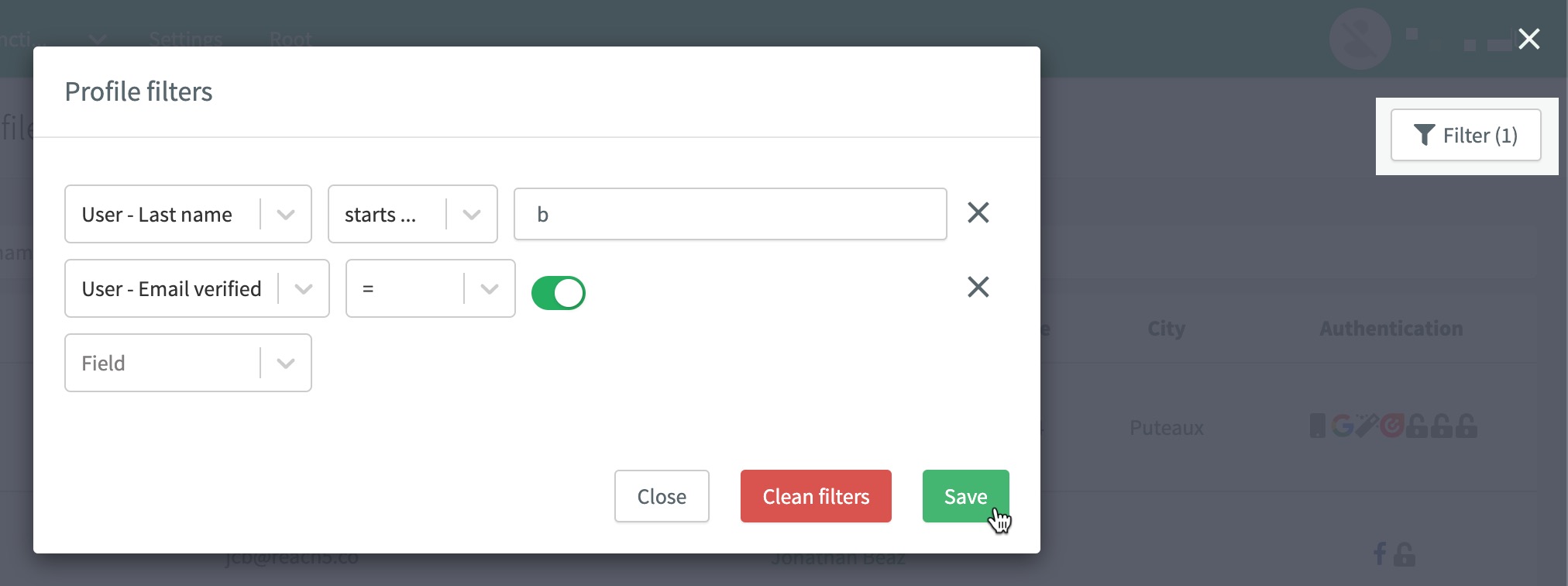
Filter profiles example
### Purse Identity User IDs
UUID v4 (Universally Unique Identifier) version 4 is a type of identifier used in Purse Identity to ensure uniqueness across different entities. UUIDs are 128-bit values and are represented as a sequence of 32 hexadecimal digits with 4 hyphens, displayed in five groups separated by hyphens.
Example
```none
550e8400-e29b-41d4-a716-446655440000 (1)
```
- (1) There are 36 characters in total length for the user ID in this format.
Currently in Purse Identity, you should see most of your users' IDs in UUID v4 format meaning they are 36 characters and you can anticipate this for API responses and other use cases. However, some legacy lengths still exist, typically 20 characters for a user ID.
In the case where you see 20 characters, this is also acceptable as it is the `timeBase64UUID` format.
Example
```none
AOPgRfJ3a2f4FgH_5v9e (1)
```
- (1) There are 20 characters in total length for the user ID in this format.
> If you are unsure about your users' IDs and the associated lengths, feel free to contact [Purse Identity support](mailto:support@reach5.co).
## Recent activity
You can also view a user’s recent activity to see what actions a user is taking. This ranges from logins and users unlinking social providers, to requesting password resets, and more. Notably, it also includes information when it is detected that a user has leaked credentials and specifies the channel through which it was detected. The _User events_ expandable below shows a representative list. You can always see more details in [User Events](../models-user-events.html).
User events
The user event you see under the **Recent activity** tab:
- `login`
- `logout`
- `signup`
- `unlink`
- `email_updated`
- `phone_number_updated`
- `password_reset_requested`
- `password_changed`
- `password_reset`
- `otp_sent`
- `user_updated`
- `email_verified`
- `phone_number_verified`
- `lite_merged_into_managed`
- `login_2nd_step`
- `mfa_phone_number_start_registration`
- `mfa_phone_number_verify_registration`
- `mfa_phone_number_deleted`
- `mfa_email_start_registration`
- `mfa_email_verify_registration`
- `mfa_email_deleted`
- `mfa_trusted_device_added`
- `mfa_trusted_device_delete`
- `profile_compromised`
- `user_suspended`
- `user_unsuspended`
- `login_successful_suspended_account`
- `profile_lockout`
- `login_not_matching_password`
- `user_updated_by_merge`
- `managed_user_created`
- `user_created`
- `email_failure`
- `sms_failure`
- `login_unverified_identifier`
- `leaked_credentials_usage`
To view this card:
1. Log in to your Purse Identity Console.
2. Go to **Analytics** **Profiles**.
3. Click your desired user.
4. Click the **Recent activity** tab.
5. If desired, filter the activity list by clicking **Filter**.
Filtering steps
The steps below are an excerpt from [Recent activity filter](recent-activity-filter.html).
To apply a recent activity filter:
1. Go to **Profiles** **Profiles**.
2. Select the user profile to which you want to apply the filter.
3. Click **Filters**.
4. Choose a predefined **Recent activity filter**.
5. optional Choose the date range for the filter from the date pickers.
6. optional You can apply a bespoke filter (or add additional events):
1. Select more **User event types**..
2. Choose if you want to display the results in reverse chronological order (descending) or chronological order (ascending).

\== Set default filter
If you have multiple filters configured, you can choose the default filter.
1. Go to **Profiles** **Recent activity filters** in your Purse Identity Console.
2. Go to your desired filter.
3. Under the **Actions** column, click the ellipsis (three dots).
1. Click **Set as default**.

6. View the user’s activities. You can see full details on an individual event by clicking **Show more**. You can see details for all events by enabling the new **Show all details** toggle.

## User consents
You can also view user consents to see what a user has consented to (or opted out of). This is viewable in the user’s **Consents** tab.
To view this card:
1. Log in to your Purse Identity Console.
2. Go to **Analytics** **Profiles**.
3. Click your desired user.
4. Click the **Consents** tab.
5. View the consents.

## Third-party consents
You can view third-party consents in the user’s **Third-party consents** tab.
To view this card:
1. Log in to your Purse Identity Console.
2. Go to **Analytics** **Profiles**.
3. Click your desired user.
4. Click the **Third-party consents** tab.
5. View the third-party consents.

## Actions
In case you need to take actions for a particular user profile, you can do this directly from a user’s profile page.
1. Log in to your Purse Identity Console.
2. Go to **Analytics** **Profiles**.
3. Click your desired user.
4. Click the **Actions** button.
5. Choose your desired actions.
- **Login as**: Login as a user. See [Login as](../login-as.html) for more details.
- **Revoke long lived token**: Invalidates refresh tokens so a user must login again.
- **Edit**: Edit the user profile page.
- **Suspend**: Suspend a user. See [User suspension](../suspend-user.html) for more details.
- **Delete**: Delete the user.

## Session devices
You can view and manage a user’s active session devices directly in the Purse Identity Console.
For full details on session device management, endpoints, and programmatic usage, see [Session device management](../session-management/session-devices.html).
---
# Recent activity filter
URL: /docs/support/recent-activity-filter.html
You can view a user’s recent activity from the Purse Identity Console. To help alleviate long lists of activity or if you simply want to have certain activities grouped together, you can create a filter.
## Create a filter
1. Go to **Profiles** **Recent activity filters** in your Purse Identity Console.
2. Click **New filter** or edit an existing one by clicking _Edit_ under the **Actions** column.
3. In the dialog:
1. Give the filter a meaningful **Name**.
2. Add a **Description** for the filter.
3. If desired, check the **Display full details by default** checkbox. This ensures that the full details of the events are displayed by default when the filter is applied.
4. Select the **User events** that you want to include in the filter.
5. Don’t forget to **Save** your input.

## Apply a filter
To apply a recent activity filter:
1. Go to **Profiles** **Profiles**.
2. Select the user profile to which you want to apply the filter.
3. Click **Filters**.
4. Choose a predefined **Recent activity filter**.
5. optional Choose the date range for the filter from the date pickers.
6. optional You can apply a bespoke filter (or add additional events):
1. Select more **User event types**..
2. Choose if you want to display the results in reverse chronological order (descending) or chronological order (ascending).

## Set default filter
If you have multiple filters configured, you can choose the default filter.
1. Go to **Profiles** **Recent activity filters** in your Purse Identity Console.
2. Go to your desired filter.
3. Under the **Actions** column, click the ellipsis (three dots).
1. Click **Set as default**.

---
# Additional configuration
URL: /docs/integration/salesforce/configure-cartridge-follow-up.html
This page explains the additional configuration needed from the Purse Identity side that you need to complete for the SalesForce Purse Identity cartridge.
- [Activate the SSO feature](#activate-the-sso-feature)
- [Configure webhook](#configure-webhook)
- [Add standalone consent](#add-standalone-consent)
## Activate the SSO feature
You need to activate the SSO feature on your Purse Identity Console to ensure Purse Identity properly manages the end user cookie session.
> This is not applicable if you are only using the [Social Login cartridge mode](../salesforce.html#cartridge-modes).
1. Go to **Settings** **Security** **SSO** in your Purse Identity Console.
2. Set the **Session lifetime** (in days) and **Require log in after** (in days) for your desired platform.
3. If setting a specific platform (like Mobile), toggle the platform to **Active**. Otherwise, the default settings are used.
4. Ensure you enter the **Allowed logout callback URLs** under **Global settings**.
5. Don’t forget to **Save** your input.

The setting is active immediately to all clients within the Purse Identity account.
Session duration is renewed with the next [/oauth/authorize](https://docs.identity.purse.eu/openapi/identity.html#operation/authorizeUser) operation or the equivalent SDK method, for instance [checkSession](../../../sdk-core/checkSession.html) or [loginFromSession](../../../sdk-core/loginFromSession.html). If the cookie session lifetime expands beyond the `Require login after` parameter period, then the user will be forced to re-authenticate.
## Configure webhook
With user-event webhooks, you can register specific URLs to be called on specific user actions or events. For cartridge setup and integration, we recommend post-event webhooks.
Post-event webhooks trigger after the event has been processed. Post-event webhooks are asynchronous: the API returns a response and the user can continue browsing your application without waiting for an answer from the URL.
1. Go to your Purse Identity Console.
2. Go to **Settings** **Webhooks** **Post-event webhooks**.
3. Click **New post-event webhook**.
4. Follow the instructions to create or edit a webhook on the [User-event webhooks](../../webhooks.html) page and ensure the following values are added where noted and Don’t forget to **Save** your input..
##### Enabled
Yes
##### Key
webhook\_name
Where webhook\_name is your desired webhook name.
##### Event types
user\_update
##### Filter
_optional_
##### URL
https://.dx.commercecloud.salesforce.com/on/demandware.store/Sites-RefArch-Site/en\_US/ReachFiveController-UserUpdate
##### Fields
- user.phoneNumberVerified
- user.name
- user.phoneNumber
- user.emailVerified
- user.email
- user.username
- user.familyName
- user.age
- user.birthdate
- user.id
- user.emails
- user.givenName
- user.gender
- user.customIdentifier
- user.nickname
##### Timeout
5
##### HTTP Authorization value
_optional_
## Add standalone consent
The cartridge requires one standalone consent with the key of `newsletter`.
To do this, follow the instructions at [Consents](../../consents.html).
---
# Configuration use cases
URL: /docs/integration/salesforce/configure-cartridge-use-cases.html
This page covers some common use cases for our Purse Identity SalesForce cartridges. It does **not** cover all use cases, but is here to provide you with an idea of how to configure your setup for certain requirements.
Each use case is highlighted with an icon for the mode in which it’s available:
- **Social Login mode** : Social Login mode leveraging the social provider options with Purse Identity.
- **Transition mode** : Transition mode involving transitioning to managing authentication with Purse Identity.
- **Full CIAM mode** : Full CIAM mode leveraging the power of Purse Identity.
Common use cases
- [Social login](#social-login)
- [Rapid Sign-up](#rapid-sign-up)
- [Long session and cross-site authentication](#long-session-and-cross-site-authentication)
- [Authenticating with mobile number](#authenticating-with-mobile-number)
- [Biometric and passkeys](#biometric-and-passkeys)
- [Customise Purse Identity forms](#customise-purse-identity-forms)
- [Synchronise backend profiles](#synchronise-backend-profiles)
- [Additional use cases](#additional-use-cases)
## Social login
The Social Login use case allows your users to authenticate using a social provider such as Google, Apple, Facebook, and so forth. These are the [providers](../../social-login-overview.html) currently supported with Purse Identity.
### Configuration
This section explains what you need to do in SFCC and in Purse Identity.
There’s nothing further needed beyond the default configuration outlined in [Cartridge configuration](configure-cartridge.html).
By default, all providers you have setup and configured in your Purse Identity Console are displayed. However, you can adapt to your needs by using the [showAuth](../../../sdk-ui/showAuth.html) and [showSocialLogin](../../../sdk-ui/showSocialLogin.html) methods with our UI SDK.
`showAuth`
```js
...
socialProviders: ['facebook', 'google', 'linkedin', 'apple'] (1)
...
```
- (1) These are examples. Here, you would pass the social providers you have configured and want to display.
`showSocialLogin`
```js
...
socialProviders: ['facebook', 'google', 'linkedin', 'apple'] (1)
...
```
- (1) These are examples. Here, you would pass the social providers you have configured and want to display.
## Rapid Sign-up
Rapid, or "fast", sign-up means that when set to `yes`, users have a profile created in both SFCC and Purse Identity using the baseline information provided by the social provider.
### Configuration
This section explains what you need to do in SFCC and in Purse Identity.
1. Go to your SFCC dashboard.
2. Navigate to **Merchant Tools** **Site Preferences** **Custom Preferences**.
3. Go to ReachFive.
4. Ensure `isReachFiveFastRegister` is set to **Yes** if you want fast registration enabled.
> When set to **No**, users are directed to a sign-up form where they have to fill in their information and set a password before they’re redirected to their account or checkout page.
No further configuration required beyond the basic social provider configuration described at [Social Login](../../social-login-overview.html).
## Long session and cross-site authentication
If you want to leverage the Purse Identity session cookie for long sessions or for a cross-site authentication (SSO) use cases, you’ll need to update some configuration for SFCC (slight caveat for SiteGenesis) and in the Purse Identity Console.
### Configuration
This section explains what you need to do in SFCC and in Purse Identity.
1. Go to your SFCC dashboard.
2. Navigate to **Merchant Tools** **Site Preferences** **Custom Preferences**.
3. Go to ReachFive.
4. Set `isReachFiveSessionForcedAuth` is set to **Yes**.
5. SiteGenesis only Set `reachFiveLoginCookieDuration` to match what you configure in the Purse Identity Console.
You’ll have to define some callback URLs in the SSO feature from the Purse Identity Console. Follow the instructions here.
1. Go to **Settings** **Security** **SSO** in your Purse Identity Console.
2. Set the **Session lifetime** (in days) and **Require log in after** (in days) for your desired platform.
3. If setting a specific platform (like Mobile), toggle the platform to **Active**. Otherwise, the default settings are used.
4. Ensure you enter the **Allowed logout callback URLs** under **Global settings**.
5. Don’t forget to **Save** your input.

The setting is active immediately to all clients within the Purse Identity account.
Session duration is renewed with the next [/oauth/authorize](https://docs.identity.purse.eu/openapi/identity.html#operation/authorizeUser) operation or the equivalent SDK method, for instance [checkSession](../../../sdk-core/checkSession.html) or [loginFromSession](../../../sdk-core/loginFromSession.html). If the cookie session lifetime expands beyond the `Require login after` parameter period, then the user will be forced to re-authenticate.
Required callback URLs
- `https://{domain}/s/SiteGenesis/home?lang=en_US`
- `https://{domain}/on/demandware.store/Sites-SiteGenesis-Site`
- `https://{domain}/on/demandware.store/Sites-SiteGenesis-Site/en_US/Login-Logout`
- `https://{domain}/on/demandware.store/Sites-RefArch-Site`
- `https://{domain}/on/demandware.store/Sites-RefArch-Site/en_US/Login-Logout`
## Authenticating with mobile number
If you want your users to be able to authenticate with a phone number (as opposed to email or username) for their identifier, there a couple of important things to know.
### Configuration
This section explains what you need to do in SFCC and in Purse Identity.
- The mobile number **must** be stored by Purse Identity as part of the user’s [User Profile](../../models-user-profile.html).
- The [SMS feature](../../setup-sms-provider.html) must be enabled. Contact your [Support or PS representative](mailto:support@reach5.co) to enable it.
## Biometric and passkeys
More and more people and companies prefer authentication via biometric options or passkeys. Fortunately, we fully support this option with Purse Identity and you can leverage that with the Purse Identity SalesForce cartridge.
### Configuration
This section explains what you need to do in SFCC and in Purse Identity.
There’s nothing further needed beyond the default configuration outlined in [Cartridge configuration](configure-cartridge.html).
The WebAuthn feature must be enabled on your Purse Identity Console and configured as shown at [FIDO2](../../fido2.html). Contact your [Support or PS representative](mailto:support@reach5.co) to enable it.
You must also enable the option with [showAuth](../../../sdk-ui/showAuth.html).
showAuth
```js
...
allowWebAuthnLogin: true, (1)
allowWebAuthnSignup: true, (1)
...
```
- (1) Each must be set to `true`.
## Customise Purse Identity forms
You, of course, may want to customise the forms to suit your company palette or tastes. This is easily done by leveraging [showAuth](../../../sdk-ui/showAuth.html).
### Configuration
This section explains what you need to do in SFCC and in Purse Identity.
There’s nothing further needed beyond the default configuration outlined in [Cartridge configuration](configure-cartridge.html).
To customise the forms, use the `theme` parameter in the `showAuth` method.
showAuth
```js
...
theme: { (1)
primaryColor: '#274890',
borderRadius: '25',
socialButton: {
inline: true
}
},
...
```
- (1) See [the theme object](../../../sdk-ui/showAuth.html#theme) for a full list of attributes and possibilities.
## Synchronise backend profiles
When a profile is updated by a user through frontend interaction, like a form, it is synchronised accordingly when the form is submitted. However, you may want to ensure that backend updates via SFCC are synchronised properly with Purse Identity. In order for this to work, you need to ensure the profile fields exist in both the SFCC and Purse Identity.
> Once the fields are mapped properly, you can run an [import job](../../imports.html) to keep them in sync.
### Configuration
This section explains what you need to do in SFCC and in Purse Identity.
In your SFCC dashboard:
1. Go to your SFCC dashboard.
2. Navigate to **Merchant Tools** **Site Preferences** **Custom Preferences**.
3. Go to ReachFive.
4. Go to `reach5ProfileFieldsJSON`.
5. Using JSON formatting, input the fields you want to synchronise between SFCC and your Purse Identity Console.
## Additional use cases
The table here outlines additional use cases that are set using custom preferences.
Custom preferences are found at **Merchant Tools** **Site Preferences** **Custom Preferences** in your SFCC dashboard.
**Load social connect**
**Load social connect2**
**Load social connect login**
**Load social connect signup**
**Reset password**
**Password editor**
**Email editor**
**Phone editor**
**Social accounts container**
**Re-auth container**
This needs custom development to be activated. Please contact your Purse Identity representative for more details.
**Authenticated**
This needs custom development to be activated. Please contact your Purse Identity representative for more details.
**Split names for [Kakao Connect](../../kakao-connect.html)**
---
# Cartridge configuration
URL: /docs/integration/salesforce/configure-cartridge.html
This page explains how to implement the Purse Identity cartridges with your Salesforce Commerce Cloud (SFCC) setup. This tutorial outlines the SRFA cartridge, but the steps are generally the same for SiteGenesis.
The configuration on this page handles the general configuration for the cartridges. For specific use cases, see [Configuration use cases](configure-cartridge-use-cases.html).
What is a Purse Identity cartridge? 🤔
This page dives into configuring the cartridge itself. If you want to know more generally about cartridges and specifically the Purse Identity cartridge, check out [Purse Identity SalesForce cartridge](../salesforce.html).
## Prerequisites
- You must have access to the Purse Identity Console.
- You must have a SalesForce Commerce Cloud account.
- You must be able to access the Purse Identity SFCC cartridges on GitHub.
- You’ll likely need the SalesForce authenticator app when logging into your SFCC account.
## First steps
The first thing you need to do is import the latest Purse Identity cartridges into your SFCC project and import the preferences and metadata. After you successfully import the cartridges, we’ll move on to configuring what you need to do in your SFCC project and in the Purse Identity Console.
Let’s get started.
1. Go get the [Purse Identity cartridges](https://github.com/ReachFive/CartridgeSFCC) from GitHub. You’ll need the `int_reachfive` and `int_reachfive_sfra` for this tutorial.
> You can download the files directly from the root of the repository.
2. Add the cartridges to a directory in your project.
3. Go to the directory `Metadata/site_template`.
1. Download and zip this folder so that it saves as `site_template.zip`.
4. Now, go to your SFCC Business Manager account.
5. Navigate to **Administration** **Site Development** **Site Import & Export**.

6. Upload the `site_template.zip` file.
What is imported with `site_template.zip`?
- Purse Identity [jobs](../../exports.html)
- Purse Identity services like service credentials and metadata
## Configure SFCC
You’ll need to input some Purse Identity values in your SFCC dashboard after you have uploaded the cartridges.
The main steps are:
- [updating cartridges](#update-cartridge-in-site-settings) in your site settings
- [configuring custom preferences](#configure-custom-preferences) for your Purse Identity cartridge
### Update cartridge in site settings
From your SFCC Business Manager dashboard:
1. Go to **Administration** **Sites** **Manage Sites**.
2. Select your desired site.
3. Go to the **Settings** tab.
4. Where it says **Cartridges**, append the following:
```none
int_reachfive_sfra:app_storefront_base:int_reachfive
```
5. Click Apply.
### Configure custom preferences
There are some baseline custom preferences needed for your cartridge depending on the [mode](../salesforce.html) (Social Login, Transition, or Full CIAM). These are covered here.
Configure these preferences in your SFCC Business Manager dashboard at **Merchant Tools** **Custom Preferences** **Purse Identity**.
> The preferences here are the basic, baseline preferences. For more custom preferences, such as splitting names for Korean language users or setting up biometrics and passkeys, see [Configuration use cases](configure-cartridge-use-cases.html).
##### SFCC Preferences
##### isReachFiveEnabled
##### isReachFiveTransitionActive
##### isReach5ThemeActive
##### isReachFiveLoginAllowed
##### Purse Identity
##### Identity Client
##### Management Client
##### SSO
##### Social providers
##### Email provider and templates
## Configure Purse Identity
Now that you have imported the cartridges into your project and the metadata and preferences (`site_template.zip`) into your SFCC Business Manager account, we can look at what we need to do from the Purse Identity side of things.
> You’ll need to copy and paste the Client ID and Client secret for both the Identity and Management clients into your SFCC’s custom preferences, so be sure to take note of those. You can always come back to the Purse Identity Console to get these any time you need. See [Retrieve client credentials](../../clients.html#retrieve-client-credentials) for more details.
In this section, you will:
- [Set up Purse Identity clients](#set-up-purse-identity-clients)
- [Authorise SFCC backend IP](#authorise-sfcc-backend-ip)
* * *
### Set up Purse Identity clients
You need to set up and configure both the Identity and Management clients.
#### Identity Client
1. Go to your Purse Identity Console. This could be staging or production. For example purposes, we’ll use the staging [Purse Identity Staging Console](https://console-staging.reach5.co).
2. Go to **Settings** **Clients**.
3. Select **New client**.
4. Give the client a name and select the Client type (Identity in this case) from the dropdown menu. Don’t forget to **Save** your input.
5. Follow the instructions to create or edit an Identity Client on the [Clients](../../clients.html) page and ensure the following values are added where noted:
##### Scopes
- openid
- profile
- full\_write
##### Token Endpoint Authentication Method
Post
##### Allowed Origins (CORS)
https://{domain}
Where `{domain}` is your SFCC domain.
##### Allowed Callback URLs
- https://{domain}/on/demandware.store/Sites-RefArch-Site/en\_US/Login-Show
- https://{domain}/on/demandware.store/Sites-RefArch-Site/en\_US/ReachFiveController-CallbackReachFiveRequest
Where `{domain}` is your SFCC domain.
##### Token lifetime (seconds)
86400
##### Disabled implicit flow
Yes
##### Enforced PKCE
No
##### Enable Refresh Tokens
No
##### JWT Algorithm
HS256
##### Login URL
https://{domain}/on/demandware.store/Sites-RefArch-Site/en\_US/Login-Show
Where `{domain}` is your SFCC domain.
#### Management Client
1. Go to your Purse Identity Console. This could be staging or production. For example purposes, we’ll use the staging [Purse Identity Staging Console](https://console-staging.reach5.co).
2. Go to **Settings** **Clients**.
3. Select **New client**.
4. Give the client a name and select the Client type (Management in this case) from the dropdown menu. Don’t forget to **Save** your input.
5. Follow the instructions to create or edit a Management Client on the [Clients](../../clients.html) page and ensure the following values are added where noted:
##### Permissions
- manage:users
- read:users
##### Allowed IP address
##### Token Endpoint Authentication Method
Post
##### Allowed Origins (CORS)
https://{domain}
Where `{domain}` is your SFCC domain.
##### Token lifetime (seconds)
86400
##### Disabled implicit flow
Yes
##### Enforced PKCE
No
##### JWT Algorithm
HS256
### Authorise SFCC backend IP
Some API calls are made by the SFCC backend IP. If left unauthorised, Purse Identity security protocol will block the IP address through our [Identity Fraud Protection](../../ifp.html) and [Rate limiting](../../rate-limiting.html) features.
In order to ensure the SFCC backend IP is able to make the calls successfully, you must whitelist the IP to bypass attack protection and rate limiting security policies.
You can do this in the Purse Identity Console.
1. Log in to your Purse Identity Console.
2. Go to **Settings** **Security** **Attack protection policy**.
3. Add the **IP addresses allowed to bypass attack protection**. This can be a single IP address or a range in CIDR notation. Enter one per line.
4. Don’t forget to **Save** your input.

1. Go to **Settings** **Security** **Rate limiter**.
2. Under **Global settings**, list one URL per line.
3. Don’t forget to **Save** your input.

## Purse Identity cartridge integration tips
Here, we provide you with useful tips related to integrating the Purse Identity Salesforce cartridge.
### Logout
In order to ensure the logout function works successfully, your logout button must be a link. The link must end with `Login-Logout`.
```js
const URLUtils = require('dw/web/URLUtils');
function logoutFunction(req, res, next) {
const logoutUrl = URLUtils.https('Login-Logout'); // Generate secure URL
res.render('your_template', { logoutUrl: URLUtils.https('Login-Logout') }); // Pass it to the ISML template
return next();
}
module.exports = logoutFunction;
```
```html
Logout
```
---
# Configure SLAS Plugin PWA kit
URL: /docs/integration/salesforce/configure-slas-pwa-kit.html
## Prerequisites
Before starting, ensure the following are set up:
- Access to the **Salesforce Commerce Cloud (SFCC)** environment.
- Purse Identity Salesforce Cartridge (SFCC) is installed in your Salesforce environment. See the link:https://github.com/Purse Identity/CartridgeSFCC\[Purse Identity Cartridge GitHub repository^\] for installation instructions.
- Salesforce PWA Kit is installed and accessible in your project. Refer to the [Salesforce PWA Kit documentation](https://github.com/SalesforceCommerceCloud/pwa-kit).
- Basic knowledge of SLAS (Salesforce Login and Authentication Service). Learn more in the [SLAS Identity Providers Guide](https://developer.salesforce.com/docs/commerce/commerce-api/guide/slas-identity-providers.html).
## Configure SLAS Identity provider
1. **Login to SLAS Console:**
Access the SLAS configuration settings through your Salesforce admin panel.
2. **Add Purse Identity as an Identity Provider:**
- Go to **Identity Providers** and select "Add New Provider."
- Provide the following details:
- **Provider Name:** Purse Identity
- **Client ID:** Retrieve this from your Purse Identity dashboard.
- **Scopes:** Include relevant scopes such as `openid`, `profile`, and `email`.
- **Redirect URI:** Set this to match the callback URL configured in your Purse Identity account.
3. **Save and test the configuration:**
Ensure the connection is working by testing a login flow with SLAS and Purse Identity.
## Integrate Purse Identity with Salesforce PWA Kit
1. **Set Up Purse Identity SDK:**
Install the Purse Identity JavaScript SDK in your PWA Kit project and configure it with your Purse Identity `domain`, `client ID`, and `redirect URIs`.
```js
import React, { useEffect, useState } from 'react';
import { useCurrentCustomer } from '@salesforce/retail-react-app/app/hooks/use-current-customer'
import useNavigation from "@salesforce/retail-react-app/app/hooks/use-navigation";
import { useAccessToken } from '@salesforce/commerce-sdk-react'
import { AuthHelpers, useAuthHelper } from '@salesforce/commerce-sdk-react'
import { getReachFiveClientUI } from './helper';
import { getAppOrigin } from "@salesforce/pwa-kit-react-sdk/utils/url";
import { getConfig } from "@salesforce/pwa-kit-runtime/utils/ssr-config";
const onClient = typeof window !== 'undefined';
export const Auth = () => {
const [authenticated, setAuthenticated] = useState(false);
const [userData, setUserData] = useState(null);
const navigate = useNavigation();
const logout = useAuthHelper(AuthHelpers.Logout)
const { data: customer } = useCurrentCustomer();
const { getTokenWhenReady } = useAccessToken();
const handleLogout = async () => {
const client = await getReachFiveClientUI();
await client.core.logout();
await logout.mutateAsync();
setAuthenticated(false);
navigate('/');
}
useEffect(() => {
try {
const getSdk = async () => {
const client = await getReachFiveClientUI();
const info = await client.core.getSessionInfo();
if (info?.isAuthenticated) {
setAuthenticated(true);
setUserData(info);
} else {
console.log('Show social login...');
// wheras show social login, call authorize with idp
// const socialLogin = (async () => await client.showSocialLogin({
const socialLogin = (async () => await client.showAuth({
container: 'social-login-container',
auth: {
redirectUri: `${window.location.origin}/idp-callback`,
},
allowLogin: true,
allowWebAuthnSignup: true,
allowWebAuthnLogin: true,
}))();
}
}
if (onClient) {
getSdk();
}
} catch (error) {
console.error(error)
}
}, [onClient]);
let userInfo = 'userData not found';
let customerInfo = 'customer not found';
try {
userInfo = JSON.stringify(userData, null, 2);
customerInfo = JSON.stringify(customer, null, 2);
} catch (error) {
console.error(error)
}
return <>
{authenticated ?
:
<>
Social login:
}
;
};
export default Auth;
```
```js
import { getConfig } from "@salesforce/pwa-kit-runtime/utils/ssr-config";
let client = {
core: null,
ui: null
};
const makeClient = (createClient) => {
const config = getConfig();
return createClient({
// Required parameters
domain: config.app.idp.domain,
clientId: config.app.idp.clientId,
// Optional parameter
language: 'en',
locale: 'en'
})
};
export const getClient = async (clientType) => {
switch (clientType) {
case 'ui': {
const {
createClient,
} = await import('@reachfive/identity-ui');
client.core = makeClient(createClient);
return client.core;
}
case 'core':
default: {
const {
createClient,
} = await import('@reachfive/identity-core');
client.ui = makeClient(createClient);
return client.ui;
}
}
};
export const getReachFiveClient = async () => {
return await getClient('core');
};
export const getReachFiveClientUI = async () => {
return await getClient('ui');
};
```
2. **Override authentication components:**
Follow the [PWA Kit Extensibility Guide](https://developer.salesforce.com/docs/commerce/pwa-kit-managed-runtime/guide/template-extensibility.html?q=override) to override the login components:
- Replace the default login and sign-up forms with custom components using the Purse Identity SDK.
- Implement the necessary endpoints to handle the SLAS token exchange.
3. **Update Routes:**
Add or modify routes in the PWA Kit to include custom login and logout flows.
## Configure Purse Identity Salesforce cartridge
1. **Install and activate the cartridge:**
Follow the link:https://github.com/Purse Identity/CartridgeSFCC\[Purse Identity Salesforce Cartridge Installation Guide\] to install and activate the cartridge in your SFCC instance.
2. **Set up Client Configurations:**
In the Salesforce Business Manager:
- Navigate to **Administration > Purse Identity Configurations**.
- Add your Purse Identity credentials (`Client ID`, `Secret`, and API endpoints).
3. **Enable Purse Identity in SLAS:**
- Map the Purse Identity client ID to SLAS in the cartridge settings.
- Configure the SLAS token validation endpoint to work with Purse Identity.
## Test the integration
1. **Simulate a Login Flow:**
Navigate to your PWA Kit application and initiate a login flow. Ensure that the authentication is routed through SLAS and completed with Purse Identity.
2. **Verify User Data:**
Check that the user data retrieved matches the configuration (e.g., profile, email, etc.).
3. **Debugging:**
Use browser developer tools or server logs to identify any issues in token exchange, redirects, or SLAS integration.
---
# Passkeys usage examples
URL: /docs/biometrics/passkeys/passkeys-usage-examples.html
This page provides a few basic usage examples for passkeys. The examples are shown for Android and iOS usage.
## Creating a passkey
Create a basic passkey.
1. Launch the app.
2. Go to the authentication page.
3. Create an account.
4. Log in with the newly-created account.
To test:
1. Log out.
2. Log back in with the suggested passkey.
## Multiple passkeys
Suggest multiple passkeys.
1. Launch the app.
2. Go to the authentication page.
3. Create another account.
4. Log in with the newly-created account.
To test:
1. Log out.
2. Showcase passkeys suggestions with the Google modal.
3. Select one passkey account and log in.
## Enrolling a passkey from different device
Enrol with a passkey from an entirely separate device.
1. Launch the app.
2. Go to the authentication page.
3. Create another account.
> Instead of creating the passkey locally, choose **Passkey creation from another device with QR Code**.
To test:
1. Scan the QR code with the separate device.
2. Log in with the QR code flow from the separate device.
---