Connect with Azure AD
Azure Active Directory is a commonly used identity platform. It is easy to integrate with Azure AD using Purse Identity. To connect with Azure, you need to provide details from Azure to a Purse Identity administrator. The instructions below details this process.

Connect to Purse Identity with Azure AD via console
To connect with Azure AD via the Purse Identity Console, follow the instructions here.
Prerequisites
-
You must have access to the Purse Identity Console.
-
You must have an Azure account.
-
You must use and understand Azure Active Directory.
| In most instances, the Purse Identity Console steps must be completed by a Purse Identity team member. In this case, reach out to Purse Identity Support. |
Instructions
- From your Azure Portal
-
-
Register Purse Identity as an application1.
-
In the Authentication > Platform Configurations section, create a Web platform.
-
In the Web platform settings, add the required Redirect URLs2.
Formathttps://<console_domain>.reach5.co/<organization-name>/azuread-callback -
Copy your Tenant ID, Client ID and Client Secret from Azure AD.
Be sure to give this information to your Purse Identity admin contact so they can complete the following steps. -
In the Authentication > Implicit grant and hybrid flows section, check the box for ID tokens (used for implicit and hybrid flows).
-
Access tokens (used for implicit flows)
-
ID tokens (used for implicit and hybrid flows)
-
-
In the API permissions section, grant the
User.Readpermission to all stakeholders who need the permission.
-
- Purse Identity admin from Purse Identity Console
-
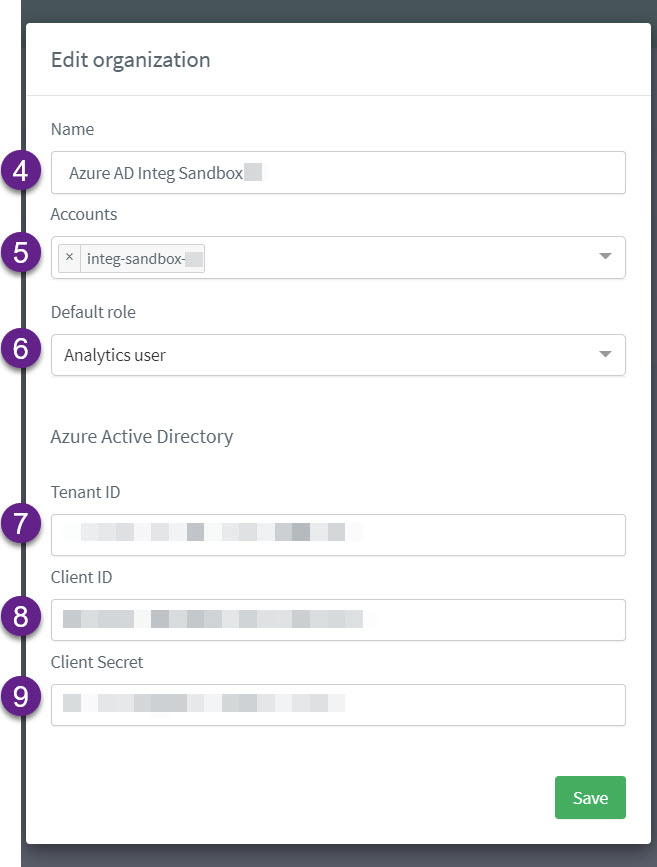
Create or edit a current organization.
Go to
https://console.reach5.co/root/organizationsfrom your Purse Identity Console and select New Organization or select to edit an existing organization.
If you are using the staging URL, be sure to add
-stagingafterconsolein the URL as shown in the steps above. -
Add the Purse Identity accounts that are associated with your organization.
-
Choose the Default role for the associated accounts from the dropdown menu. This can be a user with no rights.
If you choose the User with no rights, this prevents them from seeing any other data related to your Purse Identity account. -
Under Azure Active Directory, add your Azure AD Tenant ID.
-
Enter your Azure AD Client ID.
-
Enter your Azure AD Client Secret.
Once the Purse Identity administrator has completed the tasks above, they will inform you that this is ready. You can then go to https://console.reach5.co/<organization-name>/azuread-login where you are redirected to your Microsoft login. If you are using the staging URL, be sure to add -staging after console in the URL as shown in the steps above.