Manage MFA credentials from console
This page walks you through the process of managing Multi-factor Authentication (MFA) credentials directly from the Purse Identity Console. You can easily view, add, and remove user MFA credentials without relying on API calls or SDK integrations. Streamline your workflow and enhance security management with just a few clicks.
Instructions
-
Log in to your Purse Identity Console.
-
Go to .
-
Click your desired user.
-
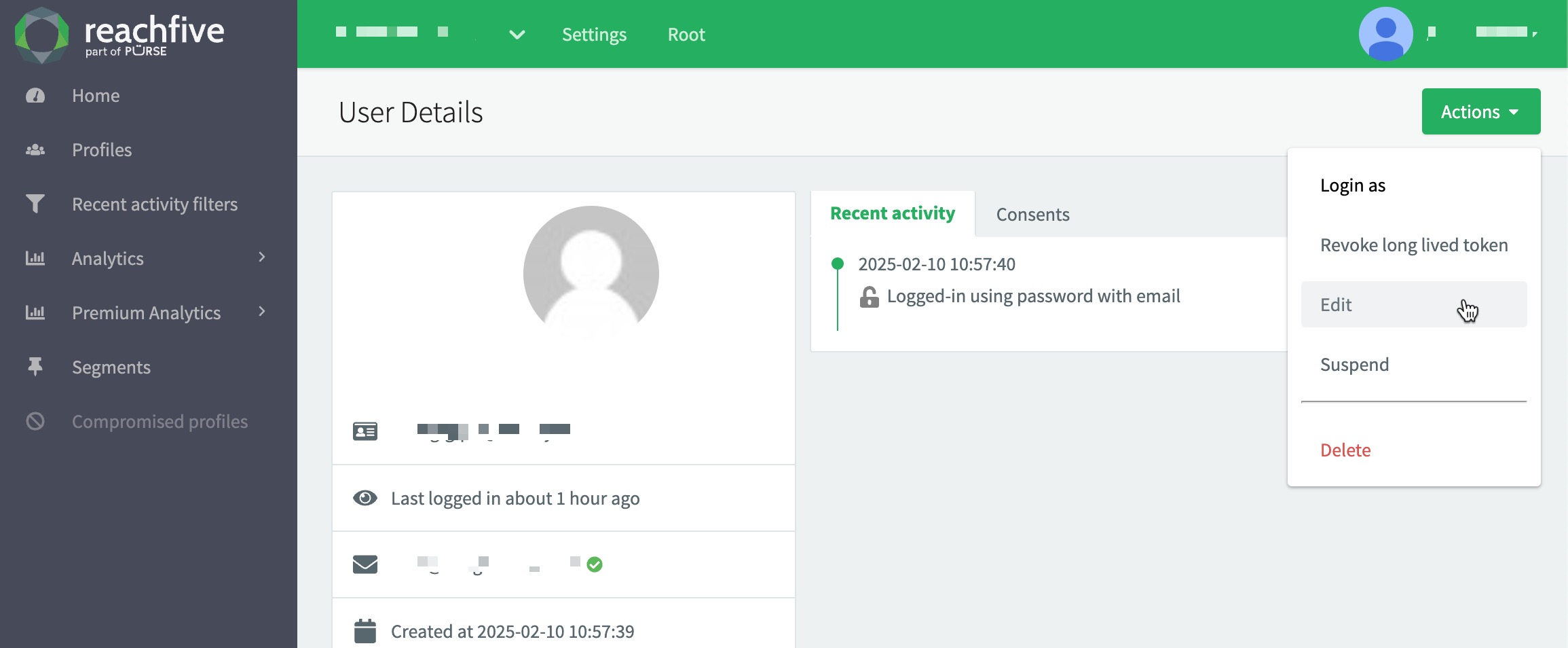
Click the Actions button.
-
Click Edit.
-
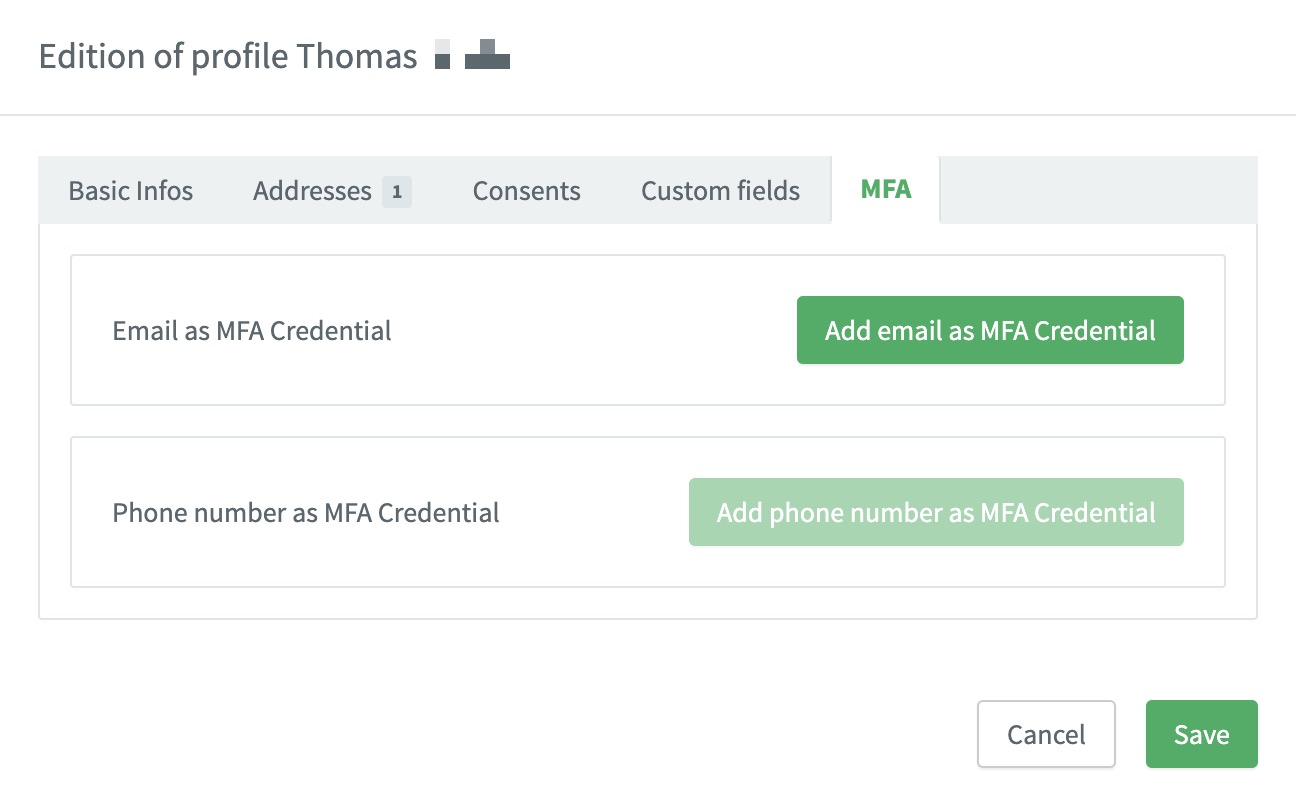
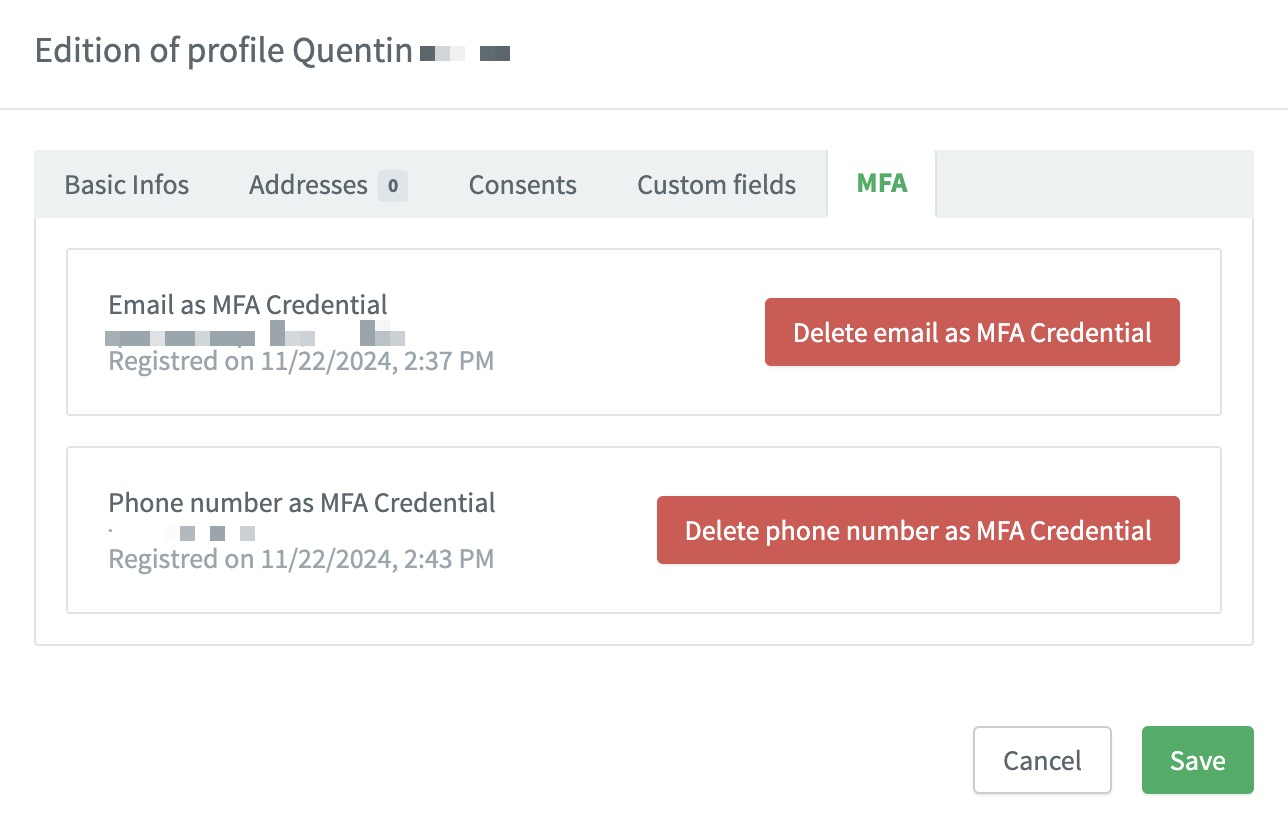
Go to the MFA Credentials tab.
In the MFA Credentials tab, you can remove existing MFA credentials and add email or SMS as an MFA credential. Passkeys are managed in their own tab.
-
-
Don’t forget to Save your input.
Manage passkeys
You can view and delete a user’s passkeys from the Purse Identity Console. Passkeys have their own Passkeys tab, separate from the MFA Credentials tab. You cannot add a passkey from the Purse Identity Console, because the user registers it on their own device.
|
The Passkeys tab appears when the WebAuthn feature is enabled on your account and you can view users. The tab is disabled for lite-only profiles. To delete a passkey, you also need the right to manage users. See Roles. |
-
Log in to your Purse Identity Console.
-
Go to .
-
Click your desired user.
-
Click the Actions button.
-
Click Edit.
-
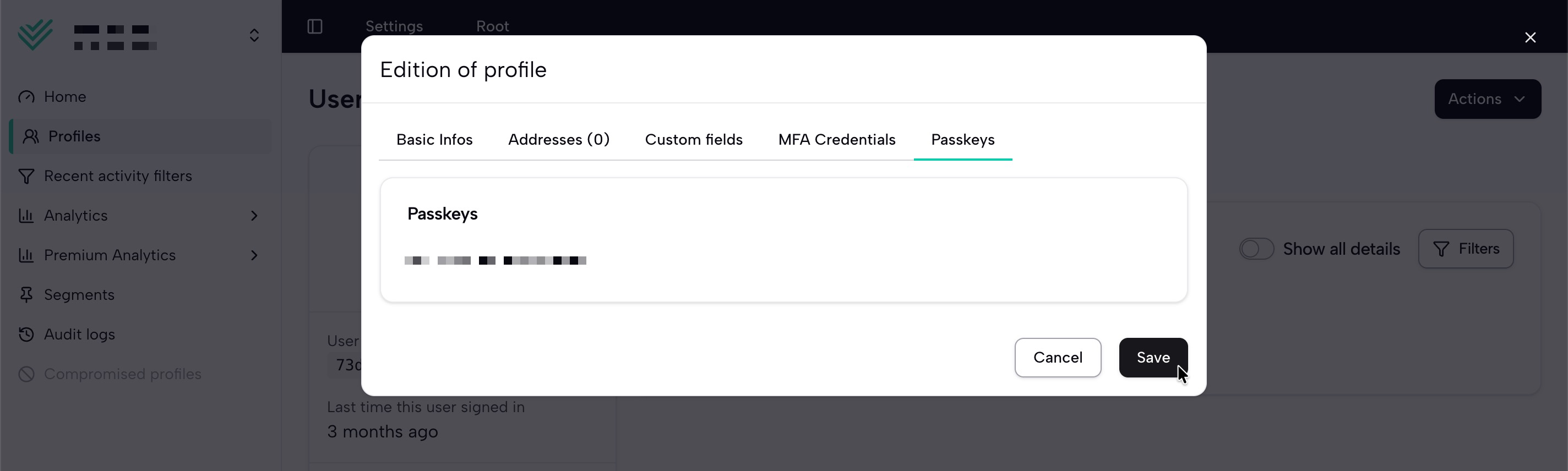
Go to the Passkeys tab.
Each passkey shows its name, and its registration date and last-used date when known. If the user has no passkey, the tab shows No passkey registered.
-
-
To delete a passkey, click Delete next to it.
The Purse Identity Console asks you to confirm with the title Delete passkey <name>?. The passkey is removed from the profile, and the user can no longer use it to log in or as a second factor.
-
Confirm the deletion.
The Purse Identity Console shows a message when the passkey is removed, or when an error occurs.
Deleting a passkey emits the webauthn_credential_deleted user event.
| The user’s profile page lists their passkeys. When passkeys are enabled as a second factor and the user has at least one passkey, the MFA Credentials tab also shows a link to open the Passkeys tab. You can also list and delete passkeys with the Management API. |