Passkey as a second factor
Let your users confirm a sensitive action with their fingerprint, face, or device PIN instead of a code.
Why use a passkey as a second factor?
When a user does something sensitive, such as changing a security setting, you want to be sure it’s really them. Today that usually means a one-time code sent by email or SMS: the user waits for the message, switches apps, and types the code.
With a passkey, the user confirms with the same fingerprint, face, or PIN they use to unlock their device.
-
Faster for your users. One touch, and no code to type.
-
Harder to attack. A passkey works only on your site, so users can’t be tricked into handing it over the way they can with a code.
-
No message to wait for. No email or SMS goes out for that confirmation, so there’s no delivery delay, no message lost in spam or by the carrier, and no SMS cost.
-
Nobody is locked out. Users without a passkey still get an email or SMS code, as they do today.
The rest of this page shows how it works and how to add it to your app with the API.
At a glance
What it is |
A passkey used as the second factor of a step-up, next to the email and SMS codes of MFA. |
When it is offered |
|
Endpoints |
|
Result |
An authorization code, exchanged for tokens whose |
Terminology |
In the API, the passkey factor is named |
Prerequisites
-
The WebAuthn (passkeys) and MFA features are enabled on your Purse Identity account. See Multi-factor Authentication and Passkeys.
-
Passkeys are enabled as a second factor on your account: turn on the Webauthn switch under in the Purse Identity Console. See MFA settings. If you don’t see the switch, contact your Purse Identity representative.
-
The
originyou send is listed in the allowed origins under Settings > WebAuthn in the Purse Identity Console. The domain name inoriginbecomes the Relying Party ID. -
The client that starts the step-up is a first-party identity client.
-
The user has at least one registered passkey. See FIDO2 web guide.
-
The user signed in with a first factor that is not a passkey, for example a password.
When is the passkey offered?
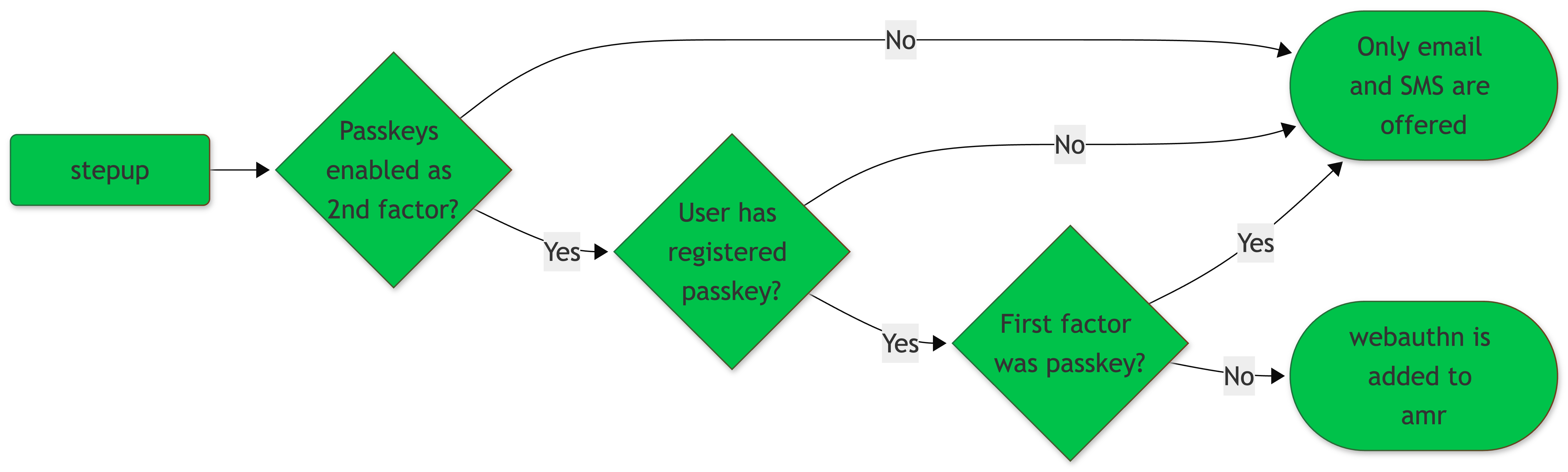
Purse Identity adds webauthn to the amr list of the stepup response only when all of these are true:
-
The WebAuthn and MFA features are enabled on the account.
-
Passkeys are enabled as a second factor on the account.
-
The user has at least one registered passkey.
-
The user did not already sign in with a passkey.
How it works
Currently, the Core SDK isn’t updated to support passkeys as a second factor, so call the API as shown in Complete a step-up with a passkey via API. We’ll update this page when the SDK is updated.
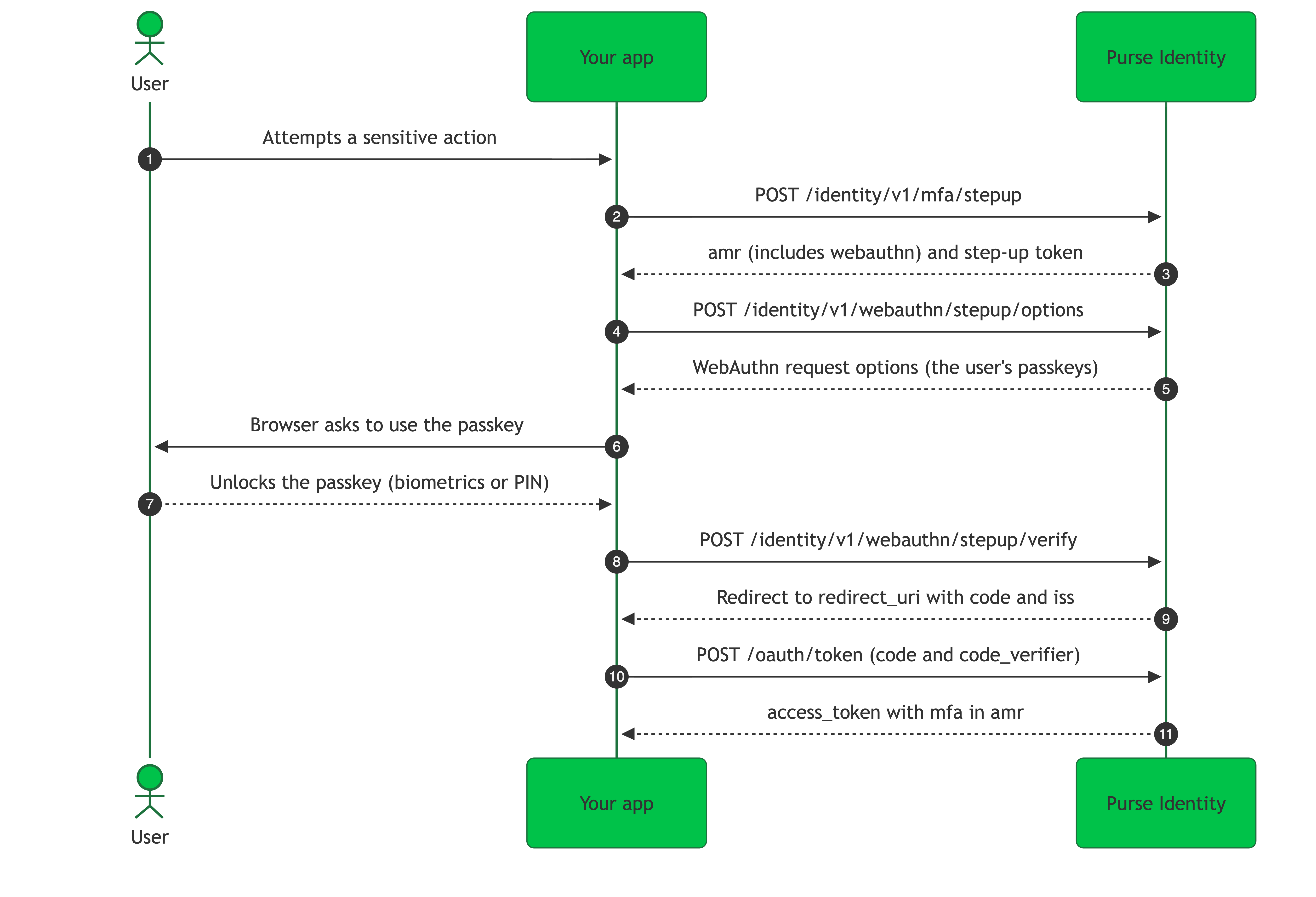
| Step | Core JS SDK method | API operation | Notes |
|---|---|---|---|
1 |
The user signs in with a first factor that is not a passkey. |
||
2 |
Returns the available |
||
3 |
Send the step-up |
||
4 |
Your page calls |
||
5 |
Send the signed assertion.
On success, the user is redirected to your |
||
6 |
Exchanges the code for tokens. |
||
7 |
Confirms |
Complete a step-up with a passkey
-
Start the step-up.
You can start the step-up with an SSO session cookie, a
tknor an access token. See Stepup options. Keep thecode_verifierthat matches yourcode_challenge: you need it in step 5.Request
POST
https://YOUR_DOMAIN/identity/v1/mfa/stepup{ "client_id": "nvR2y0ks...EgCW2dqy", "response_type": "code", "scope": "openid phone address profile mfa", "redirect_uri": "https://redirect_uri.com/", "code_challenge": "...", "code_challenge_method": "S256", "tkn": "xhNGxw...70zx32" }Response
{ "amr": ["sms", "webauthn"], "token": "cf21S_kHIzh3cF_CHWHGYcL77Fl29D9ALon2etU....C2PQhSAhbVk9FJVt_bVO7ombTt58Dju7Ic" } -
Get the WebAuthn options.
Send the step-up
tokenasstep_up_token.allow_credentialsin the response contains the passkeys registered on the user’s profile. The step-up token expires and can be used a limited number of times. Each call to this endpoint counts as one use.Request
POST
https://YOUR_DOMAIN/identity/v1/webauthn/stepup/options{ "step_up_token": "cf21S_kHIzh3cF_CHWHGYcL77Fl29D9ALon2etU....C2PQhSAhbVk9FJVt_bVO7ombTt58Dju7Ic", "origin": "https://example.com" }Response
{ "public_key": { "allow_credentials": [{ "id": "X9FrwMfmzj...", "type": "public-key" }], "challenge": "kYhXBWX0HO5GstIS02yPJVhiZ0jZLH7PpC4tzJI-ZcA=", "rp_id": "demo.reachfive.com", "timeout": 120000, "user_verification": "preferred" } } -
Ask the user to use the passkey.
The
challengeand the credentialidvalues in the options are URL-safe Base64 strings. Decode them toArrayBuffervalues, then pass the options tonavigator.credentials.get()in the browser. The browser shows the passkey prompt, and the user unlocks the passkey. -
Send the signed assertion.
The assertion can be used only once. Send the request from the page so the browser follows the redirect to your
redirect_uri. If your code does not follow redirects, read theLocationheader instead. If the original step-up request useddisplay=popuporresponse_mode=web_message, the endpoint returns an HTML page that hands the result back to the opener instead of redirecting. Theclient_idandredirect_uriin the body are only used to redirect with an error when the step-up cannot be resolved. The redirect after a successful step-up comes from the original step-up request.Request
POST
https://YOUR_DOMAIN/identity/v1/webauthn/stepup/verify{ "id": "X9FrwMfmzj...", "raw_id": "X9FrwMfmzj...", "type": "public-key", "response": { "authenticator_data": "o2NmbXRoZmlk...", "client_data_json": "eyJjaGFsbGVuZ...", "signature": "aGFsbGVu...", "user_handle": "ZGfssGfu..." }, "client_id": "nvR2y0ks...EgCW2dqy", "redirect_uri": "https://redirect_uri.com/", "trust_device": false }Response
HTTP/1.1 303 See Other Location: https://redirect_uri.com/?code=...&iss=... -
Exchange the code.
Exchange the authorization
codewith thecode_verifierfrom step 1. See Authorization code grant with PKCE.
The result
After the code exchange, the access token’s amr shows how the user authenticated.
amr |
Meaning |
|---|---|
|
The passkey verified the user. |
|
The passkey proved the user’s presence only. |
These examples are for a user who signed in with a password. See Decode tokens to read the token.
When the step-up succeeds, Purse Identity emits a login user event.
Trust the device
You can send trust_device set to true when you complete the step-up.
It requires risk-based authentication to be enabled on the account.
If you send it while risk-based authentication is disabled, the request fails. See Errors and fallback.
When it applies, the response sets the __Host-trusted-device-id cookie.
Errors and fallback
| Call | Situation | What you get |
|---|---|---|
|
The step-up token is invalid or expired. |
|
|
|
|
|
The client is not a first-party identity client. |
|
|
The WebAuthn or MFA feature is not enabled. |
|
|
The signature is invalid. |
Redirect with |
|
The credential is unknown or is not one of the user’s passkeys, or the challenge was already used. |
Redirect with |
|
|
Redirect with |
|
Too many requests. |
|
If the passkey step fails, you can call options again with the same step-up token while it is still valid and has uses left.
Users can also fall back to an email or SMS code with the same token.
See Retry MFA step-up.
Manage the passkeys
The GET /identity/v1/mfa/credentials endpoint response includes the user’s passkeys as items with:
-
typeaswebauthn -
idas the passkey’s identifier, a URL-safe Base64 string -
created_atas the date and time the passkey was created -
friendly_nameas the passkey’s name
To delete a passkey, use the passkey endpoints. The MFA credentials endpoints only delete email and SMS credentials.
| Who | How |
|---|---|
The user |
Call |
An administrator |
Use the Passkeys tab in the Purse Identity Console. See Manage MFA credentials from console. You can also use the list and delete operations of the Management API. |
Deleting a passkey emits the webauthn_credential_deleted user event, which includes is_mfa_credential.