Set up SMS provider
To send a verification or authentication SMS to your users, you must have an SMS provider solution. Purse Identity provides Twilio as the default solution. However, you can use any SMS provider solution that you wish.
SMS Prerequisites
-
You must have access to the Purse Identity Console.
-
You must have the SMS feature enabled.
-
You must have an SMS provider account.
Please contact support if you do not see SMS enabled.
Set up Twilio
- Twilio
-
-
Log in to your Twilio account.
-
From your Twilio console dashboard, copy your Account SID, Auth Token, and My Twilio phone number.
This is typically found on your Project’s home page, under Account Info. 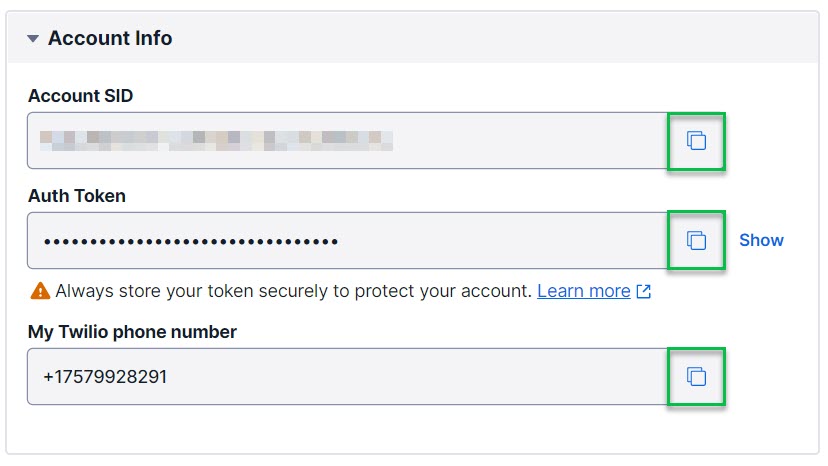
-
- Purse Identity Console
-
-
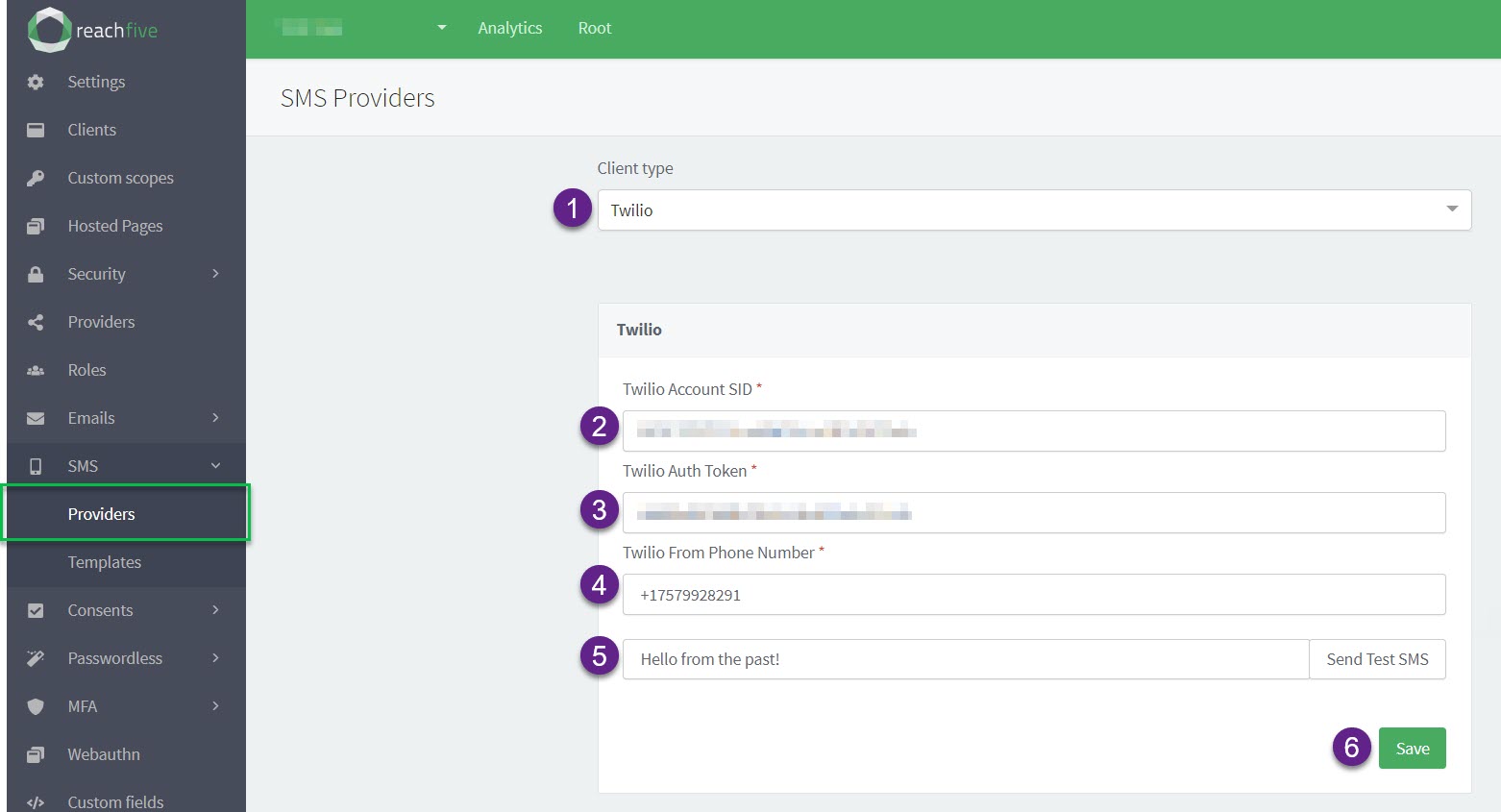
Go to and choose Twilio from the Client type dropdown.
-
Enter your Twilio Account SID.
-
Enter your Twilio Auth Token.
-
Enter the phone number from your Twilio Account that you configured to be your sender.
By default, Twilio assigns you a number. However, you can configure your own number to be used if so desired. -
Type something and click the Send Test SMS button.
You might have a local test server to see these messages. -
Don’t forget to Save your input.
-
Set up Custom SMS provider
Custom message payload forward compatibility
We sometimes enhance our services by adding new variables and fields to custom Email and SMS payloads.
To ensure your integration remains stable:
-
Do not use strict schema validation on the JSON payloads received from Purse Identity.
-
Ignore unknown fields: Your integration must be designed to gracefully ignore any variables or keys it does not recognize.
| Failure to follow this practice may cause your service to break when new features are released. This approach ensures that your integration continues to function correctly even as we introduce new features and enhancements. |
Instructions
-
Go to and choose Custom SMS Provider from the Client type dropdown.
-
Enter the endpoint for your custom provider’s SMS API.
-
Enter the HTTP Authorization value (if applicable).
If the API uses a non-standard authorization header, ensure you tick the Use non-standard name for the Authorization header box and enter the header name. -
Under Fields, choose which keys are sent in
personalizations. The same list is used for every template.Fields groups keys into Standard fields, Message fields, and Custom fields. In the dropdown those groups are headed Profile Fields, Message Fields, and Custom Fields. Standard fields and Message fields start selected. Custom fields stay unselected until you add them. phone_numberandtemplate_idare always sent, and they are not in this list. An empty Fields list sends only those two keys. A provider saved before this change keeps the fields it already sent, plus any custom fields you had already selected. A selectedcustom_fieldsentry is sent only when that field is present on the profile. The SMS list does not include email-only keys such asclient_id,verification_code,redirect_url,lockout_end_date, or device metadata. -
Select the Send Test SMS button.
-
Don’t forget to Save your input.
- Select the endpoint where you would like Purse Identity to send requests
-
An example request and payload are as follows. This sample is one possible Fields selection.
personalizationsincludes only the keys you selected. A selected key is omitted when that template has no value for it.phone_numberandtemplate_idare always sent.POST https://YOUR_DOMAIN{ "phone_number": "+33688888884", "template_id": "password_reset", (1) "personalizations": { "id": "id", "external_id": "externalId", "given_name": "Max", "last_name": "Robertson", "gender": "M", "sms_code": "smsCode", "lang": "fr", "locale": "fr-FR", "has_password": true, (2) } }1 The template_idis the SMS template. This is the ID for the template found at or alternatively for MFA at .2 The has_passwordvalue is included only for thepassword_resettemplate, and only when you selected that field.
|
The
|
Custom personalization fields
These are the personalizations keys you can select under Fields.
The Purse Identity Console groups them into Standard fields (profile data), Message fields (values from the message), and Custom fields.
Purse Identity sends a selected key only when that template has a value for it.
- SMS
-
Standard fields
-
id -
external_id -
given_name -
last_name -
gender -
has_password -
lite_only
-
Message fields
-
sms_code -
link -
lang -
locale -
action -
accept_url -
reject_url -
consent_title -
consent_description
Custom fields
-
custom_fields*
* custom_fields are the custom fields you select.
They are sent as an object, and only when they are present on the profile.
Retry policy
When Purse Identity cannot deliver a message through your provider, it retries automatically before giving up.
This policy applies to the following templates:
Purse Identity makes up to 4 delivery attempts: one initial attempt, then 3 retries.
After each failed attempt, Purse Identity waits 10 seconds before trying again.
Each failed attempt creates an sms_failure user event.
| See User events for event fields and a sample payload. |
| Other transactional messages (such as signup verification or MFA codes) are sent once. If delivery fails, a single failure event is still emitted. |