B.connect
To use B.connect as a social login provider, you need a Client ID and Client Secret from your B.connect app. You’ll then need to copy those keys into your Purse Identity settings.
Please contact the Purse Identity team if you want to implement this social provider.
B.connect data
This is the collectable data for B.connect.
User consent needed
-
Phone Number (
phoneNumber) - The user’s phone number.
-
Email Address (
email) - The user’s email address.
-
Email Verified (
emailVerified) - Indicates whether the user’s email is verified.
-
Name (
name) - The user’s full name.
-
First Name (
givenName) - The user’s first name.
-
Last Name (
familyName) - The user’s last name.
Prerequisites
-
You must have access to the Purse Identity Console.
-
You must have a Developer, Manager, or Administrator role.
Instructions
- Purse Identity
-
-
Log in to your Purse Identity Console.
-
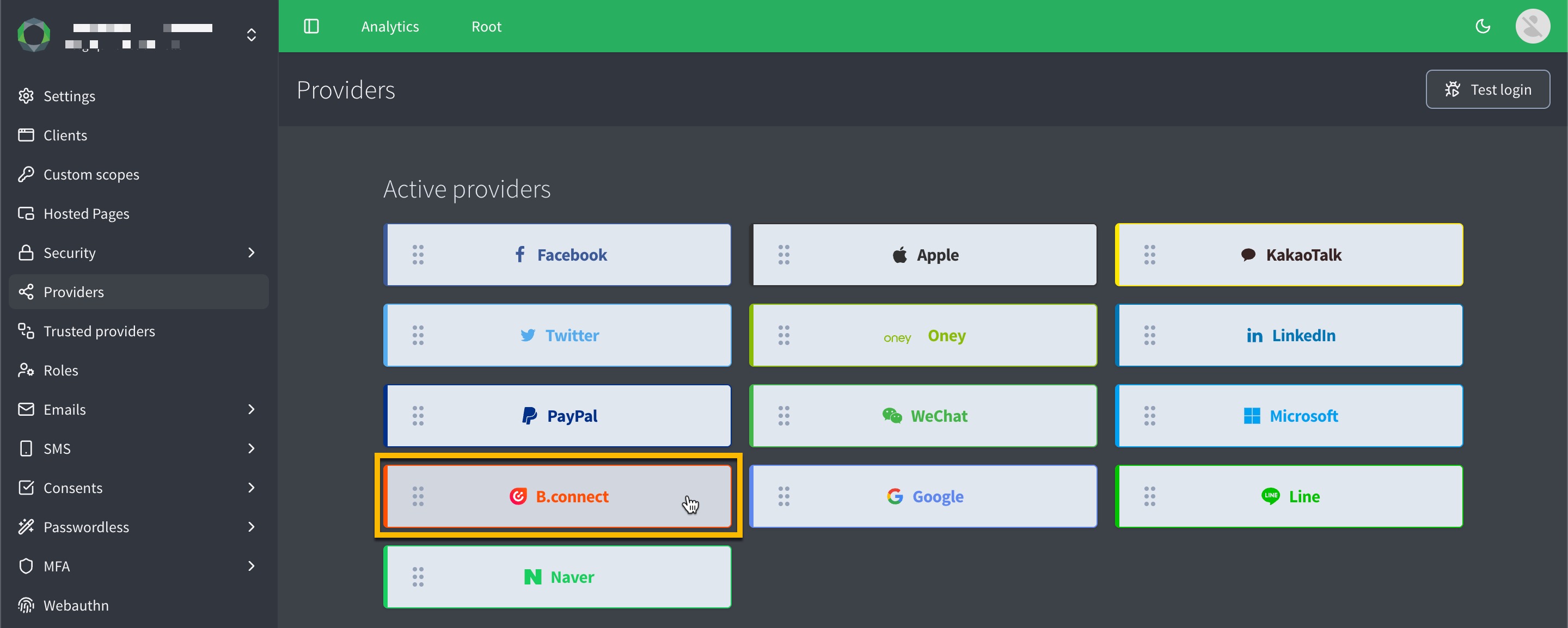
Go to and select B.connect.
-
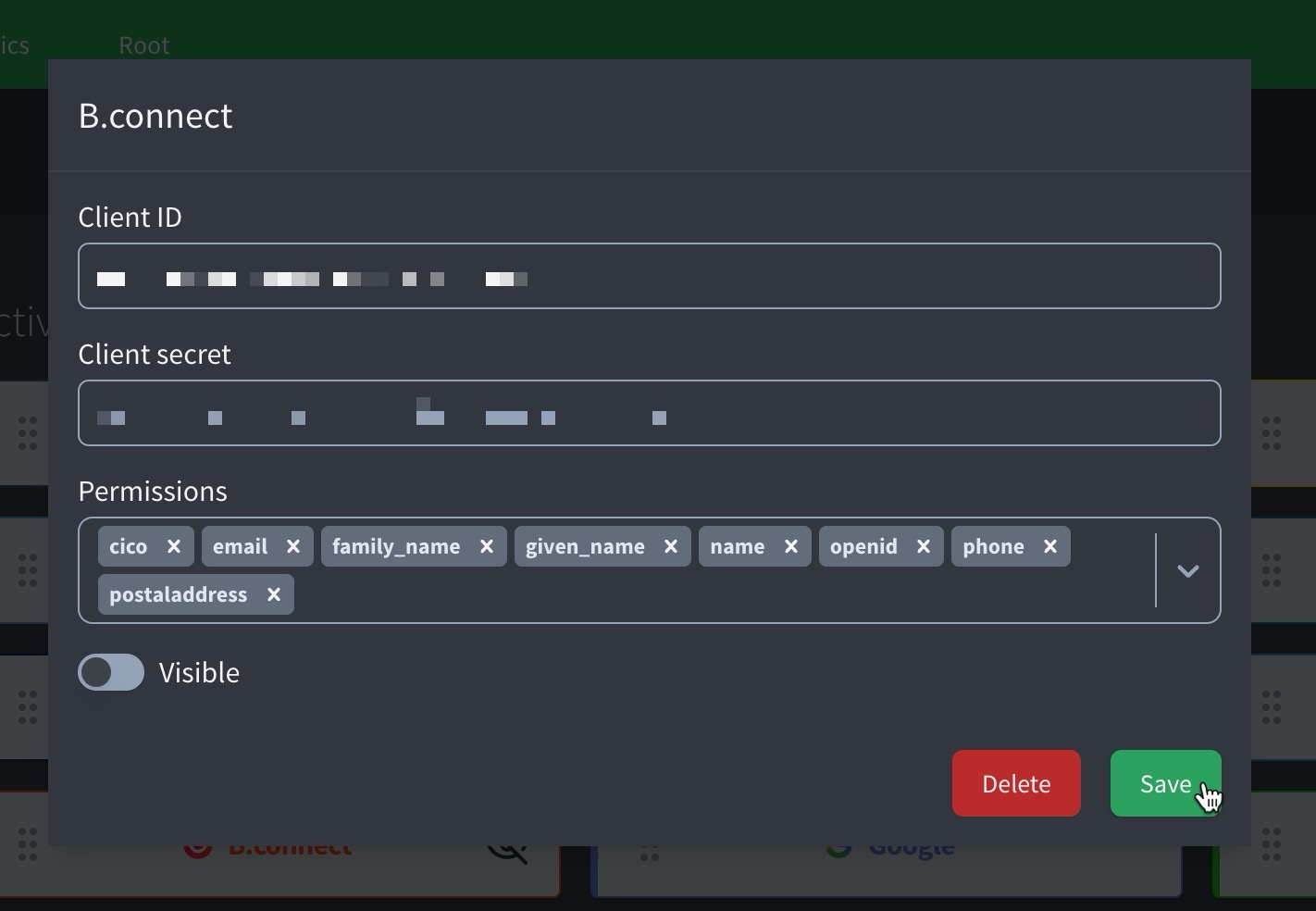
In the pop-up window:
-
Paste your B.connect Client ID.
-
Paste your B.connect Client secret.
-
Choose the desired Permissions from the drop-down menu.
openidis mandatory. The rest are optional. To retrieve thecicoinformation in the ID token payload, you must add thecicoscope. -
Don’t forget to Save your input.
-
-