Enable reCAPTCHA Enterprise from the console
You can enable reCAPTCHA Enterprise directly from the Purse Identity Console.
Prerequisites
-
You must have access to the Purse Identity Console.
-
You must have a Developer, Manager, or Administrator role.
-
You must have an existing client or you should create a new client.
-
You must have the reCAPTCHA feature enabled on the Purse Identity Console.
-
You must have a Google Cloud project with the reCAPTCHA Enterprise API enabled, and a credential for it (an API key or a service account key).
If you do not see the feature enabled, contact support. We’ll be happy to help.
Instructions
-
Log into your Purse Identity Console.
-
Go to .
-
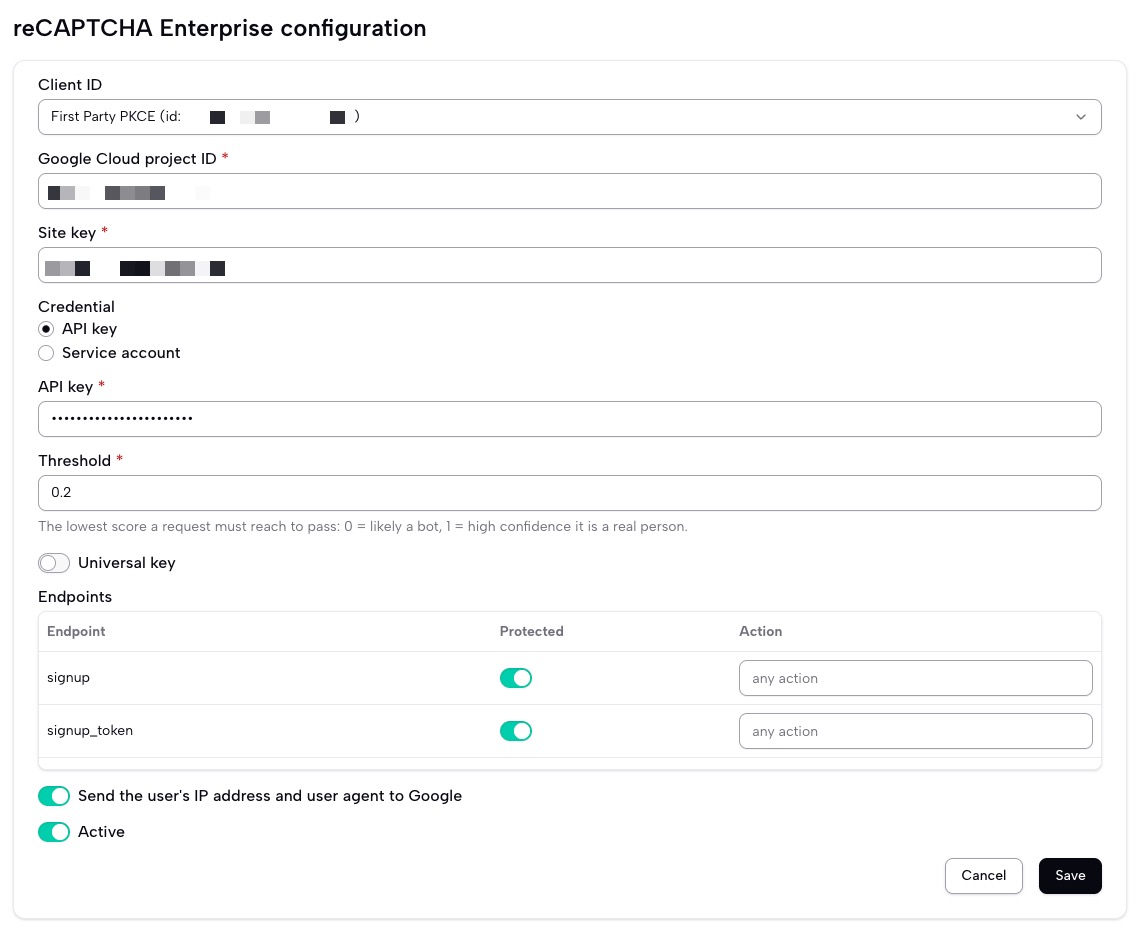
Choose the reCAPTCHA Enterprise tab.
-
Click New reCAPTCHA Enterprise configuration or edit an existing configuration.
-
Choose the client from the dropdown where you wish to apply reCAPTCHA Enterprise.
-
Enter the Google Cloud project ID that holds your reCAPTCHA Enterprise key.
-
Enter the site key.
-
Choose how Purse Identity authenticates to the reCAPTCHA Enterprise API, then enter the matching credential.
-
API key: a single key that covers every site key in the project.
-
Service account: the JSON key file Google Cloud hands out for a service account scoped to the project. It shows up as its own identity in Cloud Audit Logs, but some organization policies forbid downloadable service account keys.
When you edit an existing configuration, leave the credential field empty to keep the one already saved.
-
-
Set the threshold.
The threshold is the minimum reCAPTCHA Enterprise score an interaction must reach to pass.
1.0is highly likely to be a genuine interaction whereas0.0is most likely a bot or unwanted traffic. -
If your site key is a Universal key, turn on Universal key.
Google only scores a Universal key token when the request names the action the token was created for, so every endpoint you protect needs an action. -
Select the endpoints that you wish to apply reCAPTCHA Enterprise.
Current endpoints for reCAPTCHA Enterprise -
For each selected endpoint, enter the action name your page uses when it requests the token. Purse Identity rejects a token created for any other action.
-
With a Universal key, the action is required on every selected endpoint. The Purse Identity Console does not save the configuration until each one has an action.
-
With a regular key, the action is optional. Leave it empty to skip the action check for that endpoint.
-
-
Choose whether to send the end user’s IP address and user agent to Google, for use in its scoring.
-
Ensure you have selected the Active checkbox.
You can choose to temporarily disable the configuration for testing purposes without deleting your configuration, if necessary.
-
-
Don’t forget to Save your input.
Send the token from your app
How the token reaches Purse Identity depends on the type of key.
Get the token from reCAPTCHA Enterprise in your page, with the action you configured for the endpoint. Then pass it with the request:
-
With the Core SDK, in
captchaToken. -
With the Identity API, in
captcha_token.
You can also send recaptcha_enterprise as the provider, but you don’t have to: when the provider is missing, Purse Identity checks the token with the providers configured for the client.
Install the key with AutoExecute.
Google’s script then attaches the token to your requests itself, in the X-Recaptcha-Token header, so you don’t pass anything.
If a request carries a token in both the body and the header, Purse Identity uses the one in the body.
On mobile, pass the reCAPTCHA Enterprise token in the captcha parameter of the iOS SDK or the Android SDK.
With the UI SDK v2.2.0 or later, set the widget’s captcha option to { provider: 'recaptcha_enterprise', siteKey: '<your site key>' }.
The widget loads reCAPTCHA Enterprise and sends the token for you.
Add mode: 'autoExecute' for a Universal key with AutoExecute enabled, or mode: 'checkbox' for a key that shows an "I’m not a robot" checkbox.
The widgets request their tokens with these actions. Enter them for the matching endpoints in the Purse Identity Console:
| Action | Widget step |
|---|---|
|
Signup |
|
Login with a password |
|
Passwordless login, by email or SMS |
|
Email change in showEmailEditor |
|
Forgotten password and account recovery |
What your users experience
What the user sees depends on the type of key you created in Google Cloud, not on anything you set in the Purse Identity Console.
Users do not see any challenge or widget. A score is generated silently in the background during the interaction. No user action is required unless your application reacts to a low score, for example by blocking the flow or asking for additional identity checks.
Users see an interactive challenge, similar to reCAPTCHA v2: typically a checkbox labeled "I’m not a robot", sometimes followed by an image-based challenge. The user must complete the challenge before they can continue with the authentication flow.